Envoyer un extrait de code
Grâce aux extraits de code, vous pouvez envoyer des parties de code, des fichiers de configuration ou des fichiers journaux aux utilisateurs de votre espace de travail.
Voici comment procéder :
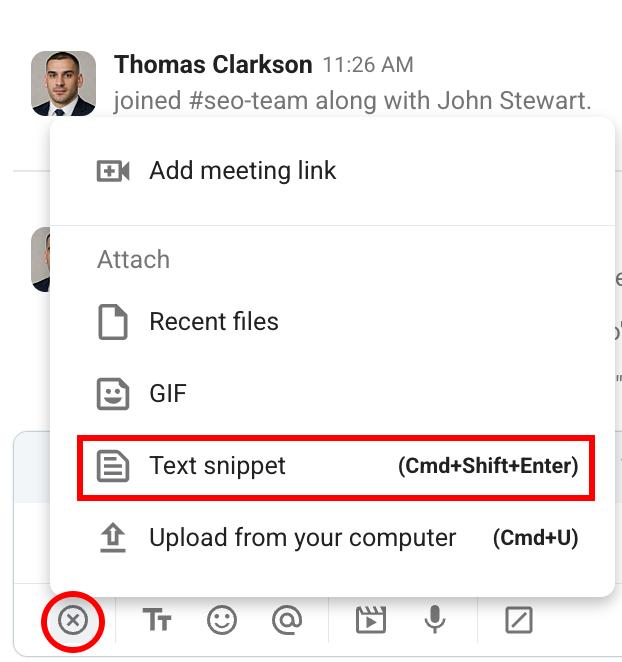
- Cliquez sur l’icône + dans l’éditeur de message
- Sélectionnez Extrait de texte
- Entrez le titre de l’extrait (optionnel)
- Sélectionnez le style de l’extrait
- Collez le code dans la section Contenu
- Cliquez sur Créer un extrait
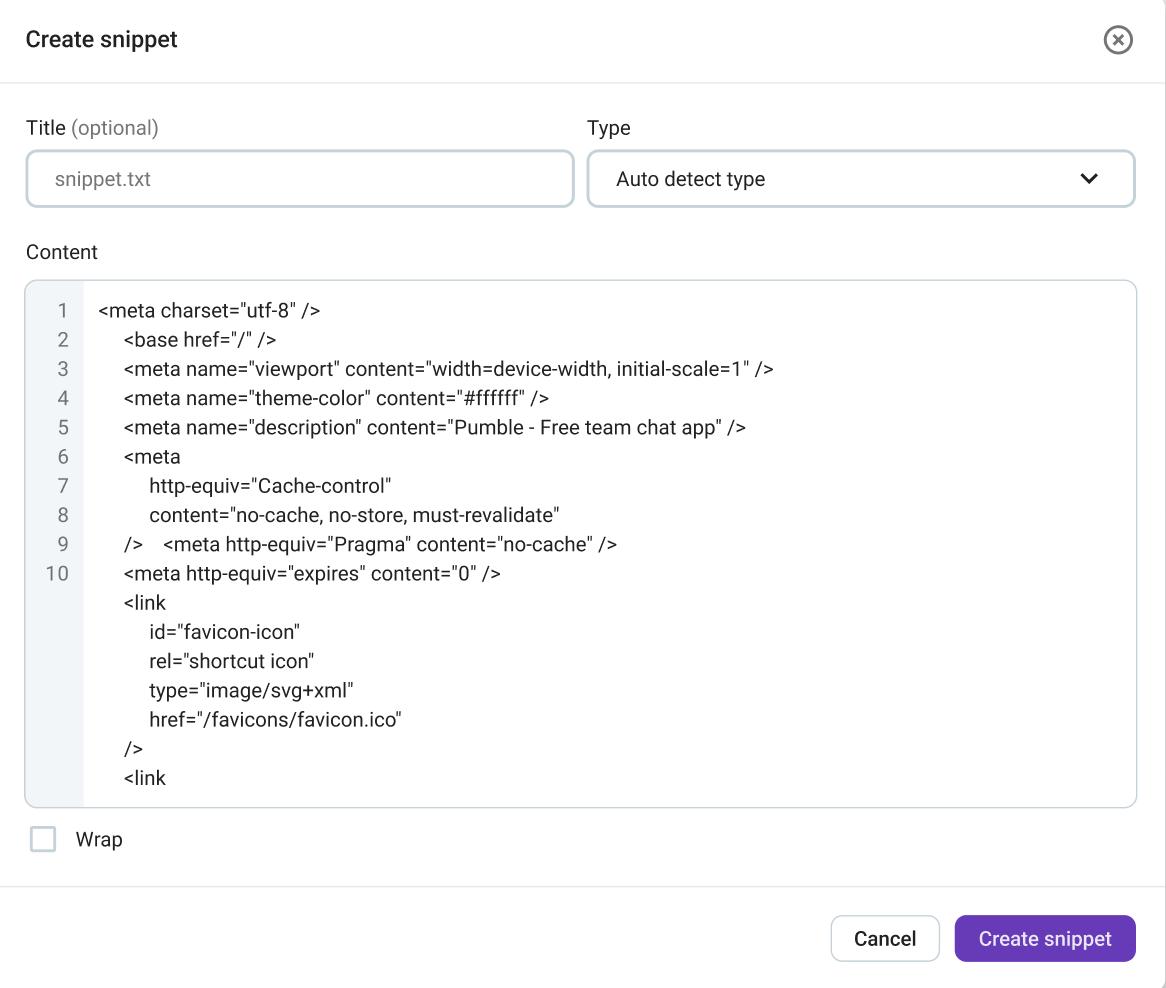
Les utilisateurs peuvent cliquer sur le bouton Envelopper pour modifier le nombre de lignes affichées dans l’extrait.
Vous pouvez ajouter un nouvel extrait à l’aide du raccourci clavier Ctrl/CMD + Maj + Entrée.
Modifier l’extrait #
Vous pouvez toujours modifier l’extrait et changer le code qu’il contient. Pour ce faire, passez votre souris sur l’extrait et cliquez sur l’icône en forme de crayon.
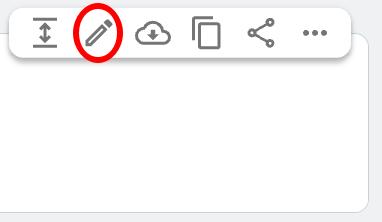
Cela ouvrira une fenêtre modale dans laquelle vous pourrez personnaliser l’extrait.
Partager l’extrait #
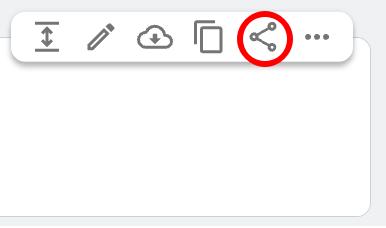
Vous pouvez partager des extraits de code directement avec d’autres utilisateurs de l’espace de travail. Voici comment procéder :
- Passez la souris sur un extrait
- Cliquez sur l’icône de partage
- Sélectionnez les utilisateurs
- Rédigez votre message (optionnel)
- Cliquez sur Partager
Copier l’extrait dans le presse-papiers #
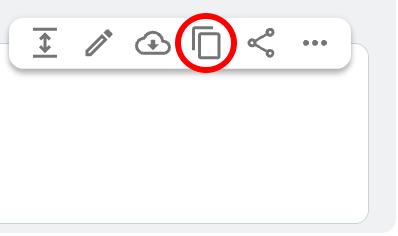
Si vous souhaitez coller le bout de code quelque part, vous pouvez le copier dans votre presse-papiers en cliquant sur l’icône Copier dans le presse-papiers.
Télécharger l’extrait #
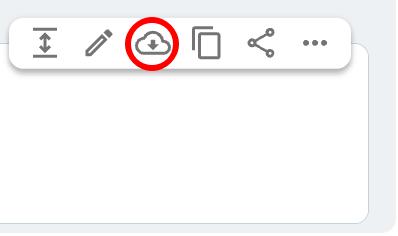
Vous pouvez enregistrer des extraits de code directement sur votre ordinateur en cliquant sur le bouton de téléchargement. Les fichiers seront enregistrés au format .txt.
Supprimer l’extrait #
Pour supprimer un extrait de code de votre espace de travail, procédez comme suit :
- Passez la souris sur un extrait
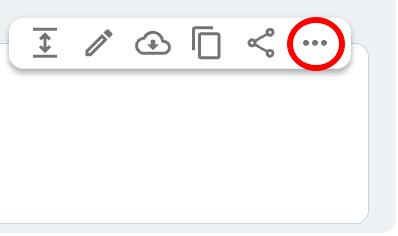
- Cliquez sur les trois points
- Cliquez sur Supprimer le fichier
- Cliquez sur Supprimer pour confirmer l’action