Module complémentaire Assistant IA de Pumble
Le module complémentaire « Assistant IA » de Pumble permet aux administrateurs d’espace de travail de connecter celui-ci à un fournisseur d’IA. Une fois l’extension activée, les utilisateurs peuvent interagir avec l’assistant IA directement dans Pumble. Pour ce faire, ils peuvent lui envoyer un message privé ou le mentionner dans un canal ou un message privé de groupe.
Pour utiliser l’assistant IA de Pumble, vous devez d’abord le connecter à un fournisseur d’IA compatible (tel que Gemini, GPT ou Grok) à l’aide d’une clé API. Notez que seuls les propriétaires et les administrateurs de l’espace de travail sont autorisés à établir cette connexion.
Configurer le module complémentaire « Assistant IA » #
Pour commencer, ajoutez l’assistant IA depuis la barre latérale gauche. Voici comment procéder :
- Cliquez sur + Ajouter des applis
- Sélectionnez Installer à côté du module complémentaire de l’assistant IA
- Acceptez les autorisations
Si l’extension de l’assistant IA est déjà installée dans votre espace de travail, il vous suffit de l’autoriser.
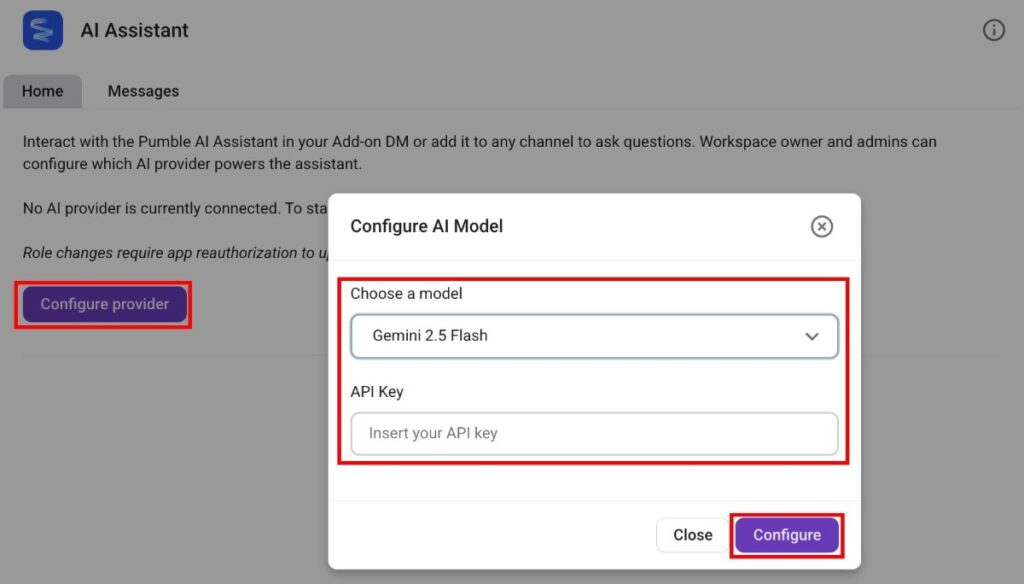
Vous devrez ensuite connecter le modèle d’IA à l’aide de la clé API.
- Cliquez sur l’assistant IA dans la barre latérale gauche
- Assurez-vous que vous êtes sur l’onglet Accueil
- Cliquez sur Configurer le fournisseur
- Sélectionnez un modèle d’IA
- Collez la clé API
- Cliquez sur Configurer pour terminer l’action
Communiquer avec l’assistant IA #
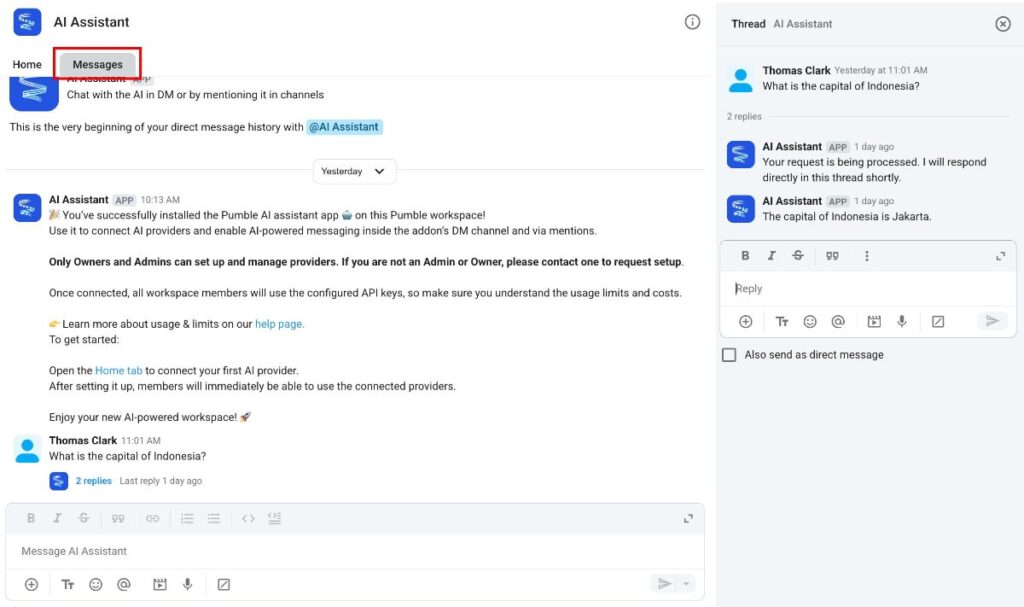
Une fois le module complémentaire configuré dans votre espace de travail, vous pouvez lui envoyer des requêtes en lui envoyant un message. Voici comment procéder :
- Cliquez sur l’assistant IA dans la barre latérale gauche
- Ouvrez l’onglet Messages
- Saisissez votre requête dans la zone de message
Lorsque vous envoyez une requête à l’assistant IA, celui-ci vous répondra dans un fil de discussion. Cette réponse n’est visible que par vous.
Mentionner l’assistant IA dans les canaux ou les messages de groupe #
L’assistant IA est également accessible dans les conversations de groupe et les messages privés. Pour solliciter une réponse de l’assistant IA, mentionnez-le simplement dans le canal ou le message privé concerné. L’assistant fournira alors sa réponse dans le fil de discussion.
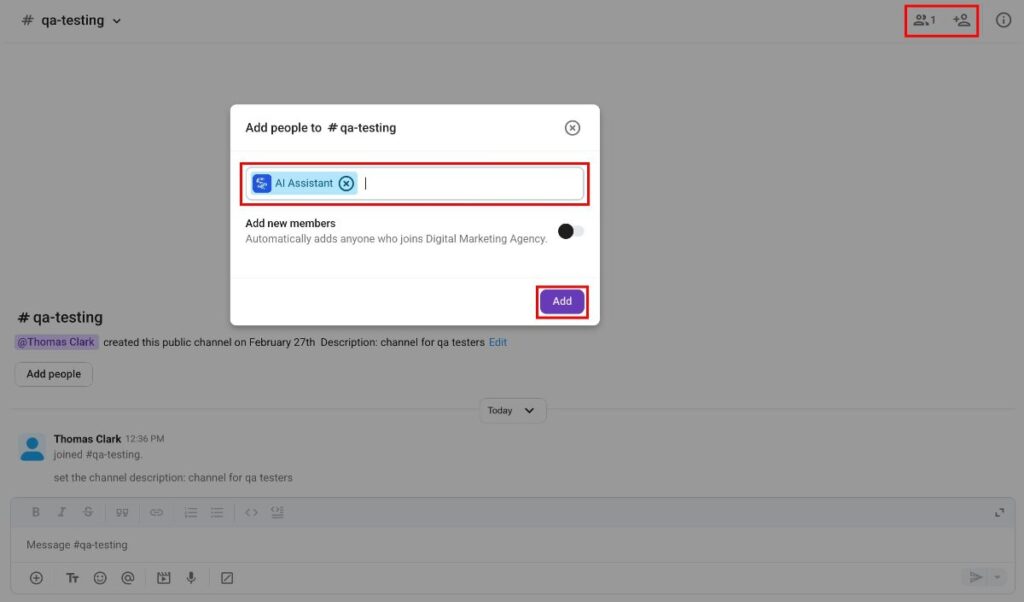
Avant de mentionner l’assistant IA, vous devrez l’ajouter à un canal ou à une conversation privée de groupe. Voici comment procéder :
- Ouvrez un canal ou une conversation privée de groupe
- Appuyez sur l’icône des membres dans le coin supérieur droit
- Sélectionnez Ajouter des personnes
- Recherchez l’assistant IA
- Cliquez sur Ajouter pour terminer l’action
Si vous n’ajoutez pas l’assistant IA aux messages privés du canal/groupe, dès que vous le mentionnerez, une fenêtre de message s’affichera avec la possibilité de l’ajouter.
Une fois l’assistant IA ajouté, vous pouvez lui envoyer des requêtes en suivant les étapes suivantes :
- Ouvrez le canal ou la conversation privée du groupe dont l’assistant IA fait partie
- Tapez @Assistant IA dans la zone de message
- Rédigez votre requête
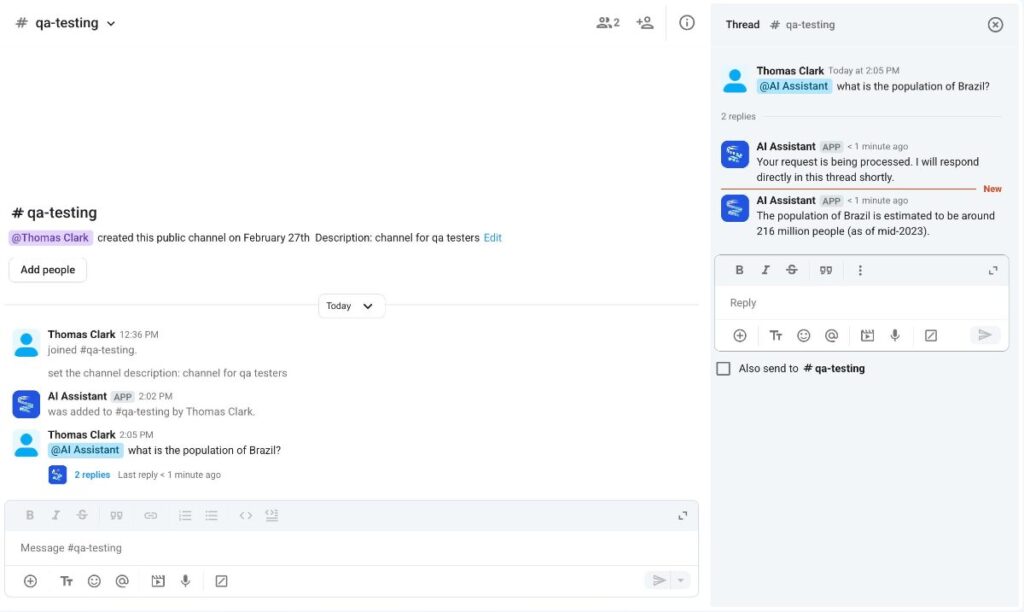
L’assistant IA répondra à votre demande dans un fil de discussion, et tous les membres du canal ou du groupe pourront voir sa réponse.
Résumer le contenu d’un fil de discussion #
Grâce à l’assistant IA, vous pouvez résumer le contenu d’un fil de discussion et saisir rapidement l’essentiel d’une conversation sans avoir à tout lire. Voici comment procéder :
- Ouvrez le fil de discussion que vous souhaitez résumer
- Tapez /ai-summarize dans la zone de message
- Envoyez le message
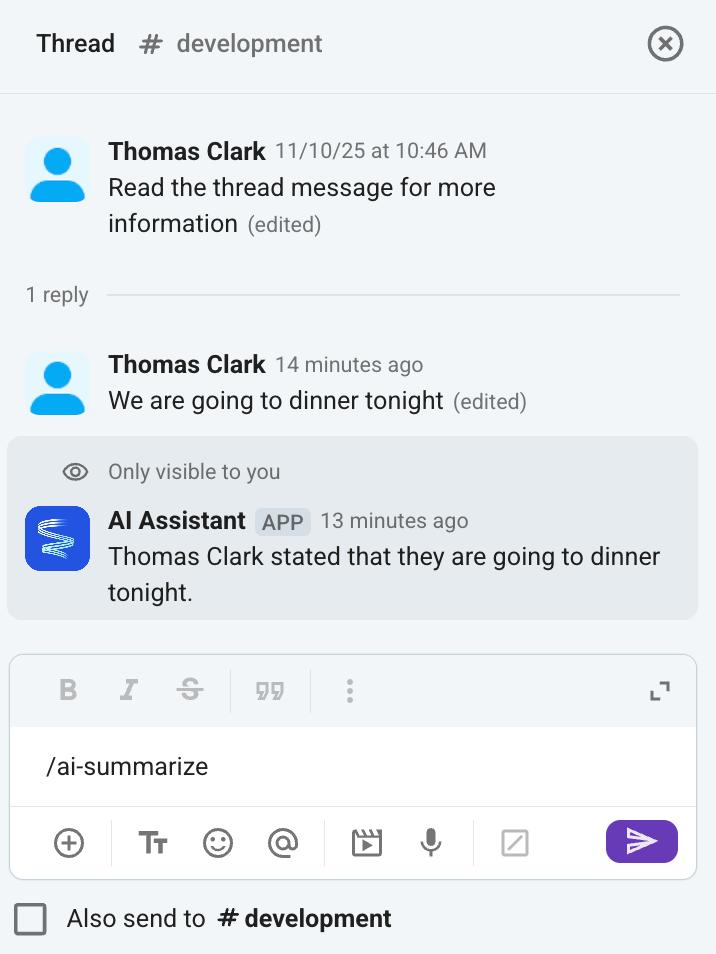
Lorsque vous utilisez la commande /ai-summarize dans un fil de discussion, vous recevez un message temporaire qui résume l’intégralité du contenu du fil. Ce message n’est visible que par vous.
Le résumé généré par l’IA est utilisable dans les canaux publics sans nécessiter l’ajout de l’assistant IA comme membre. Néanmoins, pour bénéficier du résumé dans les canaux privés et les messages privés de groupe, il est impératif d’intégrer l’assistant IA, au même titre que n’importe quel autre participant.