Gestionnaire de canal
Les gestionnaires de canaux délèguent la gestion des paramètres et des membres à des utilisateurs de confiance, réduisant la charge des propriétaires et administrateurs tout en conservant des canaux organisés.
Comment ajouter des gestionnaires #
Vous pouvez ajouter ou supprimer des gestionnaires de canaux uniquement depuis l’appli Web ou de bureau. Les applis mobiles permettent actuellement d’afficher la liste des gestionnaires seulement.
Vous pouvez ajouter des gestionnaires à n’importe quel canal dans Pumble. Voici comment procéder :
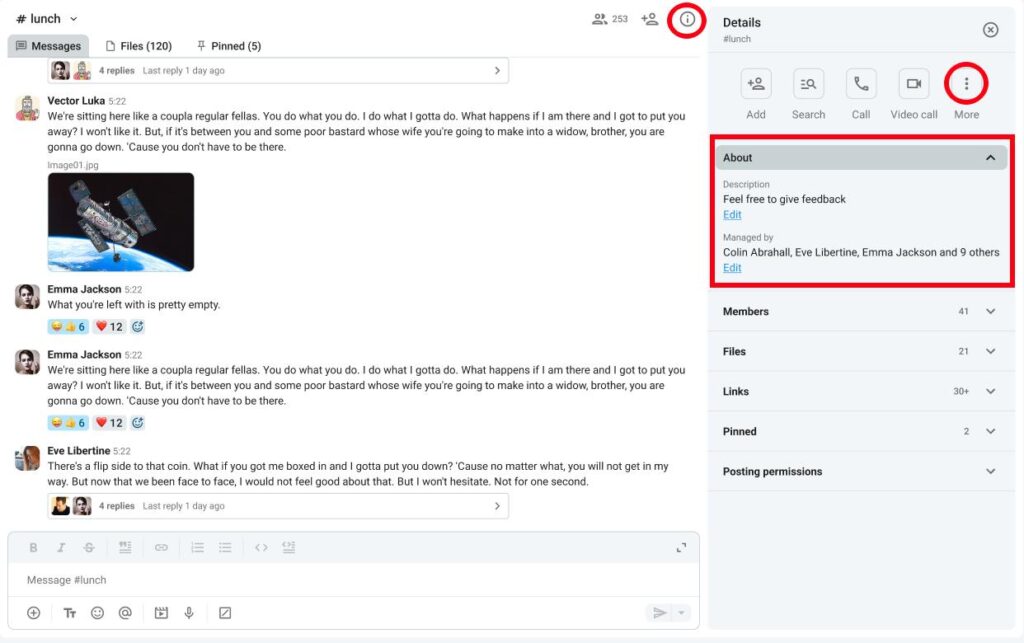
- Cliquez sur Détails du canal à droite
- Cliquez sur À propos
- Cliquez sur Modifier sous Géré par
- Cliquez sur Ajouter des gestionnaires
- Saisissez le nom de l’utilisateur
- Cliquez sur Ajouter pour terminer l’action
Ou
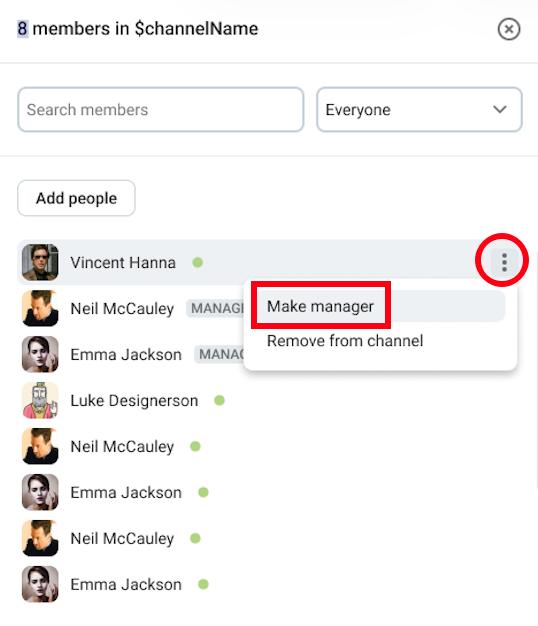
- Cliquez sur Membres
- Survolez un membre avec la souris
- Cliquez sur les trois points à côté du membre
- Cliquez sur Nommer gestionnaire
- Confirmez l’action
Seuls les membres du canal peuvent être désignés comme gestionnaires.
Le créateur d’un canal en devient automatiquement le gestionnaire.
Autorisations des gestionnaires #
Consultez le tableau ci-dessous pour comparer les permissions des utilisateurs et des gestionnaires :
| Autorisations | Gestionnaire de canal | Membre standard |
| Retirer un membre d’un canal | ✔️ | ✖️ |
| Définir la description du canal | ✔️ | ✖️ |
| Convertir un canal public en canal privé | ✔️ | ✖️ |
| Supprimer les messages d’autres utilisateurs (si autorisé au niveau global) | ✔️ | ✖️ |
| Ajuster les autorisations de publication | ✔️ | ✖️ |
| Bloquer le droit de publication des membres du canal | ✔️ | ✖️ |
| Renommer le canal | ✔️ | ✖️ |
Supprimer des gestionnaires #
Pour retirer le rôle de gestionnaire à un utilisateur :
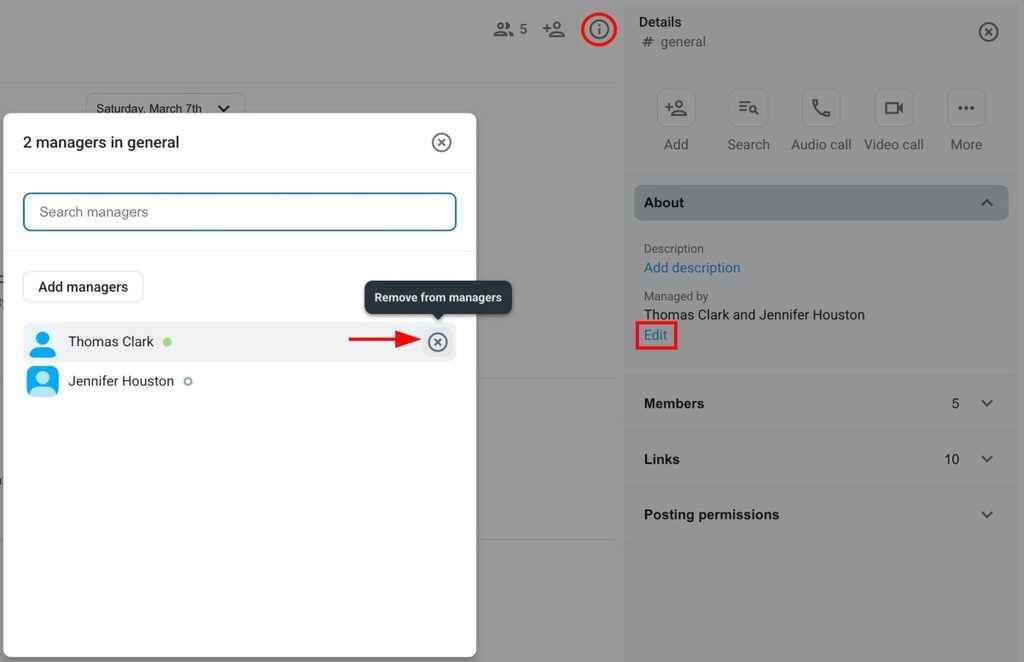
- Cliquez sur Détails du canal à droite
- Cliquez sur À propos
- Cliquez sur Modifier sous Géré par
- Survolez un gestionnaire avec la souris
- Cliquez sur X situé à droite
- Cliquez sur Retirer pour confirmer l’action
Ou
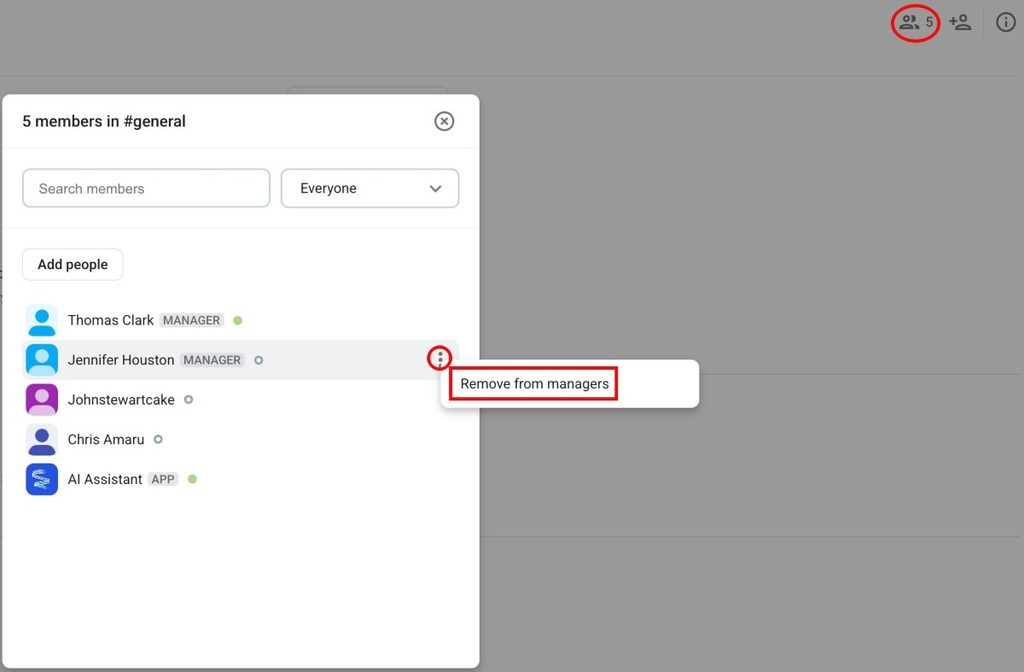
- Cliquez sur Membres
- Survolez un membre avec la souris
- Cliquez sur les trois points à côté du membre
- Cliquez sur Retirer le rôle de gestionnaire
- Confirmez l’action
Empêcher des utilisateurs et des groupes de publier #
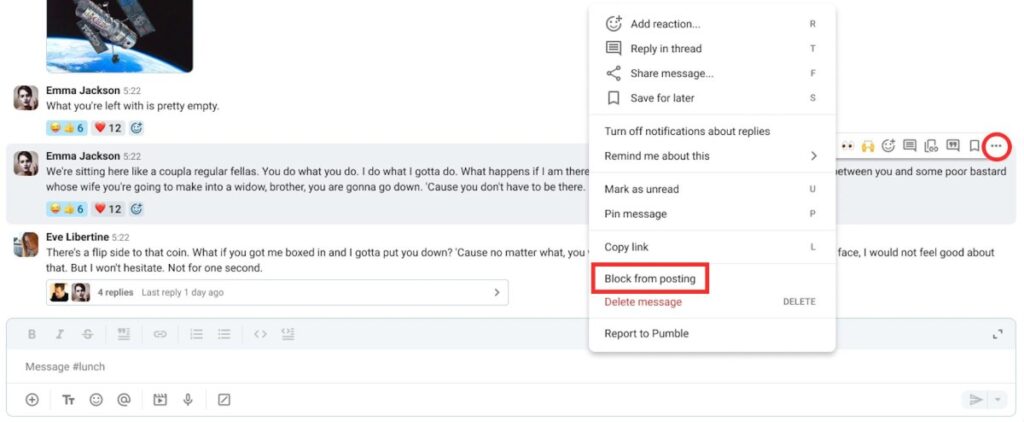
Les gestionnaires peuvent bloquer le droit de publication de certains utilisateurs ou groupes d’utilisateurs dans les canaux. Voici comment procéder :
- Survolez un message
- Faites un clic droit sur un message
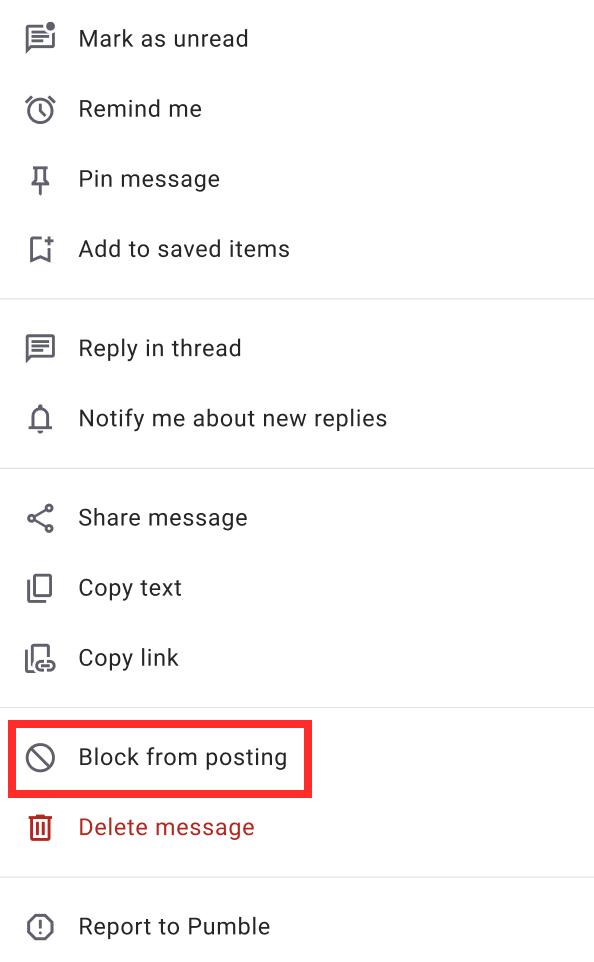
- Cliquez sur Bloquer le droit de publication
- Cliquez sur Bloquer pour confirmer l’action
Pour bloquer la publication d’utilisateurs ou de membres directement depuis les paramètres :
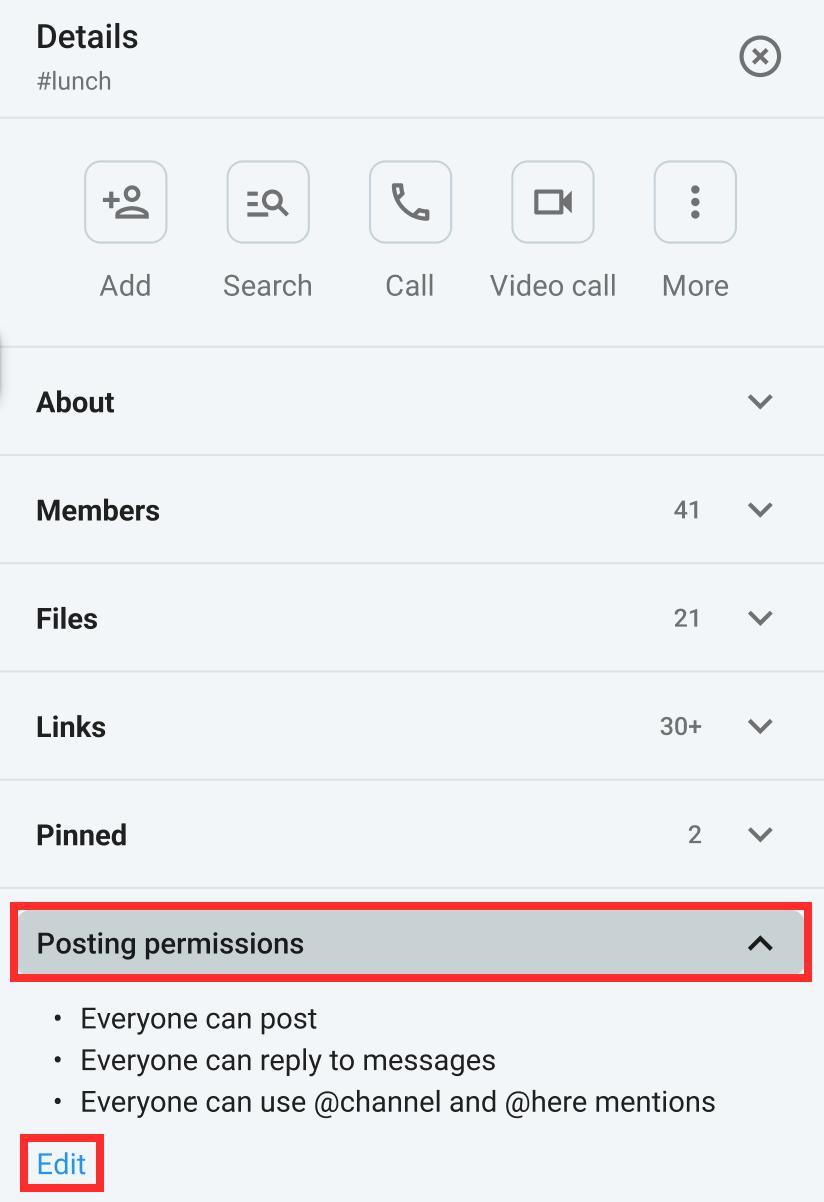
- Cliquez sur Détails du canal
- Allez dans Autorisations de publication
- Cliquez sur Modifier
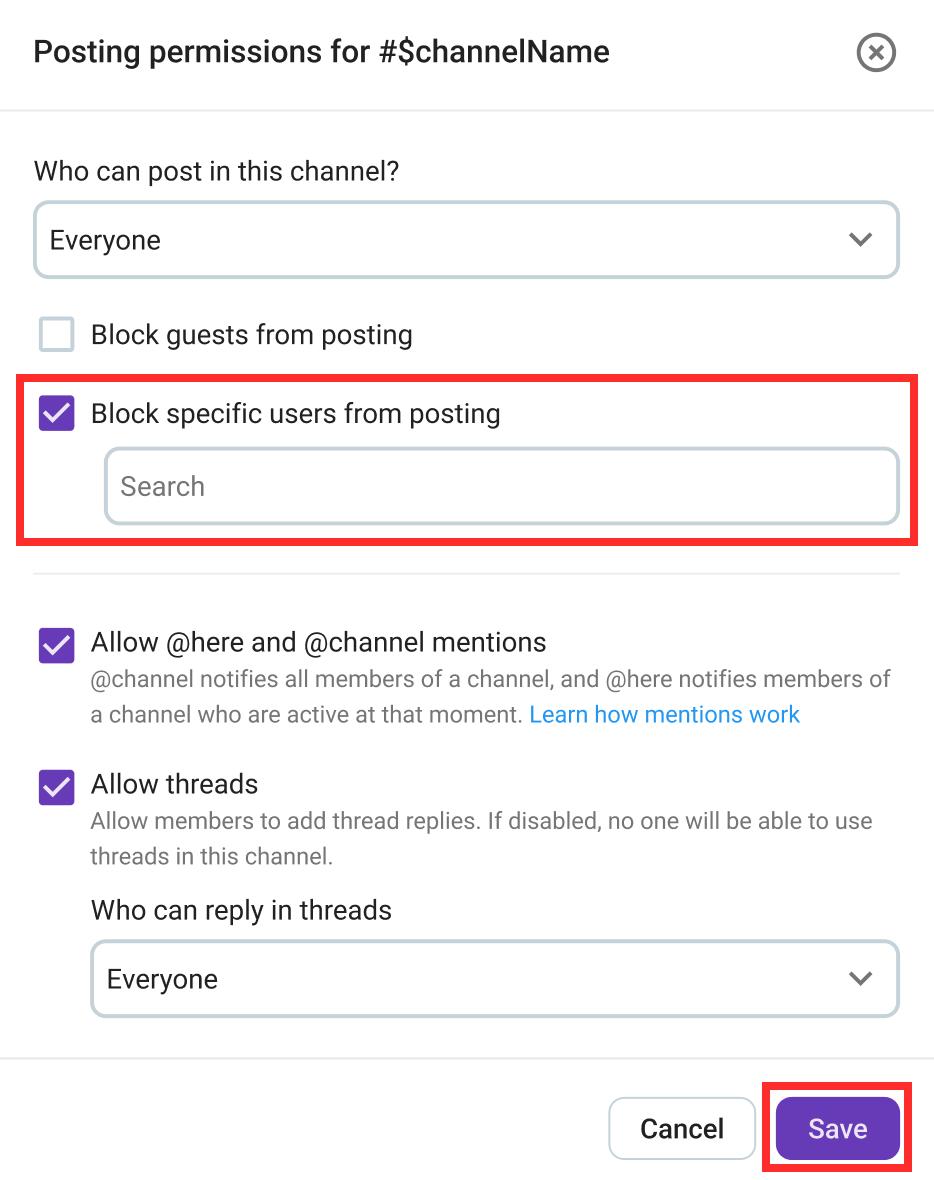
- Cochez Bloquer le droit de publication d’utilisateurs spécifiques
- Sélectionnez l’utilisateur ou le canal concerné
- Cliquez sur Enregistrer pour valider l’action
- Appuyez longuement sur le message d’un utilisateur
- Appuyez sur Empêcher la publication
- Confirmez l’action
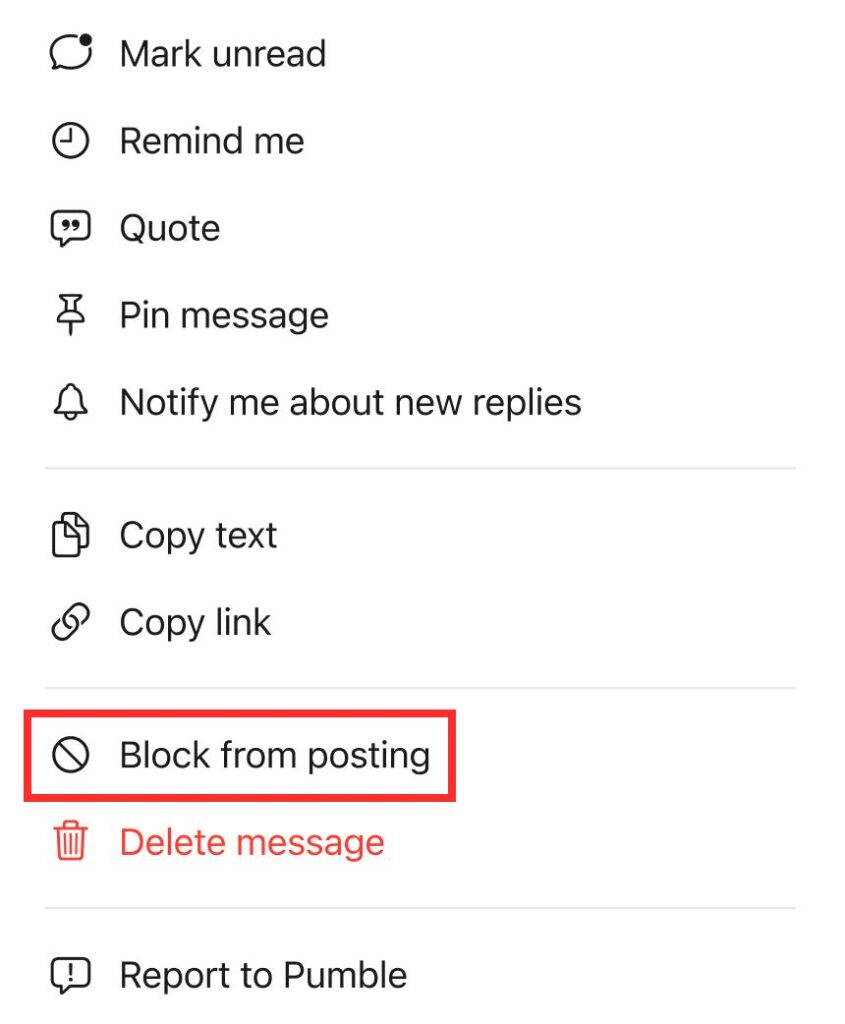
- Appuyez longuement sur le message d’un utilisateur
- Appuyez sur Empêcher la publication
- Confirmez l’action