


¿Alguna vez has salido de una reunión pensando: "¿De qué se trató esto?"
Se alargó demasiado, el orador intentó involucrar al equipo y explicar su punto de vista, pero aun así no tuvo éxito. Lo que les faltó fue una representación visual de sus ideas.
Ahí es donde compartir pantalla habría sido beneficioso.
Compartir pantalla es una función indispensable en las herramientas de comunicación para equipos actuales. Ayuda a los equipos a:
- Realizar presentaciones remotas claras,
- Colaborar en tiempo real, y
- Convertir las reuniones en recursos reutilizables.
Esta guía explica:
- Por qué es importante compartir pantalla,
- Cómo impacta en la colaboración del equipo y,
- Lo más importante, cómo funciona compartir pantalla en Pumble by CAKE.com.
Por qué compartir pantalla es una función esencial para los equipos modernos
En equipos distribuidos y remotos, la mayoría de los problemas surgen de una comunicación poco clara.
Explicar un panel de control complejo con palabras puede ser casi imposible. Describir un problema de diseño en el chat puede generar horas de intercambio de mensajes para aclarar dudas. Organizar una reunión sin contexto visual puede dar lugar a diferentes interpretaciones del mismo tema.
La función de compartir pantalla de Pumble lo soluciona, y aquí te explicamos cómo.
La toma de decisiones es más rápida con contexto visual
Las explicaciones visuales reducen la ambigüedad y los errores de interpretación.
Cuando los equipos pueden ver los datos, la interfaz o el plan en tiempo real, las discusiones son más fáciles y precisas. Tus ideas se vuelven prácticas en lugar de teóricas.
En lugar de lidiar con suposiciones y explicaciones extensas, compartir la pantalla permite abordar los problemas directamente y establecer el mismo punto de referencia para todos.
La referencia visual compartida mejora la colaboración del equipo en tiempo real y acelera la toma de decisiones informadas.
Menos reuniones de seguimiento
Las reuniones de seguimiento se realizan por una simple razón: algo no quedó del todo claro la primera vez.
Compartir la pantalla combinado con la grabación de llamadas reduce la cantidad de malentendidos. Las personas podrán revisar la información compartida, lo que disminuye drásticamente la necesidad de reuniones de seguimiento.
Con presentaciones bien gestionadas mediante la función de compartir pantalla, te asegurarás de que:
- Todas las preguntas se respondan al instante,
- Las discusiones se mantengan centradas, y
- Los equipos salgan de las reuniones con menos ambigüedad.
Además, ayudará a que los malentendidos salgan a la luz más rápidamente para que puedan resolverse de inmediato.
Como resultado, tendrás menos llamadas para aclarar dudas, menos idas y venidas y más reuniones que realmente resuelvan problemas.
Organiza reuniones efectivas en Pumble
Comunicación interna y externa mejoradas
Compartir pantalla es igualmente útil para la alineación interna y las reuniones externas.
Internamente, puede ayudar a los equipos multifuncionales a colaborar de forma más eficaz. Las personas de diferentes departamentos pueden entenderse mejor y colaborar con menos fricción.
Externamente, facilita presentaciones profesionales y concisas para clientes, socios e inversores. Verán lo que quieres que vean, sin distracciones ni confusiones.
Cómo funciona compartir pantalla en Pumble (guía paso a paso)
Ahora veamos cómo usar la función de compartir pantalla en las videollamadas de Pumble.
1. Inicia o únete a una videollamada de Pumble
La función de compartir pantalla está disponible directamente en las videollamadas de Pumble. Simplemente inicia una llamada desde un canal o mensaje directo, o únete a una reunión en curso.
2. Haz clic en el botón "Compartir pantalla"
Durante la llamada, haz clic en el botón de compartir pantalla.

Pumble te pedirá que elijas qué quieres compartir. Puedes seleccionar entre diferentes vistas, según tus necesidades y preferencias.
3. Elige qué quieres compartir
Pumble ofrece opciones flexibles para compartir pantalla.
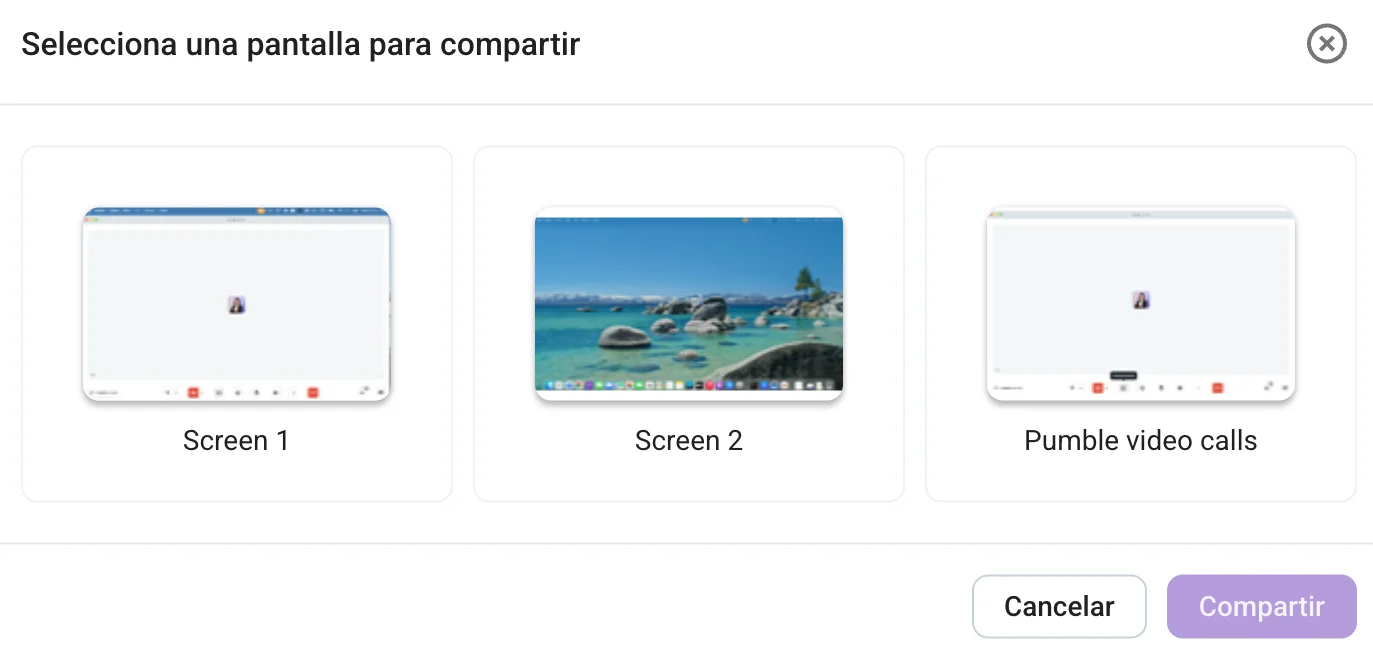
Puedes compartir toda tu pantalla, esta opción muestra todo lo que se ve en tu monitor. Es ideal para:
- Demostraciones de software en vivo,
- Sesiones de resolución de problemas, y
- Flujos de trabajo que requieren alternar entre varias aplicaciones.
Te brinda total flexibilidad, pero requiere atención para evitar mostrar contenido irrelevante.
Si estás realizando una presentación remota estructurada, compartir solo la ventana de la presentación suele ser la mejor opción.
De esta manera, puedes mantener una apariencia limpia y profesional y asegurarte de que todo el contenido irrelevante permanezca oculto. Puedes hacerlo eligiendo compartir solo la ventana de tu navegador o la aplicación en la que estás realizando tu presentación.
4. Presenta en tiempo real
Una vez que selecciones tu pantalla, los participantes verán el contenido inmediatamente en tiempo real.
Ellos pueden:
- Levantar la mano para participar en debates durante tu presentación,
- Dar reacciones, y
- Usar el chat para hacer preguntas.
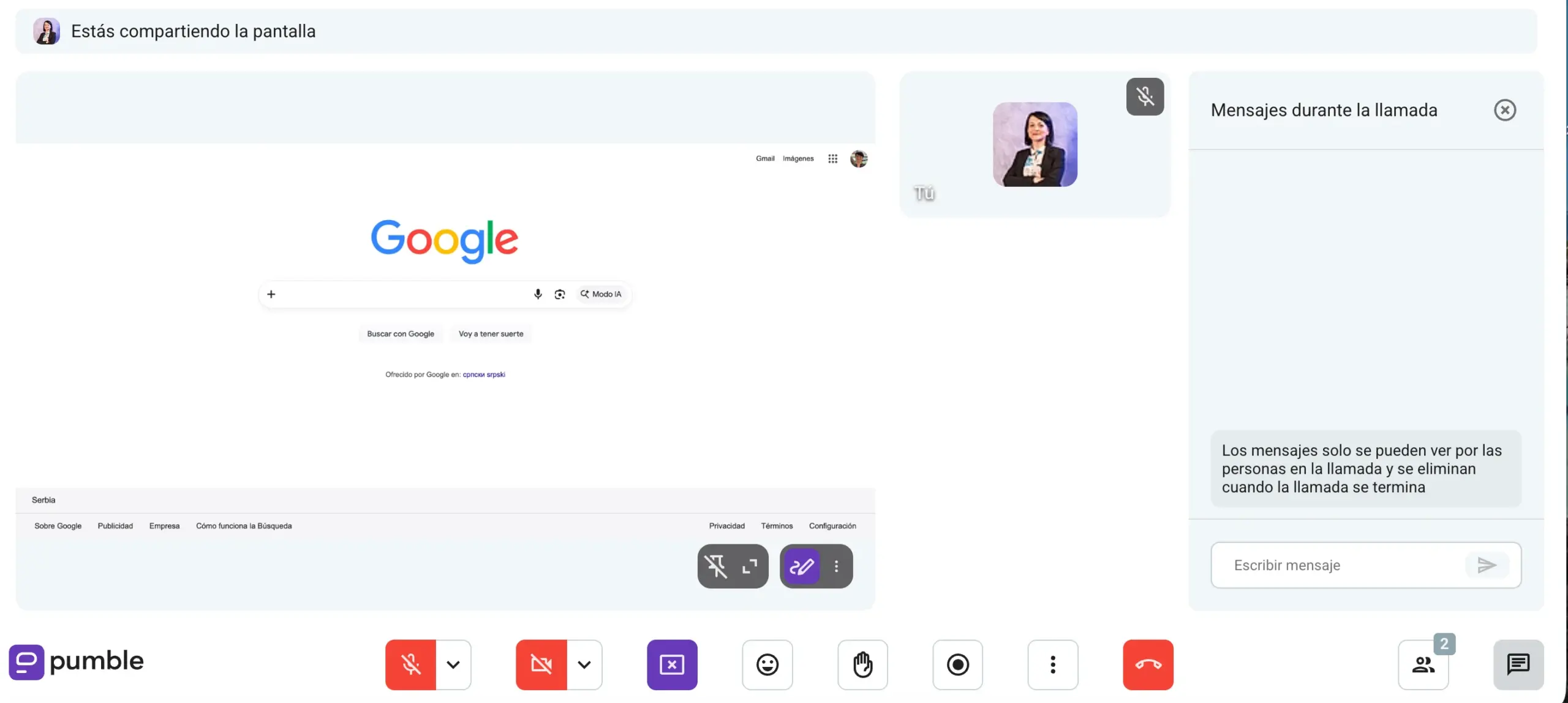
Esto permite la colaboración en tiempo real sin interrumpir la presentación.
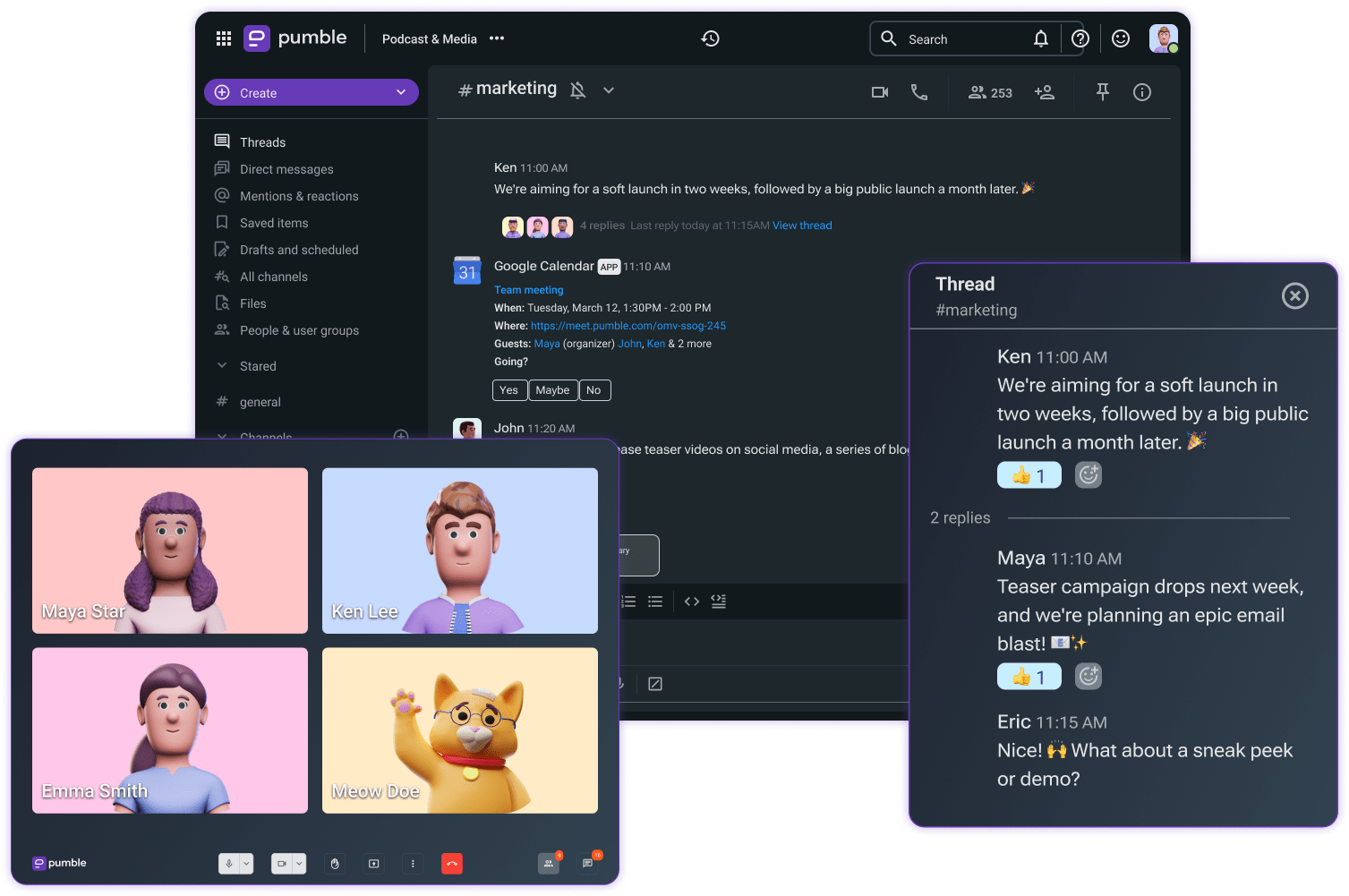
Consejos adicionales para mejorar tus presentaciones en Pumble
Una vez que domines las funciones básicas para compartir pantalla en Pumble, podrás usar otras funciones para optimizar tus reuniones y presentaciones.
Aquí tienes 3 consejos prácticos para sacar el máximo provecho de tus llamadas en Pumble:
1. Amplía la imagen para ver los detalles
El texto pequeño, los gráficos detallados y las tablas complejas pueden ser difíciles de leer en reuniones virtuales.
La función de compartir pantalla de Pumble tiene la opción de zoom, que te permite ampliar o reducir áreas específicas de la pantalla durante la presentación. Puede ser especialmente útil al visualizar:
- Hojas de cálculo extensas con datos detallados,
- Informes financieros,
- Planes de desarrollo de productos complejos,
- Componentes de interfaz de usuario y elementos de diseño, o
- Paneles de análisis con métricas detalladas.
De esta forma, se evitan las preguntas de "¿Puedes hacer zoom?", ya que todos pueden ampliar la imagen cuando necesiten ver algo con mayor claridad. Esto reduce las interrupciones y mejora la comprensión, especialmente al presentar contenido técnico o con gran cantidad de datos.
2. Usa la mensajería durante la llamada para preguntas y comentarios rápidos
Las videollamadas de Pumble también incluyen una función de chat integrada.
Durante tu presentación, los participantes pueden usar la mensajería durante la llamada para:
- Hacer preguntas sin interrumpir al orador,
- Compartir enlaces a documentos relacionados, o
- Publicar comentarios adicionales.
Esto mejora la colaboración y la participación del equipo al permitir la comunicación paralela por texto.
3. Graba tu reunión para verla más tarde
Mientras compartes tu pantalla y realizas una presentación, puedes activar la grabación de la reunión para capturar:
- El contenido visual que se presenta,
- El audio del orador y los participantes, y
- El contexto completo de la conversación.

Esto crea un registro completo de la sesión para los miembros del equipo que no pudieron conectarse o que quieren volver a ver la reunión para aclarar dudas.
También puede reducir la necesidad de repetir reuniones. Por ejemplo, en lugar de repetir la misma demostración del producto varias veces, puedes grabarla una sola vez y reutilizarla.
Las grabaciones de reuniones también son útiles para la incorporación y capacitación de nuevos empleados: una sesión de capacitación grabada puede servir de apoyo a decenas de miembros del equipo a lo largo del tiempo.
Además, con una reunión grabada, tus clientes pueden repasar los puntos clave sin necesidad de programar otra llamada.
Solución de comunicación integral: Pumble by CAKE.com
Compartir pantalla en las videollamadas de Pumble es una función esencial para una comunicación y colaboración más sencillas y efectivas. Pero eso no es todo lo que Pumble ofrece.
Pumble es una herramienta de comunicación integral que reúne videollamadas, mensajería y uso compartido de archivos en una plataforma unificada.
En lugar de usar herramientas separadas para chat, presentaciones y colaboración, los equipos que usan Pumble gestionan todo en un único espacio de trabajo compartido.
Para los equipos que necesitan una comunicación sencilla y fiable sin tener que cambiar de aplicación, Pumble es una solución práctica e integral que facilita todas las tareas diarias del equipo.
Empieza a utilizar Pumble by CAKE.com
Cómo revisamos esta publicación: Nuestros escritores y editores monitorean las publicaciones y las actualizan cuando hay nueva información disponible, para mantenerlas frescas y relevantes.