Atualizado em: 10 de dezembro de 2025

Se você já abriu o aplicativo de comunicação da sua equipe numa segunda-feira de manhã e se sentiu sobrecarregado com a quantidade de mensagens não lidas e notificações nos canais, saiba que não está sozinho.
Quando o chat da equipe é nossa principal forma de comunicação, é fácil que informações importantes se percam em meio à multidão.
É aí que entra o conceito de "higiene do espaço de trabalho". Trata-se da ideia simples de que sua ferramenta de comunicação deve ser tão organizada quanto sua mesa — provavelmente até mais, considerando o quanto do seu dia você passa dentro dela.
Quando seu ambiente digital é estruturado intencionalmente, você perde menos tempo procurando mensagens ou alternando entre canais. Em vez de reagir o tempo todo e tentar recuperar o atraso, você passa a se concentrar no que realmente importa.
E se você busca construir uma produtividade fluida no Pumble — um aplicativo de comunicação em equipe da CAKE.com — eu posso te ajudar.
Abaixo estão as 3 melhores dicas do Pumble para facilitar o seu trabalho, criadas para te ajudar:
- Organize-se de forma mais inteligente
- Comunique-se mais rapidamente
- Transforme seu aplicativo de comunicação em uma central de comando confiável, em vez de um fluxo constante de notificações.

Dica nº 1: Domine o caos organizando sua barra lateral.
Uma barra lateral desorganizada é basicamente o equivalente digital a ter pilhas de papéis espalhadas por toda a sua mesa. Você até consegue trabalhar, mas não sem muito esforço para organizar seu espaço de trabalho caótico.
A maioria das pessoas deixa a barra lateral do Pumble com a lista alfabética padrão, e isso é perfeitamente aceitável se você tiver apenas alguns canais.
Mas quando você está gerenciando vários projetos, colaborando com diversas equipes ou transitando entre grupos da empresa e canais privados, a ordem alfabética simplesmente não funciona.
É aqui que as Seções personalizadas do Pumble entram em ação para salvar o dia.
Por que as seções personalizadas são importantes?
As seções personalizadas do Pumble permitem que você organize os canais de uma forma que espelha a maneira como seu cérebro organiza o trabalho, e não como o alfabeto o faz. Se você prefere agrupar suas conversas por prioridade, projeto, equipe ou etapa do fluxo de trabalho, as seções personalizadas do Pumble permitem que você decida.

Organize a barra lateral do Pumble por projeto
Se você é gerente de projetos, designer, desenvolvedor ou qualquer pessoa que lide com várias iniciativas ao mesmo tempo, você pode se beneficiar ao categorizar sua barra lateral por projeto.
Você pode criar seções como:
- Redesign do site
- Campanha de marketing do 4º trimestre
- Contas de clientes
Agora você pode ter todos os seus canais relacionados — #design, #suporte_ao_desenvolvedor, #feedback_do_cliente, #aprovações — organizados de forma prática.
Organize a barra lateral do Pumble por prioridade
Você precisa manter o foco absoluto em seus objetivos e evitar distrações? Organizar a barra lateral do Pumble por prioridade é ideal para você, pois oferece uma visão geral clara das suas prioridades.
Você pode tentar adicionar seções como:
- Prioridades de hoje
- As tarefas desta semana
- Baixa prioridade
Além disso, você pode mover seus canais do Pumble entre seções conforme as prioridades mudam. Organizar sua barra lateral do Pumble por prioridade elimina as dúvidas sobre o que priorizar, pois ela indica o que você deve abordar primeiro.
Organize a barra lateral do Pumble por equipe ou departamento
Este tipo de organização da barra lateral do Pumble é útil para pessoas envolvidas em colaboração interfuncional.
Por exemplo, você pode configurar seções personalizadas na barra lateral do Pumble para diferentes departamentos com os quais você trabalha:
- Engenharia
- Vendas e Suporte
- RH
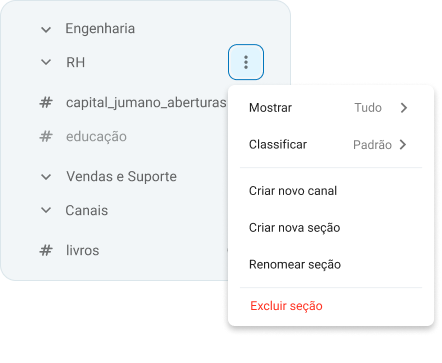
Organizar a barra lateral do Pumble por equipe é como dar uma boa arrumada, onde cada conversa tem seu lugar lógico.
Organize a barra lateral do Pumble para otimizar o fluxo de trabalho
Se você preferir categorias que reflitam as etapas do seu fluxo de trabalho, tente adicionar seções como:
- Pesquisa
- Em andamento
- Aprovações
- Projetos concluídos
Esse tipo de classificação naturalmente facilita a otimização do fluxo de trabalho e ajuda você a gerenciar os canais do Pumble com menos atrito.
Esse tipo de classificação naturalmente facilita a otimização do fluxo de trabalho e ajuda você a gerenciar os canais do Pumble com menos atrito.
Organize-se de forma mais inteligente com o Pumble
Dica nº 2: Nunca perca o contexto com "itens salvos" e marcadores.
Como profissional moderno, tenho certeza de que você já se perguntou mais de uma vez onde estava aquela mensagem importante.
As mensagens se propagam rapidamente em canais congestionados, o que torna sua recuperação praticamente impossível.
Pumble resolve isso com dois recursos poderosos:
- Fixar
- Itens salvos
E embora às vezes sejam agrupados, na verdade servem a propósitos completamente diferentes, e saber a diferença é fundamental para melhorar a produtividade da comunicação da equipe.
Fixação de mensagens: compartilhada, persistente e em todo o canal.
Fixar mensagens serve para que todos no canal possam encontrá-las facilmente.
Considere as mensagens fixadas como o painel de comandos do canal, de certa forma.
Diretrizes
- Documentos principais
- Links importantes
- Atas da reunião
- Atas da reunião
- Instruções consultadas regularmente
As mensagens fixadas no Pumble ajudam a manter a clareza em todo o canal. Qualquer pessoa que entrar no canal posteriormente pode se inteirar rapidamente da situação, sem precisar rolar infinitamente pelo histórico de mensagens.

Salvar mensagens: Seu rastreador de tarefas pessoal
Salvar uma mensagem é a sua ferramenta privada de "não se esqueça disso". Ao salvar, a mensagem é adicionada à sua coleção pessoal, independentemente do canal de origem.
Você pode economizar:
- Tarefas atribuídas a você
- Mensagens que você precisa responder mais tarde
- Arquivos que você deseja ler
- Anotações que você não quer perder
Este recurso ajuda você a salvar mensagens no Pumble sem sobrecarregar sua mente, ou o canal. Ninguém mais vê o que você escolhe salvar, tornando-o o mecanismo perfeito para aumentar sua produtividade pessoal.

Então, de certa forma, fixar é para todos, enquanto salvar é só para você.
Mantenha-se atualizado através do Pumble
Dica nº 3: Navegue em velocidade relâmpago com atalhos de teclado.
Sejamos honestos, por mais útil que o mouse seja, ele também pode te atrasar bastante. Clicar de um canal para outro pode não parecer grande coisa, mas multiplique isso pela quantidade de mensagens que você recebe diariamente e, de repente, você estará perdendo minutos preciosos.
Digite Atalhos de teclado do Pumble.
Esses atalhos são como portas secretas para tudo o que você precisa. Depois que você pegar o jeito, você vai navegar pelo seu espaço de trabalho mais rápido do que nunca.
Atalhos úteis do Pumble que vale a pena memorizar
A estrela do show é o alternador rápido ativado com: “Ctrl/Cmd + K”.
Este atalho do Pumble abre instantaneamente uma pequena barra de pesquisa onde você pode digitar o nome de:
- Uma conversa
- Um canal
- Um colega de equipe
Chega de rolar a tela. Chega de procurar. Basta digitar um comando e ir direto para a mensagem desejada.
É perfeito para quem usa muitos canais simultaneamente ou alterna frequentemente entre conversas.
Outros atalhos úteis incluem:
- Ctrl/Cmd + Shift + A — Ir para todas as mensagens não lidas
- Ctrl/Cmd + / — Abre a lista completa de atalhos
- Ctrl/Cmd + F — Pesquisar dentro de uma conversa
- Ctrl/Cmd + Shift + F — Use filtros de pesquisa avançados em toda a área de trabalho
- Ctrl/Cmd + N — Nova mensagem
- Ctrl/Cmd + Shift + M — Configurar uma nova reunião (desktop)
- Ctrl/Cmd + Alt/Option + Shift + M — Configurar uma nova reunião (Web)
- Ctrl/Cmd + Alt/Option + A — Iniciar gravação de áudio.
Esses atalhos do Pumble permitem uma navegação rápida sem tirar a mão do teclado. Em pouco tempo, você se perguntará como conseguiu trabalhar sem eles.
Comunique-se mais rápido com o Pumble
Como os recursos inteligentes criam um fluxo de trabalho mais eficiente
Qualquer ferramenta só é tão boa quanto a forma como você a organiza.
Mesmo a plataforma digital mais poderosa pode parecer caótica se você não aproveitar sua estrutura. A forma como a comunicação ininterrupta funciona hoje em dia pode fazer com que arquivos importantes e mensagens cruciais desapareçam. Além disso, seu trabalho profundo se perde quando você está alternando entre 20 canais.
Não é de admirar que as equipes muitas vezes se sintam sobrecarregadas devido à sobrecarga de informações. De acordo com uma pesquisa da Gartner, 27% dos funcionários e 38% dos gerentes relatam se sentir sobrecarregados pelo volume de informações que recebem diariamente.
Sem uma estrutura clara, os aplicativos de comunicação se transformam em arquivos desorganizados:
- As mensagens se espalham por diferentes threads
- Arquivos desaparecem em meio a ondas de conversas
- Canais se multiplicam sem qualquer senso de hierarquia
- Você perde tempo clicando, procurando e recuperando conteúdo perdido.
Esse atrito constante mina o foco da sua equipe e atrasa o trabalho de todos.
O Pumble adota uma abordagem diferente, projetada para facilitar a recuperação de informações. Em vez de funcionar como um simples fluxo de notificações, ele oferece ferramentas para criar um espaço de trabalho que se adapte ao seu modelo mental e ajude a melhorar a comunicação e a produtividade da equipe.
Entre os principais recursos do Pumble que tornam isso possível, incluem-se:
- Seções personalizadas — para uma estrutura de barra lateral intuitiva
- Itens salvos e marcadores — para recuperação rápida e personalizada de mensagens
- Busca robusta e filtros de busca — para localizar arquivos, mensagens ou conversas instantaneamente
- Atalhos de teclado — para uma navegação suave e rápida.
Em conjunto, esses recursos transformam o Pumble em mais do que um software de comunicação interna. Ele se torna uma base de conhecimento organizada.
Com o Pumble, você não está mais apenas reagindo às notificações. Em vez disso, você está moldando proativamente seu ambiente digital, tornando mais fácil se concentrar, priorizar e colaborar.
Quando a comunicação digital se move a uma velocidade incrível, seu fluxo de trabalho precisa acompanhar. Com a configuração certa e as melhores práticas do Pumble, você pode transformar sua colaboração diária.

Organize melhor seu trabalho com o Pumble da CAKE.com
No fim das contas, a comunicação digital não precisa ser desgastante. Com um pouco de estrutura e alguns hábitos inteligentes, você pode criar um espaço de trabalho que funcione para você, e não contra você.

Então, reserve alguns minutos hoje para:
- Aperfeiçoe sua barra lateral
- Salve as mensagens importantes
- Fixe as que sua equipe precisa
- Comece a navegar como um profissional
Seu eu do futuro e sua equipe agradecerão
Crie um espaço de trabalho melhor com o Pumble.
Como avaliamos esta publicação: Nossos escritores e editores monitoram as postagens e as atualizam quando novas informações ficam disponíveis, para mantê-las atualizadas e relevantes.