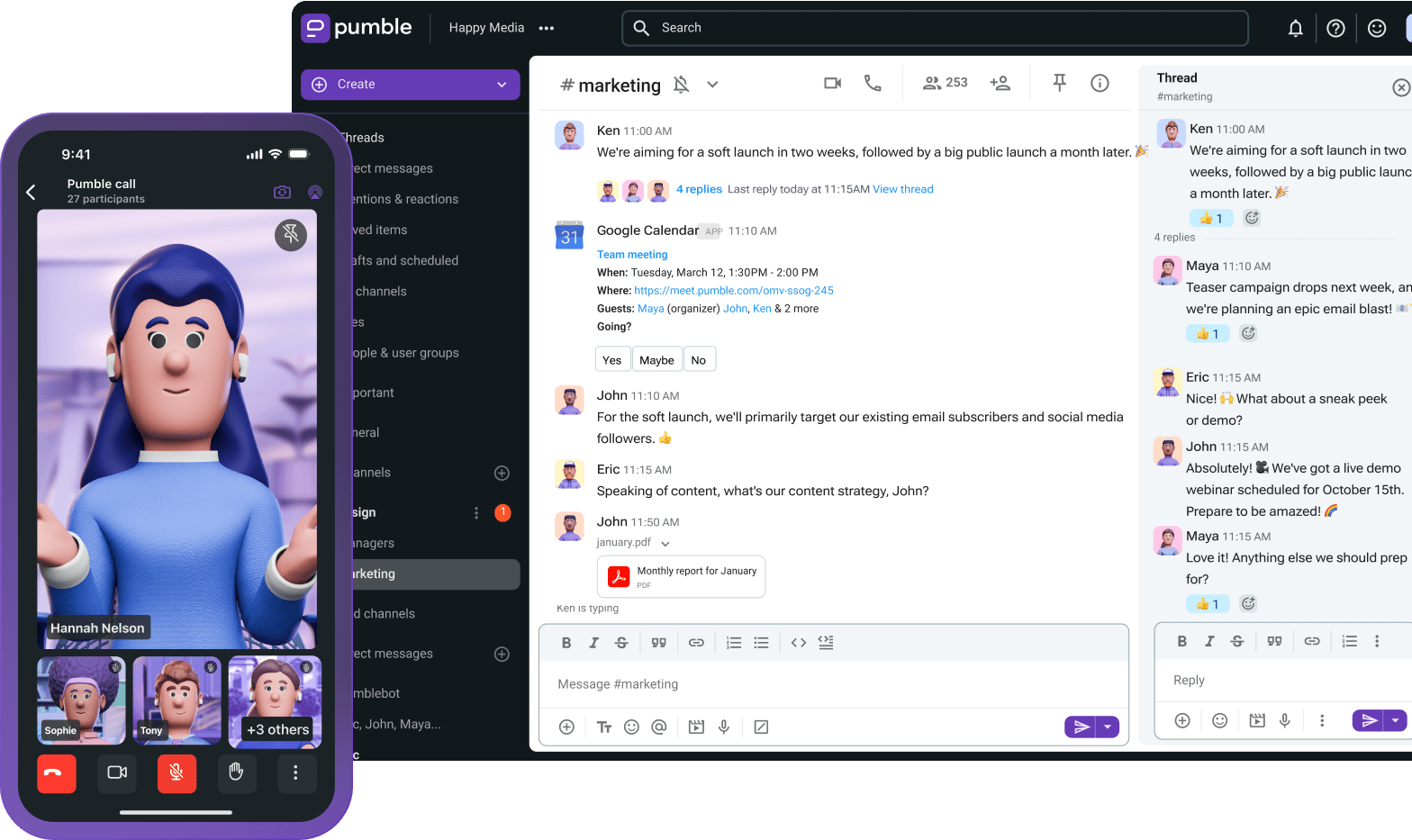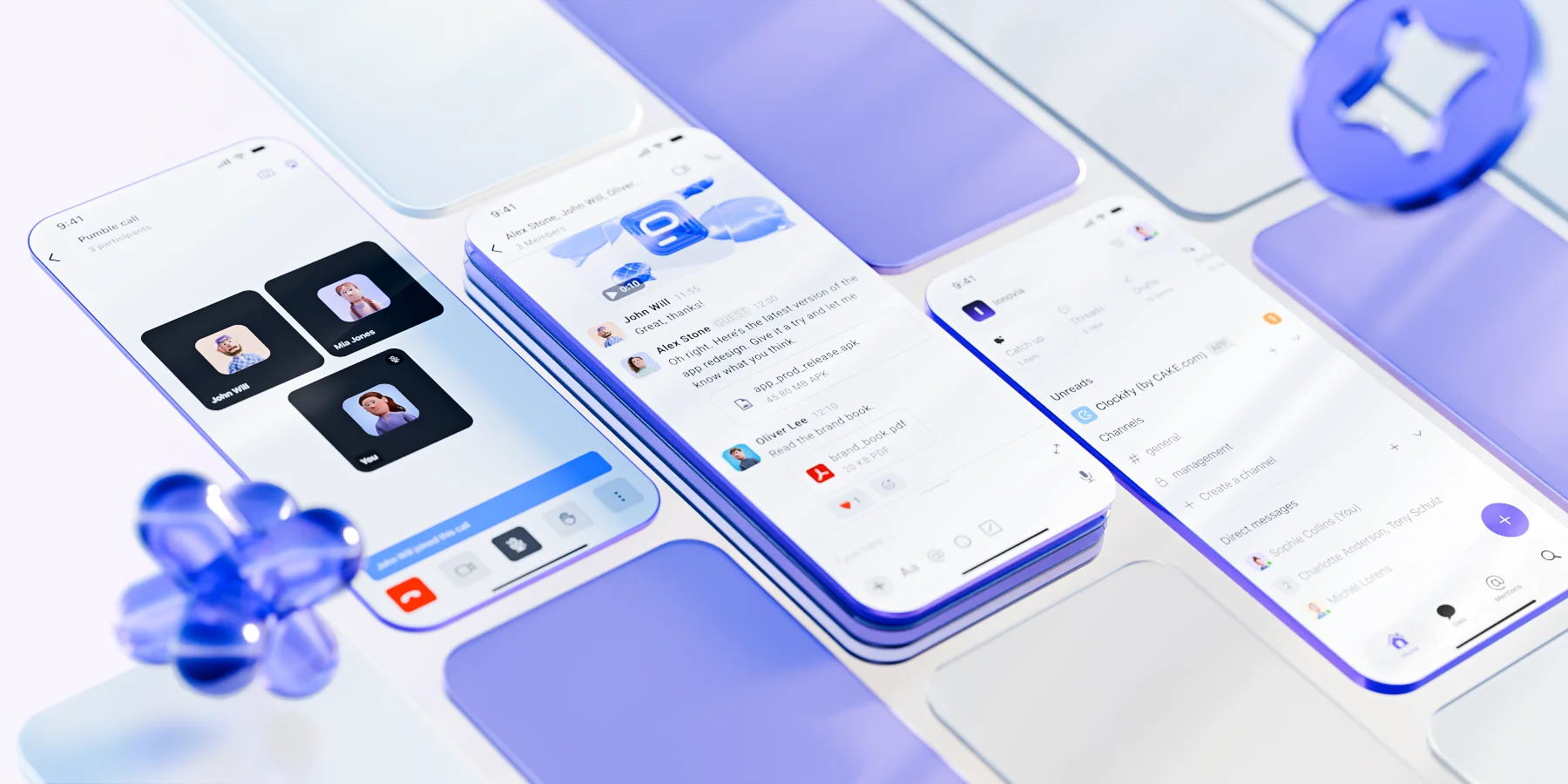
Para os profissionais que não passam os dias acorrentados às suas mesas, escolher a ferramenta certa de comunicação móvel é crucial.
Infelizmente, muitos dos aplicativos de chat para equipes mais populares do mercado não possuem as versões para dispositivos móveis tão confiáveis.
Vamos descobrir mais sobre Pumble, da CAKE.com.
Disponível para Android e iOS, o Pumble permite que você aproveite todos os recursos de colaboração em equipe, mesmo sem precisar abrir seu notebook.
Então, se você quiser saber como usar o Pumble no celular para se comunicar com sua equipe em qualquer lugar – continue lendo.
- Com ferramentas de comunicação como o Pumble da CAKE.com e seus aplicativos móveis para Android e iOS, a comunicação de toda a sua equipe está sempre ao seu alcance.
- O Pumble oferece uma interface limpa e intuitiva, fácil de navegar, mesmo em telas menores de dispositivos móveis.
- Vá além do texto simples com recursos otimizados para dispositivos móveis que permitem que você se expresse em qualquer lugar, incluindo mensagens de voz e vídeo, reações e compartilhamento de arquivos.
- Participe ou organize reuniões de qualquer lugar usando as chamadas de voz e vídeo do Pumble.
- Tenha acesso ilimitado a todo o seu histórico de mensagens diretamente do seu telefone. Seja no iOS ou no Android, você pode pesquisar, filtrar e recuperar informações instantaneamente.
Baixe e instale o Pumble no iOS ou Android
Quer ver pessoalmente como é a versão do Pumble para dispositivos móveis?
Como mencionamos anteriormente, o aplicativo está disponível tanto para Android quanto para iOS portanto, você pode baixá-lo na Google Play Store ou na App Store da Apple.
Ou, se quiser saber mais sobre as outras versões do aplicativo, você pode encontrar mais informações no site do Pumble.
iOS vs. Android: Quais são as diferenças?
Se você tem curiosidade sobre as diferenças entre as versões do Pumble para Android e iOS, não se preocupe.
Ambas as versões do aplicativo oferecem praticamente os mesmos recursos.
A equipe de desenvolvedores da CAKE.com trabalha incansavelmente para garantir que novos recursos sejam adicionados a todas as versões do aplicativo praticamente ao mesmo tempo.
Portanto, se você perceber que o aplicativo para desktop tem um novo recurso que ainda não encontra no seu celular, aguarde uma ou duas semanas.
Primeiro login no celular
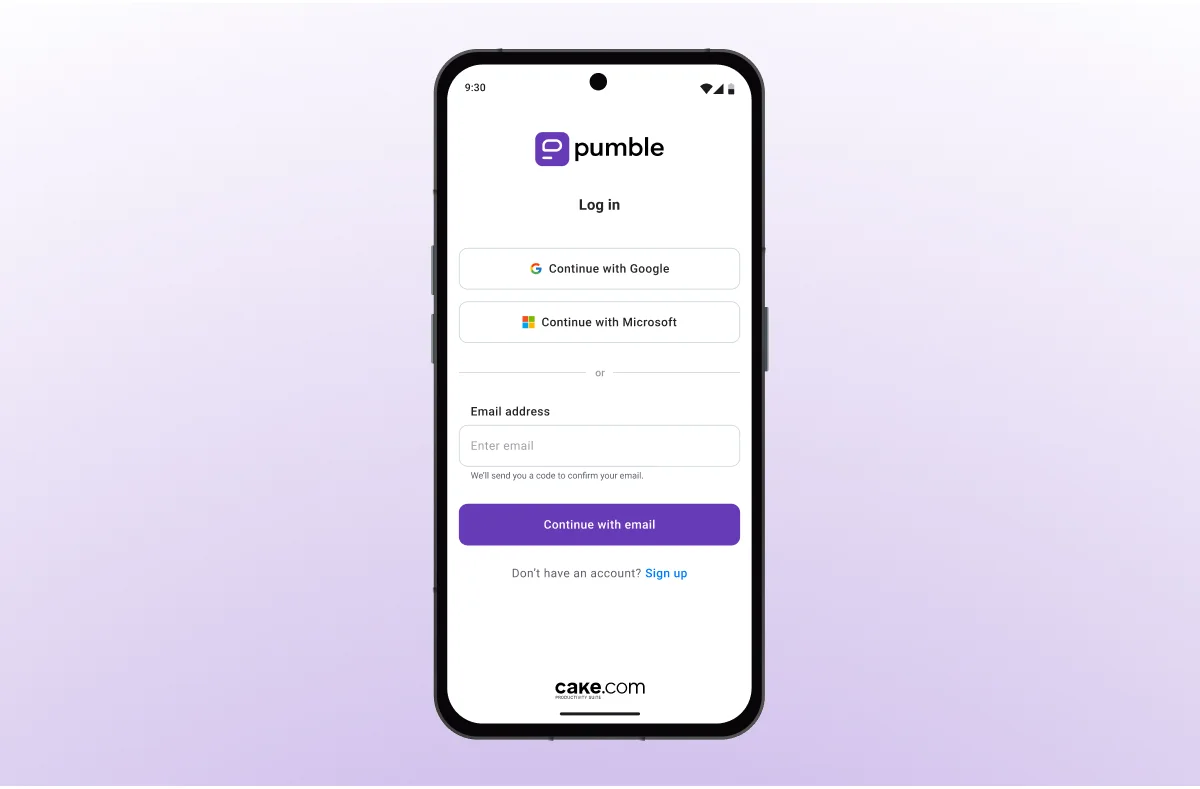
Depois de baixar a versão do aplicativo que funciona no seu dispositivo móvel, a primeira coisa que você verá é a página de login.
Uma vez lá, você poderá continuar com:
- Microsoft
- Apple
Alternativamente, você pode fazer login no Pumble usando o e-mail usado para criar a sua conta da CAKE.com.
🎓 DICA PROFISSIONAL PUMBLE
O Pumble é um dos aplicativos de mensagens mais seguros que você pode usar com sua equipe. Para saber o motivo e conferir as alternativas, veja nossas análises aqui:
Navegue pelo seu espaço de trabalho do Pumble como um profissional
Uma das maiores frustrações das pessoas com as versões móveis de suas ferramentas favoritas é a navegação complicada.
No entanto, a interface limpa e intuitiva do Pumble proporciona uma experiência natural, mesmo em telas menores.
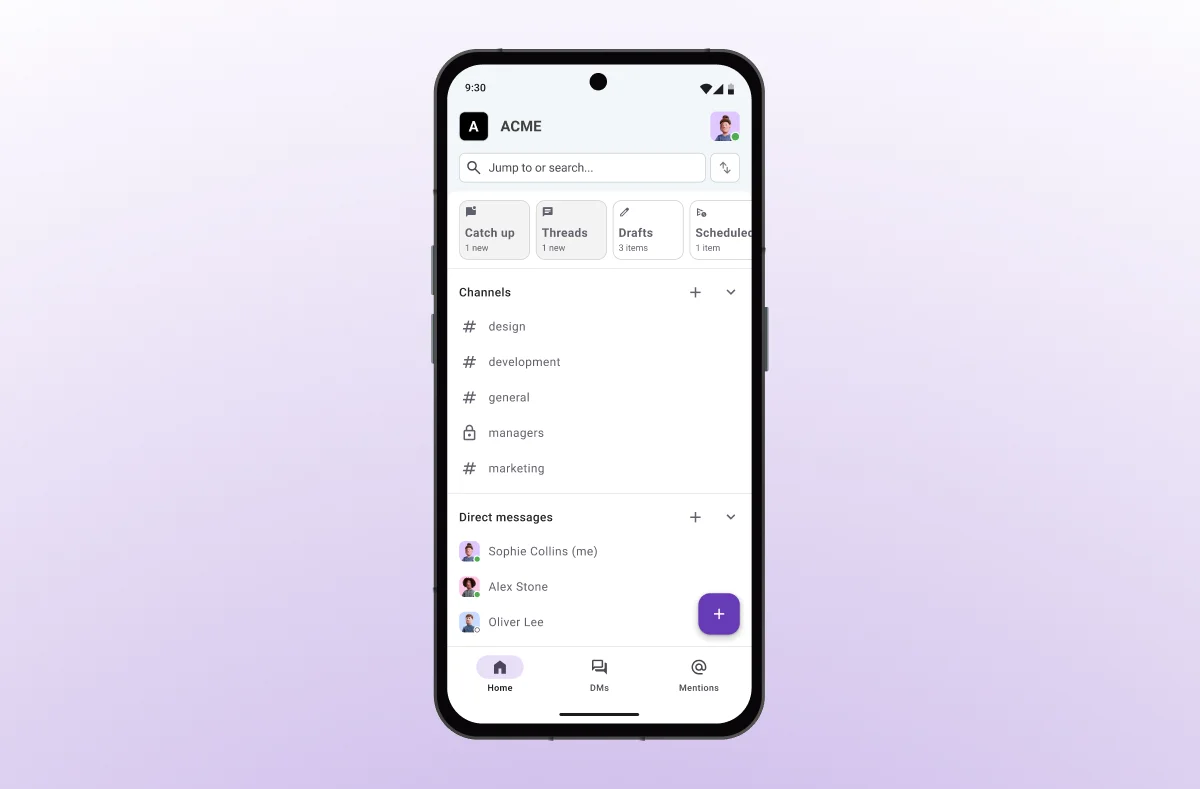
Assim como no aplicativo para desktop, você verá o nome da sua organização no canto superior esquerdo do aplicativo e sua foto de perfil à direita.
Ao tocar na foto, seu perfil de usuário será exibido, permitindo que você:
- Visualize e altere seu nome e cargo
- Defina seu status
- Gerencie as notificações
- Gerencie outras preferências
Logo abaixo da barra de navegação superior, você verá:
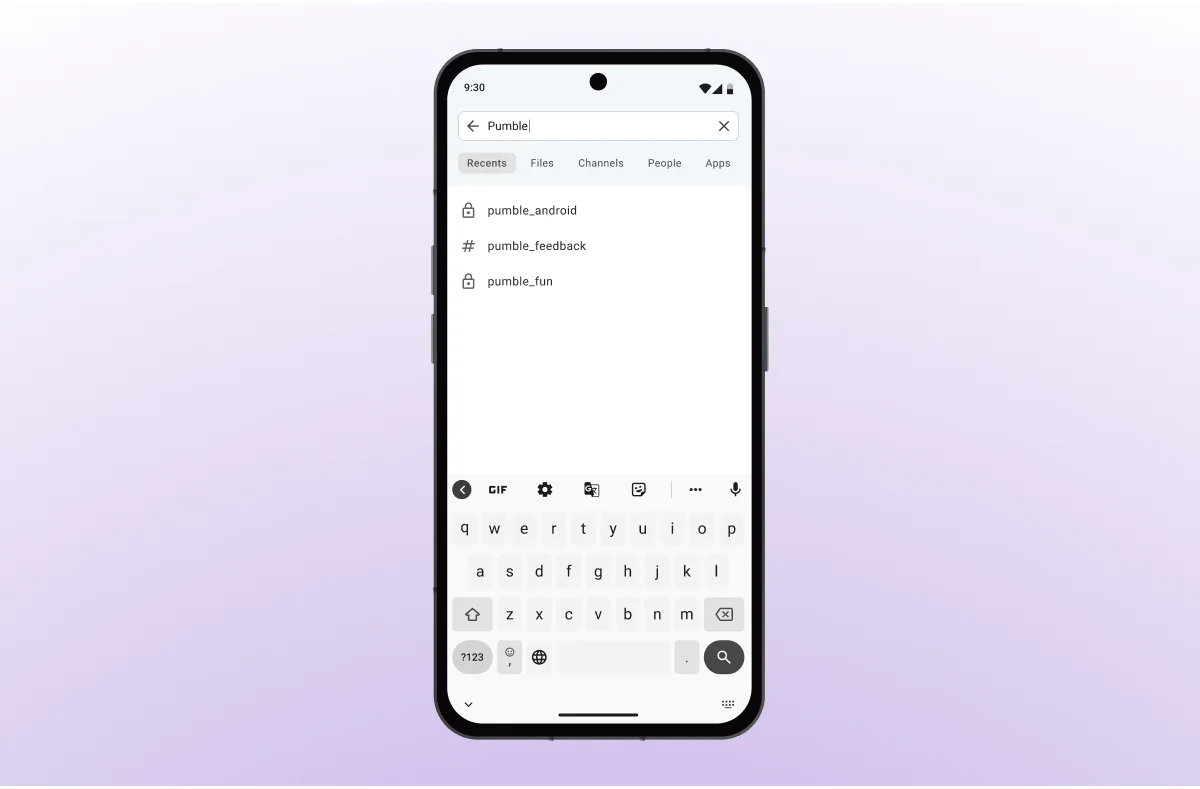
- A barra de pesquisa, que você pode usar para encontrar rapidamente mensagens específicas, canais ou membros do espaço de trabalho
- Opções de navegação rápida para acompanhar novas mensagens, ler threads e ver rascunhos e mensagens agendadas
- A seção Canais, com todos os seus canais privados ou públicos
- A seção Mensagens diretas, com conversas individuais e em grupo
Ao rolar a página mais para baixo, você também verá a seção de aplicativos, que contém as integrações do Pumble que você tem em seu espaço de trabalho, começando pelas ferramentas da CAKE.com:
Você pode acessar todas as três ferramentas pela CAKE.com Productivity Suite, que oferece acesso de nível Enterprise aos três aplicativos em uma assinatura única e acessível.
Mantenha suas conversas organizadas com o Pumble
Comunique-se com rapidez e clareza usando opções além de texto
Embora a comunicação por escrito costume ser a preferida em interações profissionais, digitar atualizações longas no celular pode ser cansativo.
Felizmente, o Pumble oferece diversas opções de comunicação projetadas para usuários que estão em movimento, incluindo:
- Mensagens de voz e vídeo
- Reações e respostas
- Compartilhamento de arquivos e links
Vamos ver como esses recursos podem ajudar você a transmitir sua mensagem.
Mensagens de Voz e Vídeo
Em vez de digitar uma atualização de três parágrafos, você pode usar as mensagens de voz do Pumble para atualizações rápidas ou instruções quando estiver em movimento.
Esse recurso pode ser particularmente útil para:
- Atender solicitações enquanto você se deloca entre as reuniões
- Colocar um toque pessoal em uma mensagem para um cliente
- Descrever um problema que você encontrou no local de trabalho
Para maior clareza, você também pode usar mensagens de vídeo para mostrar ao destinatário exatamente o que está explicando, seja registrando um bug, apresentando um processo ou deixando uma mensagem personalizada para sua equipe.
Reações e respostas rápidas
A colaboração pelo celular prospera com velocidade. As reações com emoji do Pumble permitem que você reconheça mensagens ou até aprove atualizações instantaneamente com 👌, ✅ ou 🎉.
Usando reações com emojis em vez de respostas em texto:
- Economiza tempo
- Reduz respostas desnecessárias
- Mantém a conversa mais fluída
Mesmo que uma mensagem exija uma resposta por escrito, suas conversas no Pumble permanecerão organizadas graças ao recurso de threads do Pumble.
Responder a uma mensagem em uma thread cria uma conversa separada sobre aquele assunto específico, permitindo que o chat principal continue naturalmente no canal ou conversa geral.
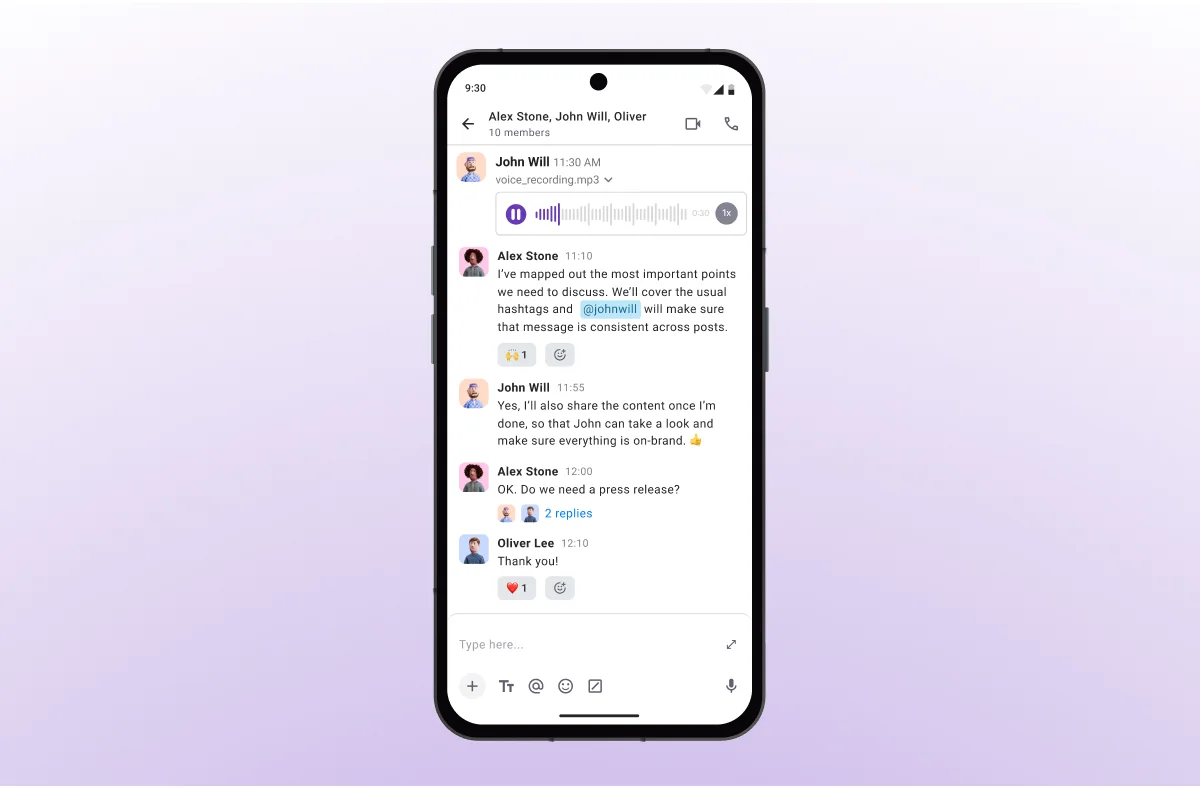
Comunique-se do seu jeito com o Pumble
Compartilhamento de arquivos e links
Se você precisar enviar uma foto tirada em campo ou encaminhar um anexo de e-mail para um contato no Pumble, não precisará procurar o computador mais próximo.
Afinal, o aplicativo móvel do Pumble facilita o compartilhamento de arquivos diretamente do seu celular ao permitir:
- Tirar uma foto com sua câmera e compartilhá-la em um canal
- Carregar documentos, PDFs ou apresentações do seu armazenamento
- Compartilhar capturas de tela ao solucionar problemas
Para gerentes, isso significa que aprovar documentos pelo celular será mais fácil do que nunca.
🎓 DICA PROFISSIONAL PUMBLE
Quer saber mais sobre os benefícios de usar o Pumble para compartilhar arquivos? Confira este guia:
Participe de reuniões de qualquer lugar com as videoconferências do Pumble
Quando o trabalho remoto envolve transitar entre escritórios, aeroportos ou instalações de clientes, a possibilidade de participar de reuniões diretamente pelo seu dispositivo móvel faz toda a diferença.
Com os recursos de chamadas de vídeo e voz do Pumble, você pode:
- Iniciar ou participar de reuniões instantaneamente, sem precisar mudar de aplicativo.
- Agendar reuniões e convidar pessoas através dos links de reuniões do Pumble.
- Compartilhar sua tela ou visualizar o conteúdo compartilhado diretamente no aplicativo.
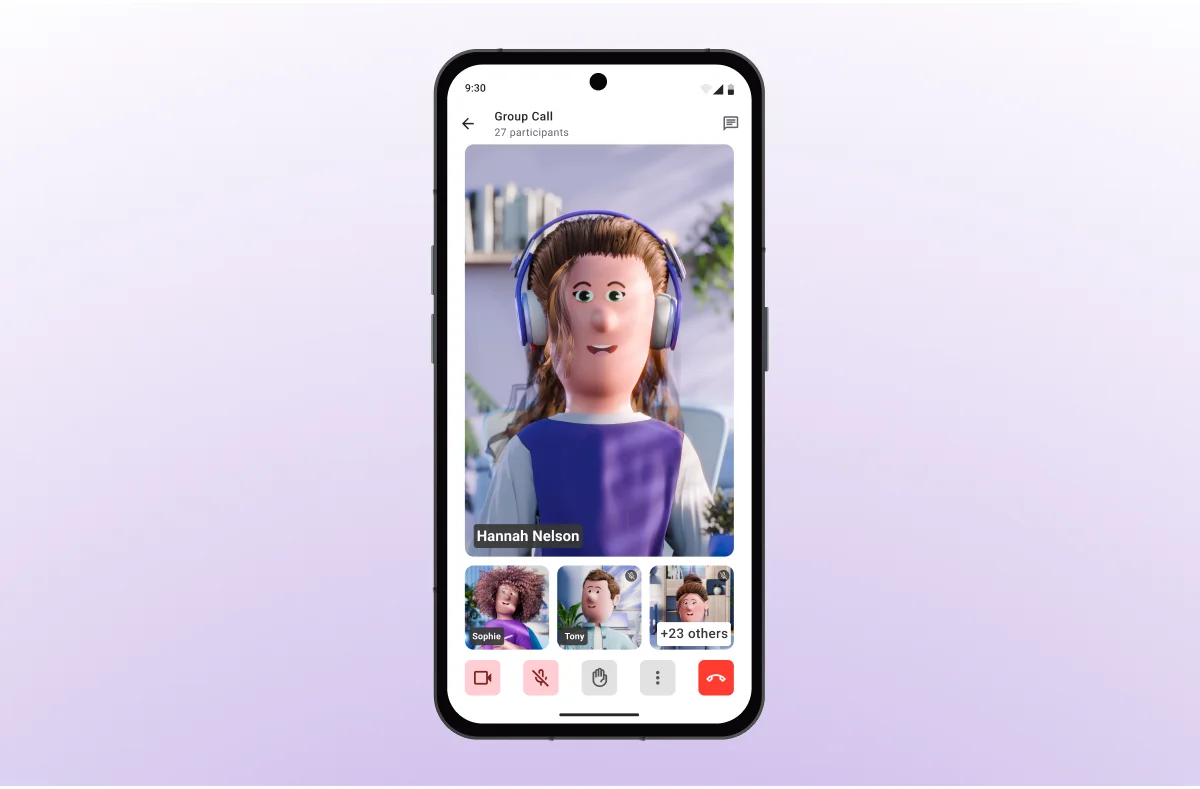
Basicamente, os recursos de videoconferência do Pumble permitem alternar entre atualizações baseadas em texto e discussões ao vivo sem interromper seu fluxo de trabalho.
Os usuários do plano gratuito podem aproveitar chamadas de vídeo individuais, enquanto os espaços de trabalho dos planos Pro, Business e Enterprise podem realizar conferências em grupo com recursos adicionais, como compartilhamento de tela, anotações e gravação de reuniões.
Faça uma chamada de vídeo no Pumble
Proteja seu foco: gerencie suas notificações do Pumble
A maioria das pessoas hesita em instalar um aplicativo de mensagens corporativas no celular por um motivo simples: o excesso de notificações.
Receber alertas ao longo do dia pode fazer com que você se sinta preso ao celular, com receio de perder uma mensagem urgente.
No entanto, com as configurações certas, as notificações móveis podem servir como gatilhos para ações, permitindo que você:
- Aprove uma solicitação instantaneamente.
- Participe de uma conversa onde uma decisão está sendo tomada.
- Responda a uma mensagem direta sem precisar abrir o notebook.
O Pumble ajuda você a manter o equilíbrio entre vida profissional e pessoal, permitindo:
- Personalizar suas notificações do Pumble e escolher configurações diferentes para o aplicativo móvel.
- Ativar o modo Não Perturbe para evitar distrações.
- Definir seu status para que os outros saibam quando você está ocupado demais para responder.
Saber usar as notificações do Pumble no celular de forma estratégica é fundamental para equilibrar a comunicação da equipe e o tempo de foco individual.
Essa capacidade de resposta melhora a colaboração móvel e ajuda a evitar atrasos, mas somente se as notificações estiverem ajustadas ao seu estilo de trabalho.
Personalizar suas notificações no Pumble
Um dos recursos mais poderosos dos aplicativos móveis do Pumble é a capacidade de personalizar como e quando você recebe notificações.
Você pode gerenciar e definir notificações por canal ou por usuário, o que permite fazer uma pausa em conversas excessivamente ativas.
Além disso, você também pode ajustar suas menções para ser notificado apenas quando sua opinião for necessária, reduzindo as distrações de cada mensagem em um canal movimentado.
Além disso, o Pumble permite:
- Escolher se deseja ser notificado sobre cada nova mensagem, apenas menções ou nenhuma mensagem.
- Começar a receber notificações móveis apenas quando seu aplicativo de desktop estiver inativo.
- Definir um horário de notificação para parar de receber alertas fora do horário de trabalho.
Esse nível de controle permite que você transforme seu telefone em um filtro inteligente para a comunicação da equipe em trânsito, destacando o que é importante e bloqueando o excesso de distrações.
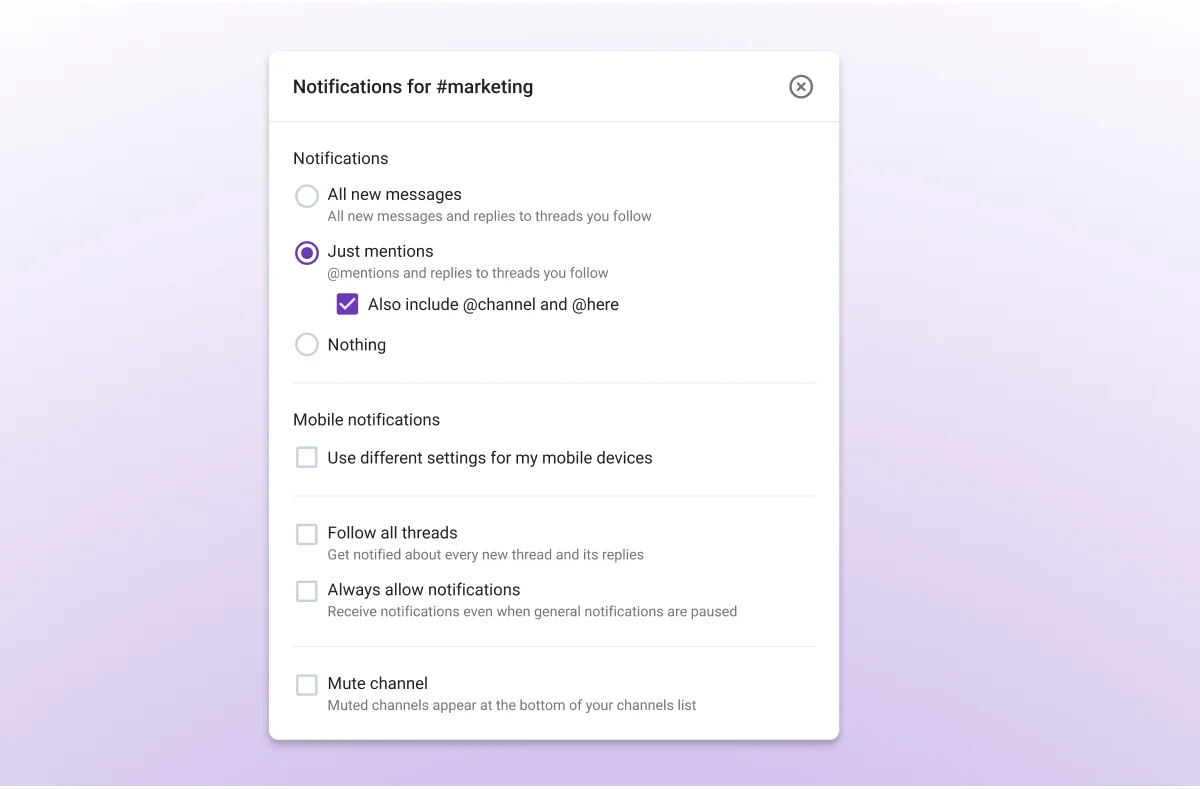
🎓 DICA PROFISSIONAL PUMBLE
Para saber mais sobre como ajustar suas preferências de notificação pode ajudar a evitar a fadiga de notificações, confira este recurso:
Usando o modo Não perturbe
Quando precisar de um período de concentração total, você pode simplesmente pausar as notificações do Pumble por um período determinado.
Se não quiser usar as opções predefinidas do aplicativo, você pode até personalizar a data e o horário exatos em que deseja voltar a receber notificações.
Este recurso é particularmente útil:
- Durante chamadas ou reuniões de clientes, para evitar distrações enquanto estiver conectado
- Para sessões de trabalho focado, bloqueando interrupções por 2 a 3 horas enquanto você conclui uma tarefa importante
- No final do seu dia de trabalho, para manter o equilíbrio entre vida pessoal e profissional, silenciando as notificações até amanhã
Vale lembrar que você não precisará ativar manualmente o modo Não Perturbe nesse último caso se aproveitar o recurso de agendamento de notificações do Pumble.
Ajuste suas notificações do Pumble
Definindo seu status
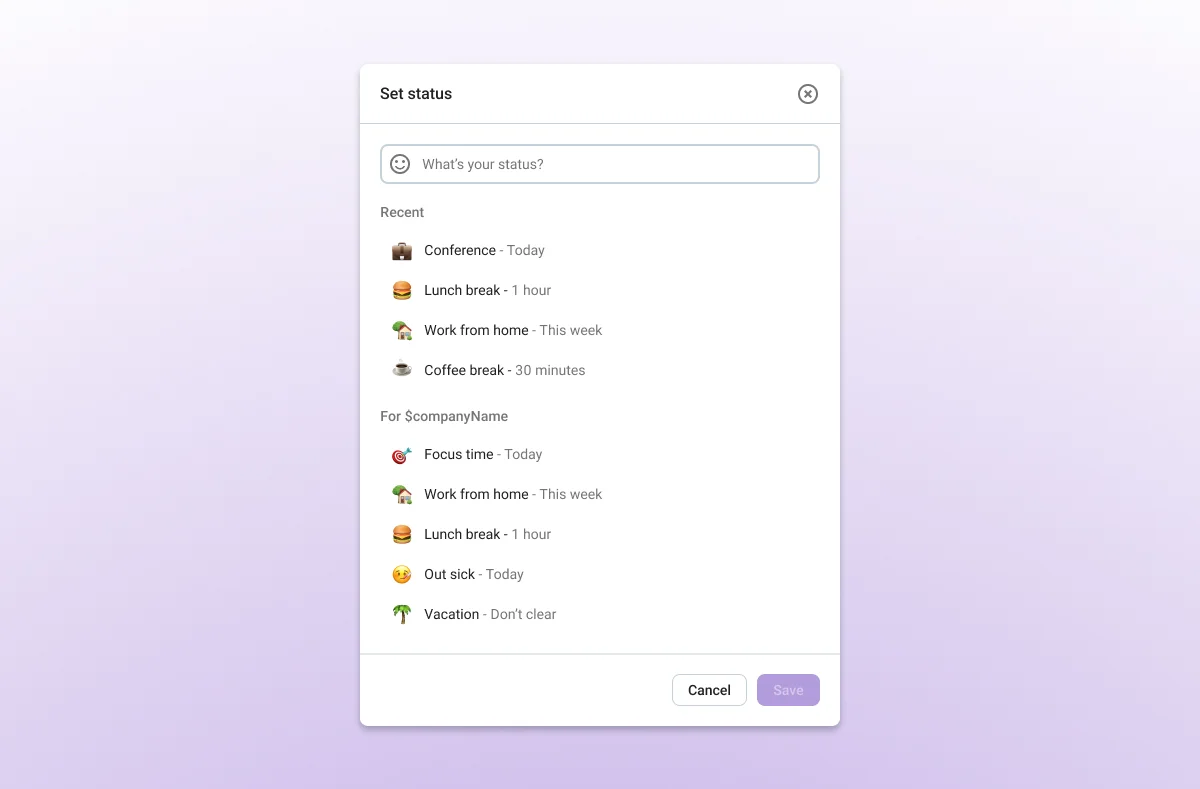
Definir seu status no Pumble permite comunicar a disponibilidade sem precisar dizer nada.
Você pode usar as opções nativas para indicar quando está em uma reunião ou no horário de almoço, ou personalizar seu status escolhendo seu próprio emoji e descrição.
Se o seu Pumble estiver conectado à sua conta do Clockify, alguns status poderão até ser aplicados automaticamente — por exemplo, ao solicitar uma licença médica ou férias no Clockify.
Como ambos os aplicativos possuem versões móveis, os usuários podem solicitar folgas com apenas alguns toques. E, claro, alterar manualmente o status no Pumble é igualmente simples.
Além disso, o Pumble permite definir manualmente o status como ausente ou ativo, fazendo com que o usuário apareça como offline ou online para as outras pessoas.
Os status funcionam em conjunto com as notificações para garantir uma comunicação mais fluida e reduzir mal-entendidos, especialmente ao trabalhar com pessoas em fusos horários diferentes.
Todo o histórico da sua empresa, pesquisável no celular
Muitos funcionários de campo têm dificuldade para encontrar mensagens e arquivos antigos compartilhados por meio do sistema de comunicação da empresa em seus dispositivos móveis.
Afinal, a maioria dos desenvolvedores otimiza seus aplicativos de comunicação para uso no desktop, enquanto as versões móveis permanecem incompletas.
Pior ainda, muitos desenvolvedores tornam o histórico de mensagens pesquisável um recurso premium de seu software, limitando o acesso dos usuários gratuitos às suas próprias comunicações.
Mas o Pumble é diferente. Seja usando o aplicativo para desktop ou as versões móveis da plataforma, você poderá acessar todo o seu histórico de mensagens diretamente pela barra de pesquisa.
Mesmo no plano gratuito, os usuários do Pumble podem recuperar qualquer mensagem ou arquivo compartilhado na plataforma, o que lhes permite:
- Revisar os requisitos do cliente enquanto estão no local de trabalho.
- Confirmar os detalhes de uma decisão do projeto antes da próxima reunião.
- Compartilhar um link de arquivo com um colega durante o trajeto.
Os filtros de pesquisa do Pumble permitem aos usuários refinar a busca por remetente, conversa ou canal, data e conteúdo da mensagem.
Além disso, eles também podem classificar os resultados por ordem cronológica ou relevância.
Para facilitar a localização de mensagens no Pumble mobile, você pode até fixar ou salvar as mensagens às quais sempre volta. Lembre-se de que fixar uma mensagem chama a atenção de todos na conversa, enquanto salvá-la a torna visível apenas para você.
Isso deve ajudá-lo a compreender e usar o Pumble como um arquivo móvel de suas comunicações corporativas.
Dicas extras para aproveitar ao máximo o aplicativo móvel do Pumble
Usar o Pumble no celular vai muito além de simplesmente verificar mensagens quando você está longe da sua mesa.
Com alguns ajustes inteligentes e atalhos ocultos, você pode transformar o aplicativo em um verdadeiro centro de produtividade que mantém você conectado, eficiente e no controle, não importa de onde você esteja trabalhando.
Com isso em mente, aqui estão nossas melhores dicas para ajudá-lo a aproveitar ao máximo seu aplicativo móvel Pumble.
Use os aplicativos móveis do Pumble em diferentes idiomas
Tanto o Pumble para iOS quanto o Pumble para Android podem ser usados em 4 idiomas diferentes, além do inglês.
- Francês
- Espanhol
- Alemão
- Português
Então, escolha seu idioma de preferência com facilidade e aproveite tudo o que o Pumble tem a oferecer.
Escreva rascunhos e agende mensagens
O aplicativo móvel do Pumble permite registrar ideias assim que elas surgem, mesmo que ainda não seja o momento ideal para enviá-las.
Sempre que você começa a escrever em um canal ou mensagem direta, mas não clica em Enviar, o texto é salvo automaticamente como rascunho.
Você pode voltar a ele mais tarde, fazer ajustes e enviá-lo quando estiver pronto.
Além dos rascunhos, você também pode agendar mensagens.
Se você tiver algo a dizer após o encerramento do expediente na sexta-feira, poderá agendar o envio da mensagem para a manhã de segunda-feira.
Configure lembretes de mensagens
Se você trabalha em movimento, é provável que enfrente interrupções ao longo do dia.
Você pode receber uma mensagem no Pumble em um minuto e ter que correr para uma reunião logo em seguida — acabando por esquecer completamente da mensagem.
Existem duas maneiras de evitar que isso aconteça na próxima vez. Você pode:
- Marcar a mensagem como não lida; isso manterá a notificação de nova mensagem ativa na próxima vez que você abrir o aplicativo.
- Agendar um lembrete para retomar a mensagem em um horário de sua preferência.
Ambas as opções levam apenas alguns instantes, permitindo que você foque rapidamente no que está acontecendo ao seu redor. Fique tranquilo: o Pumble o lembrará da mensagem de uma forma ou de outra.
Nunca perca uma mensagem com o Pumble
Use o modo escuro
Tanto para iOS quanto para o Android, o Pumble tem as configurações de tema do seu dispositivo. Portanto, se o seu celular estiver no modo escuro, o Pumble se ajustará automaticamente a ele.
Mas, se você quiser usar o Pumble da CAKE.com exclusivamente no modo escuro, também pode definir essa opção nas Preferências.
Escolha o modo escuro nas configurações de tema, e seus olhos — assim como sua bateria — agradecerão.
Observe o indicador de digitação
Um dos recursos mais sutis, porém poderosos, dos aplicativos móveis do Pumble é o indicador de digitação.
Sempre que alguém estiver escrevendo uma resposta em uma mensagem direta ou em um canal, você verá um indicador de que essa pessoa está digitando.
Sempre que alguém estiver redigindo uma resposta em uma mensagem direta ou canal, você verá um indicador de que essa pessoa está digitando uma mensagem.
Ao mesmo tempo, as outras pessoas poderão ver quando você estiver digitando, mesmo se o teclado do telefone estiver aberto.
Perguntas frequentes sobre o Pumble no celular
É hora de responder a algumas das perguntas mais comuns sobre o Pumble em geral e sobre o aplicativo móvel.
O Pumble é realmente gratuito?
Sim! O Pumble oferece um plano totalmente gratuito que permite:
- Adicionar quantos usuários você quiser.
- Criar um número ilimitado de canais privados ou públicos.
- Enviar e pesquisar quantas mensagens desejar.
Usuários do plano gratuito também podem enviar mensagens de voz e vídeo, realizar chamadas individuais de voz ou vídeo e conectar até 3 integrações.
No entanto, se você quiser expandir os 10 GB de armazenamento por espaço de trabalho oferecidos no plano gratuito ou aproveitar as chamadas de vídeo em grupo com compartilhamento de tela, talvez valha a pena considerar mudar para um dos planos pagos.
O que é o aplicativo Pumble?
O Pumble é um aplicativo de comunicação em equipe que permite trocar mensagens e arquivos com sua equipe, além de realizar videoconferências. Ele está disponível para desktop, navegador, iOS e Android.
O Pumble possui um aplicativo para desktop?
Sim, o Pumble está disponível para download em dispositivos Windows, Mac e Linux. A única diferença está nos atalhos de teclado que você utilizará.
Quanto custa o Pumble?
Se você decidir fazer o upgrade a partir da versão gratuita do Pumble, pagará:
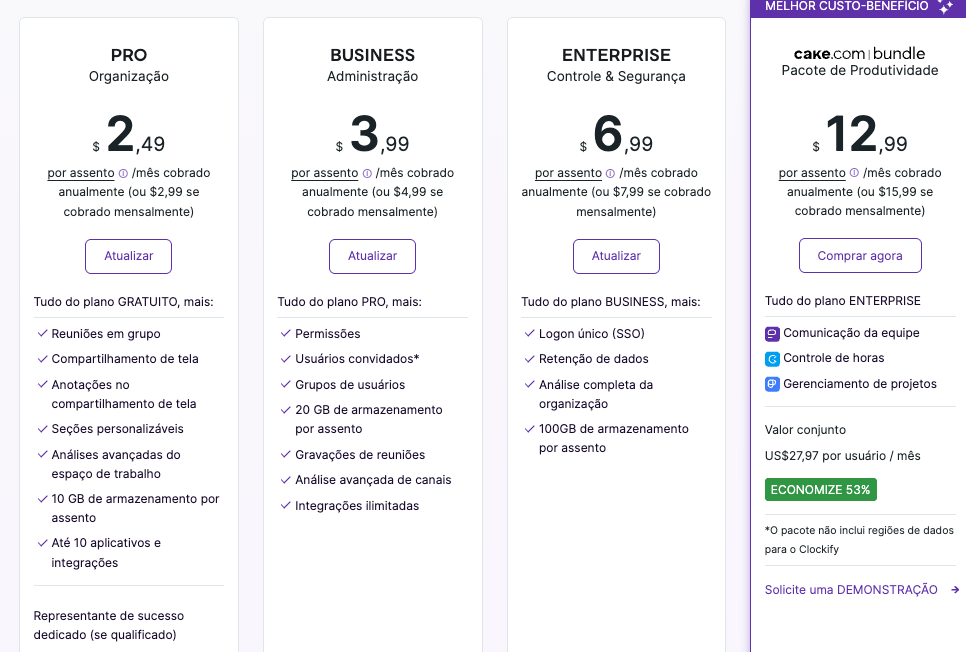
- US$ 2,49 por usuário/mês na assinatura anual (ou US$ 2,99 na assinatura mensal) para o plano Pro
- US$ 3,99 por usuário/mês na assinatura anual (ou US$ 4,99 na assinatura mensal) para o plano Business
- US$ 6,99 por usuário/mês na assinatura anual (ou US$ 7,99 na assinatura mensal) para o plano Enterprise
Ou, se você tiver interesse em experimentar o pacote CAKE.com Suite completo, pagará US$ 12,99 por usuário/mês na assinatura anual para acessar os recursos de nível Enterprise do Clockify, Plaky e Pumble.
Aumente sua produtividade no celular com o Pumble
Seja na versão para iOS ou Android, o Pumble para dispositivos móveis é muito mais do que uma simples ferramenta de mensagens.
Ele funciona como uma central que coloca todo o seu espaço de trabalho ao seu alcance.
De canais, threads e mensagens diretas a chamadas de voz e vídeo, compartilhamento de arquivos e busca avançada, o Pumble ajuda você a manter a conexão, tomar decisões e colaborar com fluidez, onde quer que esteja.
A experiência do Pumble para dispositivos móveis foi projetada para reproduzir todos os recursos do aplicativo para desktop, garantindo continuidade entre os dispositivos.
Portanto, se você procura um aplicativo de mensagens para usar em qualquer lugar, o Pumble é a escolha ideal.
Experimente o Pumble by CAKE.com
Como avaliamos esta publicação: Nossos escritores e editores monitoram as postagens e as atualizam quando novas informações ficam disponíveis, para mantê-las atualizadas e relevantes.