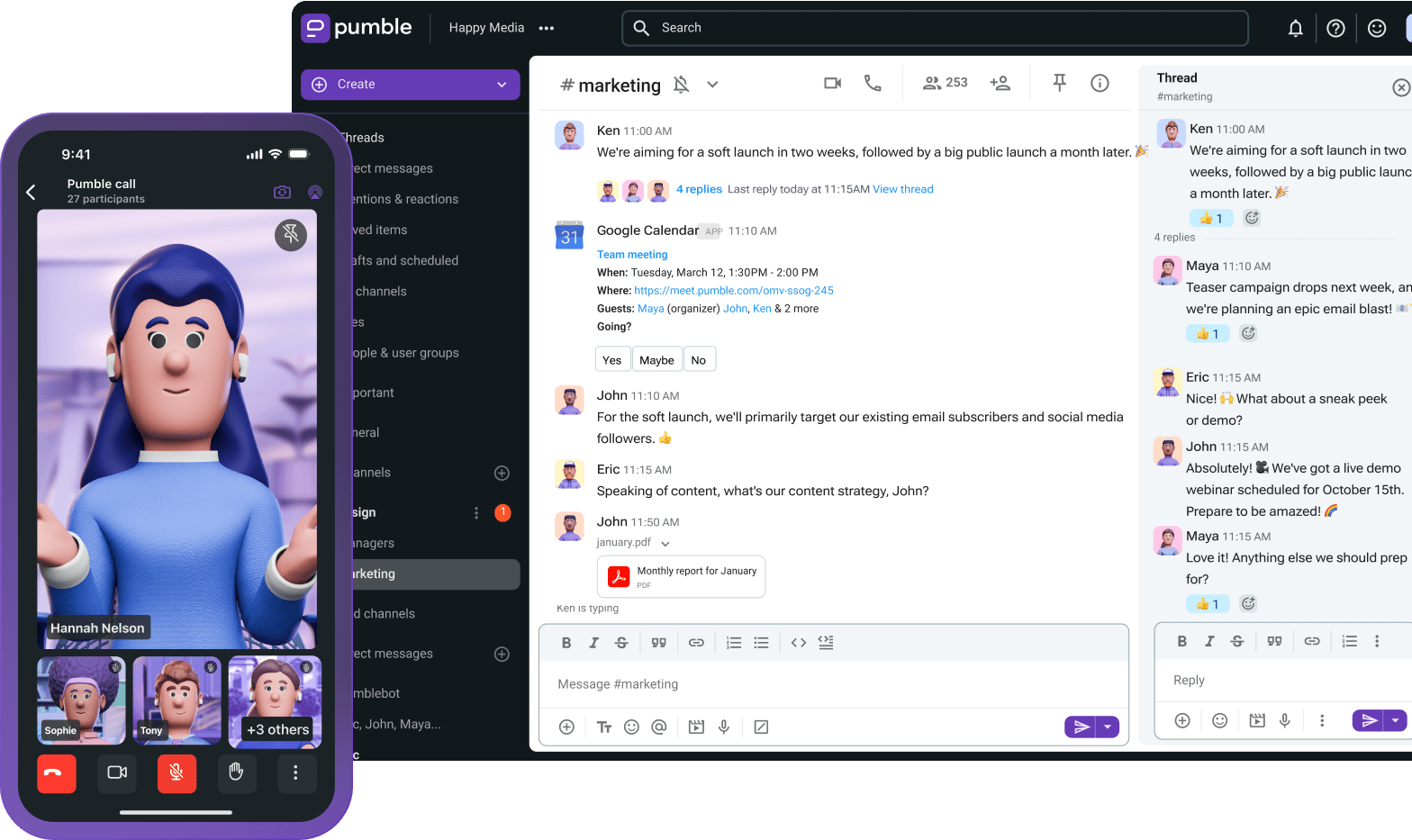
Many teams still suffer the consequences of inefficient file management. Lost context, cluttered email inboxes, storage limits, and steep paywalls are just some of the pitfalls modern businesses grapple with.
That’s why Pumble by CAKE.com’s file-sharing capabilities are a turning point. Best of all, they’re available across all Pumble plans.
Let’s see how you can build lasting file-sharing and collaboration workflows using a centralized platform as your collective knowledge base.
- Share files in Pumble by CAKE.com to exchange feedback, make better group decisions, and improve team cooperation.
- Upload files to channels when you want to share them with several team members. Conversely, share files via direct messages when the information is personal or only relates to the work of a single person.
- For increased efficiency, integrate Pumble with cloud storage services like Google Drive.
How to share a file in Pumble by CAKE.com
First, let’s review the basics.
Here’s how to share files in Pumble from your desktop:
- Click on a file on your desktop and drag it to a message field within a channel or DM.
- Once the file loads, you can type an accompanying message.
- Optional: mention team members to immediately boost the file’s visibility.
The quick drag-and-drop method isn’t your only option. If you often switch between desktop and mobile devices, you might prefer this upload flow:
- Tap the Attachments (+) icon at the bottom of the message field within a channel or DM.
- Select a file you previously shared, or upload a new file from your device.
After uploading the file, you can explore Pumble’s handy file management options:
- Share the file with a specific channel, user group, or team member.
- View file details.
- Copy the file link.
- Open the file in a new tab.
- Add the file to your saved items.
- Delete the file.
But before taking any of these actions, it’s important to determine the best location for your files.
Channels vs. DMs: Where to put files so you can find them later
In the heat of the moment, most people don’t stop to think about whether to share something in a direct message or a channel. Yet, the side effects show up eventually.
Say that you need a document a former team member shared months ago. Not only is that person gone, but you also can’t remember which DM thread they sent it in.
That’s why it’s essential to establish ground rules to eliminate the guesswork.
Our rule of thumb? If a work-related file will be helpful to teammates later, it belongs in a channel.
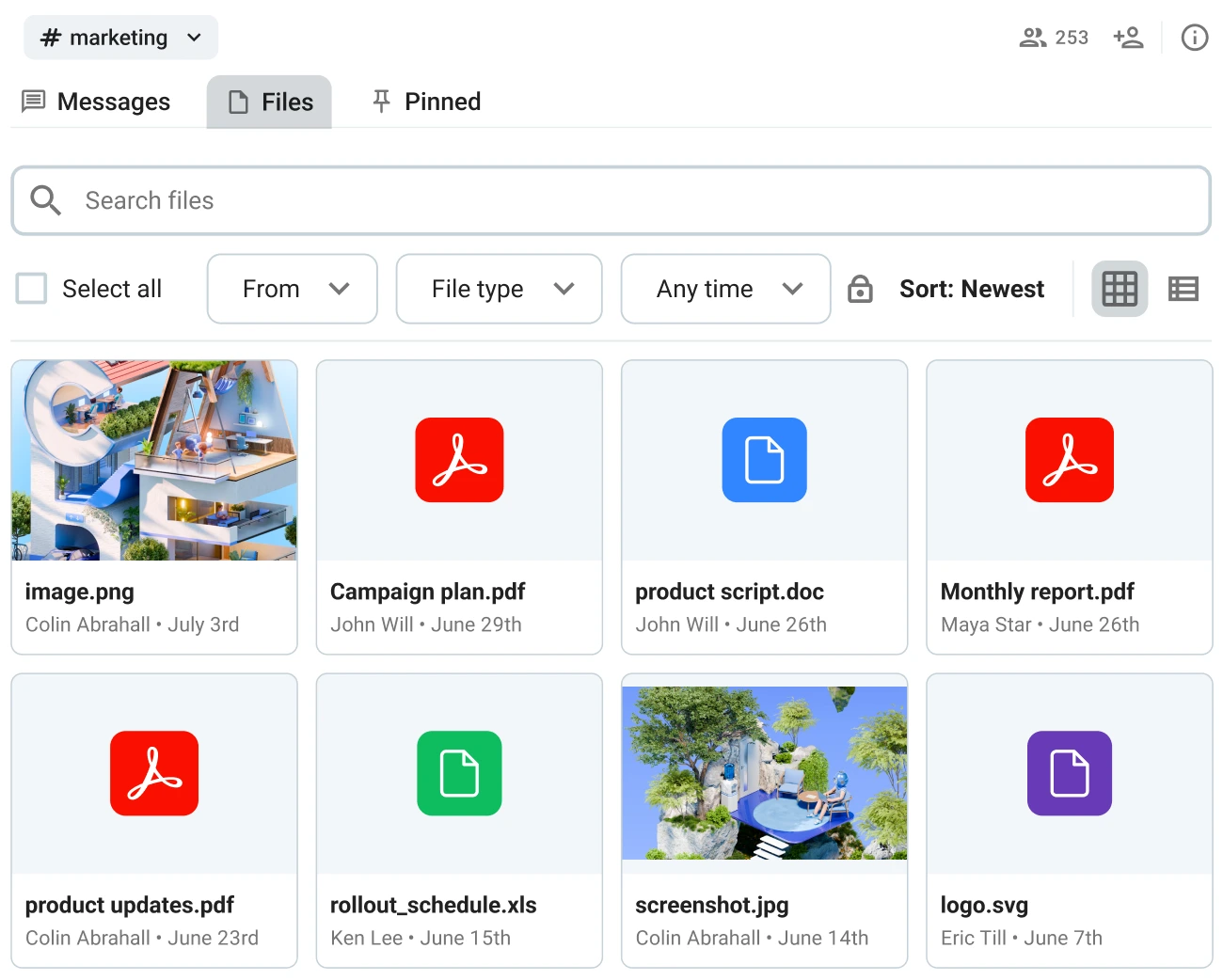
Organize work with Pumble channels
Non-urgent and low-priority files — such as a screenshot showing a quick example or a rough first draft — can stay in the DMs.
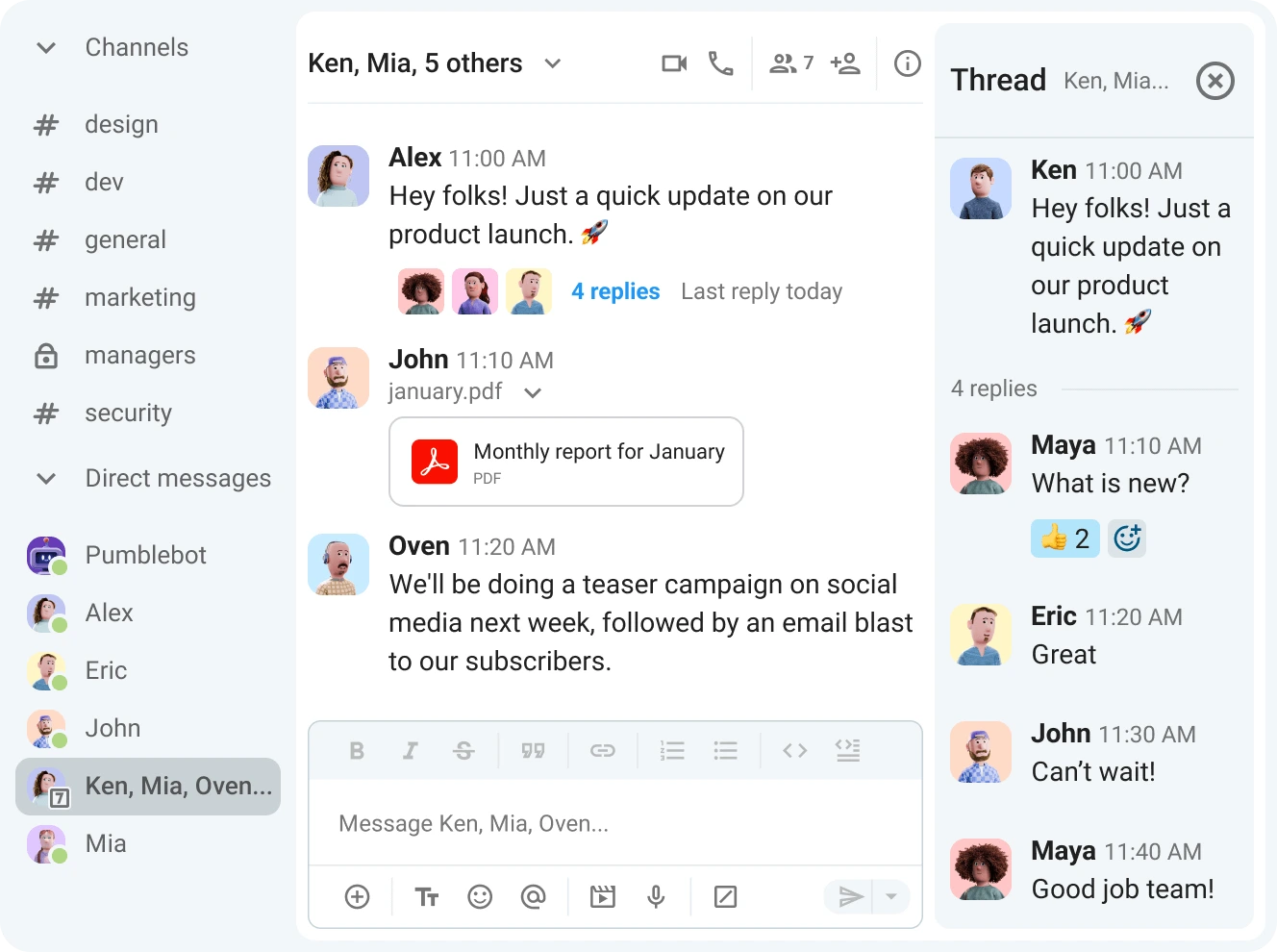
It’s not just about sending information as soon as possible. It’s just as important (if not more so) to consider who might need the shared file 6 months down the line.
So, even if a discussion starts in a DM, that doesn’t mean the file should stay trapped there.
Use channels for files:
- Related to a specific client, campaign, or project
- Related to onboarding new team members
- Relevant to more than one workspace member
- Undergoing multiple rounds of revisions
- Intended as long-term reference material
Conversely, use DMs for files:
- Containing sensitive information (e.g., contracts and HR documents)
- Relevant to only one specific person
- Meant for single, immediate use (i.e., screenshots and code snippets)
If you change your mind about a file, you can easily take action. Realized a file you shared in a DM matters to a broader project? Upload it to the relevant channel or post a link to it from the DM. Taking those few extra seconds will spare you from rummaging through old messages later on.
Pumble storage limits by plan
As with any business communication app, storage limits are another important aspect to consider.
Here’s how much Pumble file storage users get depending on their plan:
- Free plan: 10 GB of shared workspace storage
- Pro plan: 10 GB of storage per seat
- Business plan: 20 GB of storage per seat
- Enterprise plan: 100 GB of storage per seat
File size limits won’t be a problem, either — shared files can have a maximum size of 512 MB on desktop and 256 MB on mobile apps.
To make sure you know where your team stands with storage, tap on the “…” button next to your workspace name to view the storage indicator.
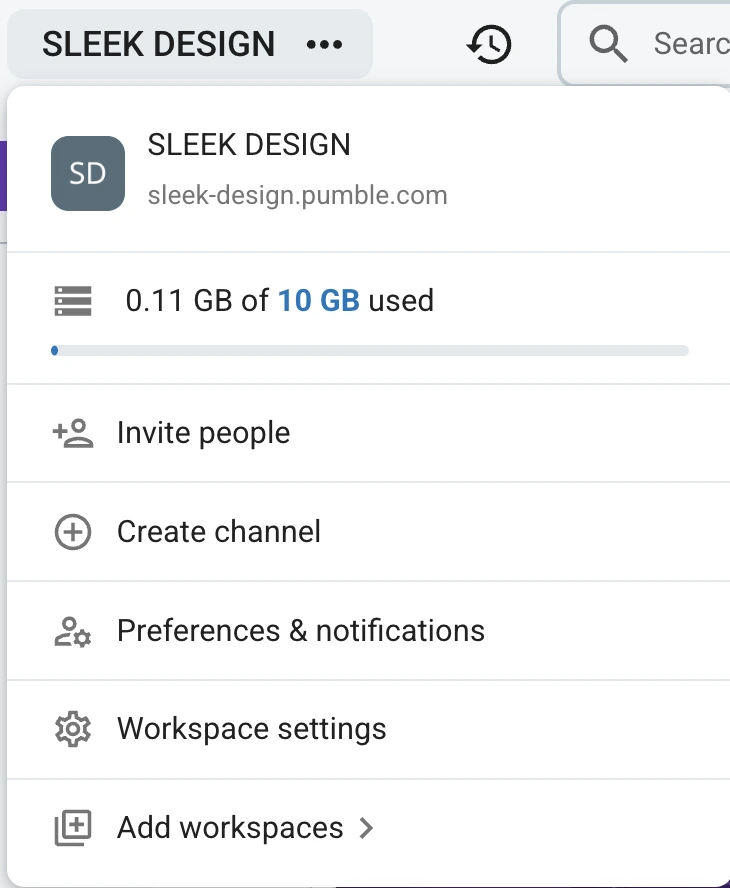
While text messages and links do not count against your limit, Pumble storage does factor in:
- Documents
- PDFs
- Screenshots and images
- Audio and video files (including voice and video messages)
Unlock generous storage in Pumble
🎓 DICA PROFISSIONAL PUMBLE
For more information on what each of Pumble’s paid plans has to offer, check out these guides:
How to organize channels and files in Pumble by CAKE.com
Sharing files is just the first step. Next up is effective channel organization, to ensure that what you need stays on-hand exactly when you need it.
Consistent channel naming conventions play a big role in helping team members find their way around the digital workspace. With each project or client having a dedicated channel, coworkers can connect without issue and safely manage client information.
The key to making this process seamless is clear and predictable channel names. So, keep it simple. For example, if your team does a lot of client-facing work, most of your channels will likely start with the prefix #client_.
On the other hand, software development teams can use names such as:
- #mobile_dev
- #mobile_qa
- #production_roadmap
Naming conventions not only impact channel structure and membership, but also the types of files that get added. You wouldn’t upload sales data to a customer support channel dedicated to high-priority tickets, right?
However, work rarely ever stays the same. When the team pivots, channels should follow suit. To keep both channels and files organized, consider:
- Renaming channels — when workflows or project scopes change.
- Archiving channels — when you want to preserve messages and files without cluttering your active channel list.
- Deleting channels — when a channel and its contents are no longer needed.
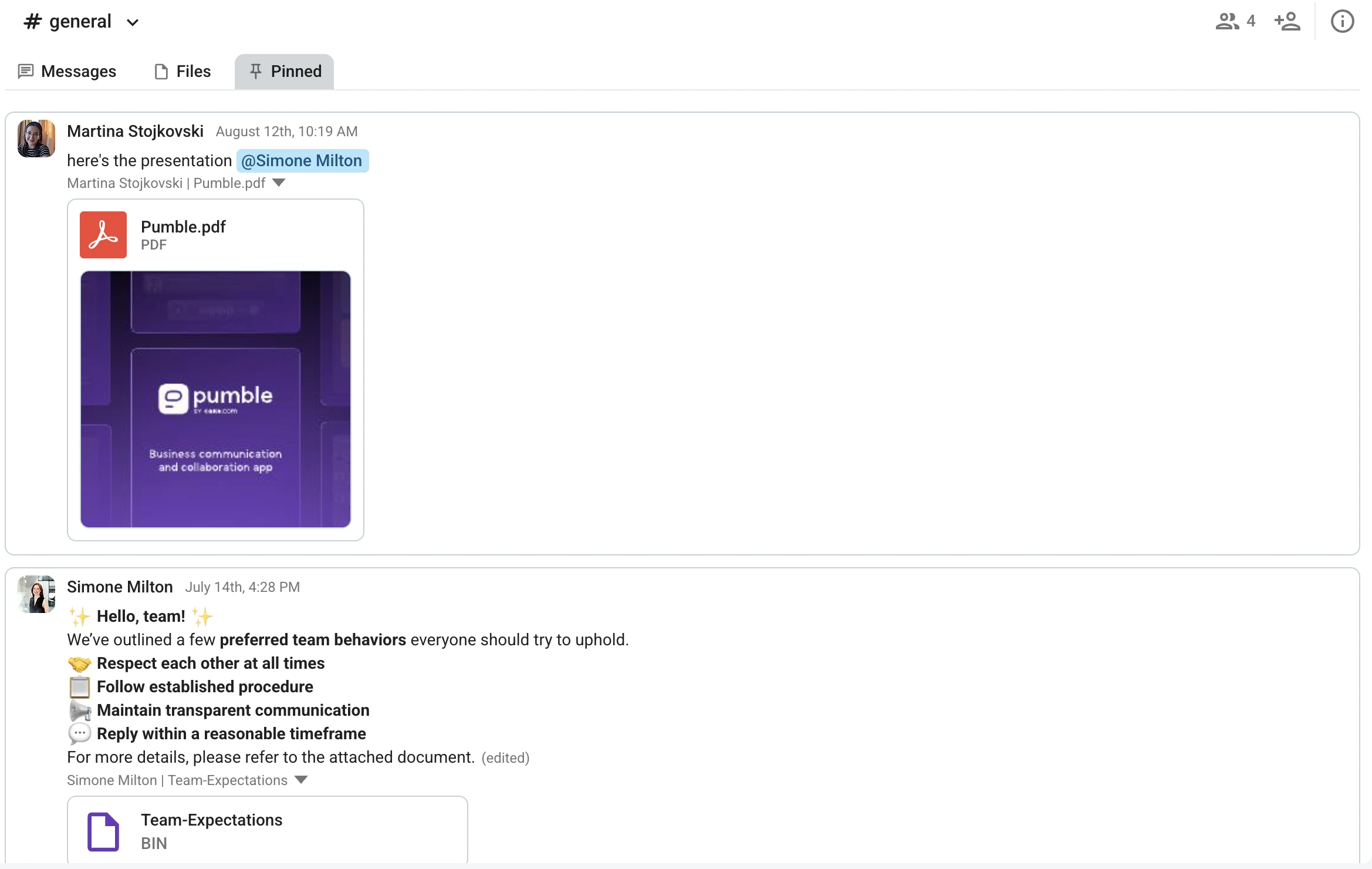
Finally, take advantage of small but mighty features to keep critical files accessible. Pin files within channels or direct messages so anyone in the conversation can easily view key items in the Pinned tab.
🎓 PUMBLE PRO TIP
For even more tips on how to use and organize channels, check out these guides:
How to find files in Pumble
Instead of scattering information across multiple email inboxes, keep it accessible for future use with Pumble’s unlimited message history.
Thanks to the built-in search bar, your team never has to feel like they’re looking for a needle in a haystack.
Think of the search function as your sidekick whenever you need to locate:
- Project briefs
- Kickoff documentation
- Strategic roadmaps
Whether you’re onboarding a new hire or welcoming a coworker from a different department, narrowing the scope of your search comes in handy.
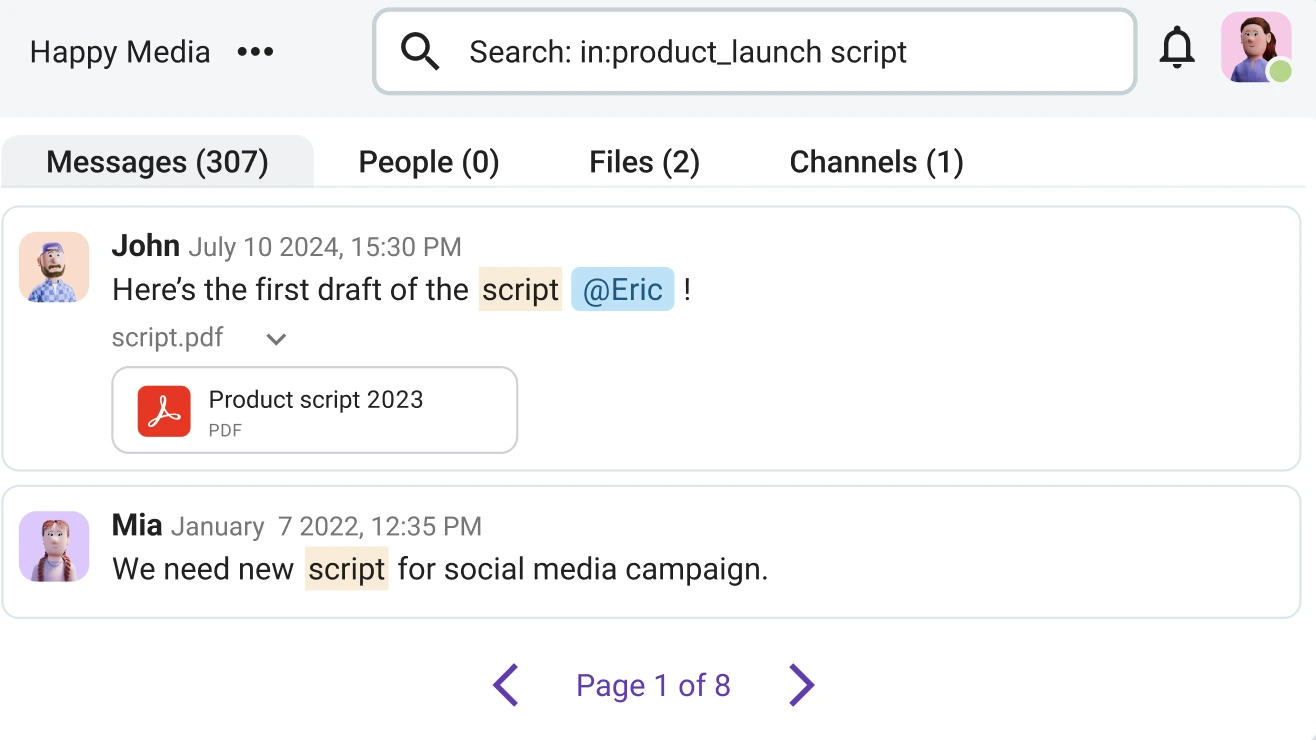
Why go through the entire workspace when you can zero in on a specific conversation or channel? You can then further refine your search by using:
- From: — to scan messages sent by a specific workspace member.
- In: — to sift through messages from specific group conversations, channels, or users.
- Only my channels — to go through messages sent in channels you’re a part of.
Additionally, the “exclude apps and webhooks” option removes all automated messages and notifications from your results.
The filters are a nice touch, too, allowing you to add start and end dates to further narrow your results.
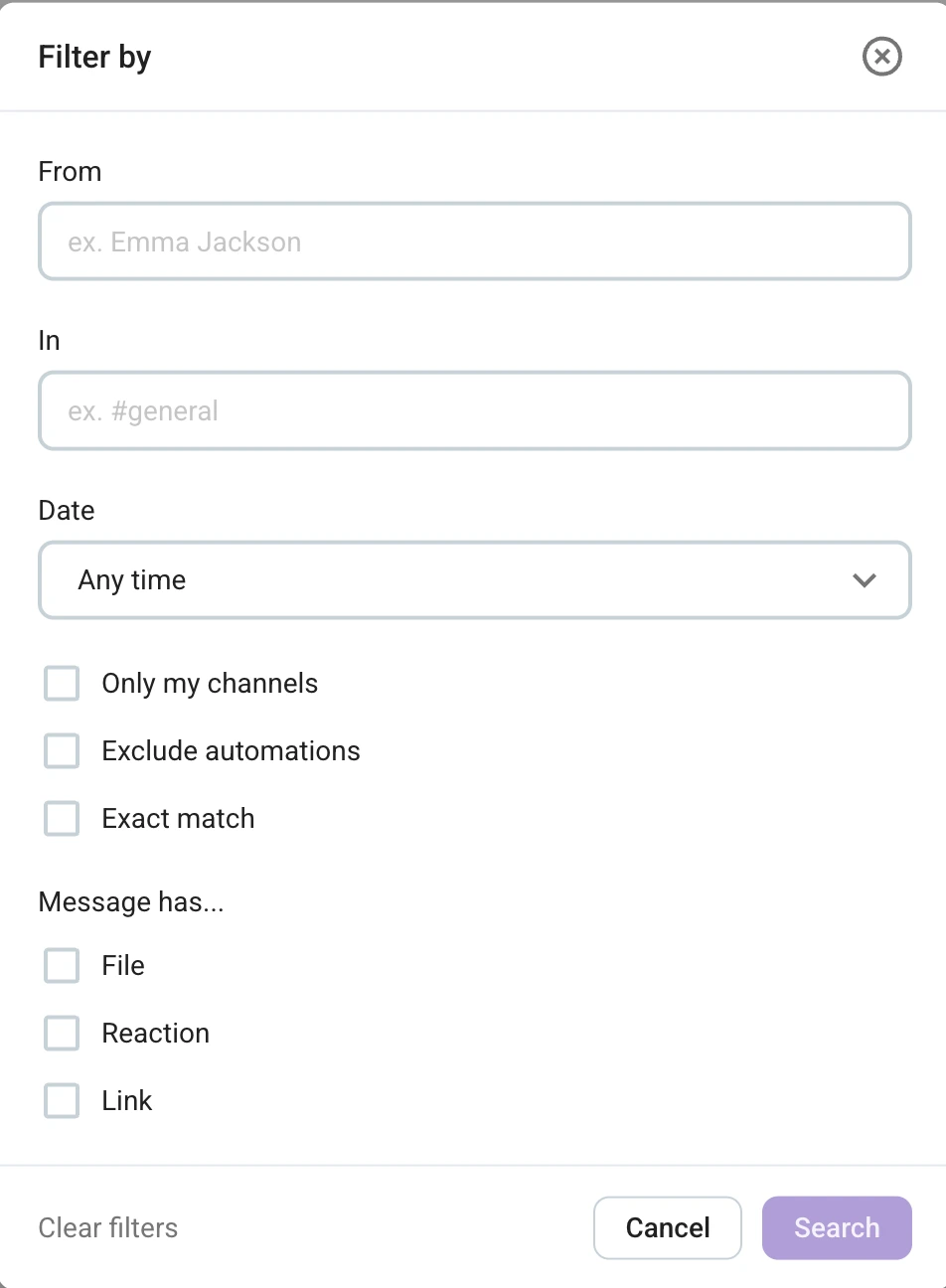
Teams using multiple collaboration software can use another criterion — filtering messages that contain links.
The Pumble file search options are extensive — and this is no accident. When your workspace is full of valuable information for both seasoned employees and new hires, you want the data to be within reach.
Is Pumble secure for client files?
Pumble’s security features keep client files safe, as the platform encrypts data both in transit and at rest.
When it comes to compliance posture, Pumble is ISO/IEC 27001 and SOC 2 certified, while CAKE.com, its parent company, upholds strict GDPR standards for handling personal data within the European Union.
The privacy controls add another protective layer, ensuring that only authorized workspace members can access files within specific channels and direct messages.
To top it off, granular administrative permissions and custom data retention policies further strengthen client trust in Pumble by CAKE.com.
Lock down communication in Pumble
Pumble vs. cloud storage: what belongs where
Although Pumble makes it easy to share files, the app isn’t a direct replacement for cloud storage, as the two serve different functions.
At its core, Pumble is a workplace communication platform, making it excellent for:
- Real-time team collaboration
- Group decision-making
- Cross-functional discussions (via messaging, voice calls or video conferencing)
Cloud storage, on the other hand, is better suited for long-term file management and document retention. Services such as Google Drive serve as reliable archives for:
- Contracts
- Presentations
- Approved brand assets
- Files requiring co-editing
That’s why integrating Google Drive with Pumble makes sense. You stay up to speed with shared items and file changes without constantly switching apps to check for comments, suggestions, and edits.
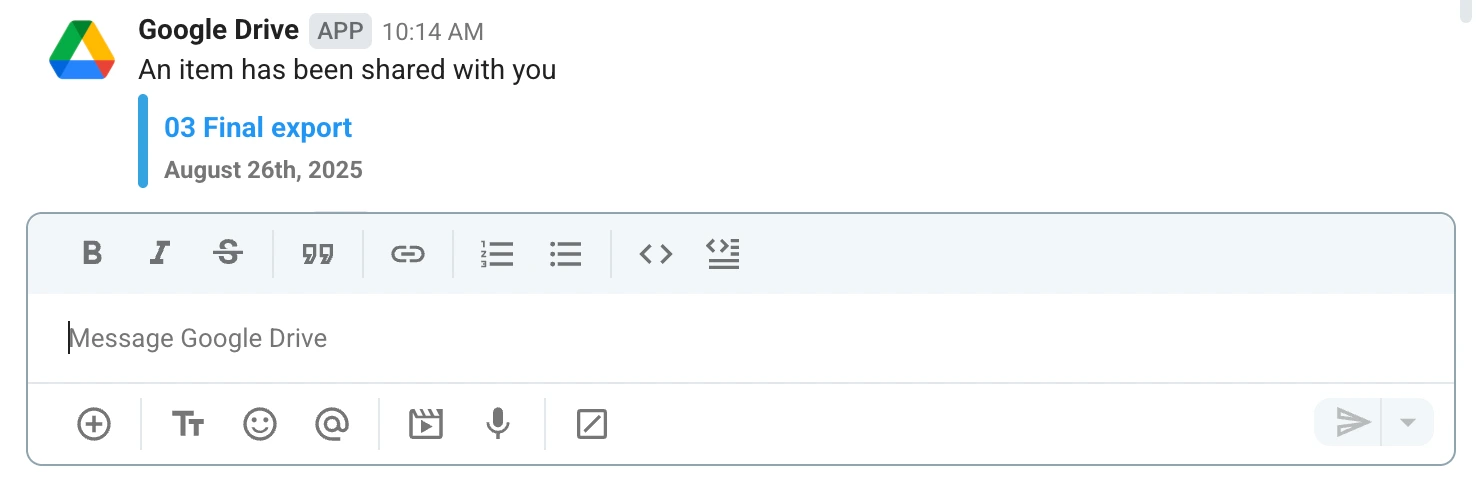
So, if your workflows rely on collaborative communication, this integration can help streamline your processes while keeping your tech stack simple.
Perguntas frequentes
Is Pumble end-to-end encrypted?
Pumble is not end-to-end encrypted. However, it boasts high-level security certifications and robust protection measures, including data encryption (both at rest and in transit), flexible authentication options, and customizable user permissions.
How safe is Pumble?
Pumble is among the top safe business messaging apps. Its main security features include:
- Transport layer security (TLS) in transit and at rest
- Role-based access controls (RBAC)
- Customizable workspace settings
- Custom data retention
What is the best way to share a lot of files?
Desktop and web users can bulk share up to 20 items simultaneously by uploading files to Pumble. Users can also bulk select and delete files within their workspace.
Can I integrate Pumble with other tools?
Pumble integrates with multiple third-party software and services, including Zoom, Google Drive, and Jira. Native integrations with Clockify and Plaky are popular with teams looking to consolidate time tracking, project management, and team communication. Moreover, developers can build custom integrations and add-ons using the CAKE.com Marketplace.
Your files, your rules — Try Pumble by CAKE.com
Integration capabilities, collaboration options, and file-sharing security — Pumble has it all. Whether you’re part of a small team or a growing enterprise, file management should never feel like a burden.
Forget about delays and missed deadlines. Let Pumble’s file-sharing features do all the heavy lifting.
Como avaliamos esta publicação: Nossos escritores e editores monitoram as postagens e as atualizam quando novas informações ficam disponíveis, para mantê-las atualizadas e relevantes.