 Atualizado em: 4 de novembro de 2025
Começar a usar uma nova ferramenta de comunicação em equipe pode ser complicado, mas o Pumble da CAKE.com torna tudo rápido, simples e intuitivo.
Neste guia do Pumble, vamos apresentar os 5 passos essenciais para configurar seu espaço de trabalho, convidar sua equipe e começar a colaborar imediatamente.
Considere isso como seus primeiros 15 minutos no Pumble, seu guia de início rápido para construir uma sede digital produtiva.
Ao final, você saberá como:
- Crie seu espaço de trabalho e convide colegas de equipe
- Organize conversas com canais
- Mantenha as discussões focadas com threads
- Personalize seu perfil e notificações
- Inicie sua primeira chamada ou compartilhe um arquivo
Vamos dar uma olhada!

Dica 1: Crie seu espaço de trabalho e convide sua equipe.
O Pumble foi projetado para o trabalho em equipe, então o primeiro passo é configurar seu espaço de trabalho e integrar seus colegas. O espaço de trabalho é o centro compartilhado da sua equipe para comunicação, colaboração e produtividade.
When you first register at Pumble, you’ll automatically create a Pumble workspace and your CAKE.com account with your organization in it. By creating a workspace, you automatically become the owner of that workspace. Once you do that, you’ll be redirected to the workspace you created, and encounter a modal prompting you to invite users to your newly created workspace.
Como convidar sua equipe
Seus colegas de equipe são a parte mais importante do seu ambiente de trabalho.
Para convidá-los, existem duas maneiras:
- Por e-mail
- Por meio de link compartilhado
Aqui está como fazer:
- Clique no nome do espaço de trabalho no canto superior esquerdo
2. Go to “Invite people”
3. Enter email addresses of your teammates
4. Clique em “Enviar convite” para confirmar
Para convidar por meio de um link compartilhado, você não precisa inserir os endereços de e-mail. Basta clicar na opção “Copiar link de convite” e compartilhá-lo em qualquer plataforma ou aplicativo de bate-papo.
Seus colegas de equipe receberão um convite e poderão entrar no seu espaço de trabalho inserindo seus nomes e concordando com os Termos de Uso do CAKE.com.
🎓 Dica profissional do Pumble
Nos planos de assinatura Business e Enterprise, você pode definir quem pode convidar novos membros para o seu espaço de trabalho nas configurações do espaço de trabalho.
Dica 2: Organize conversas com canais
Os canais são onde as conversas da sua equipe acontecem e a melhor maneira de evitar as conversas confusas por e-mail. Cada canal é dedicado a um tópico, equipe ou projeto, mantendo as discussões organizadas e fáceis de pesquisar.
Ao criar um espaço de trabalho no Pumble, dois canais padrão serão criados para você: #general e #random.
Os administradores do espaço de trabalho podem definir mais canais padrão para garantir que os novos membros sejam adicionados automaticamente aos canais essenciais.
Como apenas os canais públicos podem ser definidos como padrão, considere tornar as informações principais facilmente acessíveis a todos os membros da equipe.
Canais organizados facilitam a comunicação para todos. Assim, toda a equipe pode usar #marketing para campanhas, #geral para anúncios e #aleatório para conversas informais. Dessa forma, canais organizados ajudam sua equipe a se concentrar, manter o alinhamento e reduzir a falta de comunicação.
A configuração adequada dos canais também melhora a transparência. Todos podem ver o que está acontecendo, contribuir quando necessário e se manter informados mesmo quando não participam da discussão.

Como criar e organizar canais
O Pumble possui dois tipos de canais: públicos e privados. Os canais públicos são abertos a todos na organização, enquanto os canais privados são restritos a membros selecionados e convidados.
Como já mencionamos, você terá dois canais públicos padrão, #geral e #aleatório. Mas você pode criar quantos canais precisar. E ao criá-los, você pode escolher se deseja que sejam públicos ou privados.
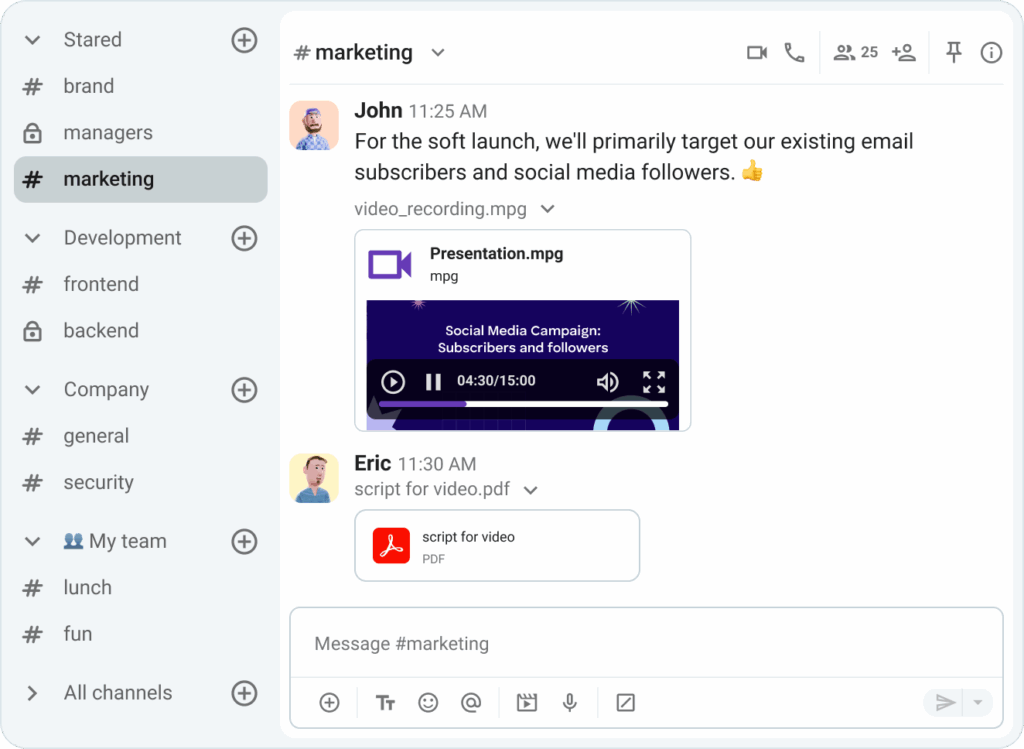
Existem algumas maneiras de criar um canal em seu espaço de trabalho. Vamos começar do início.
O primeiro lugar para criar canais é no canto superior esquerdo. Você verá a opção +Criar novo na sua barra lateral. A partir daí, basta escolher Canais e pronto.
A segunda e a terceira opções estão diretamente na lista de canais na barra lateral. Você verá um sinal de + ao lado de Canais, onde poderá criar um novo canal, ou poderá fazer isso clicando em +Adicionar canais logo abaixo dos canais listados.
A quarta maneira é acessar a aba Todos os canais na sua barra lateral. Você verá um botão no canto direito com o texto “Criar canal”.
Todos esses métodos abrirão a mesma janela para criação de canais. Nela, você precisará adicionar um nome para o canal, escolher se ele será privado ou público e adicionar uma descrição para que todos saibam do que se trata.
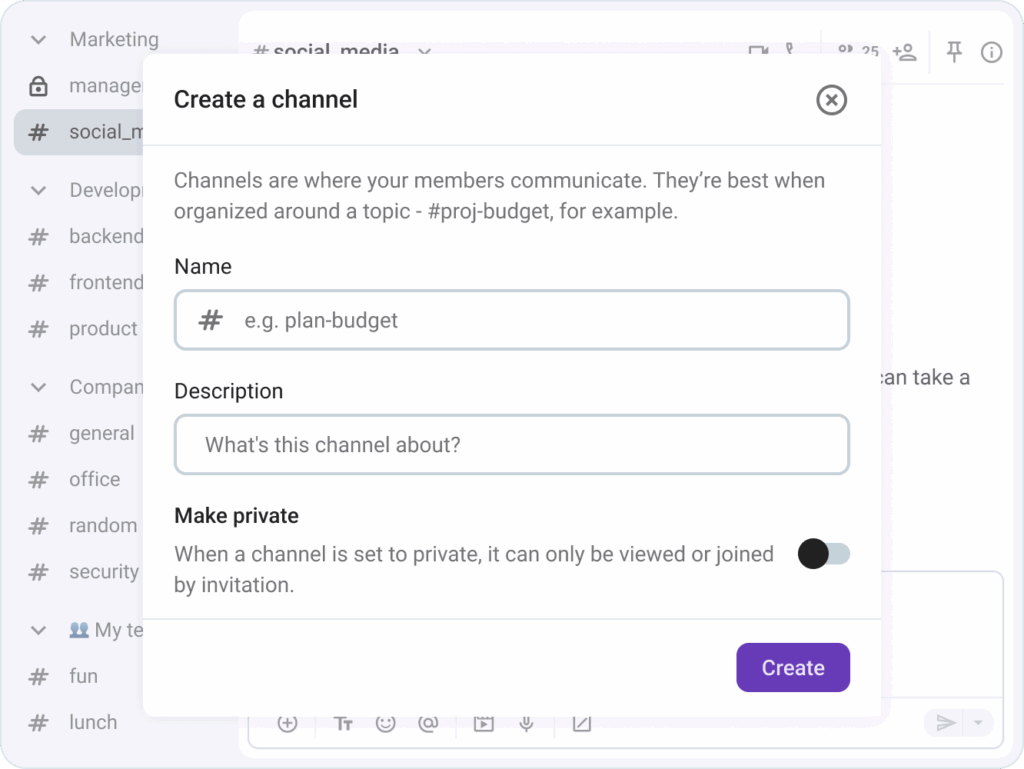
Criar um canal público é a melhor maneira de compartilhar informações e manter a transparência com sua equipe. Dessa forma, todos os membros relevantes da equipe podem entrar no canal e visualizar todas as comunicações.
Por outro lado, se a informação for confidencial, você pode criar um canal privado ou enviar uma mensagem direta para um ou mais colegas.
Portanto, para se manter organizado ao configurar canais no Pumble, é importante manter o propósito deles claro.
Por exemplo, você pode criar um canal para:
- Conversas e atualizações da equipe — #marketing, #vendas, #design, etc.
- Lançamento de um novo projeto — #halloween_campaign, #relaunch_website, #new_year_campaign, etc.
- Ajudando estagiários — #interns_qa, #interns_onboarding, #interns_ppc.
Tip 3: Communicate with your team
Keep conversations focused with threads.
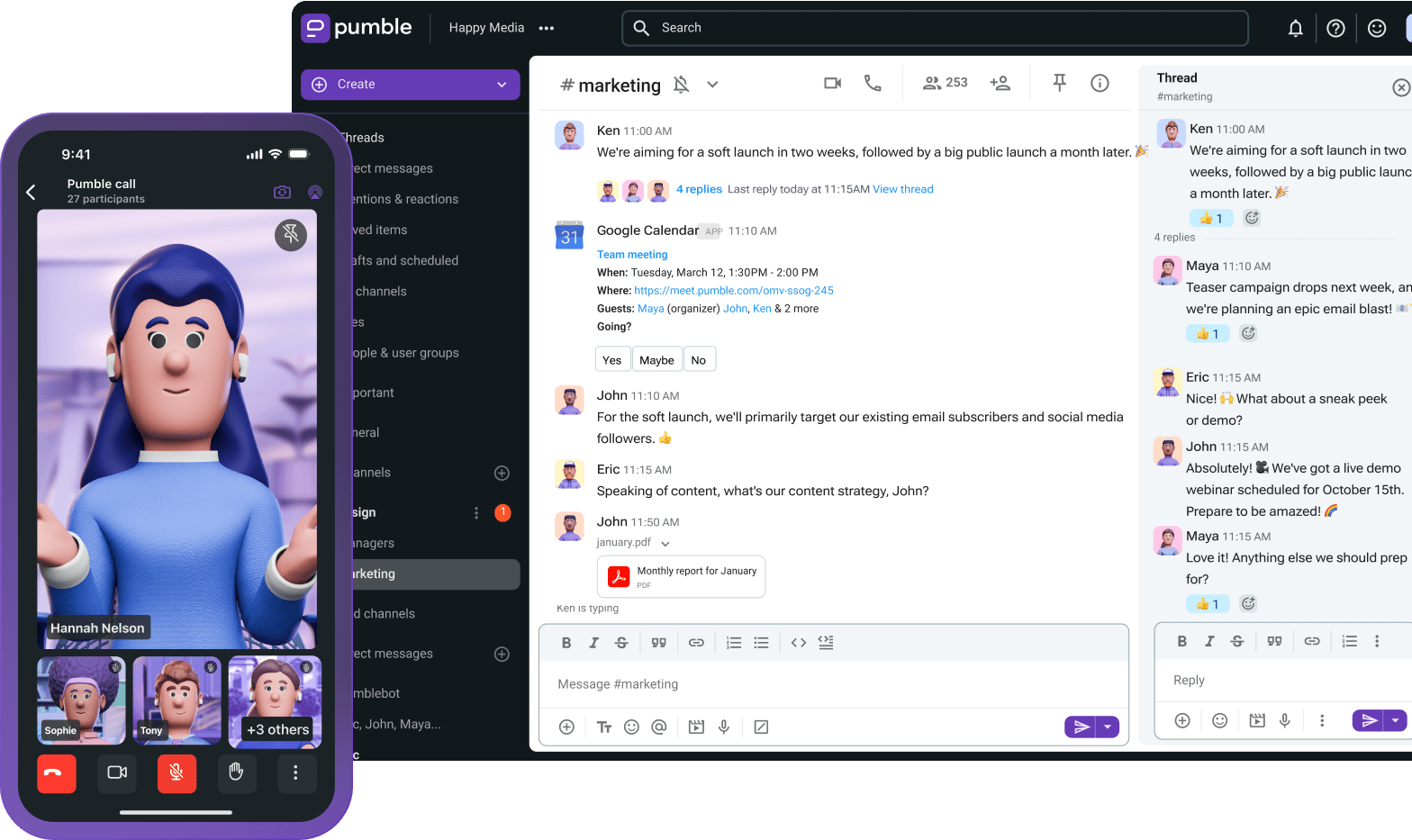
Channels in Pumble keep communication organized, but threads keep it clean. Without threads, even the best-organized channel can quickly become a wall of messages. Threads let you reply directly to a specific message, keeping side discussions in context and preventing clutter.
This small habit makes a big difference in how teams communicate. Threads help maintain focus, especially in busy channels where multiple topics may overlap. When replies are contained within a thread, everyone can easily follow the main discussion while still engaging in detailed side conversations.
Using threads also improves knowledge sharing. When someone revisits a project discussion weeks later, they can quickly find all relevant replies in a single thread instead of searching through hundreds of unrelated messages.
How to start a thread
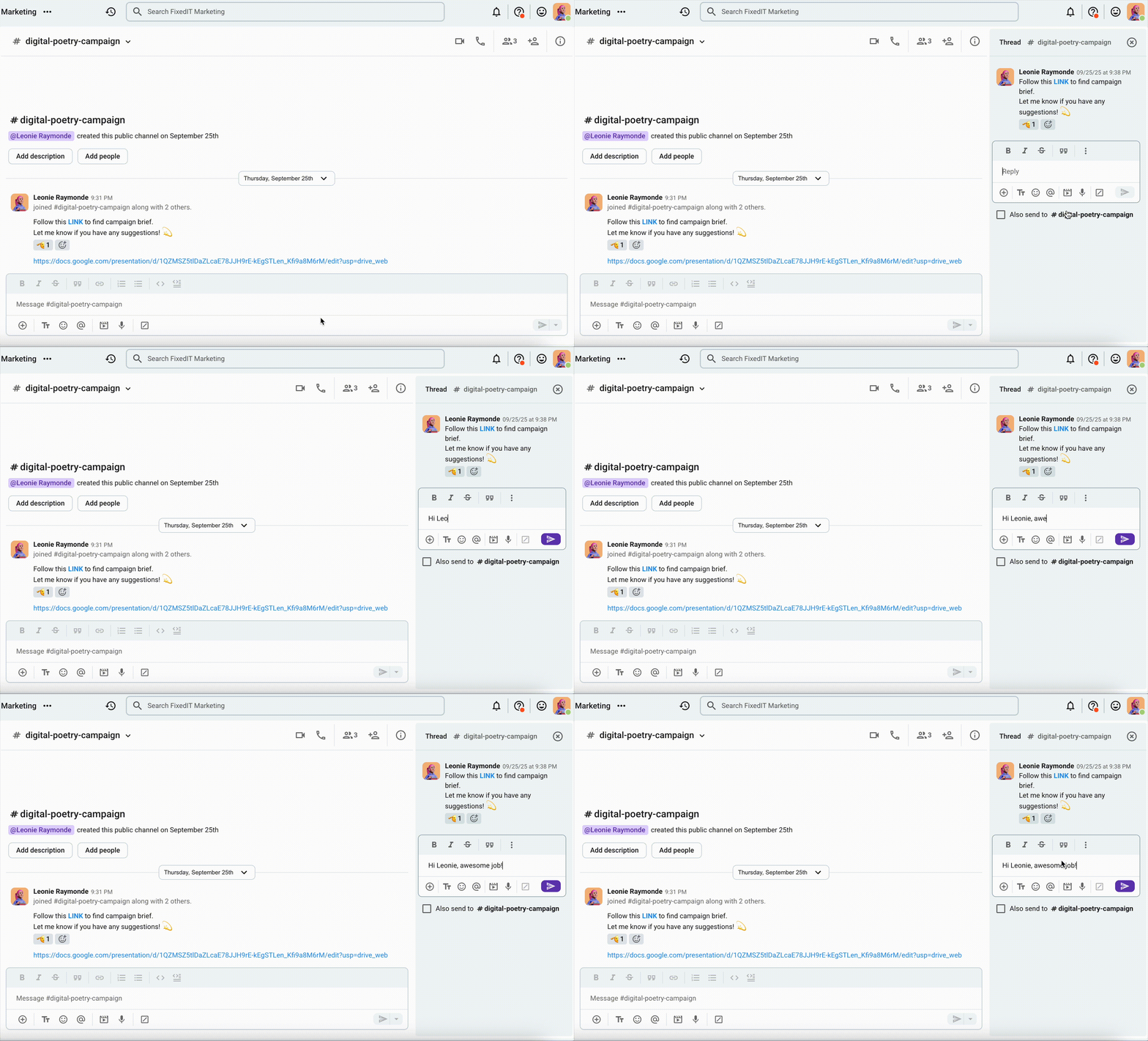
You can start a thread from any message to organize discussions in your channels and/or direct messages.
Aqui está como fazer:
- Send your message.
- Hover over the message you’d like to reply to.
- Click on the reply in the thread icon.
- Enter your reply.
To send your reply back to the channel or to the main view of direct messages, simply tick the Also send to [channel name] checkbox located below your message.
🎓 Dica profissional do Pumble
Encourage your team to use threads whenever they respond to a message that needs follow up.
Tip 4: Customize your profile & notifications
When you’re getting started in Pumble by CAKE.com, setting up your profile and notifications is an important step toward making your workspace feel personal, professional, and manageable.
A well set up profile helps your teammates recognize you and understand your role, especially in larger teams or remote settings. Meanwhile, properly adjusted notification preferences help you stay informed about important updates without being overwhelmed. Together, these two steps make your communication more human and your workflow more focused.
Customize your profile
Your Pumble profile is how you present yourself to your team. A profile photo, name, and role give a face to your messages and help others connect with you on a more personal level. In remote teams, this visual identity strengthens relationships and builds trust.
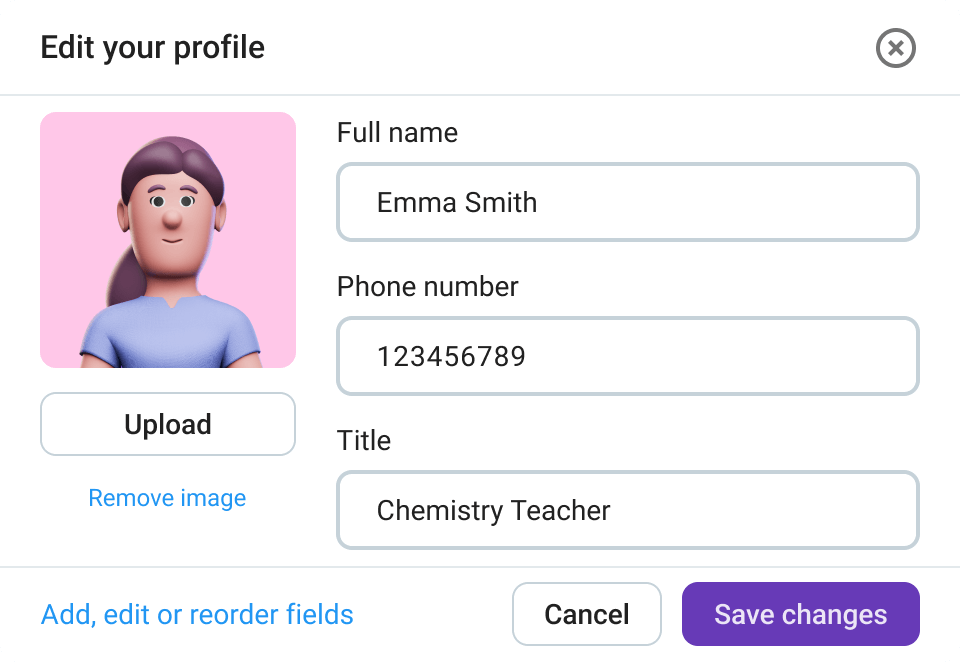
It also makes collaboration smoother. When everyone’s profiles are complete, it’s easier to identify who’s responsible for what, saving time and reducing confusion. A few minutes spent personalizing your profile can go a long way toward creating a professional and friendly team environment.
How to customize your Pumble profile
Para configurar um perfil em uma área de trabalho do Pumble, você precisará fazer o seguinte:
- Clique na foto do seu perfil no canto superior direito
- Select the “My profile” tab,
- Clique na opção “Editar”
- Preencha as informações que faltam ou adicione mais detalhes sobre você
- Click on the “Save” button when you’re done.
Update your profile photo regularly, especially if you’re onboarding new teammates. A friendly, up-to-date photo helps everyone feel more connected.
Adjust your notifications
Effective communication doesn’t mean constant interruption. By customizing your notifications, you can stay in control of how and when you receive alerts, ensuring you’re aware of what matters most without being distracted by every message.
When notifications are set up correctly, you’ll always catch direct messages and important mentions while avoiding notification overload. This is especially useful for larger teams where message activity is high, or for users who split time between desktop and mobile apps.
Tailoring your notification preferences early on helps you build a balanced workflow. Instead of feeling pressured to respond instantly, you can focus deeply and return to Pumble when it makes sense for you.
How to adjust your notifications
You can set the notification preferences in the sidebar or from the channel/DM header.
To do so:
- Right click on the channel/DM in the sidebar or Click on the downward arrow next to the channel/DM name in its header.
- Choose Notification preferences.
Now, you can set the preferences in the Notifications modal.
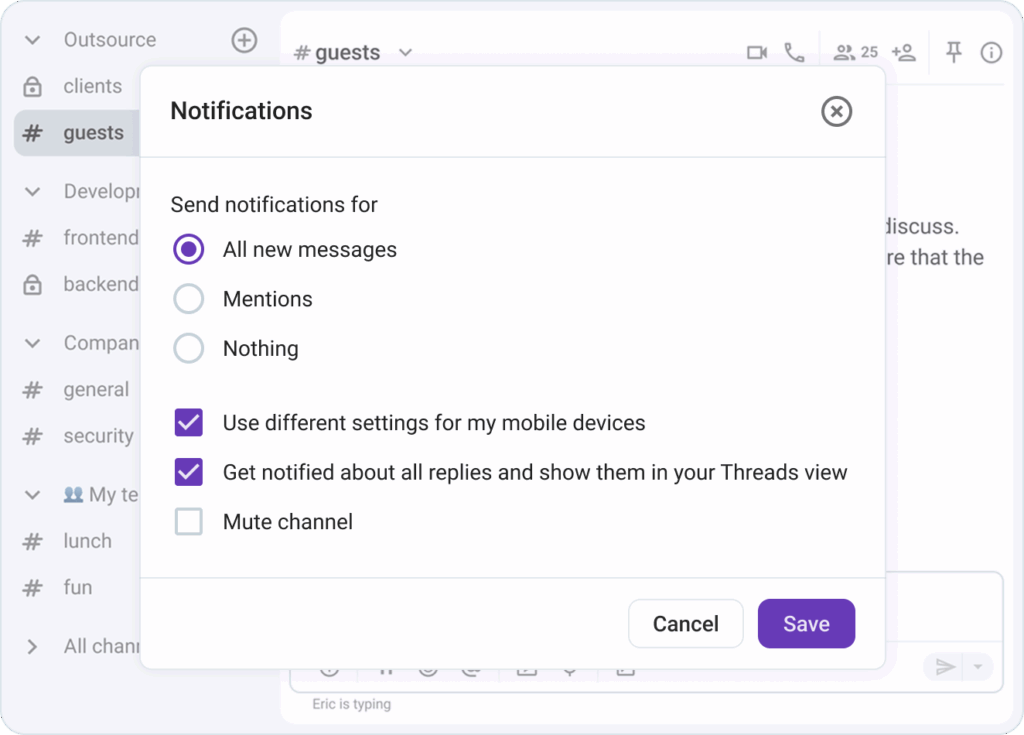
You can configure the notifications for:
- All new messages (default),
- Mentions (you’ll get notifications whenever you’re mentioned),
- Optionally check Also include @channel and @here to get these notifications as well,
- Use different settings for my mobile devices (check this box and then choose if you’d like to get push notification, or no notification on mobile), and
- Follow all threads with new replies in this channel/DM (you’ll get notifications for all new replies in threads for that channel/DM).
If you choose Mute channel/Mute DM, it will be reflected on both mobile and desktop/web clients.
Tip 5: Start your first call or share a file
So, once your workspace, channels, and notifications are all set up, it’s time to see Pumble by CAKE.com in action.
The best way to do that is by starting a call or sharing a file with your team. These two actions transform Pumble from a simple chat app into a real collaboration hub, a place where communication and work come together.
Video calls help you connect face-to-face, build stronger relationships, and make quick decisions without leaving your workspace.
File sharing, on the other hand, keeps all your important documents, screenshots, and updates right inside Pumble, making it easy for everyone to find and discuss them.
Together these features show how powerful Pumble can be as your all-in-one communication and collaboration platform.
Start your first call
When working remotely or across different offices, video and voice calls in Pumble bring back the spontaneity and connection of real-world teamwork. Instead of scheduling formal meetings in separate tools, you can instantly jump into a quick call with one click, keeping the conversation natural and productive.
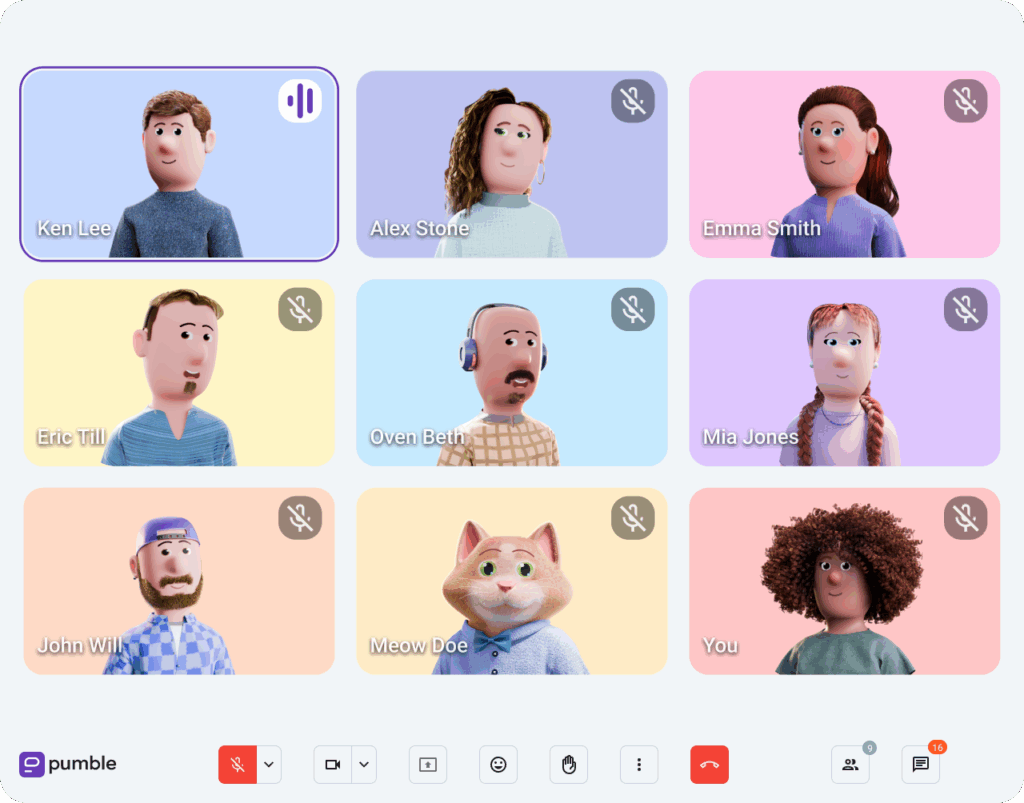
Starting your first call helps your team feel more connected and comfortable using Pumble as their daily communication hub. It also reduces friction — you can discuss details, brainstorm ideas, or make decisions immediately, without switching to another platform.
Regular use of calls helps strengthen team culture, improve communication flow, and cut down on endless back and forth messaging.
Here’s how to start a call in Pumble:
- Open a DM or a channel where you want to make a call,
- Click on the camera icon in the top right corner,
- Once the call begins, your teammates will see a modal to join.
Use calls for quick problem solving or one-on-one syncs. For larger discussion, create a dedicated meeting where everyone can join via call links.
Share a file
Every team relies on sharing documents, images, or resources, and doing it directly in Pumble keeps your workflow seamless. Instead of switching between apps or digging through emails, you can upload files right where the conversation happens. When you share a file in Pumble, it’s automatically stored and searchable within your channel or direct message. That means no more losing track of attachments or searching multiple folders for the latest version.
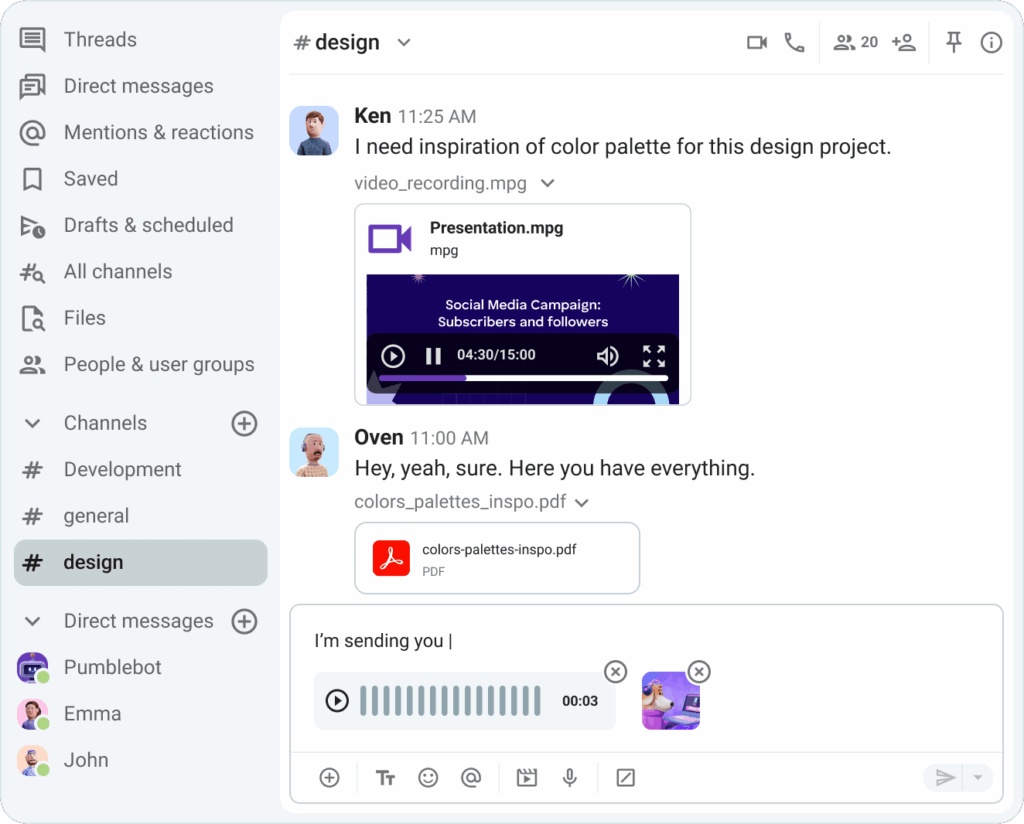
File sharing also helps visualize progress. Whether it’s a project plan, a report, or a design mockup, sharing it in Pumble lets teammates react, comment, or start a thread to discuss improvements.
Sharing a file in Pumble is simple:
- Go to a channel or DM,
- Drag and drop your file directly into the message box, or click on the “Plus icon” and choose “Upload from your computer”,
- Add a short message or emoji reaction to give context or prompt feedback,
- Press “Enter” to send and your file will instantly appear in the chat.
What’s Next?
You’ve just taken your first big leap toward building a more connected, organized, and productive team.
With these 5 steps, you’re no longer just getting started in Pumble by CAKE.com — you’re already collaborating like a pro.
Your team now has a central hub for:
- Comunicação
- Quick decision making, and
- Seamless teamwork.
But this is just the beginning. Pumble offers plenty of features designed to help you take your collaboration even further.
Ready to explore what’s next?
Here are some great next reads:
Team collaboration with Pumble — Learn how to use channels, mentions, and threads to strengthen teamwork and improve communication flow.
Guest access in Pumble — Discover how to collaborate securely with external partners, clients, or freelancers.
Pumble mobile app guide — Stay connected and productive from anywhere with Pumble for iOS and Android.
Pumble for startups — See how early-stage teams use Pumble to streamline operations and scale communication efficiently.
Every feature you explore will help your team communicate better and work smarter. So go ahead — invite a few more teammates, create your next project channel, or start a call to celebrate your first win together.
Welcome to your digital HQ with Pumble by CAKE.com, where great teamwork begins!
Como avaliamos esta publicação: Nossos escritores e editores monitoram as postagens e as atualizam quando novas informações ficam disponíveis, para mantê-las atualizadas e relevantes.