Jira Integration
With the Pumble and Jira integration, you can create Jira issues directly from Pumble. This eliminates the need to switch between the two apps and helps you optimize your workflow.
Install the Jira addon #
To start, you will need to install the Jira add-on in your workspace. Here’s how:
- Click on + Add apps in the left sidebar
- Click Install next to the Jira addon
- Allow permissions

Connect your Jira workspace #
Once you have installed the addon, you can proceed and connect your Jira workspace. Here’s how:
- Click on Jira in the left sidebar
- Click on Connect Jira Site
Create a Jira issue #
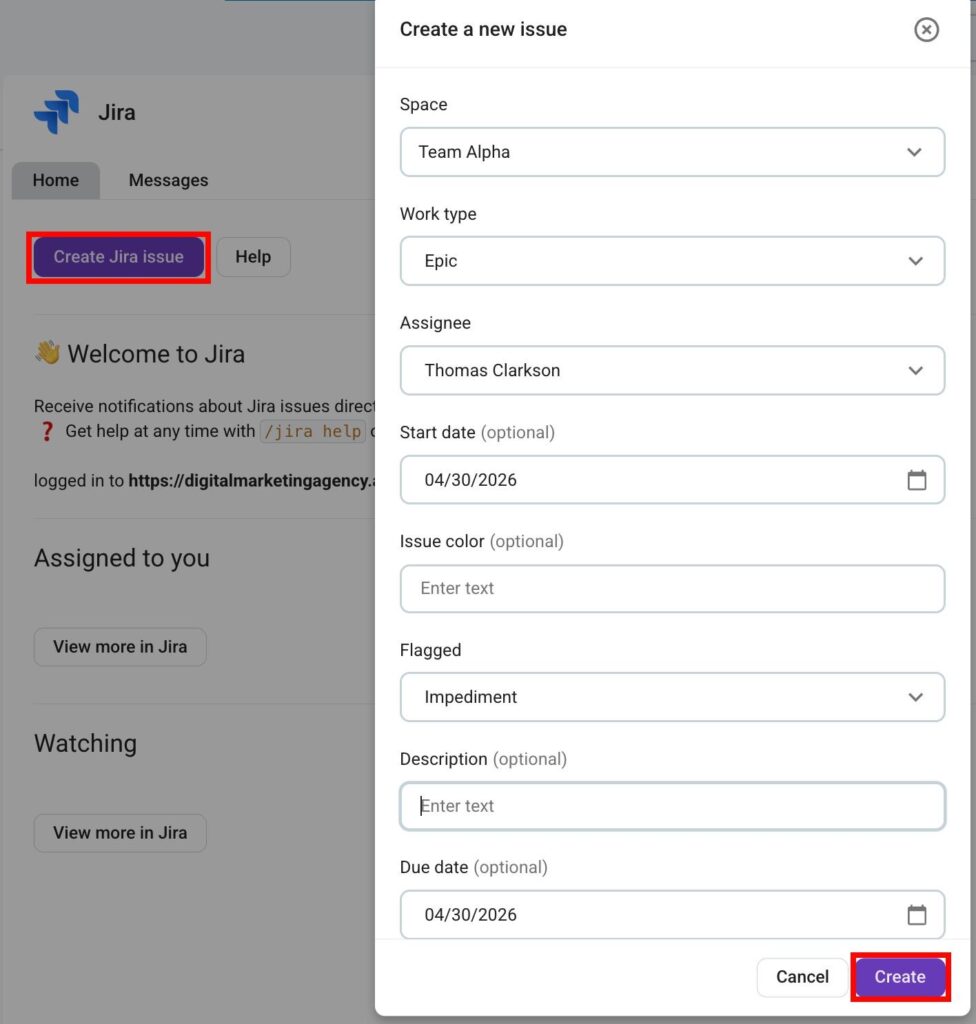
When you have connected your workspace to Jira, you can create a Jira Issue. Here’s how:
- Open Jira in the left sidebar
- Click on Create Jira issue
- Select Space
- Select Work type
- Fill out the rest of the information
- Click Create to complete the action
You can also create an Issue by typing / in the message box and choosing the Create Jira issue global shortcut.
Once the Issue is created, it will be displayed in your Jira Space.
Slash commands #
You can access the Jira integration by typing slash commands directly in your message box. The following commands are supported:
- /jira create — create an issue
- /jira help — lists all slash commands
- /jira [issue-key] — shows details about the Issue