Zendesk Addon
With the Zendesk addon, you can connect Pumble to your Zendesk account and track all critical customer service updates. This functionality reduces the need for swapping between the two apps and keeps all important info in one place.
Install the Zendesk addon #
You can install the Zendesk addon directly from your Pumble workspace. Here’s how to do this:
- Click on + Add apps from the sidebar
- Click Install next to Zendesk
- Allow permissions
Connect your Zendesk account #
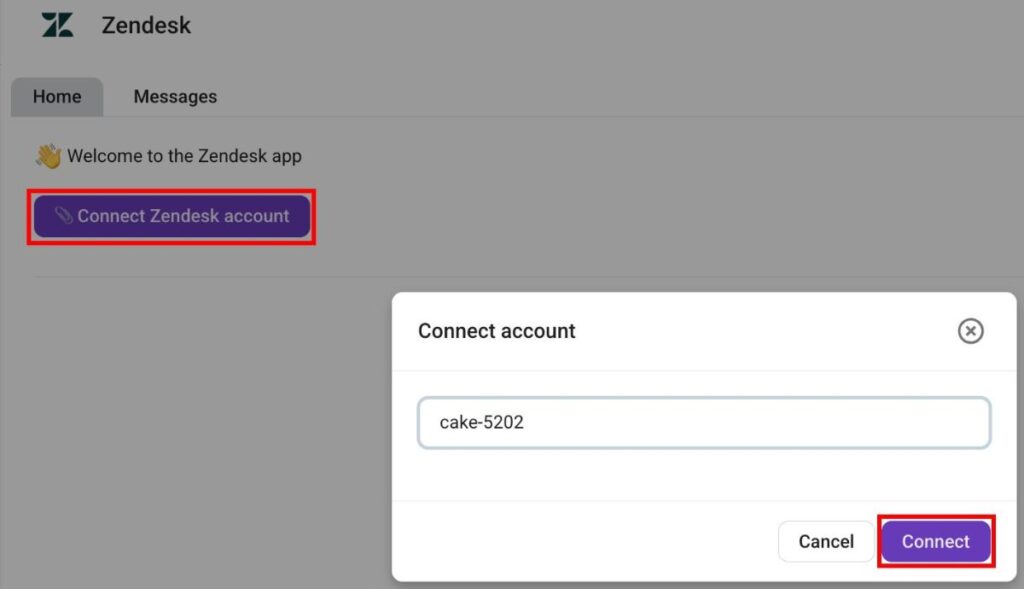
Once you install the addon, you can move on to connecting your Zendesk organization. Here’s how to do this:
- Open the Zendesk addon
- Click on Connect Zendesk account
- Enter your Zendesk account subdomain (e.g., digitalmarketingagency-34686)
- Click Connect to confirm the action
Create a Zendesk ticket #
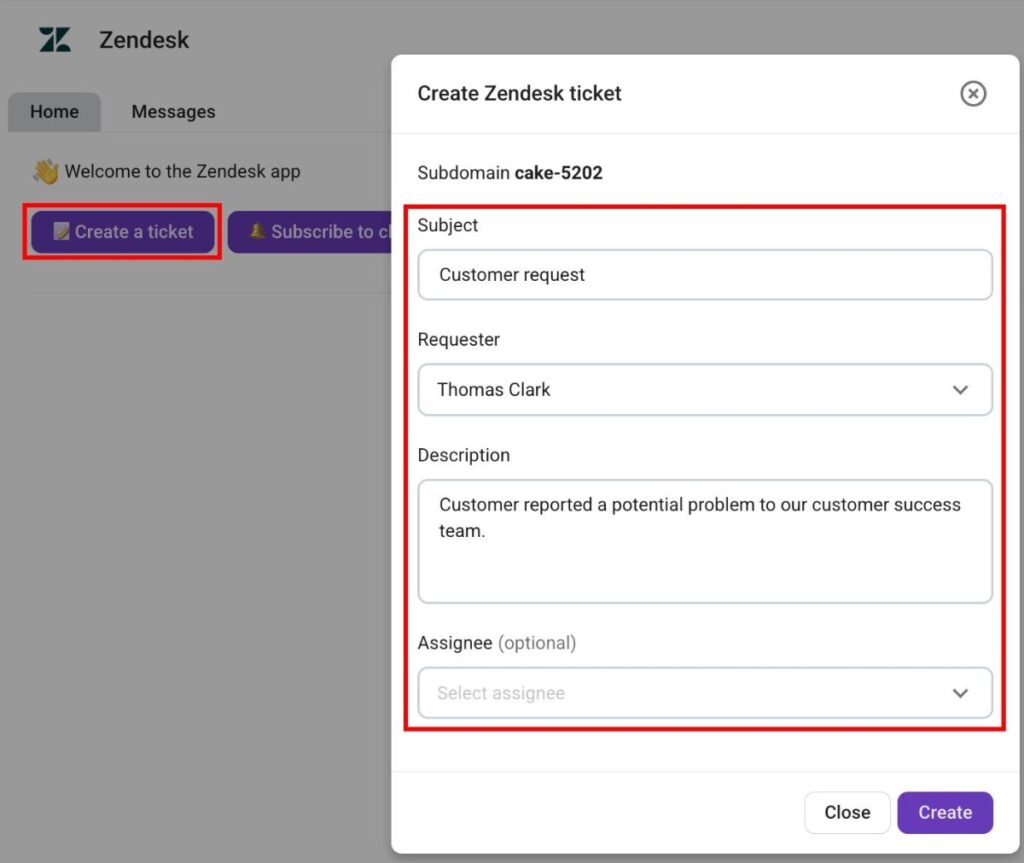
Pumble allows you to create Zendesk tickets directly from the addon. Here’s how you can do it:
- Click on Create new ticket
- Enter ticket subject
- Select a Requester
- Enter ticket description
- Select Assignee (this is optional)
- Click on Create
Subscribe Zendesk to a Pumble channel #
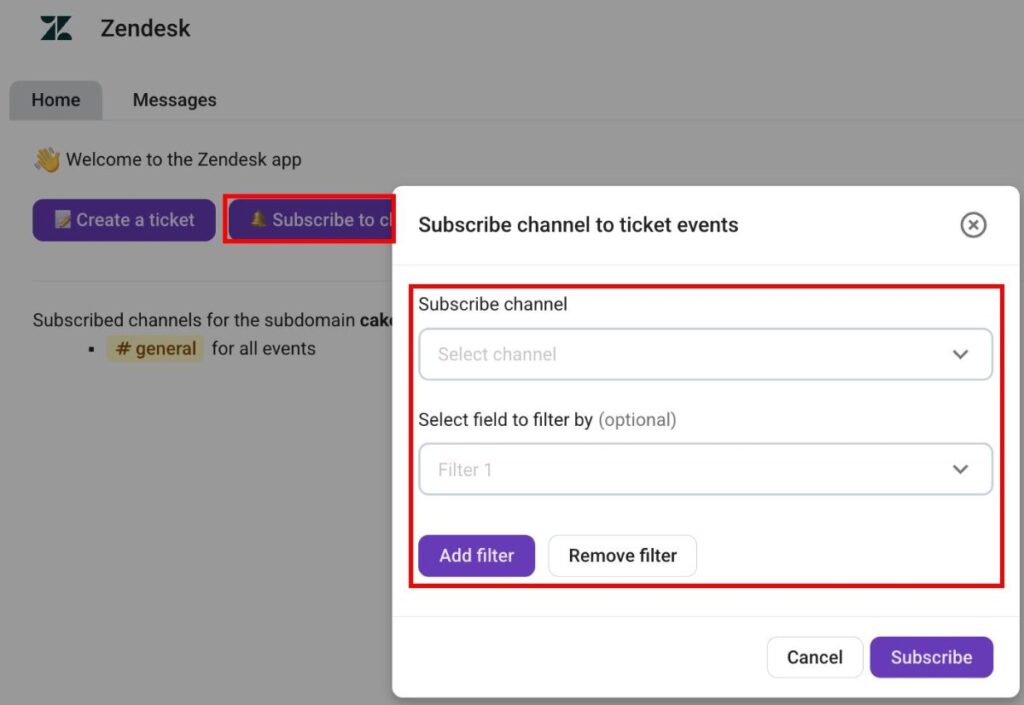
When your Zendesk organization is connected to Pumble, you need to subscribe to Pumble channels to receive ticket updates. Here’s how you can subscribe a Pumble channel to Zendesk:
- Click on Subscribe to channel
- Select a channel
- Add filters (this is optional)
- Click on Subscribe to complete the action
When you subscribe a channel to ticket events, you can receive the following notifications:
- New tickets
- Replies to tickets
- Ticket status change
- Assignee changed
- Task priority change
- Requester change
- Change of ticket type
Slash commands #
The Zendesk addon also lets you use slash commands in chat for more advanced navigation. The following commands are available:
- /zendesk connect {subdomain} — connects Pumble to a Zendesk organization.
- /zendesk disconnect — disconnects Pumble from a Zendesk account.
- /zendesk subscribe {field1=value1; field2=value2} — subscribes the current channel to Zendesk updates.
- /zendesk unsubscribe — unsubscribes from a Zendesk ticket.