Google Calendar Integration
By integrating Pumble with Google Calendar, you can stay up to date with all the meetings on your schedule within the Pumble interface. This guide will walk you through the steps to integrate Pumble with Google Calendar.
To connect Pumble with Google Calendar, follow these steps:
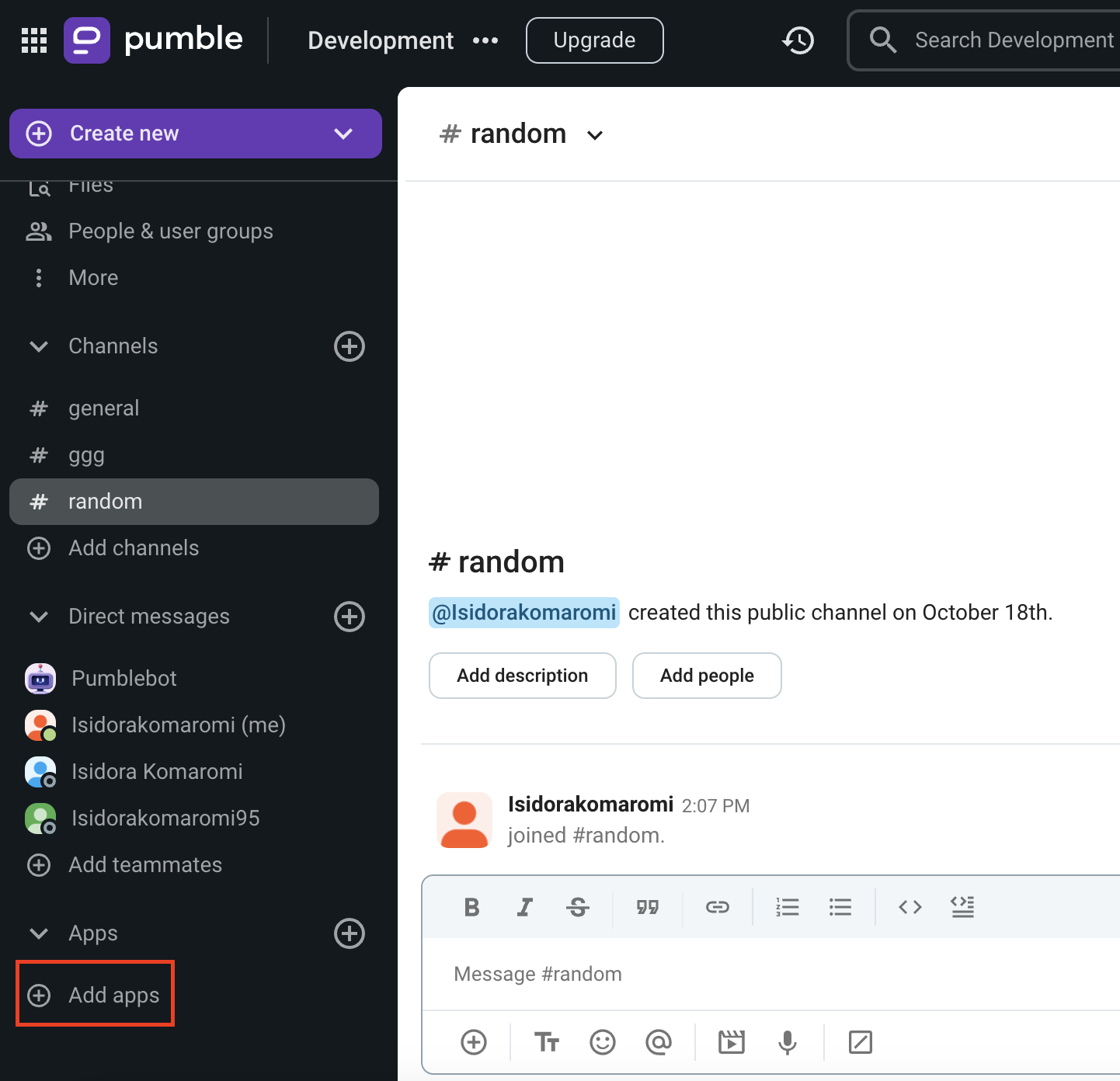
- Click on +Add apps button at the bottom of the left sidebar
- Click on Install button next to the Google Calendar app and a new tab will open with the consent form and integration specifics
It’s possible that the app has already been installed on your workspace by another user, and you will need to authorize it so that you can use it. To do it, click on the Authorize button next to the app name. - Select the Workspace from the dropdown
It is important that you are logged in to the Pumble Workspace that you choose from the dropdown.
4. Click Allow
5. Select the Google Account
6. Click Continue
7. Select what [Workspace_name] can access
8. Click Continue to complete the action
Integrating Pumble with Google Calendar proves exceptionally valuable in scenarios where team members are dispersed across various time zones, making it challenging to coordinate meetings and ensure everyone is on the same page. By integrating Pumble with Google Calendar, you can simplify scheduling team meetings and ensure everyone is aware of upcoming events, regardless of their time zone.
Valid commands #
There are a few specific actions that can be used to interact with Google Calendar integration:
• /gcal today – list events scheduled for today
• /gcal tomorrow – list events scheduled for tomorrow
• /gcal add – connect a new calendar
• /gcal remove ID – remove a calendar
• /gcal list – list your connected calendars
• /gcal next – view the next meeting
• /gcal help – show the list of valid commands
Add a calendar #
To add a calendar to Pumble, follow these steps:
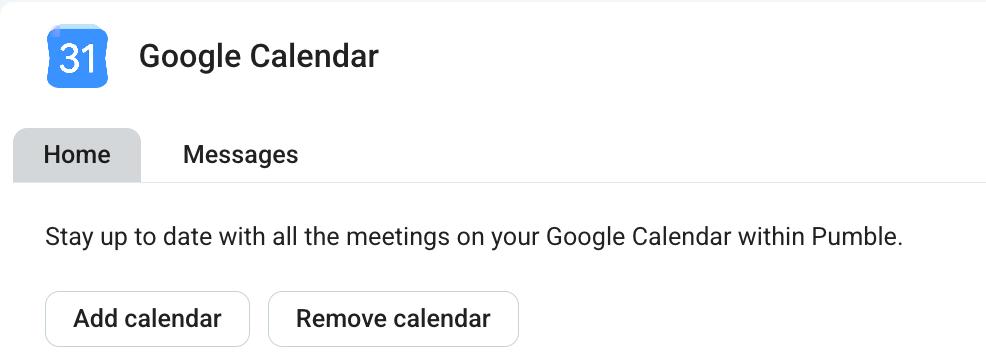
- Open the Google Calendar addon in the left sidebar
- Click on Add calendar
- Select the Google account and allow permissions
A Google Calendar bot will send you a message to notify you that your calendar has been successfully connected. You will also receive a message from the Google Calendar bot one minute before each of your meetings.
When integrated with your calendar, the Google Calendar app will automatically adjust your Pumble status to indicate when you’re in a meeting.
View meetings #
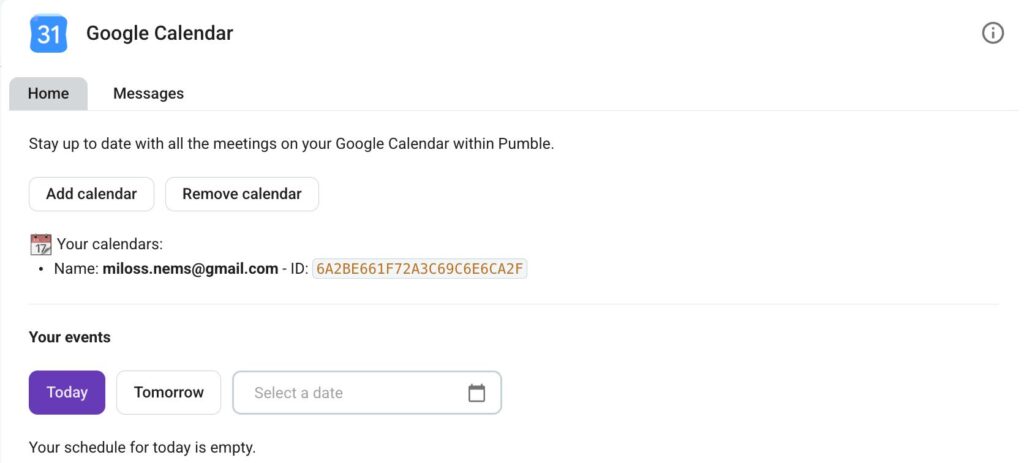
You can view your Google Calendar meetings directly from Pumble. This reduces the need to switch between the two apps and keeps everything organized in one place. Here’s how you can view meetings:
- Open the Google Calendar addon in the left sidebar
- Open the Home tab
- You can view meetings for
- Today
- Tommorow
- Custom date