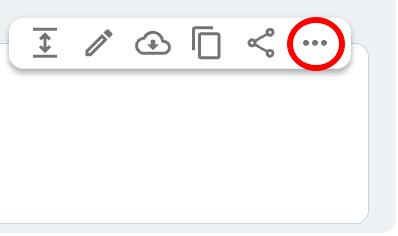
Send a Code Snippet
With code snippets, you can send parts of code, configuration files, or log files to users in your workspace.
Here’s how you can do this:
- Click the + icon in the message editor
- Select Text snippet
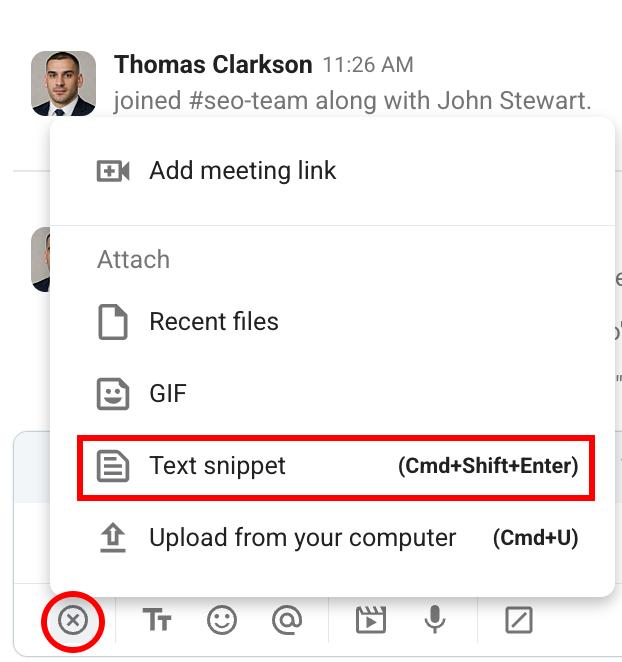
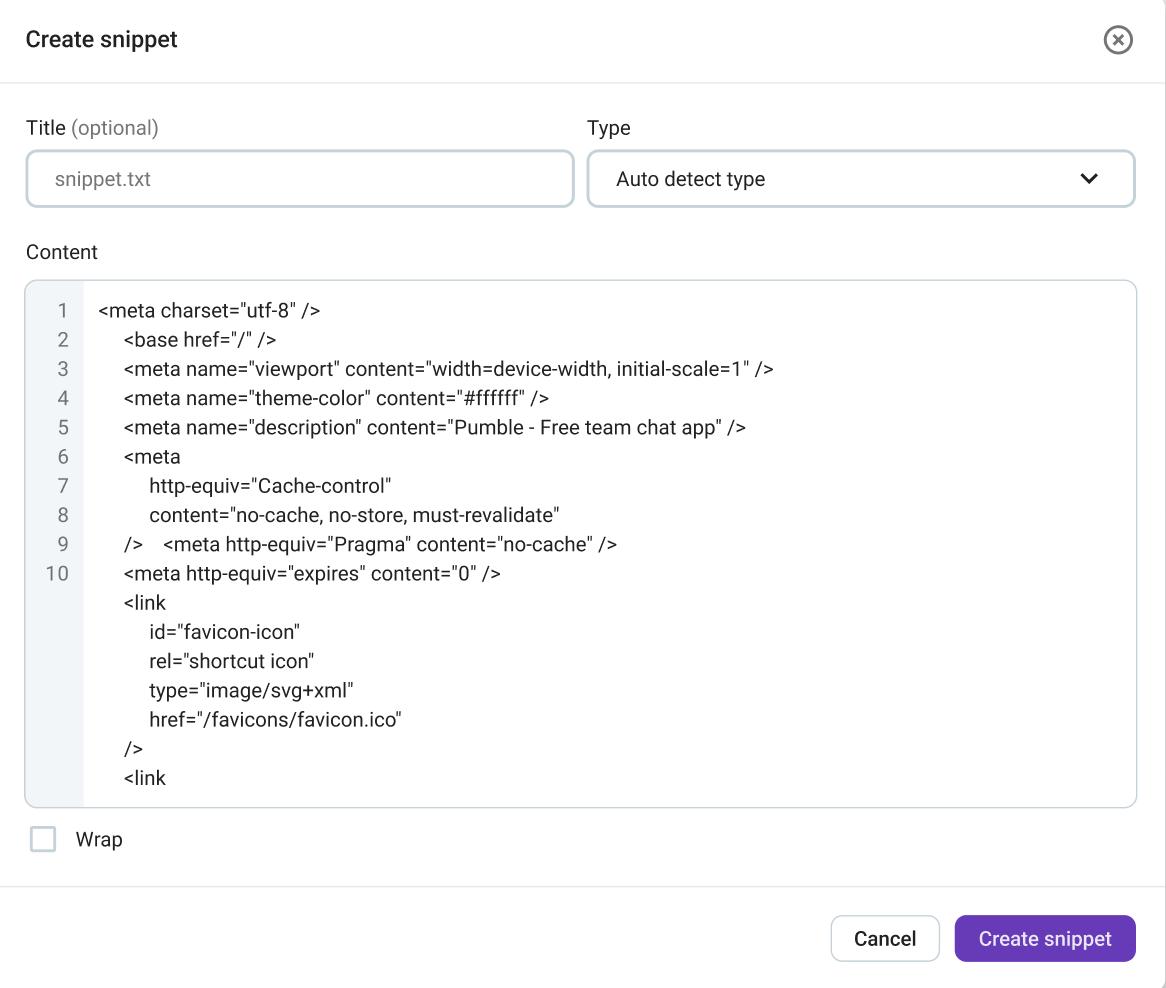
- Enter snippet title (this is optional)
- Select snippet style
- Paste the code into the Content section
- Click on Create snippet
Users can click the collapse/expand button to change the number of lines displayed in the snippet.
You can add a new snippet by using the keyboard shortcut Ctrl/CMD + Shift + Enter.
Edit snippet #
You can always edit the snippet and change the code inside it. To do this, hover over the snippet and click on the pencil icon.
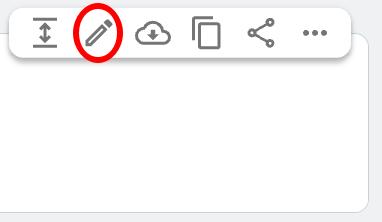
This will open a modal where you can customize the snippet.
Share snippet #
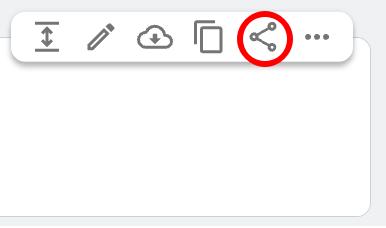
You can share code snippets directly with other workspace users. Here’s how you can do this:
- Hover over a snippet
- Click on the share icon
- Select users
- Write your message (optional)
- Click Share
Copy snippet to clipboard #
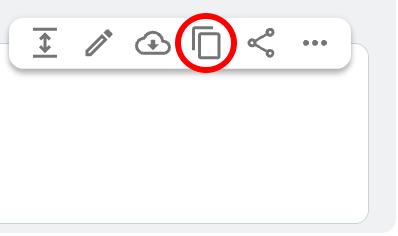
If you want to paste the code snippet somewhere, you can copy it to your clipboard by clicking on the copy to clipboard icon.
Download snippet #
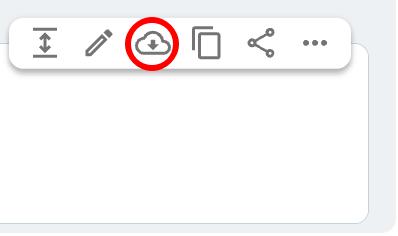
You can save code snippets directly to your computer by clicking on the download button. The files will be saved in a .txt format.
Delete snippet #
To remove a code snippet from your workspace, follow these steps:
- Hover over a snippet
- Click on the three dots
- Click on Delete file
- Click on Delete to confirm the action