Analytics Dashboard
With the Analytics Dashboard, you can get clear, actionable insights into how your team uses Pumble. Analytics provide data on engagement, communication patterns, and tool adoption. This helps leadership understand Workspace health and make informed decisions.
Open Analytics #
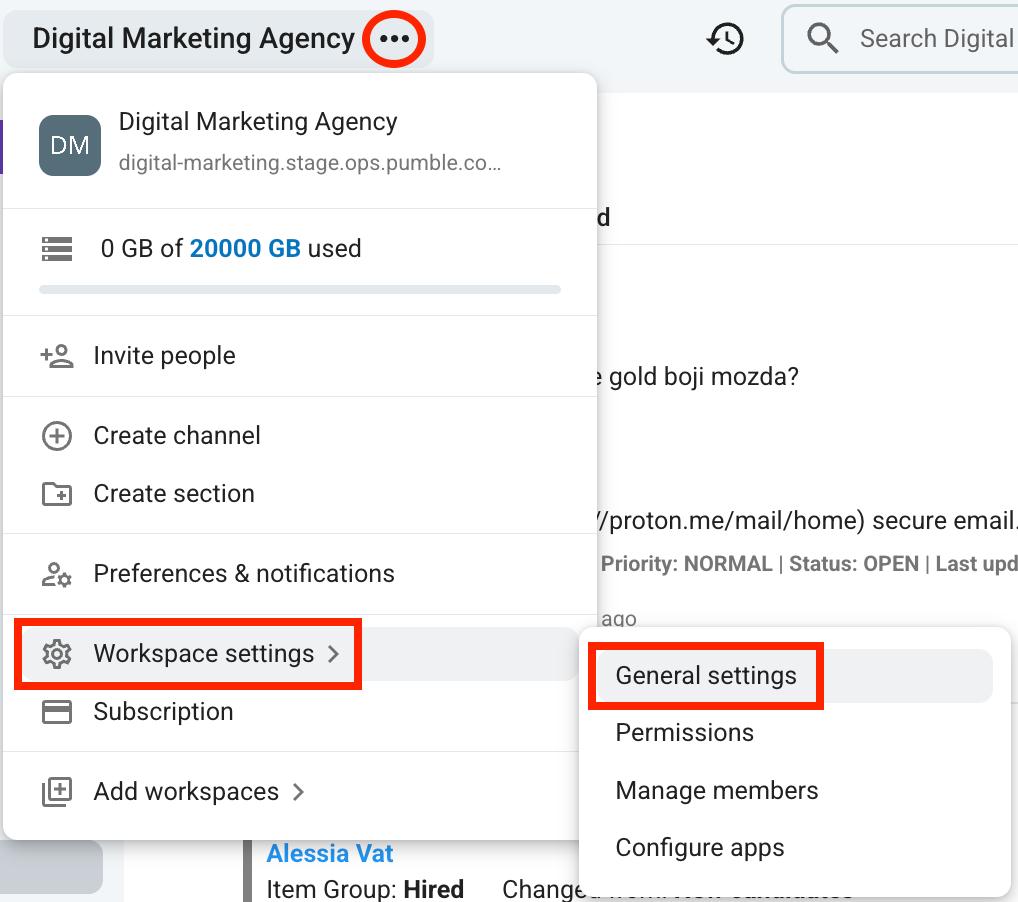
To open Analytics, follow these steps:
- Click on the three dots next to the Workspace name
- Hover over Workspace settings
- Select General settings
- Click on Analytics in the left sidebar
- Select the date range in the top right corner
What can you see in Analytics #
Analytics in Pumble can provide a lot of information about your Workspace and its members. Moreover, you can learn more about channels and video calls. Let’s look at what you can see in more detail.
Analytics overview #
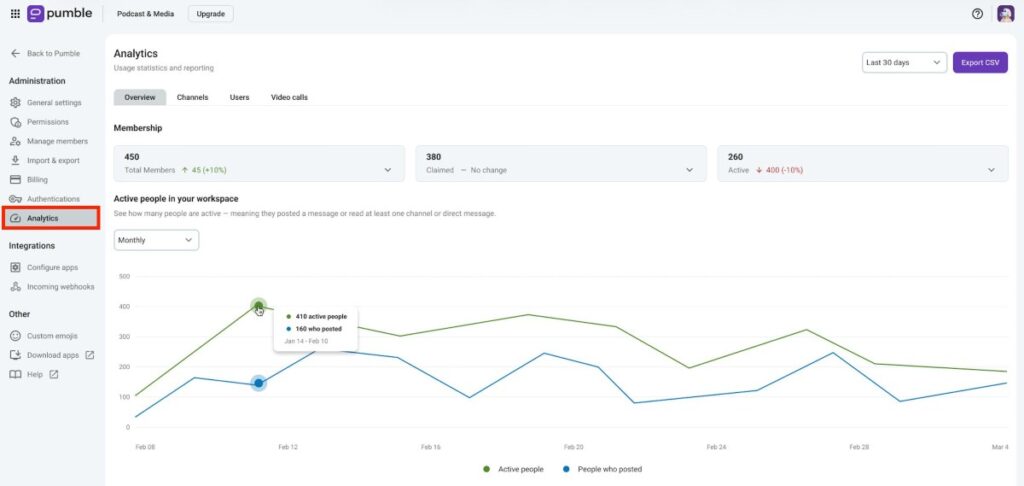
In the Overview tab, you will see a quick overview of important data. Here’s what you can see:
- Total number of members and active members
- Active people in the workspace
- Conversations breakdown
- File uploads information
Channel analytics #
Channel analytics are available only on paid plans.
Private channel analytics are available only on Business and Enterprise plans. Admins can view analytics for private channels they are part of on the Business plan, while the Enterprise plan lets them view analytics for all private channels.
When you open the Channel tab, you can see information about every Channel in your Workspace. This information includes:
- Channel creation date
- Total number of members in the Channel
- Messages posted in the Channel
- Number of members who posted in the Channel
- Number of members who viewed the Channel
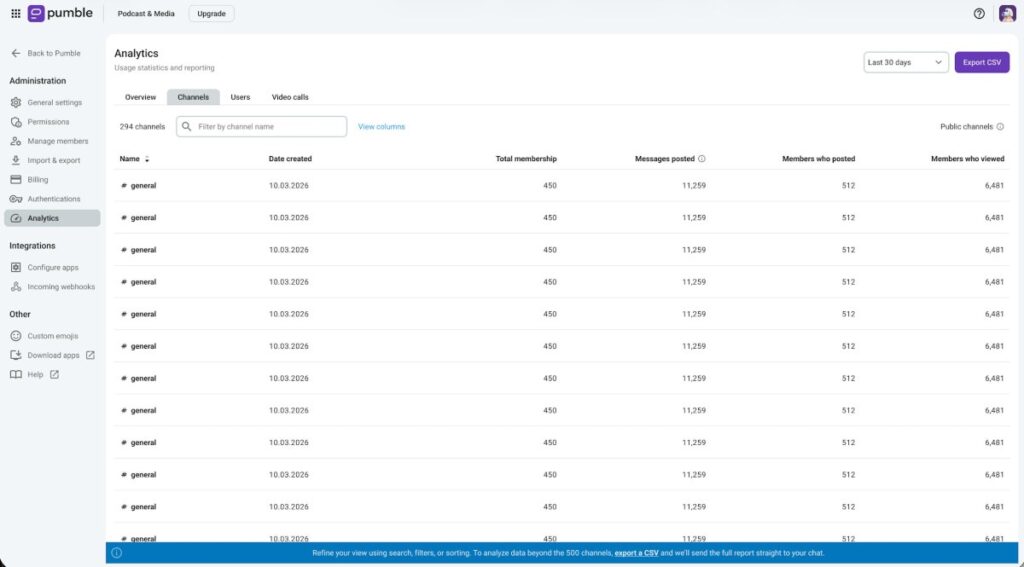
You can click on a channel and see which user posted the most messages and added the most reactions in that channel.
User analytics #
User analytics are available only on paid plans.
In the Users tab, you can see information about all Workspace Members. Here’s what you can see by default:
- Account type
- Account created (date of invitation)
- Number of active days
- Total number of messages posted in channels and threads
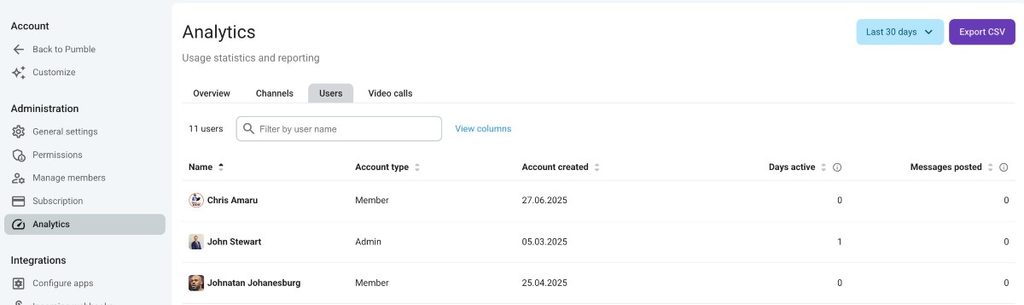
If you want to add more columns, you can click on View columns next to the search bar and from there select which columns you want to see.
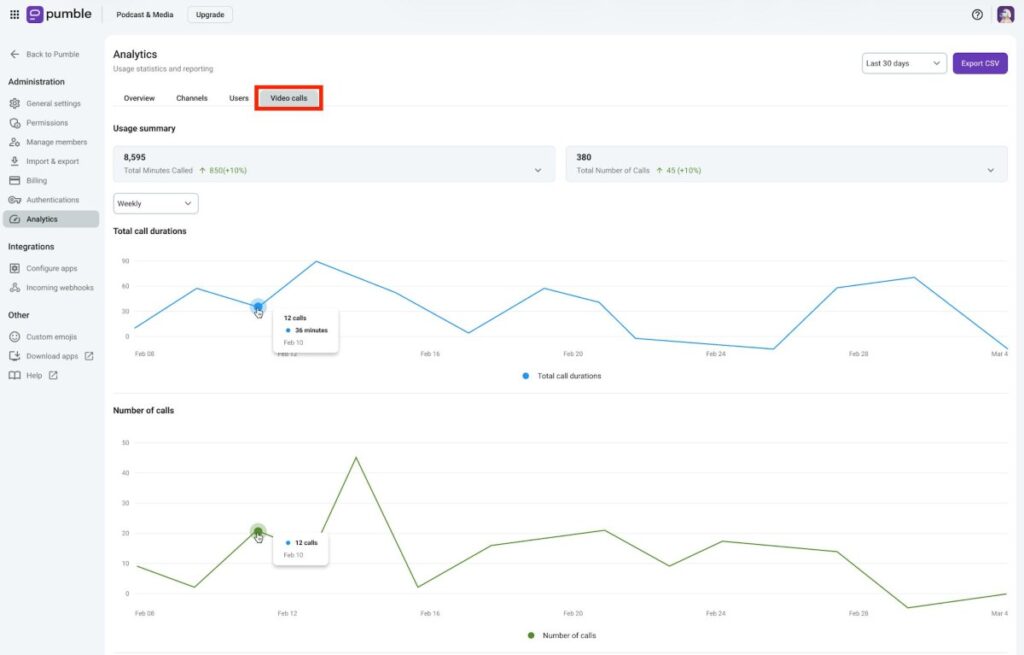
Video call analytics #
Video call analytics are available only on paid plans.
In the Video calls tab, you can see information on how video calls are utilized in your Workspace. This includes:
- Total number of calls
- Total number of minutes called
- Total call durations
- Total number of calls
- Average number of participants in calls
- Top callers
Export analytics #
If you want to share your analytics with someone else, or you just need the file for yourself, you can export your analytics as a CSV file by clicking Export CSV in the top-right corner.
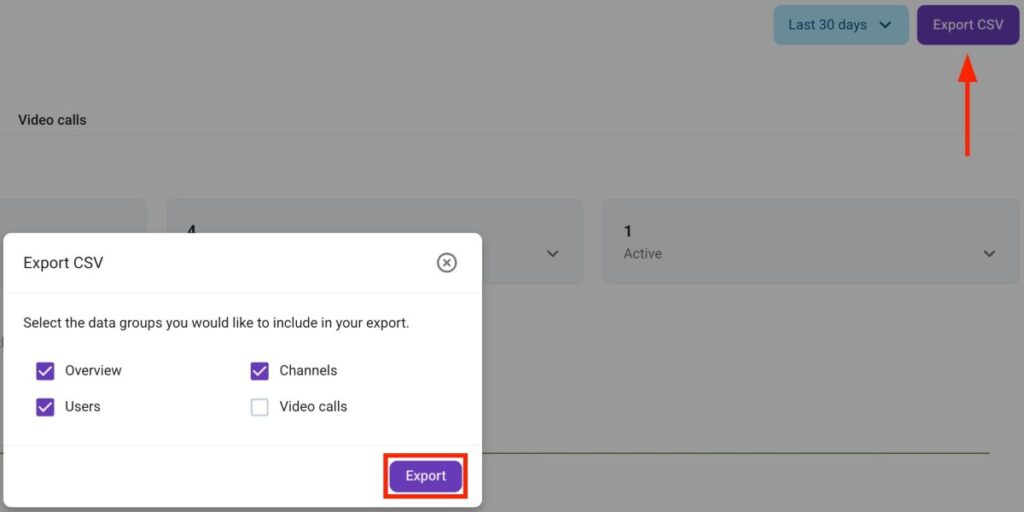
Once the export is ready, the Pumblebot will send you all the files in a message.
Frequently asked questions #
Is Analytics available on the free plan? #
Partly. The Overview tab is available on all plans, but Channel, User, and Video call analytics require a paid plan. Private channel analytics need Business or Enterprise plans. On Business, admins see analytics for private channels they belong to, while Enterprise covers all private channels.
Can I get the data out of Pumble? #
Yes. Click Export CSV in the top right corner. Pumblebot sends you the files in a message once the export is ready.
Can I see more than the default columns in the Users tab? #
Yes. Click View columns next to the search bar and pick the columns you want. By default, you’ll see account type, the date the account was created, active days, and total messages posted in channels and threads.