


Muchos equipos aún sufren las consecuencias de una gestión de archivos ineficiente. La pérdida de contexto, las bandejas de entrada saturadas, los límites de almacenamiento y las costosas barreras de pago son solo algunos de los obstáculos a los que se enfrentan las empresas modernas.
Por eso, las funciones de intercambio de archivos de Pumble by CAKE.com marcan un antes y un después. Lo mejor de todo es que están disponibles en todos los planes de Pumble.
Veamos cómo puedes crear flujos de trabajo duraderos de colaboración e intercambio de archivos utilizando una plataforma centralizada como base de conocimientos colectiva.
- Comparte archivos en Pumble by CAKE.com para intercambiar feedback, tomar mejores decisiones en grupo y mejorar la cooperación del equipo.
- Sube archivos a los canales cuando quieras compartirlos con varios miembros del equipo. Por el contrario, comparte archivos mediante mensajes directos cuando la información sea personal o esté relacionada únicamente con el trabajo de una sola persona.
- Para una mayor eficiencia, integra Pumble con servicios de almacenamiento en la nube como Google Drive.
Cómo compartir un archivo en Pumble by CAKE.com
Primero, repasemos lo básico.
Así es como puedes compartir archivos en Pumble desde tu ordenador:
- Haz clic en un archivo de tu ordenador y arrástralo al campo de mensaje dentro de un canal o mensaje directo (MD).
- Una vez que el archivo se haya cargado, puedes escribir un mensaje para acompañarlo.
- Opcional: menciona a miembros del equipo para aumentar inmediatamente la visibilidad del archivo.
El método rápido de arrastrar y soltar no es tu única opción. Si sueles alternar entre el ordenador y dispositivos móviles, quizás prefieras este procedimiento de carga:
- Toca el icono de archivos adjuntos (+) en la parte inferior del campo de mensaje, dentro de un canal o mensaje directo (MD).
- Selecciona un archivo que hayas compartido anteriormente o sube uno nuevo desde tu dispositivo.
Una vez subido el archivo, puedes explorar las prácticas opciones de gestión de archivos de Pumble:
- Compartir el archivo con un canal, un grupo de usuarios o un miembro del equipo específicos
- Ver los detalles del archivo
- Copiar el enlace del archivo
- Abrir el archivo en una pestaña nueva
- Añadir el archivo a tus elementos guardados
- Eliminar el archivo
Pero antes de realizar cualquiera de estas acciones, es importante determinar la mejor ubicación para tus archivos.
Canales vs. mensajes directos: Dónde guardar los archivos
En el fragor del momento, la mayoría de las personas no se detienen a pensar si deben compartir algo mediante un mensaje directo o en un canal. No obstante, las consecuencias terminan apareciendo.
Imagina que necesitas un documento que un antiguo miembro del equipo compartió hace meses. No solo esa persona ya no trabaja, sino que tampoco recuerdas en qué hilo de mensajes directos lo envió.
Por eso es fundamental establecer normas básicas que eliminen las dudas.
¿Nuestra regla general? Si un archivo relacionado con el trabajo será útil para los compañeros más adelante, debe compartirse en un canal.
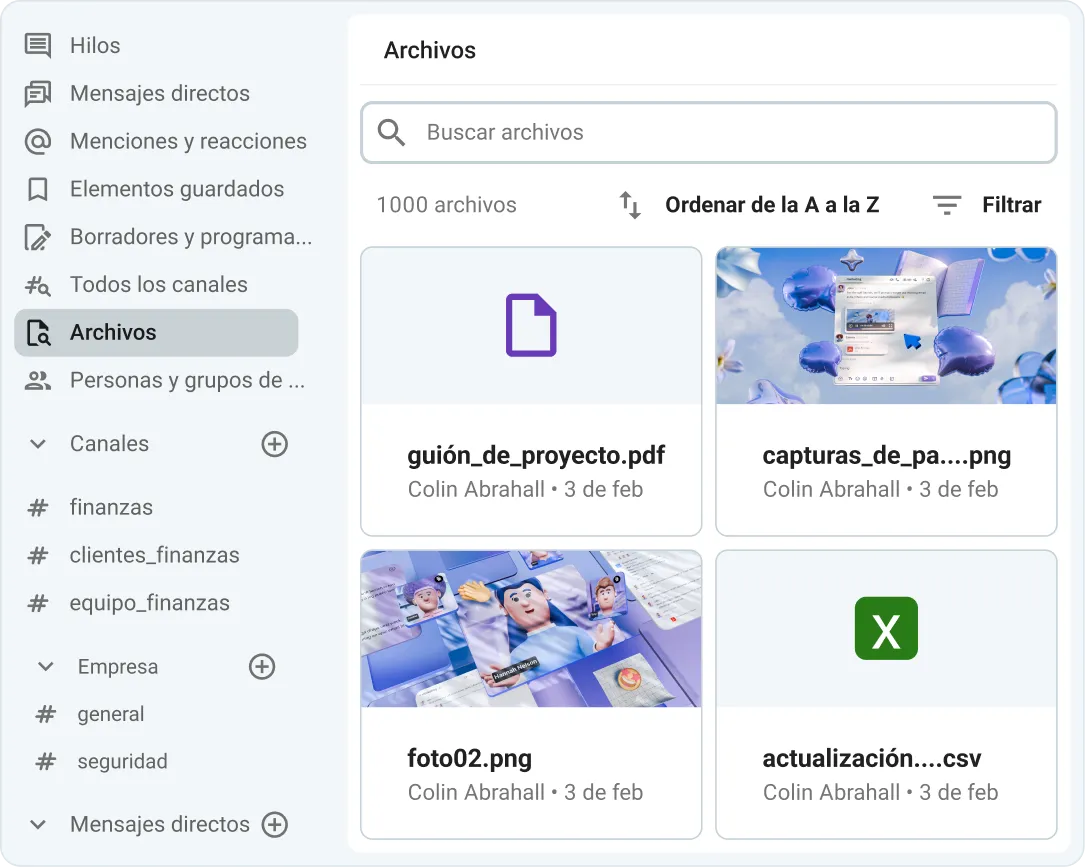
Organiza el trabajo con los canales de Pumble
Los archivos no urgentes y de baja prioridad, como una captura de pantalla que muestra un ejemplo rápido o un primer borrador provisional, pueden quedarse en los mensajes directos.
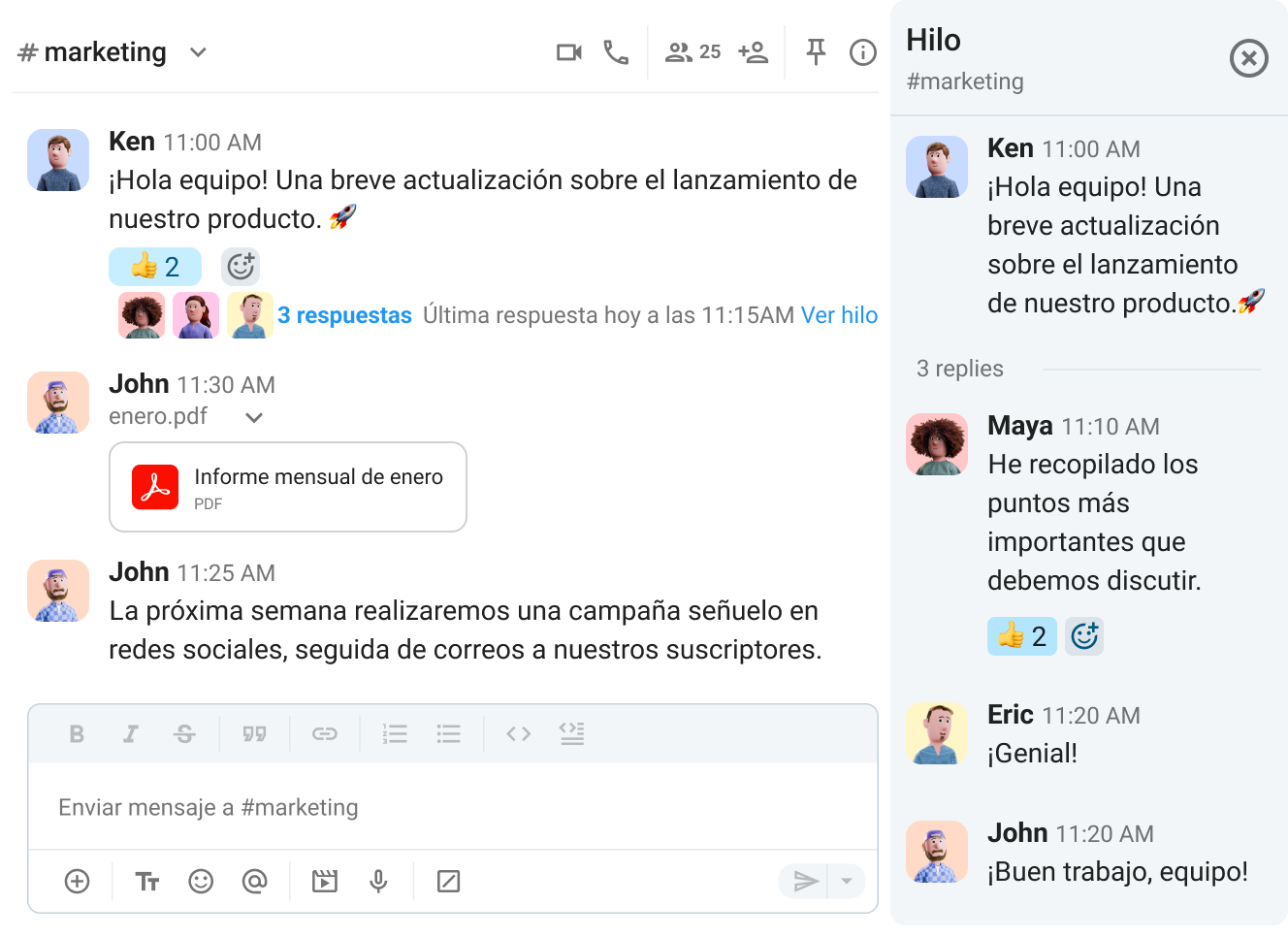
No se trata solo de enviar información lo antes posible. Es igual de importante (o incluso más) considerar quién podría necesitar el archivo compartido dentro de seis meses.
Por tanto, aunque una conversación comience en un MD, eso no significa que el archivo deba quedar atrapado allí.
Utiliza los canales para archivos:
- Relacionados con un cliente, campaña o proyecto específico
- Relacionados con la incorporación de nuevos miembros al equipo
- Relevantes para más de un miembro del espacio de trabajo
- Sujetos a varias rondas de revisión
- Destinados a servir como material de referencia a largo plazo
Por el contrario, utiliza los mensajes directos para archivos:
- Que contengan información confidencial (p. ej., contratos y documentos de RR. HH.)
- Relevantes para una sola persona específica
- Destinados a un uso único e inmediato (p. ej., capturas de pantalla y fragmentos de código)
Si cambias de opinión sobre un archivo, puedes actuar fácilmente. ¿Te has dado cuenta de que un archivo compartido en un mensaje directo es importante para un proyecto más amplio? Súbelo al canal correspondiente o publica un enlace al mismo desde el mensaje directo. Dedicar esos pocos segundos extra te ahorrará tener que rebuscar entre mensajes antiguos más adelante.
Límites de almacenamiento de Pumble según el plan
Al igual que en cualquier aplicación de comunicación empresarial, los límites de almacenamiento son otro aspecto importante a tener en cuenta.
A continuación, se detalla la capacidad de almacenamiento de archivos que ofrece Pumble según el plan:
- Plan Gratis: 10 GB de almacenamiento compartido en el espacio de trabajo
- Plan Pro: 10 GB de almacenamiento por puesto de usuario
- Plan Business: 20 GB de almacenamiento por puesto de usuario
- Plan Enterprise: 100 GB de almacenamiento por puesto de usuario
Los límites de tamaño de archivo tampoco supondrán un problema: los archivos compartidos pueden tener un tamaño máximo de 512 MB en la versión de escritorio y de 256 MB en las aplicaciones móviles.
Para saber en qué situación se encuentra el almacenamiento de tu equipo, haz clic en el botón “…” situado junto al nombre de tu espacio de trabajo y consulta el indicador de almacenamiento.
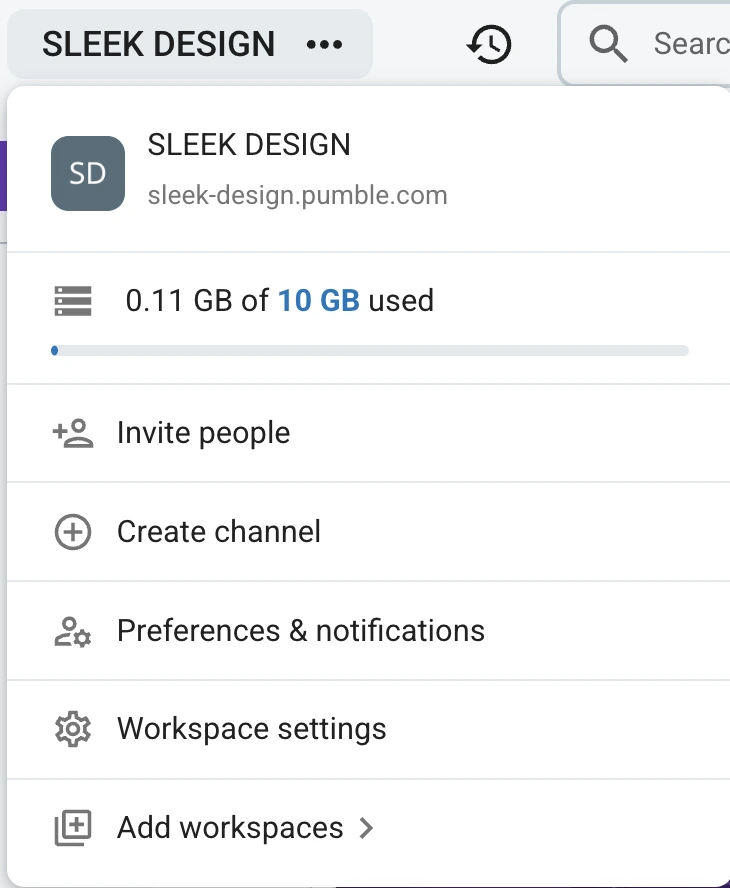
Si bien los mensajes de texto y los enlaces no computan para tu límite, el almacenamiento en Pumble sí incluye:
- Documentos
- PDFs
- Capturas de pantalla e imágenes
- Archivos de audio y vídeo (incluidos mensajes de voz y vídeo)
Consigue un amplio espacio de almacenamiento en Pumble
🎓 CONSEJO PRO DE PUMBLE
Para obtener más información sobre lo que ofrece cada plan de pago de Pumble, consulta estas guías:
Cómo organizar canales y archivos en Pumble by CAKE.com
Compartir archivos es solo el primer paso. Lo siguiente es una organización eficaz de los canales para garantizar que tengas a mano lo que necesitas, justo cuando lo necesitas.
Unas convenciones de nomenclatura coherentes para los canales ayudan enormemente a los miembros del equipo a desenvolverse en el espacio de trabajo digital. Al asignar un canal específico a cada proyecto o cliente, los compañeros pueden comunicarse sin problemas y gestionar la información del cliente de forma segura.
La clave para que este proceso fluya sin problemas es utilizar nombres de canal claros y predecibles. Así que, apuesta por la sencillez. Por ejemplo, si tu equipo trabaja mucho directamente con clientes, es probable que la mayoría de los canales comiencen con el prefijo #cliente_.
Por otro lado, los equipos de desarrollo de software pueden utilizar nombres como:
- #desarrollo_móvil
- #qa_móvil
- #mapa_de_ruta_producción
Las convenciones de nomenclatura no solo influyen en la estructura y los miembros de los canales, sino también en los tipos de archivos que se añaden. No subirías datos de ventas a un canal de atención al cliente dedicado a incidencias de alta prioridad, ¿verdad?
Sin embargo, el trabajo rara vez permanece inmutable. Cuando el equipo cambia de rumbo, los canales deben adaptarse en consecuencia. Para mantener organizados tanto los canales como los archivos, considera:
- Cambiar el nombre de los canales: cuando cambian los flujos de trabajo o el alcance de los proyectos
- Archivar canales: cuando quieras guardar mensajes y archivos sin saturar la lista de canales activos
- Eliminar canales: cuando ya no se necesiten el canal ni su contenido
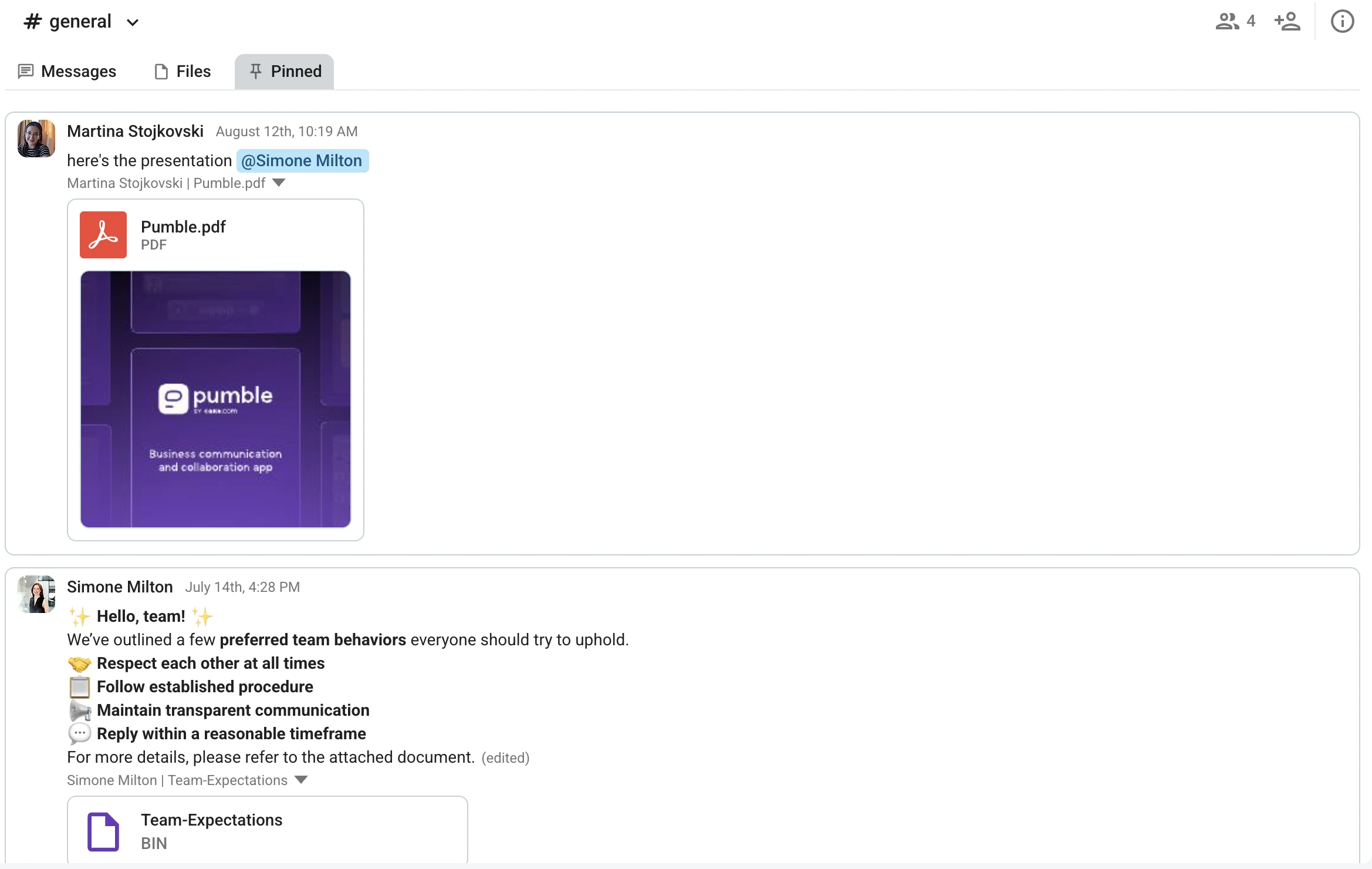
Por último, aprovecha funciones pequeñas pero muy útiles para mantener accesibles los archivos críticos. Ancla archivos en canales o mensajes directos para que cualquier persona de la conversación pueda ver fácilmente los elementos clave en la pestaña Anclados.
🎓 CONSEJO PRO DE PUMBLE
Para obtener más consejos sobre cómo usar y organizar canales, consulta estas guías:
Cómo encontrar archivos en Pumble
En lugar de dispersar la información en múltiples bandejas de entrada de correo electrónico, mantenla accesible para consultarla en el futuro gracias al historial de mensajes ilimitado de Pumble.
Gracias a la barra de búsqueda integrada, tu equipo nunca tendrá la sensación de estar buscando una aguja en un pajar.
Considera la función de búsqueda como tu aliada siempre que necesites localizar:
- Resúmenes de proyectos
- Documentación de inicio de proyectos
- Hojas de ruta estratégicas
Ya sea que estés integrando a un nuevo empleado o dando la bienvenida a un compañero de otro departamento, resulta muy útil poder acotar el alcance de la búsqueda.
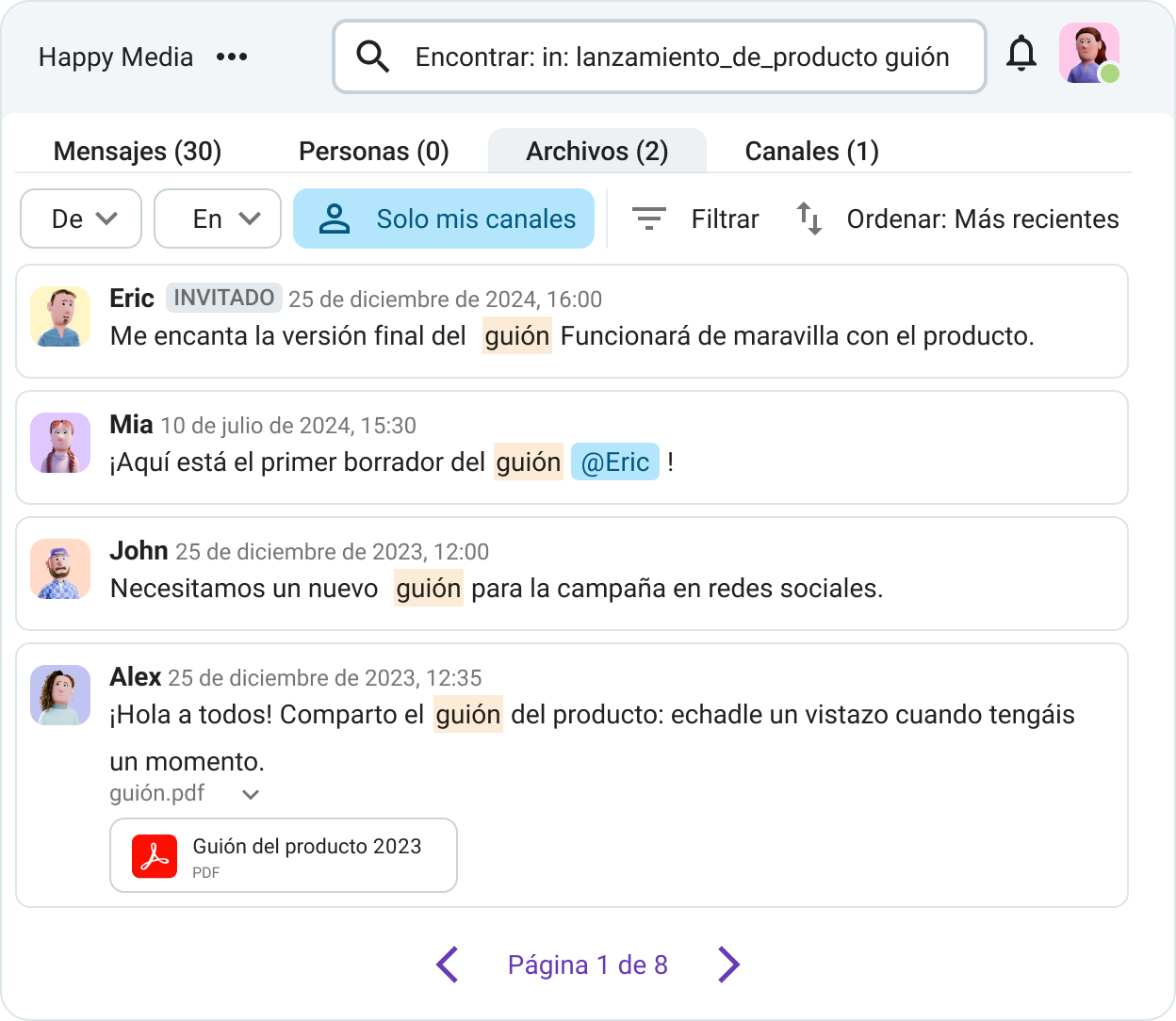
¿Por qué revisar todo el espacio de trabajo cuando puedes centrarte directamente en una conversación o canal específico? Además, puedes refinar tu búsqueda utilizando:
- De: para buscar mensajes enviados por un miembro específico del espacio de trabajo
- En: para filtrar mensajes de conversaciones grupales, canales o usuarios específicos
- Solo mis canales:para revisar mensajes enviados en canales de los que formas parte
Asimismo, la opción “excluir aplicaciones y webhooks” elimina todos los mensajes y notificaciones automatizados de los resultados.
Los filtros también son una excelente función, ya que te permiten añadir fechas de inicio y fin para acotar aún más los resultados.
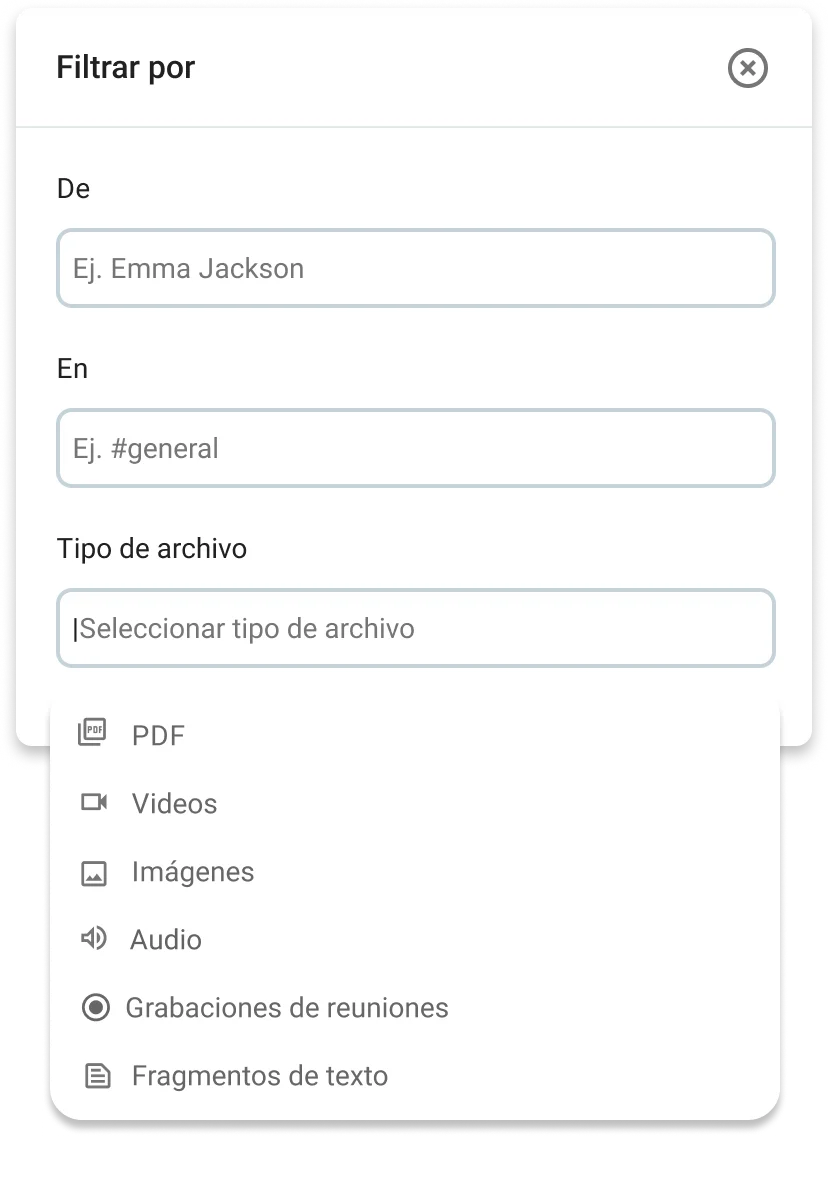
Los equipos que utilizan varias herramientas de colaboración pueden emplear un criterio adicional: filtrar los mensajes que contienen enlaces.
Las opciones de búsqueda de archivos en Pumble son amplias, y esto no es casualidad. Cuando tu espacio de trabajo está lleno de información valiosa tanto para empleados veteranos como para nuevas incorporaciones, es fundamental tener los datos siempre a mano.
Accede a un historial de mensajes ilimitado
¿Es Pumble seguro para los archivos de clientes?
Las funciones de seguridad de Pumble mantienen protegidos los archivos de los clientes, ya que la plataforma cifra los datos tanto en tránsito como en reposo.
En cuanto al cumplimiento normativo, Pumble cuenta con las certificaciones ISO/IEC 27001 y SOC 2, mientras que CAKE.com, su empresa matriz, aplica estrictos estándares del RGPD para el tratamiento de datos personales dentro de la Unión Europea.
Los controles de privacidad añaden una capa de protección adicional, garantizando que solo los miembros autorizados del espacio de trabajo puedan acceder a los archivos de canales específicos y mensajes directos.
Por si fuera poco, los permisos administrativos granulares y las políticas personalizadas de retención de datos refuerzan aún más la confianza de los clientes en Pumble by CAKE.com.
Asegura tus comunicaciones en Pumble
Pumble vs. almacenamiento en la nube
Aunque Pumble facilita el intercambio de archivos, la aplicación no sustituye directamente al almacenamiento en la nube, ya que ambas soluciones cumplen funciones distintas.
En esencia, Pumble es una plataforma de comunicación laboral , ideal para:
- Colaboración en equipo en tiempo real
- Toma de decisiones en grupo
- Debates entre equipos multidisciplinares (mediante mensajería, llamadas de voz o videoconferencias)
El almacenamiento en la nube, por otro lado, es más adecuado para la gestión de archivos y la conservación de documentos a largo plazo. Servicios como Google Drive actúan como archivos fiables para:
- Contratos
- Presentaciones
- Recursos de marca aprobados
- Archivos que requieren edición colaborativa
Por eso, integrar Google Drive con Pumble tiene todo el sentido. Te mantienes al tanto de los elementos compartidos y de los cambios en los archivos sin tener que cambiar constantemente de aplicación para revisar comentarios, sugerencias o ediciones.
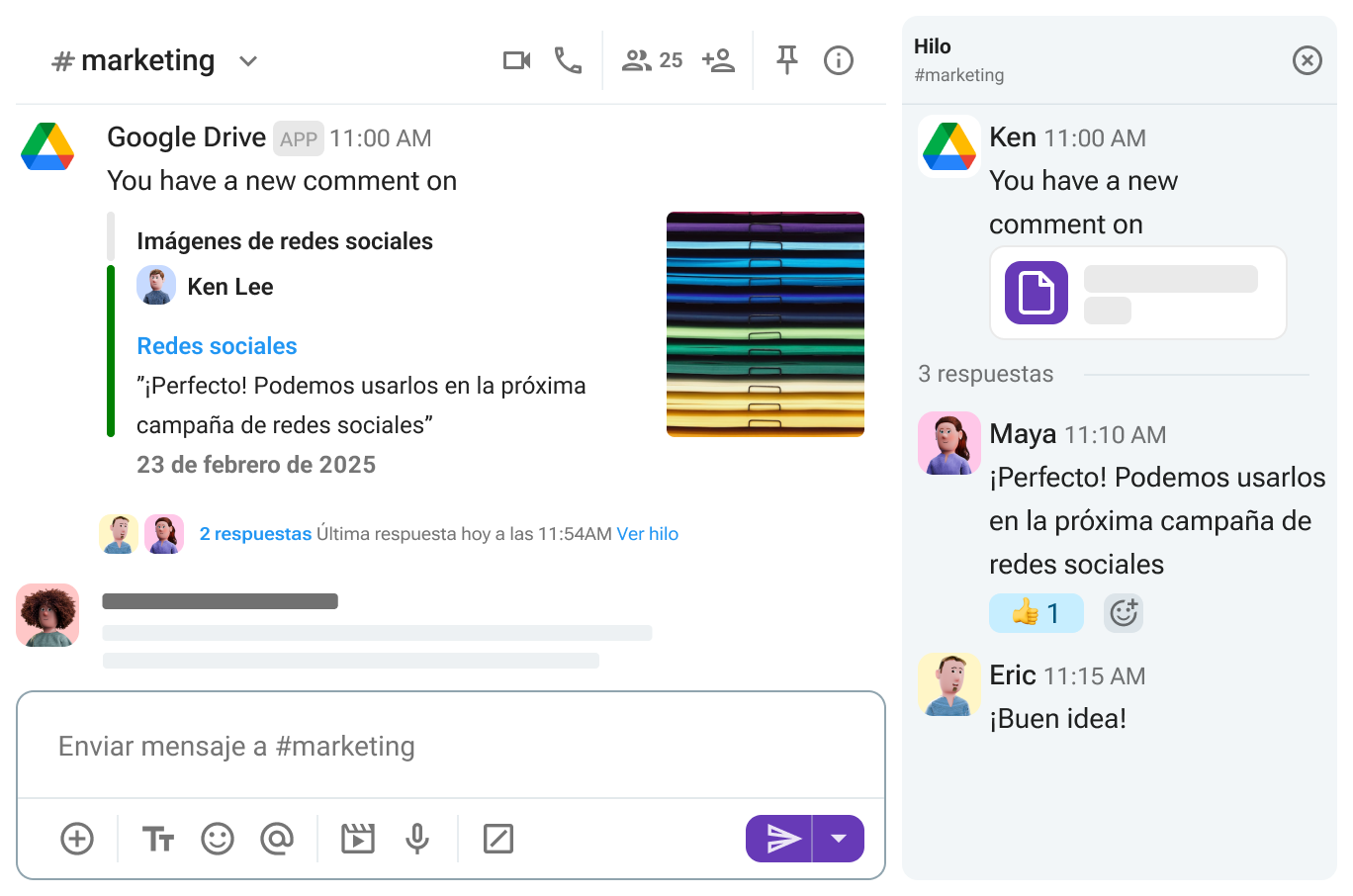
Así pues, si tus flujos de trabajo dependen de la comunicación colaborativa, esta integración puede ayudar a agilizar tus procesos y, al mismo tiempo, mantener sencilla tu infraestructura tecnológica.
Preguntas frecuentes
¿Cuenta Pumble con cifrado de extremo a extremo?
Pumble no utiliza cifrado de extremo a extremo. Sin embargo, cuenta con certificaciones de seguridad de alto nivel y sólidas medidas de protección, que incluyen cifrado de datos (tanto en reposo como en tránsito), opciones de autenticación flexibles y permisos de usuario personalizables.
¿Qué tan seguro es Pumble?
Pumble se encuentra entre las aplicaciones de mensajería empresarial más seguras. Sus principales características de seguridad incluyen:
- Seguridad de la capa de transporte (TLS) en tránsito y en reposo
- Controles de acceso basados en roles (RBAC)
- Configuración personalizable del espacio de trabajo
- Retención de datos personalizada
¿Cuál es la mejor forma de compartir muchos archivos?
Los usuarios de escritorio y web pueden compartir hasta 20 elementos simultáneamente cargando archivos en Pumble. También pueden seleccionar y eliminar archivos de forma masiva dentro de su espacio de trabajo.
¿Puedo integrar Pumble con otras herramientas?
Pumble se integra con múltiples programas y servicios de terceros, como Zoom, Google Drive y Jira. Las integraciones nativas con Clockify y Plaky son muy populares entre los equipos que buscan unificar el control de tiempo, la gestión de proyectos y la comunicación interna. Además, los desarrolladores pueden crear integraciones y complementos personalizados utilizando el Marketplace de CAKE.com.
Tus archivos, tus reglas: Prueba Pumble by CAKE.com
Capacidades de integración, opciones de colaboración y seguridad al compartir archivos: Pumble lo tiene todo. Tanto si formas parte de un equipo pequeño como de una empresa en crecimiento, la gestión de archivos nunca debería suponer una carga.
Olvídate de los retrasos y de incumplir los plazos. Deja que las funciones de intercambio de archivos de Pumble se encarguen del trabajo pesado.
Cómo revisamos esta publicación: Nuestros escritores y editores monitorean las publicaciones y las actualizan cuando hay nueva información disponible, para mantenerlas frescas y relevantes.