Audit log
The Audit log records administrative activity in your Workspace. It helps maintain governance, track Workspace changes, and export records for compliance.
Enable the Audit log #
The Audit log is turned off by default. To turn it on:
- Click on your Workspace name in the top left corner
- Hover over Workspace settings
- Select General settings
- Go to the Audit log section
- Tick the box next to Activate audit log
- Click Save changes to complete the action
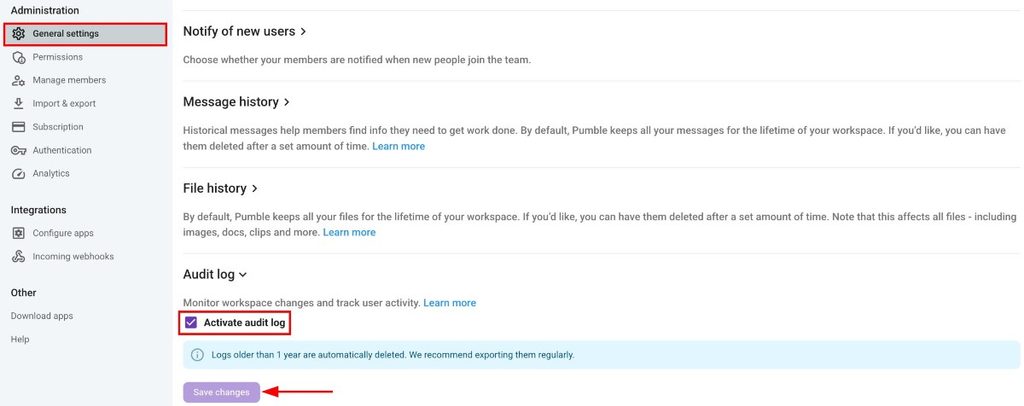
Pumble starts recording activity from the moment you turn the Audit log on. Activity that happened before that isn’t recorded.
Each log entry is kept for 365 days and then deleted automatically. This deletion is permanent.
View Audit log entries #
The Audit log page is empty when you open it. To see entries, choose your filters and run a report. Here’s how:
- Click on your Workspace name in the top left corner
- Hover over Workspace settings
- Select General settings
- Select the Audit log tab
- Use filters to narrow down results
- Date range: set to Last 30 days by default
- User: see activity by specific people
- Actions: see specific types of activity
- Search by ID: find activity related to a specific Item
- Click Run report
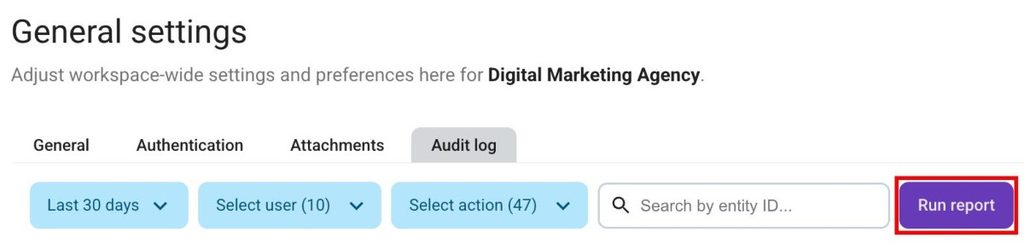
Each dropdown has a Select all option if you want to include everything. Your filters stay selected when you switch to other sections of Workspace settings, so you can come back without setting them again.
The results table shows:
- The date and time of each action, in your local time
- The person who performed the action
- A description of the action
Click any row to see more details about that entry. Results are shown 50 per page.
The Audit log currently doesn’t include:
- IP addresses or location data
- Sign-ins and sign-outs
If nothing matches your filters, or nothing has been recorded since you turned the Audit log on, you’ll see: No logs that match selected criteria.
Export the Audit log #
You can export the entries you’re currently viewing as a CSV or JSON file:
- Set your filters and click Run report
- Click Export
- Choose CSV or JSON
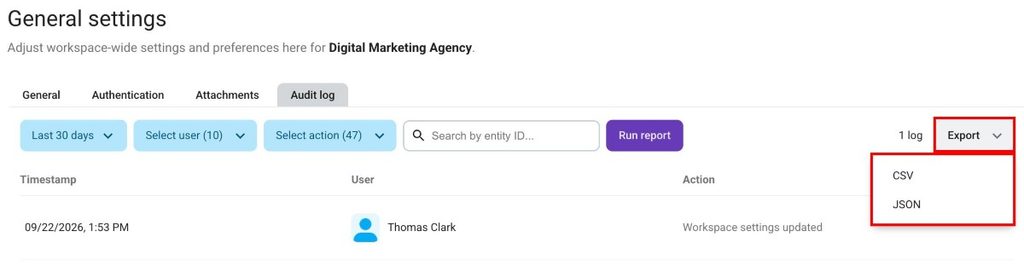
The export includes only the entries that match your current filters. When the file is ready, Pumblebot sends it to you in a direct message.
Only one export can run at a time per Workspace. If you start a new export while another one is still in progress, you’ll see: An export is already in progress. Try again later.
Frequently asked questions #
Can I see activity from before I turned on the Audit log? #
No. Pumble only records activity from the moment the Audit log is turned on.
How long are Audit log entries kept? #
365 days. After that, entries are deleted automatically and can’t be recovered. Export the entries you need to keep longer.
Why don’t I see any entries when I open the Audit log? #
The page loads empty by design. Choose your filters and click Run report to load entries.