Edit Member’s Role and Name
In Pumble, you can change user roles and grant different permissions to members in your workspace. This gives users access to different options and features. You can choose between the following roles:
- Administrator
- User
- Single-channel guest
- Multi-channel guest
To change a member’s role in Pumble, follow these steps:
To change a member’s role:
- Click on your workspace name from the top left corner
- Hover over Workspace settings
- Select Manage members from the dropdown
- Click on the three dots
 next to the user’s name
 - Click on Change Workspace Role
- Choose a role and click Save to complete the action
Only the workspace owner can change a member’s account type to owner. Admins can only change a member’s role from user to admin, and from admin to user.
Members can edit their profiles in their CAKE.com accounts. To learn more about this, check our article.
You can sort members’ names alphabetically for a better overview. To further refine your view, filter members by account type or billing status, or hide deactivated accounts.
Change the user’s name #
This feature is available only on paid plans.
If you want to change the name of one of the Workspace users, here’s how you can do this:
- Click on the three dots next to your Workspace name
- Hover over Workspace settings
- Click on Manage members
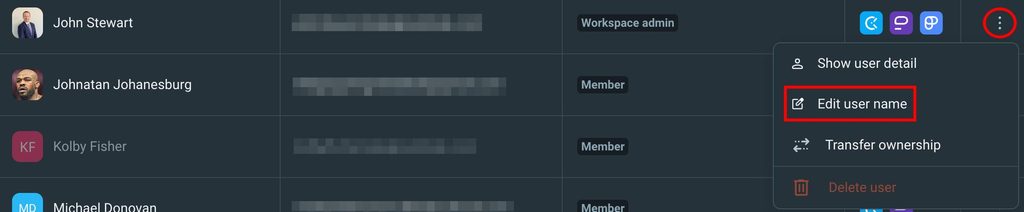
- Click on the three dots next to a user’s name
- Click on Edit user name

This will redirect you to your CAKE.com account, and from there you can change users’ names in the following way:
- Click on the three dots next to the user’s name
- Click on Edit user name
- Enter the new name
- Click on Save to complete the action
You can only change the names of active and invited users, while you can’t change the names of deactivated users.
Once you change a user’s name, it will be updated across all CAKE.com platforms.