Send GIFs
Using GIFs on Pumble can enhance your team’s communication, making interactions more engaging and fun. This guide will walk you through the steps to effortlessly share GIFs in your Pumble workspace.
GIFs can be particularly useful for team-building and boosting morale. For example, during virtual meetings or project discussions, sharing a relevant GIF can lighten the mood, celebrate achievements, and foster a more connected team environment. With GIFs your team can enjoy a more dynamic and interactive communication experience, making work conversations not just productive but also enjoyable.
Share GIFs on Pumble #
To share a GIF:
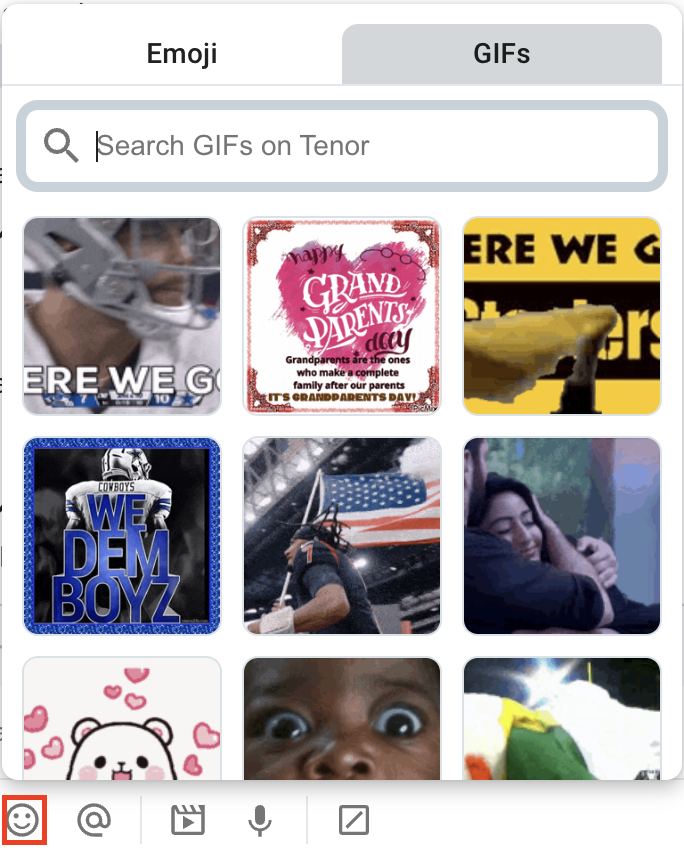
- Click on the emoji icon in the message editor
- Select the GIF you want to share
- Press Enter/Send button to post the GIF to the channel/DM
Or
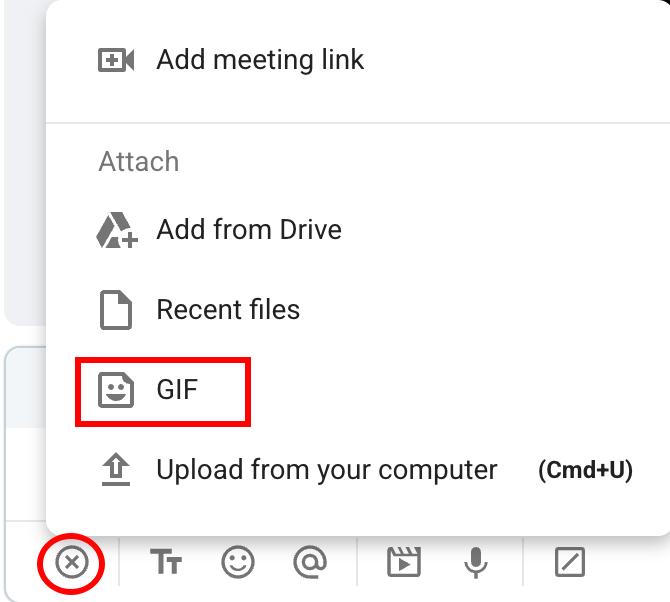
- Click on the + icon in the message box
- Select GIF
- Choose the GIF you want to share
- Press Enter/Send to post the GIF
- Tap on the emoji icon from the keyboard
- Select GIFs
- Tap on the GIF you’d like to share
- Tap the Send button to complete the action

Or
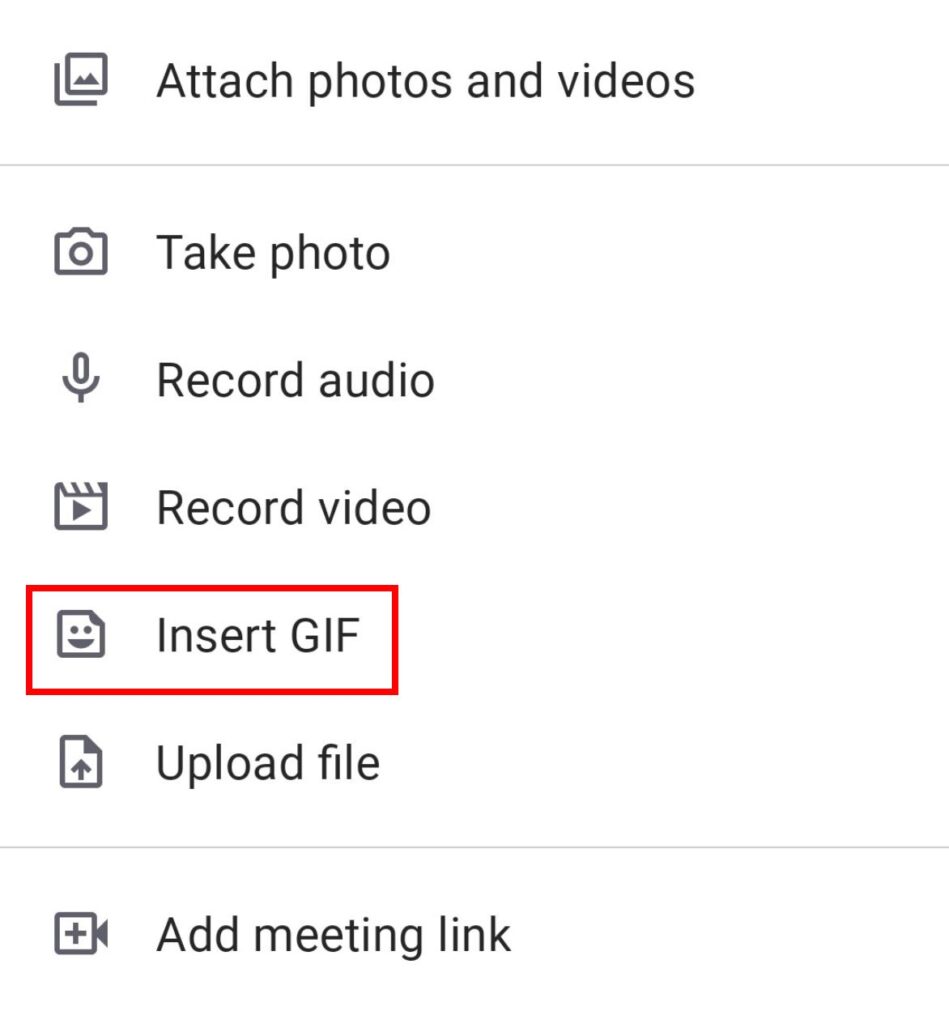
- Tap on the + icon
- Select Insert GIF
- Choose the GIF you want to share
- Tap the Send button to complete the action
- Tap on the emoji icon from the keyboard
- Select GIFs
- Tap on the GIF you’d like to share
- Tap the Send button to complete the action

Or
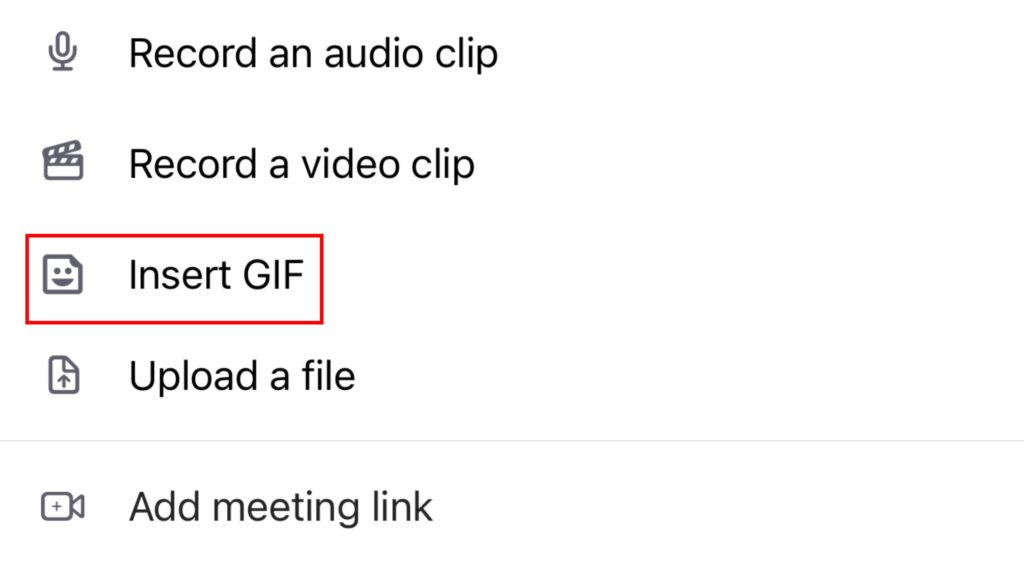
- Tap on the + icon
- Select Insert GIF
- Choose the GIF you want to share
- Tap the Send button to complete the action
Disable GIFs #
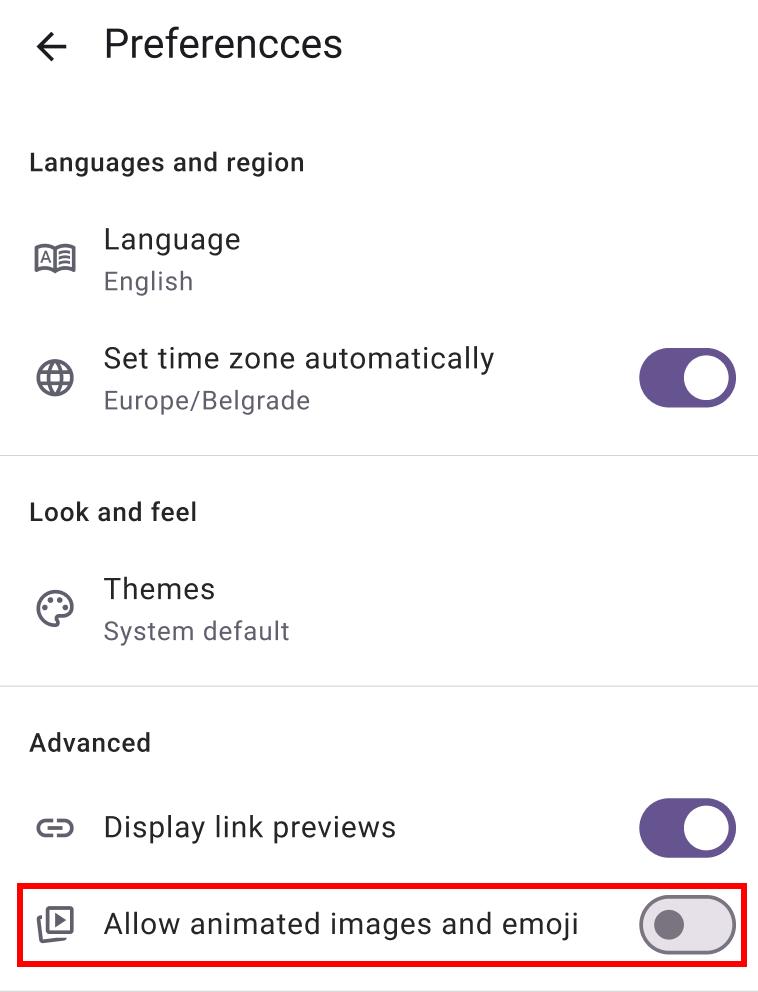
GIFs are enabled by default.
You can disable GIF animation previews to reduce data usage. This can improve Pumble’s performance and make it easier for users to focus on important tasks without distractions. Here’s how you can do this:
COMING SOON
COMING SOON
- Tap on your profile picture
- Tap on Preferences
- Toggle the Allow animated images and emoji button