Channel manager
Channel Managers let you delegate administrative tasks, like managing settings and memberships, to trusted team members. This reduces operational overhead for Owners and Admins and helps keep channels organized and focused.
How to add managers #
You can only add or remove Channel Managers via the web/desktop app. Mobile apps currently allow you to view the list of managers only.
You can add managers to any channel in Pumble. Here’s how:
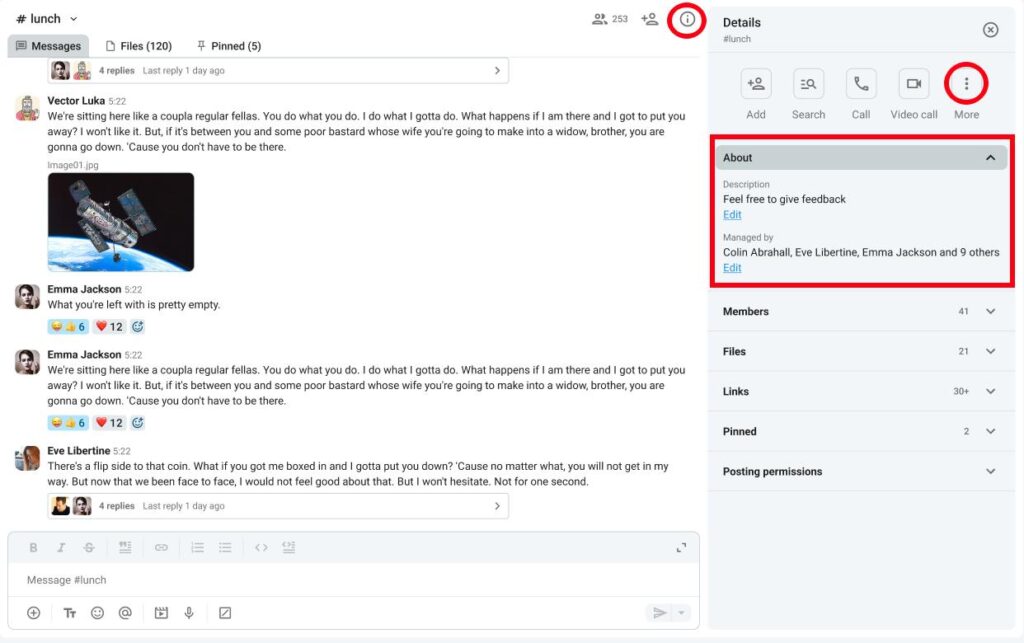
- Click on Channel details on the right
- Click on About
- Click Edit under Managed by
- Click Add managers
- Type the user name
- Click Add to complete the action
Or
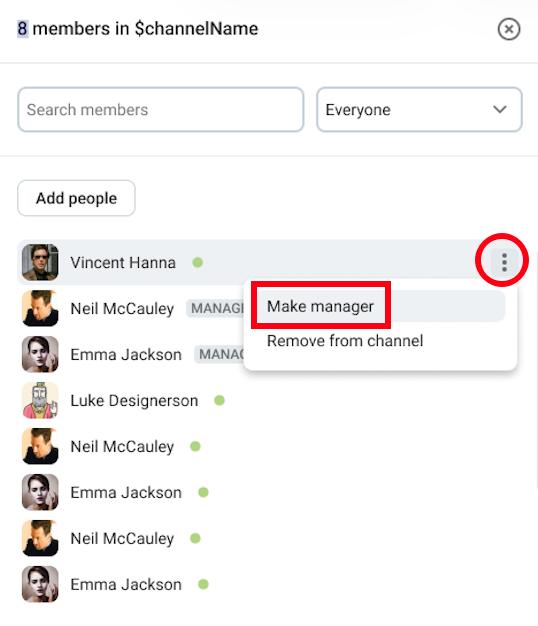
- Click on Members
- Hover over a member
- Click on the three dots next to the member
- Click Make manager
- Confirm the action
Users who are added as managers must be members of the channel.
When a channel is created, the creator is automatically assigned as the Channel Manager.
Permissions for managers #
In the table below, you can see the difference in permissions for regular users and managers:
| Permission | Channel manager | Regular channel member |
| Remove someone from a channel | ✔️ | ✖️ |
| Set channel description | ✔️ | ✖️ |
| Convert channel from public to private | ✔️ | ✖️ |
| Delete other user’s messages (if globally allowed) | ✔️ | ✖️ |
| Adjust posting permissions | ✔️ | ✖️ |
| Block channel members from posting | ✔️ | ✖️ |
| Rename channel | ✔️ | ✖️ |
Remove managers #
If you want to remove some user’s manager permissions, you can do it by following these steps:
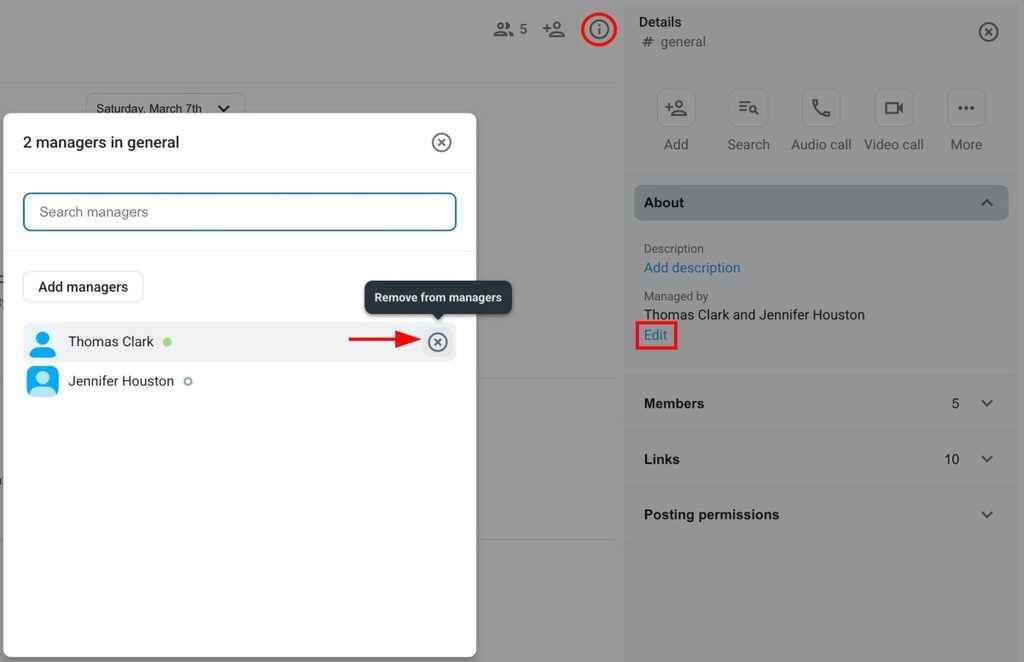
- Click on Channel details on the right
- Click on About
- Click Edit under Managed by
- Hover over a manager
- Click X on the right side
- Click Remove to complete the action
Or
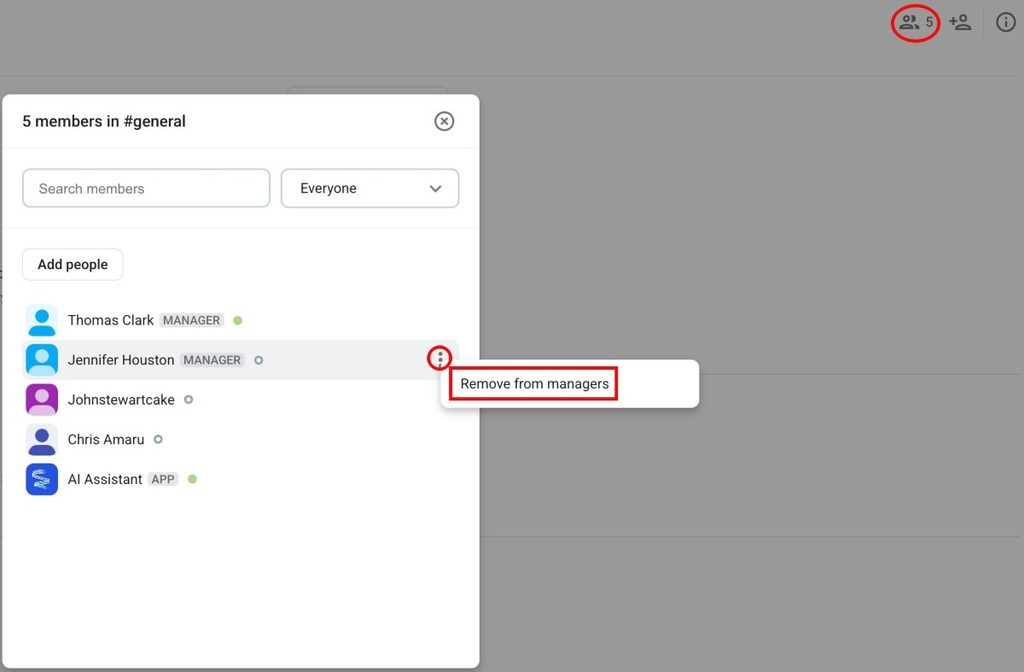
- Click on Members
- Hover over a member
- Click on the three dots next to the member
- Click Remove from managers
- Confirm the action
Block users and user groups from posting #
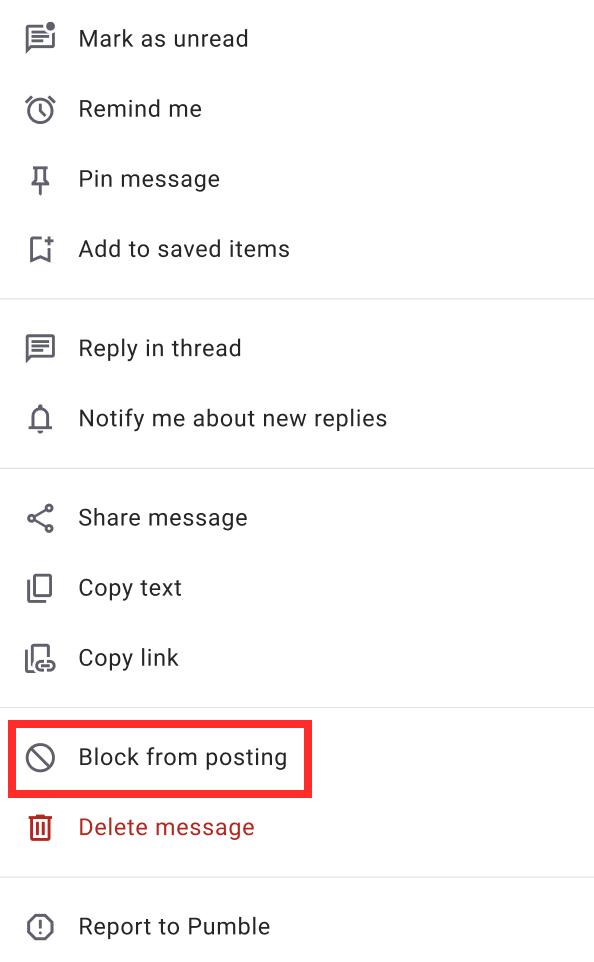
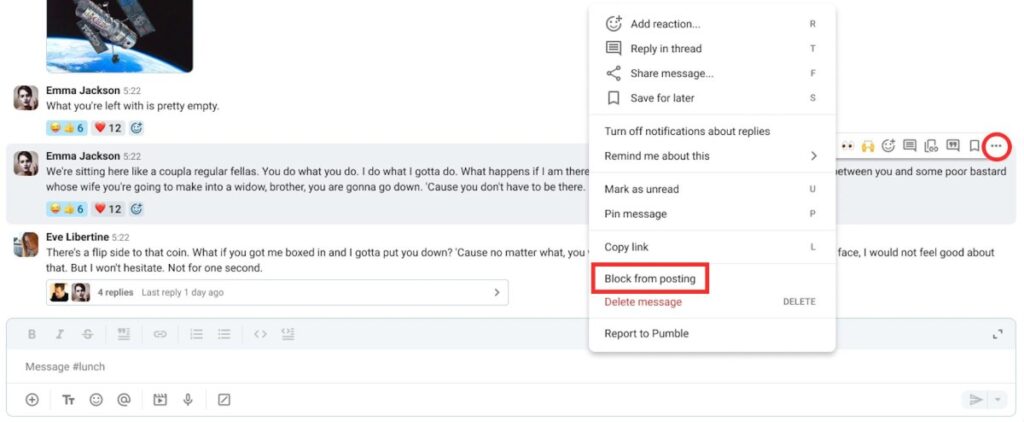
Managers can block certain users or user groups from posting in channels. Here’s how:
- Hover over a message
- Right-click on a message
- Click on Block from posting
- Click Block to confirm the action
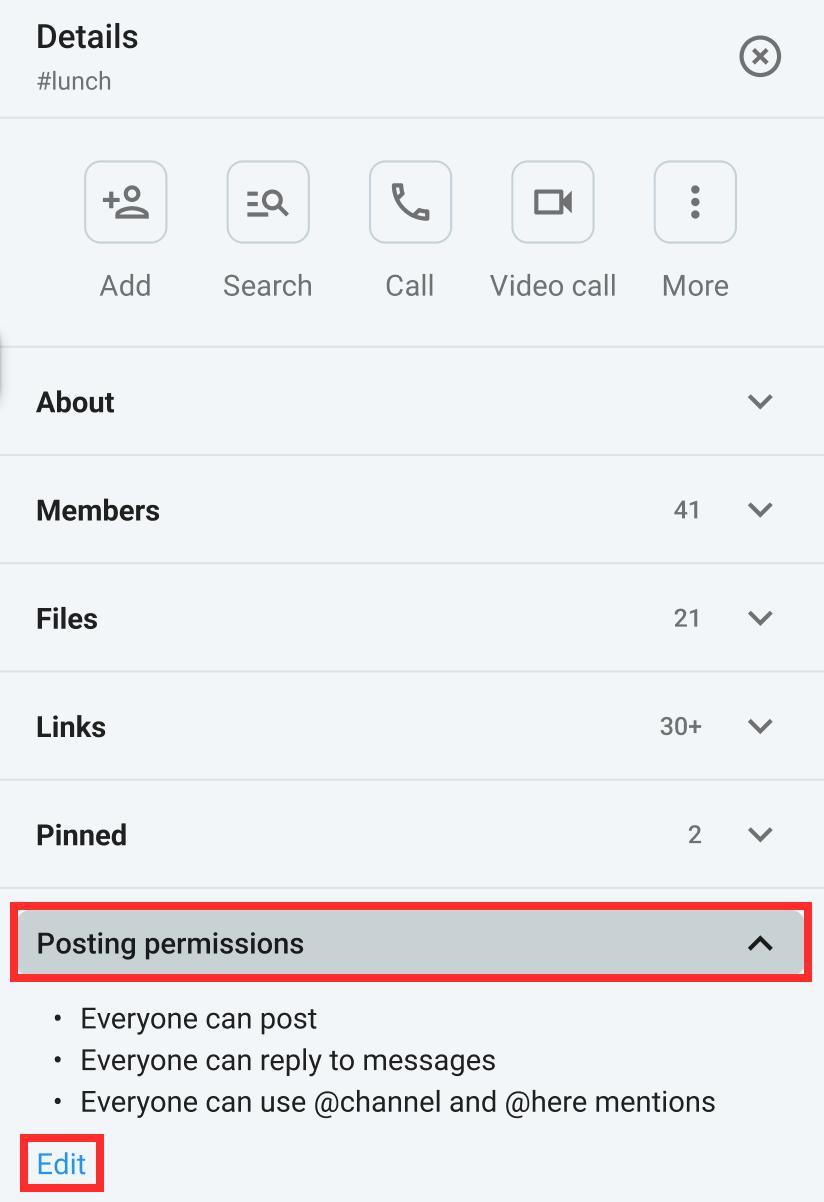
You can also block specific users/channel members from posting directly from the Posting permissions section. Here’s how:
- Click on Channel details
- Click on Posting permission
- Click on Edit
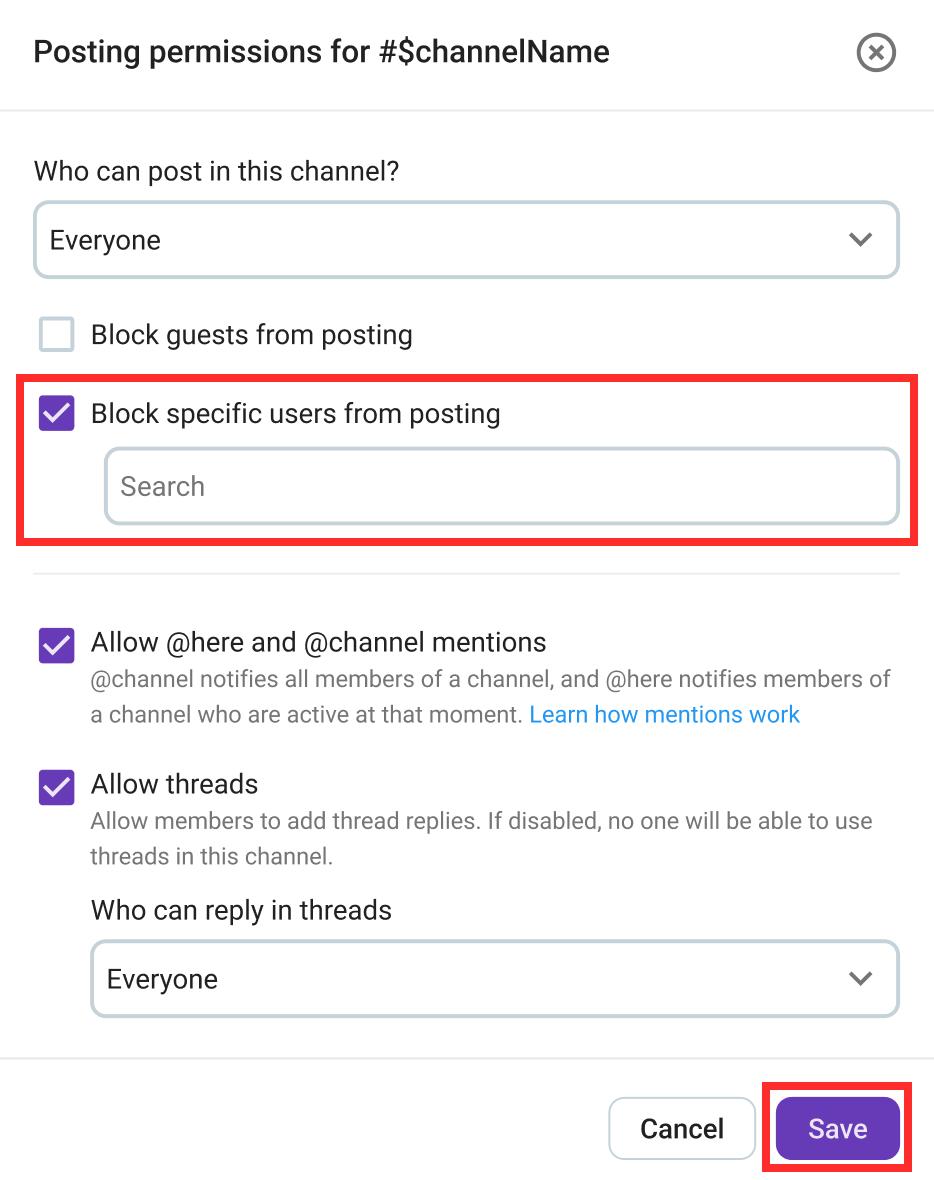
- Tick the box in Block specific users from posting
- Select the user/channel you want to block
- Click Save to complete the action
- Long-tap on a message from a user
- Tap on Block from posting
- Confirm the action
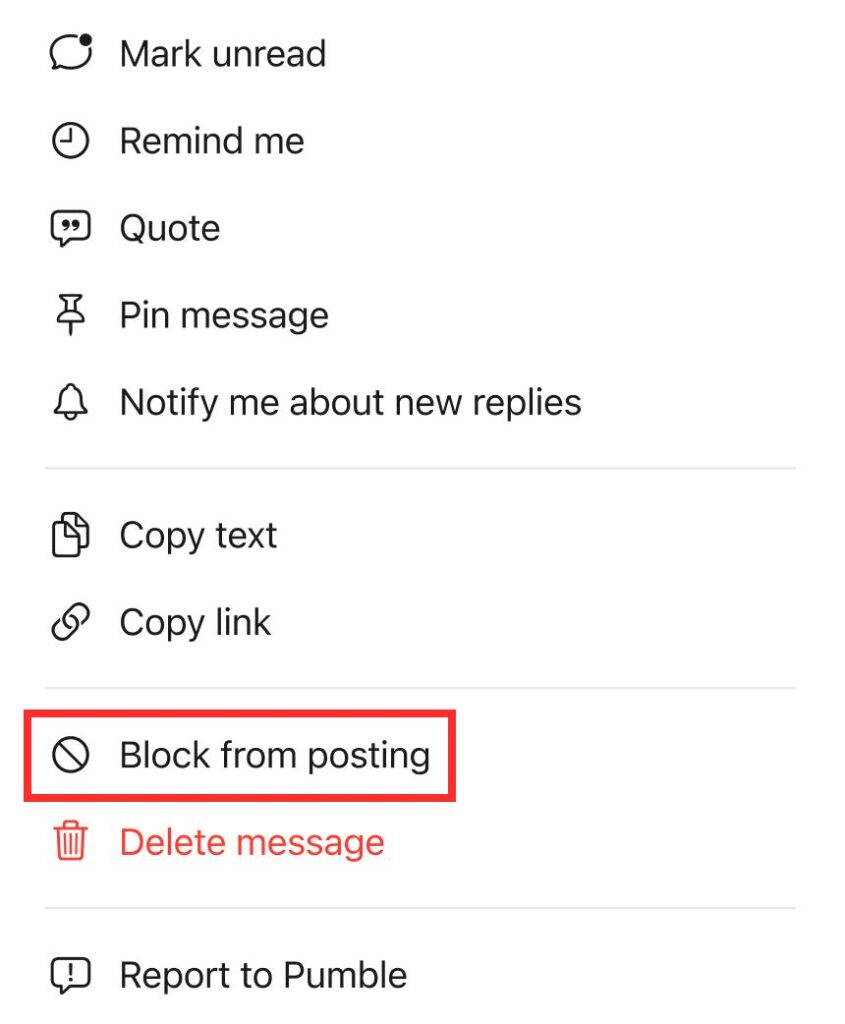
- Long-tap on a message from a user
- Tap on Block from posting
- Confirm the action