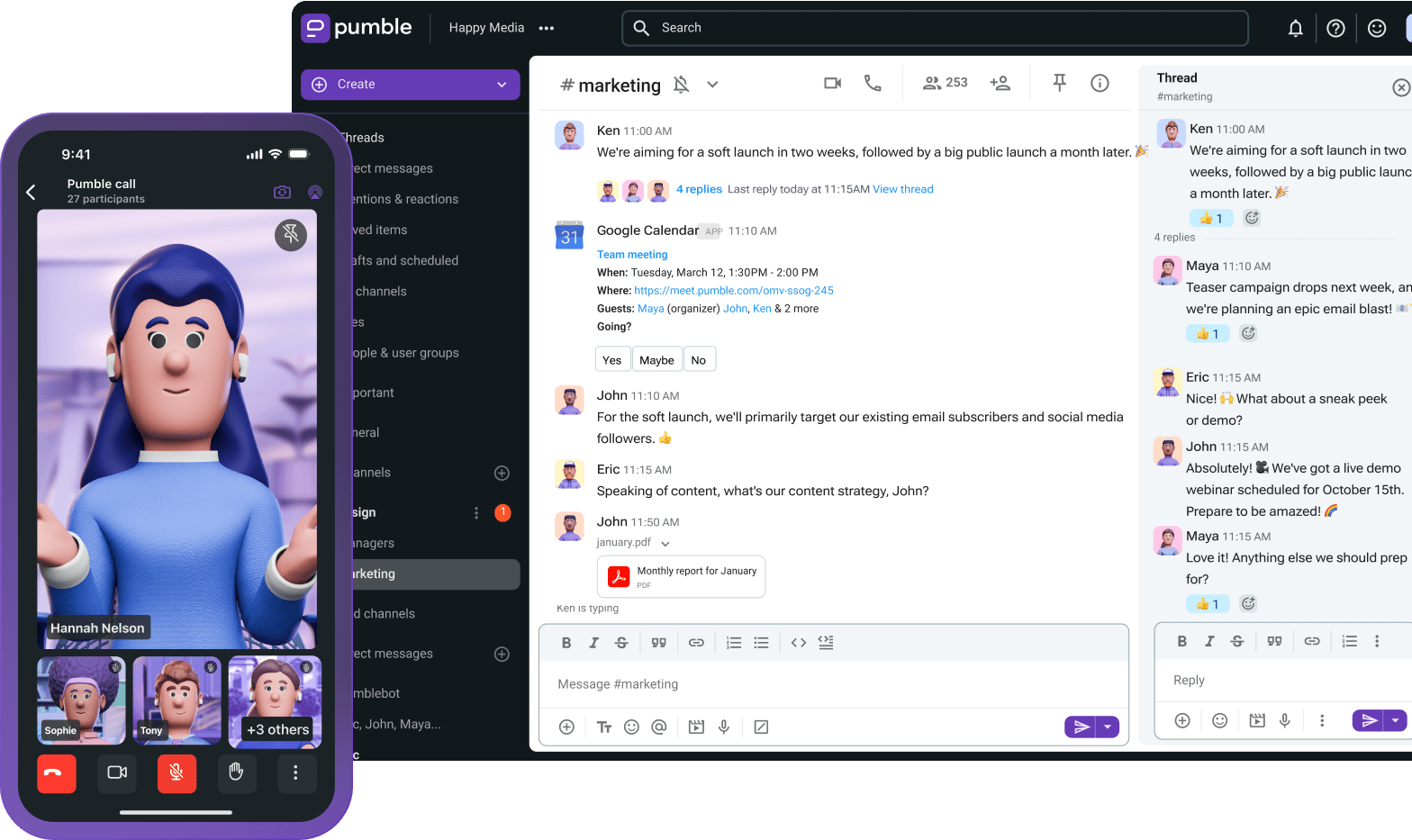
If your team uses Pumble for daily communication and stores its files on Google Drive, switching between the 2 tools for every update can break focus and slow down work.
Instead, connect them with the Pumble–Google Drive integration to keep everything you need within reach.
Let’s learn what it can do and how to use it.
- The Pumble–Google Drive integration lets you share files directly from your team communication app.
- Get notified about file activity, including changes, new shares, access requests, comments, mentions, and replies.
- Keep file-related communication in one place so you can collaborate with your team without constantly jumping between Pumble and Google Drive.
- Reduce distractions and context switching by receiving important Google Drive updates in Pumble.
What the Pumble–Google Drive integration does
The Pumble–Google Drive integration allows you to access your Google Drive files through your Pumble workspace.
You can use it to share and access a variety of Google Workspace files, such as:
- Google Docs
- Google Sheets
- Google Slides
- PDFs
- Images
- Videos
You can share files to Pumble channels or DMs, without needing to go to the file to copy and share its link.
You’ll receive notifications for changes made to your Google Drive files shared in Pumble, such as when:
- Someone makes changes or edits.
- A document is newly shared with you.
- Someone requests access to your document (which you can allow or deny directly from Pumble).
You’ll also get notifications for:
- Regular comments on your documents
- When someone mentions you in a comment
- Replies to your comments
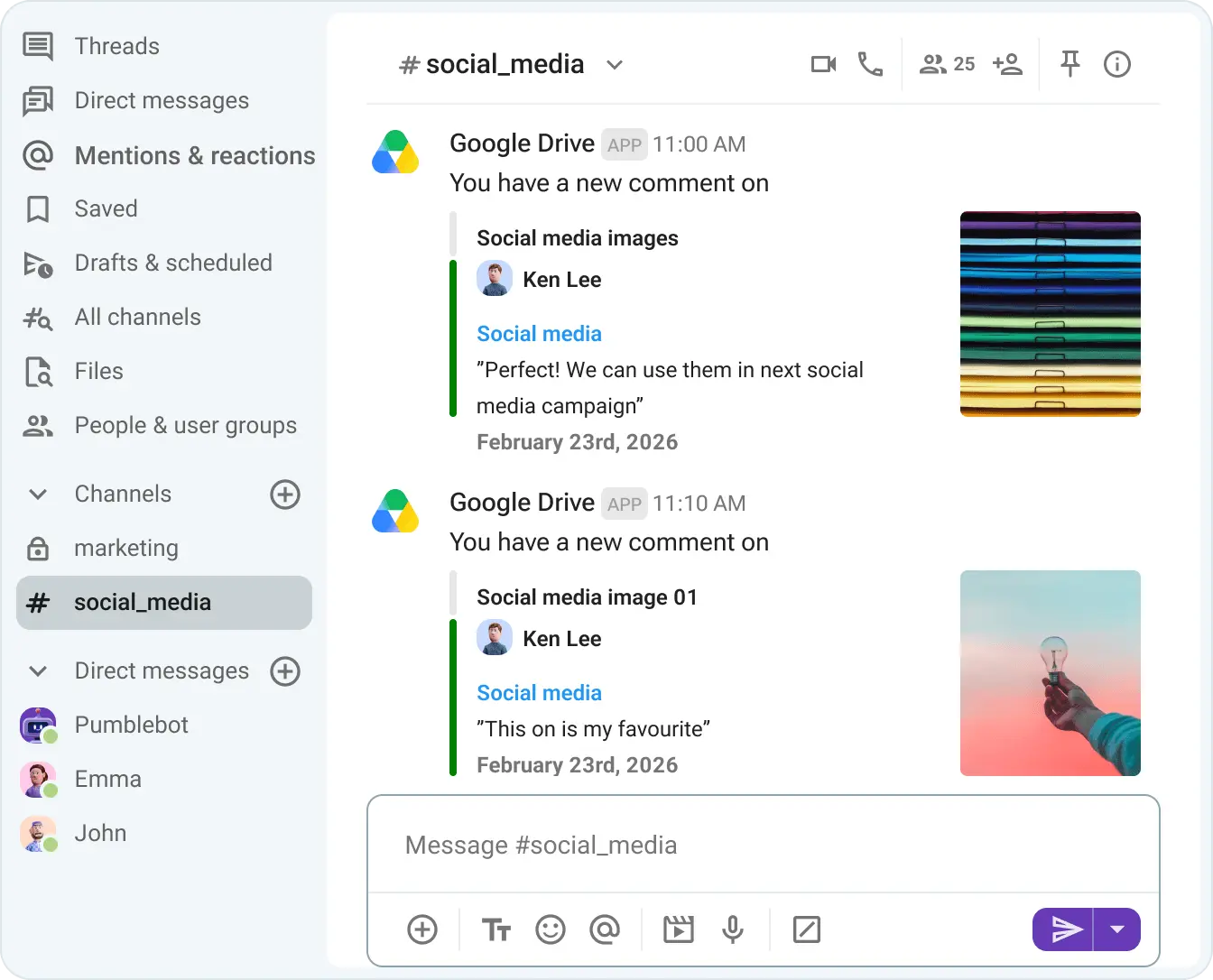
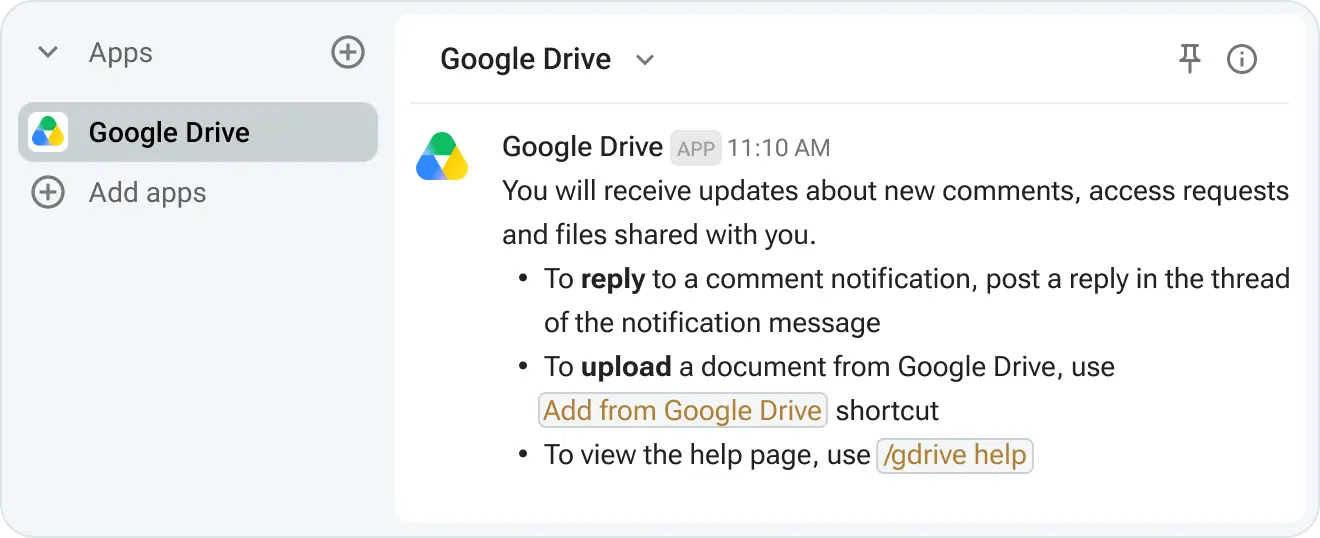
You can also reply to comments directly from Pumble. Just respond to the comment notification thread, and your response will appear as a reply in the file.
All notifications contain links to the documents in question, so you can click on them to be taken to the document in a new tab.

Who is this integration for?
Teams whose work often includes collaboration on shared files will find this integration especially useful.
For example:
- Content and editorial teams running document reviews
- Designers and product managers working from shared specs
- Any remote or hybrid team where document context is currently scattered across email
Improve collaboration with Pumble
The 4 things the Pumble–Google Drive integration removes from your day
These are the 4 time-wasting distractions you can say goodbye to when you start using the Pumble–Google Drive integration.
#1: Switching tabs to find and share a file
Stop wasting time checking for updates and switching between your files tab and your team communication app.
With the Pumble–Google Drive integration, you get easy access to your files where you already spend most of your time communicating and collaborating with your team.
#2: Checking email to check comments
No need to check your email for comment alerts or miss/lose them in an overflowing inbox.
Pumble will send notifications for comments on the Google Drive files you’ve previously shared. This includes:
- Regular comments
- Comments that mention the user
- Replies to your comments
#3: Opening a document just to reply to one comment
Every new tab you open while working is an opportunity for distraction.
Instead of opening a document just to reply to a comment, send your reply in the thread of the Google Drive notification in Pumble. Your thread reply instantly shows up in the document as a comment reply. Replies can be edited afterwards in Pumble and the edit syncs back to Drive.
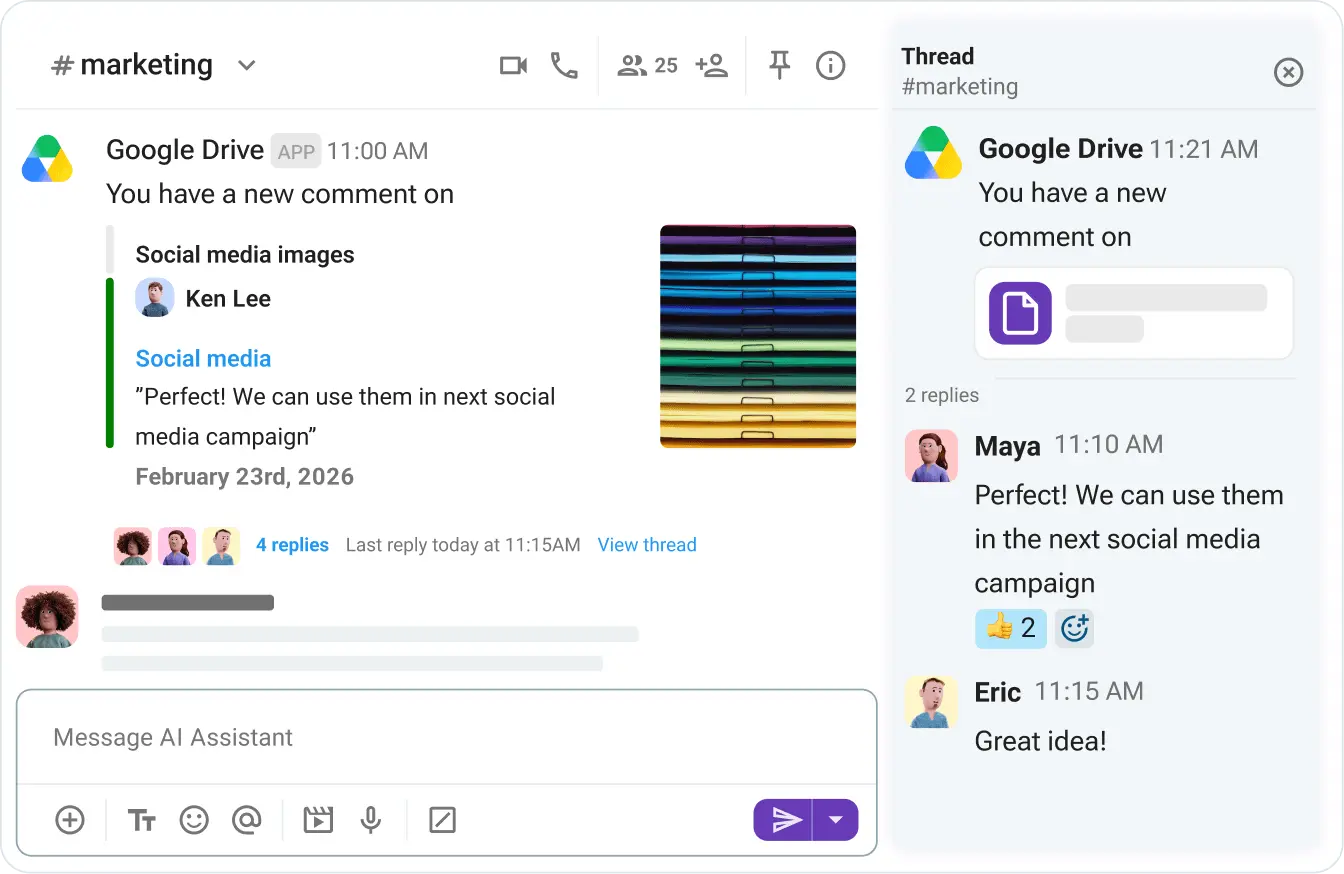
#4: The find-link-copy-paste ritual
Before using the Pumble–Google Drive integration, in order to share a file you had to:
- Go to Google Drive.
- Find the file.
- Find a shareable link.
- Copy and paste the link in Pumble.
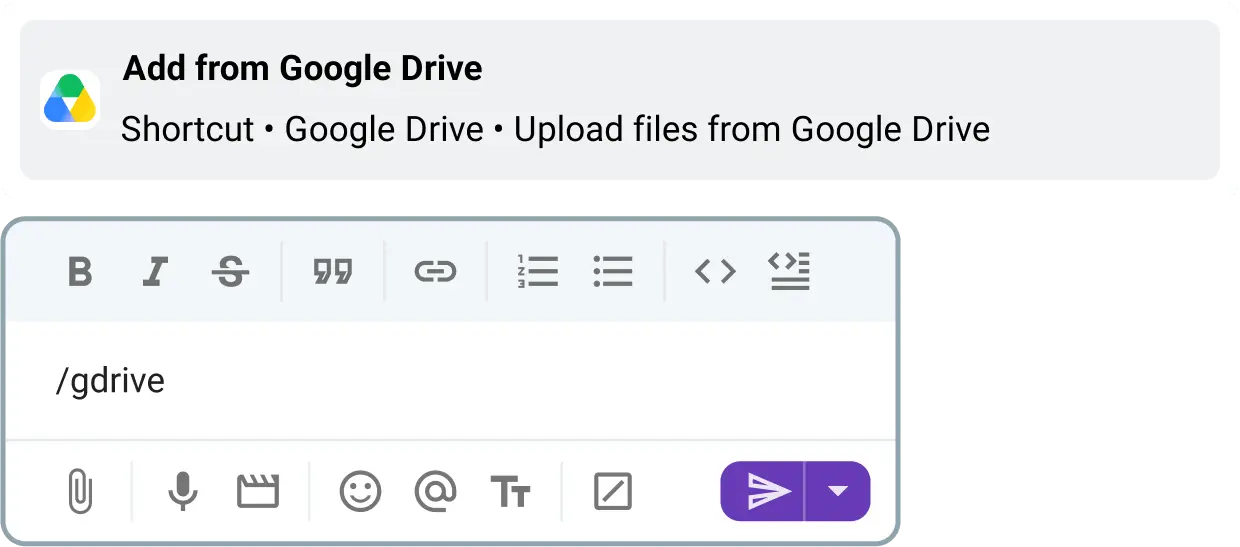
Now, you can simply share the file directly from Pumble using the Add from Google Drive option or the /gdrive slash command.
How to connect Google Drive to Pumble
Here’s how to connect Google Drive to your Pumble workspace in a few easy steps.
#1: Install the Google Drive integration
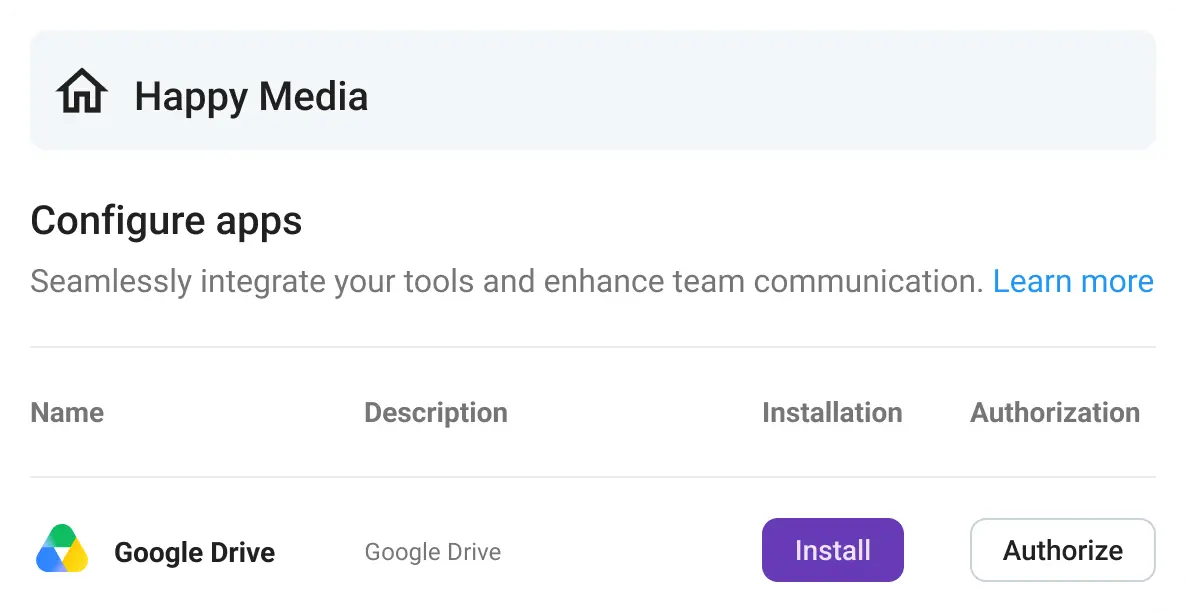
Scroll down to the bottom left of your Pumble interface, and click on the + Add apps button.
Once you find the Google Drive app, click Install.
Keep in mind that only workspace admins and owners can install the integration.
If you don’t see an Install button, that means it’s already been installed, and you can move on to the next step.
#2: Authorize the Google Drive app
Installation doesn’t switch the app on. Every individual user must authorise it separately on their own account.
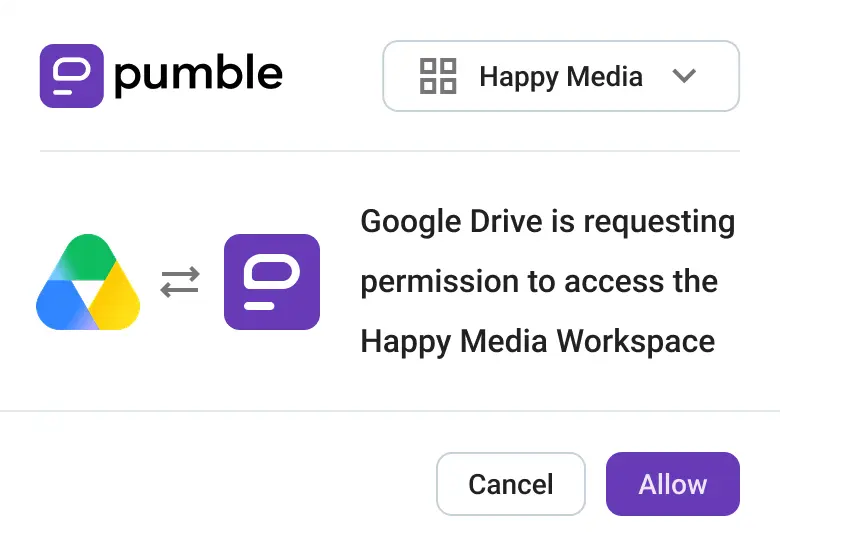
To do that, click the Authorize button.
From there, make sure you select the right workspace and click Allow.
After the successful authorisation, you’ll get a Pumble message from Google Drive.
#3: Give it a try
Share your first Google Drive file directly from Pumble:
- Go to a Pumble channel or direct message.
- Click on the + Attachments button.
- Select Add from Google Drive.
- Choose a Google Drive file and send it to the chat.
- Start receiving Pumble notifications for changes and comments in that file.
🎓 PUMBLE PRO TIP
If you need additional information about the Pumble–Google Drive integration setup, check out our Help page:
How to use the Pumble–Google Drive integration
Once Google Drive is connected, you can use it as part of your everyday communication in Pumble.
For example, if a teammate asks for the latest version of a project brief, you can share it directly from Google Drive without leaving Pumble, then continue discussing the file in the same conversation.
If someone is reviewing your document and leaves a comment, you can also reply to it from Pumble instead of opening the file just to respond.
Keep in mind that if you don’t own a file, you’ll only get notified when you’ve been mentioned or assigned in a comment.
The Pumble–Google Drive integration is especially useful when files are part of an ongoing conversation. You can keep the document, notifications, and discussion together in one place rather than switching between Drive, email, and chat to keep track of what needs your attention.
FAQ
Here are the answers to frequently asked questions about the Pumble-Google Drive integration.
Does Pumble integrate with Google Drive?
Yes, Pumble integrates with Google Drive and allows you to:
- Share Google Drive files directly from Pumble.
- Receive notifications about changes and comments.
- Reply to document comments without leaving Pumble.
- Get notified when a file has been shared with you.
- Get alerts for access requests for your files which you can approve or deny straight from Pumble.
How to connect Pumble with Google Drive?
To connect Google Drive to your Pumble workspace:
- Install the Google Drive integration to your Pumble account.
- Pick the relevant workspace.
- Authorize the Google Drive app.
Is the Pumble–Google Drive integration free?
The Google Drive integration is free to use on all Pumble plans, but they come with different integration limits:
- The Free plan offers 3 integrations (the native Clockify and Plaky integrations don’t count against this limit).
- The Pro plan allows 10 integrations.
- The Business and Enterprise plans have unlimited integrations.
What other apps can be integrated with Pumble?
Pumble supports integrations with a wide range of apps that can help you connect your existing tools with your team communication.
You can browse Pumble’s integrations or create your own integrations through the CAKE.com Marketplace to connect Pumble with a tool that isn’t already supported.

Integrate Google Drive with Pumble to never miss an update
Connecting Google Drive to your Pumble workspace cuts down on context switching and keeps your workflow moving.
The Pumble–Google Drive integration makes collaborating on files easier and helps you stay on top of updates, comments, and requests without jumping from one tool to another.
Use it together with Pumble’s other collaboration features, such as file sharing, guest access, and video calls to improve your team’s coordination and productivity.
Stop losing focus and wasting time. Use Pumble’s integrations to keep everything you need in one place.
How we reviewed this post: Our writers & editors monitor the posts and update them when new information becomes available, to keep them fresh and relevant.