Register at Pumble
You can Register to Pumble by creating your own workspace or joining a workspace via the invitation link you receive from your team members.
Creating a workspace #
- Go to the Registration page
- Choose to Continue with Google/Apple/Microsoft/email
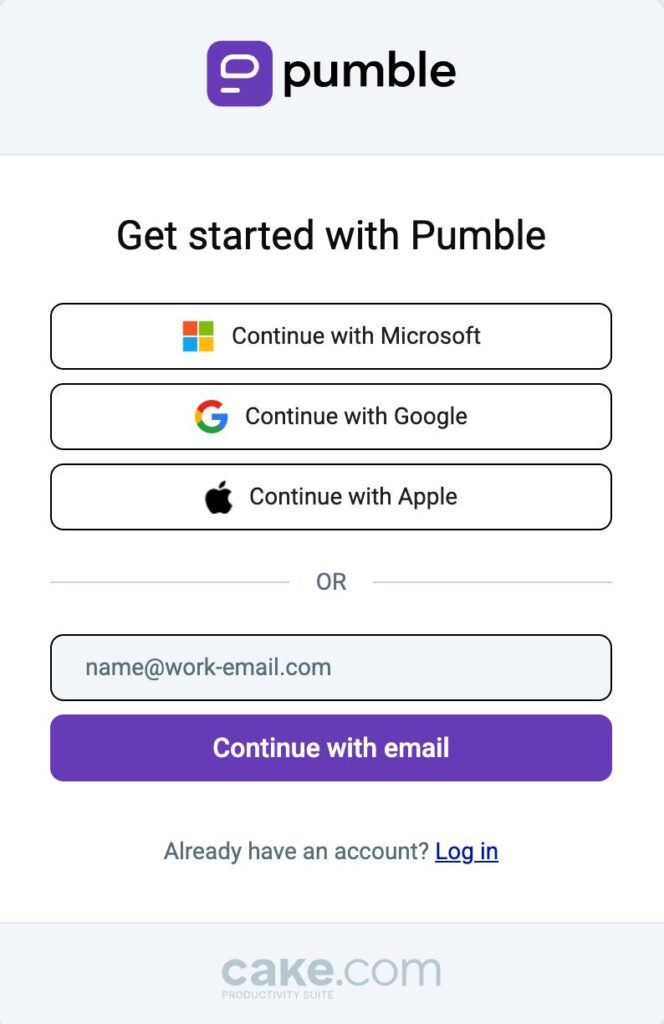
Continue with Google #
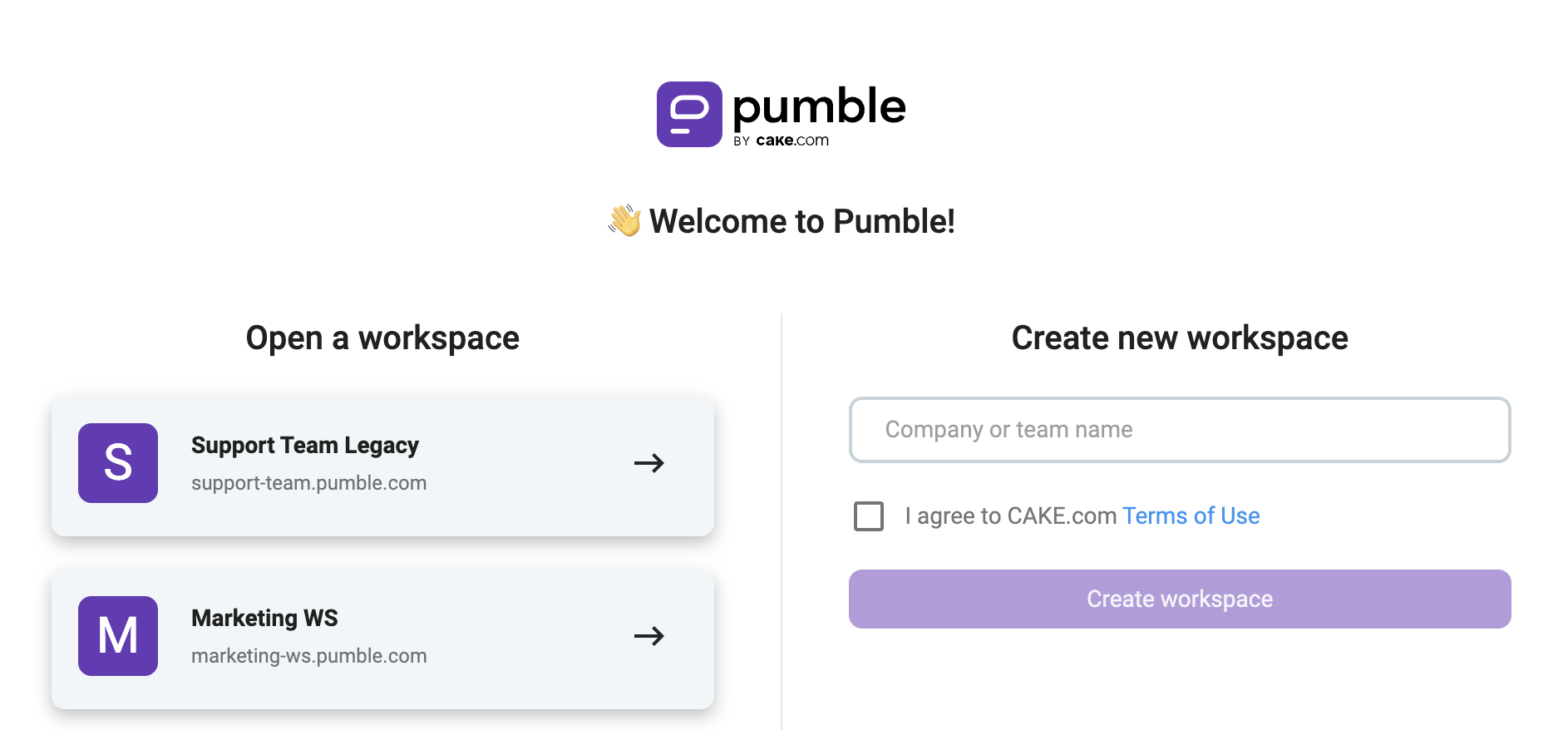
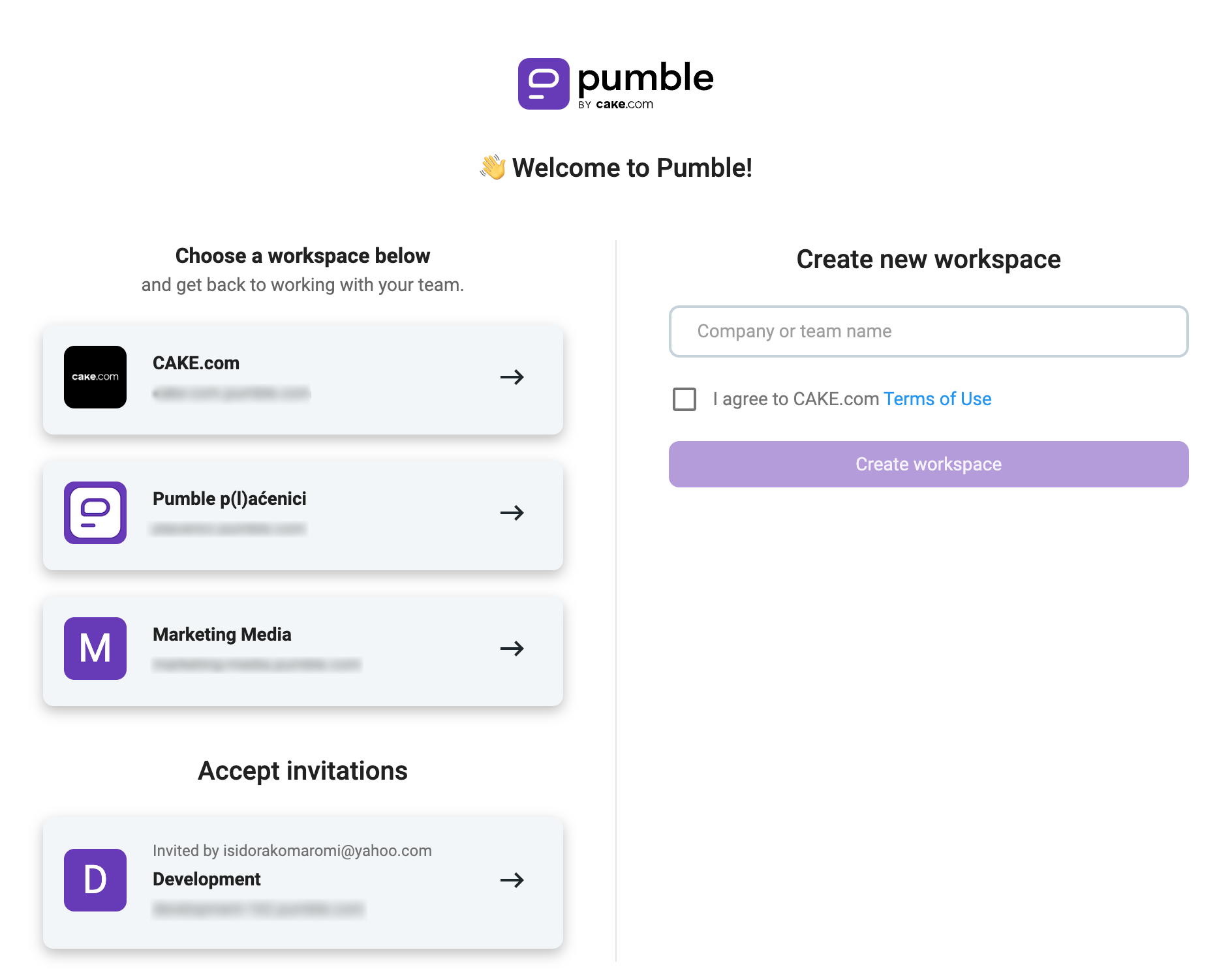
You’ll be redirected to your email account, and Welcome to Pumble screen:
- If you don’t have a workspace, enter the Company/Team name in the text field, agree to Pumble and Cake.com terms of use and click Create workspace
- If you have a workspace, choose one from the list
Continue with Apple #
- Click Continue with Apple
- Enter your Apple ID
- Enter your Name
- Enter Workspace name
- Click Continue to complete the action
Continue with Microsoft #
- Click Continue with Microsoft
- Log in to your Microsoft account
- Enter your Name
- Enter Workspace name
- Click Continue to complete the action
Continue with email #
You can register to Pumble by using your email. To do this, follow these steps:
- Enter your email address
- Open the email you received
- Enter the verification code

You’ll be redirected to Welcome to Pumble screen. Enter the Company/Team name in the text field, agree to Pumble and Cake.com terms of use and click Create workspace.
If you don’t already have a CAKE.com account, registering with Pumble will automatically create a CAKE.com account for you, along with an organization within it.
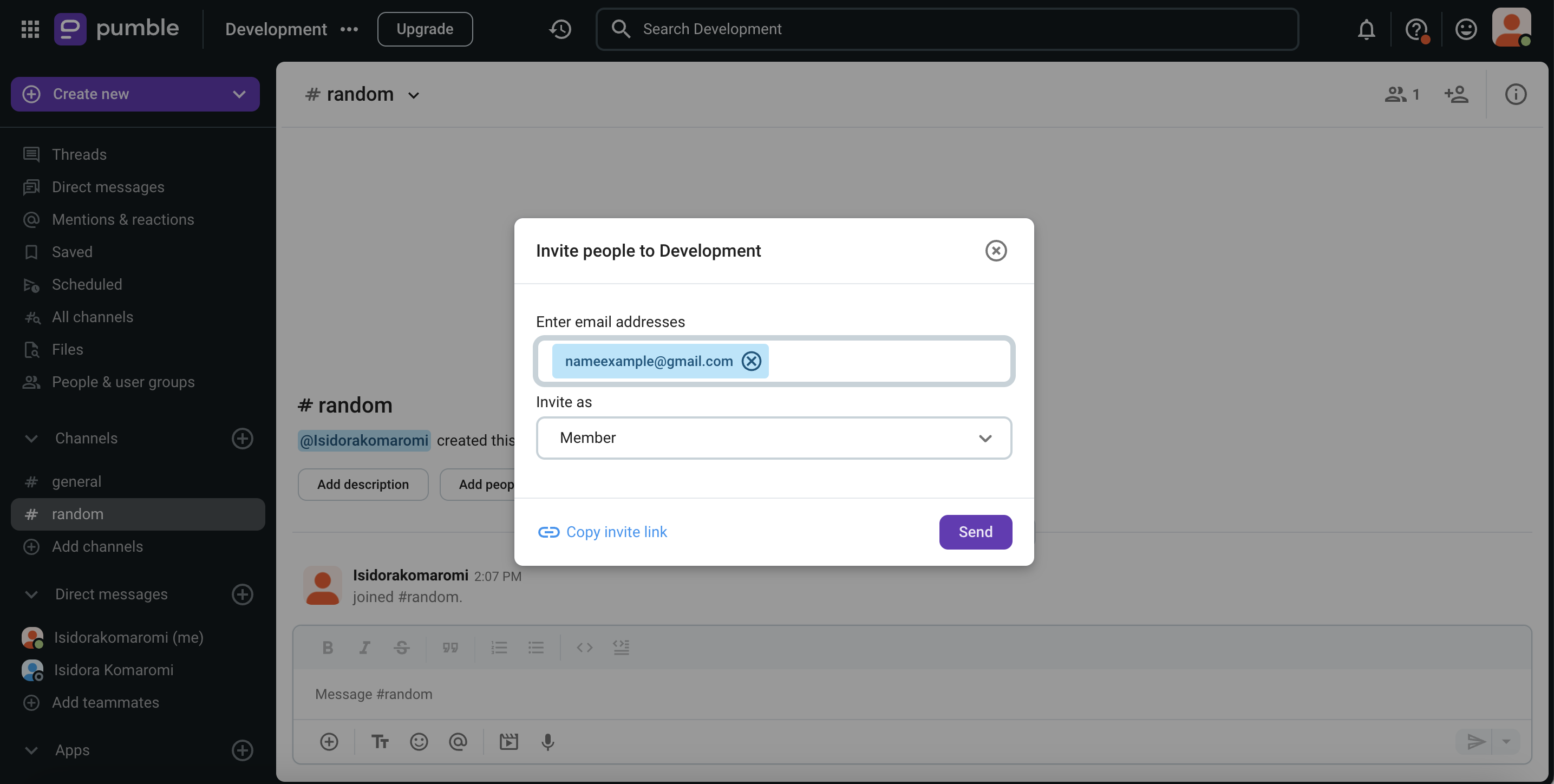
Once you did that, you’ll be redirected to the workspace you created, and encounter a modal prompting you to invite users to your newly created workspace.
Joining a workspace #
When someone invites you to the workspace, you will receive an email with the invitation link. Here is what you need to do next:
- Open your email
- Find the email with the invitation

- Click Join now
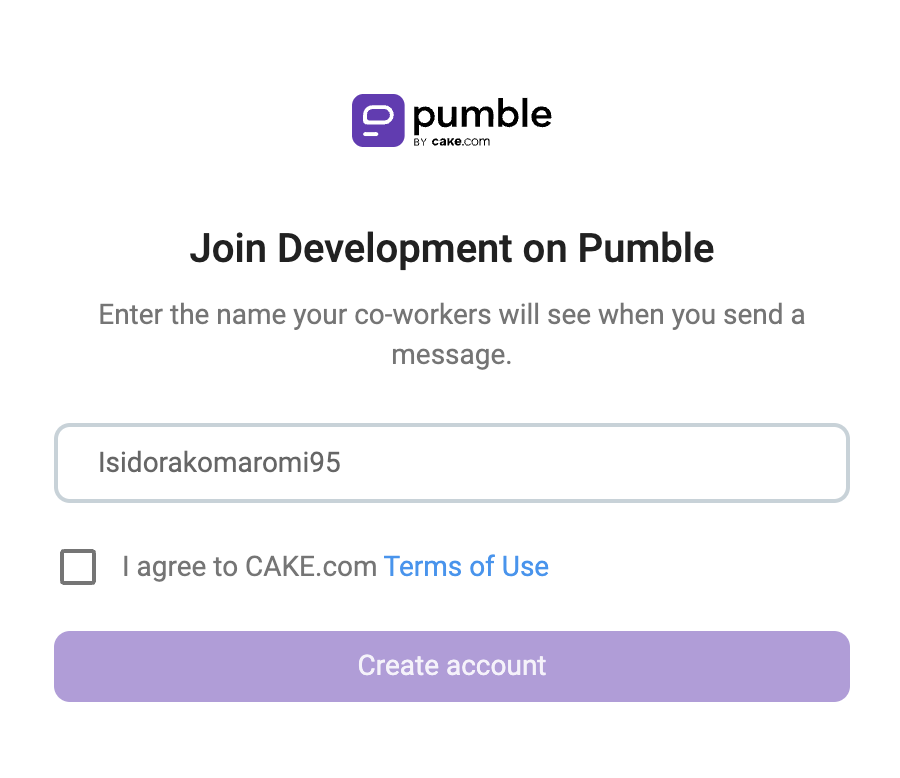
- Type your name, agree to Pumble and CAKE.com terms of use, and you’ll be able to join the workspace
or
- Go to the Login page
- Choose to Continue with Google/Microsoft/Apple or Continue with email
Continue with Google/Microsoft/Apple #
You’ll be redirected to your email account and the Welcome to Pumble screen. Choose the workspace from the list of pending invitations in the Accept Invitations section.
Continue with email #
Enter your email address and then a verification code. Choose the workspace from the list of pending invitations in the Accept Invitations section.
Check out this article to learn more about setting up your personal profile after creating/joining a workspace on Pumble.
Check out this article to learn how to Register at Pumble using mobile apps.