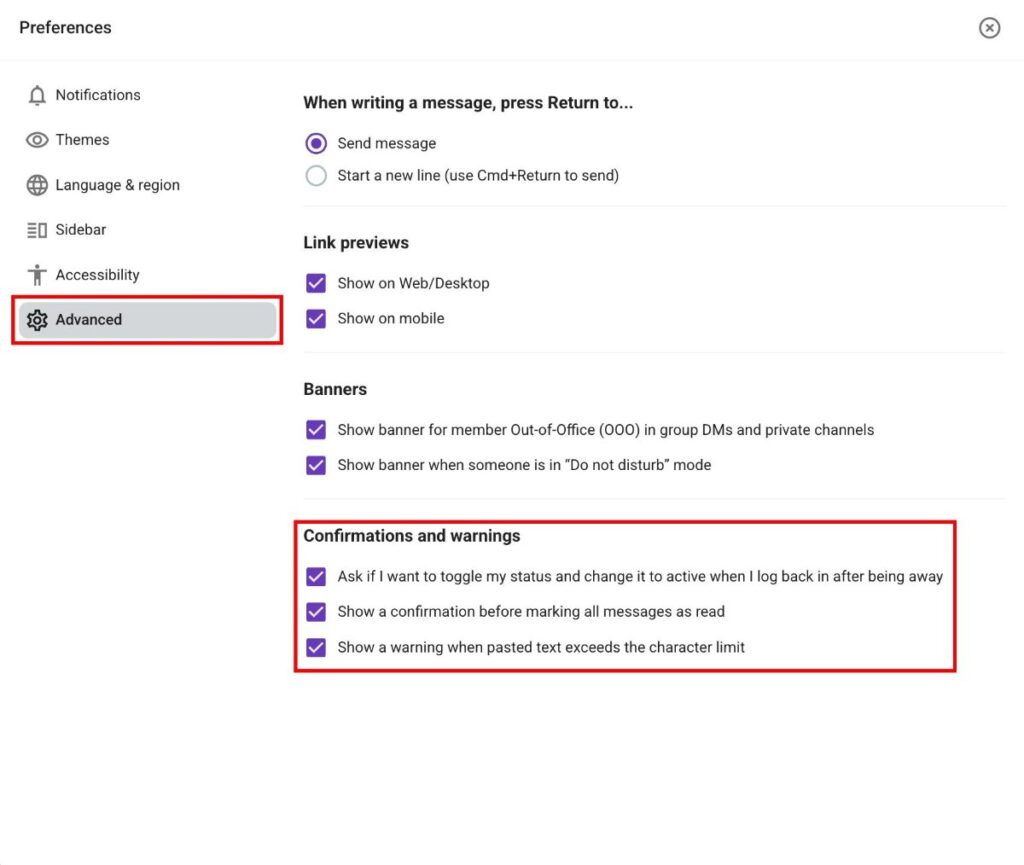
Advanced Preferences
In the Preferences > Advanced page in Pumble you can customize your Enter key settings and choose whether pressing the Enter key on your desktop sends a message or begins a new line. Adjust this preference anytime by following the steps below.
Configure Enter key preferences #
- Click on your profile picture in the top right corner
- Select Preferences from the menu
- Open the Advanced section
- Under When writing a message, press Return to… select one of two options
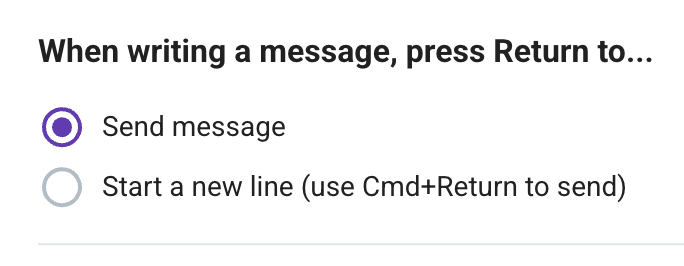
If you opt for Send message, you can initiate a new line by using Shift + Enter. Alternatively, if you choose Start a new line, you can send the message using Cmd + Enter on Mac or Ctrl + Enter on Windows/Linux.
Show link previews #
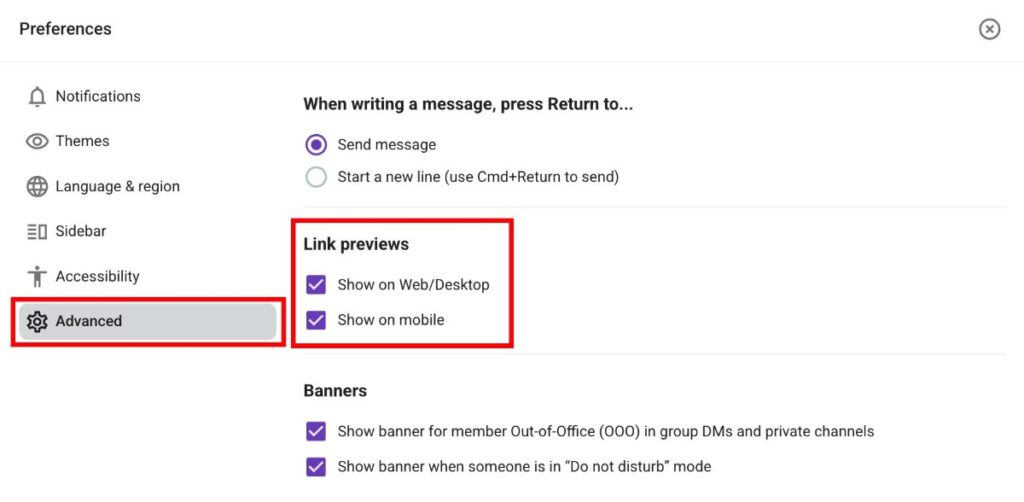
In this section, you can choose to see link previews in your messages.
Here’s how to enable them:
- Click on your profile picture in the top right corner
- Select Preferences from the menu
- Open the Advanced section
- Under Link Previews, select which link previews will be displayed
- Tap on your profile picture in the top right corner
- Tap on Preferences
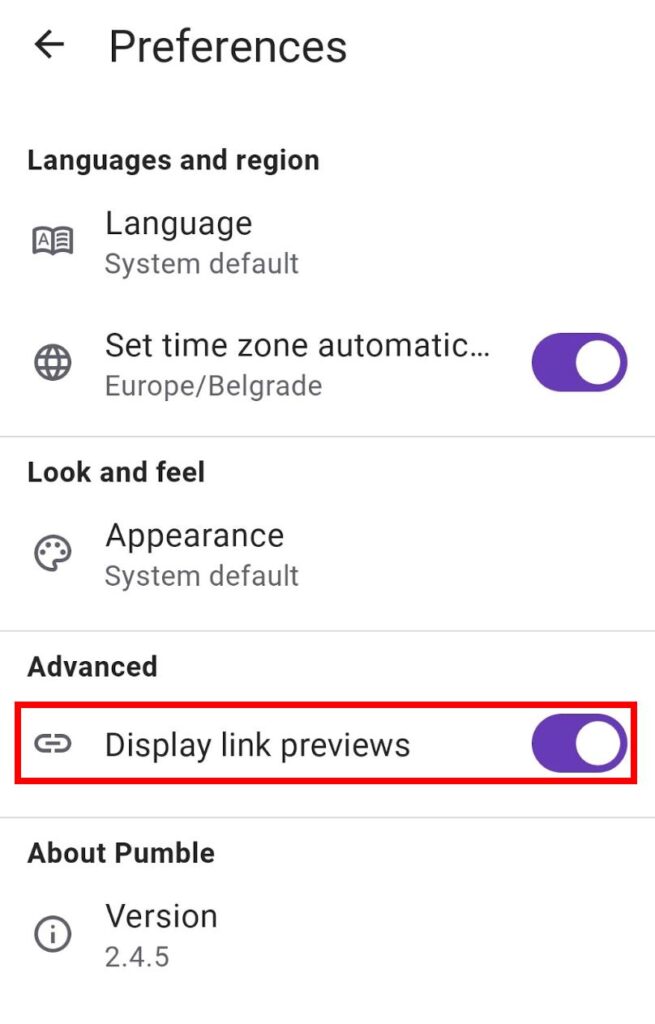
- Toggle the Display link previews button
- Tap on your profile picture in the top right corner
- Tap on Preferences
- Toggle the Display link previews button
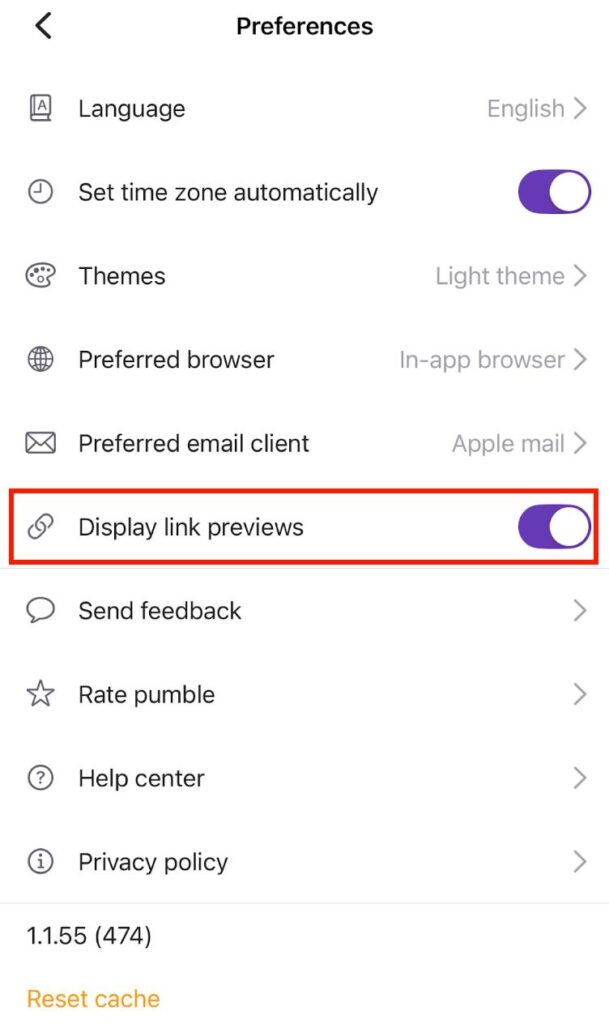
As a result, a link preview will be displayed in the messages you send.
Show out of office and do not disturb banners #
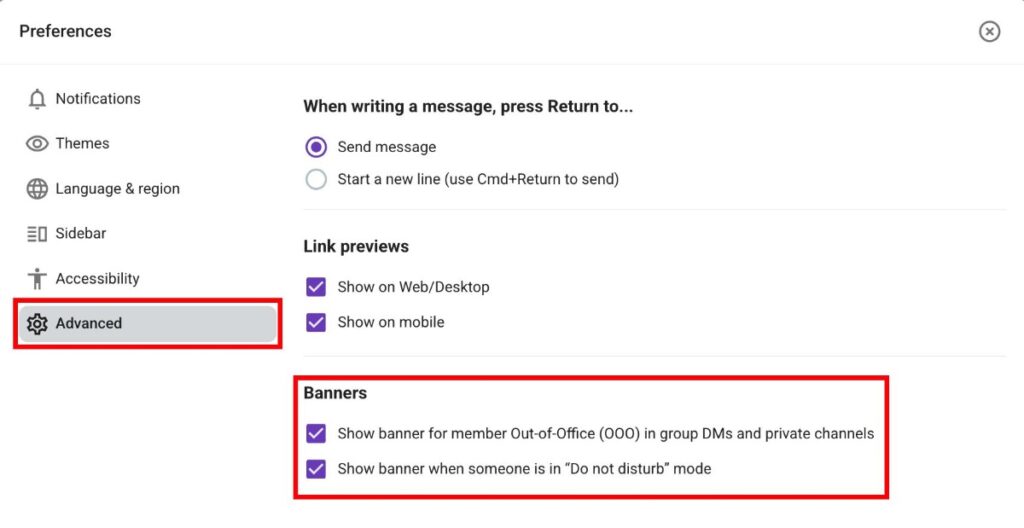
While in Advanced Preferences, you can also select whether out of office (OOO) and do not disturb (DND) banners will be displayed in group channels and direct messages.
Here’s how you can do this:
- Click on your profile picture in the top right corner
- Select Preferences from the menu
- Open the Advanced section
- Under the Banners section, select which banners to display
COMING SOON
COMING SOON
When this feature is enabled, a banner appears above the message box to notify you that the user is not present.

Set confirmations and warnings #
Pumble lets you choose which confirmation modals and warnings are shown to you. You can do this in your Advanced Preferences. Here’s how:
- Click on your profile picture in the top right corner
- Select Preferences from the menu
- Open the Advanced section
- Under Confirmations and warnings select which confirmation/warning you want to receive