Record a Video Clip
Record video clips to provide feedback, address your teammates more personally, or record an action you’d like to share with the rest of your team.
To record a video clip:
- Click the camera icon in the message box
- Click Record to start recording
- Press Stop to finish the recording
- Click Done to complete the action
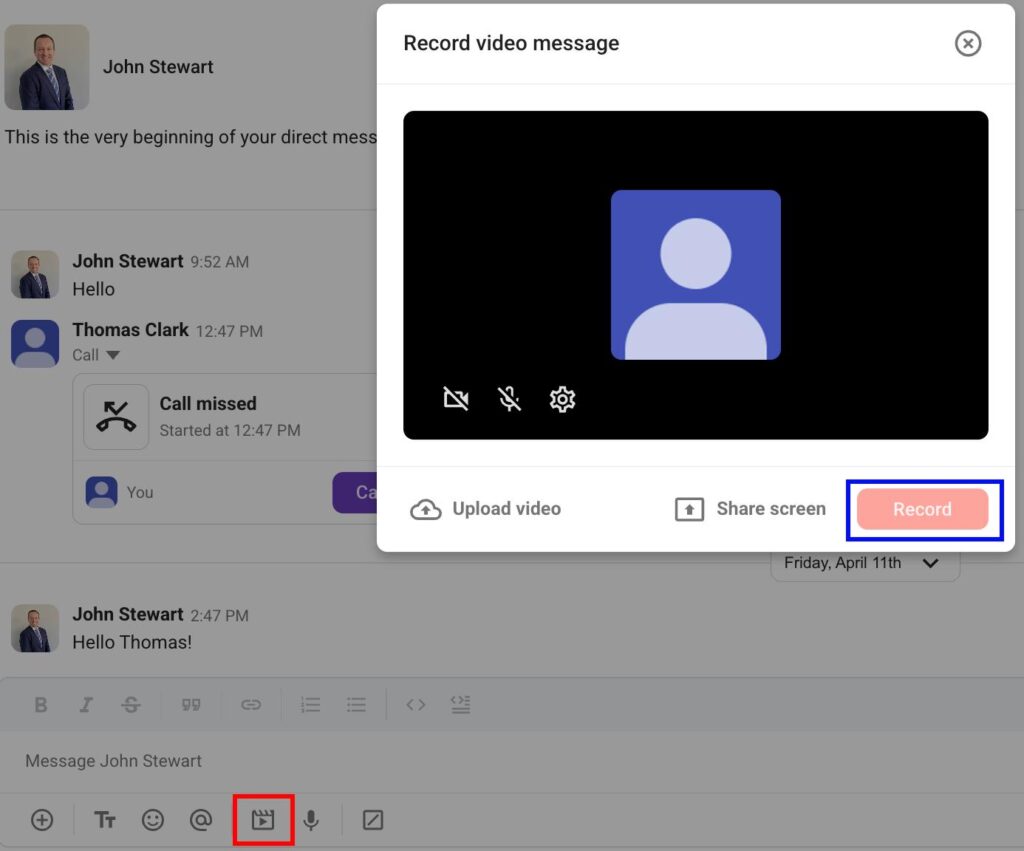
The recording can be paused and resumed.
Prior to recording the video clip, you can make some additional adjustments by turning the camera and microphone on/off and choosing which camera and video to use. If you’d like to record an action on your screen, you can turn on the Share screen option.
The recorded video file will be generated in the message box of the conversation/channel you’re currently in.
The maximum length of a video recording is 5 minutes.
To record a video clip, the camera or screen share needs to be turned on.
Recording a shared screen is a paid feature available on Pro, Business, and Enterprise plans.
- Tap on the + icon in the message editor
- Tap Record a video clip
- Tap on the red button in the footer to start and stop recording
- Tap on Use video to complete the action
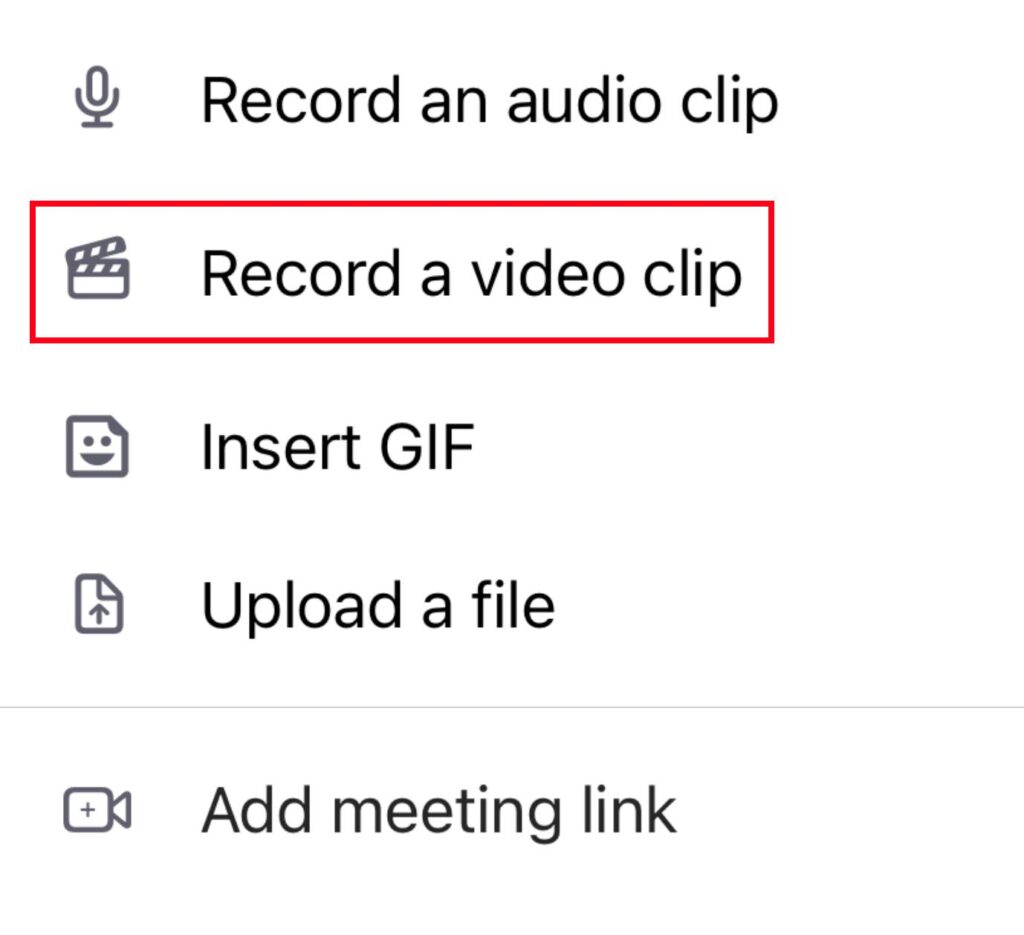
Recorded video file will be generated in the message box of the conversation/channel you’re currently in.
In order to record a video clip, camera needs to be turned on.
- Tap on the + icon in the message editor
- Tap Record video
- Tap on the red button in the footer to start and stop recording
- Tap on OK to complete the action
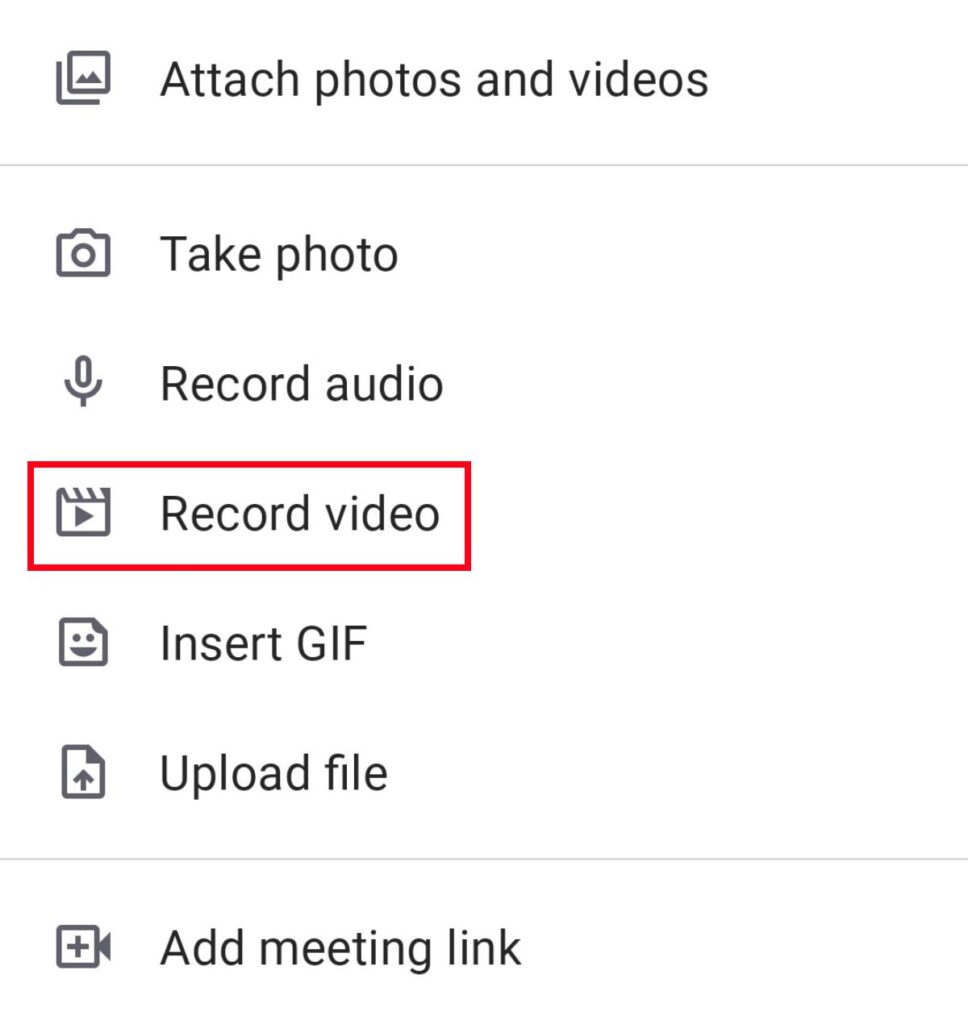
Recorded video file will be generated in the message box of the conversation/channel you’re currently in.
In order to record a video clip, camera needs to be turned on.
Send the file to share it with your teammates.