Are you looking for an efficient communication tool with a dedicated place for chats?
Are you tired of digging through chaotic Google Chat conversations?
Then you might want to consider moving from Google Chat to Pumble.
This guide will show you the technical steps to save your data and the best ways to get your team ready for the change.
- If you’re looking for an efficient and affordable team communication tool, you might want to consider moving from Google Chat to Pumble.
- Pumble offers simple channels that organize and preserve your conversations, advanced standalone collaboration tools, and more affordable prices.
- Moving from Google Chat to Pumble is a relatively simple process that includes downloading your Google Chat history, planning your Pumble channels, setting up your Pumble workspace, and inviting your teammates.
Why teams move from Google Chat to Pumble
Most teams decide to leave Google Chat for one of the 3 following reasons:
- Search issues. Although Google Chat groups conversations into threads, it’s hard to follow along when chats move fast. Finding older messages or files takes too much time. Pumble uses simple channels that preserve your conversations, which makes finding older messages easy.
- High costs. Google includes Chat in its big bundles. As your company grows, you have to pay more for every single user just to get basic control or more storage. Pumble charges you a clear price per person, which helps you keep your chat bills separate from your email or cloud bills.
- Chat is just an extra feature. Google Chat is designed as an extra feature inside Gmail. It was never the main focus of the software. Because of this, it misses out on special chat tools that teams need. Pumble is built only for team chats, so every update makes work communication easier.
Now that you’ve got all your reasons lined up, let’s just sort out all the final details before we get into the actual process of moving your team communication from Google Chat to Pumble.

Before you start the migration: What moves (and what stays behind)
Before you download anything or change your settings, you must know what you can actually move to the new tool.
Pumble does not have a special button to pull your data directly from Google Chat. Google formats its data only for its own apps.
So, when you export your chat history, you are simply saving a backup copy for safety. You will build your new Pumble space from scratch. This gives you a chance to start fresh in your Pumble workspace.
Here’s a quick look at what happens to your data.
| Google Chat feature | Can it move? | What to do instead |
|---|---|---|
| Message history | No | You can download a backup file to keep on your computer, but you cannot upload it into Pumble channels. |
| Spaces | No | You can look at your active Spaces and create equivalent Pumble channels. |
| Direct messages | No | Private one-on-one chats are locked into Google accounts and can’t be moved. You can create equivalent 1:1 conversations in Pumble. |
| Files and photos | No | You’ll need to upload important files again or share Google Drive links in Pumble. |
| Tasks | No | Tasks made inside Google can’t be moved. You can recreate tasks as Plaky items directly from Pumble. |
| Calendar and Drive alerts | No | Automated notifications inside your Google Chat can’t be sent to other apps. You can create equivalent Calendar and Drive alerts in Pumble. |
Now that we’ve covered all grounds, let’s walk you through the step-by-step process of moving from Google Chat to Pumble.
#1: Download your Google Chat history
To get your chat files, choose one of the 2 paths below based on your account type. If you use a work account, personal download tools won’t show your company Spaces. You must use the administrator path for your business account.
Personal Google account
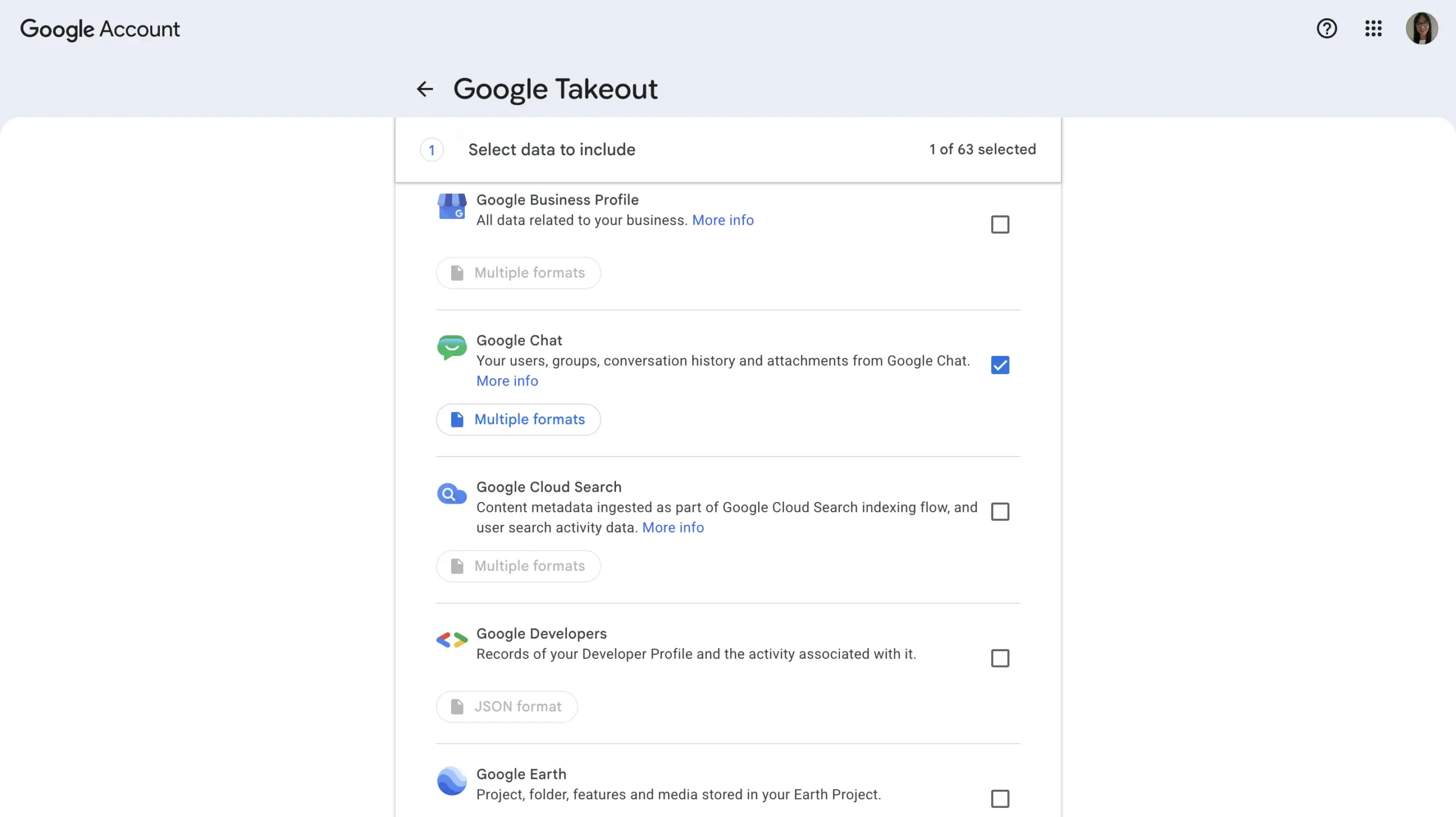
If you use free, personal Google account, you’ll need to follow the Google Takeout route:
- Log in to your Google account.
- Go to the Google Takeout page.
- Click Deselect all at the top so you don’t download unnecessary files.
- Scroll down until you see Google Chat and check that box.
- Go to the bottom and click Next step.
- Choose how you want to get the files (like a download link sent to your email), and pick a .zip file type.
- Click Create export. Google will gather your chats. Open the email they send you, and download the files to your computer.
Google Workspace
To save company conversations from work Spaces, you’ll need an admin-level role to execute the full company Admin Console Export:
- Log in to Google account as the main admin.
- In the left menu, click Data, then Data import & export, and then Data Export.
- Click the Set up new export button.
- Give your export a name, and make sure Google Chat is selected.
- Start the export. This can take a few hours or a few days depending on the size of your team.
- When it finishes, open the panel and download the files to your company cloud storage.
#2: Plan your Pumble channels
Once you’ve got your conversations and files downloaded, it’s time to organize a new space for them in Pumble.
Make sure not to copy every single space from Google Chat. Your teammates probably don’t need years of messy, old chats that nobody uses anymore.
Instead, treat this move as a time to clean up your conversations. Most teams have some abandoned conversations they’ll never miss. This change lets you leave that mess behind.
Before you invite anyone, here are a couple steps you can take to make a simple plan:
- List everything. Write down every active Google Chat Space your team uses.
- Drop the old chats. Find conversations related to finished projects or old events. Save them in your backup files, but don’t recreate them in Pumble.
- Choose access. Decide if each Pumble channel should be public (anyone can see it) or private (only invited people can see it).
- Pick clear names. Use simple prefixes or suffixes so your new channels stay neat. For example, use #_team for teams and #proj_ for active projects.
Here are some examples to help you get started on your Pumble channels organization.
| Old Google Chat Space | New Pumble channel name | Type | Who can see it |
|---|---|---|---|
| Marketing team chat | #marketing_team | Public | Everyone |
| Q3 product launch chat | #proj_q3_launch | Public | Project members |
| Private management chat | #exec_leadership | Private | Managers only |
| Watercooler | #random | Public | Everyone |
To learn more about Pumble channels, check out this video:
#3: Set up your Pumble workspace
Now that you have a plan, you can log into Pumble and set up your new digital headquarters before the rest of the team joins.
Here are the steps:
- Create your Pumble account. Go to Pumble and sign up. Pick your workspace name.
- Create your channels. Look at your previously created plan, and make your public and private channels. Add a short description to each one so that your team members know what to talk about in each channel.
- Set rules and controls. Decide who can mention the entire company using @everyone and who can make new channels or invite outside guests.
- Connect your tools. Add other software your team uses daily. Pumble lets you connect apps like GitHub, Jira, and Zendesk.
- Store your backup. Put the files you downloaded in step 1 into a safe company folder. Pin a link to that folder in a private manager channel so you can find old chats if you ever need to look them up.
#4: Invite your team
During this migration process, you’ll find out that moving files is easy, but helping people adjust to a new tool might take more work.
For example, if you invite everyone all at once on a busy morning, people will get confused and upset. A slow, planned move works much better.
Here are some best practice tips that will help you make the transition smooth for everyone.
- Invite people in small groups. Try not to invite the whole company at once. Bring in managers and tech leaders first. Let them use Pumble for a few days to get used to it.
- Write the first messages. It’s not the best practice to invite people into empty channels. Before the rest of the team arrives, post project updates, pin helpful links, and start a few friendly threads.
- Keep both apps open for a brief period. Let your team use both Google Chat and Pumble for 3 to 5 days. Use this time to let people get used to Pumble, but discourage having separate project talks in 2 places.
- Pick a final switch date. Set a clear deadline. Tell everyone that on that day, Google Chat will close or become read-only, and all work chats will happen on Pumble.
- Appoint an assistant. Ask a fast adopter to assist other team members. Have them watch a #help_pumble channel, for example, to answer questions, fix settings, and help people fix their notifications.
What to keep in Google Workspace
Moving to Pumble doesn’t mean you need to discard all your Google tools.
In fact, Pumble works nicely alongside your regular Google setup, so you can confidently keep using what Google does best. Here’s how you can connect Google Workspace apps to Pumble:
- Google Drive. You can keep your shared documents and spreadsheets right where they are. You can add Google Drive links directly into Pumble channels. Pumble shows file previews so you can collaborate easily.
- Google Calendar. You can keep using Google Calendar to plan meetings, join a meeting from the calendar, or set project dates.
- Gmail. You can use the Pumbe Gmail integration to send emails from Pumble. Or, use email for official contracts, and leave Pumble for internal chats.
Migration checklist
Moving your entire team communication from one app to another is no small feat. To make sure you’re not missing any important details during your migration, use this simple checklist:
- Check that you have master admin access to your Google Workspace account.
- Run a full download of your chat history through Google Admin or Google Takeout.
- Save your downloaded chat files into a safe company storage folder.
- Review your Google Chat spaces and choose which ones to drop.
- Make a channel plan with simple prefixes and suffixes like #_team and #proj_.
- Create your company Pumble account, and choose your workspace name.
- Create your new channel setup inside Pumble before inviting your team.
- Set your company-wide notification rules and user access.
- Connect important apps such as Jira, GitHub, or Zendesk.
- Post initial project updates, and pin links so channels aren’t empty.
- Invite managers and project leads first to test the new workspace.
- Pick a final date for the move, and tell the whole company.
- Send out Pumble invitations to the rest of your team.
- Make an internal help center to help your team adjust during the first week.
FAQ
Here are the answers to the most common questions about migrating from Google Chat to Pumble.
What has replaced Google Chat, and what are the best alternative messaging apps?
Google Chat originally replaced Google Hangouts for communication inside Google Workspace. Today, teams looking for other tools choose software built for group communication such as Pumble, Slack, and Microsoft Teams.
Is Google Chat being discontinued or rebranded?
No, Google Chat is not closing down. Google has changed its chat apps before, but Google Chat remains a part of the Google Workspace package.
What’s the difference between Google Messages and Google Chat?
Google Messages is an app for texting on mobile phones using cellular networks. Google Chat is a team communication tool designed for businesses to track projects, share files, and hold group discussions inside web browsers.
How safe and private is Google Chat?
Google Chat is safe and protects your data with encryption in transit and at rest. It uses email addresses and Google accounts, so it never reveals your personal phone number to other users.
Can an employer or boss monitor your Google Chat conversations?
Yes. If you use a Google account provided by your job or school, your employer can use administrative tools to check, download, or read your chat logs.
What are the primary disadvantages of using Google Chat?
The biggest downside of using Google Chat is that it forces you to use Threads inside Spaces, which can make long conversations messy and hard to find. Also, because it is part of Gmail, it lacks the deep notification controls, app links, and custom options found in tools like Pumble.
How do you log out, sign off, or uninstall the Google Chat app?
On a computer web browser, click your profile picture in the top right corner of Gmail or Google Chat, and click log out. On phones, open the app menu, go to settings, and turn off that account. You can remove the app by dragging it to your computer’s trash bin or using your phone’s app settings.
What happens to messages when you delete a conversation or uninstall Google Chat?
Removing the app from your phone just deletes the software; your messages stay safe in Google’s cloud servers and will show up again when you log back in. If you delete a chat history on a personal account, it disappears from your view. On work accounts, deleted chats often stay visible to company bosses in background safety backups.

Improve your team’s productivity with Pumble
There are many benefits to moving your team from Google Chat to Pumble.
Most notably, Pumble offers:
- Budget-friendly pricing
- Better search and organized communication in channels
- Advanced collaboration features including voice and video messages and native video calling with collaboration controls
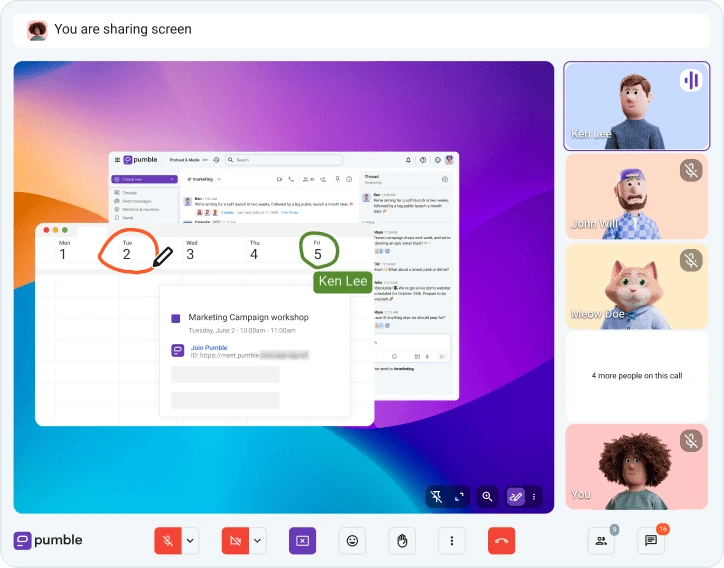
Moving from Google Chat to Pumble doesn’t have to be complicated. With a structured migration process, Google Chat users can move their data and continue collaborating without interruptions.
Ready to make the switch? Get started on your move by setting up your new Pumble workspace today.
For more details, be sure to contact support team for assistance.
Get started with Pumble by CAKE.com
How we reviewed this post: Our writers & editors monitor the posts and update them when new information becomes available, to keep them fresh and relevant.