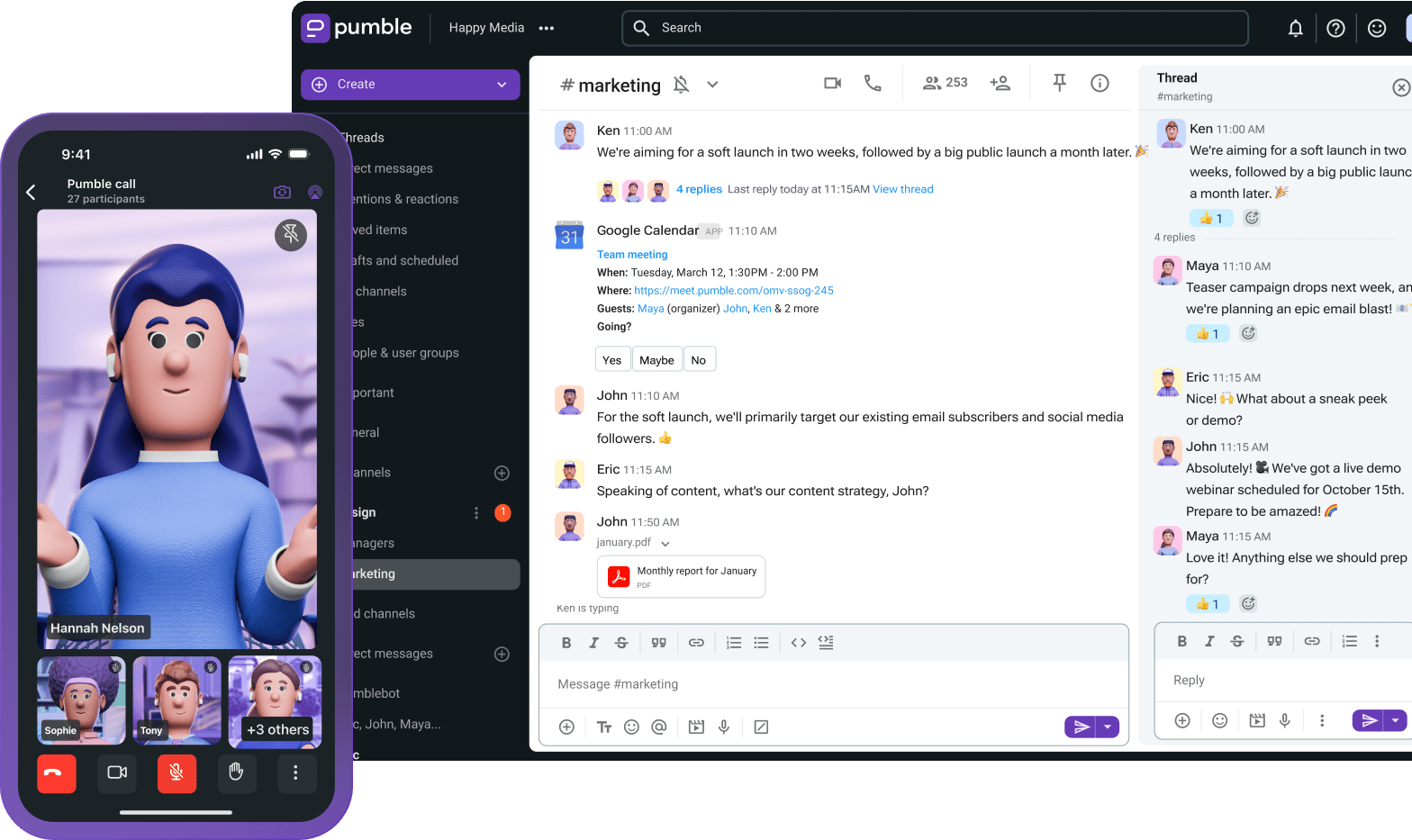
Now that most of our work communication is online, recalling past conversations and recovering old files should be easier than ever, right?
Well, that’s only true if you’re making the most of the tools you have at your disposal.
For example, if you mostly communicate through the team communication app Pumble by CAKE.com, familiarizing yourself with the app’s search function will definitely help you make the most of its unlimited searchable message history.
As it happens, that’s exactly what we hope to achieve with this guide.
But, before we tell you about Pumble’s search function and the different ways you can incorporate it into your workflow, let’s talk about why finding old messages and files is so difficult nowadays.
- In 2026, many organizations are using multiple tools and platforms to communicate and collaborate remotely, making team information retrieval and context recovery more difficult than ever.
- Reducing tool sprawl by running most of your work communications through a single platform simplifies data recovery.
- Pumble by CAKE.com lets even free users keep access to all their messages, making it the ideal platform for teams looking to create a searchable knowledge base.
- Users can find old messages and recall past conversations by using Pumble’s advanced search filters to narrow down their results.
- Pumble search results can be filtered by sender, chat, and date range, and further refined through sorting options.
- The Files section in Pumble’s sidebar lets users specify the type of file they’re looking for, allowing them to recover internal documents without having to go through their superiors.
Why is team information retrieval so difficult in 2026?
In the modern workplace, files and messages tend to be scattered across various platforms. Teams communicate and collaborate through:
- Email, even though it often leads to information burial,
- Messaging apps like Pumble or Slack, and even
- Online storage and documentation platforms like Google Drive.
As a result, knowledge management and context recovery have become pretty tricky.
People have to be able to remember not only the exact phrase used in the message or file they’re looking for, but also the platform they originally saw it on.
If they can’t do that, the search for old files can seriously impact the team’s operational speed, as every attempt at decision-tracking and context recovery is slowed down when team members look for old messages across different platforms.
Running most of your work communications through a single platform with a searchable message history simplifies data recovery. That’s why reducing tool sprawl is the best way to improve knowledge management within organizations.
🎓 DICA PROFISSIONAL PUMBLE
If you’re looking to prevent tool sprawl, start by deprioritizing email in your communications. Here are 4 reasons that should convince your team to take a step back from email:
Build a searchable database on Pumble
How building a virtual knowledge base boosts operational speed
Once you commit to using a single platform for most of your team communication, you’ll be one step closer to finding any message or file you need.
Simply put, your communication app will transform into a knowledge base all employees will be able to fall back on.
Of course, that only works if the app in question lets you:
- Keep all of your messages (instead of limiting your searchable message history to the previous 90 days), and
- Use filters to refine your search for old messages and files.
Pumble by CAKE.com easily checks off these requirements, as even free users enjoy an unlimited searchable message history.
This type of structured search feature lets teams focus on work by reducing the time that would have otherwise been spent on context recovery.
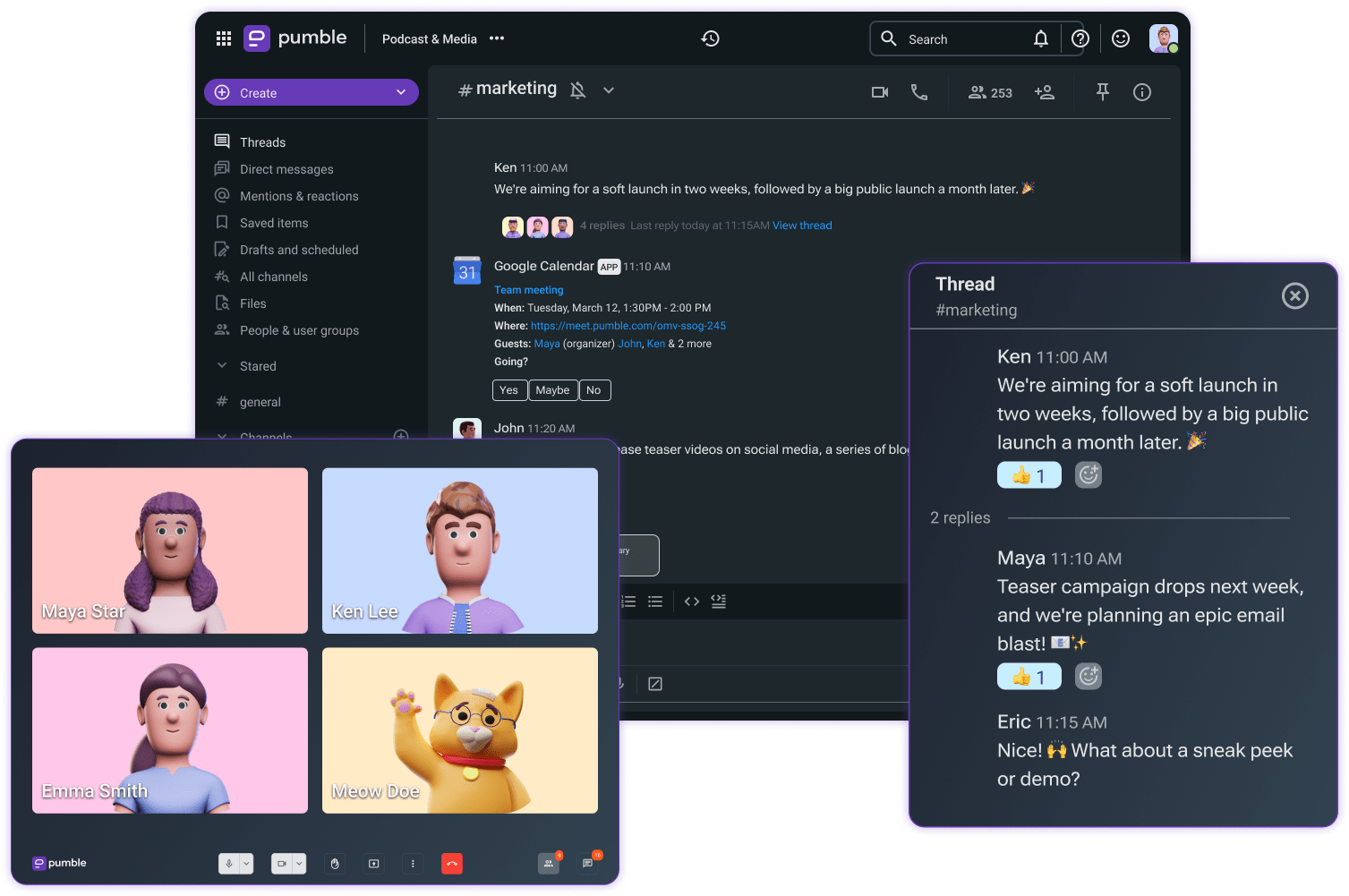
The core features of Pumble’s search function
So, how does the Pumble search function help teams boost operational speed?
Here’s a breakdown of the Pumble features that make it possible to:
- Recover past conversations,
- Find files and messages, and
- Use advanced search filters to find exactly what you’re looking for.
Recovering past conversations
In your daily use of the app, you’ll often find yourself relying on the Pumble search function to double check the reasoning behind past decisions.
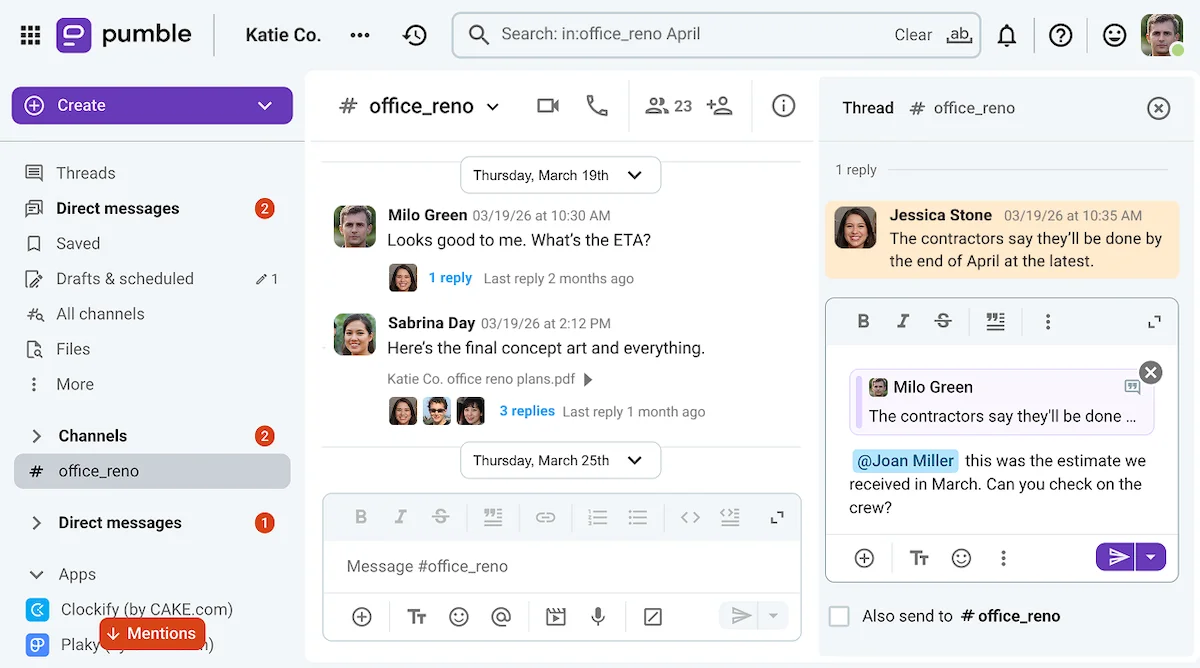
In Pumble, this kind of context recovery is as easy as typing in a key word or phrase you remember from the original discussion into the search bar and finding the right message in the results.
Clicking on the message will let you jump to the Pumble channel and thread the exchange took place in, letting you go over the entire conversation.
From there, you can:
- Copy the link of the message if you want to reference it in a different conversation or
- Use quote replies to bring the message to the attention of your original interlocutors.
Either way, your interlocutors will be able to navigate back to the original question and see the rest of the conversation for themselves.
Finding files vs. messages
If you want to take full advantage of your Pumble knowledge base, you should probably learn how to look for files as well as messages.
After all, the app’s generous storage space, which expands with every user added to your workspace, can be used to share and store any documents your team will need, including:
- Imagens,
- Text snippets or documents like PDFs, and even
- Meeting recordings and other audio and video content.
Of course, a generous storage plan is only useful if the app’s search function can easily navigate through it.
Thankfully, the Pumble search function lets you filter your search to find messages that contain files, reactions, and links.
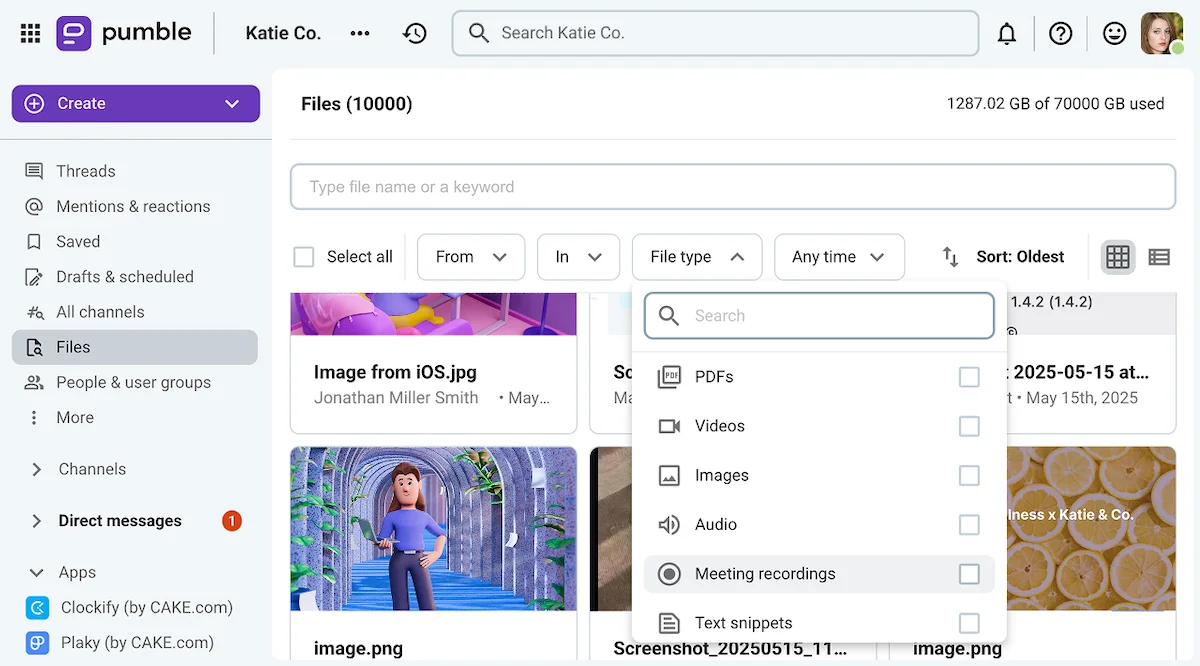
Moreover, if you want to find files in Pumble, you can also go through the Files section in the sidebar.
There, you’ll be able to use various filters to bring up the exact file type you’re looking for, as seen below.
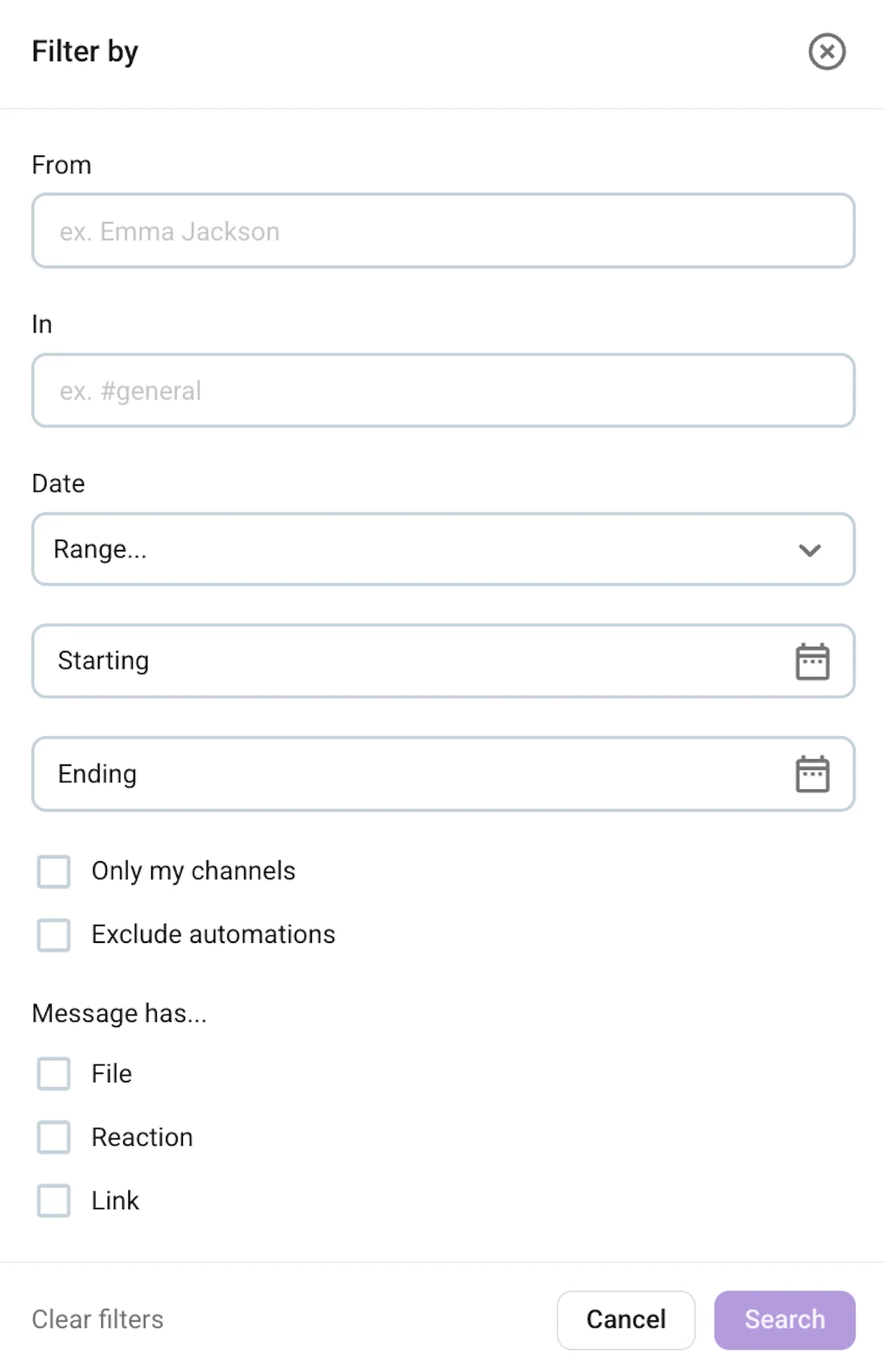
Using advanced filters
As you might have noticed in the image above, Pumble’s search filters aren’t limited to choosing the type of file you’re looking for.
Whether you’re going through the regular search process or the Files section, you’ll also be able to select:
- Who sent the message (by typing in the name or names of the users who might have sent the message you’re looking for),
- Where the message was sent (by specifying the channels, group chats, or direct messages the text might have originated from), and
- When the message was sent (by using a predetermined filter or specifying a custom date range with the Date filter).
On top of that, Pumble also lets you:
- Limit your search to only the channels you’re a part of and
- Exclude messages you might have received through Pumble integrations.
Once you have your results, you’ll be able to further adjust them by sorting them by the newest, oldest, or most relevant.

5 ways to use search to boost operational speed
Now that we’ve discussed the basic features of the Pumble search function, let’s talk about how your team can put them to use.
We’ve come up with 5 practical examples to help you visualize how you can take advantage of Pumble’s unlimited searchable message history to:
- Boost onboarding efficiency,
- Track projects and deliverables over time,
- Avoid duplicate work,
- Look back on your team’s daily stand-ups, and
- Manage your files to prevent confusion.
Let’s get into it.
1. Boost onboarding efficiency
Pumble is an incredibly useful platform for HR teams for a variety of reasons. It can be used to:
- Announce policy changes in public channels,
- Track employee performance over time in private channels accessible only to relevant management-level employees, and
- Host video conferences and employee workshops.
The app’s search feature can be used to enhance all of those processes, but it’s an especially practical tool during the employee onboarding process.
On the one hand, HR employees will be able to use private channels to exchange opinions on new employees and brainstorm ways to improve the onboarding process.
However, on the more visible part of the process, HR will also be able to set up a public channel containing documents new employees tend to look for.
Adjusting posting permissions should keep the official #onboarding channel tidy, as seen below.
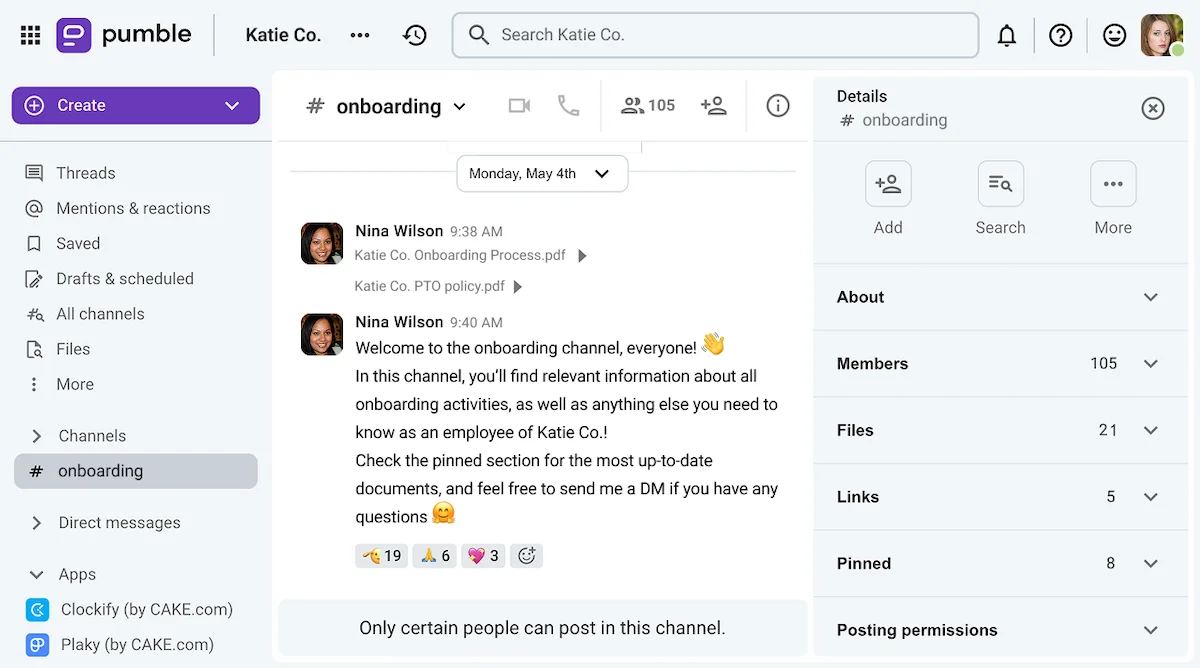
This will allow employees to use the name of the channel to limit their Pumble search results when looking for specific documentation.
And, outside of this example, new employees will also be able to use Pumble’s search function to get up to speed on past projects without having to go through their team members, further improving onboarding efficiency.
Hit the ground running with Pumble
2. Track projects and deliverables over time
If you’re a member or a manager of a project-based team, Pumble’s ability to quickly retrieve messages concerning past projects or related deliverables should come in handy.
Just type in the name of the project you want to catch up on (or a related search term, such as the client’s name) and dive in.
As we’ve discussed, you’ll be able to narrow down your search by using filters to direct the channels and users to produce better results.
Notably, this use case of the Pumble search function might benefit from a team-wide agreement to include certain keywords in all messages concerning certain projects or deliverables, as seen below.
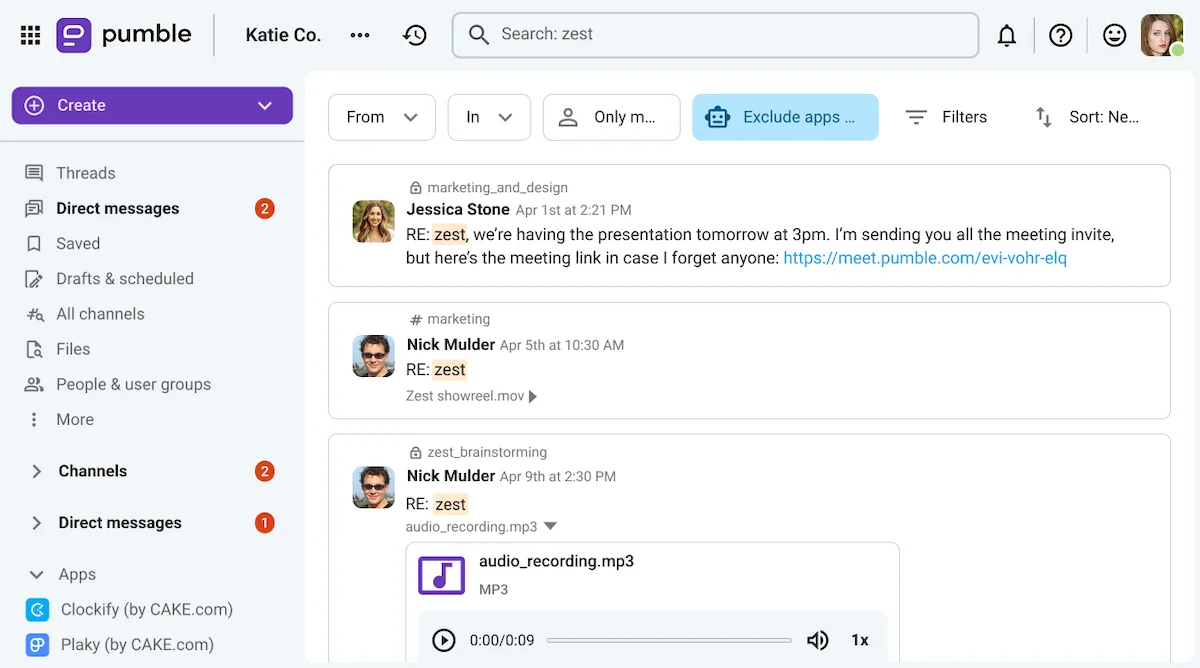
If your team properly tags their project and task related messages, you’ll be able to find them even if they’re not in a searchable format, as evidenced by the voice message and video recording that showed up in the above search results.
🎓 DICA PROFISSIONAL PUMBLE
Want to know how consulting agencies use Pumble to keep track of projects and clients? Check out this overview:
3. Avoid duplicate work
If your team or organization has a problem with duplicate work, having a platform that can serve as a single source of truth can alleviate that issue.
After all, duplicate work is often caused by siloed communication and communication that is scattered across various platforms.
So, practicing transparent communication and increasing the visibility of individual team members’ contributions should decrease the amount of time you would have otherwise wasted on duplicate work.
Once you establish a check-in protocol that prompts team members to say what they’re working on (or what they plan on working on next), everyone will be able to avoid taking on tasks that are already spoken for.
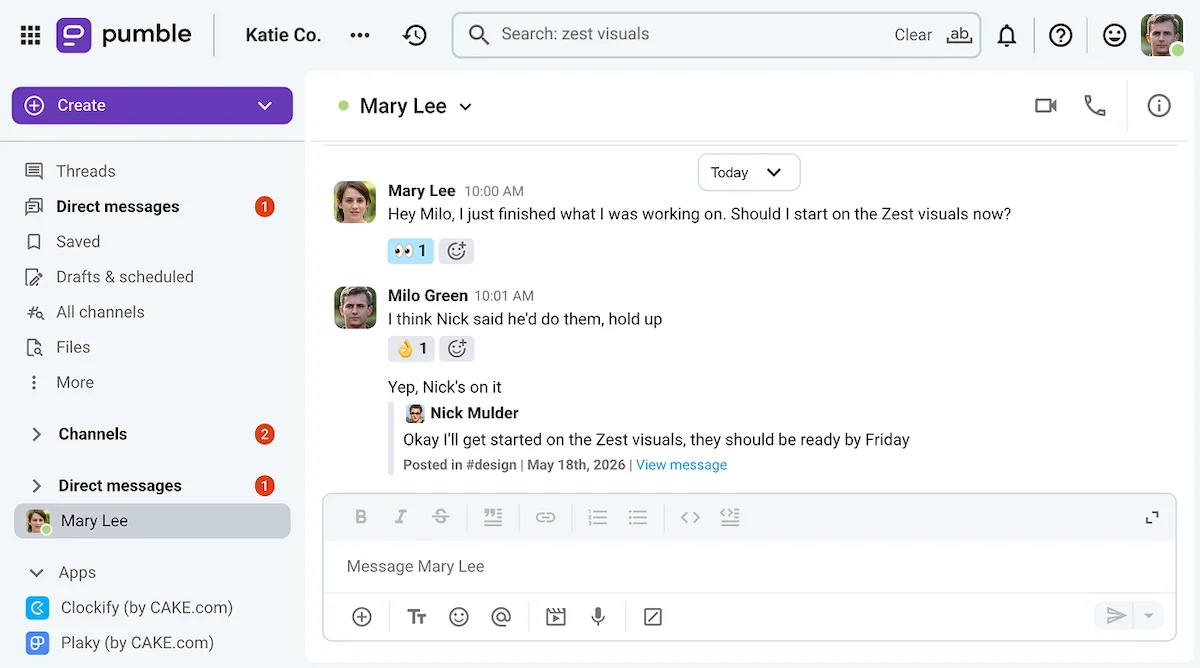
Then again, if you want to have even more clarity on that front, you could also try incorporating the project management app, Plaky by CAKE.com into your workflow.
Plaky is the perfect productivity tool for teams that are dealing with multiple projects or tasks at the same time, as it lets everyone see exactly what other team members are working on.

4. Look back on your team’s daily stand-up reports
If you’re not going to use a task management app like Plaky, implementing daily stand-up reports in written form can be a good way to avoid duplicate work on your team.
On top of that, regular team check-ins should also promote accountability, allowing you to see:
- How quickly projects are progressing,
- Which tasks are blocking progress, and
- Whether your team requires support in any particular area.
Once again, the best practice would be to set up a system for communicating what everyone is working on that makes the messages easy to search through later.
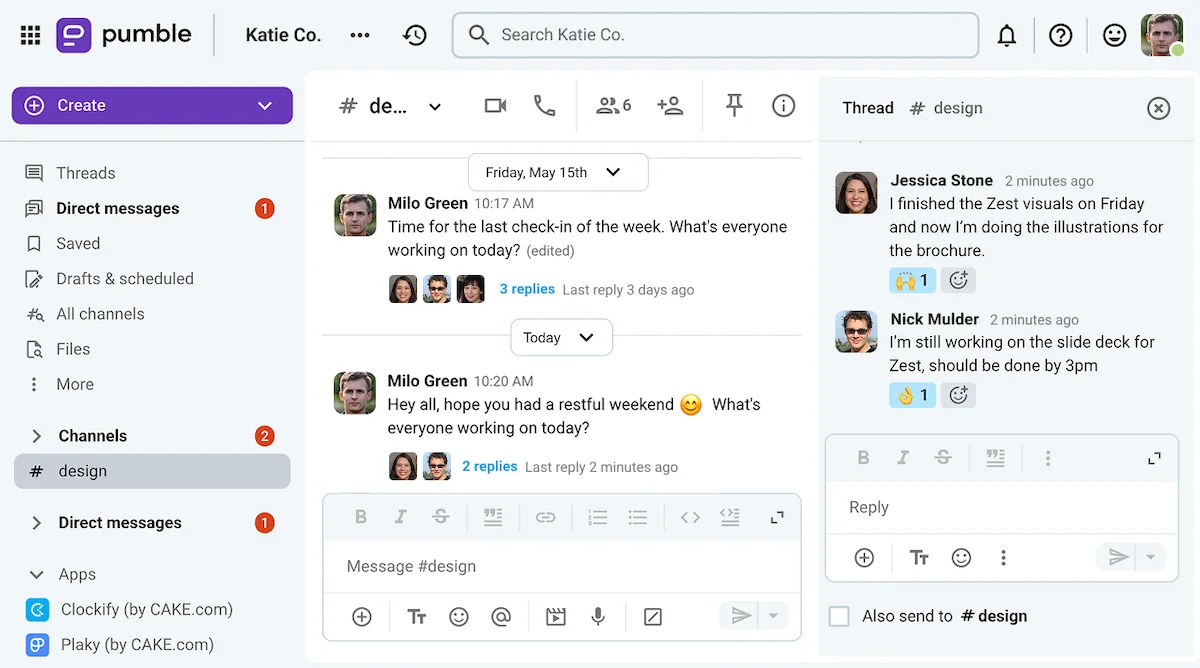
For example, you can have your team report what they’re working on in thread messages that include keywords (such as the name of the task or client they’re working on) to make decision-tracking and context recovery more manageable in the future.
Here’s an idea of what one stand-up report might look like.
Check in with your team on Pumble
5. Manage your files to prevent confusion
As your organization grows, there’s a risk of your Pumble knowledge base turning into a dumping ground for all sorts of irrelevant files and messages.
That’s why having some of the messaging rules we’ve mentioned and knowing how to use search filters will be crucial, especially as your storage grows and fills up over time.
Without these protocols, your search results can be clogged up with irrelevant messages and outdated files.
But, if you still end up sifting through irrelevant messages even after setting specific guidelines and filtering your search, you might have to clear up some messages and files from your workspace.
One way to do so would be to have people manually check the pinned messages and files sections of various channels to make sure all information contained in those posts is still up to date.
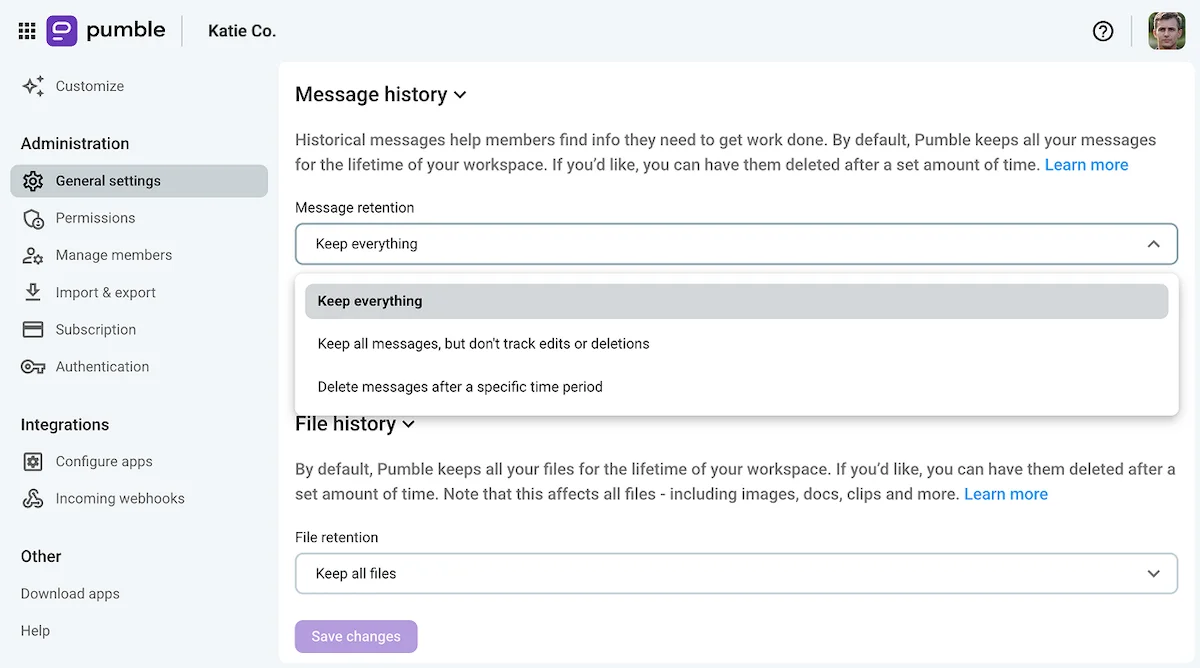
Alternatively, workspace administrators can customize message and files retention settings to automatically clear away the oldest posts for both security and knowledge management purposes.

Start building your Pumble knowledge base today
At the end of the day, Pumble by CAKE.com is a powerful yet simple messaging tool your team will be using on a daily basis.
However, that’s not all it can be.
Learning how to make the most of the Pumble search function can transform the platform from a simple messaging tool to a centralized knowledge base that is sure to benefit both current and future employees.
As your team exchanges messages, files, and more, you can rest assured that Pumble will always be able to retrieve any piece of information you need, even months or years down the line.
All you need to do is set up some ground rules for communication and use the search filters we’ve discussed here.
So, start building your knowledge base today and enjoy Pumble’s unlimited searchable message history!
Experimente o Pumble gratuitamente
Como avaliamos esta publicação: Nossos escritores e editores monitoram as postagens e as atualizam quando novas informações ficam disponíveis, para mantê-las atualizadas e relevantes.