Unread Messages
Viewing unread messages #
In the web app, you’ll see Mentions in your left sidebar or Unread. And in the top left, you’ll see if the message is in the DMs or Threads.
To view a direct message:
- Click from Unreads or Mentions to view the message
- It’ll take you directly to the unread message
To indicate a new message in channel, channel name will be bolded.
You can view unread messages in the Catch up section. This section will appear if you have at least 1 unread message.
- Tap on the Catch up button at the top of your screen
- Select Mark as read or Keep unread
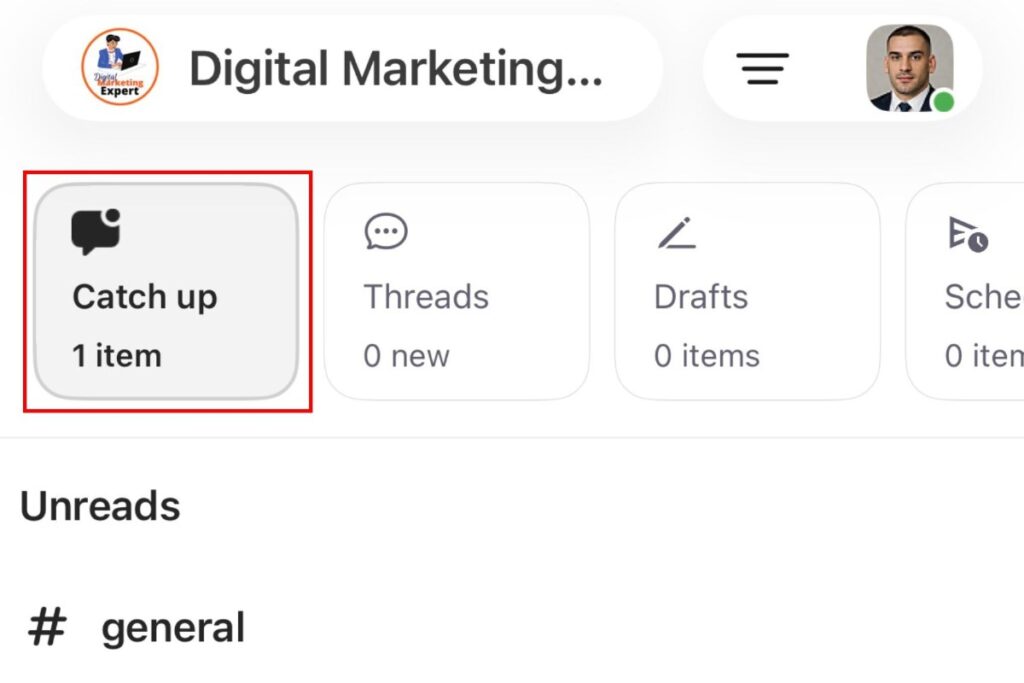
Unread messages will appear as cards, and you can swipe left to keep them unread or swipe right to mark them as read.
Unread messages will also be shown in the sidebar on the left, and they will be bolded.
You can view all unread messages in the Catch up section. This section will appear if you have at least 1 unread message.
- Tap on the Catch up button at the top of your screen
- Select Mark as read or Keep unread
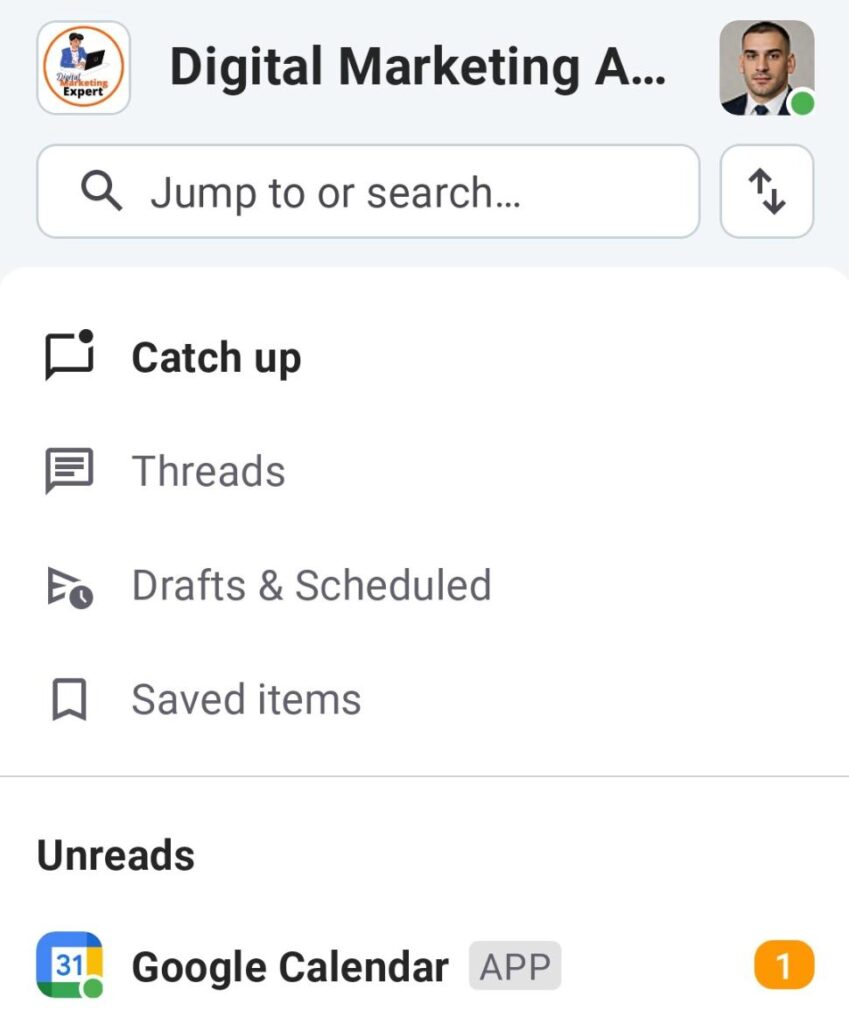
Unread messages will appear as cards, and you can swipe left to keep them unread or swipe right to mark them as read.
Unread messages will also be shown in the sidebar on the left, and they will be bolded.