



If you’re looking for a way to centralize your team communication, you may have considered Flock as one of the options for your team.
Although lesser known than its more expensive competitors, on the first look, it might be pretty tempting to choose Flock considering its significantly lower price and a very similar user interface as the competition.
I’ll analyze Flock’s feel, interface, how well it simplifies work, and how the app’s features stack up against its competitors in 2026.
As an employee of Pumble, I’ve tested the app firsthand for a couple of days and analyzed it in terms of ease of use, flexibility, integration, pricing, security and cost-effectiveness — according to our company’s standardized criteria.
Hopefully, this review will make it easier for you to come to a conclusive answer to the ultimate question: is this app the right choice for my team?
Let’s dive in together.


Why trust us?
The apps we talk about are selected, tested, and written about by human reviewers who follow strict review and editorial guidelines. We pick solutions that are practical, purposeful, and can offer real value for the specific use case or business context we’re covering — while also being justified in their pricing. Our methodology is transparent, clear, and available to everyone:
Learn more about our review methodology here
Who is Flock for?
Overall, Flock is a solid team collaboration software for 2026, best suited for:
- Small to medium-sized teams,
- Budget-conscious teams, and
- Users looking for specific integrations.
It’s a fairly intuitive, reliable, and well-built tool, with certain design and UX hiccups here and there.
However, the notifications are fast and reliable, and its core features like video calls and the main messaging options are good.
If you’re using the 30-day free trial, it’s important to note that the free plan will come with significant limits for day-to-day use once your trial expires.
Flock’s main free plan limitations are:
- Exceeding 10,000 messages makes the oldest ones archived and invisible until you upgrade to a paid plan,
- Workspace is limited to 10 public channels (any user can find and join them),
- No private channels,
- 5 GB of storage for the whole team,
- Only 1 team admin, and
- Only 1:1 video calls.
With the basics covered, let’s analyze Flock and its features in more detail.
Flock’s main features
Flock’s main features include:
- Direct messages,
- Channels (dedicated spaces with multiple participants),
- Audio and video calls,
- Voice notes (only on mobile),
- To-dos,
- Polls,
- Notes,
- Reminders,
- File sharing,
- App integrations, and
- Guest access.
These features encompass Flock’s main functionalities and represent the best parts of the app.
To lead a team, you will most likely rely on: an intuitive design, direct messages, channels, threads (to follow topics easily), video calls, file sharing, and app integrations if you’re running a hybrid or remote team.
Let’s take a look at these features in Flock to see how they work and how they can improve your workflow.
Flock user experience
After creating my Flock account and setting up my first channels, it was easy to add new users through their email addresses.
The people I invited through email got into my workspace easily, through the standard “Go to your team” button in their inbox. They were greeted with a setup window to enter their name and upload their profile picture.
The only odd thing for me here was that the people I invited were, by default, allowed to invite new members and assign roles (Admin or User), even though I was the owner.
I immediately went back and disabled this in Flock’s admin panel in my browser, which was easy enough to find, although they were a bit messy design-wise.
After setting up my workplace and inviting people, Flock looked like this:
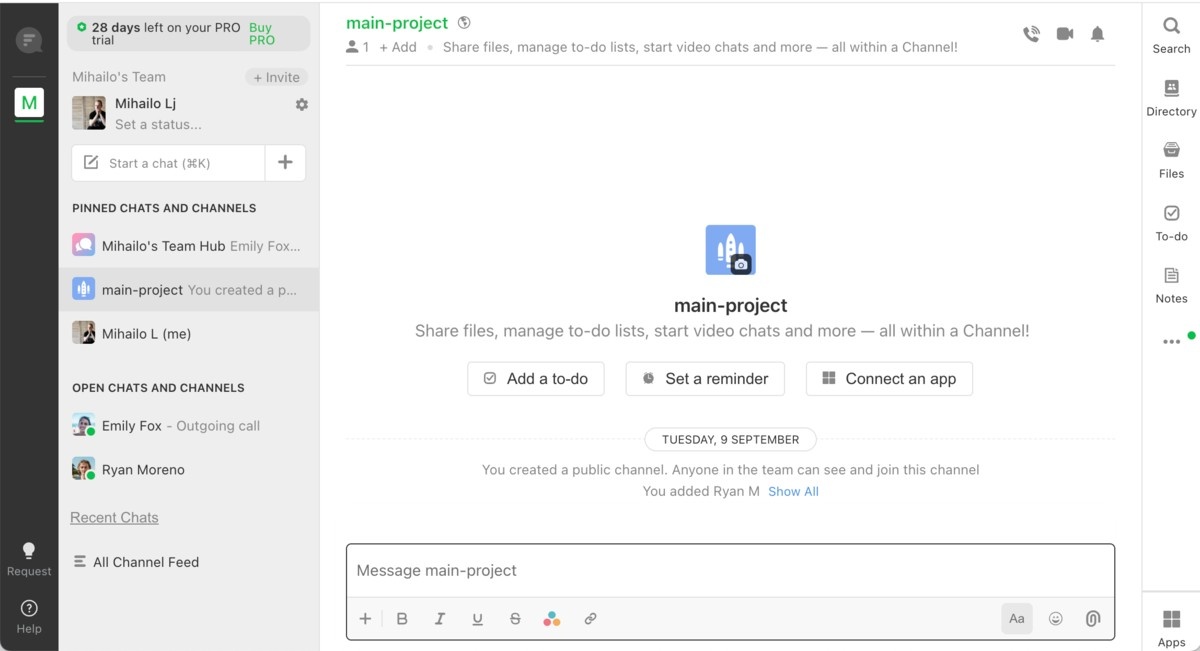
Flock’s main window
Flock made onboarding a smooth experience through its feature “Flock assistant”, which helps new users use the app as easily as possible. To find it, I had to navigate to the right-hand menu, hover over the “3-dot menu” and select “Flock assistant”, which opened up a new side menu with various checklist items.
Since I have used similar apps in the past and the user interface is clean enough, I didn’t really need the tutorial. However, I have to say that this is a great addition to ease you into all the functionalities.
The “Learn keyboard shortcuts” section was the one I’d point out as the most helpful one for my workflow.
Messaging, channels and guests
Messaging in Flock consists of sending direct messages to your teammates and sharing messages in channels (groups of users).
These elementary features work pretty well. It‘s easy to create and set up channels, add users, manage user permissions within a channel, and remove people.
The messages arrive without delays, and notifications are quick.
To send a message, you can either search for your teammates or channels on the left side underneath your profile picture, or search for them through the “directory”, located in the right-hand side menu.
The app also lets you invite guests to channels.
Guests can:
- Initiate chats with their channel host,
- Chat with contacts and channels you provide,
- Save notes and files in their personal channel, and
- Use the same integrated apps that are available for the team.
On the other hand, unlike its competitors, Flock doesn’t offer the “threads” feature, which is a notable drawback.
In other popular business messaging apps, threads allow you to follow replies to a conversation in a simple and intuitive way, keeping channels with many users clean and organized. Sadly, this feature is missing in Flock.
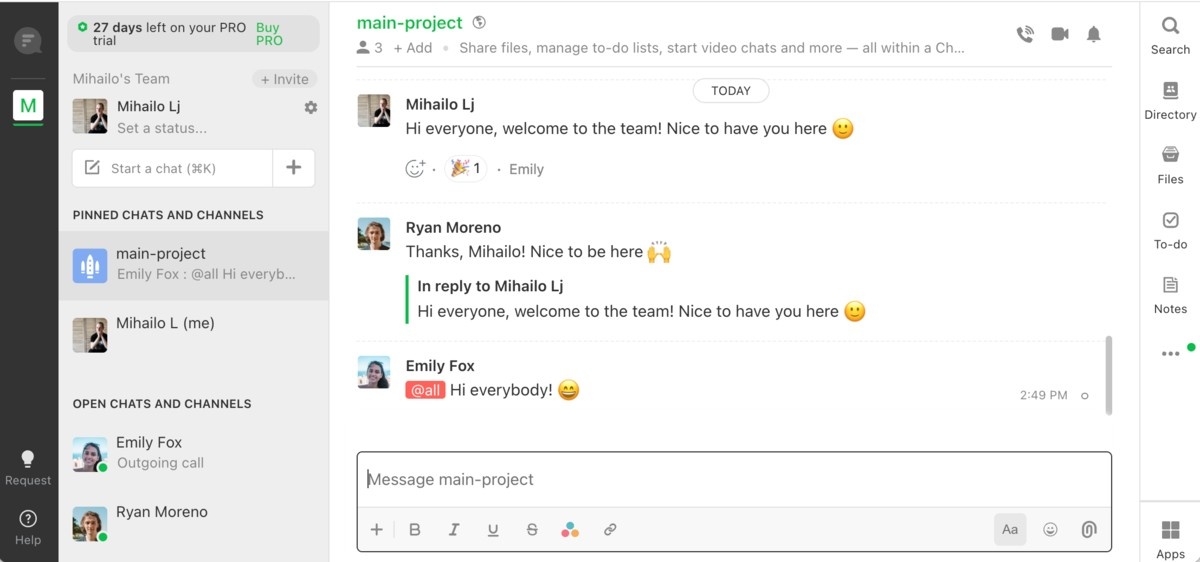
Messaging in Flock
Organize your communication with PumbleDirect and group calls
Making direct and group calls in Flock is as straightforward as it gets — you select a user or channel and start a voice or video call on the “camera” or “phone” icon.
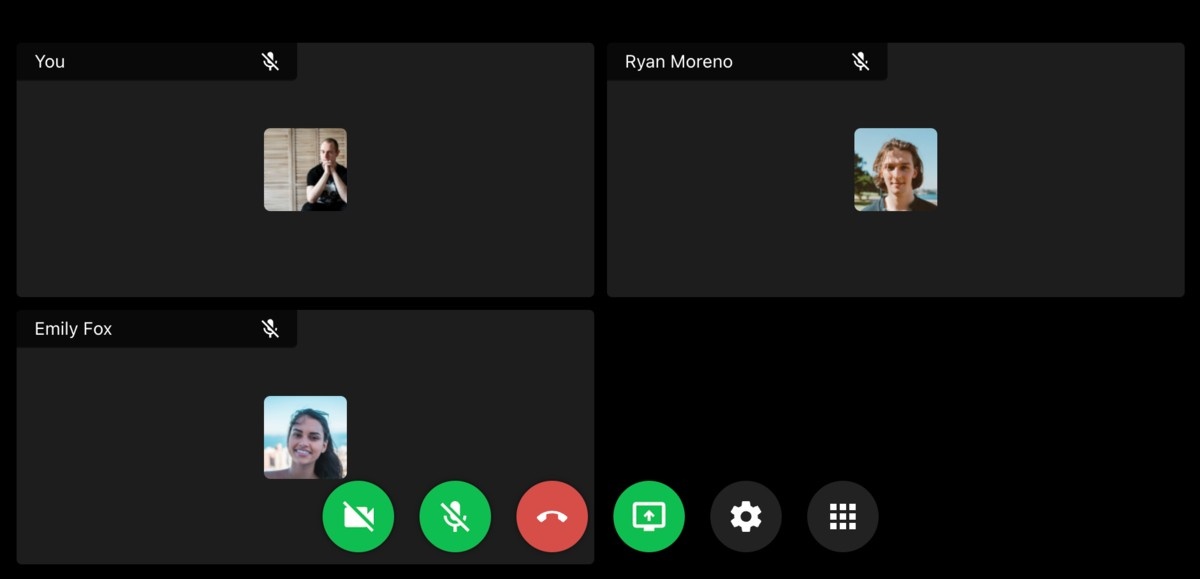
Group call in Flock
In the call, you can:
- Share your screen,
- Change from “Focused view” to “Grid view” of the participants, and
- Select your camera and microphone.
Other than muting and leaving — that’s all there is to it. Those are all the features.
Although the calls feel simple, I find that they are lacking certain standard features.
Take video calls to the next levelFor example, when you click the “camera” or “phone” icon, you are immediately inside the call, with your camera and microphone ready (unless disallowed by your browser settings).
Unlike the other apps, there is no window between joining a call and connecting to other users. In most other competitor apps, this window in between allows you to check your lighting, background, and settings before joining a call. In Flock — the call simply starts and you are immediately “in”.
In addition to this, when accessing the app through your browser, the call is automatically opened in another tab, and there is no indicator that it’s in progress.
The only indicator is inside the channel or DM, and it’s the "Join Call" button that appears in the chat feed of the specific channel where the call was started. The sound notification tells you when a call has been initiated by someone else, and that it's awaiting your response. Visually, the DM or channel initiating the call jumps to the top of your “open chats and channels” section.
After accepting and later finishing the call, Flock's sidebar (your list of channels) does not update to show which specific channel has an active call — so make sure to keep an eye on that browser tab after you are finished.
Flock’s Google Calendar integration is another useful feature for online meetings.
It allows you to receive notifications about Google meetings as well as accept and decline invites from within Flock.
However, it doesn’t allow you to make Flock calls from Google Calendar.
Make Pumble calls from GCalendarDirectory
Although a central searchable database of available channels and users isn't anything new, Flock’s prominent top-level positioning of the feature named “Directory” feels unique and refreshing.
The directory gives you the view of recent channels, channels you haven't yet joined, channels you are a part of, and recent direct messages.
Its second tab allows you to search for channels by typing, and the third tab allows you to do the same for “Contacts” (individual users).
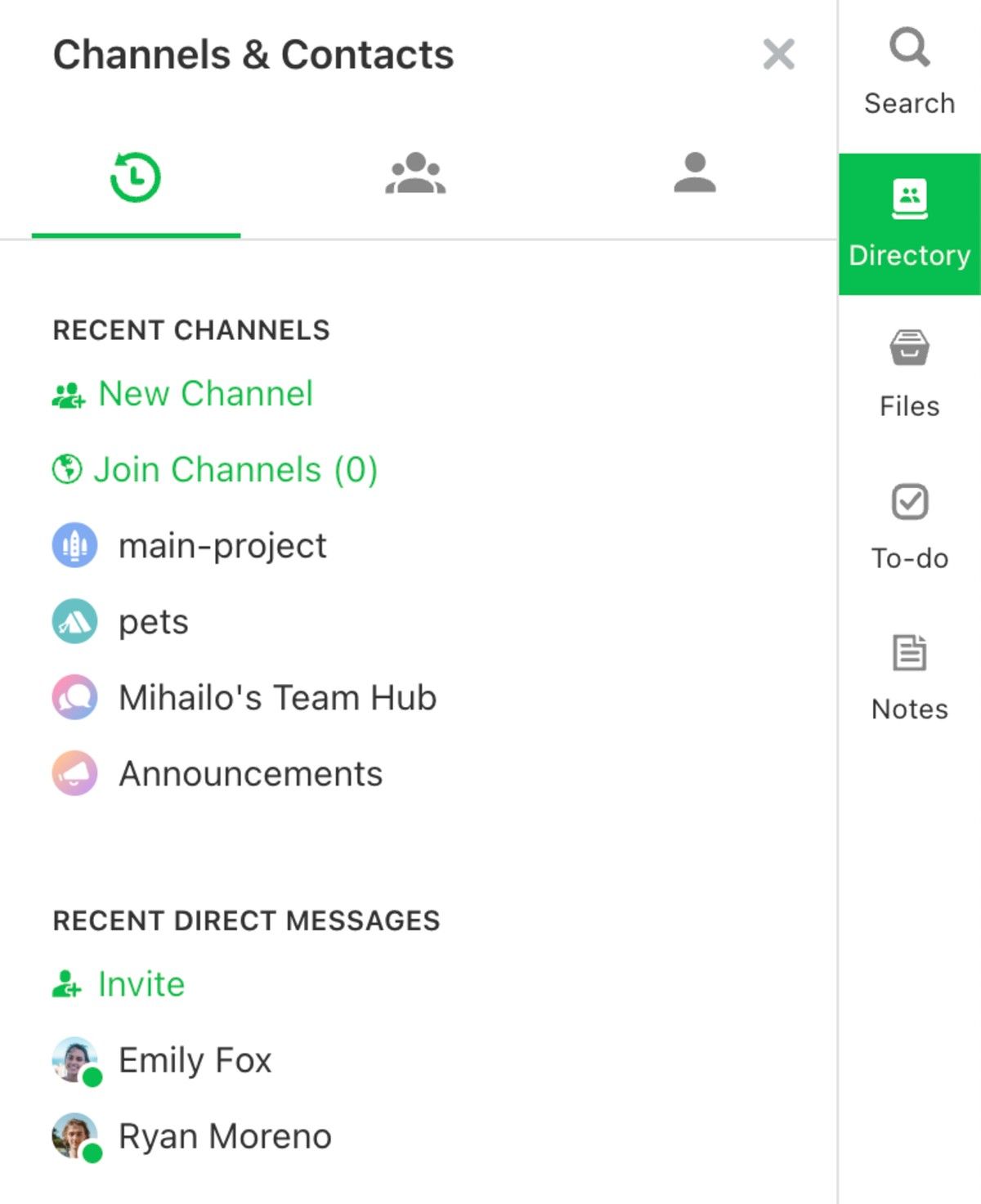
Directory in Flock
You can also search for channels and contacts under your profile picture on the left-hand side, which to me feels more intuitive and standard. Still, the Directory feature does not feel redundant, although you could easily make that point.
Flock’s main pros
Let's take a look at Flock’s best features, and see where the app excels.
Solid app integrations
For an affordable app, Flock includes many integrations of various apps. Paired with the lower price compared to its competitors, this can be one of the main reasons to choose Flock over a more popular communication app.
Most notable Flock integrations include Zapier, Zoom, Google Drive, Trello, Asana, GitHub, BitBucket, and MailChimp, but there are many others as well.
Process automation
The process automation feature allows you to make “messy” manual processes clean and simple for all users in your team.
You can select one of the 10 pre-made Flock’s automated processes in their template gallery, such as “Travel request” or “IT support request”, or create one of your own from scratch.
The processes are simple to set up and the intuitive windows guide you through the setup. From my experience, this feature is a bit different in every app, so it takes some trial and error to make it work just the way you want.
However, in the end, it's more than worth it, as it can automate repetitive tasks and make the app quite your own — if you have time to arrange this, of course.
Although not completely original, it’s a nice-to-have feature that allows you to simplify common and tedious processes after you take some time to set it up.
For example, I managed to create a “Request day off” automation, with selectable beginning and end dates, alongside custom selectable fields such as “type of day off”.
I also set up the process in a way that allows the initiator to select the person intended to receive the request. This way, my team can select their manager and send them an official request for approval.
To-dos
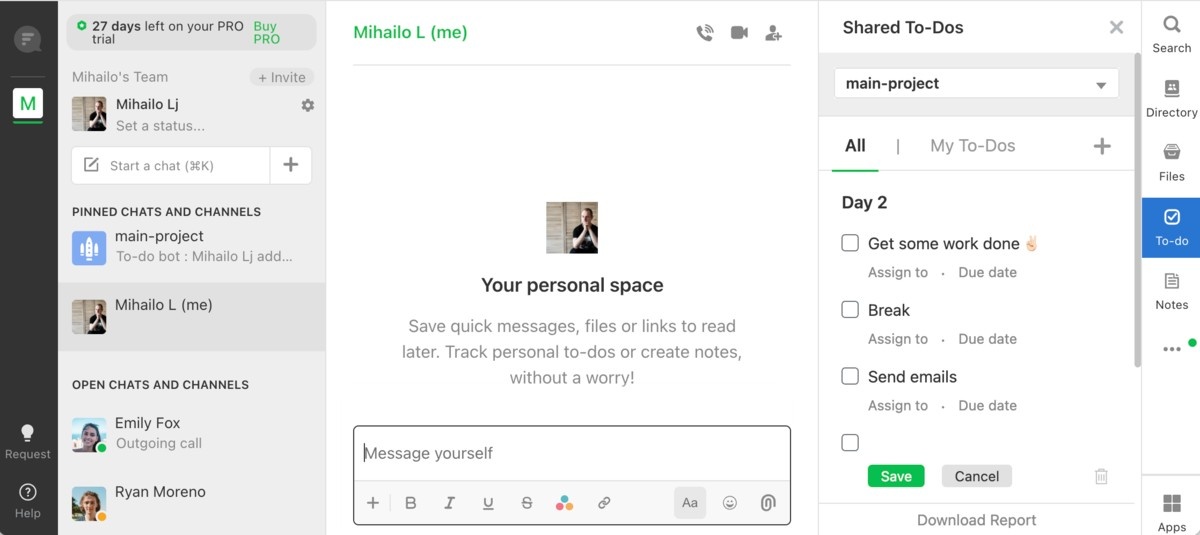
The To-do feature is located in the right-hand side menu. It lets you create simple to-do lists (similar to a note app on your phone) and share them with individual members or channels.
The upper dropdown menu allows you to select the channel or the user where you want to share the “to-do”, and the bottom row lets you download the report.
It’s a very nice feature, really useful for managing a team with multiple members as well as gaining insight into the state of individual tasks that have multiple steps.
To-dos in Flock
Good search capability
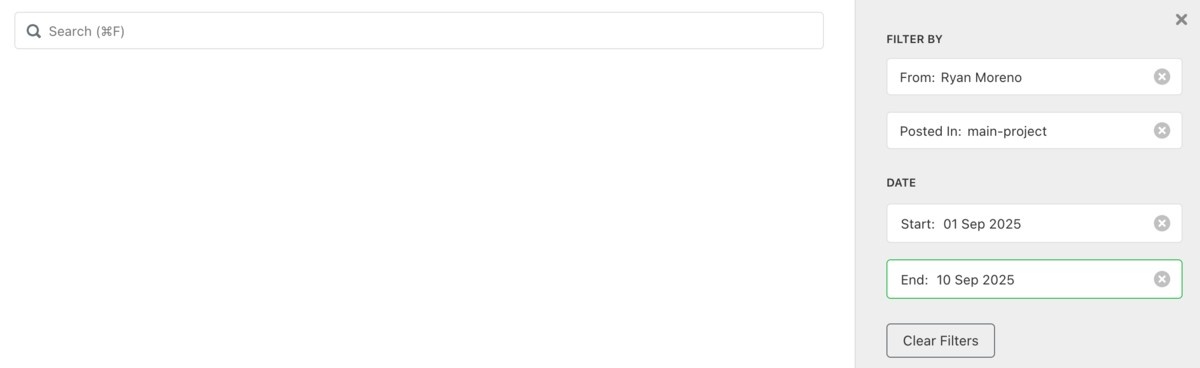
Search allows you to specifically search for messages and files shared in your workspace, or “team”.
You can filter the search results by the userby channel where it was posted.
Search in Flock
The search also lets you filter by date, which is very useful for navigating a large team’s data base.
I find this Flock’s feature on par with its competition for basic searches. Flock’s search looks for words and finds what’s needed, and does its main job well.
However, I also have to mention that competition offers far more advanced search capabilities, which are especially useful for navigating large teams.
In Pumble, for example, I can filter without clicking. Essentially, I “type my filters”.
“In:” allows me to search in a channel or DM, while “-word” instantly excludes a word from search, which I use often when looking through multiple documents with similar names. After memorizing a few of these commands, I find what I need in a matter of seconds, without much result-scrolling.
However, if you prefer a basic and more straightforward approach with a few extra clicks, Flock is definitely more user-friendly, at least on the surface.
Flock’s main cons
After reviewing the app’s best features, let’s take a look at some of Flock’s downsides.
Navigation problems
Generally speaking, Flock is an app with an okay design all around. However, I believe the core channel navigation and section customization need some improvements, for my personal taste.
Design-wise, being able to sort channels in custom sections is an important feature to me. The larger your team, the more evident this becomes, especially when it comes to cross-team collaboration or receiving many individual messages on a busy day.
Being able to sort channels and DMs into collapsable menus in Flock would make my life much easier and allow me to sort and address incoming messages by importance with ease.
Flock doesn’t currently offer the option to create custom, user-named sections or folders in the sidebar.
Get a customizable communication appInstead, its channel organization functionalities are much simpler, letting you:
- Pin high-priority channels (the icon is easy to notice),
- Navigate regular priority channels in the “open chats and channels” section (closing channels or DMs requires you to manually search and reopen them), and
- Leave low priority channels or limit their notifications.
I’d like more freedom with this, especially for a team with 50 or more users, as things could get chaotic quickly.
Apart from that, I found that using the right-hand side menu (which is not the industry standard for many competitor apps), made for a less smooth onboarding experience and contributed to a couple of confusing moments.
Guests are just 90-day trials
In Flock, the role of a guest is tied to an email address.
After the guest user exits your Flock team, even if they haven’t used up all of their 90 days as an active member, the trial period expires 90 days after their join date.
After this period, you will be required to pay the full price for this guest — if they ever rejoin your team from the same email address. Payment-wise, they are treated as a regular member after 90 days (the limited features and access still remain).
Its competitor apps like Pumble, Teams, and Slack offer a much more scalable option: 5 single-channel guests for every 1 paid user. I find this to be a much fairer deal.
Low visual customization
Flock’s native options allow you to pick from a light theme and a dark theme. However, there are no color variations or custom color schemes, which is a bit disappointing, especially for an app that feels quite fun and engaging for users.
Making your workspace feel comfortable and suited to your preferences is a fairly common feature in most competitor apps.
Try Pumble & tailor your workspaceLimited notification preferences
This is a minor issue, but it could become frustrating over time.
Unlike most of its competitors, Flock doesn’t offer an option to completely disable notifications within a single channel — something that could be useful for less formal discussions.
Informal channels are a great way for your team to connect, but constant notifications in channels like “random”, “memes” or “pets”, can get distracting during your focus time.
There is no built-in setting to mute a channel AND also mute your own mentions — meaning, if someone mentions you, no matter what channel setting you set, you will get notified in an informal channel.
The only workaround is to either leave the channel or enable the global “do not disturb” setting during your focus time.
The biggest downside to enabling “do not disturb” is that you won’t get notified, even if you need to respond quickly to an important channel. This leaves you with only two options for balancing focus and notifications: either develop a policy asking people not to “@mention” you in informal channels or leave those channels entirely.
Personally, I prefer a more advanced control over my notifications. That way, I can prioritize between different channels and DMs without turning off my notifications or leaving channels that are not relevant 24/7.
In Pumble, I can turn off or limit notifications for casual channels or pause notifications globally until a date and time of day I choose. I have my notifications set up as active from 9 a.m. to 5 p.m. globally. In addition, I have certain channels turned off completely, and some channels limited to mentions.
This way, I can work without being distracted constantly by unnecessary notifications popups and noise. I believe this is a necessary core feature for businesses.
Flock’s pricing and real world team examples
Let’s take a look at the free and the paid options when it comes to using Flock for work.
Flock does offer a free plan, but it's fair to point out that the Pro and Enterprise plan remove the many limitations the free plan imposes. The app is only truly reliable for daily use in small to medium teams on the paid plans.
Let’s take a look at what you’d need to pay for teams of various sizes to use Flock. We’ll compare the monthly prices with the annual payment discount.
|
Team size |
10 users |
25 users |
50 users |
100 users |
200 users |
|
Pro Plan (billed annually) |
$45 per month |
$112.5 per month |
$225 per month |
$450 per month |
$900 per month |
|
Enterprise Plan (billed annually) |
Custom price |
Custom price |
Custom price |
Custom price |
Custom price |
The prices are relatively affordable compared to more popular internal communication apps, which is one of the app’s biggest advantages.
Final thoughts
The biggest downside of Flock are its design flaws and some of the other usability features that most of the app’s competitors offer.
You might think that the smaller price justifies the missing industry-standard features, but there are many affordable options on the market with similar, and sometimes even better, features.
UX-wise and feature-wise, Flock does not beat its competition in 2026 in the business communication industry, but its price is on the “winners" side for sure.
On the other hand, many business communication apps that cover all of Flock’s most popular features would definitely be considered a more reliable choice.
Finally, if the price, specific integrations, or any features specific to Flock such as To-dos are the primary factors for you, Flock can be a solid internal communication app for a small to medium-sized team.
Get more for less with PumbleStreamline team communication with Pumble
If you’re looking for an affordable and reliable business communication tool, Pumble is your best option.
WIth a predictable and intuitive structure and a UX and UI very similar to the popular and more expensive apps, Pumble provides a smooth experience for team collaboration.
Compared to Flock, Pumble gives you:
- More advanced video call features,
- Unlimited message history and search for all plans,
- Threads, for keeping track of topic-oriented discussions in crowded channels,
- User roles and permission divided by category, offering a much more intuitive user management,
- Google Calendar add-on to schedule a Pumble meeting in Google Calendar,
- Voice and video messages both on desktop and mobile, and
- Many more features for a lower price.
Pumble’s price starts at $2.49 per user per month (billed annually), compared to Flock that costs $4.5 per user per month (billed annually).
Pumble also comes as part of CAKE.com’s Productivity Bundle, which includes 3 apps: Pumble (team communication), Plaky (project management), and Clockify (time tracking) for $12.99 per user per month.

