
Whether you’re tired of the constant pop-ups, the clunky interface, or the labyrinth of SharePoint folders, there are plenty of Microsoft Teams competitors that offer:
- Cleaner layouts
- Smoother performance
- Fairer pricing options
Let’s break them down so you can find the tool that truly fits your workflow.
Why trust us?
The apps we talk about are selected, tested, and written about by human reviewers who follow strict review and editorial guidelines. We pick solutions that are practical, purposeful, and can offer real value for the specific use case or business context we’re covering — while also being justified in their pricing. Our methodology is transparent, clear, and available to everyone:
Why search for a Microsoft Teams alternative?
Here’s why so many businesses are looking to replace Microsoft Teams:
- Complex interface. Teams can feel overwhelming with buttons and layers of menus, and far too many clicks to do simple things such as starting a chat. This user interface clutter leads to constant notification fatigue.
- Performance issues. Teams is known for high RAM usage and slow loading times. So, when your team communication app starts acting like an overworked engine, it’s time to look for a lighter alternative.
- SharePoint confusion. Teams places your files in SharePoint, even if you never asked for it. This often turns messy, leaving you scratching your head searching for critical files.
If these Microsoft Teams disadvantages sound familiar, it may be time to consider a Teams alternative that’s more streamlined and reliable in everyday use.
Best Microsoft Teams alternatives: A quick overview
The Microsoft Teams alternatives I’ve chosen offer clean, intuitive interfaces and a range of collaboration features to suit different team needs and preferences.
Here’s a quick overview of my top picks before we dive into the detailed reviews.
| Tool | Price (paid annually) | Storage | Video limits |
|---|---|---|---|
| Pumble by CAKE.com | – Free – Paid from $2.49 user/month | – Free: 10 GB per workspace – Paid: 10 GB–100 GB per user | – Free: 1:1 voice and video calls – Paid: Group meetings and recordings (features expand with plans) |
| Slack | – Free – Paid from $7.25 user/month | – Free: 5 GB per workspace – Paid: 10 GB–20 GB per user | – Free: 1:1 video calls only – Paid: Multi-person calls (exact number varies by plan) |
| Google Chat | – Free – Paid from $7 user/month | – Free: 15 GB of Workspace storage – Paid: 30 GB–5 TB per user | – Free: 1-hour group calls – Paid: 100–1,000 participants; 24-hour calls |
| Zoom Chat | – Free – Paid from $13.33 user/month | – Free: No cloud storage – Paid: 10 GB – unlimited cloud recording space | – Free: 40-minute group calls – Paid: up to 300+ participants and longer durations |
| Webex | – Free – Paid from $12 user/month | – Free: No cloud storage – Paid: 10 GB – unlimited cloud recording space | – Free: 40-minute group meetings – Paid: up to 1,000 participants and longer sessions |
| Rocket.Chat | – Free – Paid plans are quoted upon request | Storage depends on deployment and external storage; self-hosted storage is configurable | Video calls are available via integrations without a fixed built-in limit |
| Mattermost | – Free – Paid plans are quoted upon request | Storage depends on self-hosted or enterprise cloud setup | Video calls via plugins; limits depend on integrations used |
| Chanty | – Free – Paid from $3 user/month | – Free: 20 GB total – Paid: 20 GB per user | – Free: 1:1 video calls – Paid: Group video calls |
| ClickUp | – Free – Paid from $9 user/month | – Free: 60 MB – Paid: Unlimited | Video calls available via integrations only |
Top all-around alternatives for business
These platforms offer a strong balance of chat, collaboration, and video without overwhelming you with extras.
Pumble — the cost-effective choice
If you’re looking for free Microsoft Teams alternatives that don’t cut corners, Pumble by CAKE.com is the clear standout.
Pumble is a team communication and collaboration software that helps teams of all sizes stay organized and collaborate effectively.
Why Pumble shines:
- Unlimited message history — for free (no more “your history ended here” walls)
- Clean, modern UI that keeps everyone focused
- Easy guest access for clients, partners, and contractors
- Balanced chat and video conferencing without the heaviness
- Real-time messaging and asynchronous communication
- Video and voice messages for quick updates
- Fast performance and low screen sharing latency
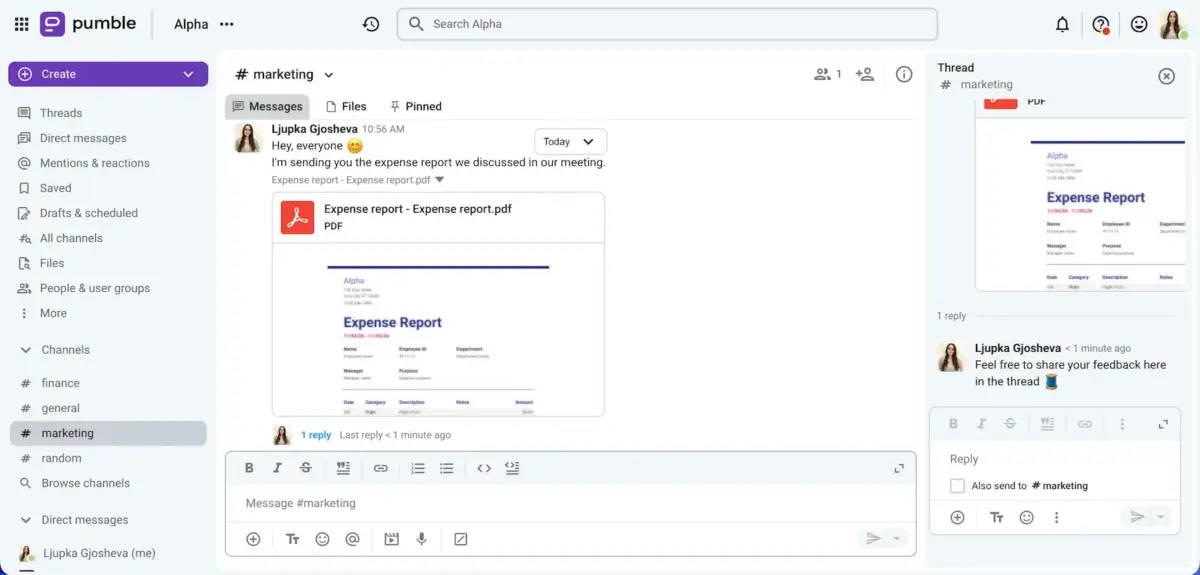
As a remote worker who connects with their team via Pumble daily, I really like how Pumble’s interface is user-friendly and well-organized.
Unlike Microsoft Teams, Pumble has a file browser, so you can easily locate all files shared in channels or direct messages. I always find everything I need quickly and easily. Plus, if your team relies heavily on Google Workspace, you can connect your cloud storage through the Pumble Google Drive integration to share documents and reply to file comments straight from your chat.
The greatest advantage is unlimited free access to all messages and files ever sent in your workspace.
What’s more, starting a video call is a piece of cake — you can create a meeting link in one click and share it with your colleagues.
Pumble pros:
- Generous free version with 10 GB of storage
- Unlimited users and message history in the free version
- Sleek and easy-to-use interface
- 24/7 live, 100% human support in the free version
Pumble cons:
- Lacks read receipts
What’s new in Pumble: Pumble’s new Always allow notifications lets you receive notifications from selected channels or DMs even when all other notifications are paused, ensuring you never miss an important update.
Additionally, the new Custom default statuses allow Workspace Owners and Admins to replace Pumble’s default status suggestions with ones that fit how their team works.
Available for: Web, Windows, Mac, Linux, Android, and iOS
Pricing: Free plan available; paid plans from $2.49 per user per month, billed annually
💡 PUMBLE PRO TIP
To find out how Pumble stacks up against Microsoft Teams across all categories, check out this post:

Slack — the premium choice
Slack continues to be one of the popular Microsoft Teams competitors, especially for technical teams or ones that need many integrations.
Why teams pick Slack:
- Thousands of app integrations
- Polished UI with great threads
- Automation and workflows that reduce busywork
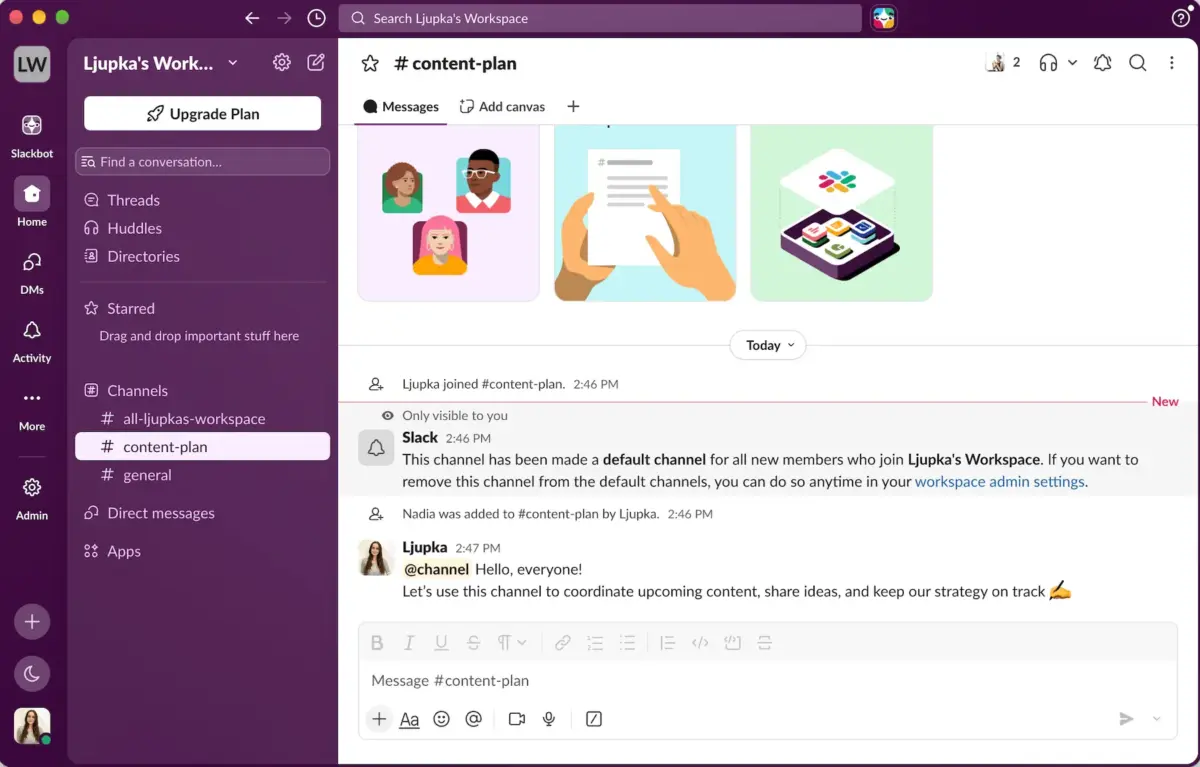
Slack does offer an extensive list of third-party app integrations and a decent set of automations that can cater to almost any need.
I also appreciate how easy it is to organize and navigate different conversations in threads and channels — super convenient for people who collaborate with several teams.
However, it’s the limited communication history that puts me off. Slack infamously limits your message history to only 90 days. This means, you’ll lose all of your conversations older than 90 days if you don’t pay for a subscription.
Another huge downside is that Slack is super pricey. With the cheapest plan starting at $7.25 per user per month when billed annually, costs add up fast for a growing team.
Get a more affordable alternative
Slack pros:
- Huddles for real-time collaboration
- Private and public channels
- Advanced search
- Over 2,600 integrations
Slack cons:
- Limited message history on the free plan
- Expensive paid plans
- Paid tiers allow only 50 participants per meeting
What’s new in Slack: Channel Managers in Slack now have access to Channel Insights, a new analytics view inside channel details for activity trends, top messages, and CSV exports.
Available for: Web, Windows, Mac, Linux, Android, and iOS
Pricing: Free plan available; paid plans start at $7.25 per user per month, billed annually
💡 PUMBLE PRO TIP
Explore how Slack compares to Microsoft Teams on all fronts:
Google Chat — the Workspace choice
If your team uses several Google Workspace tools (Gmail, Google Docs, Google Drive, Sheets, and Meet), then Google Chat fits perfectly into your workflow.
The first thing you’ll notice about Google Chat is that it’s not flashy in the way it looks or the volume of advanced features it offers, but it’s seamless nonetheless.
Why it works well:
- Workspace integration (chat right inside Gmail)
- Easy to use
- Natural pairing with Google Meet for video calls
If you have a smaller team and prefer a simpler solution within Google’s ecosystem, Google Chat, Google’s version of Teams, is a solid choice. It covers everyday communication without overwhelming you with admin controls.
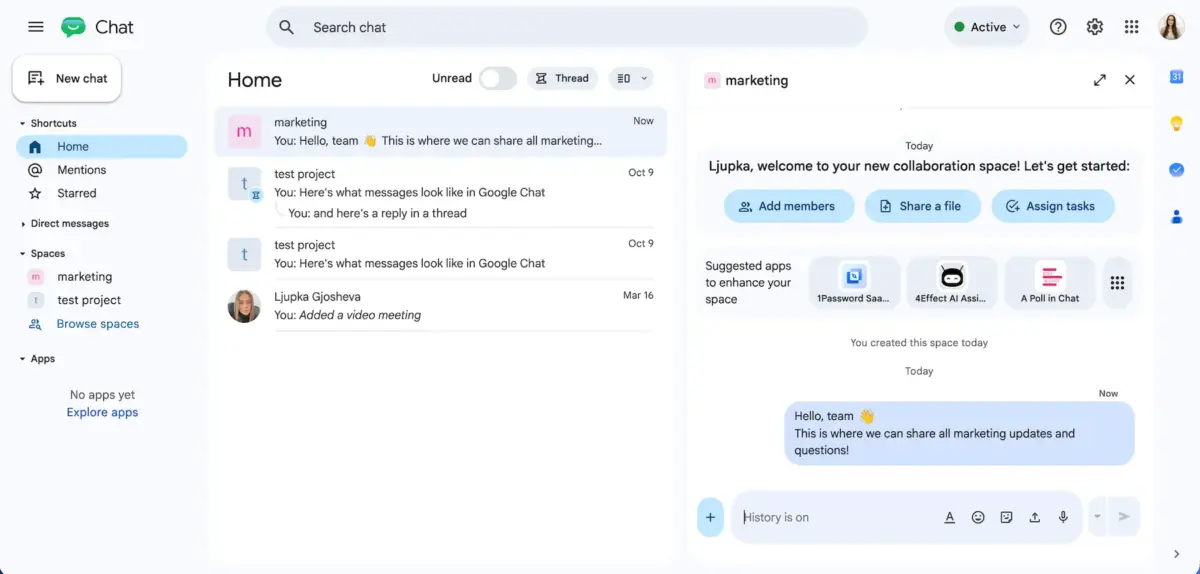
I liked the clean and simple user interface. It feels light, especially when you have a smaller number of spaces with a few threads.
Otherwise, things can get hectic pretty quick. The chat interface is nice and neat until it’s not. I really didn’t like how it adds another layer to your sidebar each time someone answers a thread or completes a task. I can only imagine how insane it could get with larger teams.
Google Chat pros:
- Generous storage capacity
- Google Workspace ecosystem — convenient for Workspace users
- Strong Google Workspace security
Google Chat cons:
- Fewer advanced admin controls
- Not ideal for medium to large teams that want structured collaboration
- Expensive subscription plans
What’s new in Google Chat: Google Meet calls with ‘Take notes for me’ enabled now get automatic meeting recaps in the Google Chat space associated with that meeting.
Available for: Web, Windows, Mac, Linux, Android, and iOS
Pricing: Free plan available, paid plans start at $7 per user per month, billed annually
Best alternatives for video-first teams
Our next round of platforms offer great video quality and are trusted by companies around the globe.
Zoom Chat — the meeting-heavy choice
Zoom became popular for one single reason — reliable video quality that actually works. Its chat tool, Zoom Chat, is now an added bonus rather than the main event, but it’s considered useful.
Why video-centric teams like Zoom:
- Clear video and audio
- Reliable screen sharing
- Great breakout rooms
Zoom Chat is perfect for you if your team mainly uses Zoom for calls and only needs simple chat functions — not deep channel organization or advanced admin control. It shines when used alongside meetings, not as a standalone team chat app for business.
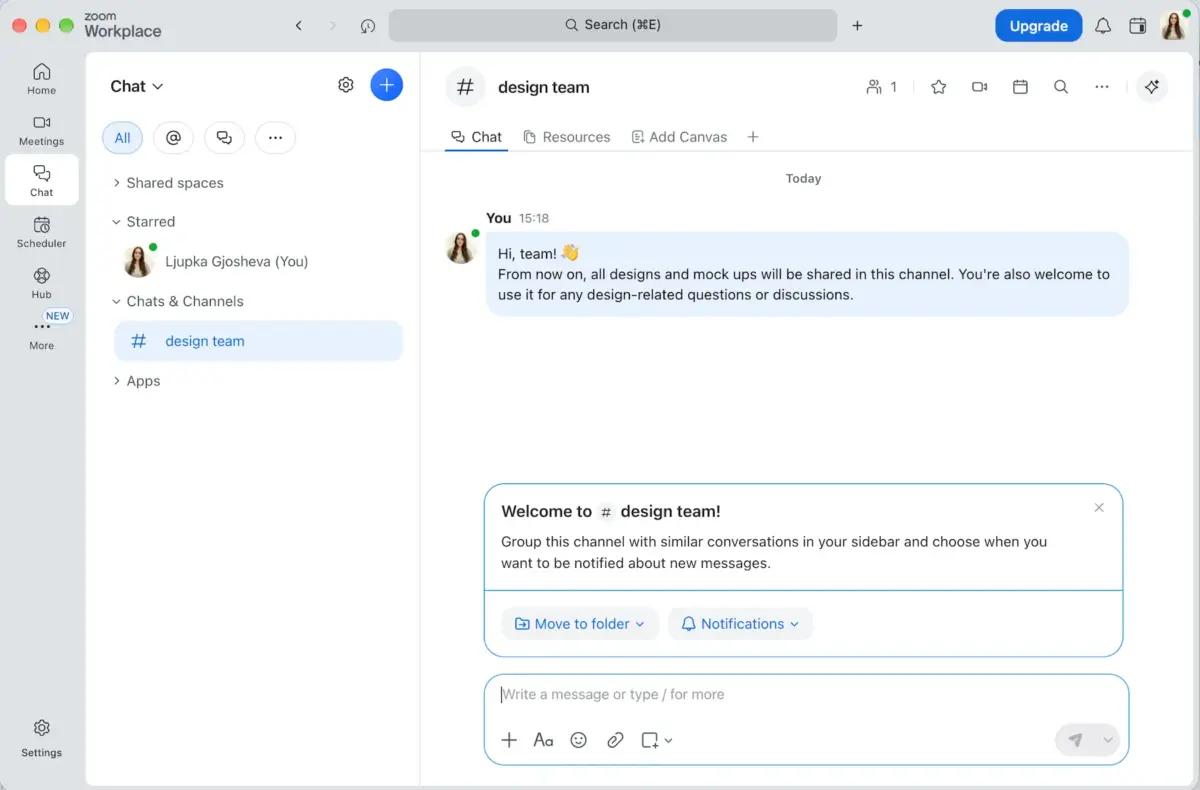
My main takeaway is that the interface felt fast and uncluttered, especially when jumping into post-meeting discussions. Chat seems perfect for capturing notes or continuing a conversation that started in a call.
But once the number of channels and threads grows, it becomes clear that Zoom’s chat features are still catching up to more established messaging apps. Organization can feel limited, and it’s easy for messages to get buried if your team engages in more conversations during the day.
Zoom Chat pros:
- Great for meeting-centric teams
- Seamless integration with Zoom Meetings and Whiteboard
- Clean, simple interface
Zoom Chat cons:
- Limited chat features
- Limited channel structure and admin controls
- Not ideal for teams that need tight collaboration
Experience unlimited collaboration
What’s new in Zoom: ZoomMate is Zoom’s new AI assistant that analyzes, learns, and acts on your conversations to complete your work. It’s an optional paid add-on available for Zoom Workplace users.
Available for: Web, Windows, Mac, Linux, Android, and iOS
Pricing: Free plan available; paid plans start at $13.33 per user per month, billed annually
💡 PUMBLE PRO TIP
For a deeper comparison of Zoom and Microsoft Teams, check out our article:
Webex — the enterprise-grade video choice
Webex is one of the best video conferencing software out there, for a reason.
It feels like an old, reliable vehicle that never breaks down. It’s steady, secure, and trusted by large enterprise companies around the globe.
What Webex brings to the table:
- Enterprise security features
- High video conferencing quality
- Long meeting durations
Webex is a solid hub for meetings and collaboration for companies operating in a highly regulated environment, needing advanced IT governance.
But if you’re looking for a modern, lightweight chat experience or rich channel organization, you may find Webex’s messaging features a bit underwhelming.
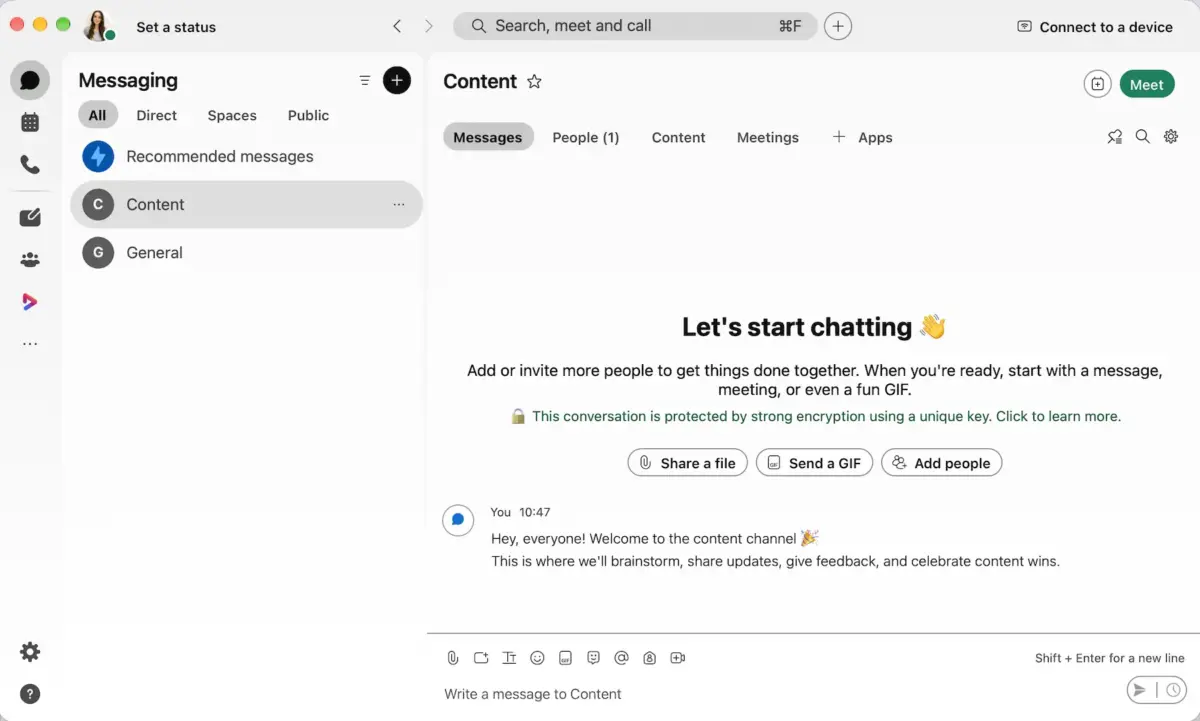
The first thing I noticed about the platform is that the video and audio tools feel more “enterprise” than most competitors.
But the chat experience didn’t leave the same impression. The interface feels bulky and the overall flow feels like messaging was added to a meetings platform rather than designed with the chat collaboration in mind.
Webex pros:
- Great video conferencing
- Strong security
- Deep integration with Cisco hardware
Webex cons:
- Dated chat features
- Heavier interface with a steeper learning curve
- Slow, clunky, messy messaging

What’s new in Webex: Meeting hosts and cohosts can now tag speakers during meetings to ensure captions and transcripts accurately reflect who said what.
Available for: Web, Windows, Mac, Linux, Android, and iOS
Pricing: Free plan available; paid plans start $12 per user per month, billed annually
Best secure and open-source alternatives
If you’re looking for collaboration without sacrificing data privacy, open-source tools are a great place to start. The options below combine strong security with the freedom to customize your workspace.
Rocket.Chat — the compliance choice
Rocket.Chat is ideal for teams who need to keep data under their own roof. The app is your best bet if you’re in healthcare, finance, government, or any industry that prioritizes privacy.
Why secure teams choose Rocket.Chat:
- Self-hosting and on-premise deployment
- HIPAA, GDPR, and enterprise compliance
- Open-source flexibility
The key thing about Rocket.Chat is that it’s built with flexibility and control in mind. You can host it yourself, customize nearly every part of the system, and integrate it deeply into your own infrastructure.
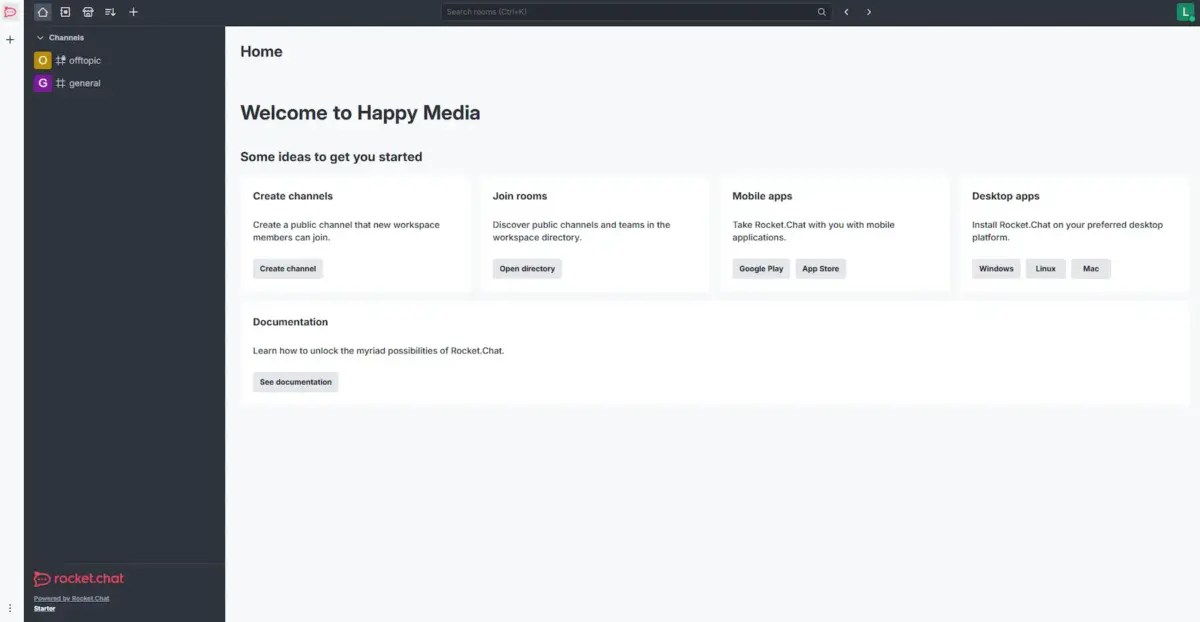
As I suspected, it’s not as sleek or polished as mainstream chat apps, but it can be really powerful if you have the technical resources to tailor it. From permissions and workflows to UI components, you can basically configure everything to fit your needs.
That said, the interface is a bit less intuitive, especially if you’re (like me) used to immediate simplicity. So, be prepared for a bit of a learning curve if you’re not super tech-savvy.
Simplify your workspace with Pumble
Rocket.Chat pros:
- On-premise deployment and full data control
- Strong HIPAA and GDPR compliance options
- Enterprise support
Rocket.Chat cons:
- Complicated setup
- UI and UX are dated and not user friendly
What’s new in Rocket.Chat: Rocket.Chat recently partnered with Virtru to make it easier for organizations to control who can access sensitive conversations based on their role, department, or security clearance. If someone’s permissions change, their access is automatically updated, so they only see what they’re allowed to.
Available for: Web, Windows, Mac, Linux, Android, and iOS
Pricing: Free plan available; paid plans are quoted upon request
Mattermost — the dev team choice
Mattermost is another self-hosted Teams alternative, but it’s specifically designed with development teams in mind.
Why tech teams love Mattermost:
- Open-source with private hosting options
- CLI tools and API integrations
- Deep integrations with CI/CD tools (GitHub, Jenkins, GitLab)
Mattermost is a strong contender to Microsoft Teams for companies in industries like finance, healthcare, defense, or enterprise software.
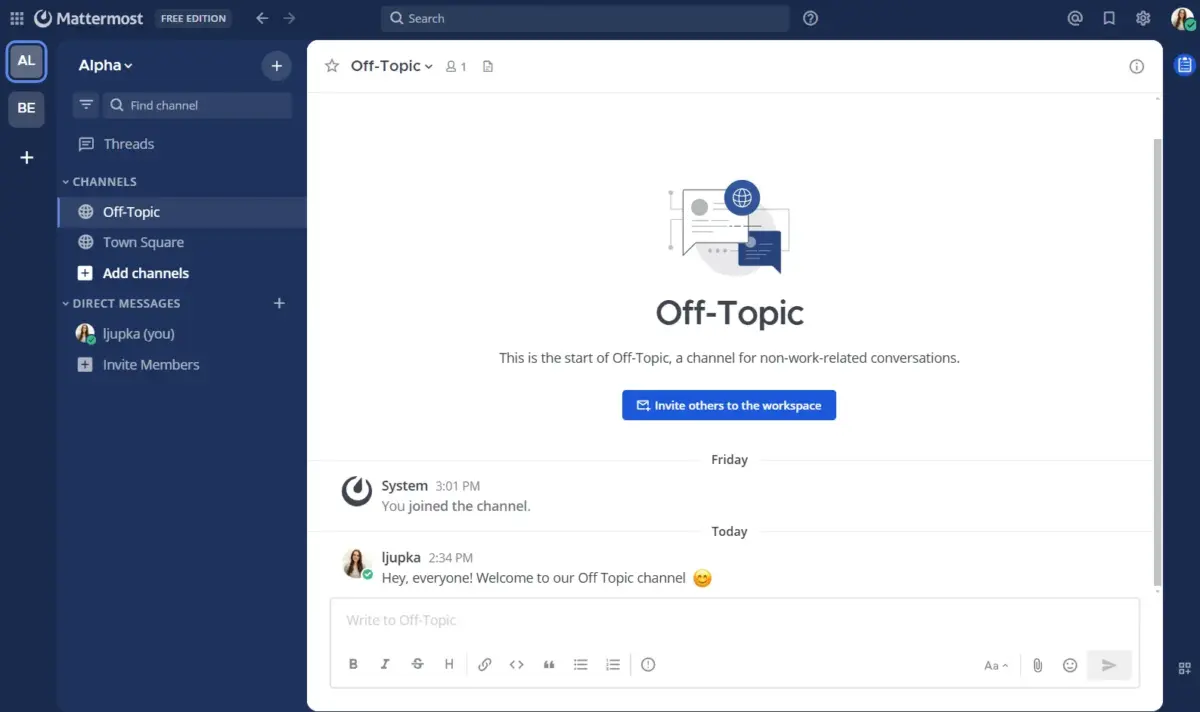
But, because it’s built for technical users, non-techies (myself included) may find the interface less intuitive and the setup more complex.
And, like many open-source platforms, the UI can feel utilitarian. It’s functional and practical, but not as smooth or friendly as other communication apps I’ve tested out.
Mattermost pros:
- Total data ownership
- Open-source
- Incident management and workflow automation
- Integrations with developer tools
Mattermost cons:
- Not ideal for non-technical teams looking for simplicity
- Requires technical skill to deploy and maintain
What’s new in Mattermost: Mattermost v12 introduces more advanced Zero Trust access controls, allowing organizations to restrict access based not only on who someone is, but also on the device they’re using, their network, and the channel’s security classification.
Available for: Web, Windows, Mac, Linux, Android, and iOS
Pricing: Free plan available; paid plans are quoted upon request
Best for task-oriented teams
If your team prioritizes productivity above anything else, you’d want simple, effective coordination. These Teams’ alternatives help you stay aligned and execute faster.
Chanty — the task management choice
Chanty is one of the most popular team communication and collaboration tools focused on task management.
Why teams choose Chanty:
- Clean and simple UI
- “Teambook” hub keeps everything in one place
- Messages can become tasks instantly
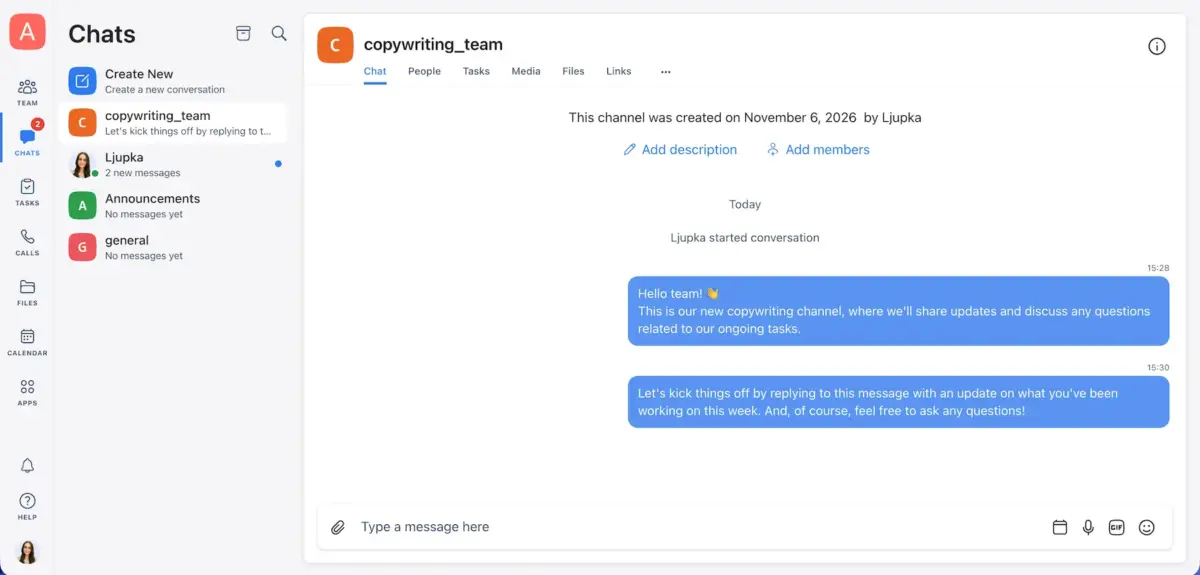
When trying the free version of Chanty, I found the Teambook hub extremely useful. It’s a one-stop shop for shared links, files, and saved messages. It lets you find all important messages and files in one place and offers a more sophisticated version of the search bar — you can use the search box to search for text to make this process more efficient.
One drawback is that its free version supports up to 5 members, which is quite limited. It also doesn’t offer many third-party integrations, which can be a dealbreaker if your team relies on diverse software ecosystems.
Chanty pros:
- Unlimited searchable chat history
- User-friendly interface
- Teambook hub, which serves as an extensive knowledge base for the entire team
Chanty cons:
- Free version offers limited features (no group calls, workspaces limited to 5 members)
- Limited number of integrations
What’s new in Chanty: Chanty recently introduced the Share In feature on iOS, allowing users to share files and links directly from other apps into their Chanty conversations.
Available for: Web, Windows, Mac, Linux, Android, and iOS
Pricing: Free plan available; paid plans from $3 per user per month, billed annually
ClickUp — the project management choice
Last on our list of apps like Microsoft Teams alternatives is ClickUp. It’s a project management ecosystem with chat integrated inside your tasks, docs, whiteboards, dashboards, and workflows.
Why productivity-focused teams love ClickUp:
- Everything is in one workspace (tasks, goals, docs, sprints, chat).
- Chat is tied directly to actionable work.
- Works great for asynchronous teams.
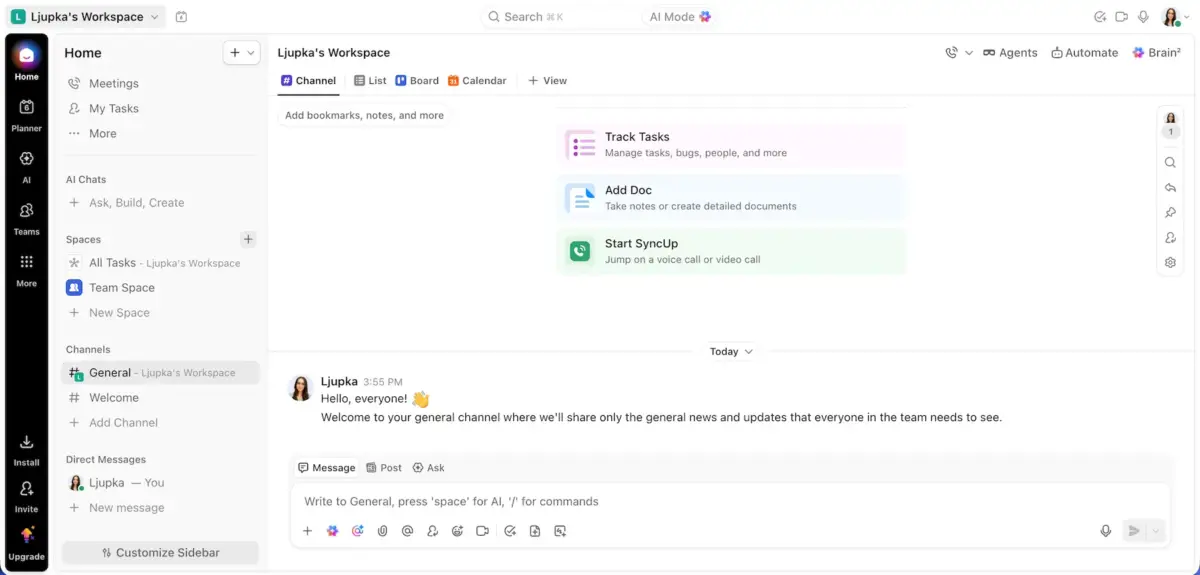
My first impression of ClickUp is that the sign-up process is simple, but the platform itself has much more features than typical chat tools.
You can get started quickly with templates, though there is a learning curve due to the number of available options.
While testing ClickUp’s free version, I found its task organization particularly impressive. You can break work down into spaces, folders, lists, and tasks, with multiple views such as List, Board, Calendar, and Gantt. This makes it easy to manage everything from daily to-dos to long-term projects in one place.
ClickUp also includes built-in chat, comments, and @mentions directly inside tasks, which helps keep conversations tied to actual work.
However, communication feels more structured and task-oriented compared to other communication tools.
One qualm I have with ClickUp is that it can feel overwhelming for new users because of its depth and customization options. Teams looking for lightweight, chat collaboration may find it more complex than necessary.

ClickUp pros:
- Project management capabilities
- Customizable workflows and views
- Free plan with many features
ClickUp cons:
- Steeper learning curve
- Less intuitive chat features
- Can feel overwhelming for small or simple teams
What’s new in ClickUp: ClickUp now lets users automatically create Lists from templates when an automation is triggered, saving time on repetitive project setups and keeping workflows consistent.
Available for: Web, Windows, Mac, Linux, Android, and iOS
Pricing: Free plan available; paid plans start from $9 per user per month, billed annually
How to switch from Microsoft Teams
To migrate from Microsoft Teams to a different communication platform, follow these steps:
- Evaluate your current setup: Identify how your organization uses Teams and what needs to be migrated.
- Export your data: Back up important conversations and files using Microsoft’s export tools or third-party migration solutions.
- Set up your new workspace: Create channels, add employees, and configure permissions.
- Transfer your data: Move essential files and information to the new platform.
- Prepare your team: Introduce employees to the new platform and provide training.
Teams’ Free users can request an export through Microsoft’s Privacy Dashboard, while business users typically need Microsoft 365 admin tools or APIs to export their data.
FAQs about best Microsoft Teams alternatives
Here’s some more valuable info about Teams and its alternatives.
What is the best alternative to Microsoft Teams?
There are many strong alternatives to Microsoft Teams, depending on your organization’s needs and preferences.
If you’re looking for an all-around business communication and collaboration platform, Pumble by CAKE.com is worth considering. For video-first teams, Zoom Chat might be a better fit. Rocket.Chat and Mattermost are good options for teams that prioritize security and open-source tools. If your team is more task-oriented, you might prefer Chanty or ClickUp.
Is Microsoft discontinuing Teams?
No, Microsoft is not discontinuing Teams. However, Microsoft did discontinue the classic Teams desktop client in 2025 and replaced it with the new Teams app.
How long can I use Teams for free?
You can use the free version of Microsoft Teams indefinitely, but it comes with a few limitations:
- 5 GB of cloud storage
- Group calls limited to 60 minutes and 100 participants
Keep in mind that the free version is designed primarily for individual use rather than business collaboration.
Switch to a tool that fits your workflow
Choosing the right Microsoft Teams alternative ultimately comes down to how much structure you need versus how much speed and simplicity you want.
Many tools on this list shine in specific areas: some focus on real-time collaboration, others on deep integration or advanced project management.
If you like the Microsoft-style workspace with channels, threads, and team-based communication but want something faster, easier to use, and genuinely free — Pumble by CAKE.com is the best choice. It provides a familiar structure without the heavy setup, performance issues, or paywalls that often come with enterprise tools.
Experience smoother team communication with Pumble by CAKE.com. Here’s where to start: