
Would you rather use a universally recognized, if not exactly beloved, communication app or a lesser-known collaboration software with a handful of staunch supporters?
I suppose your answer would depend on the apps’ pricing, features, and general performance, right?
Well, to make the choice easier for you, I tested both Microsoft Teams and Pumble to see what each of these apps have to offer.
So, what do they have in common and where do they differ?
Find out in this Pumble vs. Microsoft Teams showdown.
Changelog:
July 2026: Microsoft Teams changed its pricing plans. We updated the post to reflect these changes.
Why trust us?
Human reviewers try out each app and follow strict guidelines while writing about the comparisons. We follow a transparent, clear, and systematic methodology, so that every review is objective and accurate.
Pumble vs. Microsoft Teams: Main features comparison
Ultimately, the main difference between Pumble and MS Teams is that one app is significantly more bloated than the other.
As many critics have noticed over the years, Microsoft’s communication app wants to be everything but a simple messenger, which has a way of frustrating users who rely on the software for its primary purpose.
Even so, the app has become somewhat of a default messenger for many global businesses, despite its flaws.
So, could Pumble by CAKE.com compete against a tech giant’s communication tool?
Perhaps the answer lies in comparing Pumble’s features to the features of Microsoft Teams.
| Features | Pumble | Microsoft Teams |
|---|---|---|
| Pricing | – Free with an unlimited number of users and channels – Pro: $2.49 per user per month (billed annually) – Business: $3.99 per user per month (billed annually) – Enterprise: $6.99 per user per month (billed annually) | – Home (free but users can’t make channels or threads) – Microsoft Teams Essentials: $4 per user per month (billed annually) – Microsoft Teams Enterprise: $8.55 per user per month (billed annually) – Microsoft Teams Premium add-on: $10 per user per month (billed annually) |
| Interface | – Minimal design – Customizable themes and sidebar | – Cluttered design – Limited customization options – Glitchy |
| Communication | – Channels and threads – Voice and video messages – Voice and video conferencing – Mentions and user groups | – No channels or threads for free users (paid users have to set them up manually) – Only mobile users can send voice and video messages – Voice and video conferencing – Mentions and teams |
| Notifications | – DND and pause notifications – Muting channels/DMs – Custom notification schedules – Reminders | – DND and pause notifications – Muting channels/DMs – Limited notification scheduling and customization |
| Search options | Advanced | Advanced |
| Storage | – Free: 10 GB per workspace – Pro: 10 GB per user – Business: 20 GB per user – Enterprise: 100 GB per user | – Free: 5 GB per user – Essentials: 10 GB per user – Enterprise: 10 GB per user |
| Integrations | – Calendly, Email, GitHub, GitLab, Google Calendar, Polls, RSS, Zoom – Clockify and Plaky – More on CAKE.com Marketplace | 2,500+ integrations available in its AppSource |
| Support | – 24/7 human support for all users – 99.99% guaranteed uptime SLA – Designated account and success team – Priority support for Pro users and beyond | – Subpar support for free users, only MS Teams Essentials and beyond – Business Basic users also get 99.99% uptime SLA, designated success team, and priority support |
| Security | Industry standard advanced security | Industry standard advanced security |

Pumble vs. Teams pricing: Pumble is cheaper across the board
Even though Microsoft pushed Teams as a free communication solution in the app’s early days, most of the features businesses would need are now locked behind a paywall.
On the other hand, Pumble’s free plan offers more storage space and more freedom to organize your team communication into an unlimited number of channels.
Having said that, let’s take a look at the individual pricing plans of Microsoft Teams and Pumble, respectively.
Microsoft Teams pricing
If you’ve been trying to find out exactly how much Microsoft Teams costs without the rest of the Microsoft suite — join the club.
It sure feels like Microsoft purposely makes it difficult to find the prices of all of their products.
Most of the pricing pages on Microsoft’s site include pricing for the entire Microsoft 365 suite. However, even those prices are subject to change, as Microsoft had introduced a price increase that has started in July 2026.
With that being said, if you wanted to learn how much you’d be spending on Teams, specifically, you’d have to navigate through several pages — which I did.
So, here’s my simplified overview of Microsoft Teams’ pricing plans.
| Price | Plan highlights | |
|---|---|---|
| Microsoft Teams Home | Free | – For one person – Group calling for up to 60 minutes and 100 participants – Unlimited chat with friends and family – Collaborative planning with tasks and polling – 5 GB of cloud storage – Data encryption for meetings, chats, calls, and files |
| Microsoft Teams Essentials | – $4 per user per month (billed annually) – Typically purchased along with the rest of the Microsoft 365 Business suite, which costs $6–$22 per user per month (depending on your plan and billing schedule) | – Made for organizations with up to 300 employees – Chat, call, and video conferencing – Real-time collaboration with file sharing, tasks, and polling – Team meeting recordings with transcripts and live captions (English) – 10 GB of cloud storage per user (expandable to 1 TB per user with Microsoft 365 Business Basic or Standard licenses) – Data encryption for meetings, chats, calls, and files – Anytime phone and web support |
| Microsoft Teams Enterprise | – Microsoft Teams Enterprise $8.55 per user per month (billed annually) – Typically purchased with Microsoft 365 Enterprise, which can be up to $60 per user per month (billed annually) | – Made for bigger organizations – Supports meetings with up to 300 attendees (or 1000 with the Microsoft 365 E3 or E5 license) – All features included in the MS Teams Essentials tier – Greater focus on Microsoft integrations suitable for bigger organizations |
| Microsoft Teams Premium add-on | – $10 per user per month (billed annually) | – AI-powered meetings and calls – Real-time translation – Microsoft Places – More security features |
On top of that, Microsoft also offers Teams Phone and Teams Rooms, which can be purchased as add-ons to your subscription.
As you can see, even though Teams can be purchased as a standalone product, Microsoft incentivizes users to purchase the entire ecosystem. However, users who buy into the promise of extended functionality usually end up dealing with enterprise bloat and digital friction as a result.
Even in my experience as a free user, I found Teams’ aggressive promotion of other Microsoft tools through pop-ups incredibly distracting.
💡 PUMBLE PRO TIP
For a more thorough overview of Microsoft Teams’ pricing plans, check out this article:
Pumble is a more affordable solution
Pumble pricing
Unlike the free version of MS Teams, which is made for one person to use, Pumble lets you onboard an unlimited number of new users into your workspace, even if you’re on the free plan.
The free plan also lets you create an unlimited number of channels and enjoy 10 GB of storage per workspace.
However, by opting for one of the paid plans, you can get between 10 and 100 GB of storage space per user as well as additional features and integrations, as seen on Pumble’s pricing page.
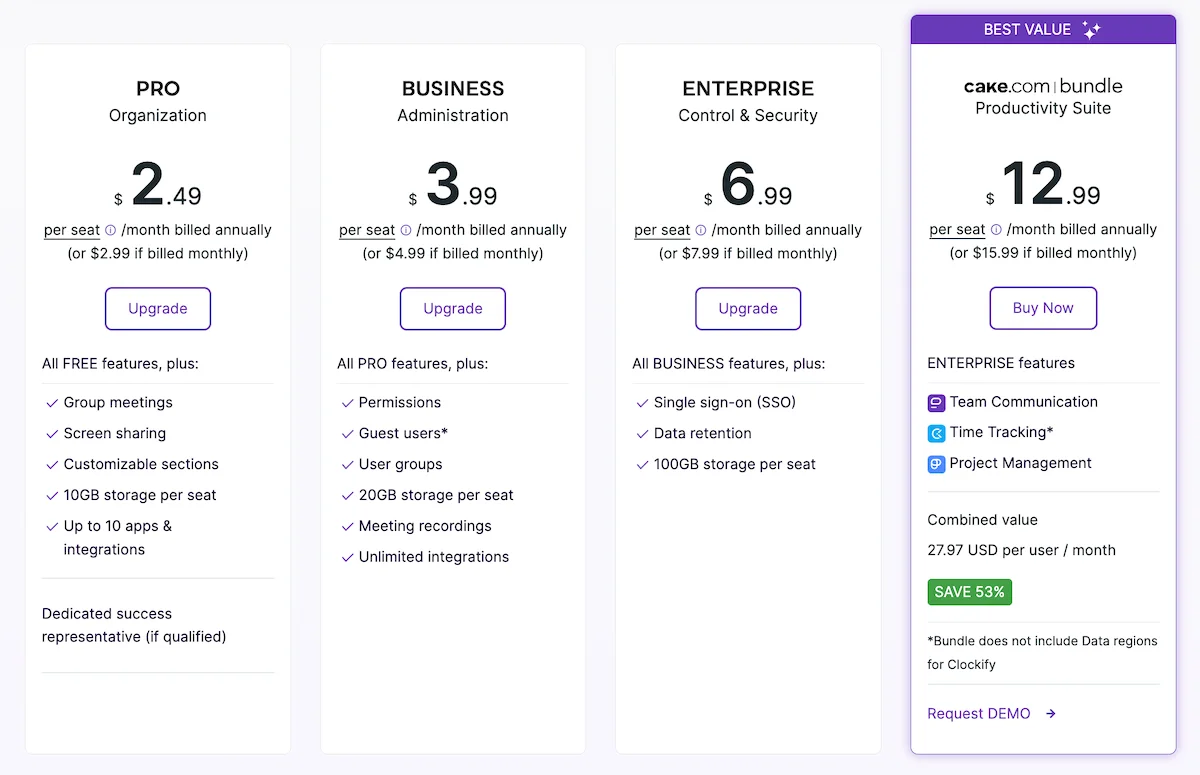
As you can see, Business and Enterprise users can onboard 5 single-channel guest users for every paid seat, making it easy to coordinate with freelancers, clients, and other external collaborators.
Single-channel guests can be turned into multi-channel guests or even regular users with the click of a button, making tenant management issues a thing of the past. So, paying for Pumble definitely adds some great perks without burdening your team members with unnecessary bloat.
However, if you’re looking to get the best bang for your buck, you could always opt for the CAKE.com Bundle, which offers Enterprise-level features of Pumble, Clockify, and Plaky for only $12.99 per user per month on the annual subscription plan.
Unlike Microsoft, CAKE.com doesn’t keep parts of its apps hostage to force you to get the entire suite of tools. Instead, the apps are all independently functional and separately priced to maintain transparency.

💡 PUMBLE PRO TIP
If you want your team to be more productive and collaborative, give them tools that can help them achieve those results. Here are our top picks:
Pumble vs. Microsoft Teams: Pumble’s user interface is simpler, more customizable, and less cluttered
Full disclaimer: I am a bit of a digital minimalist, so having a simple and clear UI experience is important to me.
For reference, here’s what my Pumble interface usually looks like.
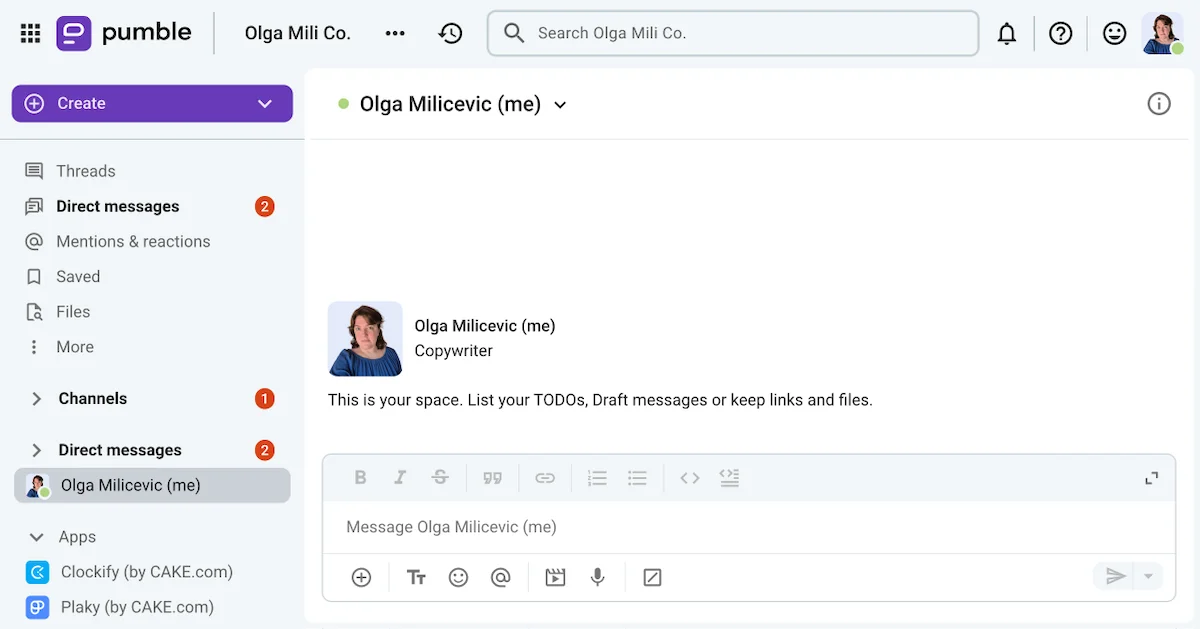
I like having the option to collapse the channels, direct messages, and apps sections.
The Teams UI simply doesn’t let me do that — and that’s not the only gripe I had with the app.

Microsoft Teams has a complex user interface
Going into this Pumble vs. Microsoft Teams comparison, I didn’t think that I would find Teams lacking in the UI department. Unfortunately, that’s exactly what happened.
Before making my account, I was aware that the Teams desktop app could be a bit glitchy on non-Windows computers. So, to give both apps a fair shot, I stuck to using them in my browser.
Despite that, I found Teams to be surprisingly slow and non-responsive, as some buttons simply refused to respond to my prodding while I explored the app. And, the fact that I kept getting pop-ups asking me to try Loop and connect with more users probably didn’t help the overall app performance.
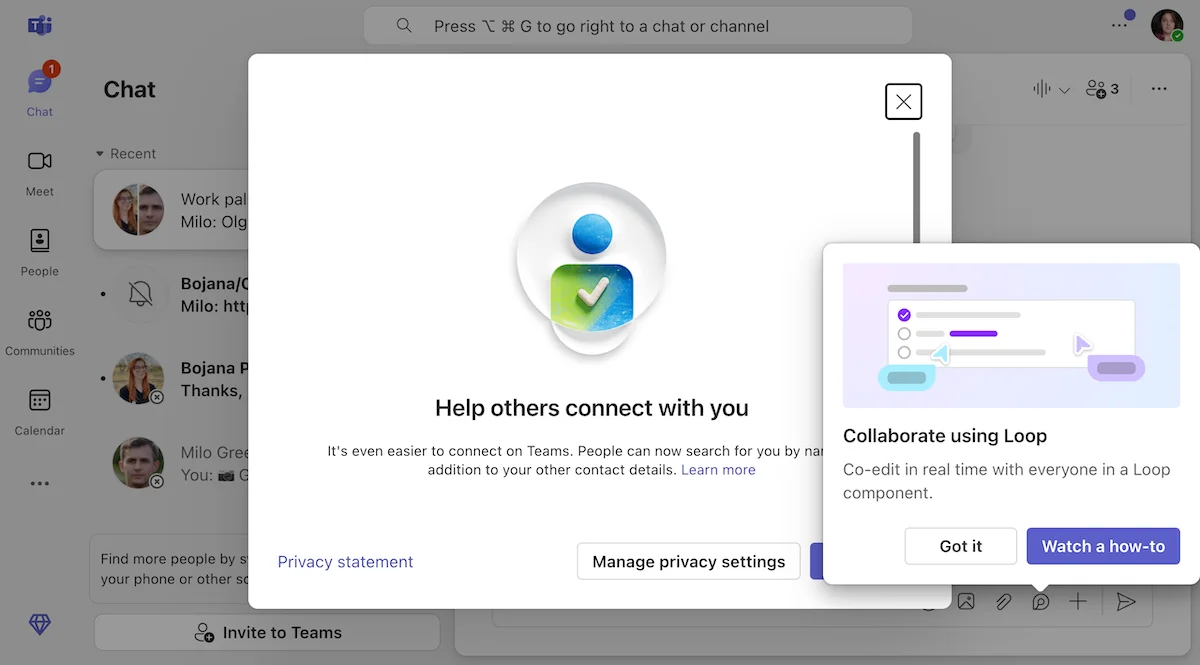
I can only imagine how frustrating that would be if I were trying to talk to multiple people or manage different users.
This aggressive way of marketing other Microsoft tools in Teams could be the reason many people end up reverting to email for professional communication.
That aside, I was also confused about some UI design choices, such as the fact that people’s custom statuses were only visible once I entered their chat and hovered over their name, as seen below.
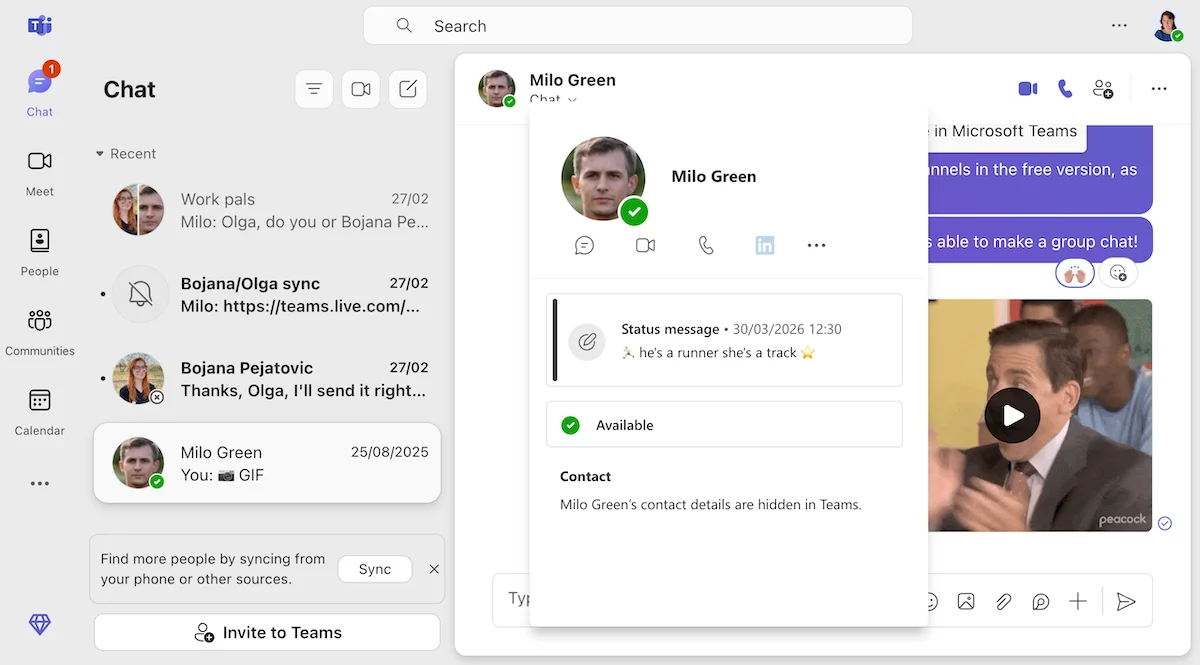
The app’s lack of customization options was similarly disappointing, as it only offered:
- 3 theme variants (light, dark, and high contrast),
- 6 emoji skin tone preferences, and
- 2 chat density options.
Between Teams’ slow performance (which is likely caused by feature bloat) and its lack of personalization options, I found myself reluctant to spend more time in the app than absolutely necessary.
💡 PUMBLE PRO TIP
Looking for Microsoft Teams alternatives in 2026? Here’s a list of contenders:

Pumble’s user interface is simple, customizable, and intuitive
Unlike Teams, Pumble offers plenty of customization options, which I’ve made full use of over the years.
As you have already seen, I usually have the channels, direct messages, and apps sections collapsed, only opening them when I have a new notification, which the app helps me find by offering to jump right to it.
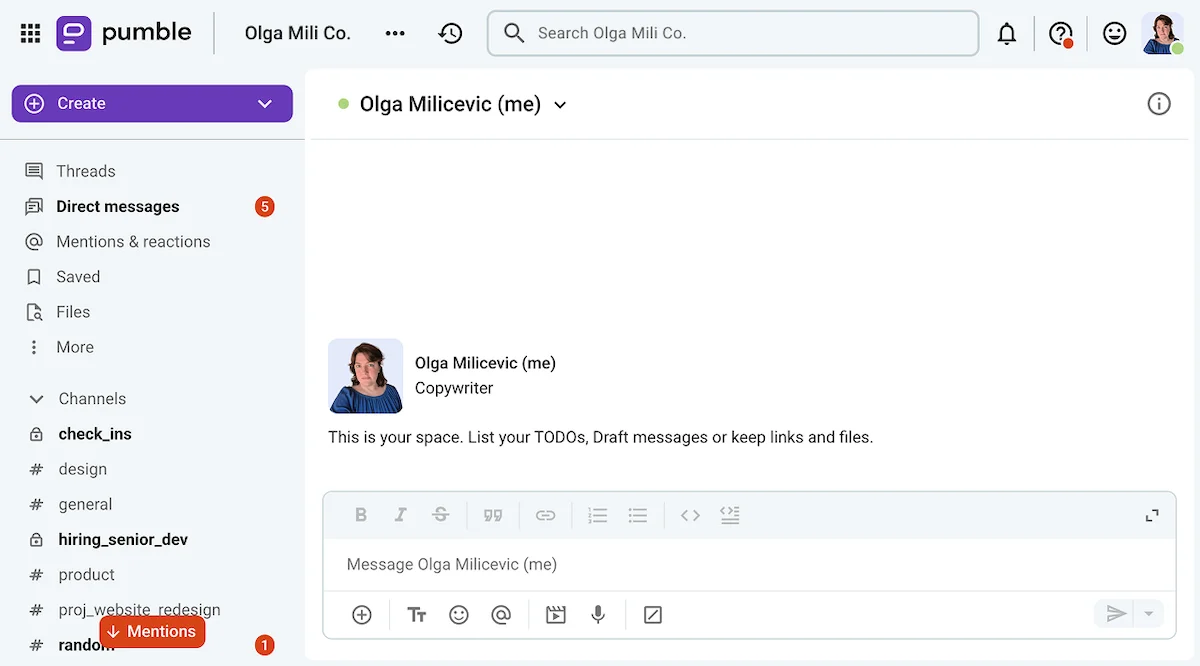
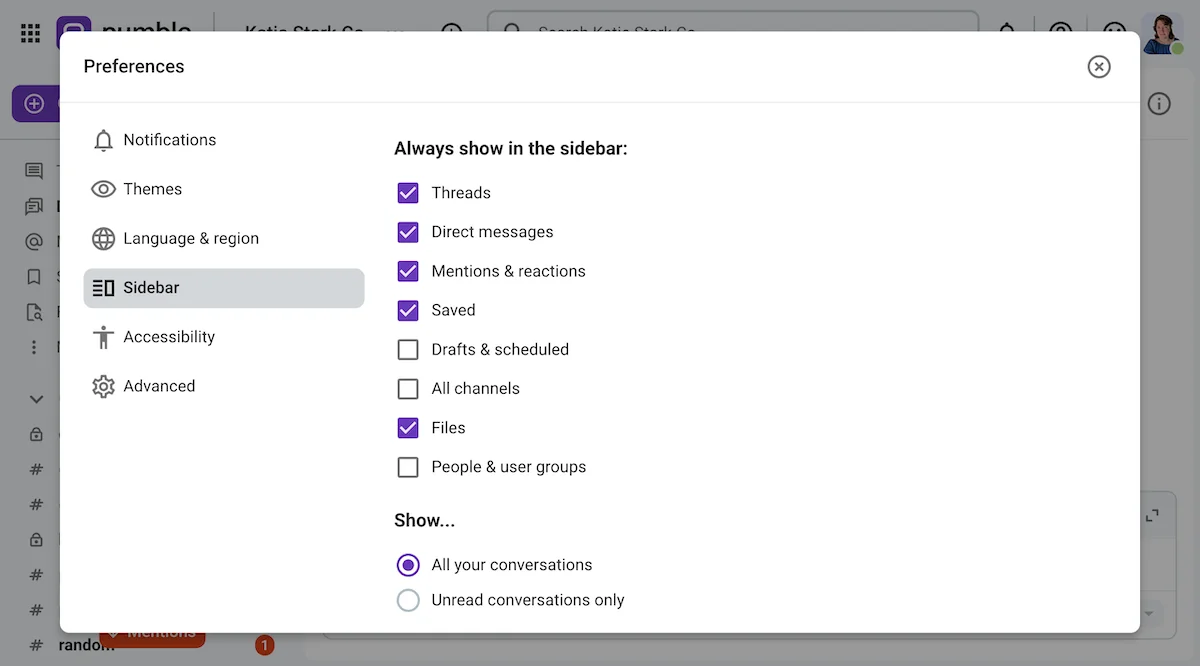
Everything about Pumble is customizable, from the sections in the sidebar to the individual channels, and even the colors of the app — there are 10 shades to choose from, with light and dark versions of each.
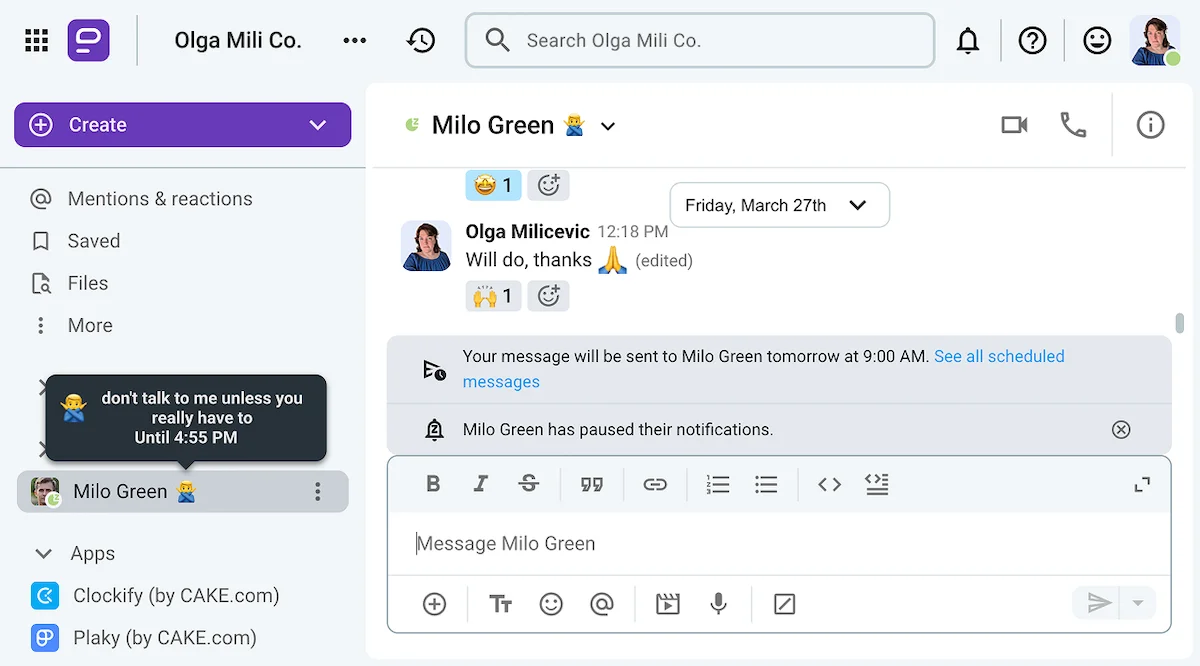
Aside from that, I also like being able to see my coworkers’ custom statuses and profile pictures right in the sidebar.
In the image below, I could see that Milo didn’t want to be disturbed even without entering our chat. Once in the chat, I could see a banner telling me that Milo had paused his notifications, so I scheduled my message to make sure it would reach him at an appropriate time.
Overall, I find that Pumble offers a simpler user experience, allowing you to onboard new users with little to no training. The app provides all the features you need to set up a frictionless communication process without any bloat, allowing you to focus on deep work.
So, in this round between MS Teams vs. Pumble, Pumble clearly offers the superior user interface and customization options.
Pumble vs. Microsoft Teams: Both apps have plenty of communication options — but Teams is glitchier than Pumble
Now, we’re getting to the meat of the matter — is Pumble better than Microsoft Teams when it comes to its communication features?
Though Teams has plenty of features, Pumble definitely offers a more stable user experience overall.
Let me explain.
Microsoft Teams lacks basic messaging options
Obviously, MS Teams isn’t a bad communication app by any stretch of the imagination.
It does a fine job of letting you exchange messages and files and get on video calls, despite the occasional glitch.
However, Microsoft Teams’ free plan limitations were evident as soon as I started using the app.
Since the free version of MS Teams is very obviously meant for casual users and not professionals — it doesn’t have channels enabled. As for threads, even in paid versions of the app, they only come up as an option in specific channels when they are enabled by the organization admin.
This lack of structure leaves free users forced to rely on replies, which can lead to some pretty chaotic group conversations, as everyone talks over each other, referencing different topics.
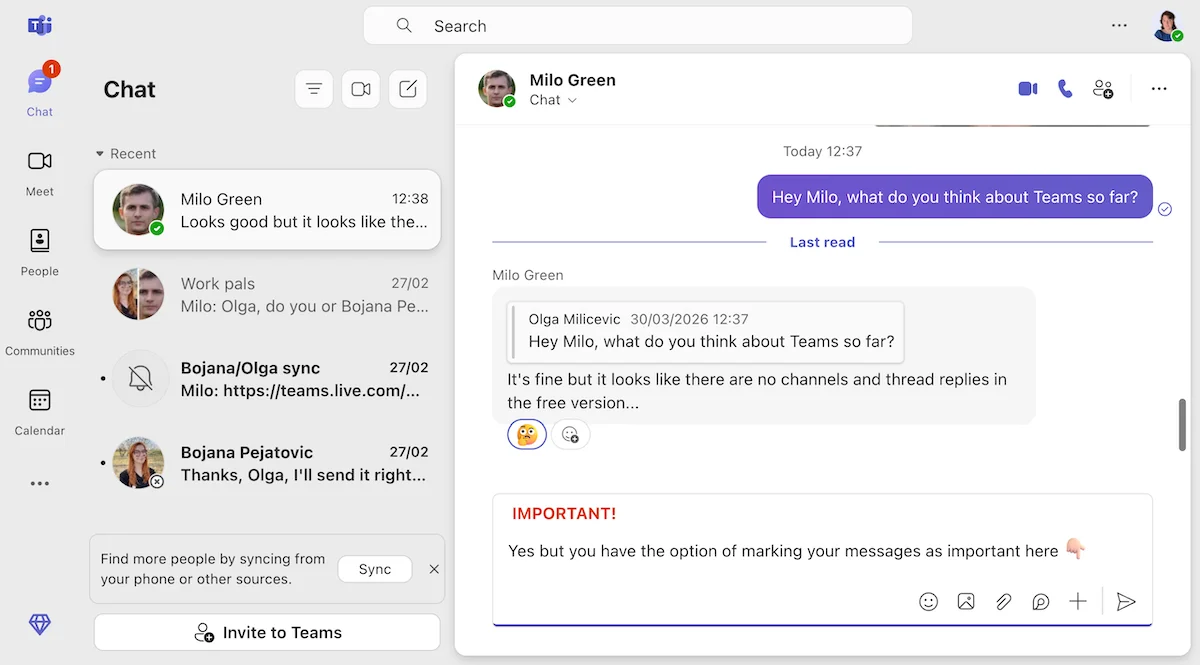
So, if your team prefers to have threaded discussions, Teams probably won’t be the best platform for you.
Organize your messages with Pumble
Still, for what it’s worth, Teams does have a pretty solid video and audio call feature, though it’s about as buggy as the rest of the app.
When I went to call my fellow tester, my mic and camera bugged out even though I had all the necessary permissions enabled. Milo was able to use his (he just chose to have them off), but mine were completely grayed out, entirely preventing me from speaking during our meeting, as you’ll see in the image below.
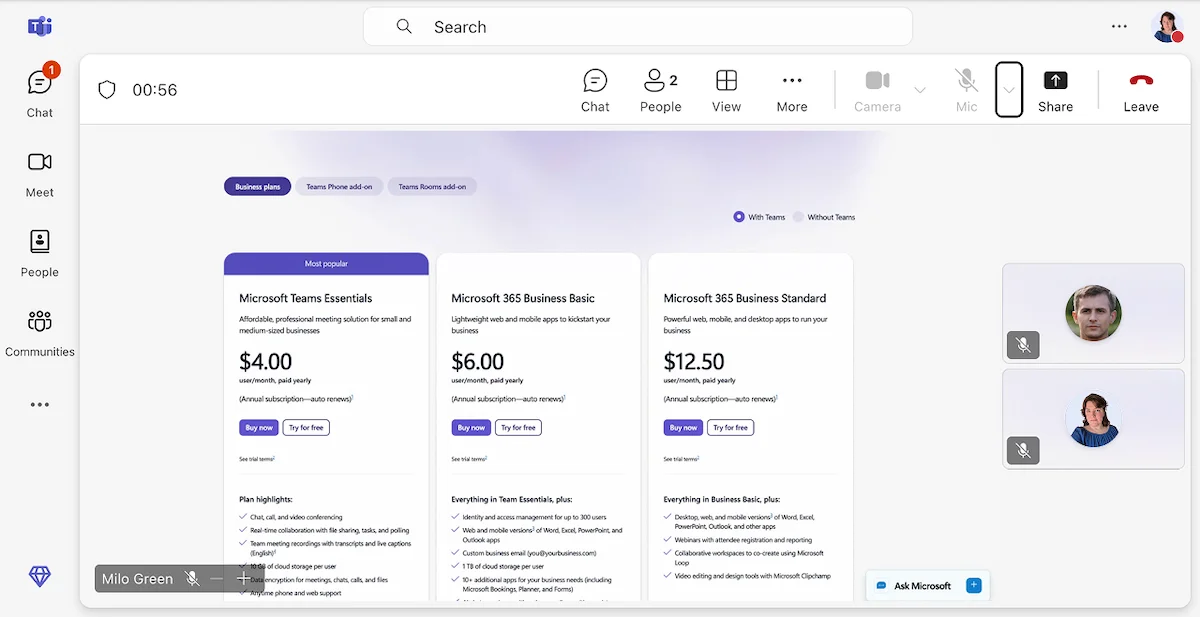
Suffice to say, Microsoft Teams is riddled with bugs — and I’m usually not in the mood to play the exterminator while I’m working.
💡 PUMBLE PRO TIP
Despite the bugs, Teams is still one of the best screen sharing apps on the market. To see the other apps that fit that bill, check out our top picks here:
Pumble keeps your communication organized
Unlike Teams, Pumble lets its users create as many channels as they need to keep their professional conversations organized right from the get-go.
And, of course, if a conversation needs to be private, you can also have it through direct messages.
Instead of trying to make sense of endless replies, users can easily hold separate conversations in threads, as shown below.
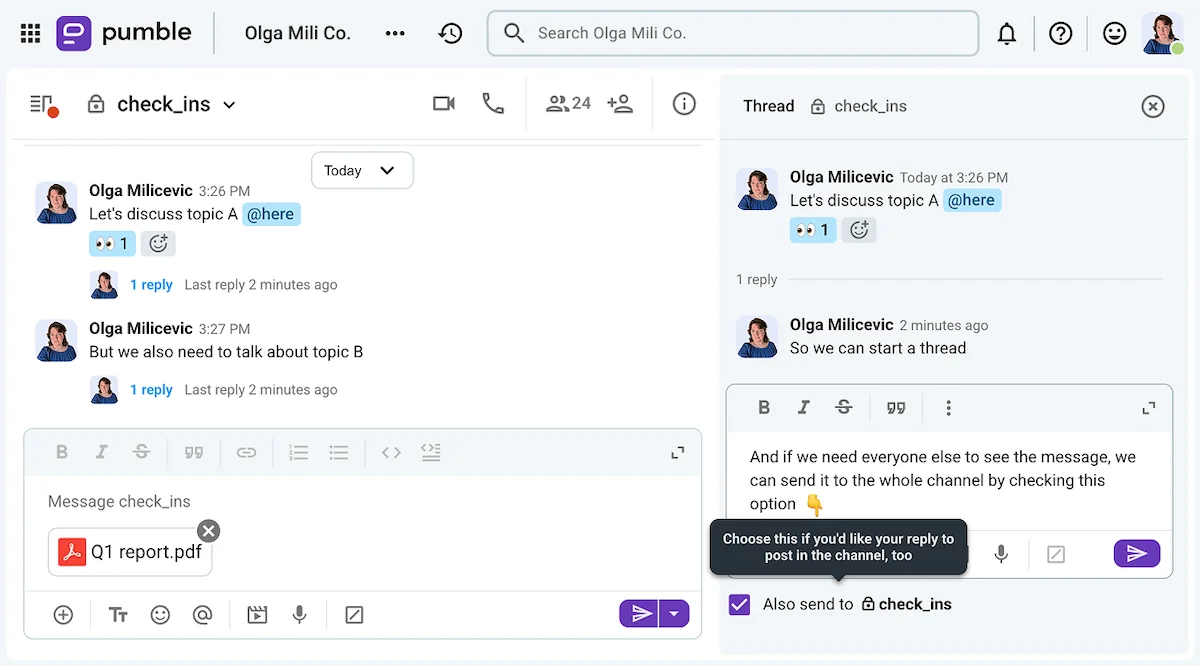
Have threaded discussions in Pumble
Another difference between Pumble and MS Teams is that Pumble can facilitate voice and video messages on both desktop and mobile. This is available even to free users.
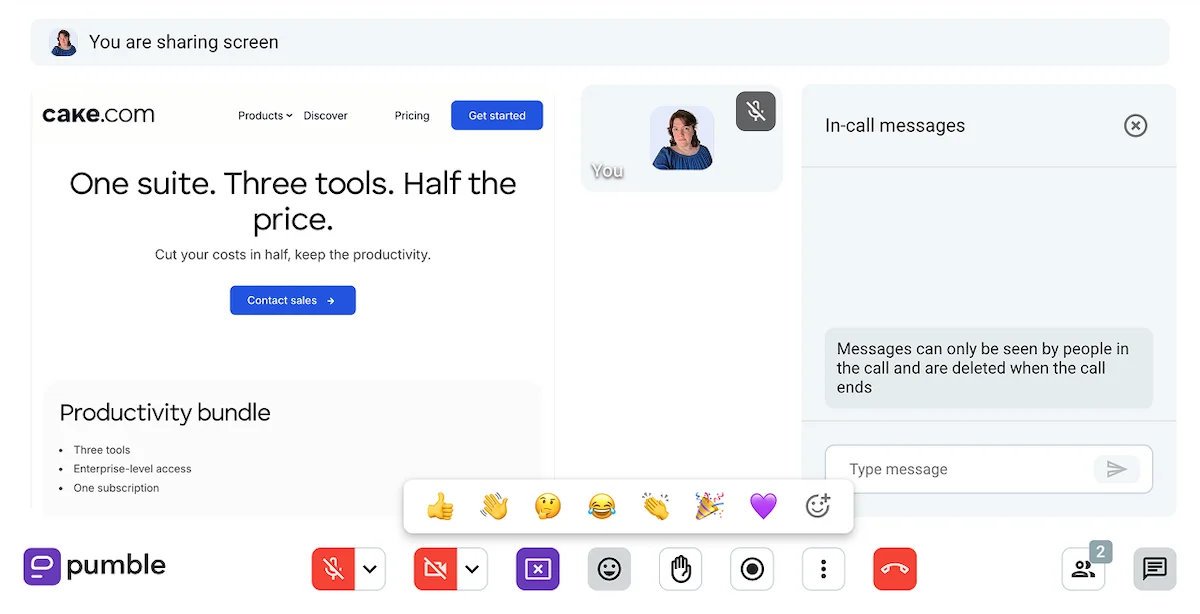
Your video messages can even incorporate screensharing, which you can also use during video and voice calls.
While we’re on the subject of video conferencing, I should mention that Pumble has every call feature you might need to conduct successful team meetings, including the ability to:
- Raise your hand before speaking,
- Use emoji responses during the meeting,
- Turn your microphone and camera on or off,
- Blur your background (though I also like to change my background by using the built-in video call customization feature on my computer),
- Invite external guests to the call by sending them a meeting link, and even
- Record the meeting for future reference.

💡 PUMBLE PRO TIP
Want to know the best platforms for scheduling and hosting virtual meetings? Check out our reviews of our personal favorites:
Pumble vs. Microsoft Teams: Pumble has more reliable notifications
Though Teams and Pumble have extensive notification customization features, I would say that Pumble’s are more consistent overall.
Conversely, over the years, many people have had issues with Teams’ notifications:
- Not making a sound at all,
- Not disappearing from the screen, and
- Not working properly on non-Windows devices.
Use Pumble for reliable notifications
Still, on paper, both Teams and Pumble offer:
- The ability to mute specific chats and channels,
- Separate tabs where you can see mentions, reactions, and messages that concern you,
- A handful of notification sounds to choose from, and
- The ability to receive missed activity emails.
Now, one thing Pumble has that Teams doesn’t offer would be the ability to set a notification schedule. This feature lets you set your work hours and make sure notifications aren’t haunting you during the weekend.
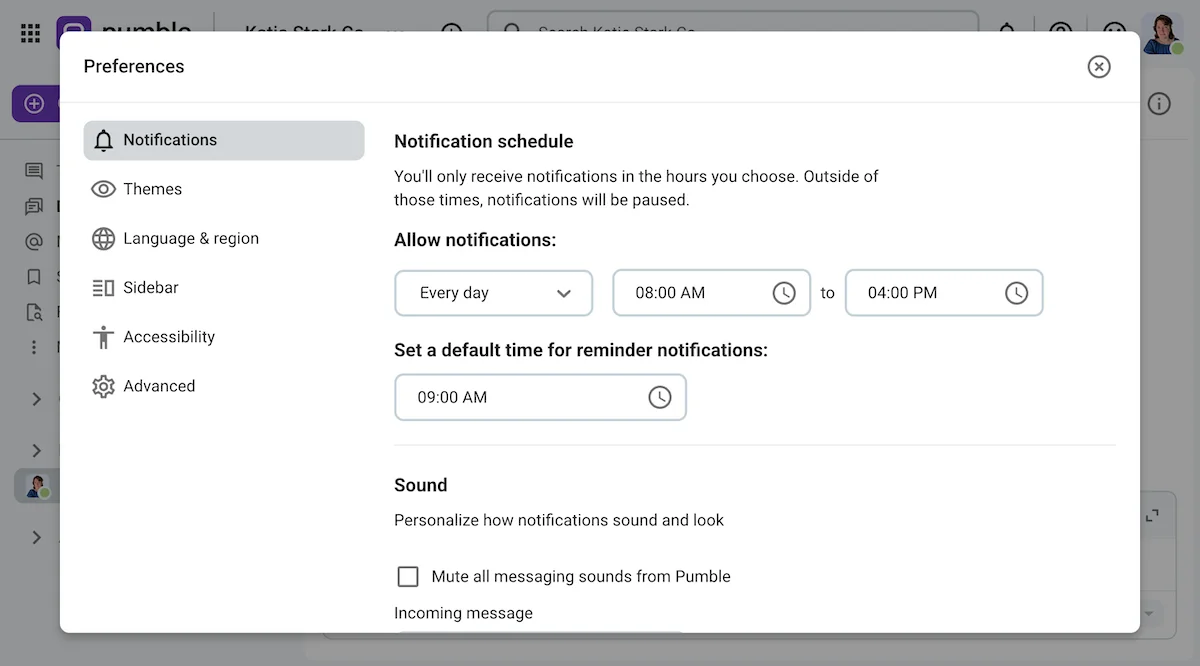
Pumble also has a built-in reminder feature, allowing you to revisit a coworker’s message at a more convenient time. To get the same result on Teams, you’d have to use the Remind app (which is a third-party add-on).
Similarly, Pumble also lets users schedule their messages or even plan recurring messages. According to Microsoft, Teams has a similar feature, though I wasn’t able to find it during my tests.
💡 PUMBLE PRO TIP
For more information on how Pumble can help users avoid notification fatigue, check out this guide:
Set notification schedules on Pumble
Pumble vs. Microsoft Teams: Both apps offer plenty of storage, but MS Teams makes you use it
When it comes to storage, both MS Teams and Pumble follow the standard formula that lets organizations’ storage expand as they add new members.
However, the way you use that space may differ between apps.
For example, Teams provides:
- 5 GB of cloud storage to free users, and
- 10 GB of storage per user on their paid plans (which can be further expanded by purchasing Microsoft 365 licenses).
Yet, Teams also heavily encourages the use of other Microsoft suite tools, and sending those files back and forth is sure to eat up your storage space in no time.
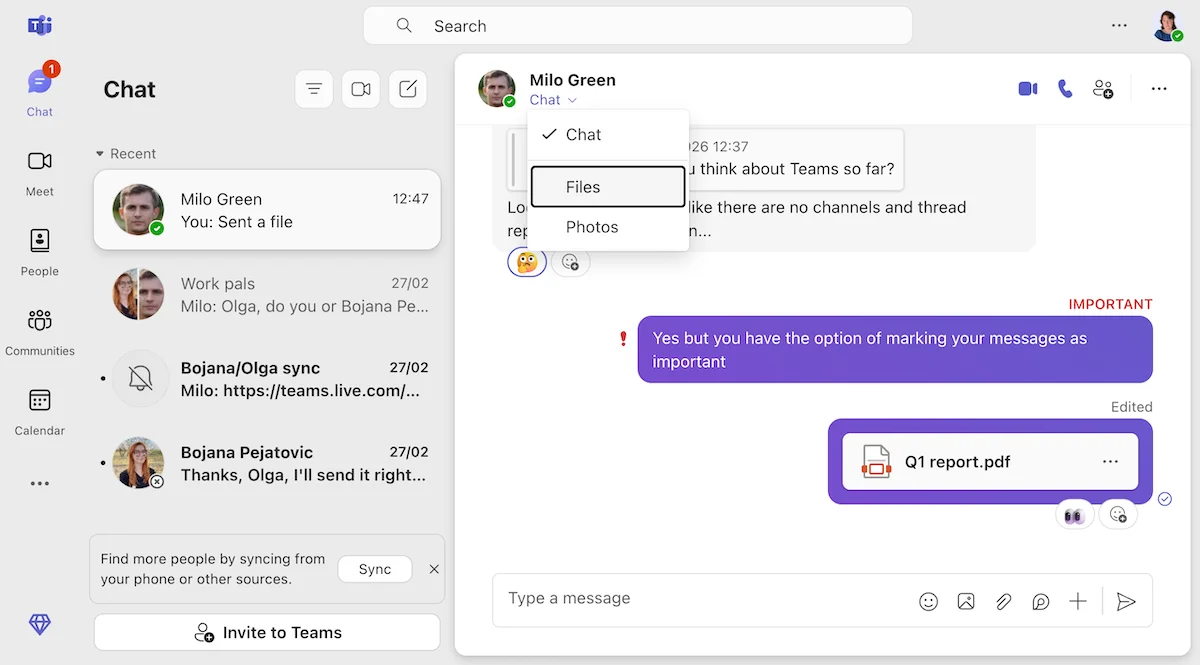
Still, there are some upsides to the Microsoft ecosystem, such as the fact that users can view and oftentimes edit many Microsoft filetypes without having to leave Teams.
While we’re on the subject of the Microsoft ecosystem, I should note that Teams’ SharePoint integration could be a useful addition if you wanted to automate the process of saving shared files to the company intranet.
But, personally, I tend to see most of these options as unnecessary enterprise bloat that could just as easily be replaced with a shared OneDrive folder.
On the other hand, Pumble provides:
- 10 GB of storage per workspace for free plan users,
- 10 GB of storage per seat for Pro plan users (at $2.49 per seat per month),
- 20 GB of storage per seat for Business users (at $3.99 per month), and
- 100 GB of storage per seat for Enterprise users (at $6.99 per month).
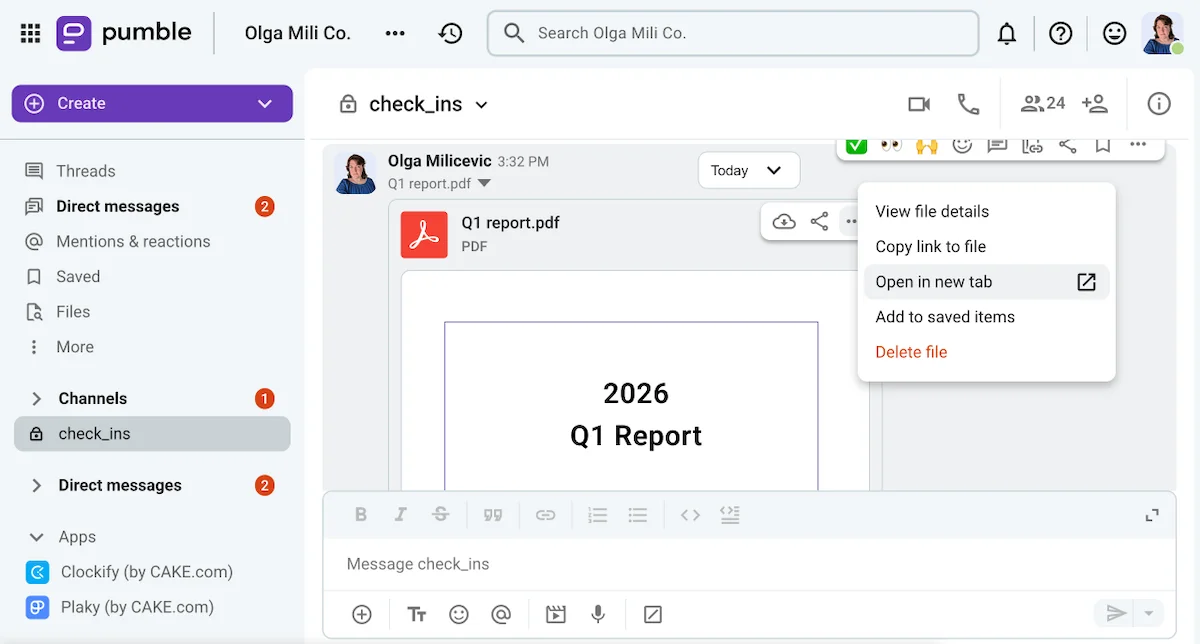
When sharing documents, Pumble shows a preview of the file, though it can be collapsed for a better viewing experience.
Many file types, like the PDF I sent in the image below, can also be opened within the app if you just need to check its contents.
Ditch enterprise bloat — try Pumble
Pumble vs. Microsoft Teams: Pumble’s search is more focused and secure
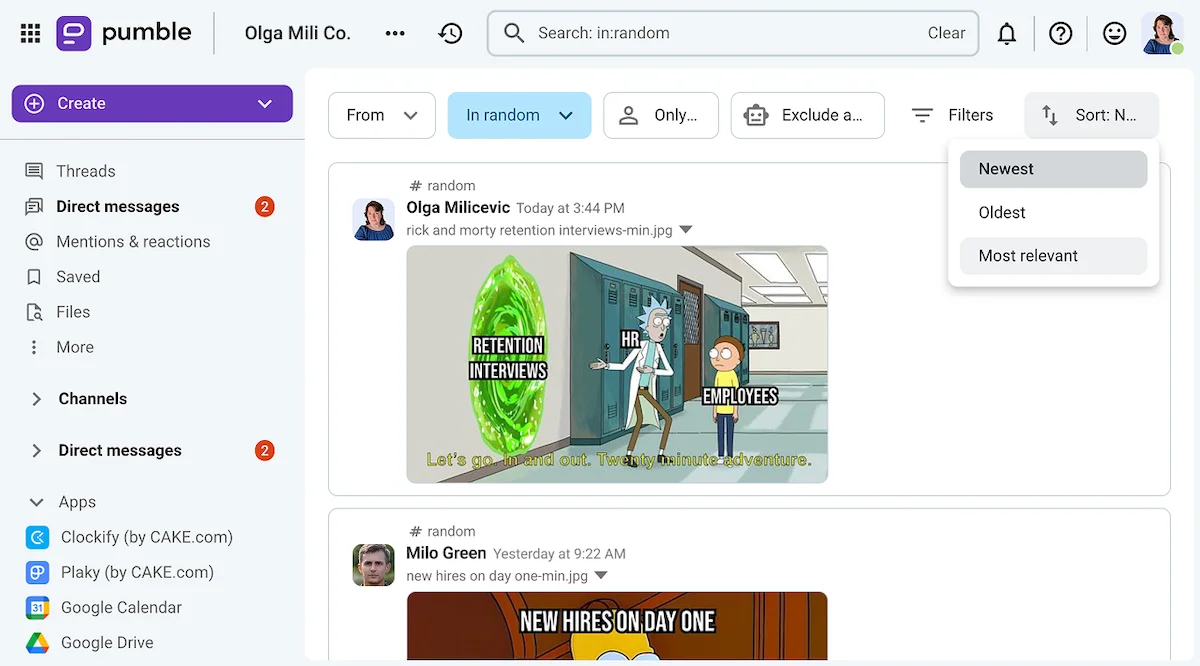
If I ever want to find a message or a file on Pumble, all I have to do is use the search bar and select:
- Who the message is from,
- Which channel or chat I believe it was sent to,
- The date range during which the message was sent, as well as
- Whether the message contains files, links, or reactions.
Of course, I don’t need to know the answers to all those questions to use Pumble’s search feature. For example, here’s what a blank search for a file within the #random channel looks like.
In addition to being able to use the search bar, you can also check the Saved and Files tabs in the sidebar.
Of course, Teams offers many of the same features, allowing you to search for people, messages, and files.
But, ultimately, a discovery I made during my tests has led me to believe that Pumble provides a more private search experience overall.
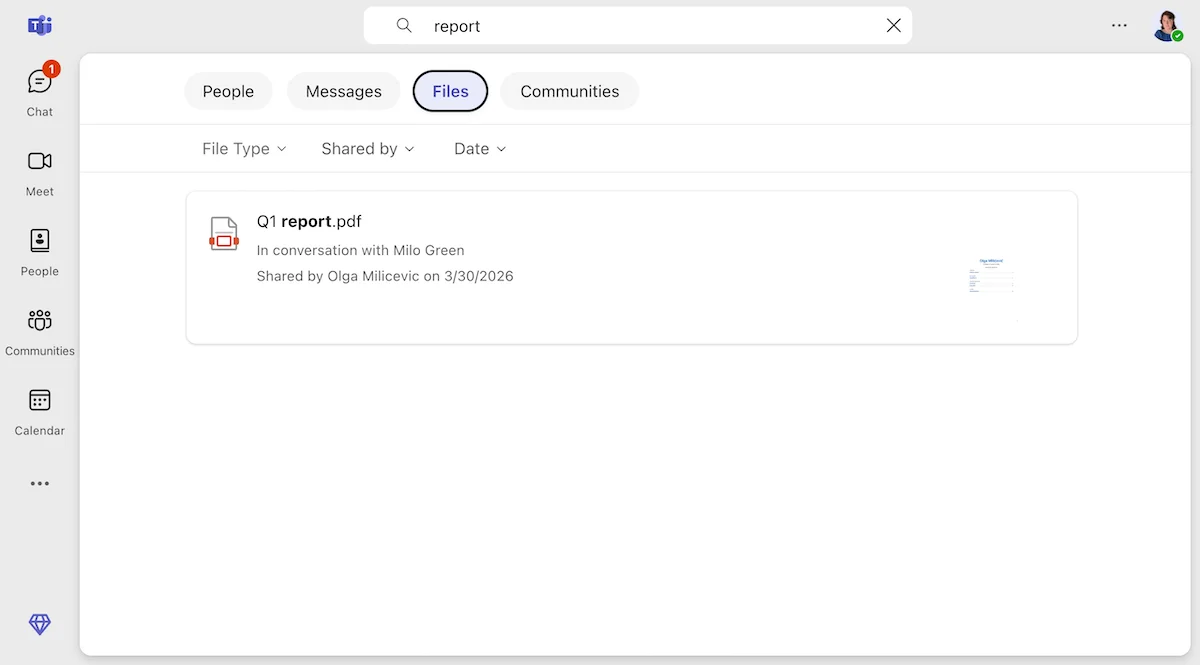
When I went looking for the report I sent to Milo, the “People” results came up first, showing me a list of users with the word “report” in their names.
Now, perhaps that wouldn’t have happened if I was testing as a paying user, but I bet most startups initially use the free version of the communication app they opt for.
This is simply something that would never happen with Pumble, which lets you set up a private workspace for free.
In any case, going to the files section of the search did show me the file I was after, so all’s well that ends well.
Search through your Pumble database
Pumble vs. Microsoft Teams: Teams has more integrations, but the overall experience of the app is cluttered and buggy
As we all know, the main reason organizations choose Teams as their communication solution is because Microsoft has positioned it as the natural companion for the rest of its productivity tools.
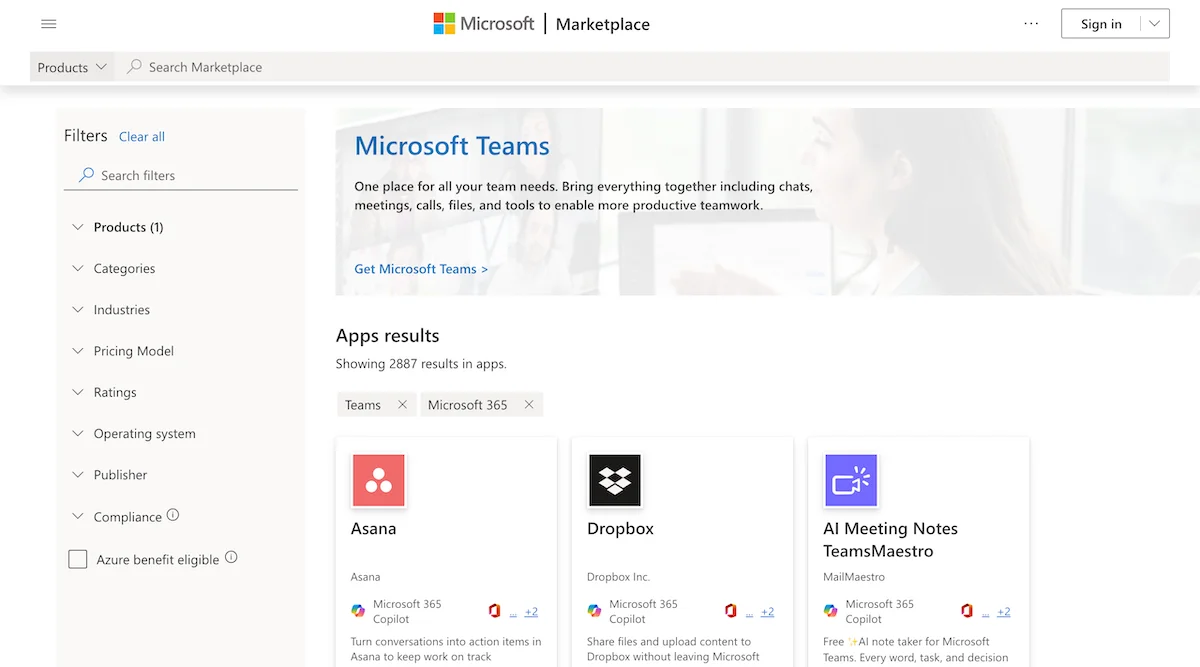
As a product created by a tech giant, Teams has been blessed with over 2,500 integrations, both native and third-party, which can be found on Microsoft’s Marketplace (previously known as the AppSource).
And, though many of these integrations can improve the functionality of the app, they can’t really fix the bugs that exist within Teams itself.
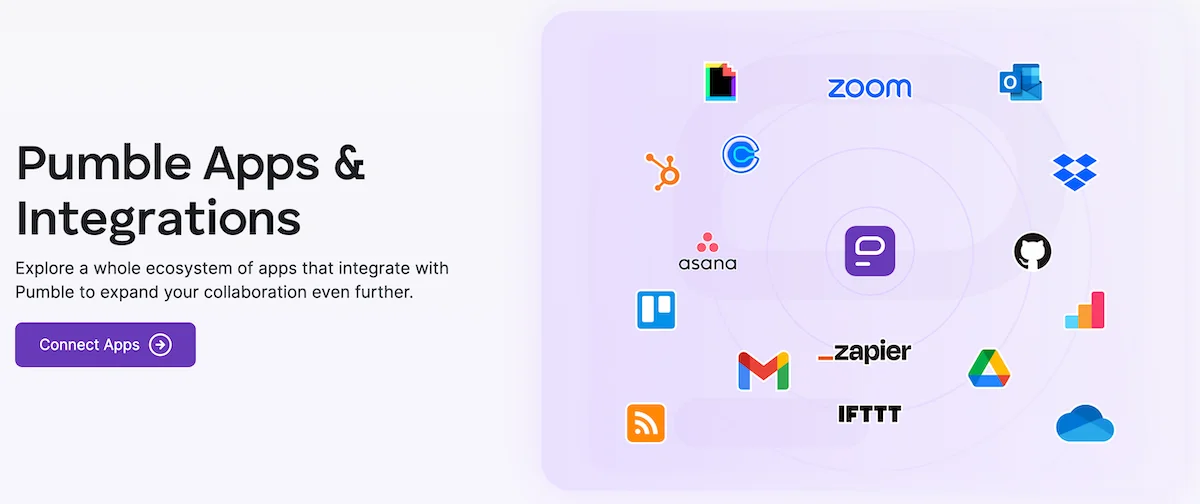
On the other hand, Pumble boasts a modest number of key integrations, including:
- Polls,
- Zoom,
- Calendly,
- GitHub,
- Zapier,
- RSS Feed, as well as
- Google Calendar, Google Drive, and Gmail (and more).
Naturally, Pumble is also connected to Clockify and Plaky, which are a part of the CAKE.com productivity suite.
Ultimately, the team behind Pumble is always working on creating new integrations without affecting the app’s core functionality — something Teams hasn’t had great success with.
You can learn more about future releases and even suggest add-ons and features you’d like to see on Pumble’s roadmap page.
Or, you could also take matters into your own hands by creating your own Pumble add-ons and publishing them on the CAKE.com Marketplace.
Pumble vs. Microsoft Teams: Pumble’s support team is available 24/7 and it doesn’t use bots
As glitchy as Teams is, you’d think that Microsoft would at least put effort into providing solid customer support, right?
Wrong!
Though I never went as far as contacting Microsoft’s support team while I was testing Teams, the company is actually pretty famous for offering subpar support.
Users report not being able to get in touch with customer support agents, as most complaints are met with self-help suggestions and automated responses.
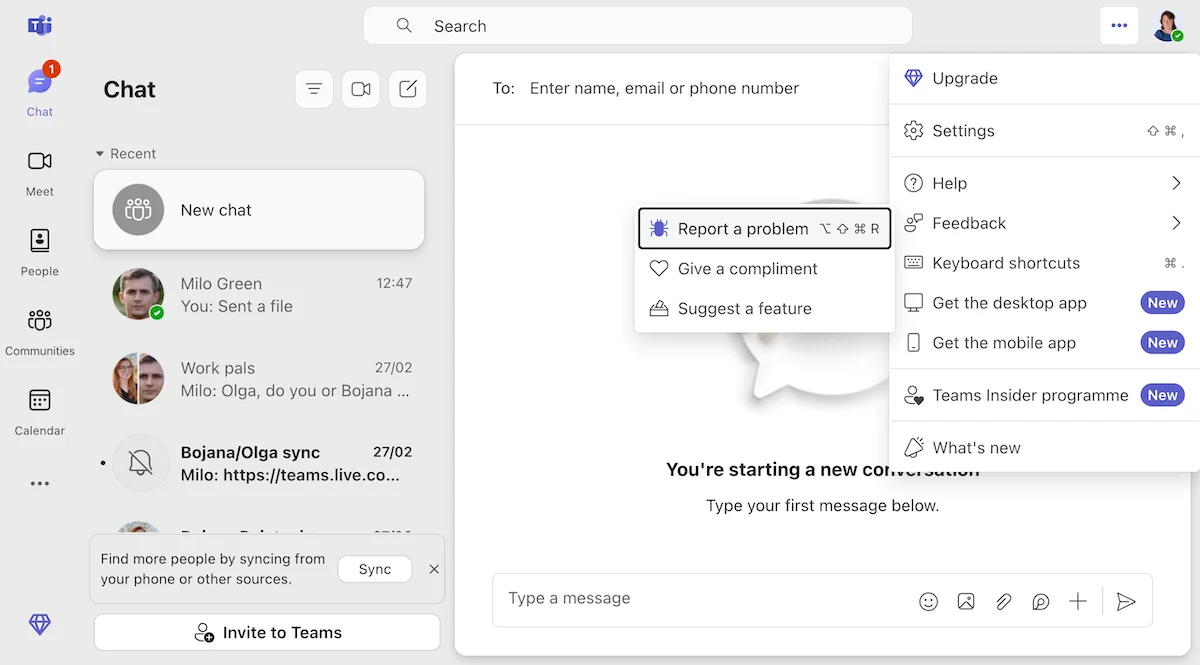
Still, the reporting button exists within MS Teams, for those who haven’t lost all hope.
While Microsoft prioritizes offering support to paying customers, Pumble offers the same quality of support to all users through chat, email, and phone.
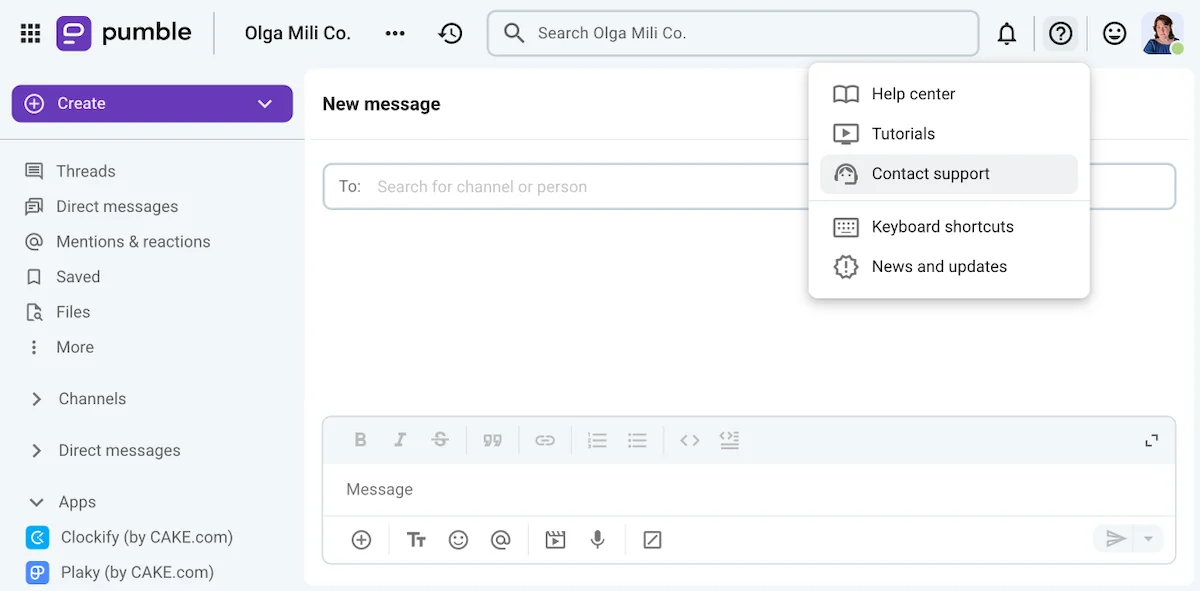
Since Pumble’s customer support team doesn’t use bots or AI, all people who contact Pumble support will get a response from an actual human being within the hour (or a day, at the latest).
Though you certainly could use the Pumble help page to solve most issues on your own, Pumble doesn’t restrict your ability to contact an agent whenever you need one.
Ultimately, Pumble’s support and success teams are invested in helping you get comfortable with using Pumble.
In fact, if you purchase a certain number of seats, you’ll be assigned a dedicated success representative. They’ll offer personalized consultations and make sure your move to Pumble goes smoothly if you purchase more than:
- 200 seats on the Pro plan,
- 120 seats on the Business plan, or
- 70 seats on the Enterprise plan.

Pumble vs. Microsoft Teams: Both apps are secure but Pumble has fewer vulnerabilities than Teams
The final category I wanted to talk about concerns the security and privacy features within Microsoft Teams and Pumble.
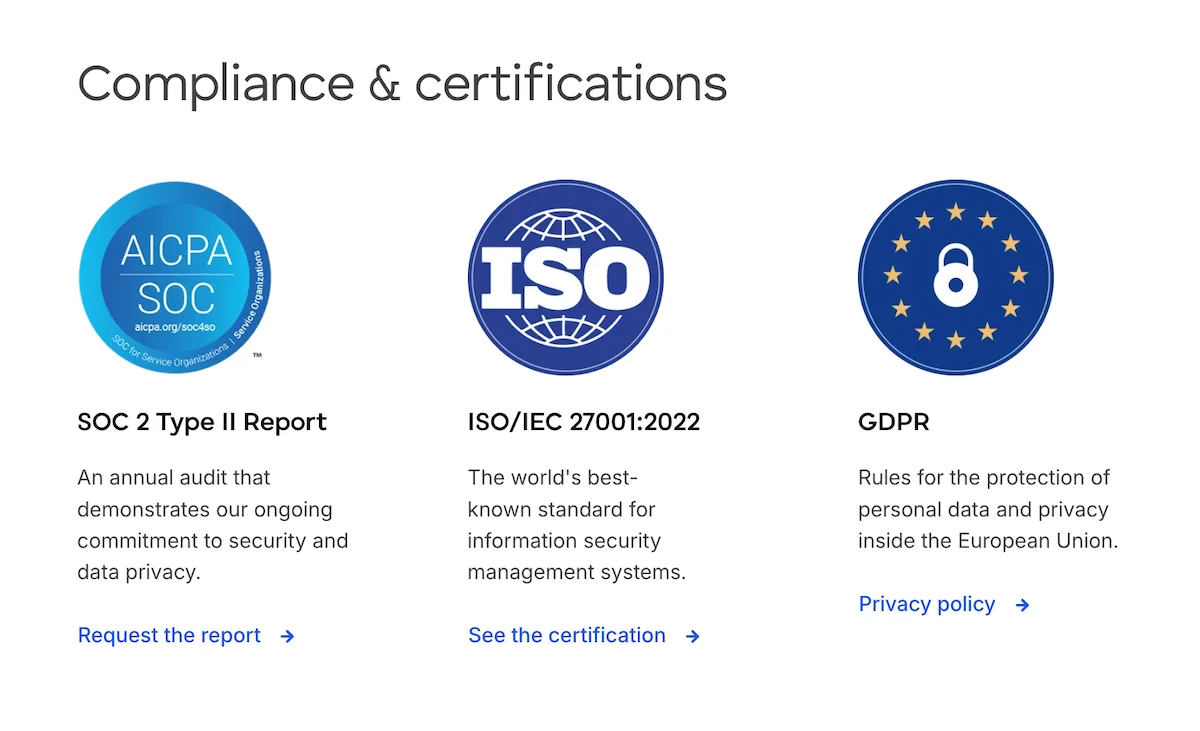
Naturally, both companies follow the relevant security and privacy regulations, offering:
- Data encryption at rest and in transit, as well as
- Sign-in protections for paying users (such as multi-factor authentication and Single Sign-On or SAML SSO).
However, as a multinational conglomerate, Microsoft is certainly a more popular target for cyber attacks, which may compromise their tools as well as their users.
And don’t get me started on the AI elephant in the room.
Over the past year, Microsoft has been persistently nudging its users toward incorporating their AI assistant, Copilot, into their workflow. The problem is that Copilot has already been flagged as a potential security risk. On top of that, most people have not been properly trained in using this technology in a way that takes organizational security and privacy into consideration.
As someone who takes security seriously, I’d rather use a secure messaging app that takes a different approach to AI tools.
For example, Pumble’s AI Assistant integration lets you connect an AI provider of your choosing to your Pumble workspace.
Rather than allowing the AI bot to read all of your messages, Pumble keeps your interactions context-safe by giving it invite-only access to channels. In other words, AI Assistant will only gain access to channels it’s been invited to.
Even then, it will only be able to read and respond to specific messages it’s been mentioned in, letting you maintain the security of your professional interactions.
That’s why Pumble would be my choice, if I was looking to strengthen my security measures.
On a practical level, Pumble also lets workspace admins control some security features, such as:
- Retention settings, which can be used to specify a period of time after which messages and files will get deleted,
- Roles and permissions, which limit which users can access certain channels and features within Pumble, and
- Single- or multi-channel guest accounts, which can be especially useful for companies who work with clients or external contractors.
Secure your messages with Pumble
Pumble vs. Microsoft Teams FAQ
Now, let’s go over the most frequently asked questions about the two apps.
Does Microsoft Teams still have a free version?
Yes, but the free plan is primarily meant for personal use, such as contacting friends or family.
Unlike Teams, Pumble’s free plan still lets you:
- Set up a private workspace (with no risk of coming across other people’s accounts through search),
- Create as many public or private channels as you need and organize your conversations with threads, and
- Onboard an unlimited number of users.
Is Pumble better than Microsoft Teams for small teams?
Yes, if you’re running a small business, Pumble will definitely be a better option for your team than Microsoft Teams.
After all, Pumble is one of the best free apps for small businesses, whereas the free version of Teams is more suitable for personal use.
Once your team starts growing, upgrading to a paid version of Pumble will bring you additional benefits, such as the ability to:
- Invite more people to video calls,
- Expand your storage, and even
- Bring in guest users.
Can I use Pumble if my company uses Office 365?
Yes. Pumble is a messaging platform that works well independently or with other tools, and that includes Microsoft products. You can even connect your Pumble workspace to different Microsoft tools through Pumble’s Zapier integration.
Can I import our current data from Microsoft Teams to Pumble?
Yes, Pumble lets users import messages and data from other communication apps through zip exports and CSV files. So, as long as you can export your data from Teams, you’ll be able to transfer it to Pumble easily.
If you’re a paying MS Teams user, you should be able to export your data from the privacy page. However, free users may have to wait a while after requesting a copy of their data from Microsoft.
How do I start my 7-day Pumble Enterprise trial to test all Pumble features?
If you’re interested in exploring everything Pumble has to offer, you can claim your 7-day trial of the Enterprise plan right now. Once you become a free Pumble user, simply click the Upgrade button in the top left corner of the app and claim your trial. If you want to keep all the features you get, you can upgrade to a paid plan even before the end of your trial period. Click the link below to get started!
Pumble vs. Microsoft Teams: Two apps with different use cases
At the end of the day, it’s important to acknowledge that both Pumble and Teams are great for different kinds of organizations.
Namely, Teams is built for massive enterprises and has the benefit of working well with the rest of Microsoft’s suite. So, if your company is already locked into using Microsoft’s suite of tools, Teams may be the obvious choice for your team.
However, Pumble is undoubtedly a simpler and more cost-effective communication solution for:
- Startups, which can use Pumble as a free team messaging app with unlimited history while they work to get their business off the ground,
- Small and medium-sized businesses, which can take advantage of Pumble’s scalability, as each seat in the paid plans adds more benefits to the whole workspace, and
- Remote teams, which can use Pumble to set up their digital headquarters.
Pumble’s steady, reliable performance allows you to go about your business without putting too much thought into what your communication tool is doing in the background.
But, even though Pumble’s performance qualifies it as a best-of-breed tool among communication apps, its value can be further increased by using the entirety of the CAKE.com suite.
How we reviewed this post: Our writers & editors monitor the posts and update them when new information becomes available, to keep them fresh and relevant.