
The right apps don’t just keep projects moving forward, they also make collaboration smoother and communication clearer.
I’ve rounded up 17 best collaboration tools for teams — from communication platforms to project management apps — built to help teams stay connected and get things done together.
Let’s dive in.
Why trust us?
The apps we talk about are selected, tested, and written about by human reviewers who follow strict review and editorial guidelines. We pick solutions that are practical, purposeful, and can offer real value for the specific use case or business context we’re covering — while also being justified in their pricing. Our methodology is transparent, clear, and available to everyone:
Best collaboration tools for teams: A quick overview
Before we go into detail, here’s a quick overview of the top 17 best collaboration tools for teams — what they’re best for, their standout features, and pricing.
| App name | Best for | Standout feature | Price, billed annually |
|---|---|---|---|
| Pumble by CAKE.com | Creating a free, permanent knowledge base | Unlimited number of users and unlimited message history | – Free – Paid plans start at $2.49/month |
| Slack | Extensive integrations | 2,600+ third-party app integrations | – Free – Paid plans start at $7.25/month |
| Microsoft Teams | Companies deep in the Microsoft 365 ecosystem | Integration with Microsoft 365 | – Free – Paid plans start at $4/month |
| Plaky | Free project management collaboration tool for unlimited users | Customizable workflows | – Free – Paid plans start at $3.99/month |
| ProofHub | Task management combined with team communication | File proofing | – No free plan – Paid plans start at $45 (flat monthly price) |
| Asana | Complex, task-based workflows | Timeline and dependency tracking | – Free – Paid plans start at $10.99/month |
| Trello | Simple task tracking with Kanban boards | Easy-to-use drag-and-drop boards | – Free – Paid plans start at $5/month |
| ClickUp | Extensive customization | Flexible views and built-in time tracking | – Free – Paid plans start at $7/month |
| Clockify | Simple, powerful, and free time tracking | Unlimited free time tracking | – Free – Paid plans start at $3.99/month |
| Hubstaff | Time tracking with employee monitoring | Activity tracking and payroll integration | – No free plan – Paid plans start at $4.99/month |
| Notion | Creating an internal wiki | Flexible pages and databases | – Free – Paid plans start at $10/month |
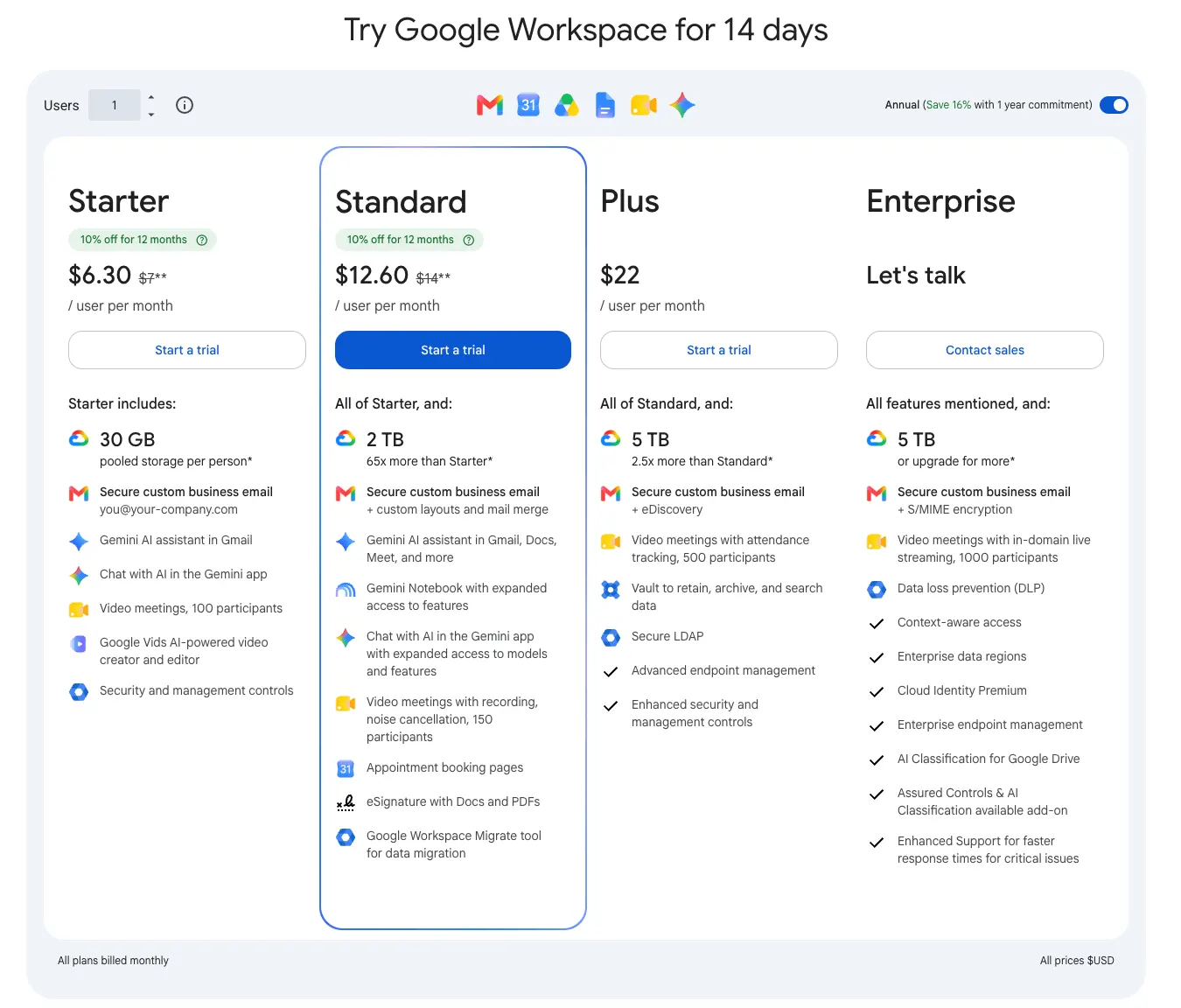
| Google Workspace | Real-time document co-editing | Real-time collaboration across Docs, Sheets, etc. | – No free plan for businesses – Paid plans start at $7/month |
| Miro | Visual collaboration and brainstorming | Infinite canvas whiteboard with templates | – Free – Paid plans start at $8/month |
| Figma | UI/UX design and prototyping | Real-time collaborative design editing | – Free – Paid plans start at $3/month |
| Basecamp | Simple project management and team communication | Centralized project hub with to-dos, docs, and chat | – Free – Paid plans start at $15/month |
| Zoom | Video conferencing and presentations | High-quality video calls and webinars | – Free – Paid plans start at $13.33/month |
| Airtable | Database-style task and project management | Customizable views and AI features | – Free – Paid plans start at $20/month |
Communication & collaboration hubs
Here are 3 team collaboration apps that foster effective communication and will help you keep your team connected and engaged.
Pumble — Best for creating a free, permanent knowledge base
Pumble by CAKE.com is an all-in-one communication and collaboration software designed for:
- Seamless instant messaging
- Creating a permanent, shared knowledge base
- Video conferencing
Its robust free plan makes it a standout option for teams and individuals seeking a dependable, feature-packed solution for internal and external communication.
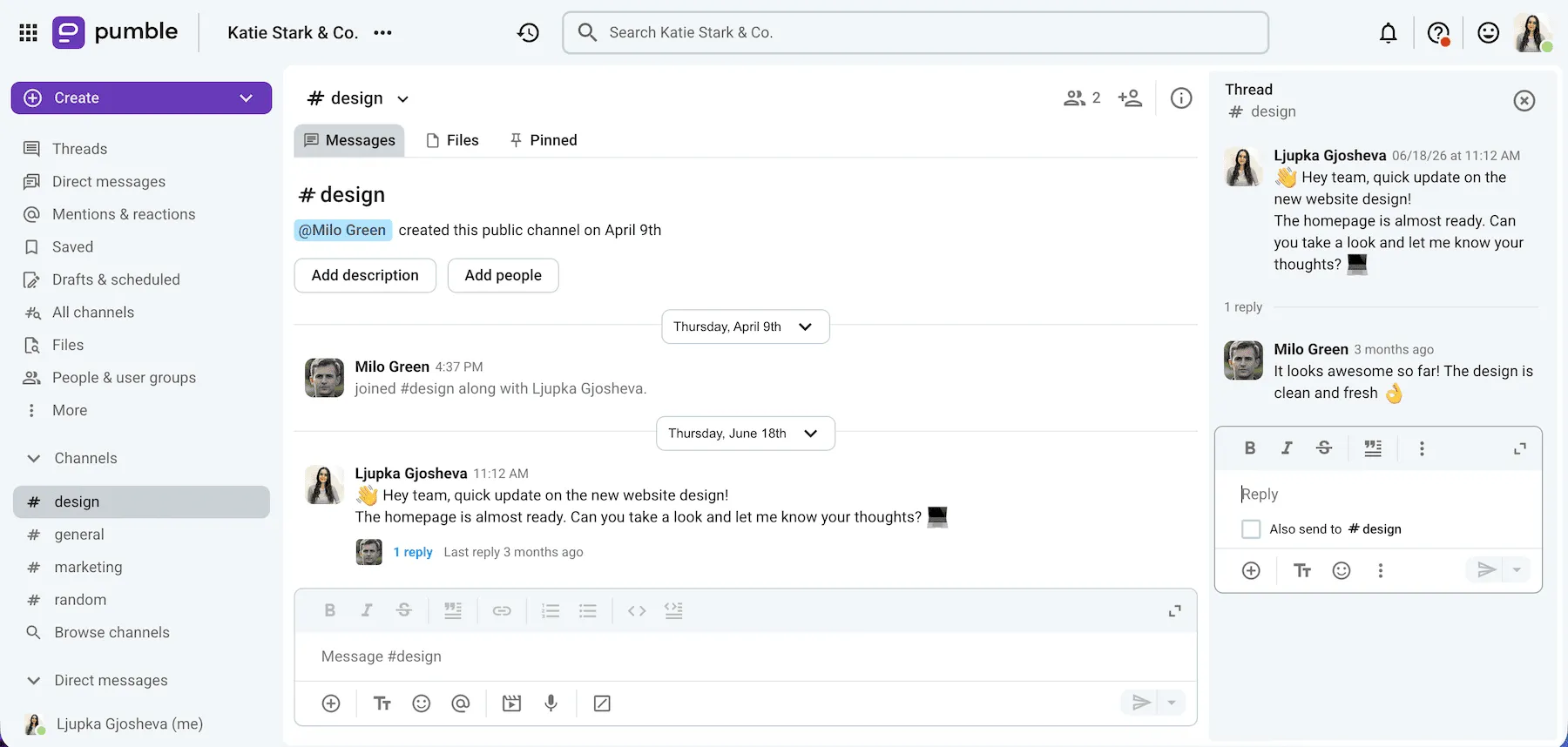
Pumble lets you:
- Customize your notifications.
- Set your status.
- Personalize the look of your workspace.
- Send voice and video messages.
My team has been using Pumble for internal communication for a few years, and we don’t plan on switching any time soon. It’s easy to set up and use, so you’ll have no problems while onboarding new employees.
In my experience, Pumble has always been reliable. The messaging features are more than enough for great team communication, and video and voice calls are high-quality.
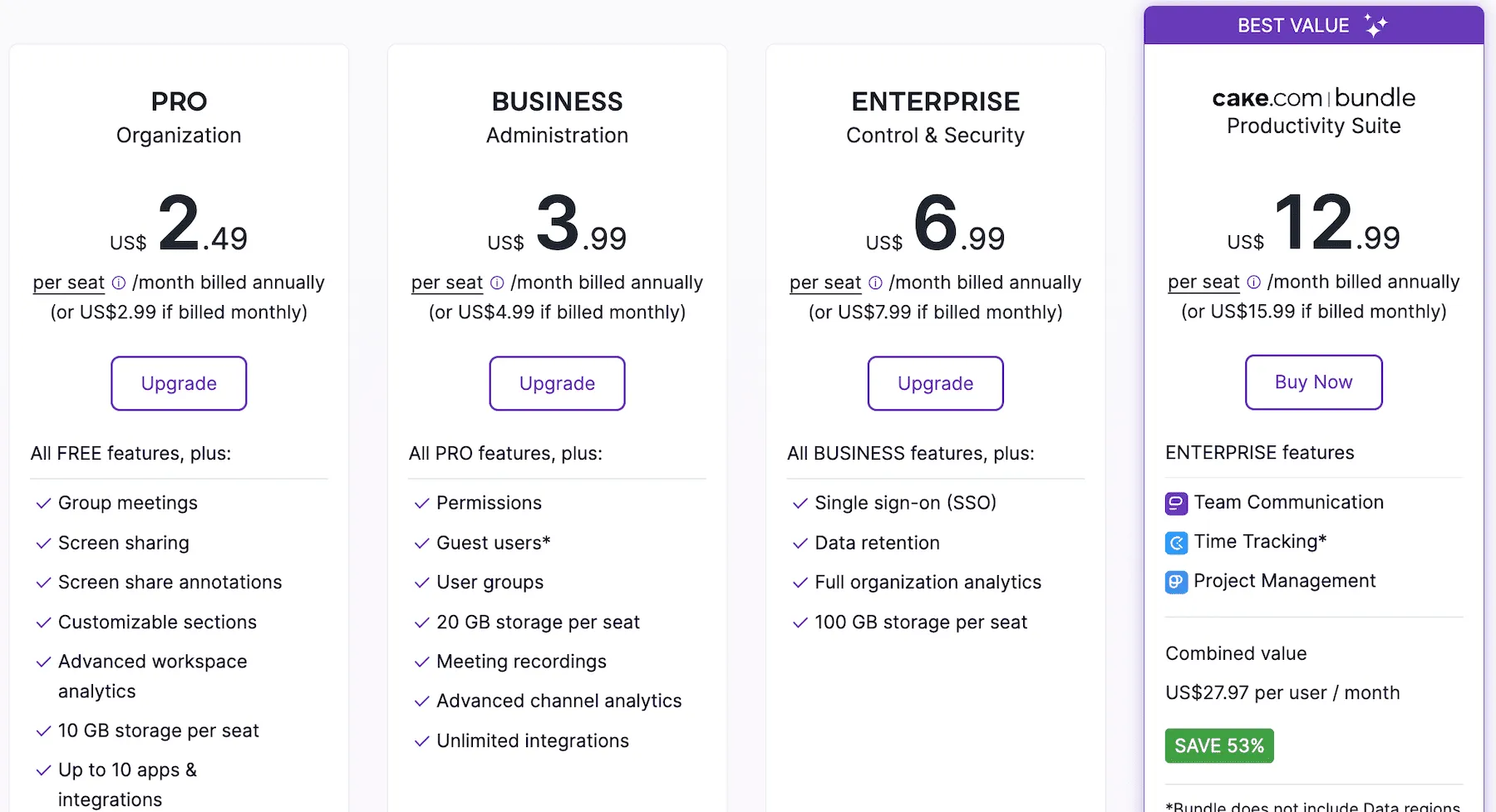
When it comes to pricing, Pumble offers a generous free plan. You get:
- Unlimited message history and channels
- 10 GB of storage per workspace
- 1-on-1 voice and video calls
The paid plans start at an affordable rate — $2.49 per user per month when billed annually.
Key features:
- Versatile messaging — Communicate via DMs, public or private channels, and threaded discussions.
- File sharing — Easily share and search documents and create a centralized knowledge base. Plus, you can connect your cloud storage through the Google Drive integration in Pumble to share files and manage comment notifications without leaving your messages.
- Video calls — Hold meetings, share your screen, chat in a call, and record meetings.
- Guest access — Invite external users to join channels and conversations.
Pros:
- Unlimited message history and users
- Simple and intuitive interface
- High-level security and free 24/7, 100% human support
- Affordable paid plans
- Native integrations with Plaky & Clockify
Cons:
- Lack of read receipts for messages
What’s new in Pumble by CAKE.com?
The new Audit log shows you records of administrative changes across your Pumble workspace, while the Pumble Trello integration lets you track and manage Trello tasks directly in Pumble.
Available for: Web, Mac, Windows, Linux, iOS, Android
Pricing: Free plan available; paid plans start at $2.49 per user per month, billed annually
Slack — Best for extensive integrations
Slack is a widely used team collaboration software known for its 2,600+ integrations and good customization options.
From real-time messaging to video calls, Slack offers a variety of features, which explains why it’s a common choice for teams needing flexibility.
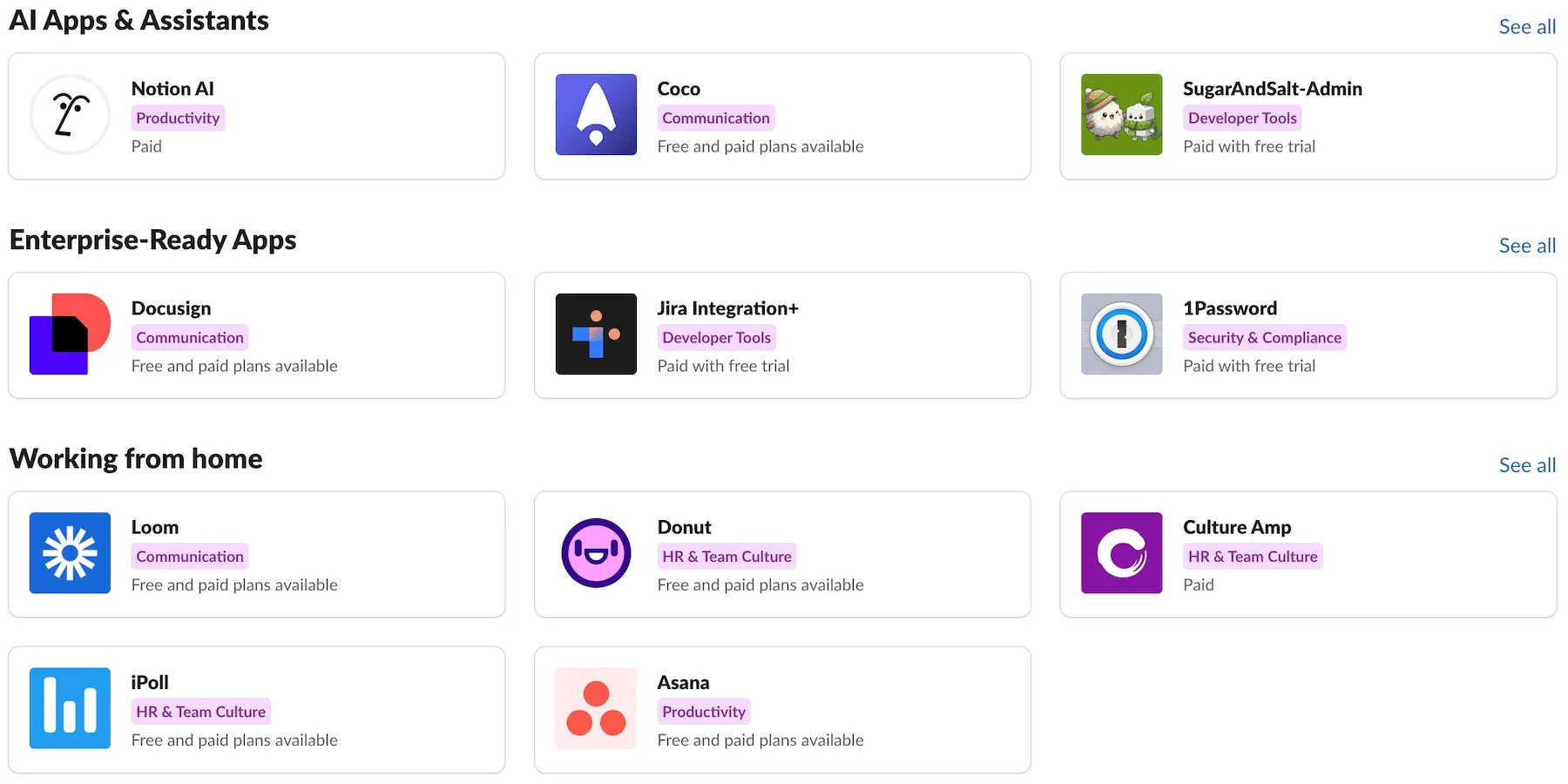
I appreciated the quick and easy setup and the customization options for my workspace. I also liked how notifications could be customized, so you don’t have to be bombarded by unnecessary pings.
Slack offers channels, threads, and messages as key features, and they work seamlessly, making it easy to organize conversations around projects or topics.
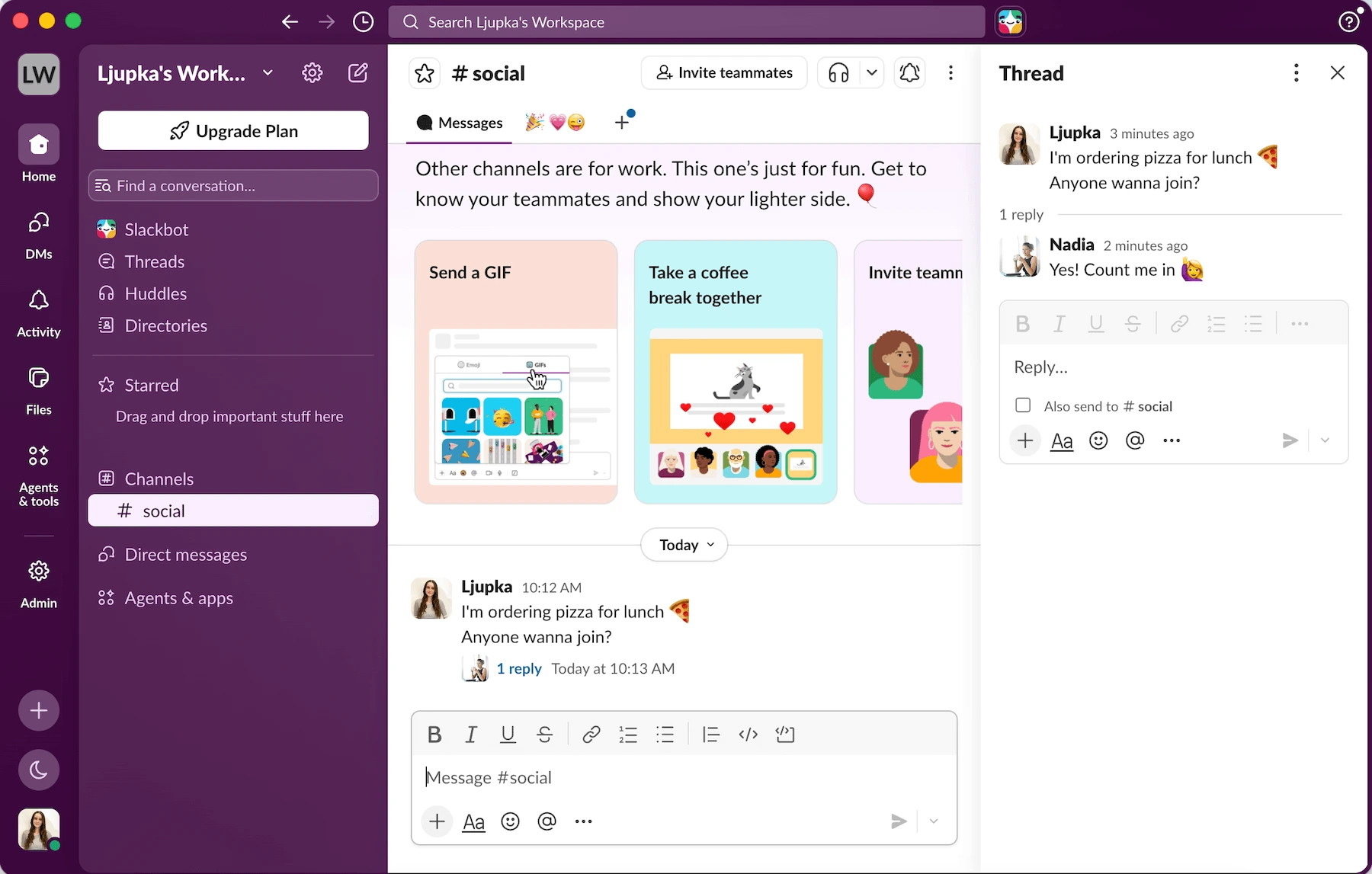
Additionally, Slack’s automation features are advanced. You can build your own or access ready-to-use templates to automate tasks and enhance your workflow. However, they are limited to the paid plans.
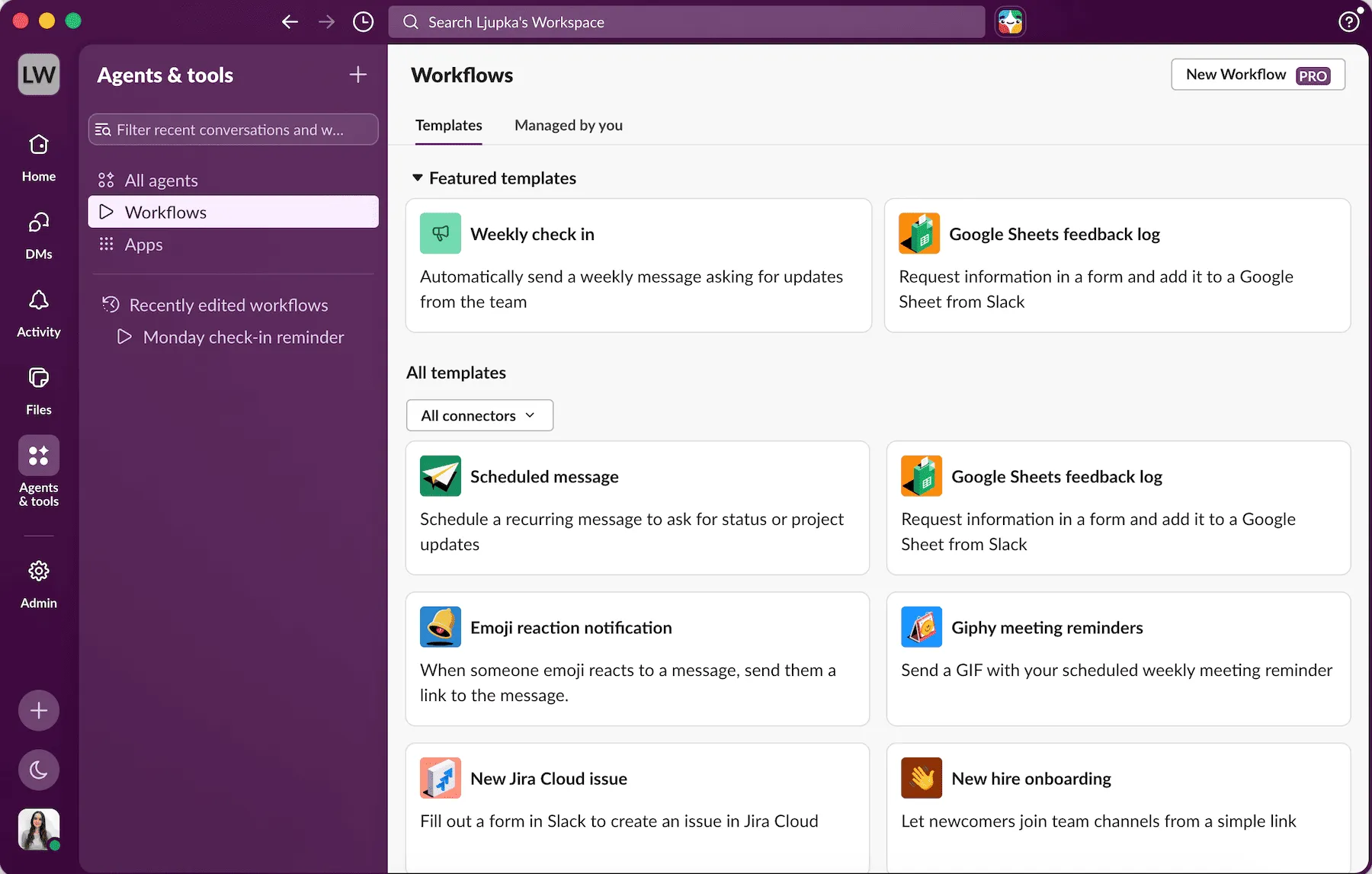
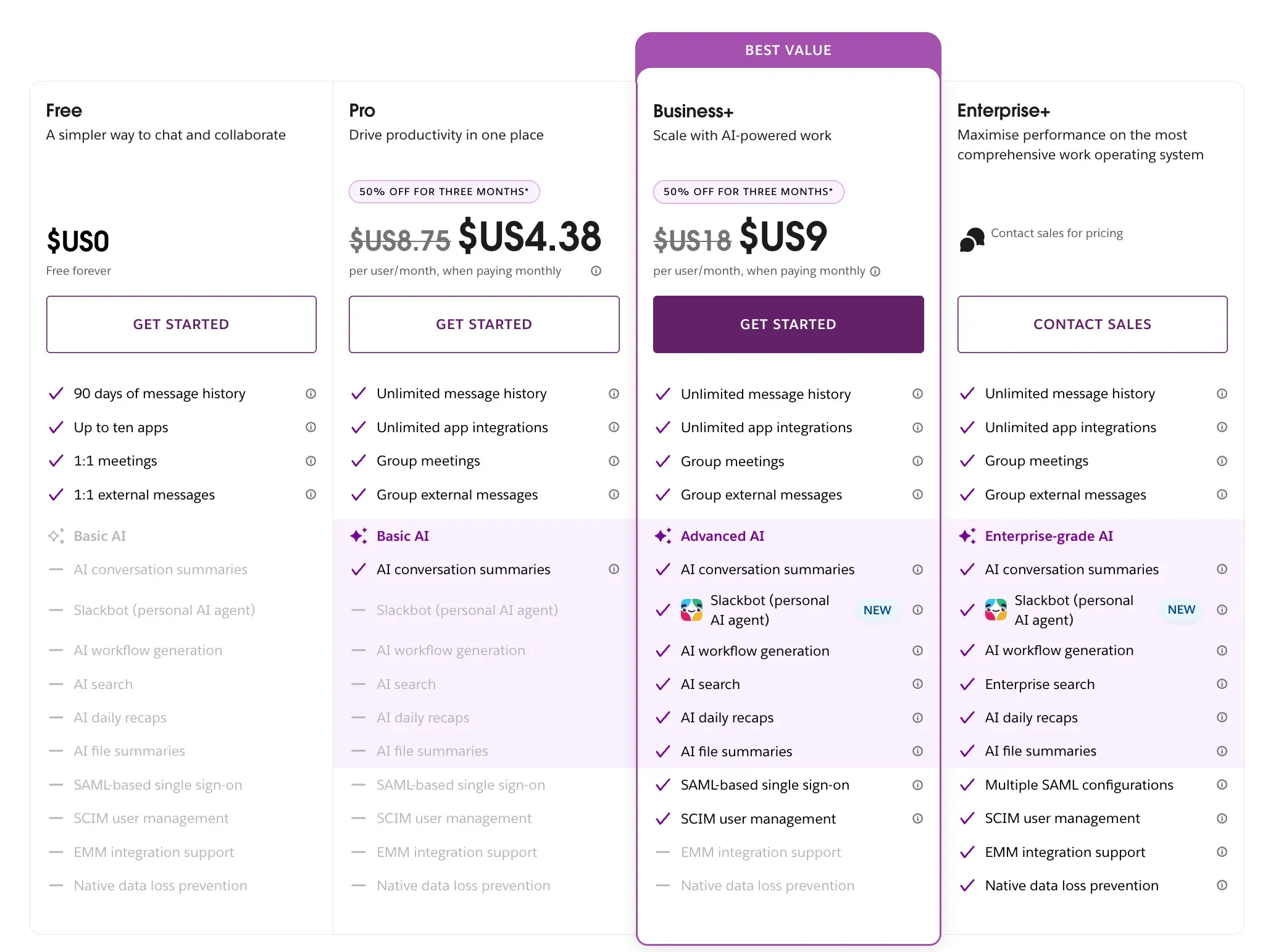
Speaking of limitations, Slack limits your message history to 90 days and only offers up to 10 integrations on the free plan. For teams relying on past information and conversations, this could be a deal breaker.
Plus, the pricing on the paid plans is steep, especially if you have a larger team.
The paid plans start at $7.25 per user per month when billed annually, but they do give you unlimited integrations and messaging history, among other features.
Get free unlimited message history
Key features:
- Channels — organize conversations by topics, teams, or projects to keep communication focused and efficient.
- Threads — keep side discussions contained within threads to avoid cluttering channels.
- Integrations — access over 2,600 third-party app integrations, including Google Drive, Trello, and Zoom.
Pros:
- Rich integration library
- Customizable notifications
- Supports guest collaboration
Cons:
- Limited message history in the free plan (90 days)
- Higher cost for larger teams

What’s new in Slack?
Slack recently launched Slack Code — a collaboration feature that creates temporary channels where team members and AI coding agents can work together to write, review, and ship software.
Available for: Web, Mac, Windows, Linux, Android, and iOS
Pricing: Free plan available; paid plans start at $7.25 per user/month, billed annually
💡 PUMBLE PRO TIP
Slack can quickly get expensive, especially for bigger teams. Pumble is an affordable alternative with unlimited message history even on the free plan. To see how they compare, check out our blog post:
Or explore some of our other suggestions for Slack alternatives:
Microsoft Teams — Best for companies deep in the Microsoft 365 ecosystem
Microsoft Teams is a well-known team communication and collaboration app from Microsoft.
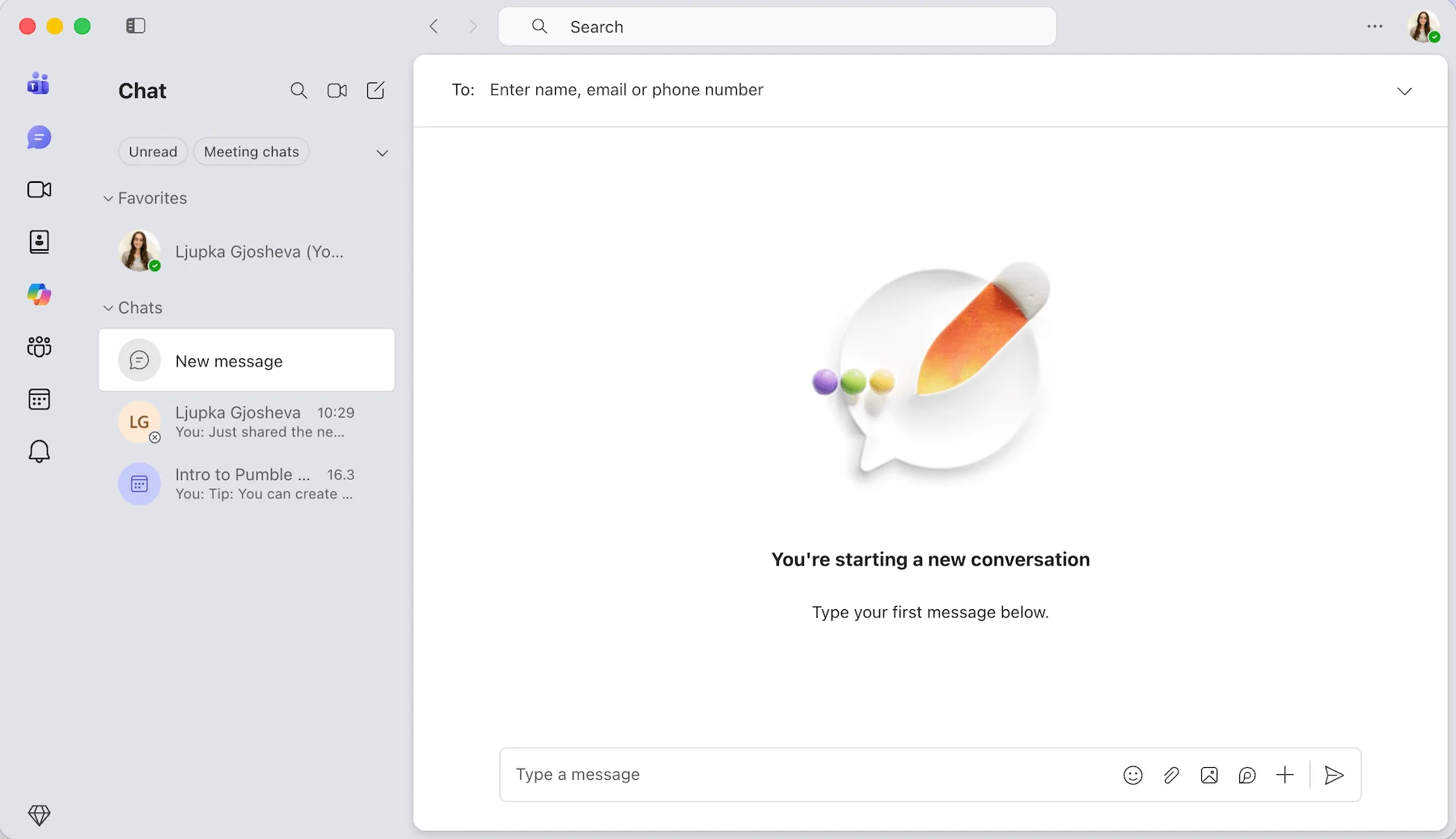
The standout feature of Microsoft Teams is its deep integration with other Microsoft products.
Some of the other Teams features include:
- Messaging
- Video conferencing
- File sharing
While Teams impressed me with its video conferencing capabilities and robust collaboration tools, I found the interface a bit overwhelming at first.
If you’re not a regular Microsoft 365 user, the learning curve might be steeper than expected.
Microsoft Teams offers a free plan with:
- Unlimited chats
- Group meetings of up to 60 minutes
- 5 GB of storage per user
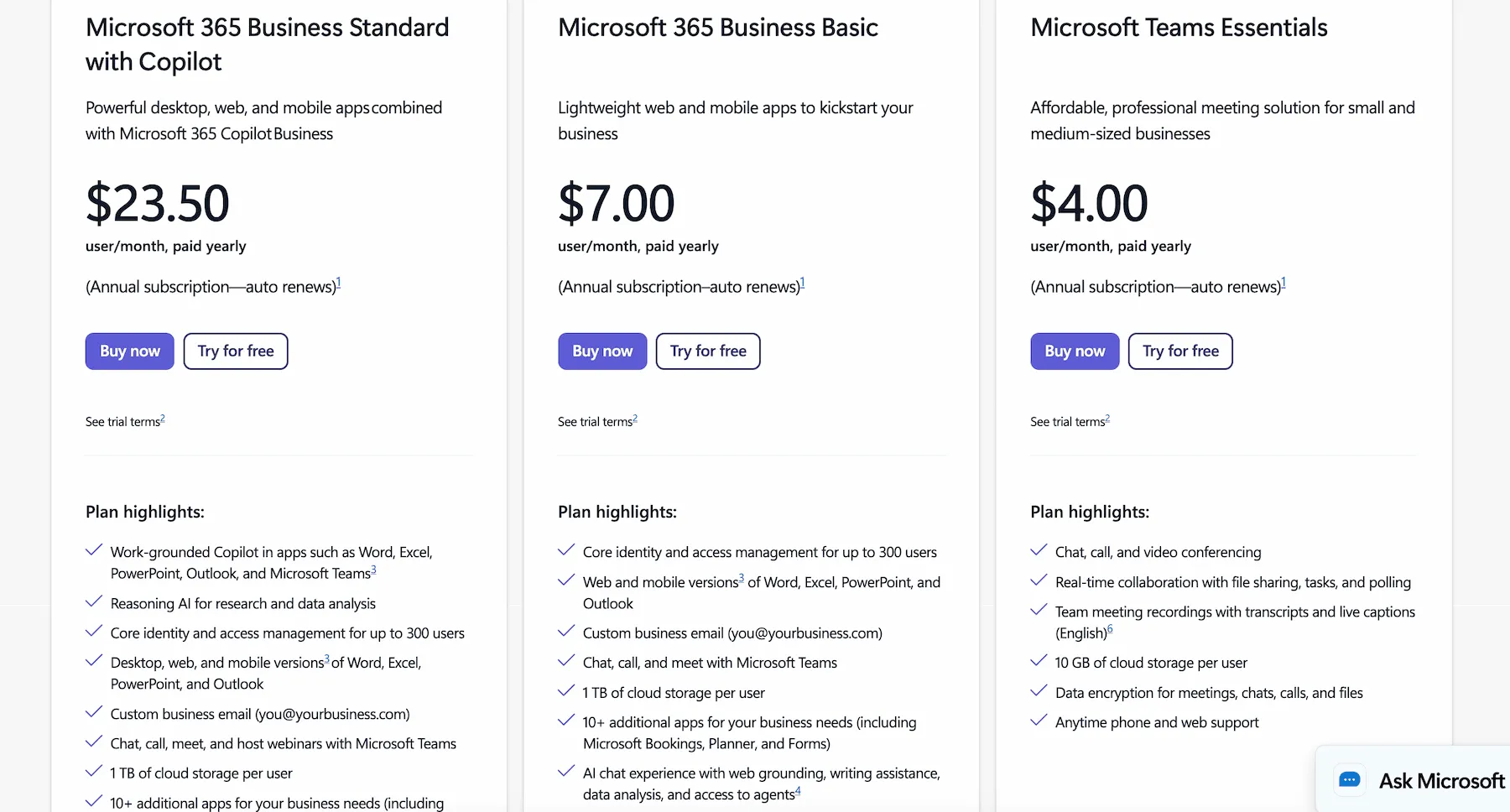
The paid plans start at $4 per user per month when billed annually, and get you:
- More storage
- Higher limit of participants in meetings
- Advanced integrations with other Microsoft tools
Key features:
- Seamless integration with Microsoft 365 apps
- Video conferencing and screen sharing
- Channels for team organization
Pros:
- Ideal for teams already using Microsoft Office tools
- Comprehensive collaboration features
- Free plan available with essential features
Cons:
- The busy interface can feel cluttered and overwhelming.
- An annual subscription is required for all paid plans.
What’s new in Microsoft Teams?
With Teams’ new Meeting Recaps, you can catch up on all your past meeting recaps in one place.
Available for: Web, Windows, Mac, Linux, Android, and iOS
Pricing: Free plan available; paid plans start at $4 per user per month, billed annually
💡 PUMBLE PRO TIP
For a deeper dive into how Microsoft Teams compares with Pumble, check out our blog post:
Project & task management hubs
These project management collaboration tools help you organize tasks, track progress, and collaborate seamlessly, no matter the complexity of your workflows.
Plaky — Best free project management collaboration tool for unlimited users
A project management tool like Plaky makes it easy to plan, track, and execute your tasks all in one place.
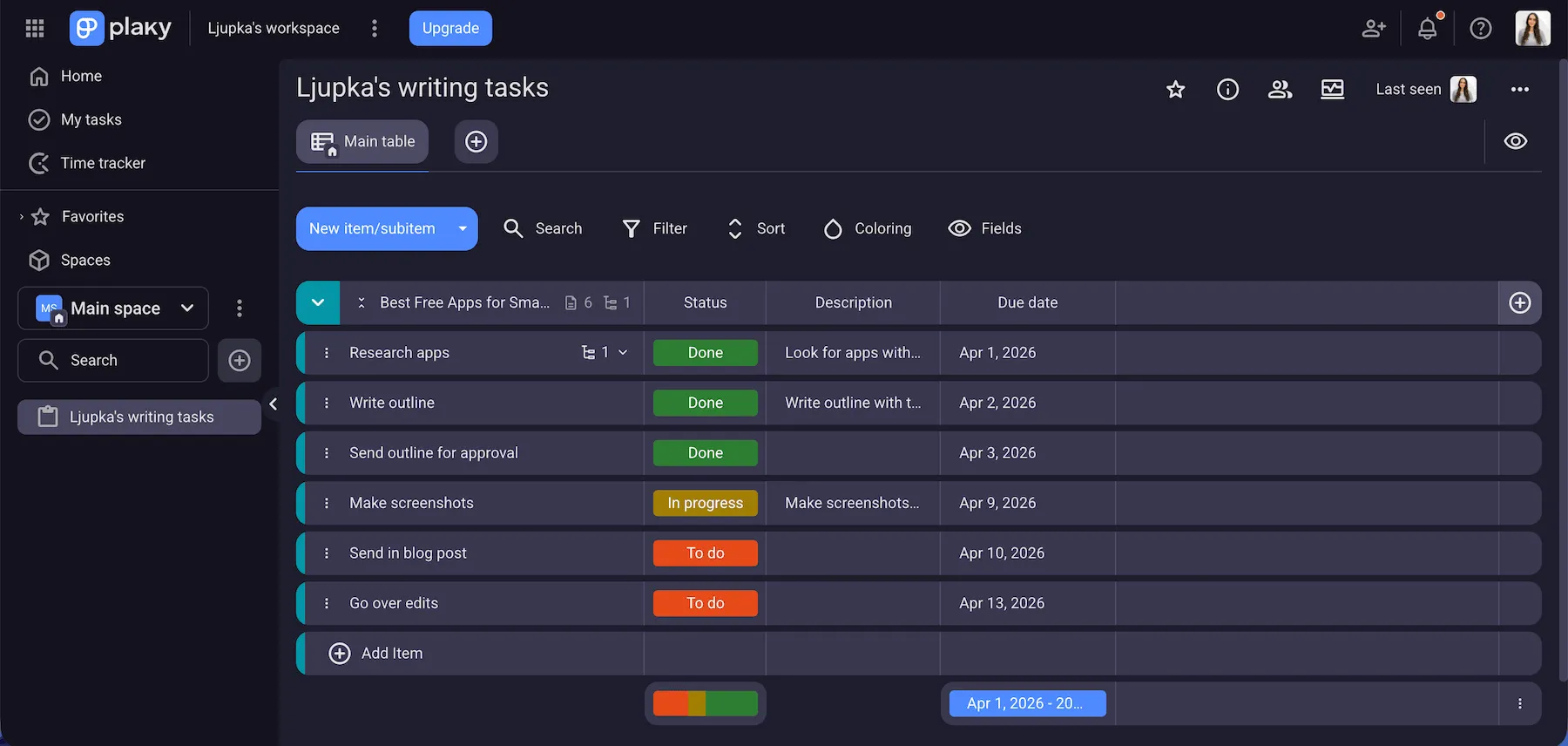
I’ve been using Plaky for a few years to organize my tasks and keep track of my work. It’s very easy to use and customize to fit your needs.
In Plaky, you can:
- Create custom boards or use ready-made templates.
- Organize items into sections.
- Set task status.
- Bulk edit tasks.
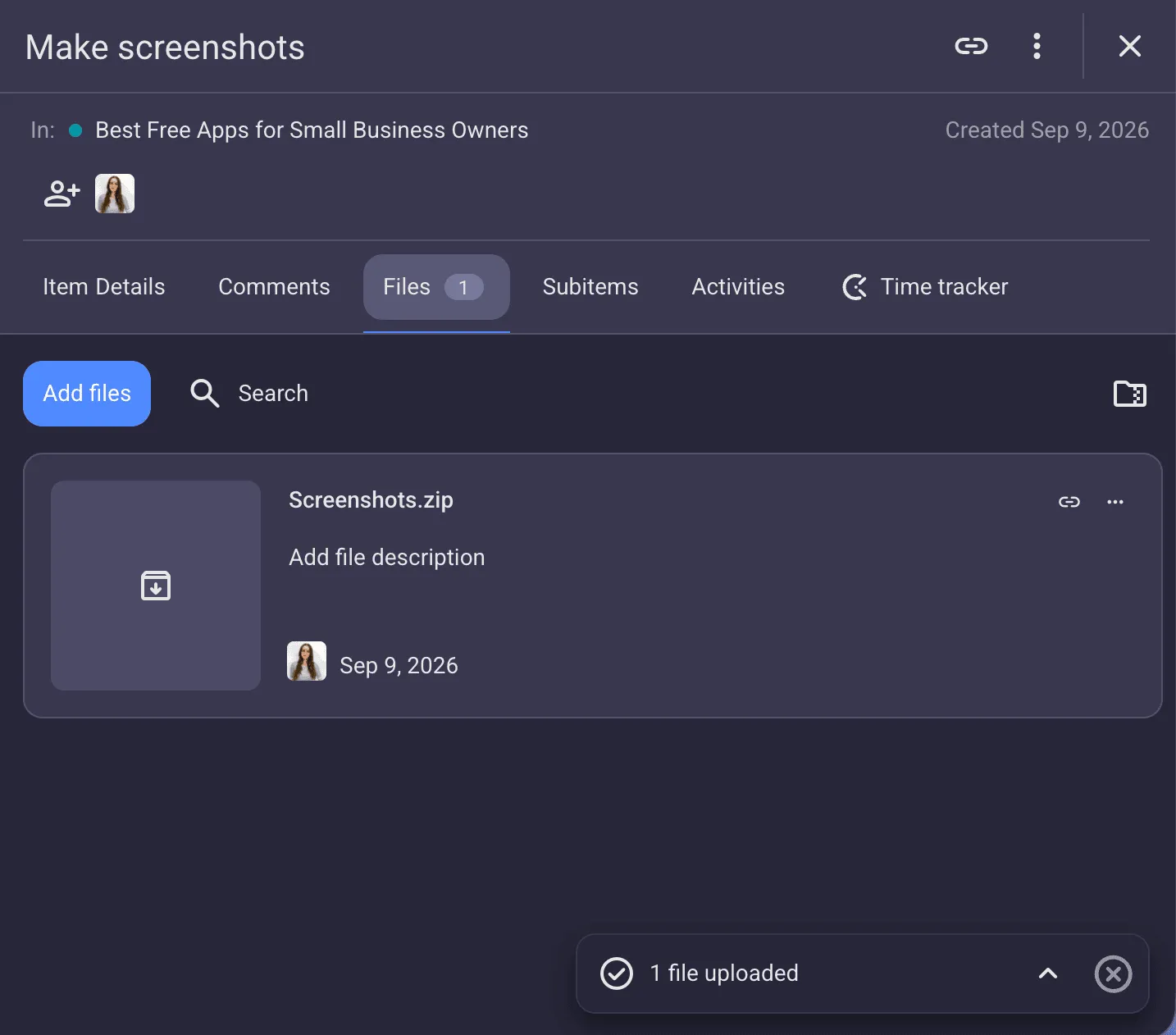
- Attach files.
- Leave comments under tasks and mention other team members.
- Automate workflows.
I like that you can see what your team members are working on at a glance and how far along in their tasks they are. This promotes transparency and can be especially useful for team leaders.
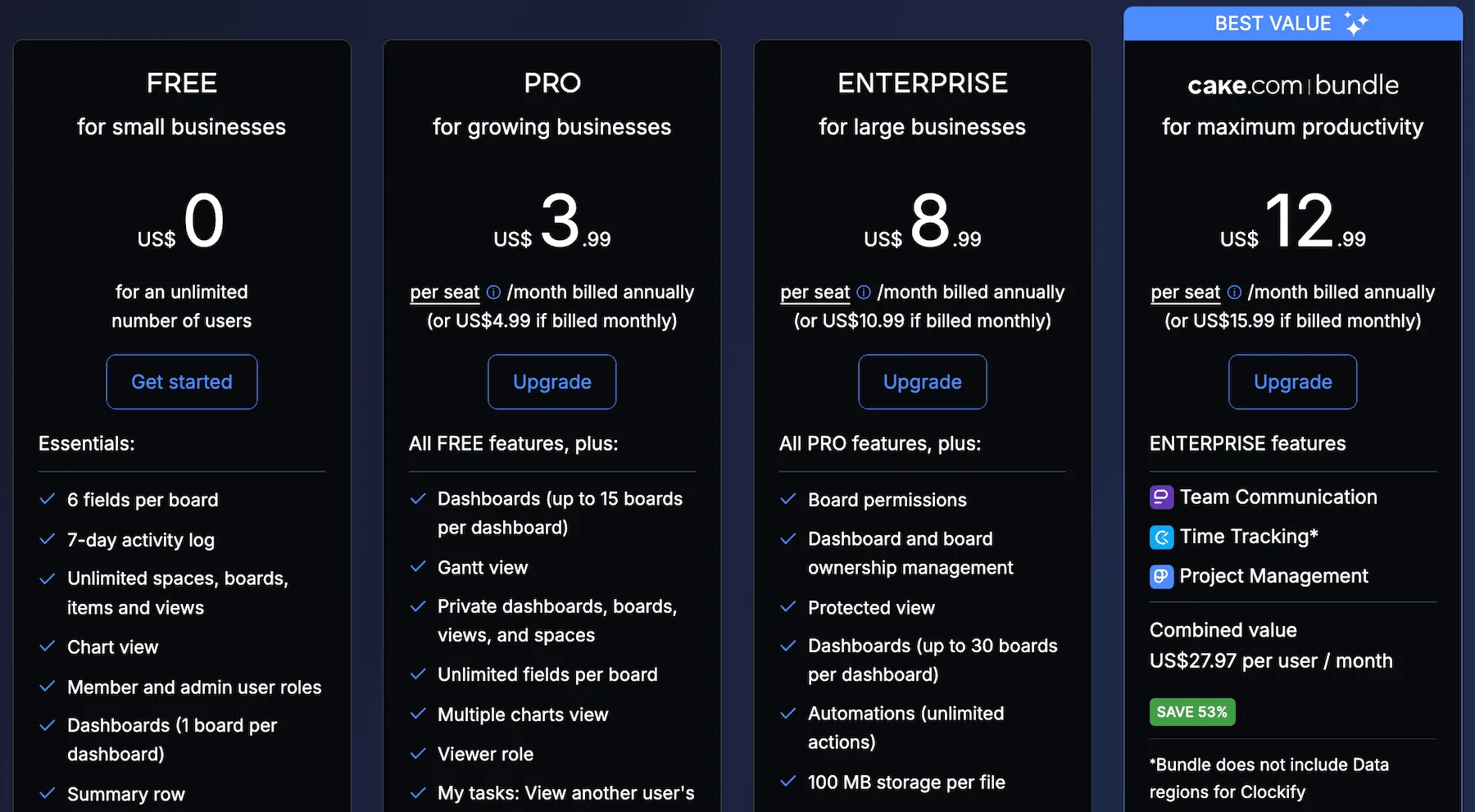
Plaky offers a free plan with unlimited spaces, boards, items, and views, for an unlimited number of users. You also get member and admin user roles and a 7-day activity log.
Paid plans start at $3.99 per user per month, if billed annually and offer more advanced project management features.
Key features:
- Customizable boards to fit your team’s needs and workflow
- Real-time task tracking with clear deadlines and assignees
- Integrated comments, files, and activity log within tasks
- Subitems under tasks
Pros:
- Easy to use with minimal setup
- Clean and customizable interface
- A free plan that works well for smaller teams or individual projects
- Native integration with Pumble to enhance collaboration
- Native integration with Clockify to keep you on track

Cons:
- Lacks calendar view — it’s currently in the planning stage, according to Plaky’s roadmap.
What’s new in Plaky by CAKE.com?
You can now protect a Board View and lock filtering, sorting, and configuring the View layout for other users. This way, only View Owners and Board Owners can edit and save structural changes.
Available for: Web, iOS, Android
Pricing: Free plan available; paid plans start at $3.99 per user per month, billed annually
ProofHub — Best for task management combined with communication
ProofHub is a project management and team collaboration tool designed to help teams plan work, communicate, and track progress in one place.
It combines:
- Task management
- Discussions
- File sharing
- Proofing
- Reporting
I tested ProofHub primarily as a project hub for day-to-day team work. Setting up projects and assigning tasks was quick and easy. The different views — list, board, Gantt, and calendar — make it easy to switch between high-level planning and detailed task tracking.
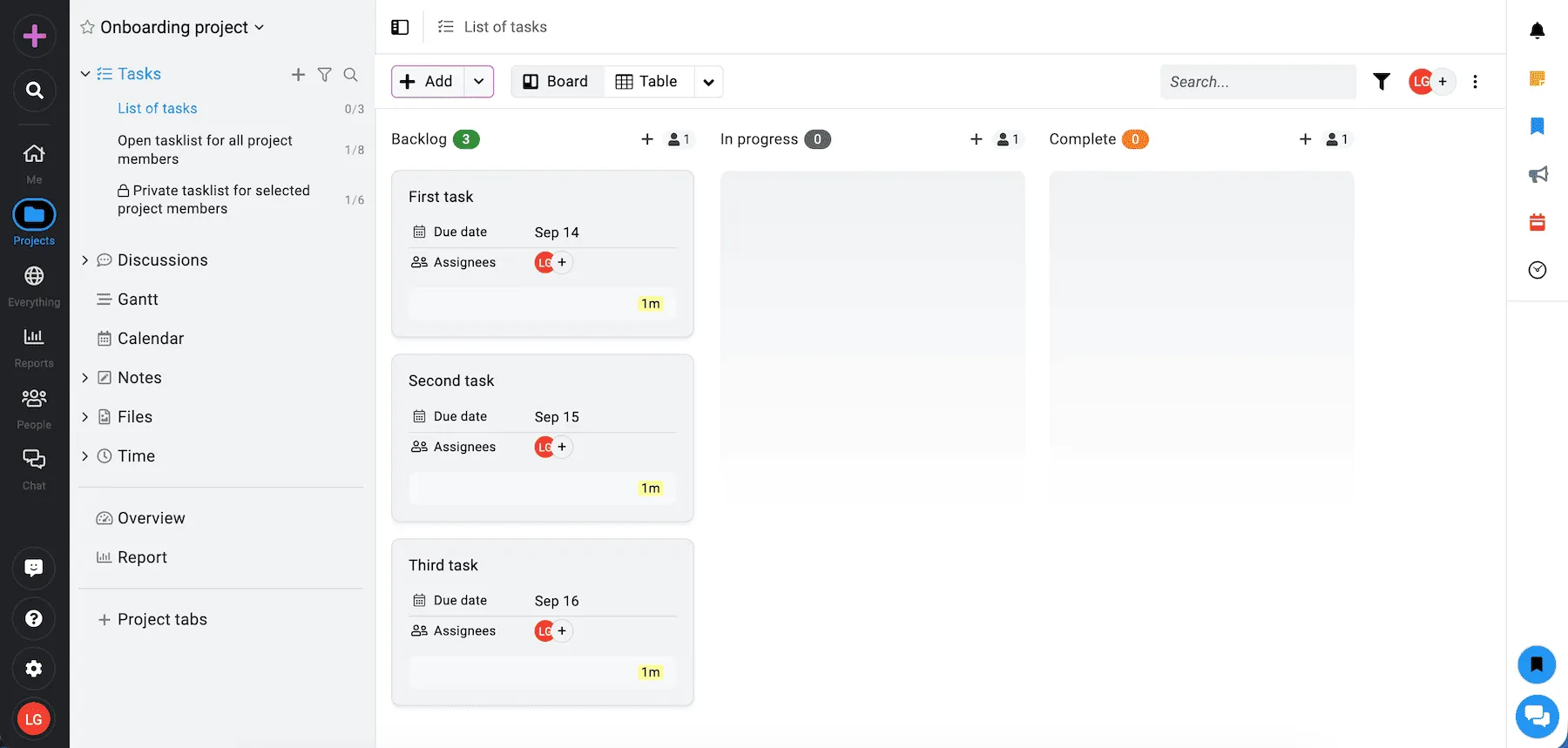
I also tried out ProofHub’s communication features, including discussions, notes, and file proofing. Everything was straightforward and useful for team communication.
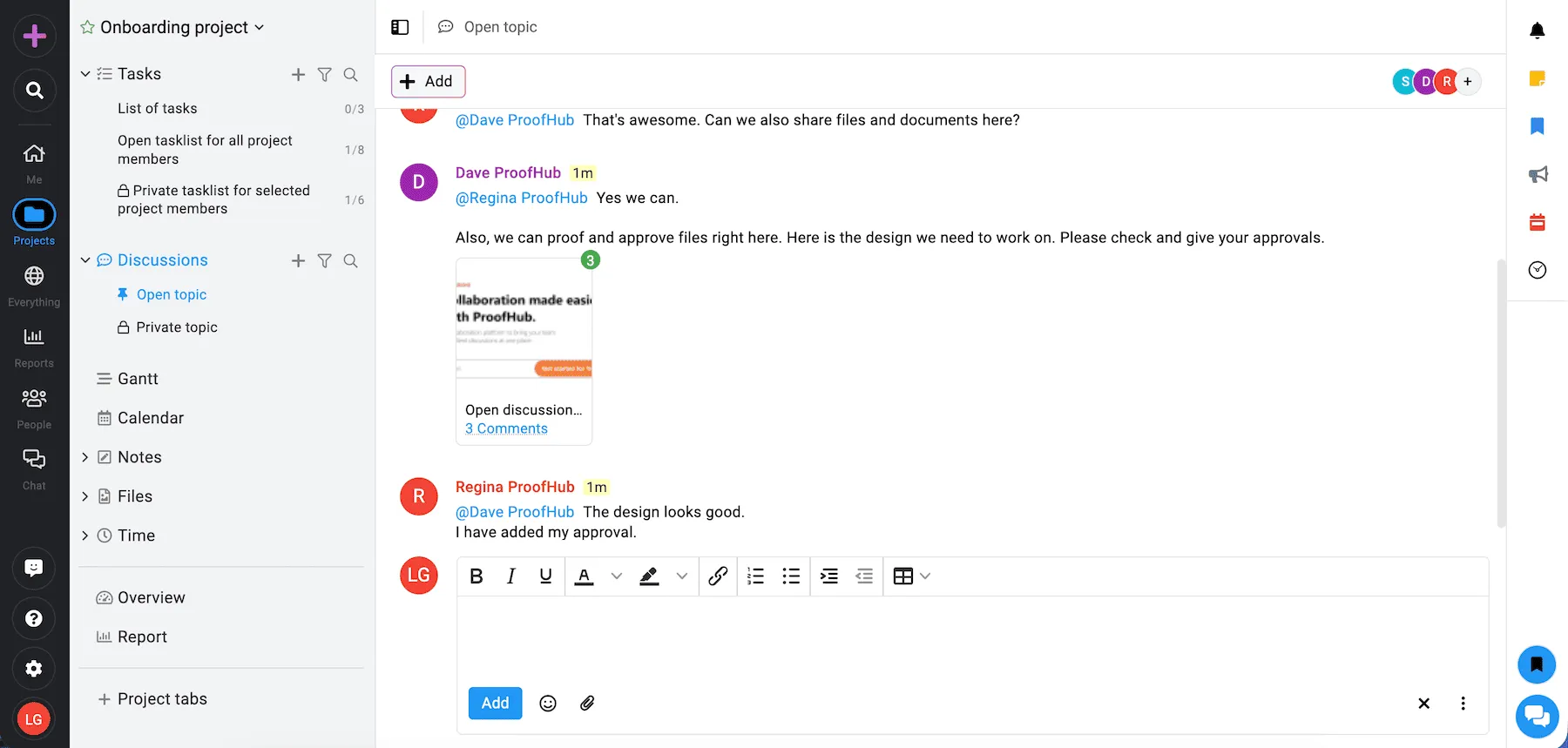
The built-in proofing tools stood out, since you can leave feedback and edit documents directly in the files. I can see this being especially useful for teams working with clients or creative assets, as it can save you from a lot of back-and-forth communication.
However, ProofHub offers only paid plans, with a 14-day free trial period. You can choose between the Essential plan at a flat monthly price of $45 (billed annually), or the Ultimate control plan with a flat monthly fee of $89 (for the first 3 months, after which it goes up to $135; billed annually).
Also, some parts of the interface, such as the settings and feedback pages, feel a bit dated compared to newer tools.
Key features:
- Task management — create and assign tasks, set deadlines, and organize work.
- Team communication — communicate through discussions, notes, announcements, and comments under tasks.
- File proofing for reviewing and editing files with built-in markup tools.
Pros:
- Flat-rate pricing with unlimited users
- Combines project management and collaboration in one tool
- Built-in proofing tools are a time-saver, especially for creative work
- Easy to set up and use
Cons:
- No free plan beyond the free trial
- Limited third-party integrations
What’s new in Proofhub?
Proofhub+ is the redesigned version with a cleaner interface, faster navigation, and new features like table views, multiple timers, improved calendars, and custom reports.
Available for: Web, iOS, Android
Pricing: Free trial available; paid plans start at a $45 flat monthly rate, billed annually
Asana — Best for complex, task-based workflows
Asana is designed to help businesses visualize project timelines, track progress, and manage dependencies effectively.
The sign-up process was quick and easy. What I found particularly interesting is that Asana uses AI to give you a personalized example of your future tasks.
When signing up, I answered a few simple questions about my work and gave Asana the green light to propose a future plan for my work.
You can see what it came up with in the image below.
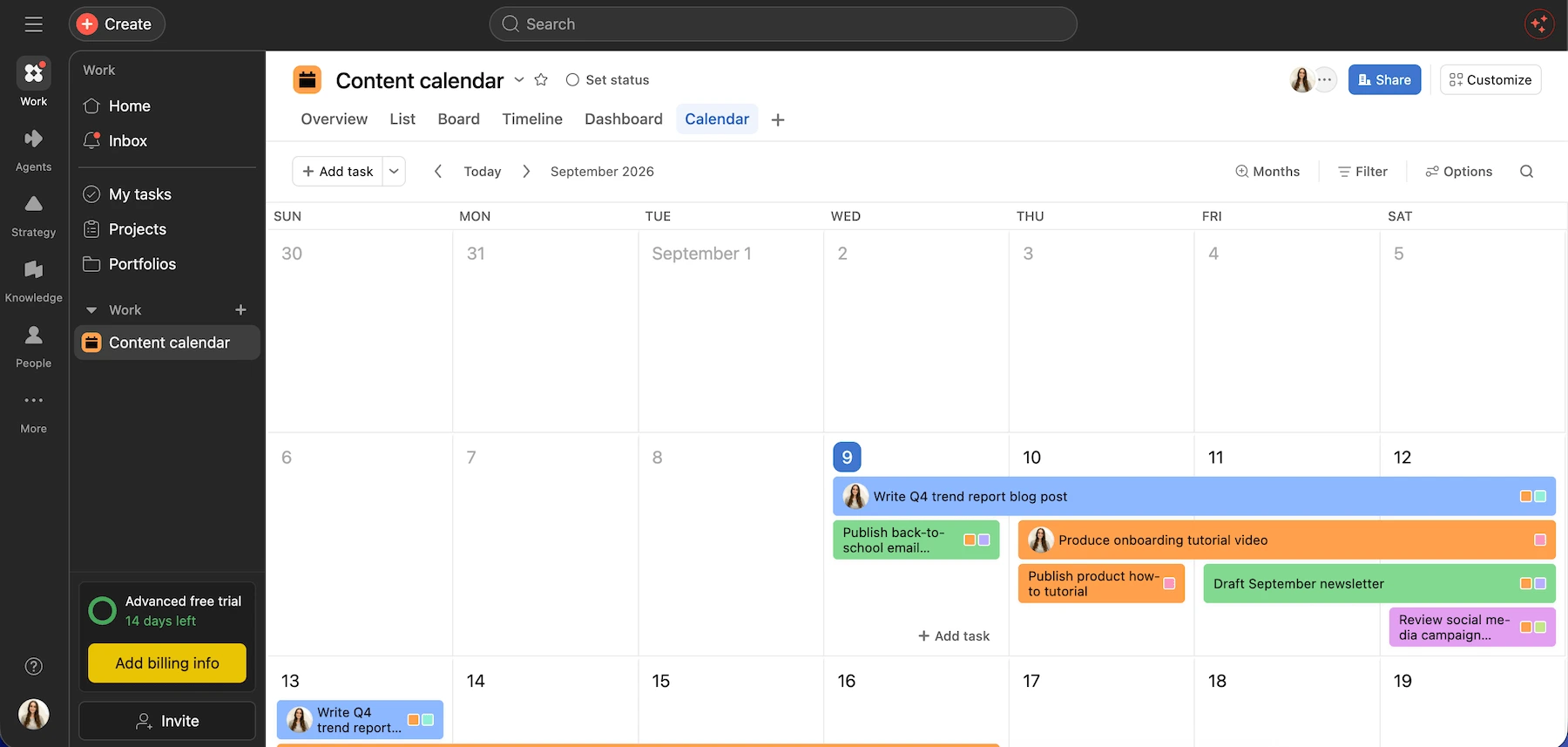
I really like the timeline view, as it’s particularly helpful for spotting task dependencies and potential bottlenecks.
Switching between list, board, and calendar views was seamless, and the ability to assign tasks with deadlines kept everything organized. You can also set a priority rating, task type, assignees, and many more fields.
Although I didn’t use every feature extensively, it was clear that Asana offers a robust toolkit for managing complex projects.
However, if you’re new to task management tools or need a simple tool, you may find all of the options overwhelming and unnecessary.
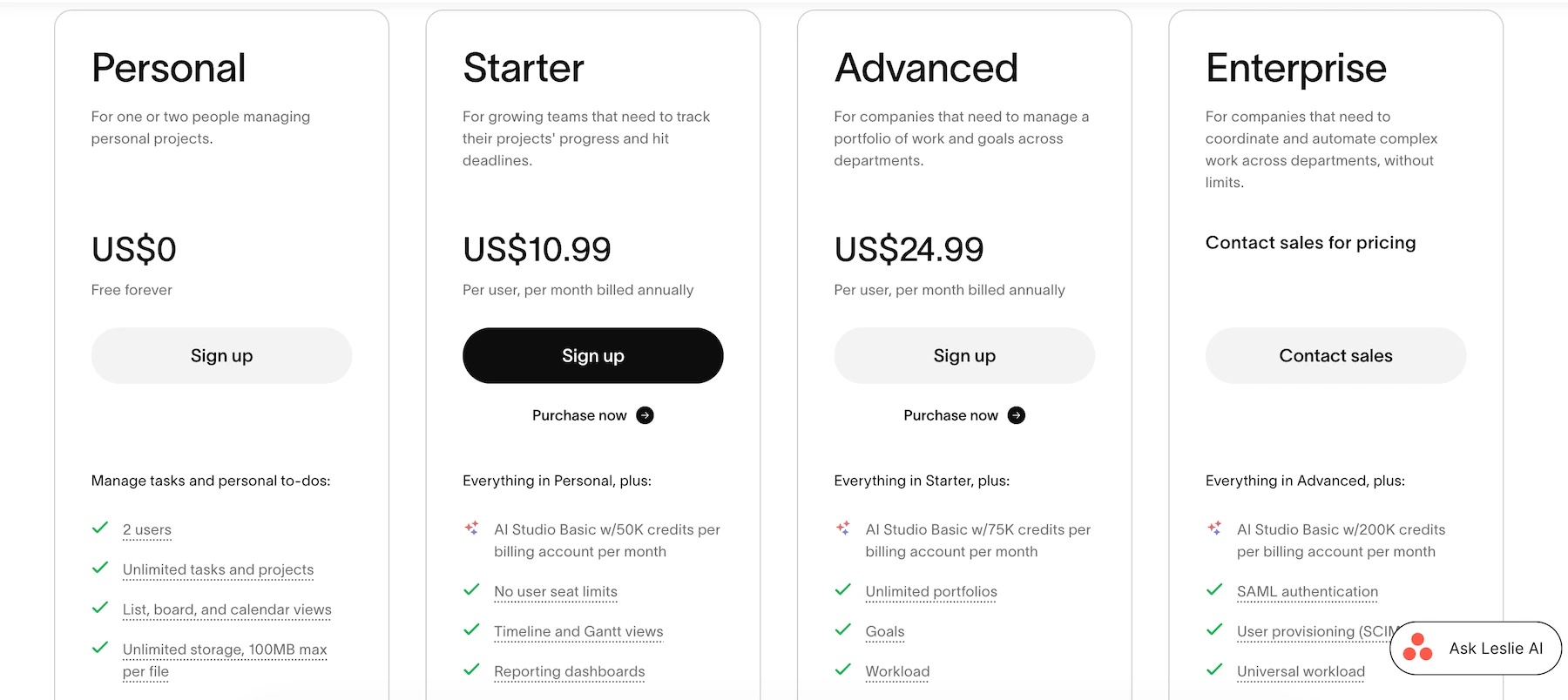
Furthermore, Asana’s paid plans start at $10.99 per month when billed annually, so it can quickly get pricey, especially for bigger teams.
Key features:
- Multiple project views: list, board, timeline, and calendar
- Advanced reporting tools to track performance
- Automations to streamline repetitive tasks
Pros:
- Excellent for managing large projects with multiple stakeholders
- Highly flexible, with customizable workflows and views
- Integration with popular tools like Slack and Google Drive
Cons:
- Can feel overwhelming for smaller teams or simpler projects
- Paid plans are relatively expensive
What’s new in Asana?
Asana launched AI Teammates, which lets AI agents work alongside employees on real projects, using shared context and memory to handle tasks and workflows.
Available for: Web, Mac, Windows, Android, and iOS
Pricing: Free plan available; paid plans start at $10.99 per user per month, billed annually
Trello — Best for simple, visual Kanban-style management
Trello’s Kanban-style boards let you visually manage workflows with ease, making it ideal for small teams or individual projects.
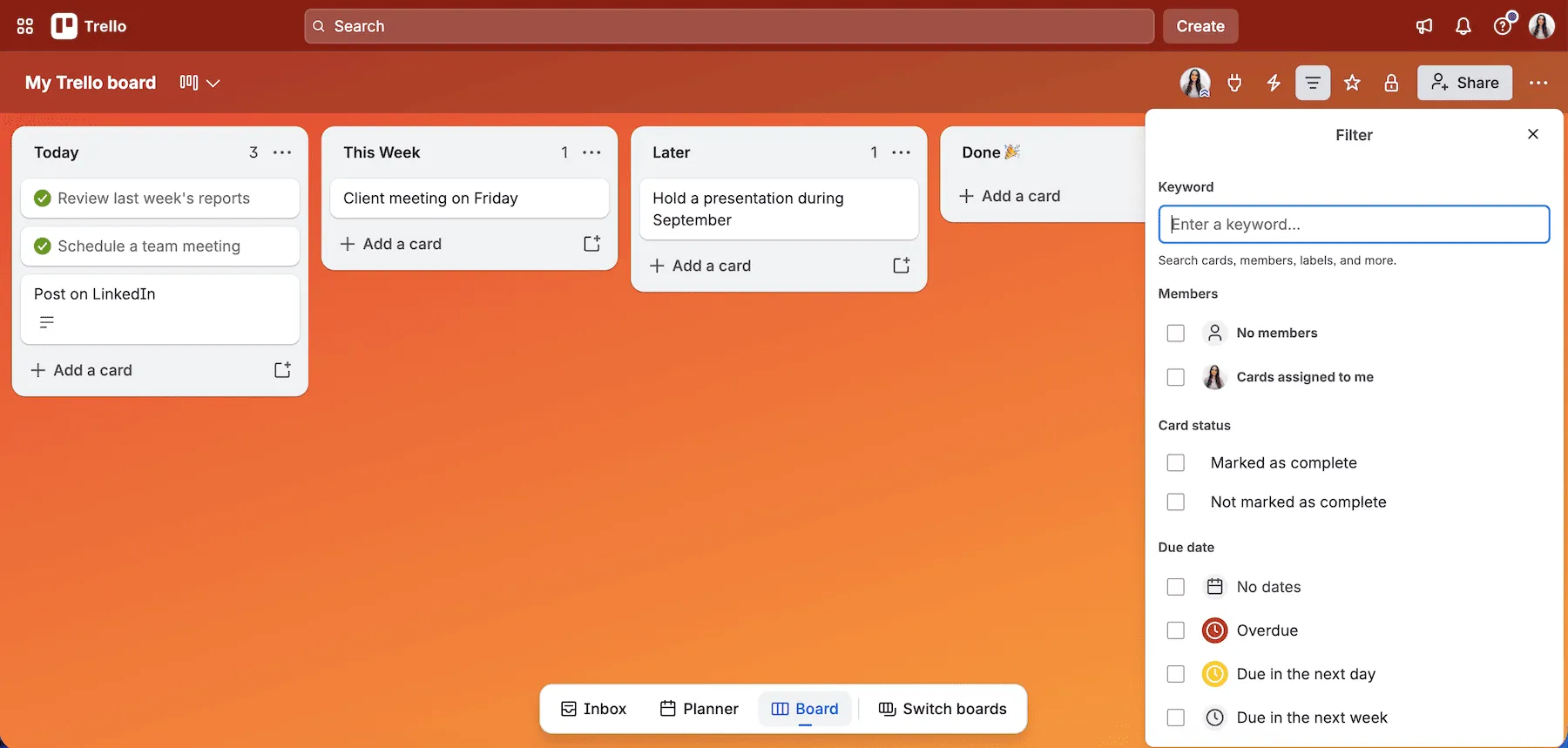
While trying Trello, I found it very user-friendly since its interface is simple but effective. Setting up boards and moving tasks between lists like To-Do, In Progress, and Done took seconds.
However, during the setup process, if I wanted to create boards for team task management or more complex boards, Trello would redirect me to try Jira, a tool by the same company. So, I would recommend Trello for simple project management use cases or personal task management only.
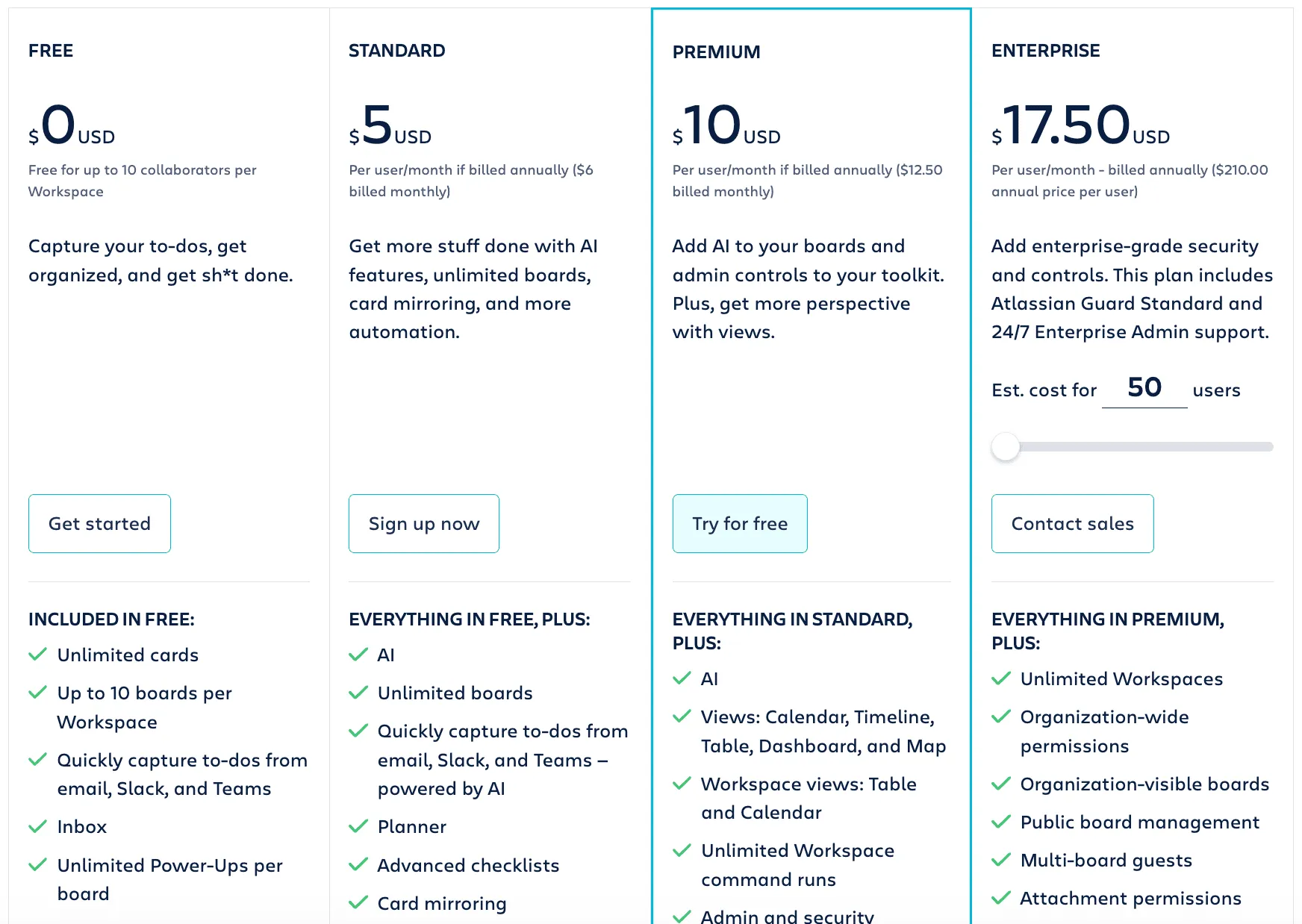
As for the pricing, Trello offers a free plan, with unlimited cards and up to 10 boards per workspace. You also get unlimited storage, with a file size limit of 10 MB.
If you need to upgrade, the paid plans start at $5 per user per month when billed annually and give you more advanced project management features.
Key features:
- Kanban boards for organizing tasks
- Power-ups (integrations or add-ons) for added functionality like calendars and integrations
- Card attachments for documents, links, and images
Pros:
- Easy setup with no learning curve
- Highly visual and intuitive interface
- The free plan suitable for small teams
Cons:
- Limited features for complex project management
- Advanced functionality requires Power-ups or paid plans
What’s new in Trello?
You can now describe a goal, and Trello’s AI will create a structured, ready-to-use board for it, complete with lists and cards.
Available for: Web, Mac, Windows, Android, and iOS
Pricing: Free plan available; paid plans start at $5 per user per month, billed annually
ClickUp — Best for extensive customization
ClickUp is designed as an all-in-one solution for project management, offering a broad range of features like:
- Task tracking
- Goal setting
- Time management
When I tested ClickUp, I liked its versatility. It provides multiple views — list, board, Gantt, and calendar — allowing you to customize the experience based on your needs.
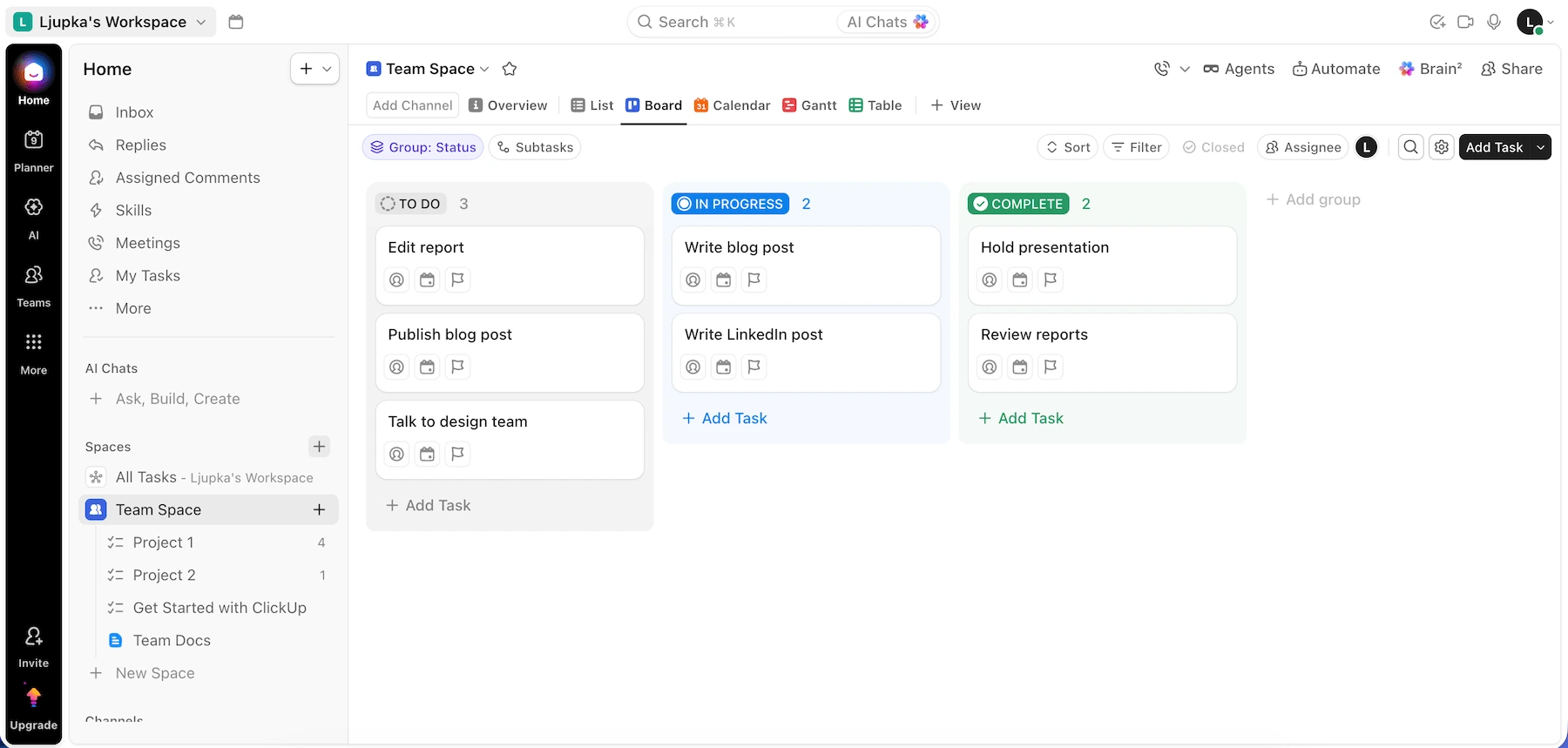
Even though it initially feels a bit overwhelming, its features could benefit teams juggling complex projects with lots of moving parts.
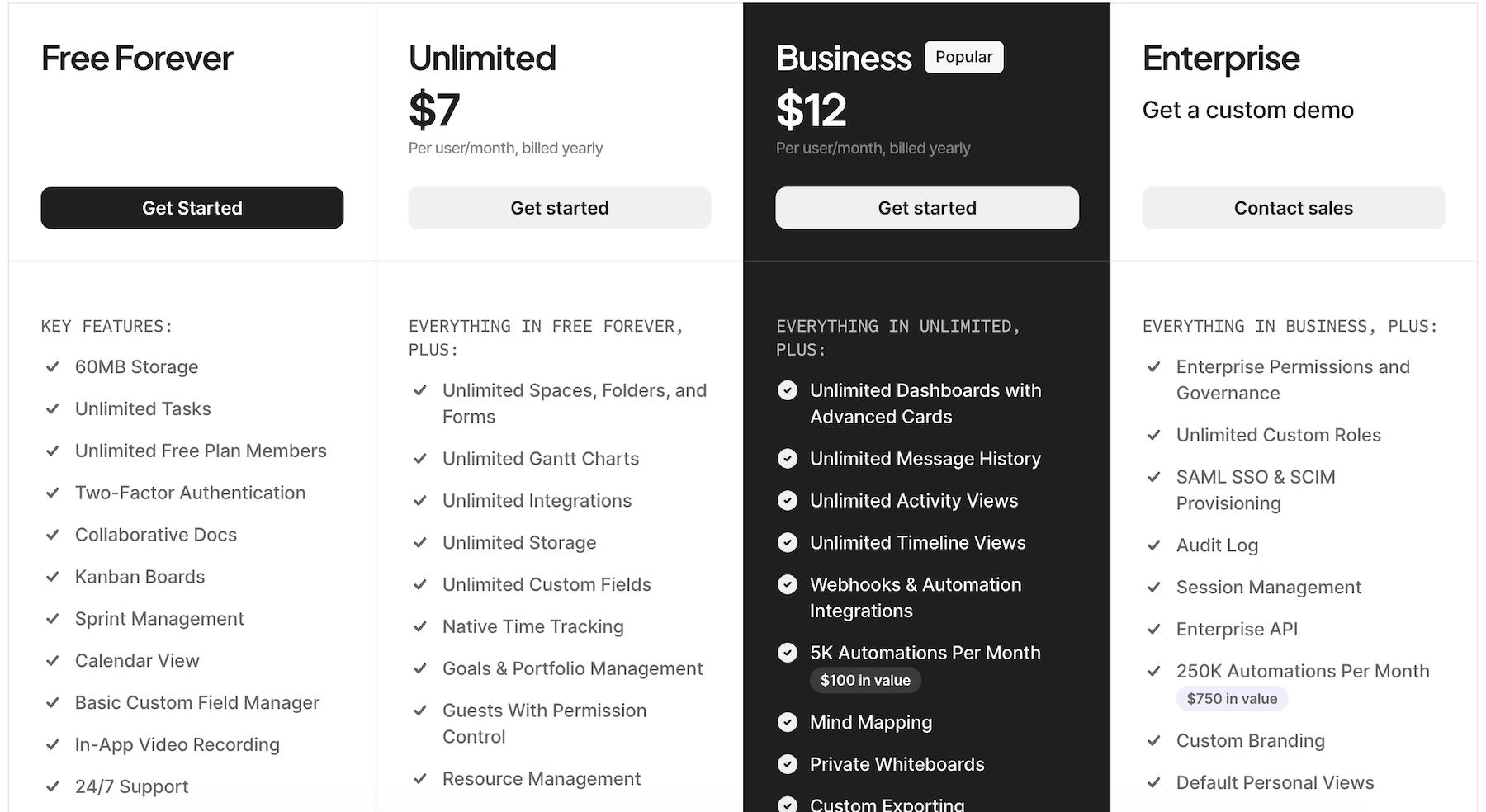
ClickUp offers a free plan, best for personal use. If you need advanced features, with unlimited storage, spaces, and integrations, you can upgrade to one of the offered paid plans. The pricing starts at $7 per user per month for the Unlimited plan, billed annually.
Key features:
- Multiple task views for flexibility
- Built-in time tracking and goal tracking
- Automations and integrations with popular tools
Pros:
- Extremely customizable to suit any team or project
- Great for teams with varied workflows and needs
- Includes features like time tracking without needing third-party tools
Cons:
- A steep learning curve for new users
- The interface can feel cluttered with so many options
What’s new in ClickUp?
ClickUp released Brain2 — a rebuilt AI platform that replaces the original Brain system. Brain2 pulls context from every task, doc, decision, and conversation in a workspace, then routes queries to AI agents.
Available for: Web, Chrome Extension, Outlook Extension, Apple Watch, Mac, Windows, Linux, Android, and iOS
Pricing: Free plan available; paid plans start at $7 per user per month, billed annually
Time tracking & productivity tools
My shortlisted time-tracking apps provide simple yet powerful solutions to help you monitor and optimize your team’s time management.
Clockify — Best free time tracking
Clockify is a leading time-tracking app with a generous free plan.
With Clockify, you can track:
- Work hours
- Billable hours
- Team productivity
I’ve been using Clockify to track my working hours for a few years now. The simplicity and ease of use is what makes me stay loyal.
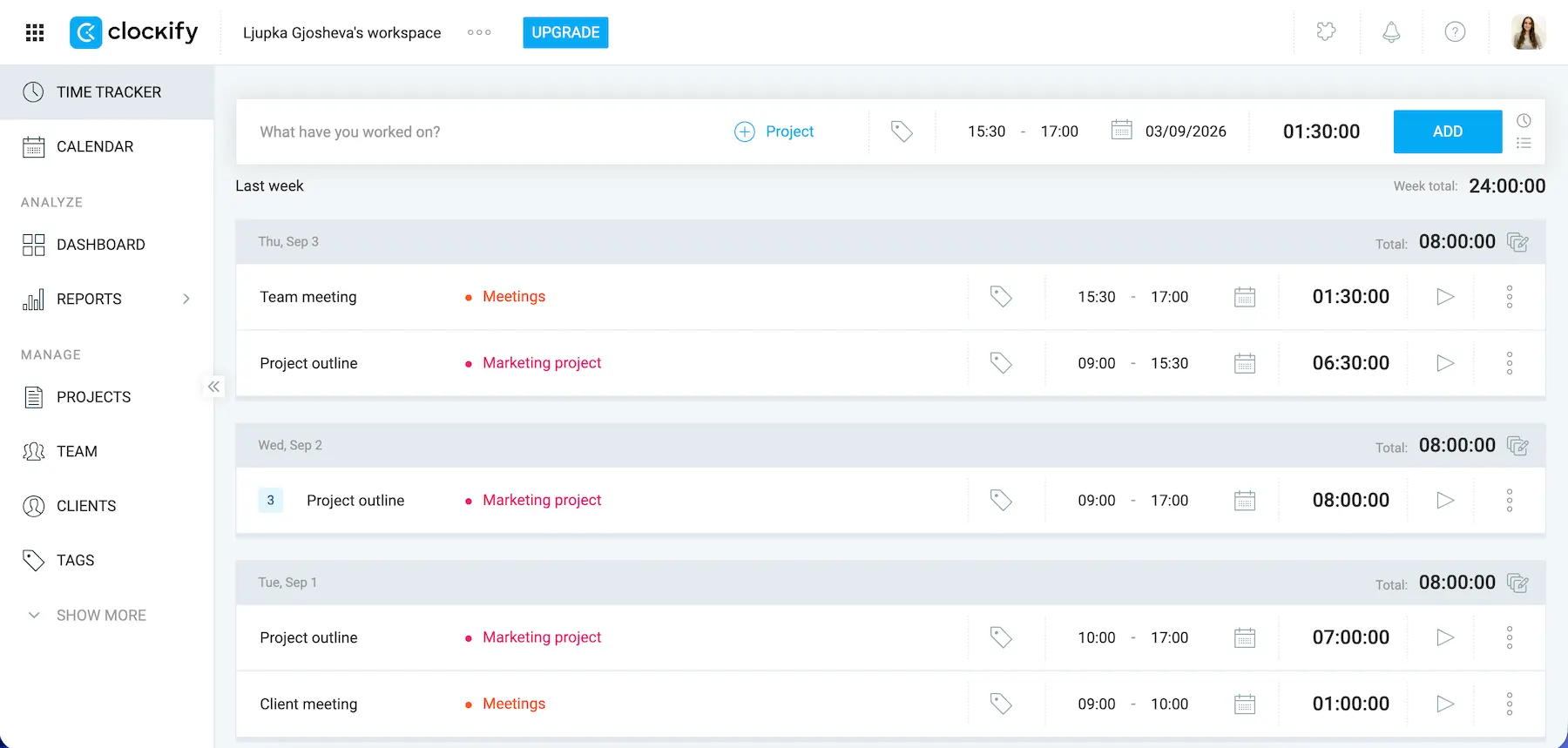
Setting up tasks and projects is quick, and the ability to switch between manual time entry and a live timer makes the app versatile for different workflows.
I usually like to turn on the Timer to track time when I’m writing, as it helps me focus on my work. For other tasks, I prefer to do it manually.
Clockify can also automatically track your time spent on work by tracking which apps and websites you visit and how much time you spend there.
You also have access to reports, which give you a clear breakdown of where you spend your time. Additionally, you can see what everyone else in your team or company is doing.
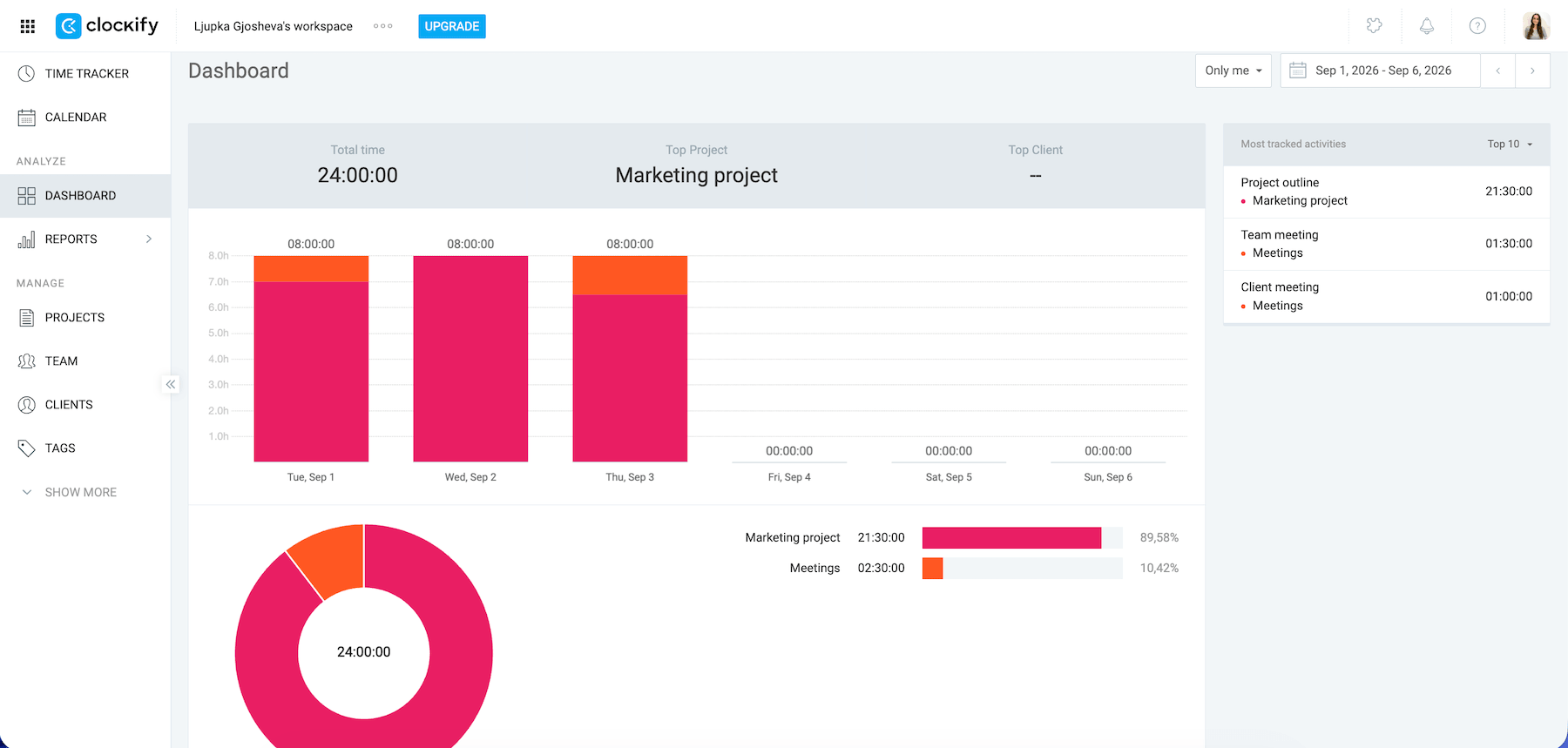
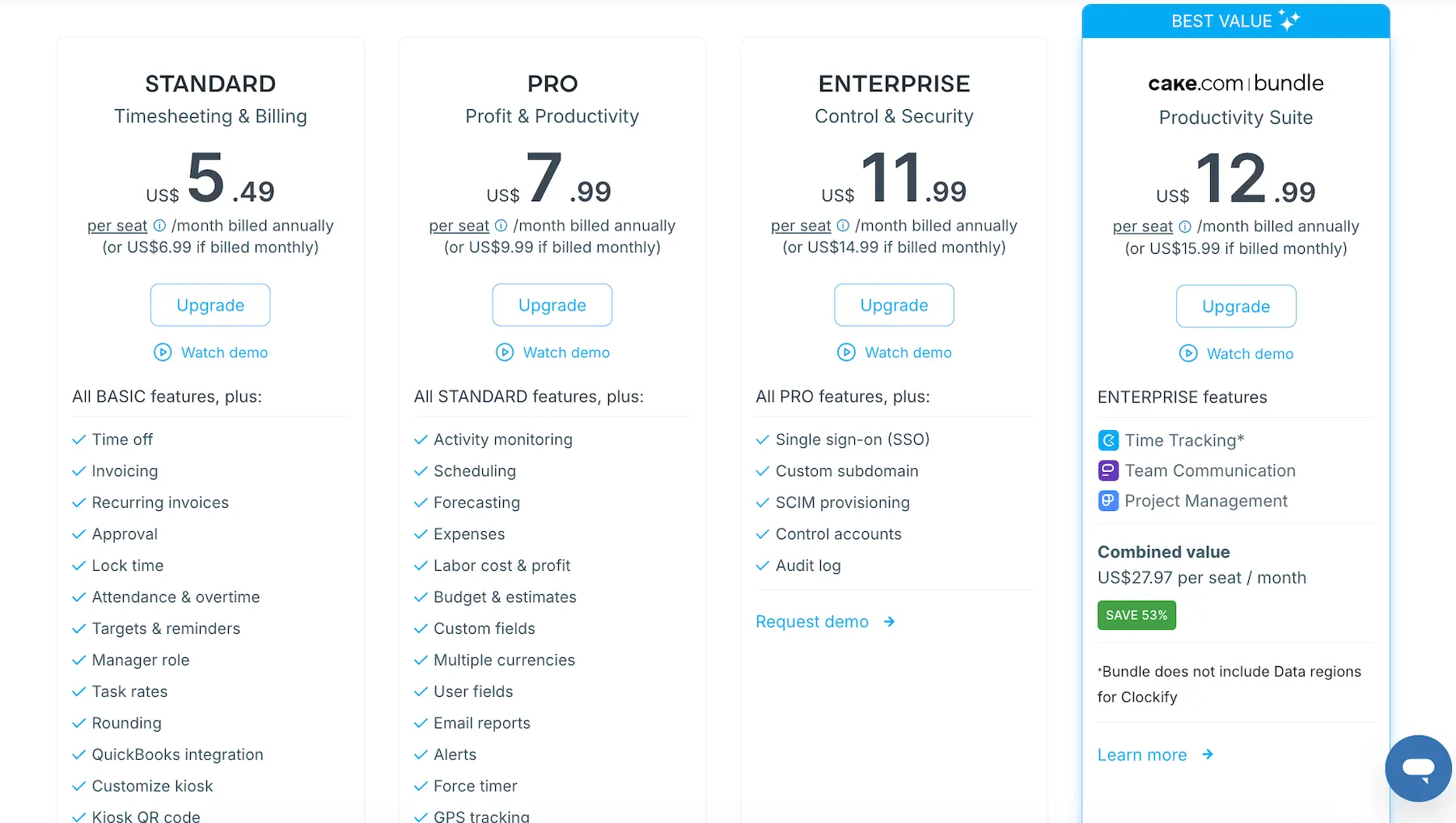
Clockify offers a generous free plan, but, if you want to take it a step further, you can upgrade to one of its paid plans.
Clockify’s paid plans start at $3.99 per seat per month if billed annually, and they include, among other features:
- Bulk editing
- Project templates
- Breaks
Key features:
- Live time tracking and manual time entry
- Detailed reports for analyzing productivity
- Timesheets for logging work hours
- Cross-device sync for a seamless experience
Pros:
- Free plan with unlimited tracking
- Simple, easy-to-use interface
- Natively integrates with a team communication app Pumble and project management app Plaky; connects with calendars, etc.
Cons:
- Limited offline tracking capabilities
What’s new in Clockify by CAKE.com?
With Clockify’s new Activity monitoring, you can get productivity insights based on computer activity and tool utilization, analyze performance via screenshots, and uncover trends in weekly & monthly activity reports.
Available for: Web, Mac, Windows, Linux, browser extension, iOS, Android
Pricing: Free plan available; paid plans start at $3.99 per seat per month if billed annually
Hubstaff — Best for extensive employee monitoring
Hubstaff is a time-tracking and productivity monitoring tool with payroll management and budgeting capabilities.
It provides features such as:
- Online payroll and payments
- GPS time tracking
- Project cost management
- Time tracking with screenshots
- Employee productivity tracking
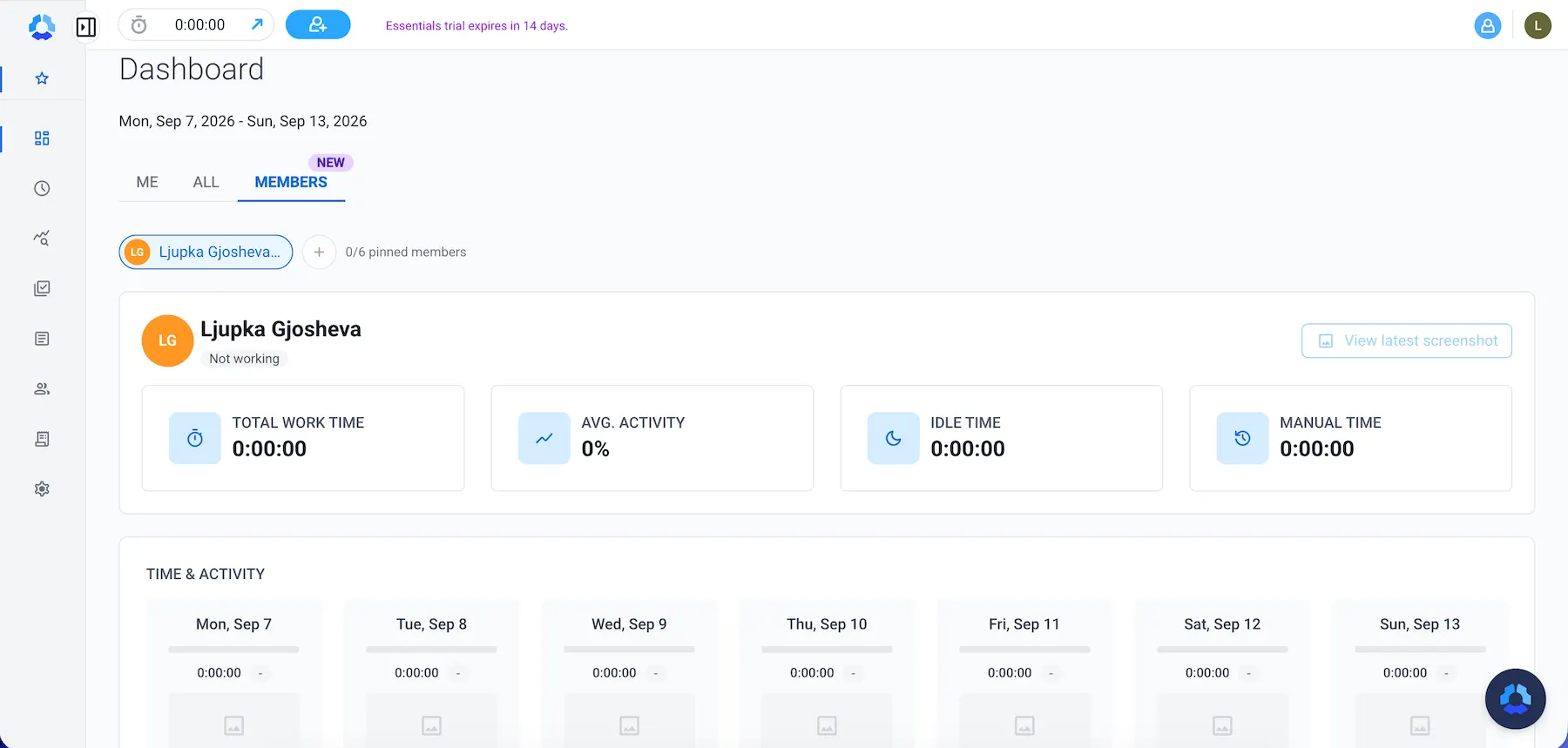
While reviewing Hubstaff, I was initially impressed with all the features on their website. However, when I tried the app, all of those features became somewhat overwhelming and hard to navigate. The interface has a lot of menus and options packed into different sections, which made it difficult to quickly find what I was looking for.
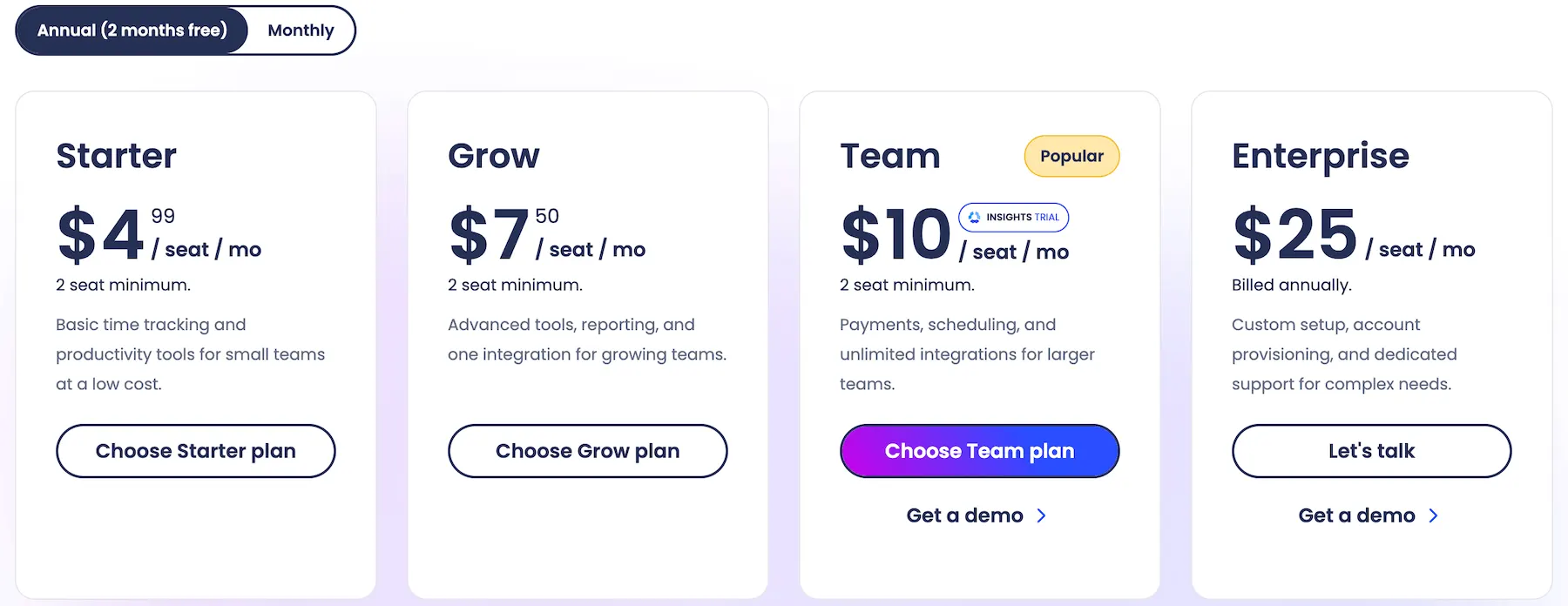
Additionally, Hubstaff doesn’t offer a free plan. You only get a 14-day free trial, and the paid plans start at $4.99 per seat per month when billed annually (with a minimum of 2 seats purchased).
Key features:
- Multi-device, global time-tracking
- Productivity tracker and metrics
- Payroll management
- Attendance management
- Project cost management and budgeting
Pros:
- Comprehensive features for employee monitoring and management
- Automated payroll
- Smart notifications for employee activity
Cons:
- No free plan
- Overwhelming interface with many options, menus, and buttons
What’s new in Hubstaff?
Hubstaff’s Workforce Analytics give you clear visibility into how your team performs across remote vs. in-office locations, helping you understand and optimize productivity.
Available for: Web, Mac, Linux, Chromebook, Windows, Android, iOS
Pricing: Plans start at $4.99 per seat per month, billed annually
Document & knowledge hubs
Here are a couple of team collaboration apps that, among other things, serve as knowledge hubs and enable easy file sharing in teams.
Notion — Best for creating an internal wiki
Notion is an AI-powered app for centralized project planning, knowledge organization, and team collaboration.
It was simple to set up, and I found the interface easy to navigate. Notion offers many features, but I never felt overwhelmed or confused by the options — although I did have to explore it a bit to understand all of its features.
When I was creating my account, Notion asked me a couple of questions about what I was planning to use it for, my goals, and preferences. With this information, it set up my workspace for me.
I used it to plan out a social media content calendar, as you can see in the image below.
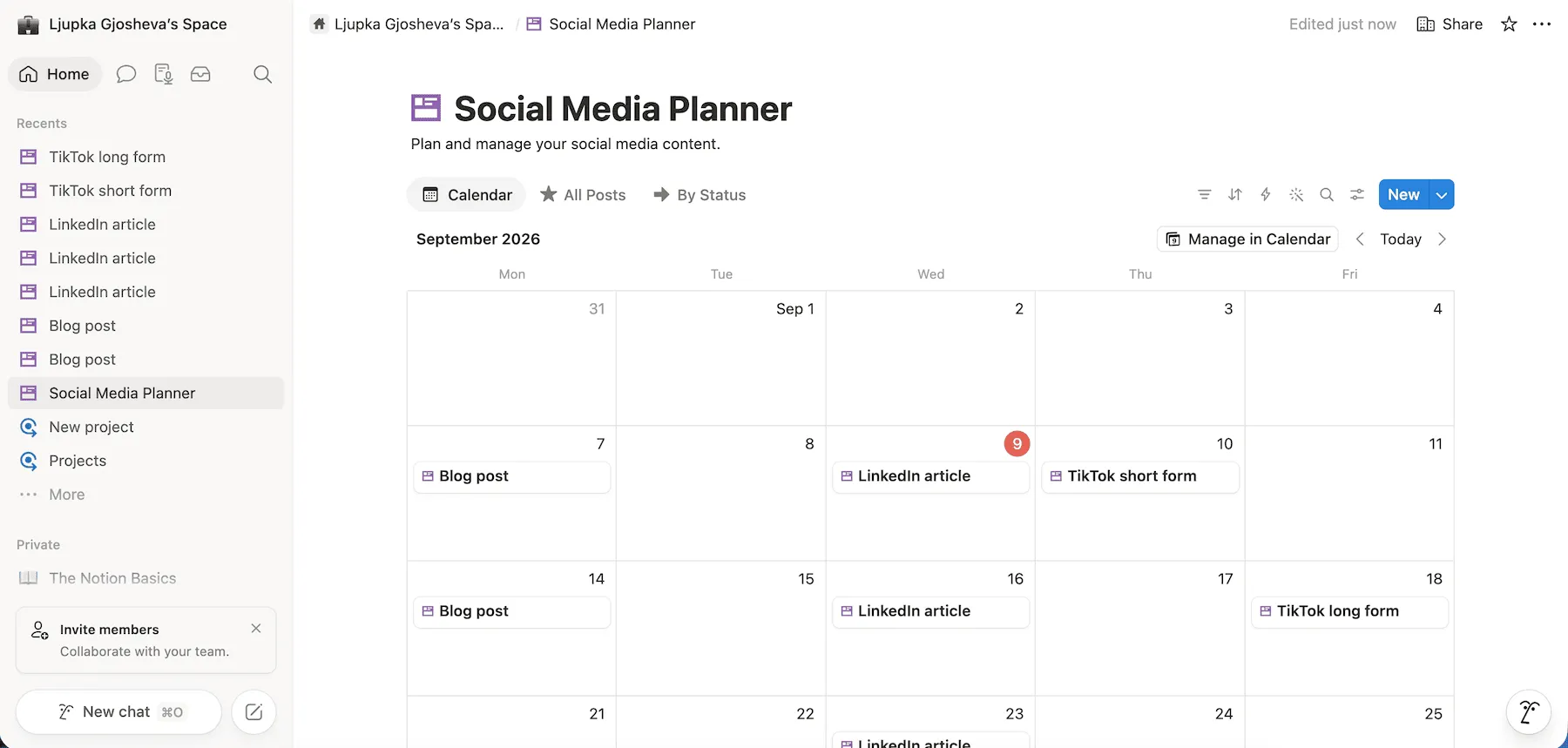
You can also track progress of your goals on Notion. Create your own goal planners, milestone trackers, and motivation boards, or apply some of the many ready-to-use templates for goal-setting.
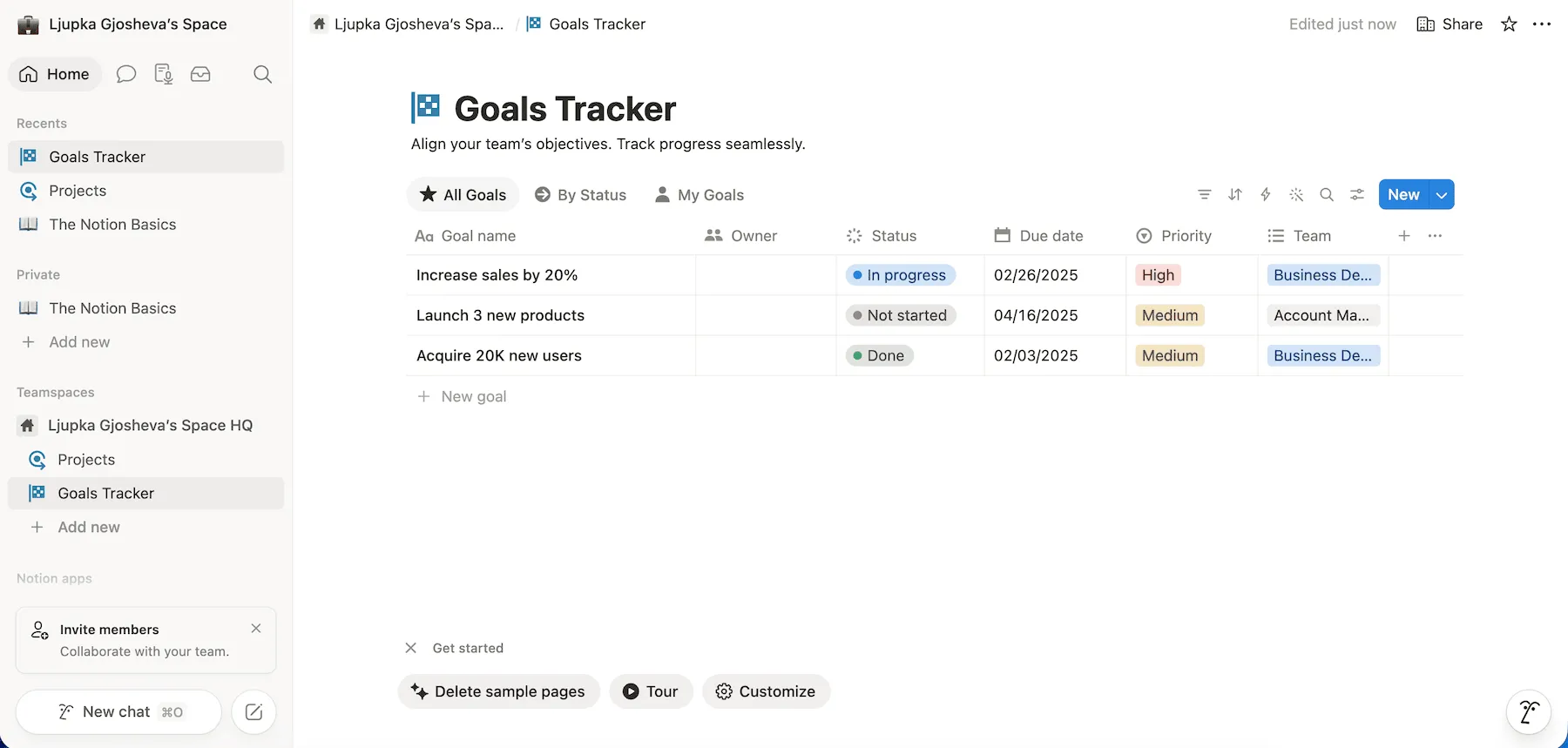
Overall, Notion was easy to use and offered a lot of valuable features.
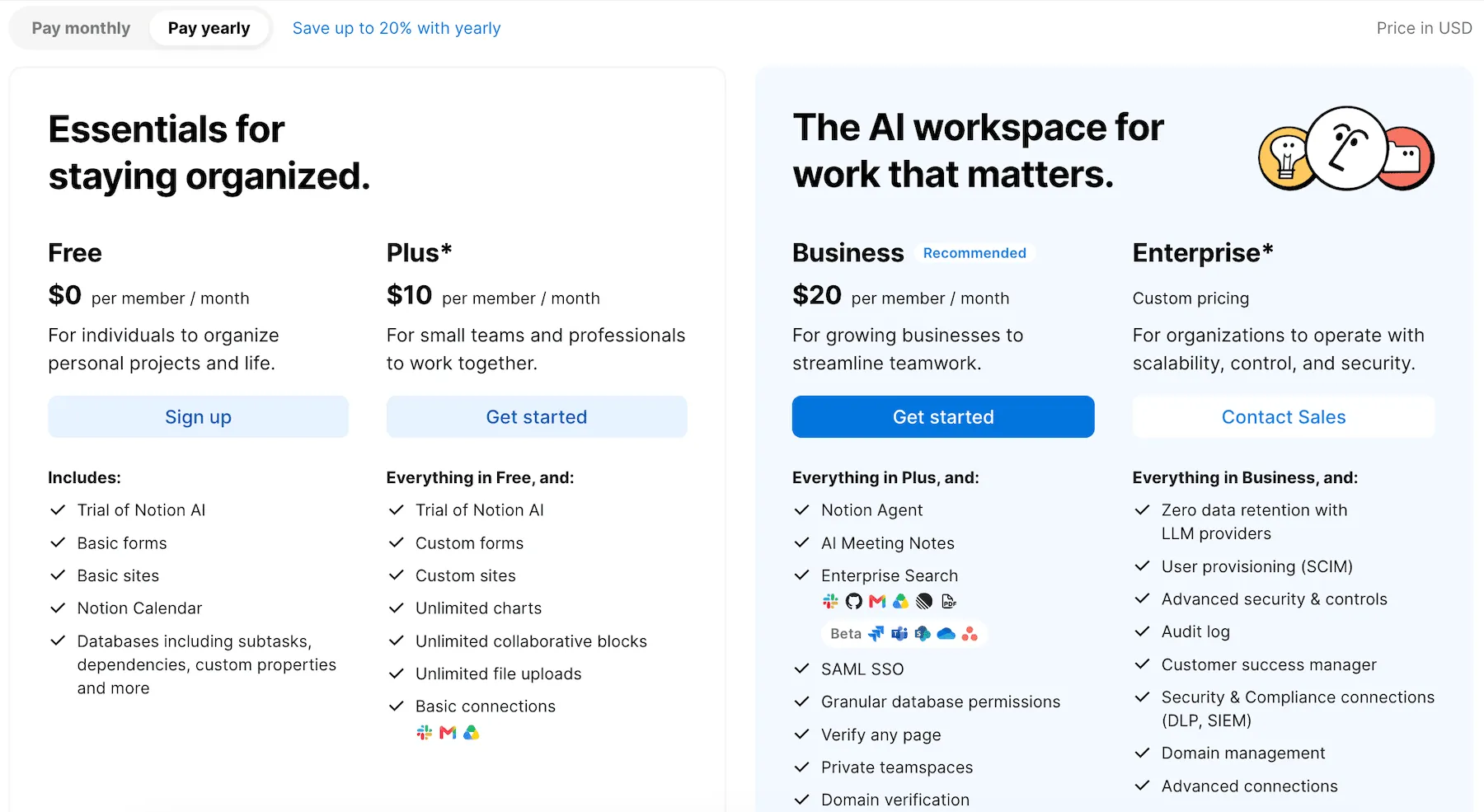
However, Notion offers a free plan only for individuals. You can organize your own projects or personal life, but if you want to add another user, you’ll need to upgrade to a paid plan.
Notion’s paid plans start at $10 per user per month, billed annually.
Key features:
- AI-powered workspace
- Flexible workspaces for easy knowledge organization
- Powerful task management features
Pros:
- Very flexible and customizable for different types of teams and projects
- All-in-one workspace for note-taking, task management, and collaboration
- Packed with features, yet simple to use
Cons:
- Free plan only for individuals
- Limited features in the free version
What’s new in Notion?
You can now ask your AI agent within Notion to suggest edits instead of making them directly, which you can then approve one by one.
Available for: Web, Windows, Mac, Android, iOS
Pricing: Free plan available; paid plans start at $10 per user per month, billed annually
Google Workspace — Best for real-time document co-editing
Google Workspace is Google’s suite of cloud-based productivity and collaboration tools. It’s designed for teams, businesses, and individuals who need a central place to create, share, and manage work.
The core apps of Google Workspace include:
- Gmail
- Drive
- Docs
- Sheets
- Slides
- Meet
- Calendar
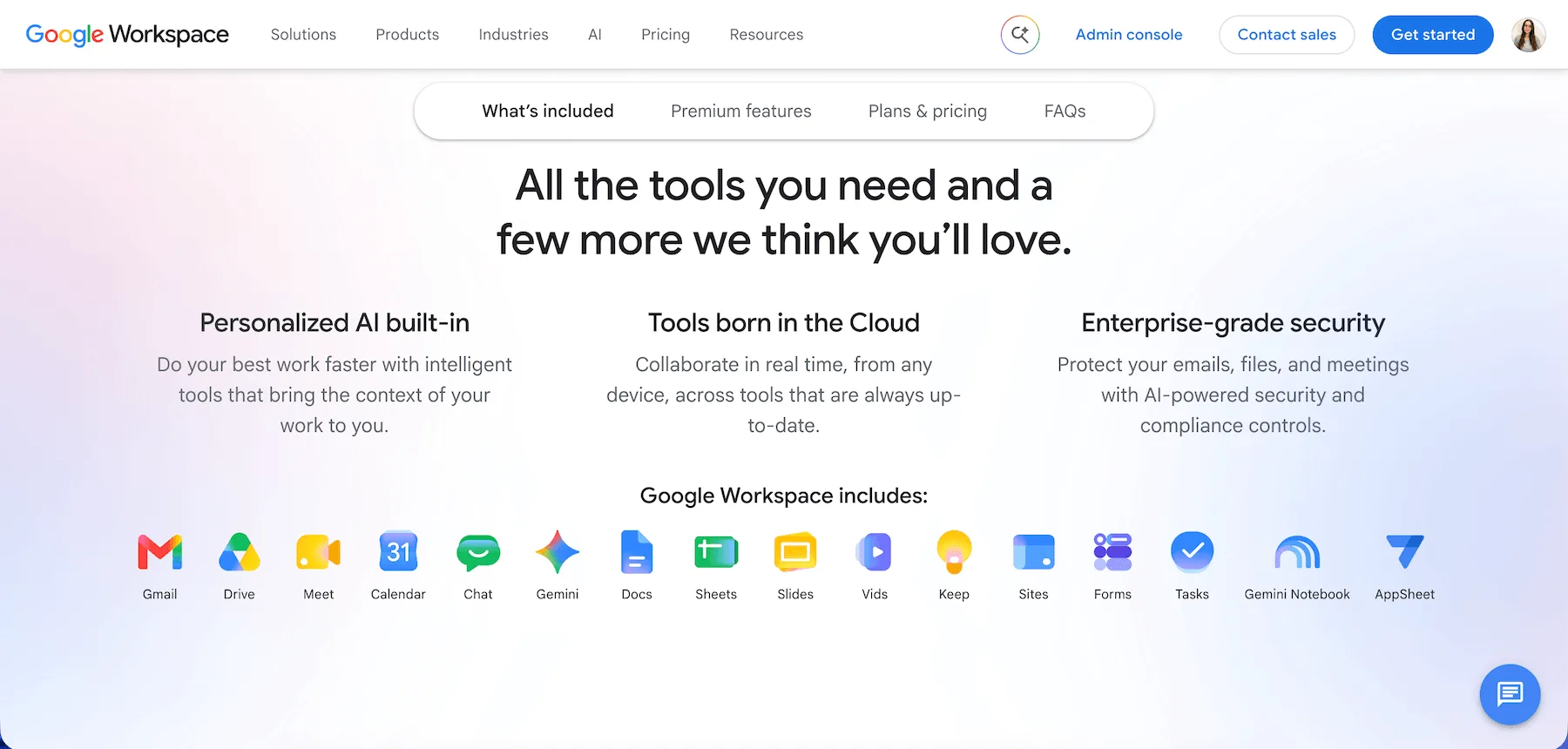
There are also additional apps like Forms, Keep, Chat, and Sites.
I use Google Workspace frequently for work, mainly for:
- Document collaboration
- Calendar organization
- Video meetings with large teams
Gmail is straightforward, and ties in with Google Calendar to quickly schedule and join meetings. Docs and Sheets are reliable for real-time editing with colleagues, though they sometimes lack more advanced text editing features.
Google Meet comes in handy for large meetings and is generally reliable.
Overall, Google Workspace is efficient and convenient.
As for pricing, Google doesn’t offer a free plan for Google Workspace, but you can get the 14-day free trial. Paid plans start at $7 per user per month, billed annually.
Key features:
- Cloud storage and sharing with Google Drive
- Real-time editing and collaboration with Docs
- Business email hosting with Gmail
- Integrated chat, calendar, and video conferencing
Pros:
- Smooth integration across all Google apps
- Easy to set up and use
- Works on all devices with internet connection
Cons:
- Limited offline functionality
- Some apps lack advanced features
- Can be pricey for bigger teams
What’s new in Google Workspace?
Google Workspace administrators can now access detailed audit logs for Gemini Notebook in the Admin console, giving them better visibility into how the application is being used across their organizations.
Available for: Web, Android, iOS
Pricing: No free plan for businesses; paid plans start at $7 per user per month, billed annually
Visual & creative hubs
If regular project management apps seem uninspiring, here are a few collaboration tools that play on the idea of whiteboards and open spaces for your plans, ideas, and tasks.
Miro — Best for digital whiteboarding
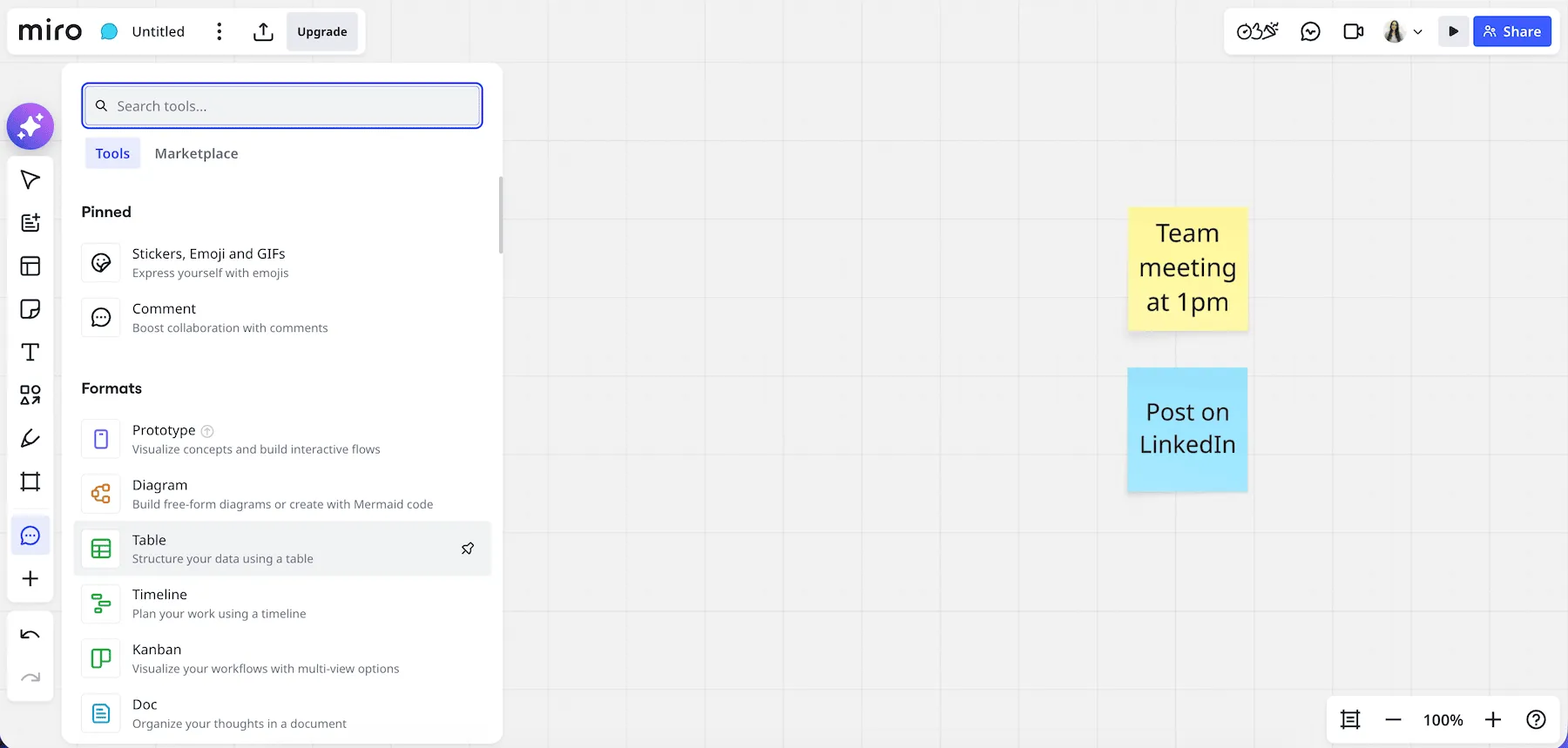
Miro is a collaborative whiteboard tool that lets your team brainstorm, map ideas, and plan projects in real time.
It’s basically a giant blank canvas where you can:
- Drag sticky notes.
- Draw diagrams.
- Build tables.
- Create tasks.
At first, I was impressed with all of the options for collaboration, such as:
- Mind maps
- Kanban boards
- Customer journey maps
- Tables and timelines
However, the sheer number of different templates and features felt intimidating, and it took some time to explore and identify which ones were actually useful for my workflow.
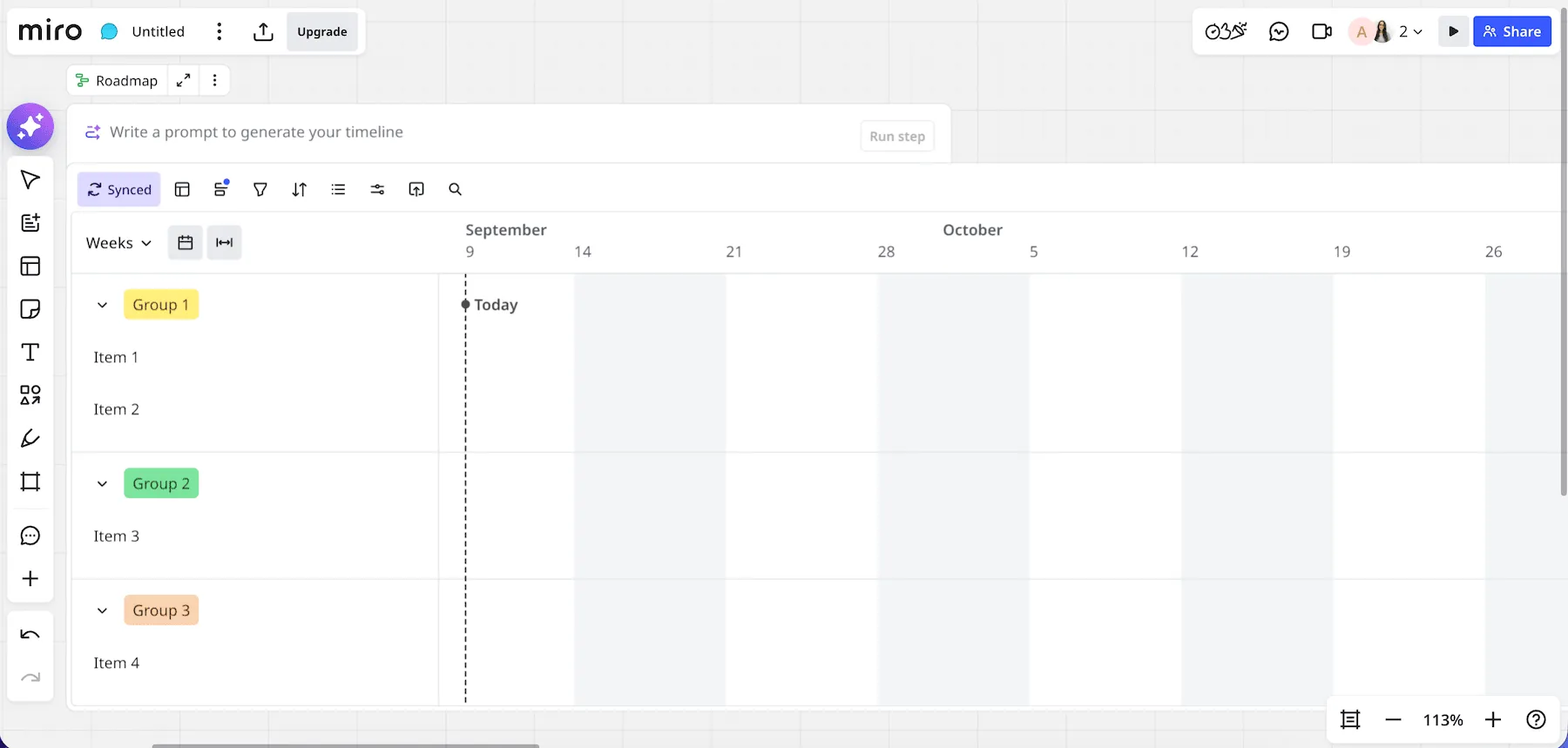
I tried the template feature, which helped me create a project plan in seconds.
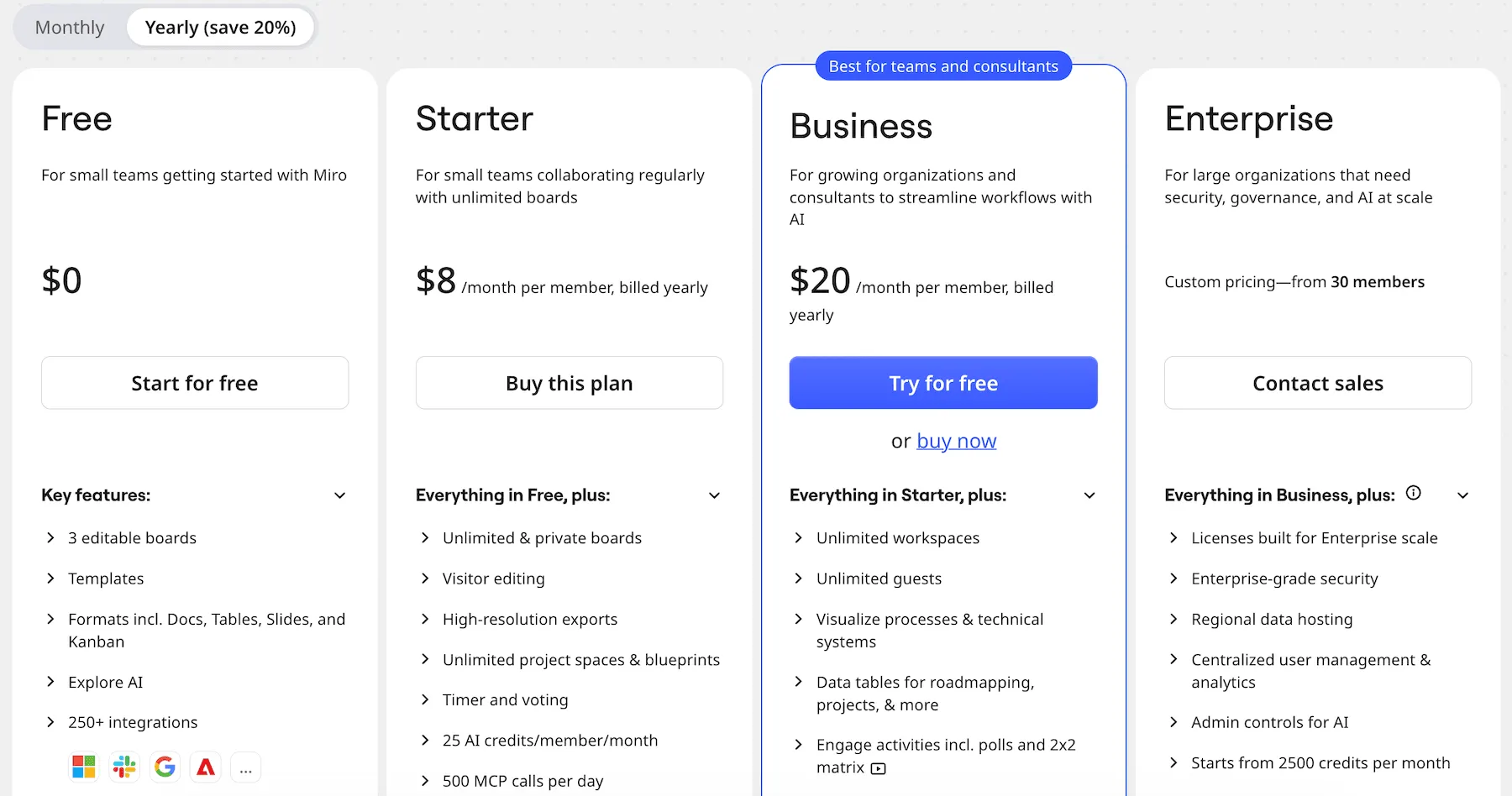
Miro offers a generous free plan, with one workspace and unlimited users. You can have up to 3 editable boards. The paid plans start at $8 per user per month when billed annually.
Key features:
- Extensive template library
- Real-time collaboration with live cursors and comments
- Infinite canvas space for project organization
Pros:
- Versatile and highly customizable
- Offers seamless collaboration for distributed teams
- Replaces scattered notes and documents with one centralized hub
- A generous free plan
Cons:
- Can feel overwhelming for first-time users
- Occasional performance issues with large boards
What’s new in Miro?
The biggest recent Miro update is Agentic Sidekicks, which can pull context from your tools and create documents, diagrams, or entire boards for your team.
Available for: Web, Mac, Windows, iOS, Android
Pricing: Free plan available; paid plans start at $8 per user per month if billed annually

Figma — Best for collaborative design work
Figma is a cloud-based design tool built for creating user interfaces, prototypes, and collaborative design projects. It’s widely used by designers, product teams, and startups for building apps, websites, and digital products.
When I tried Figma, I immediately noticed how polished and professional it looked. The workspace is sleek, and setting up a project feels easy enough. But once I started exploring the design tools, I realized just how complex it is.
I tried the FigJam feature, which is a collaborative digital whiteboard. With the help of a project management template, I created a project plan, as you can see in the image below.
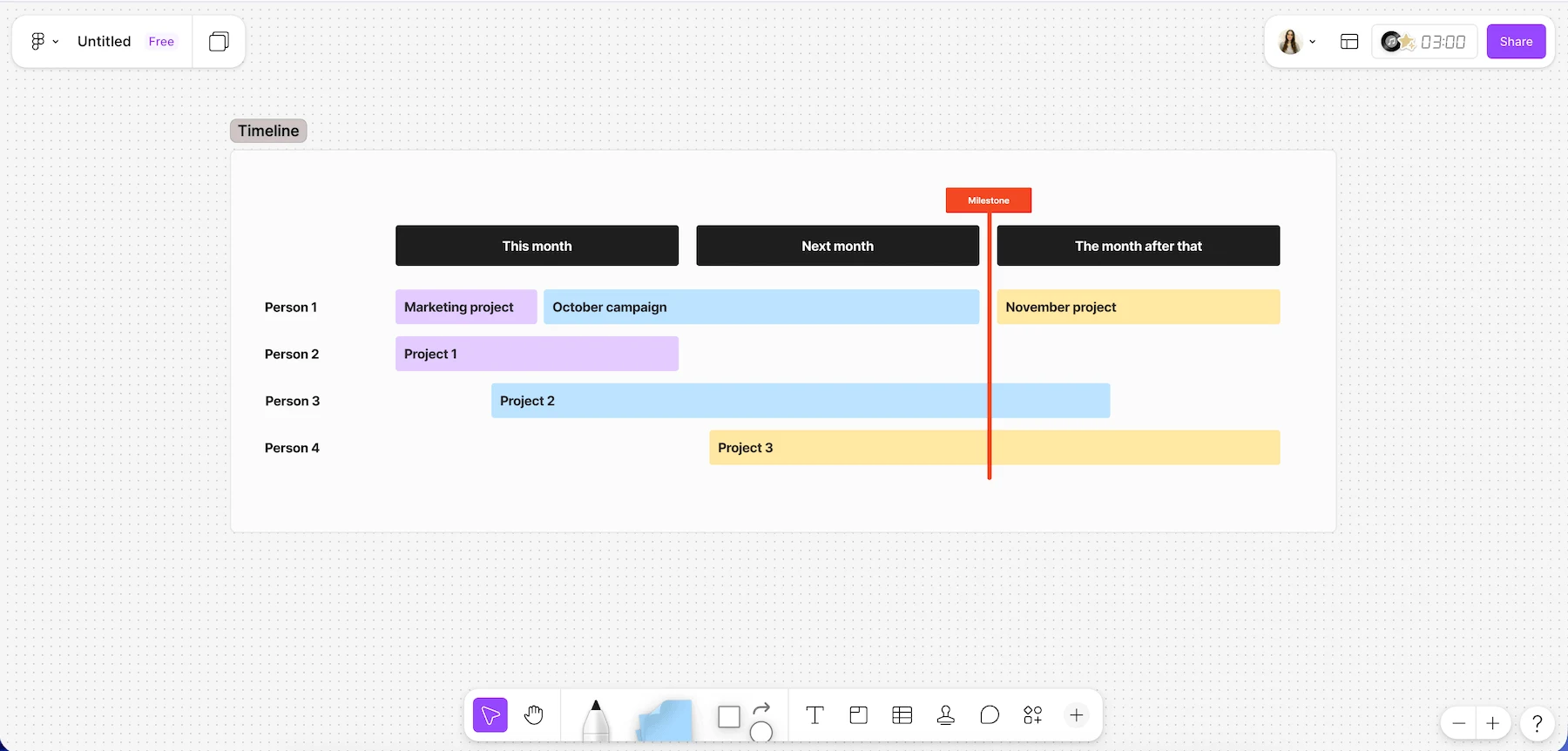
The menus, layers, and endless options can be overwhelming if all you want is something simple.
I really liked the collaboration features, which allow you to see people edit and design in real time.
Additionally, Figma has a big selection of pre-made templates, which can save you time and effort when planning projects or organizing meetings.
For example, I could pick a pre-made template for an effective team meeting, which made it less intimidating and time consuming than if I were to make it from scratch.
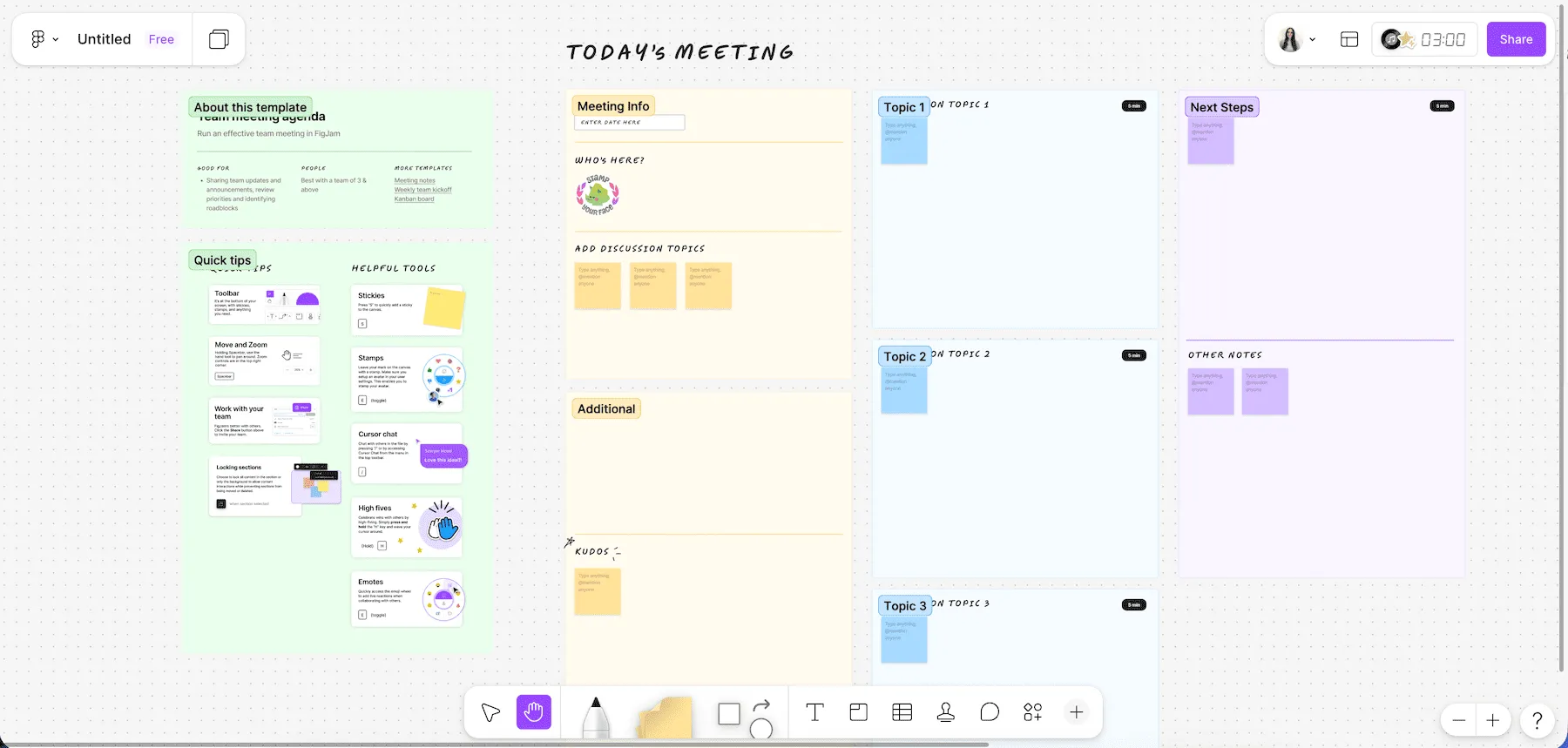
Still, with all these tools and options, I sometimes felt lost. It’s clear that the software is geared toward professionals who need a high level of control and advanced features.
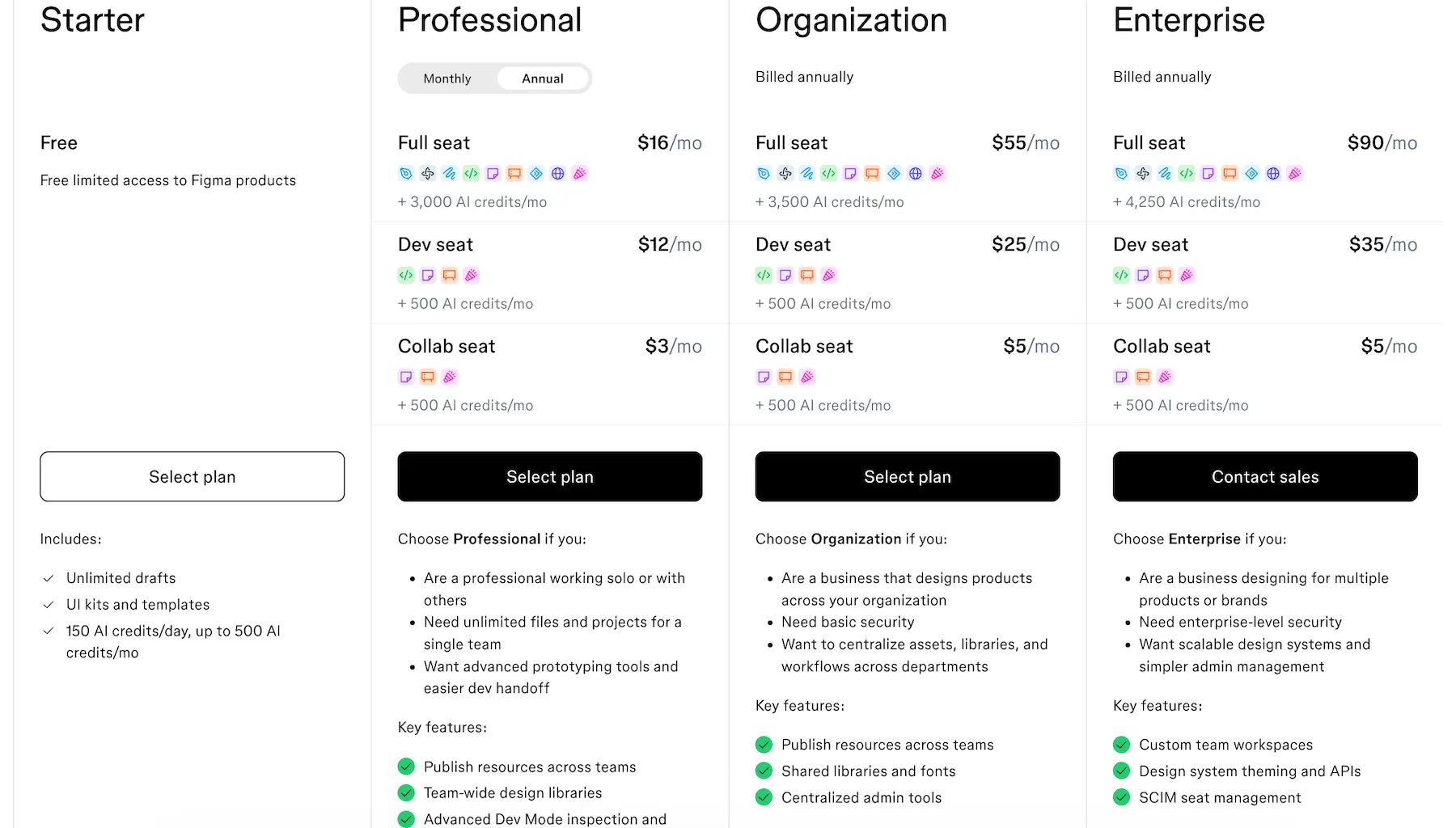
Pricing-wise, Figma offers a free plan, which is great for individuals or small projects.
The paid tiers start at $3 per seat per month when billed annually and unlock more advanced collaboration tools, such as:
- Unlimited files and projects
- Shared libraries and fonts
- Admin tools
- Custom workspaces
Key features:
- Real-time collaboration with multiple editors
- Big library of plugins and templates
- Prototyping and interactive design tools
Pros:
- Great for collaboration
- Professional-grade design features
- Free plan
Cons:
- Can be overwhelming for beginners
- Some features are locked behind a paywall
- Requires a solid internet connection and has limited offline capabilities
What’s new in Figma?
Figma now lets you adjust opacity across multiple variables at once and apply it to any color without detaching it.
Available for: Web, Mac, Windows, Windows Arm, iOS, Android, iPad
Pricing: Free plan available; paid plans start at $3 per user per month if billed annually
Other strong contenders
Last but not least are some honorable mentions — a few great options with project management and team communication capabilities.
Basecamp — Best for simple project management with team communication
Basecamp is a project management and team communication tool designed to simplify collaboration.
Unlike more complex platforms that try to do everything, Basecamp focuses on being straightforward.
In one place, it brings together:
- To-do lists
- Message boards
- File sharing
- Schedules
- Group chat
It’s mostly used by small businesses, startups, and remote teams that want to stay organized without unnecessarily complex tools.
When testing Basecamp, I immediately noticed the simplicity compared to some other project management tools. Creating a new project was quick and easy, and I liked how everything — tasks, discussions, files, and to-do lists — was accessible on the homepage.
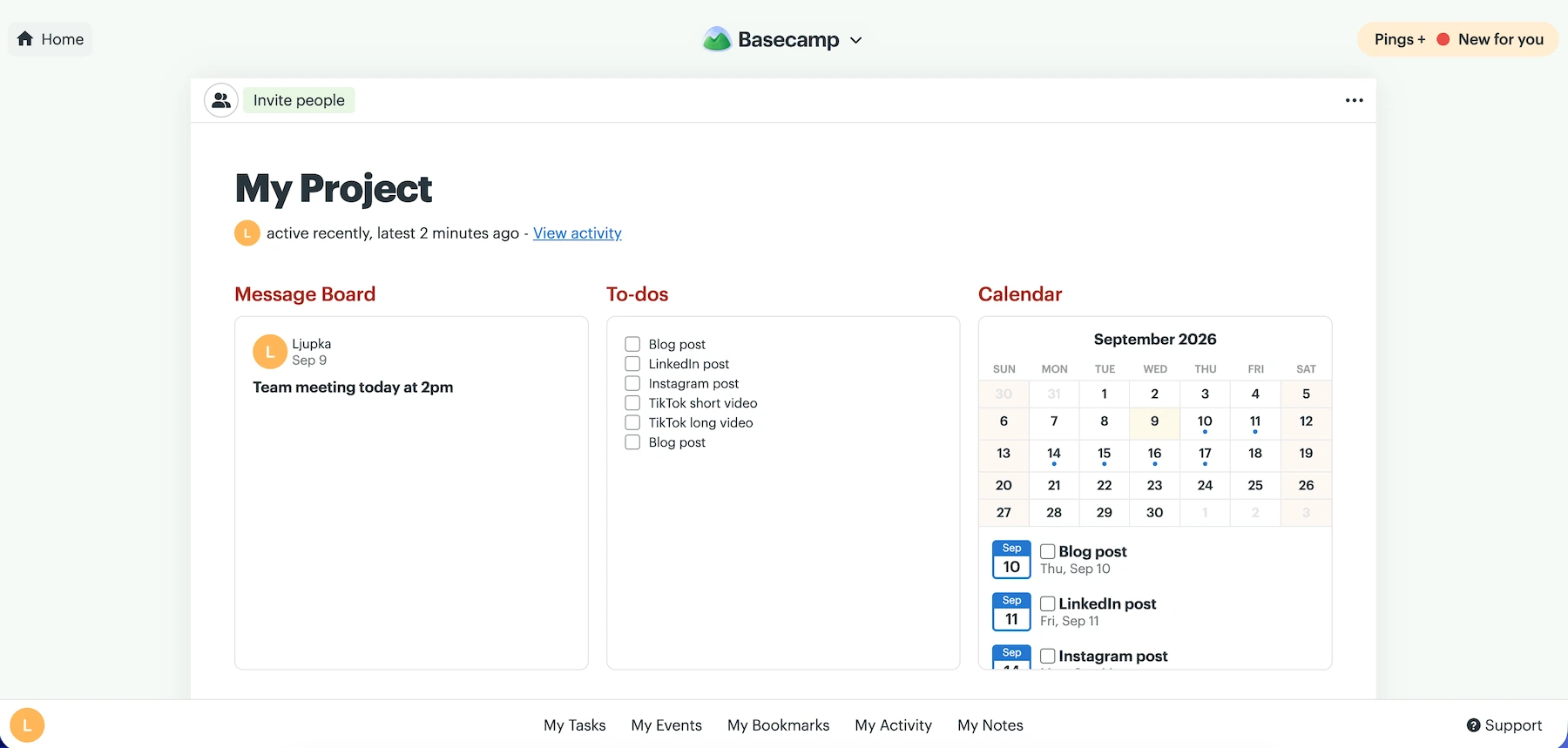
Basecamp offers a free plan with:
- One project
- 1 GB of storage space
- 5 users max
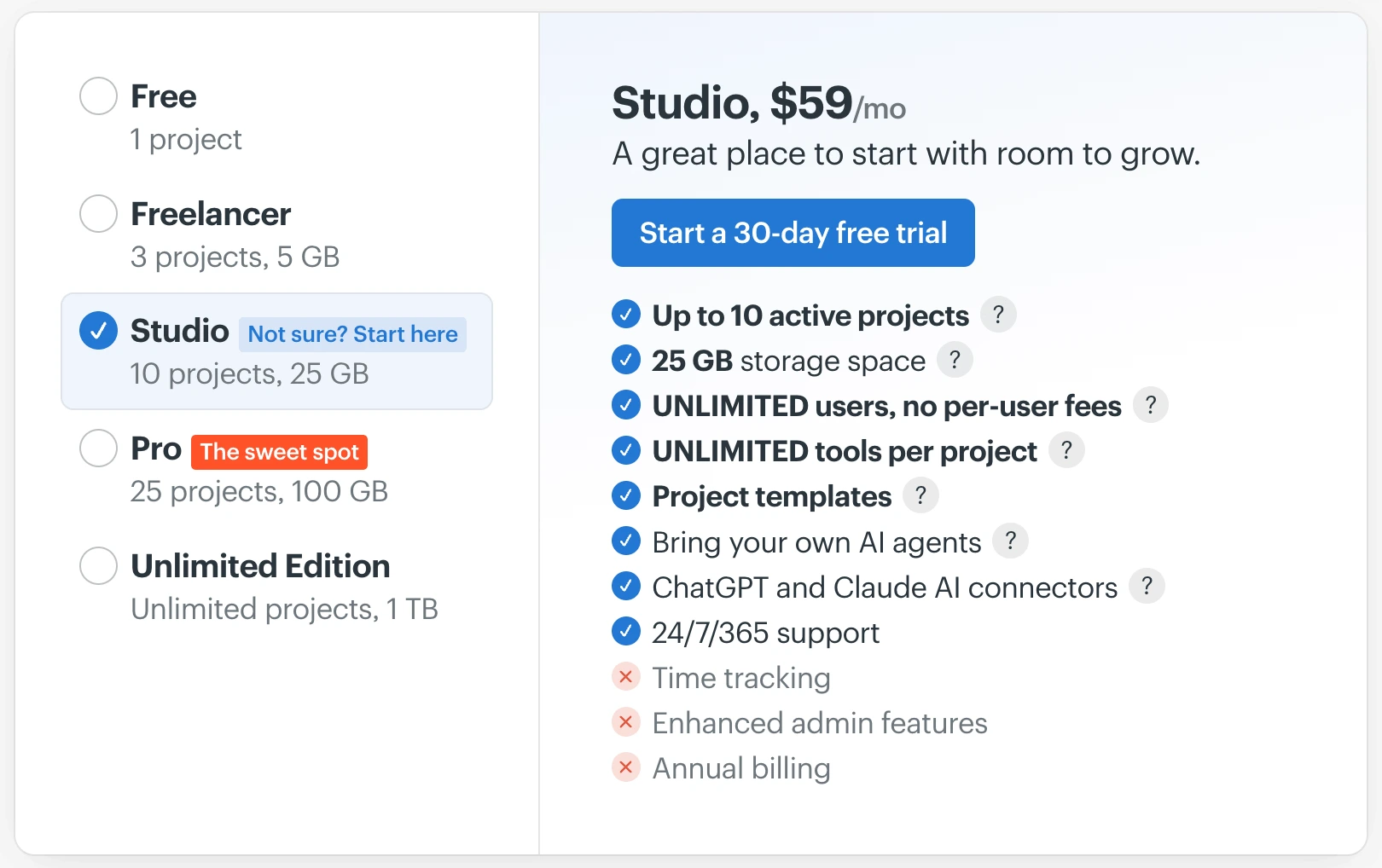
If you need to upgrade, you can purchase one of its paid plans:
- Freelancer — $25 per month, paid monthly
- Studio — $59 per month, paid monthly
- Pro — $99 per month, paid monthly
- Unlimited Edition — $299 per month, paid annually
Each plan includes a set number of users, while the Unlimited Edition supports unlimited users.
Key features:
- Centralized hub with to-dos, messages, schedules, and file storage
- Flat-rate pricing model
- Activity reports
Pros:
- Easy to set up and use
- Keeps projects organized without clutter
- Flat monthly price is cost-effective for larger teams
- Free plan (one project only)
Cons:
- Lacks advanced project management features
- Limited customization options
- Not ideal for large or complex projects
What’s new in Basecamp?
The latest version, called Basecamp 5, is now live. It comes with a cleaner interface, faster navigation, improved search and calendars, plus subtasks, voice notes, Markdown, and AI agent support.
Available for: Web, Mac, Windows, iOS and Android
Pricing: Free plan available; paid plans start at $25 per month
Zoom — Best for video conferencing
Zoom is a widely used video conferencing platform with additional features for collaboration.
I’ve used Zoom plenty of times, for everything from quick team check-ins to large webinars, and it offers one of the best video call experiences I had.
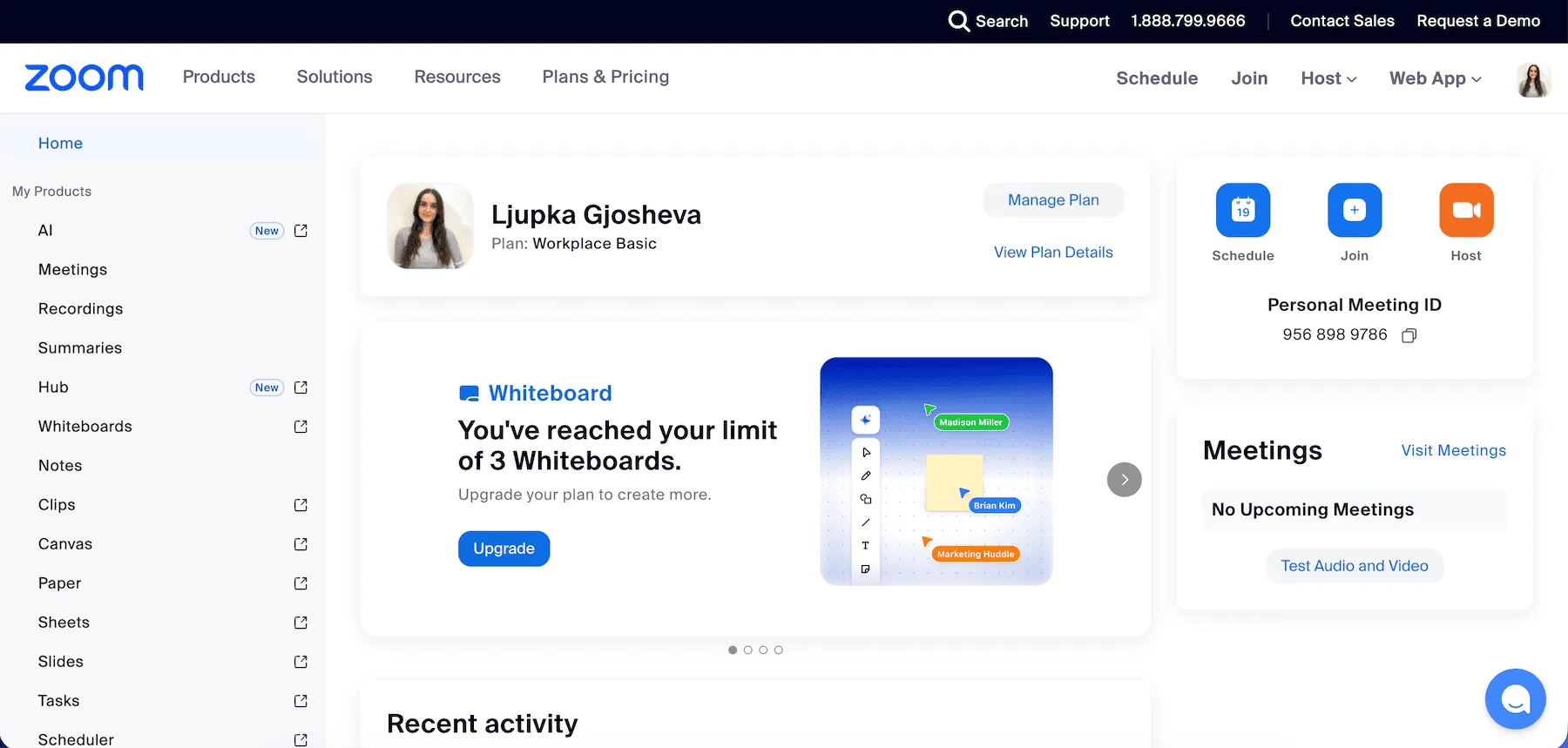
The video quality is consistently good, and I’ve had very few issues with connectivity.
In Zoom, you can:
- Record meetings.
- Share your screen.
- Create breakout rooms.
That said, Zoom’s chat features are fairly basic, so you will probably need to pair it with other tools for complex messaging and collaboration functionalities.
Try Pumble, all-in-one solution
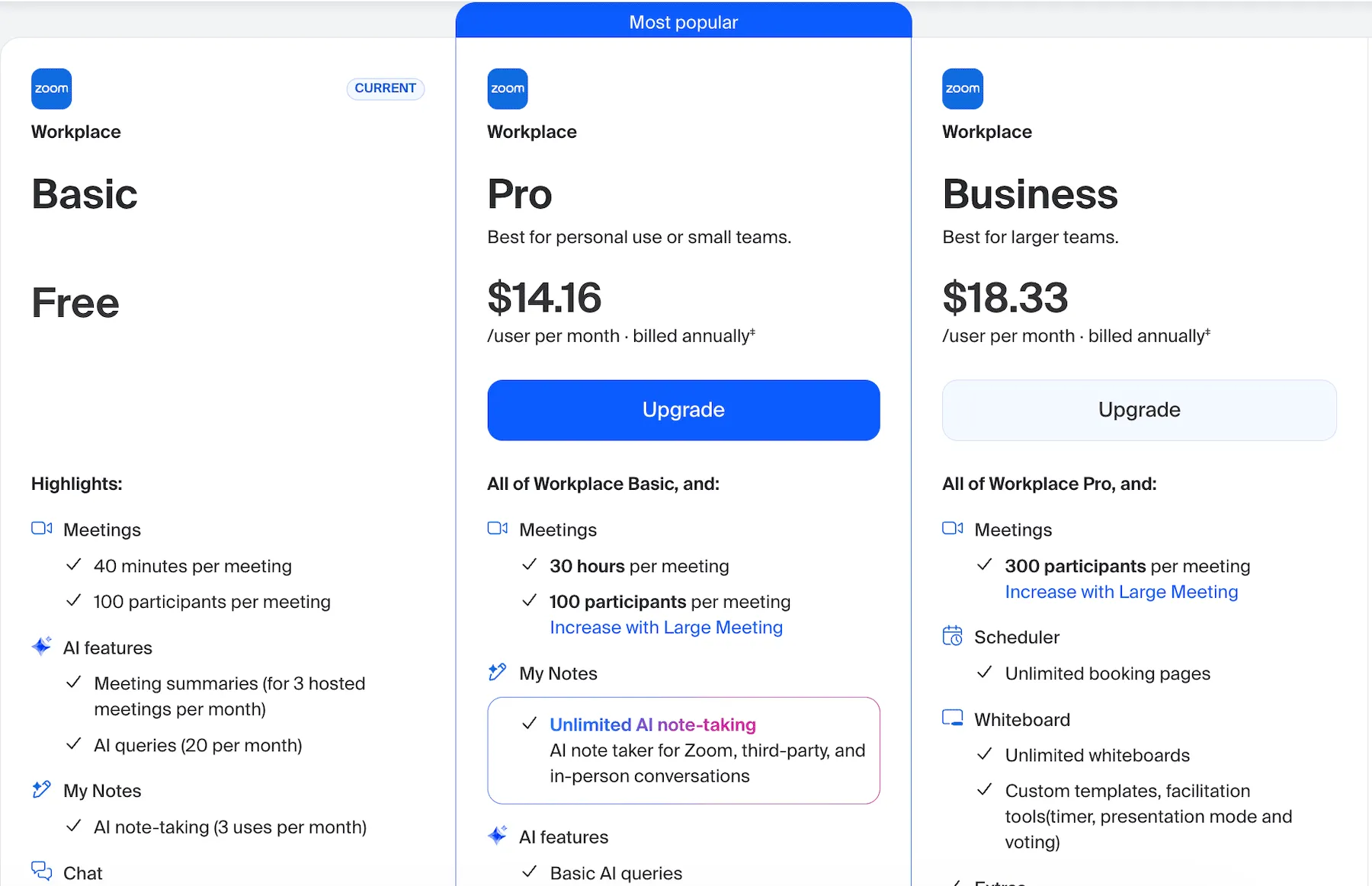
Additionally, if you plan on using the free version, know that your meetings are capped at 40 minutes.
If you want to upgrade to paid plans, the starting price of Zoom’s Pro plan is $13.33 per user per month (billed annually). Keep in mind that Zoom’s pricing is localized and might vary depending on your region.
Key features:
- High-quality video and audio conferencing
- Screen sharing and virtual backgrounds
- Breakout rooms for side discussions
Pros:
- Good call quality and reliability
- Suitable for meetings of all sizes
- Intuitive and user-friendly interface
Cons:
- Limited messaging features
- Some premium features can be costly
What’s new in Zoom?
Zoom’s biggest recent update is ZoomMate, an AI assistant that can handle tasks and create content.
Available for: Web, Mac, Windows, Linux, Android, and iOS
Pricing: Free plan available; paid plans start at $13.33 per user per month, billed annually
💡 PUMBLE PRO TIP
Zoom offers a great video conferencing experience, but it lacks more advanced collaboration features. For a full comparison with Pumble, an all-in-one alternative to Zoom, check out our blog post:
Or check out our other picks for the best Zoom alternatives:
Airtable — Best for database-driven workflows
Airtable is a cloud-based, AI-powered platform that allows you to create fully fledged projects in a matter of minutes.
Unlike traditional spreadsheets, Airtable offers rich field types, such as:
- Attachments
- Checkboxes
- Links
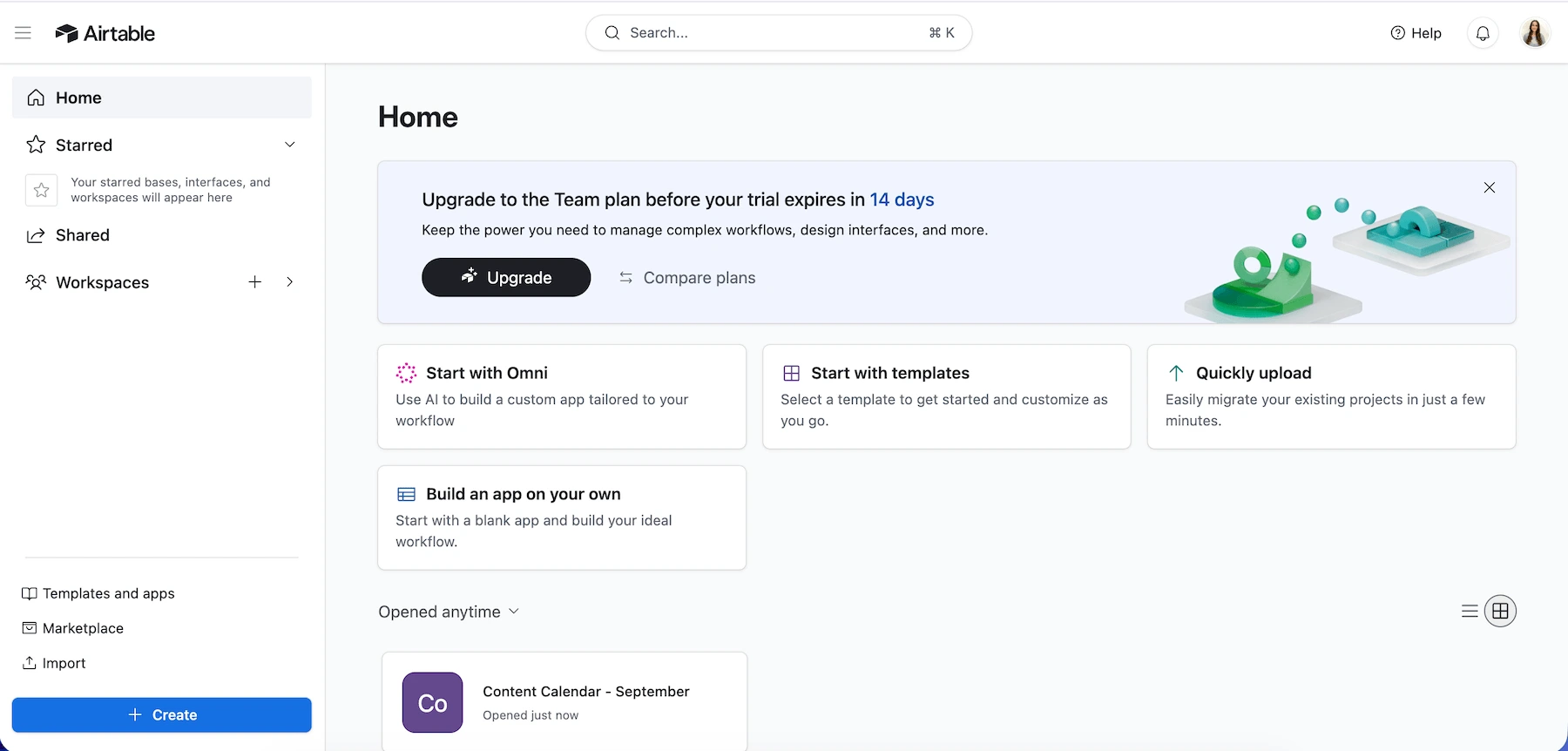
When I tried Airtable, I used its AI functionalities to create a content plan for the month.
I entered a few details about campaign goals and themes, and, within minutes, Airtable generated a full content calendar. This saved me hours of manual planning and gave me a great starting point to refine later.
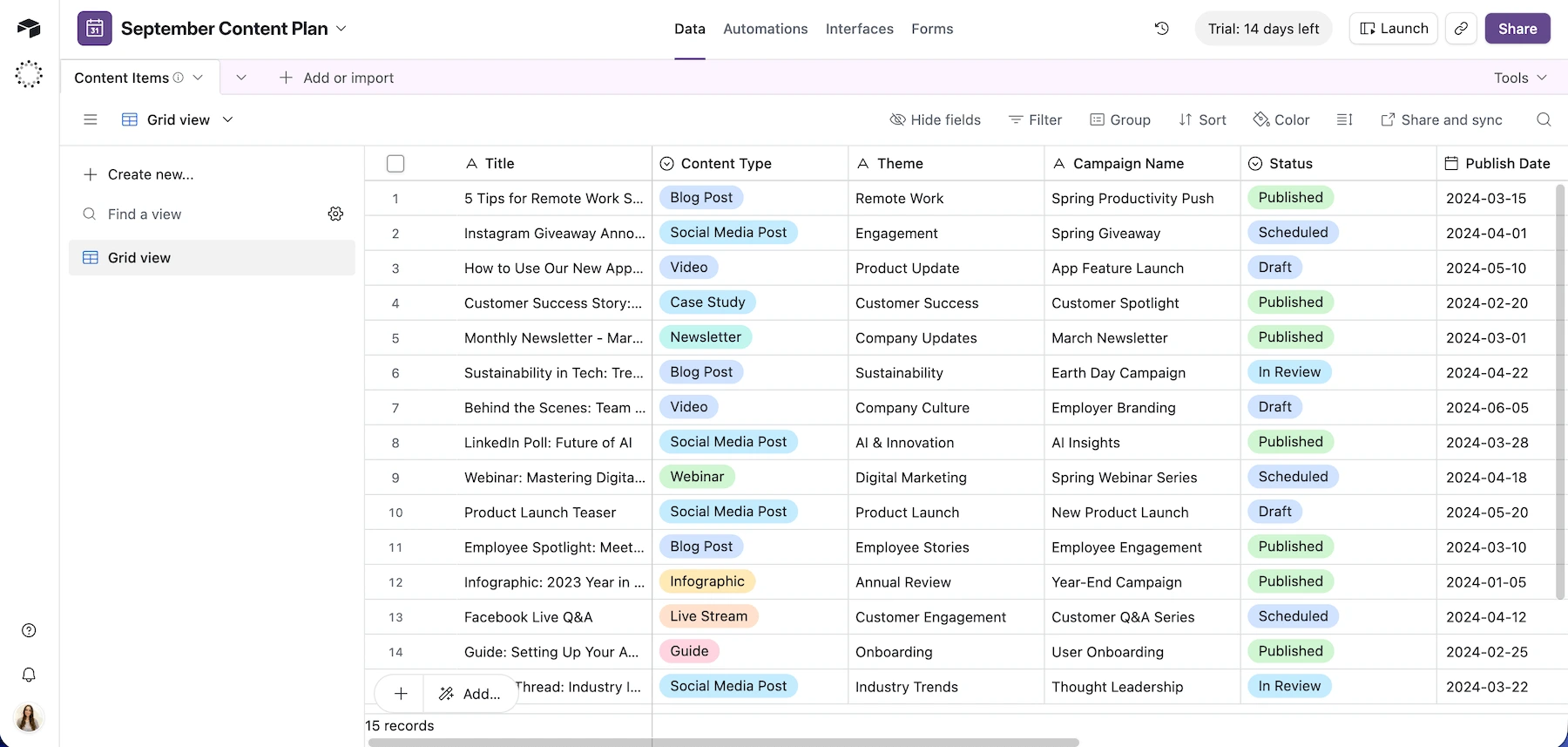
It planned blog posts, social media ideas, and email campaigns with assigned deadlines and team members.
To view your data, you can switch between:
- Grid view
- Calendar
- Kanban boards
- Timeline view
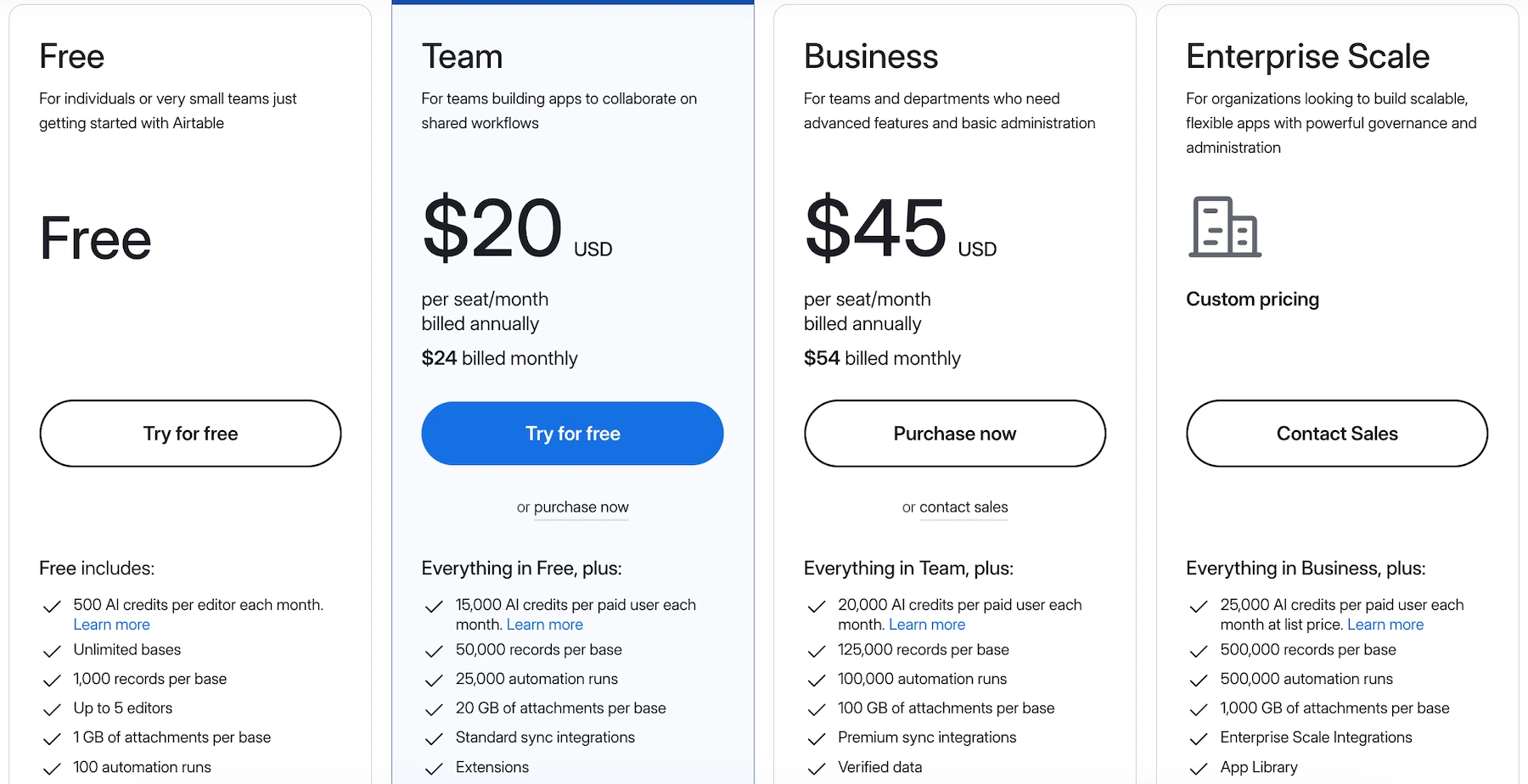
Airtable offers a free plan, with very limited AI credits and 1 GB of storage space per base.
The paid plans start at $20 per seat per month, billed annually.
Key features:
- AI tools for project management
- Kanban boards and Gantt charts
- Integrated automations
Pros:
- Easy to get started with templates and AI support
- Flexible and customizable across industries
- Visual, customizable views
Cons:
- Advanced features can be challenging for beginners.
- Paid plans are needed for more advanced features.
- It can be overwhelming for first time users.
What’s new in Airtable?
You can now connect Airtable to Gemini and ask about your data. Gemini finds what you need, surfaces the details, and takes action.
Available for: Web, Mac, Windows, iOS, Android
Pricing: Free plan available; paid plans start at $20 per user per month, billed annually
How to choose the right collaboration tool
When deciding which collaboration tools to use, keep in mind these important factors:
- Team size — Smaller teams can benefit from simple, all-in-one tools that are easy to manage, while larger teams may need more advanced features.
- Features you need — Consider what your team needs in their daily work and which features can help facilitate better collaboration and improve productivity.
- Ease of use — If your team isn’t tech-savvy, save time on adapting complicated tools, and opt for something that is easy to set up and use.
- Budget — Define your budget, and look into free plans or free trials before committing to a paid subscription. Choose a pricing plan that seems sustainable and offers features that are important and will be frequently used.
- Integrations — Check whether the tool integrates with the apps your team already uses. This can help you keep your existing workflows connected without having to switch between multiple tools.
FAQ
Here are some answers to popular questions that can help you choose the right collaboration tool for your team.
What are popular collaboration tools?
Popular collaboration tools include Pumble, Slack, Microsoft Teams, Asana, Trello ClickUp, and Notion. The best option depends on whether your team mainly needs communication, project management, time tracking, or more.
What collaboration tools are best for remote teams?
The best collaboration tools combine communication, task management, file sharing, and other features that help teams stay connected and organized.
What features should a collaboration tool have?
A good collaboration tool should offer the features your team needs for its daily workflow. Common features include messaging, task and project management, file sharing, integrations, and video or voice calls.
Build your collaboration stack on a strong foundation
No single app can solve every challenge teams face, but choosing the right mix of tools can set the tone for how smoothly your team works together.
The key is to build your collaboration stack on a strong foundation — one that supports effective communication, organized workflows and boosts productivity.
For this to work, you need to choose tools that complement each other and work well together. That’s why it pays to look for solutions that fit together seamlessly, like the products within the CAKE.com Suite:
- Pumble — for effective team communication
- Plaky — for straightforward project management
- Clockify — for simple time tracking
When used together, they help create a connected workspace where collaboration is effortless and communication is clear.
Learn more about the CAKE.com Productivity Suite and how to use it: