





If you're looking to reduce the chaos of internal emails and scattered information, it probably dawned on you that a centralized communication platform is the most effective solution.
But, with so many options to choose from in 2026, you're probably stuck in an endless loop of reading vague app reviews.
For this reason, I've thoroughly tested Slack to see how its interface, functionality, and more specific features hold up in 2026, especially compared to its price, and to see whether it fits my needs and budget.
Let’s dive into this Slack review together, separate function from hype, and help you decide whether Slack is the tool you should pick for your business or project.


Why trust us?
Human reviewers try out each app and follow strict guidelines while writing the reviews. We follow a transparent, clear, and systematic methodology so that every review is objective and accurate.
Learn more about our review methodology here
Who is Slack for?
Overall, Slack is a very good professional communication software choice in 2026 if you:
- Are looking for an enterprise level communication software,
- Don't have budget limitations, and
- Have a strong need for large amounts of specific integrations that you either already use or plan to use.
It’s a fairly intuitive, reliable, and well-built tool.
It's important to know that, after the free trial expires, you will need to pay to take advantage of the main features Slack has to offer. Otherwise, you'll have to put up with Slack's free plan limits and only a basic version of the tool.
Slack’s free plan limitations include:
- No access to customer support,
- No workflows,
- 90-day limit on message and file history,
- Only 1:1 video calls (through huddles), and
- No channel posting permissions except in the #general channel.
With the basics covered, let’s analyze Slack’s features in detail.
Slack’s main features
Slack’s main features include:
- Direct messages,
- Threads,
- Channels,
- Huddles,
- Search functionality,
- User permissions,
- Automation,
- External connections, and
- App integrations.
When talking about Slack, these features are the ones that are referenced the most, and the ones likely to actually be used every day by most business owners.
What’s more, these are the areas where Slack is at its best.
As a team lead, you’re likely going to need your team to communicate through:
- Direct messages,
- Dedicated topic oriented spaces (channels), and
- Audio/video conferencing options (if you’re working in a hybrid or remote model or collaborating with external partners).
I've analyzed these and other important features a team would likely need, as well as how they could help with effective team communication, before deciding whether to buy the app or not.
Here’s what I’ve found.
Slack’s user experience
When I first opened Slack, I was greeted with the initial setup window. The process was quite straightforward, which was to be expected from an app of Slack’s reputation.
After the initial setup, and after inviting a colleague to test out the app, here's what my workspace looked like:
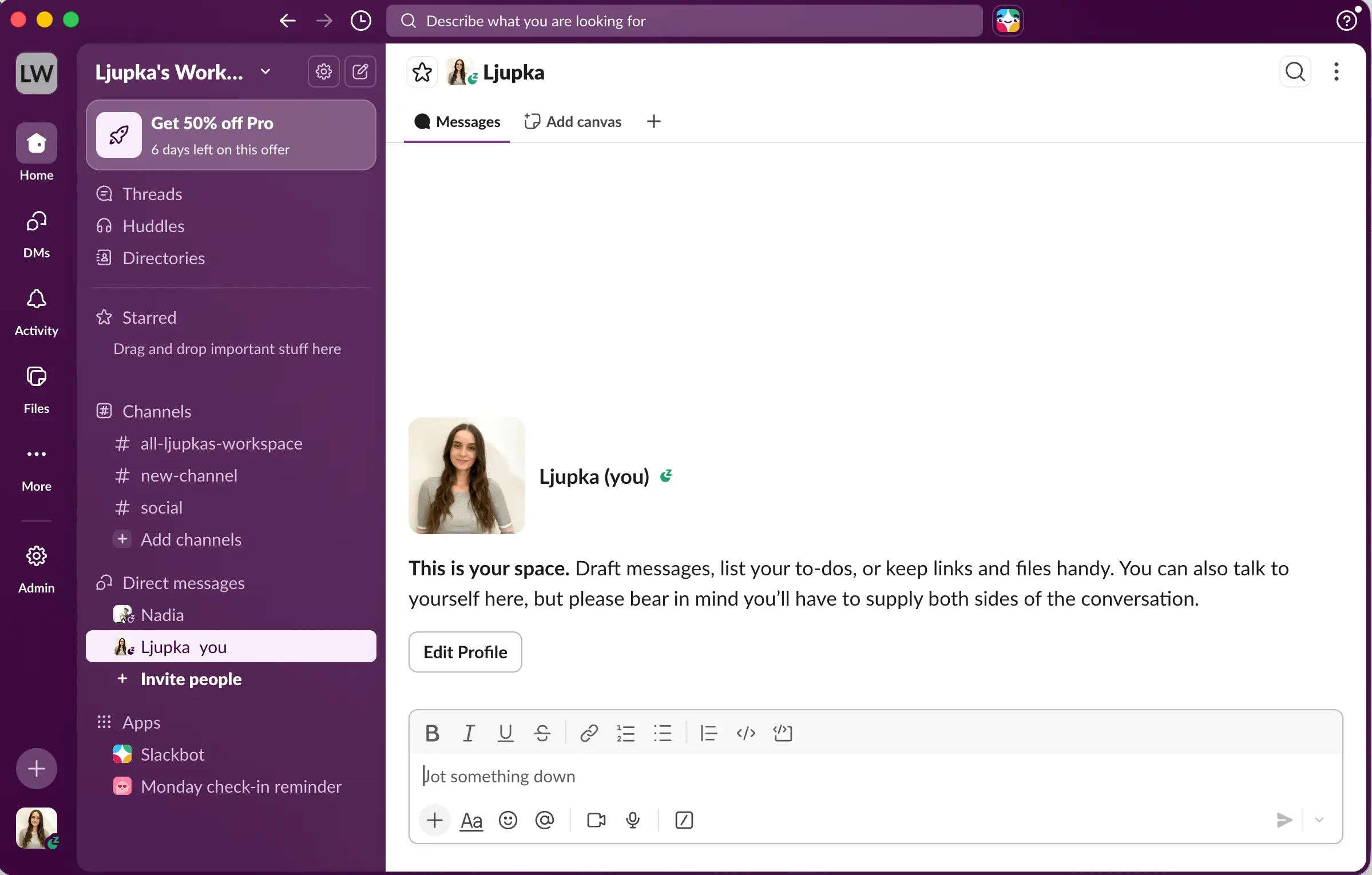
Slack’s main window
If you’re familiar with similar communication apps, Slack is smooth, fairly intuitive, and straightforward.
Direct messages
Direct messages in Slack are quick, organized, and easy to read, regardless of the color scheme you chose.
The design is top notch, and I haven’t seen any delays in notifications.
Threads
Threads allow you to reply to individual topics so that the messages stay focused and easy to reference at a later time. Most employee communication apps support this fundamental feature.
While many team communication apps include this feature, it’s not always available across all plans. For example, Microsoft Teams offers threads only in its paid plans, while Pumble by CAKE.com, like Slack, offers threads to all users. Including this feature in every plan is essential to keep conversations organized without restrictions.

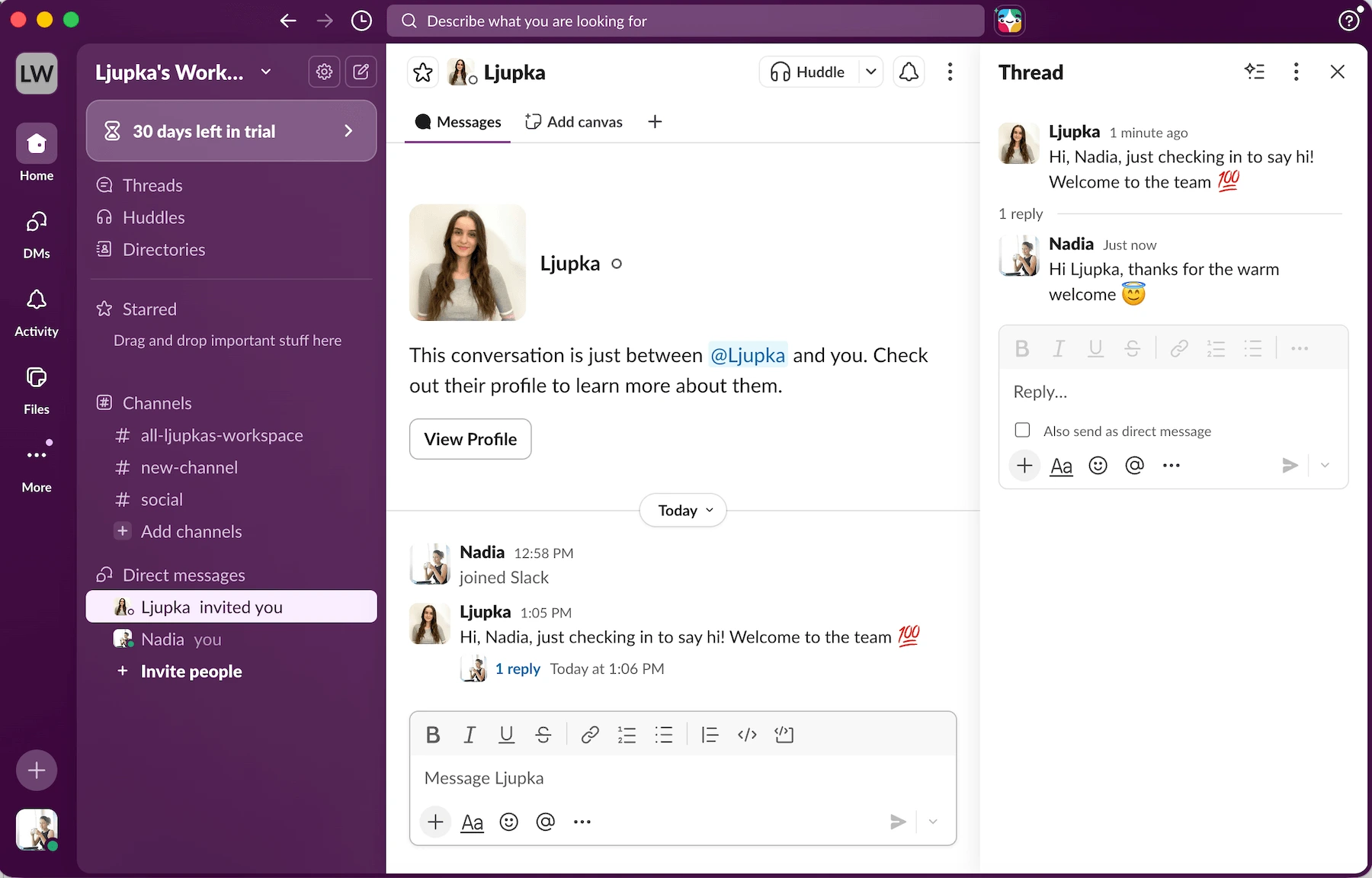
Threads and messages in Slack
External connections
This feature allows you to temporarily include people outside your organization into your Slack workspace.
You can add these guests to your channel for a limited or unlimited time and select channels they will have access to (these channels need to be created prior to inviting guests).
This is another common feature of many team communication apps, and I've had no issues while testing it.
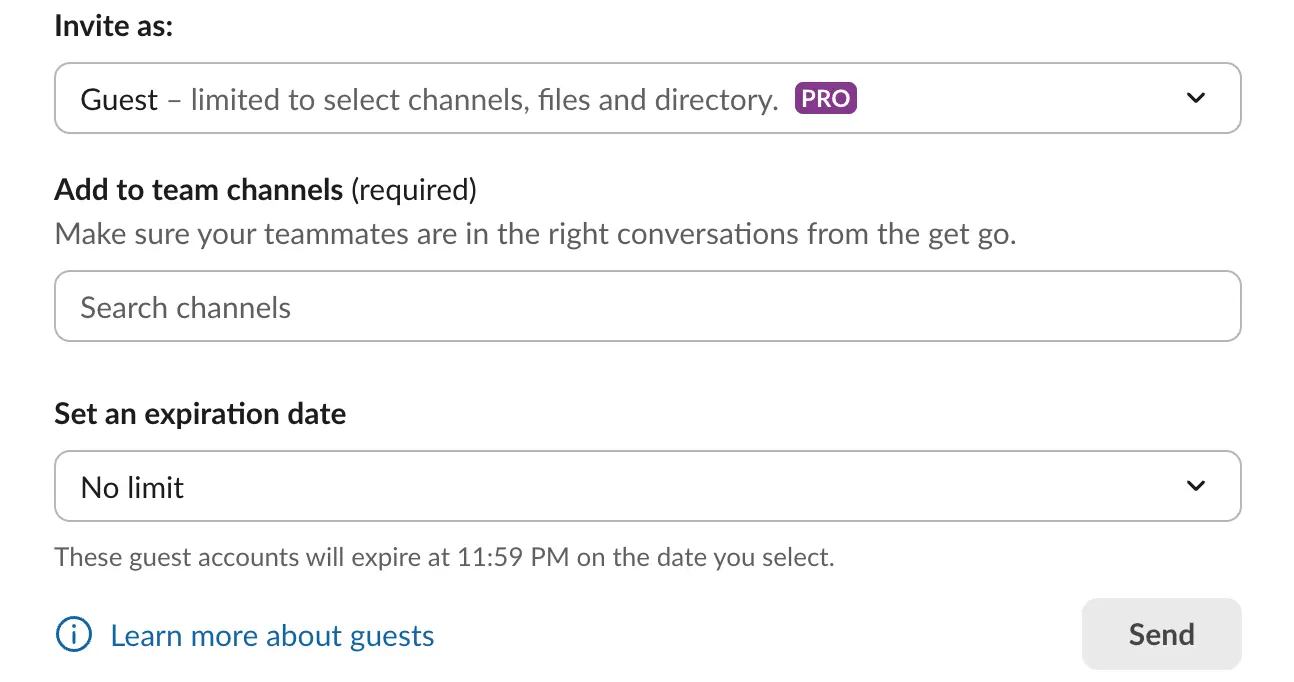
External connections in Slack
Slack’s interface
The side menu in Slack includes a Homepage, DMs, activity notification history, files, and an expandable “More” menu, allowing more features to be added for quick access.
Slack also features color and font customizability, allowing you to change the color scheme and fonts to your liking.
The vision assistive color scheme is a nice inclusion, allowing for easier access for users with different types of color blindness, namely tritanopia, protanopia, and deuteranopia.
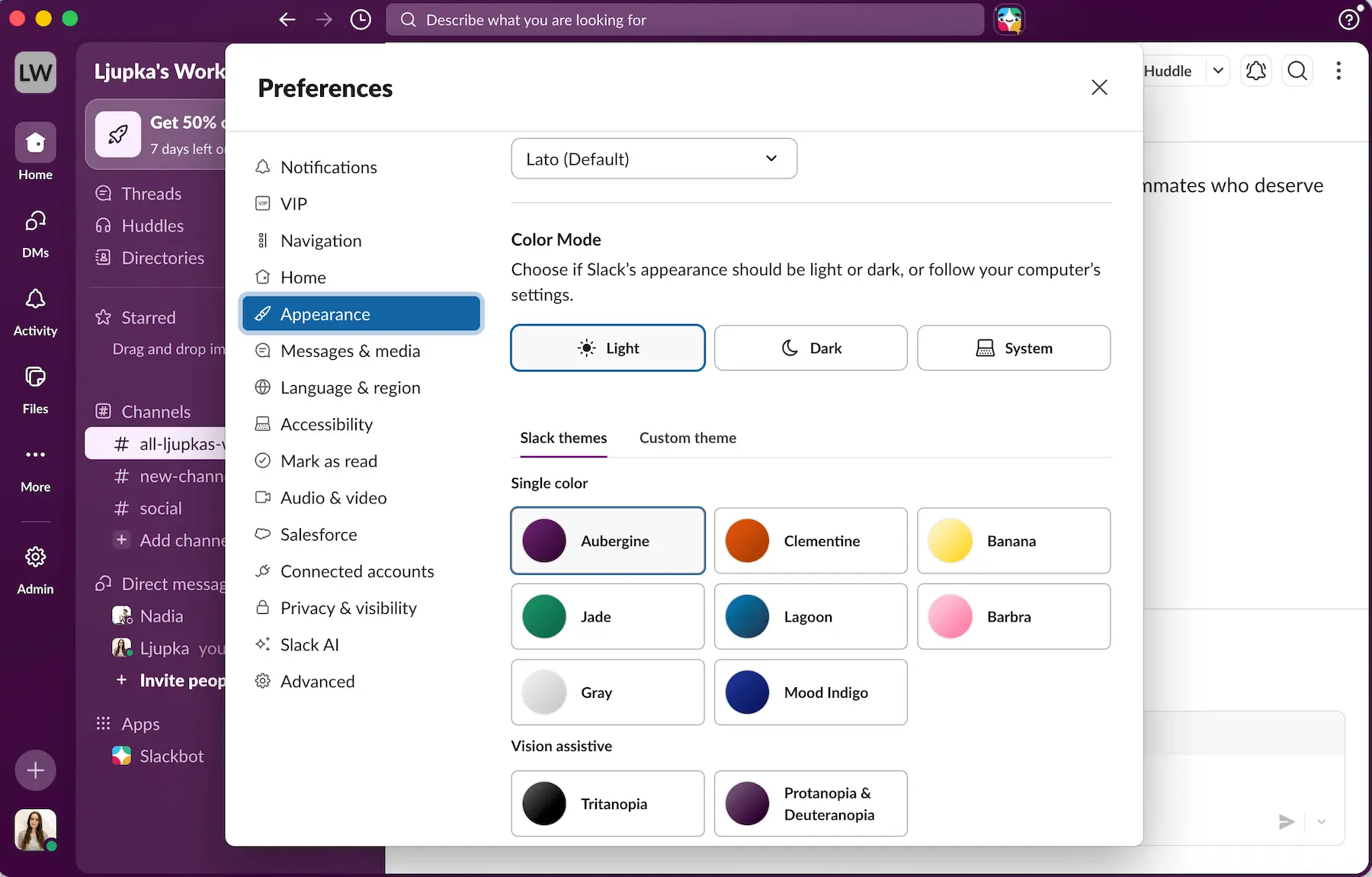
Customization in Slack
At first, the interface feels straightforward and easy to navigate, especially when you’re just getting started with a few channels and direct messages.
However, over time, as more channels, integrations, and conversations are added, the workspace can start to feel more complex and harder to manage.
In comparison, it feels less cluttered than some alternatives like Microsoft Teams or Flock, but heavier than simpler tools like Pumble.
Slack’s main pros
In terms of all the basic functions, I can safely say that Slack delivered what was promised.
Slack has a number of specific features that make it stand out. I found Canvases, Huddles, and Workflows to be the most distinct ones.
Let’s take a closer look at what sets Slack apart from other apps, and whether the features it offers are worth the money.
Canvases
Available in: Pro version and up (from $8.75 per user per month)
Available in the free plan: Yes, but only within channels and conversations (standalone canvases are only available to paid users)
Canvases are dedicated spaces within the Slack platform designed for creating, organizing, and sharing formatted content that is too long or complex for a standard message.
This feature allows you to create rich text content with headers, lists, and block-quotes, and add images, videos, documents, and other assets. Canvases also support rich previews of content from Slack’s various integrations.
When I first opened a canvas, I immediately liked it. It looked like the perfect space to put important information in so I could have easier access to it. Slack offers options to create a blank canvas, use an existing one, or edit a template, which is the approach I choose.
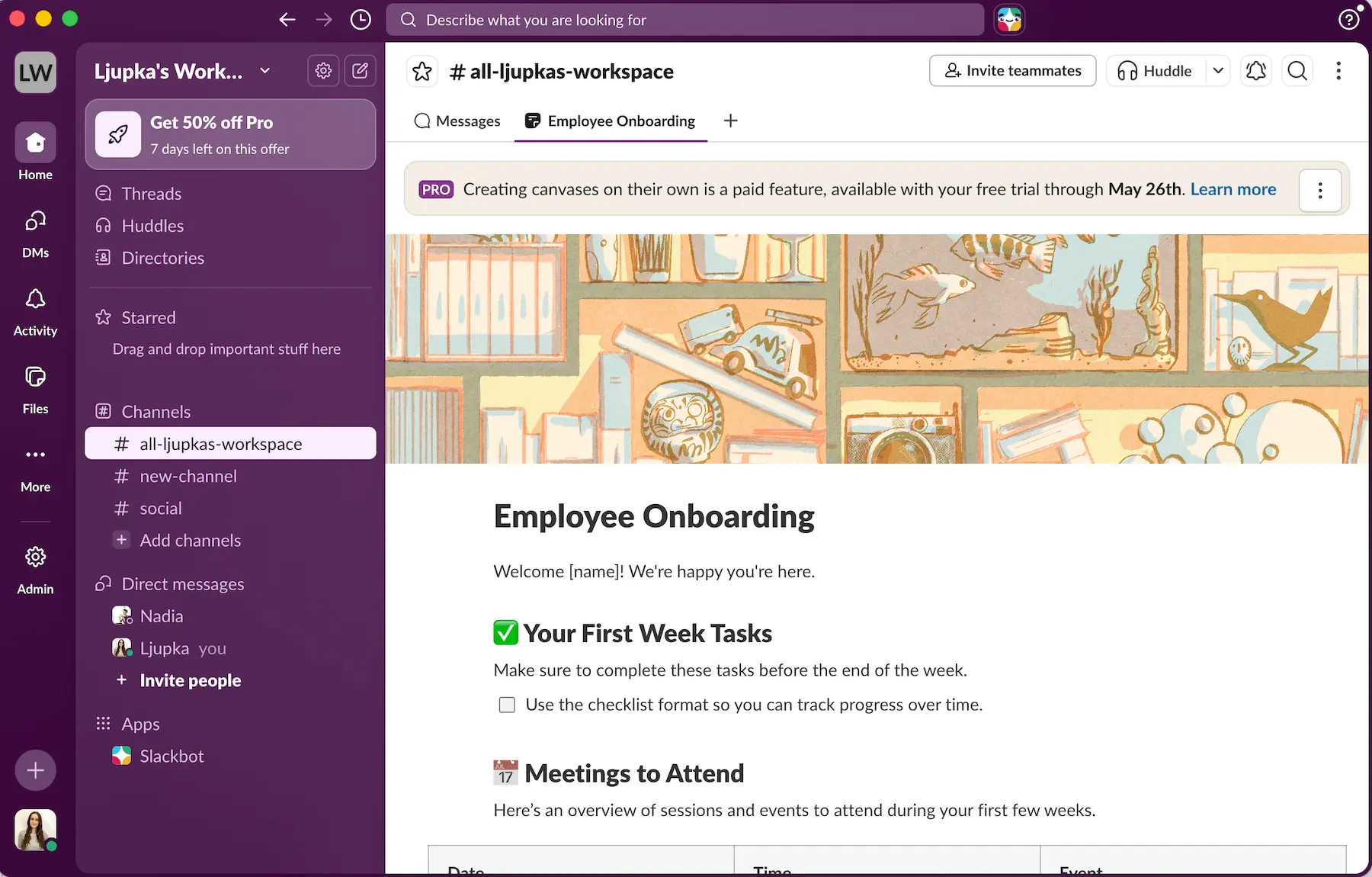
A canvas template in Slack
I created a few canvases, and the experience was fun and engaging. After playing around for a bit, a logical question came to mind — can I use canvases to create and export important documents?
After researching a bit, the answer was — no. You can’t export documents from canvases, which made me second guess relying on the feature for things that hold major importance in my team.
I’ve also found another downside to canvases. By default, a deleted canvas can be restored by navigating to Files > Deleted > Restore (a round arrow on the right).
However, once you delete a canvas, all of the information stored there is gone forever after 24 hours. There is no recovery option for a deleted canvas after that period.
Canvases offer various sharing options, which is a great feature given that not all info is relevant to every team member. You can set a canvas to be invisible to others, or allow users to either view or both view and edit a canvas.
However, it baffled me that editing in canvases is allowed to everyone by default when a new canvas is created in a channel. To me, it would make more sense if you needed to make an effort to allow other channel members to see and edit a canvas, not the other way around.
I'm vigilant about keeping sensitive and important information safe, so this made me a bit uneasy.
Keep your data secure with PumbleOn the one hand, I know I would be inclined to rely on this feature, since it feels intuitive and honestly — fun.
Canvases seem like a nice feature for daily or weekly to-do lists, mood boards, or creating a casual doodle space. I would definitely consider using them to break the monotony of everyday tasks, or to get the creative juices flowing.
On the other hand, all of the things mentioned above make canvases feel like an informal tool rather than a formal one, which makes me weary of using it for official information storing and sharing.
Huddles
Available in: Pro version and up (from $8.75 per user per month)
Available in the free plan: 1:1 Huddles only (no group calls)
Huddles are Slack's name for its audio and video call feature. They allow you to make audio or video calls to your team members in dedicated channels, group conversations, or DMs.
Huddles do a good job of simulating an actual workplace — you can easily start a huddle just like you would start a conversation in person. Here’s what a huddle looks like
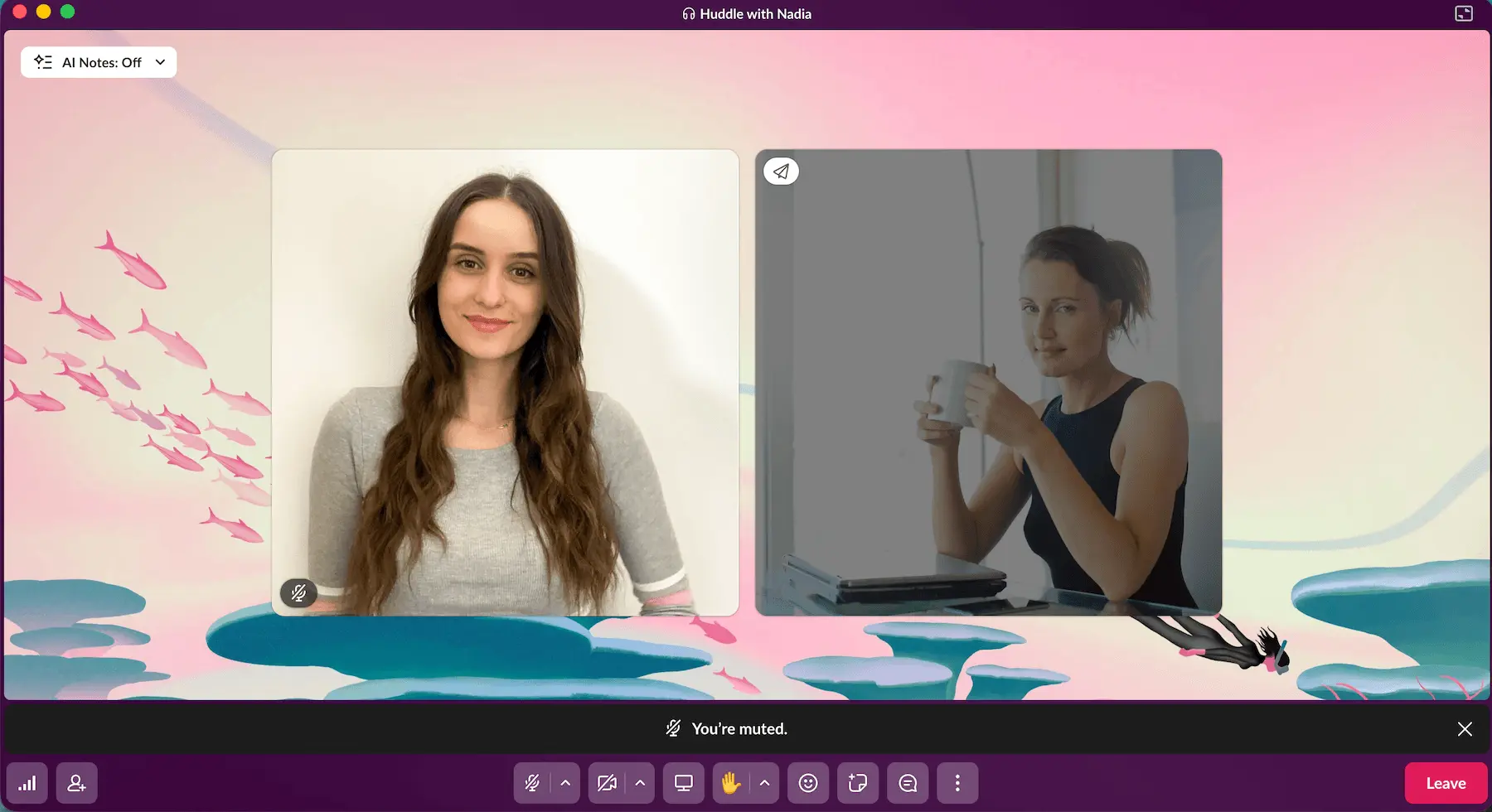
A huddle in Slack
Although you can schedule huddles through Slack’s various calendar integrations, they feel a bit laid-back and casual. I'd say it’s either a good or a neutral feature, depending on what you’re looking for.
If you’re looking to jump on a quick call and leave it running in the background in a Discord-like manner, huddles feel like a reliable tool for the job.
On the other hand, if you’re looking for a more formal digital meeting environment you'd get with apps like Pumble, Zoom, or MS Teams, huddles may not be the best fit for you.
For my team, I’d prefer differentiating between formal and informal conversations. The more informal ones would be facilitated one way (via a huddle), while formal conversations should be organized through dedicated calendar apps such as Outlook or Google Calendar.
Even though calendar integrations for huddles exist in Slack, the overall feeling of the meetings themselves, and the way huddles are designed, makes them seem like a daily conversation tool rather than a feature designed for important team discussions.
Schedule formal meetings in PumbleWorkflows
Available in: Pro version and up (from $8.75 per user per month)
Available in the free plan: No
Workflows are automated commands that get triggered when predefined conditions are met. You can define both the triggers and the outcome without any coding knowledge
Thanks to this feature, when a specific action you chose is performed, Slack will:
- Trigger calendar event scheduling,
- Send messages automatically,
- Pin different types of messages around,
- Create, copy, and remove a canvas or channel,
- Send a message, etc.
Workflows are fun to play around with, and I’m certain anyone has some highly specific need that this feature can meet.
Here’s what setting up a workflow looks like:
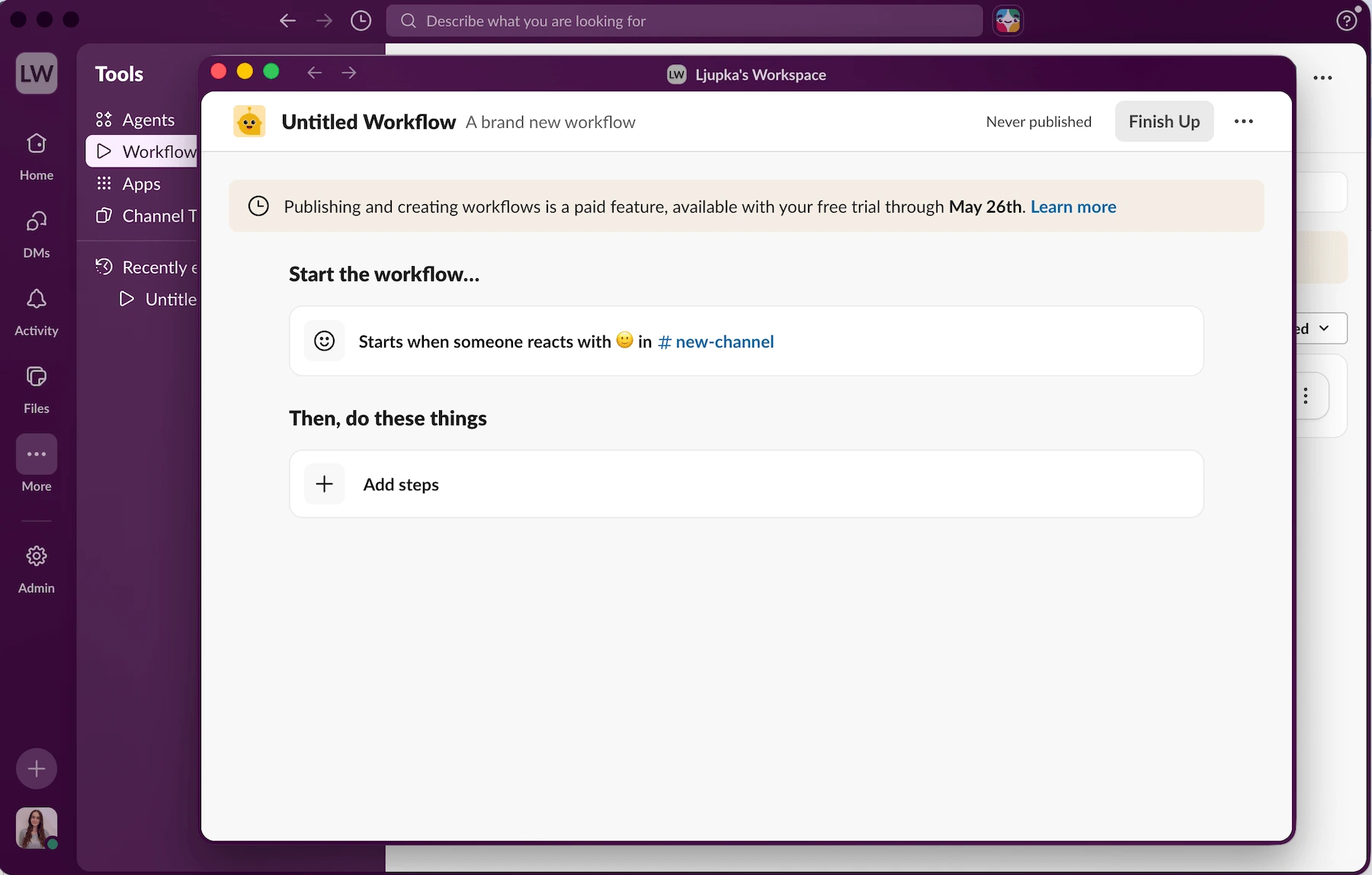
Workflows in Slack
I wanted to program an automatic announcement in the main channel every time the “Publish” checklist entry was marked as complete in my “New Short Story” canvas.
I couldn’t do this automatically, so I tried a workaround — automating the announcement message when the selected canvas was renamed.
I had the idea to rename my “New Short Story” canvas to “Done” after the publishing, and I wanted this to trigger an announcement in the main channel.
Sadly, I had some difficulties when I tried to automate this in my #all-workspace channel. Turns out onlyLists (and not Canvases) can be selected in the workflow window, even though lists and canvases look pretty similar design-wise.
The only other useful automation I found for my use case was to send an automated message, reminding everyone to share their weekly priorities as a response to a scheduled message.
Luckily, this was easy to set up and was executed successfully. The message was sent on Monday at 2 p.m. like the setup promised.
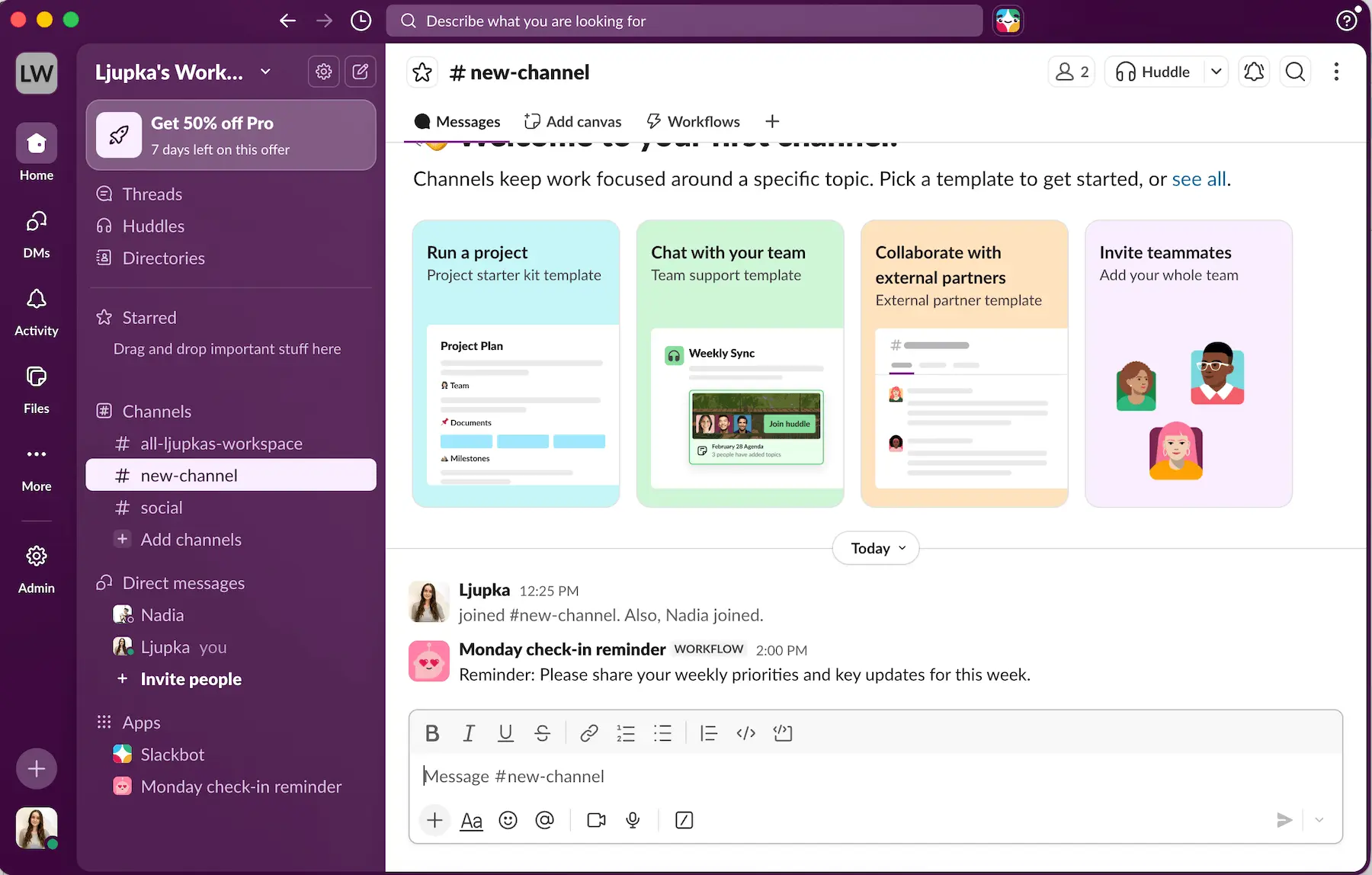
Automated weekly priorities reminder defined by the Workflow menu
App integrations
Slack’s wide range of app integrations is one of its strongest features, allowing you to connect to productivity, calendar, developer, design, editing, and other types of apps from the Slack Marketplace
Many users opt for Slack precisely because they're already using one of their many integrations as a paid service. So, this is one category where many alternatives can’t compete.
On the other hand, many Slack alternatives also offer Gmail, Github, Google Calendar, Zoom, and other most widely used app integrations. Apps like MS Teams have a large library of integrations while others, like Pumble, also offer native integrations — something that Slack doesn’t offer.
Slack’s main cons
As I’ve already mentioned — and as it is to be expected — some of the best Slack features are only available in paid plans.
Let’s take a look at some of Slack’s freemium limits.
90-day message history limit
If you’ve done any research about Slack, you’ve probably heard that, on the free plan, the message history is limited to 90 days. After that, all messages, files, and shared links are deleted, which leads to significant knowledge loss over time.
You may be wondering, "Can my team thrive with the free version of Slack, or will the message limit kill our productivity?"
Well, it depends.
If you're looking for a dedicated team communication app, you’re probably looking to migrate from a less formal chat app to something more professional andreliable.
In my experience, having a searchable company history makes it easier to reference past discussions, decisions, and documents (even if outdated). This, in turn, helps structure and complete new ones. The same goes for referencing past problems or conflicts.
If you want to create a space that will allow you to boost productivity and skip unnecessary steps, unlimited message history (something you get with competitor apps like Pumble)is one of the prerequisites of an ever-improving professional environment.
Yes, you can probably function without it, but you’re putting yourself at risk to find out the hard way why unlimited history matters — even if you always back up and organize all important files.
Never lose a message againFree plan with no customer support
As of 2025, there is no customer support on the free Slack plan.
Slack’s Pro plan offers 24/7 support, while Business+ and Enterprise+ offer priority 24/7 support with a 4-hour first response time.
I would have loved to see customer support included even on the free plan (like Pumble has), especially considering how important quick help can be when teams rely on a communication tool
Get 24/7 human support for freeThe steep price
One of Slack’s main downsides is that, as your team grows and develops, Slack’s price becomes prohibitively expensive.
Here’s where Slack’s full monthly price stands at:
- $8.75 per user for the Pro plan,
- $18 per user for the Business+ plan, and
- Custom pricing for the Enterprise plan (there’s generally an annual discount for large teams).
For a medium-sized team, I'd find it pretty difficult to justify this price.
For example, for a 25-person workspace, Slack’s Pro plan would cost $218.75 per month. By comparison, Microsoft Teams (Essentials) would be $100 per month, while Pumble (Pro) would be even cheaper — just $74.75 per month.
It’s also worth noting that Slack automatically starts users on a free trial of its paid features, meaning you don’t get the option to experience the free plan first. This can create a misleading impression of the product, since you get used to premium features that later disappear when the trial ends.
Try an affordable Slack alternativeSlack’s pricing and real world team examples
To get an accurate assessment of Slack’s pricing, I've analyzed different payment scenarios for teams of various sizes.
Here's what your monthly expenses for Slack would look like for 4 differently sized teams, after the initial 50% discount offered for the first 3 months:
|
Team size |
10 users |
25 users |
50 users |
100 users |
200 users |
|
Slack Pro monthly price |
$87.5 |
$218.75 |
$437.5 |
$875 |
$1,750 |
|
Slack Business+ monthly price |
$180 |
$450 |
$900 |
$1,800 |
$3,600 |
|
Slack Enterprise+ monthly price |
Custom price |
Custom price |
Custom price |
Custom price |
Custom price |
Your team can opt for any Slack plan. However, paying for a vast suite of enterprise security features (like SAML-based SSO or compliance exports) or new and still uncertain AI features probably won’t be necessary for a smallor medium-sized team that will likely never use them — since they’re highly specific and niche.

Final thoughts
The price is truly the biggest downside of Slack.
It’s very difficult to justify the high cost of Slack to yourself, your partners, or your stakeholders when there are much more affordable options with most of the same core features for a fraction of the price.
Apart from this, finding information in Slack can also be difficult. As mentioned earlier, free users lose access to older conversations and files. Even on paid plans, navigating a cluttered interface with many channels, DMs, and canvases can make it harder to quickly find what you need.
Feature wise, Slack still holds up in 2026 as one of the leaders in the business communication industry.
However, keep in mind that there are many other business communication and collaboration apps that cover all of Slack’s most used features, and even business multitool bundles at the price point of 1 Slack seat, bringing a much higher value for money.

Improving your business communication with Pumble by CAKE.com
If you’re searching for a powerful alternative to Slack, you’ll definitely want to consider Pumble by CAKE.com.
Pumble is an all-in-one business communication tool with:
- An unlimited message history,
- One-click video conferencing, and
- World-class human customer support on all plans.
Pumble includes all of Slack's most prominent features, including direct messages, threads, and channels, with the addition of video conferencing with a much more formal and professional feel.
To test all these features out, you can rely on Pumble’s free plan, which is much more generous than the one Slack offers.
By using Pumble, you’re getting the best Slack alternative in 2026out there while saving hundreds of dollars per month, depending on the number of users in your team. You’ll pay 65% less for Pumble— a huge difference that gets more obvious and beneficial the larger your team is.
Let’s look at the most affordable payment plans from Slack and Pumble (the Pro plans), and compare them to the payment scenarios above. A 25-person workspace in Pumble would cost a total of $74.75 per month, compared to Slack, which would cost $218.75 per month.
If you’re already using Slack, you can even migrate from Slack to Pumble through a user-friendly and hassle-free process.
Pumble offers:
- A 65% lower price with all of Slack’s core features,
- A 24/7, 100% human support on all plans,
- An unlimited message history on all plans, and
- A dedicated success representative on all paid plans that meet the user quota.
Pumble is also included in the CAKE.com Productivity Bundle, together with Clockify (time tracking) and Plaky (project management). The suite gives access to all 3 apps with enterprise-level features for one low price, making it a more practical and cost-effective way to manage your communication and productivity.
Level up your team’s communication and productivity — try Pumble by CAKE.com today!
Get started with Pumble