
Zoom is one of the most popular video meeting apps for business, education, and beyond.
However, between Zoom’s steep pricing and the limitations of its free plan, many are still on the hunt for more comprehensive hybrid work tools.
Luckily, there are plenty of solid options to choose from — including the 10 best Zoom alternatives I tested and reviewed below.
Why trust us?
The apps we talk about are selected, tested, and written about by human reviewers who follow strict review and editorial guidelines. We pick solutions that are practical, purposeful, and can offer real value for the specific use case or business context we’re covering — while also being justified in their pricing. Our methodology is transparent, clear, and available to everyone:
Why are teams looking past Zoom in 2026?
Zoom has many downsides that might prompt you to seek out other virtual meeting platforms.
The most prominent is its 40-minute meeting duration limit for the free plan. Although statistics show that meetings are getting shorter, the average length sits at 47 minutes in 2026, which still exceeds Zoom’s limit. Every time a call passes the 40-minute mark, your whole team needs to rejoin a new meeting, putting a real strain on focus and productivity.
Next is Zoom’s high price point. Even the cheapest paid plan costs $13.33 per user per month on the annual payment plan, adding up to a high bill for big teams. This makes even less financial sense if your team, like many, is using Zoom solely as a video conferencing solution.
Zoom also has a history of security issues, as evidenced by the existence of the phrase Zoom bombing — the unwanted and disruptive intrusion of uninvited people in an online video conference. This can derail many organizations, especially those working with sensitive information.
Best Zoom alternatives for 2026: A quick overview
I compiled a list of apps that can provide everything Zoom has to offer at a lower price, while also letting users have:
- An unlimited call duration, even on the free plan
- Easy switching between video calls and text-based communication
- Solid browser-based video calls (since Zoom calls tend to be more stable within the app)
Granted, not all of the apps on my list manage to check off all 3 of those requirements, but they’re still worthy of consideration.
Let’s take a look at a general overview of the best alternatives to Zoom for 2026 before we dive into detailed reviews.
| App | Best for | Calls on the free plan | Difference compared to Zoom | Standout feature | Price (per user per month, paid annually) |
|---|---|---|---|---|---|
| Pumble by CAKE.com | All-in-one collaboration: text, voice, and video messaging and conferencing features | Unlimited 1:1 video and voice calls | Pumble is a comprehensive team collaboration software, not just a video conferencing tool. | Unlimited message history, channels, and users even on the free plan | – Free – Paid plans start at $2.49 |
| Microsoft Teams | Microsoft 365 Business users | 60-minute meetings for up to 100 people | Microsoft Teams also offers messaging, in addition to secure video conferencing. | Microsoft 365 integrations | – Free – Paid plans start at $4 |
| Google Meet | Google Workspace users | 60-minute meetings for up to 100 people | Google Meet has more robust native integrations while Zoom relies on third-party apps. | Google Workspace integrations | – Free – Paid plans start at $7 |
| Whereby | Browser-based video calls | 30-minute meetings for up to 4 people | Whereby offers a simplified video conferencing experience. | Minimal but useful integrations | – Free – Paid plans start at $10.99 |
| Jitsi Meet | Simple, no-setup video conferencing without time limitations | Unlimited meetings for up to 100 people | Jitsi is a completely free open-source video conferencing platform. | Unlimited free video conferencing for up to 100 people | Free |
| Brave Talk | Privacy-by-default secure video conferencing | Unlimited meetings for up to 4 people | Brave Talk is a built-in feature of the Brave browser that doesn’t require an account. | Free video conferencing with no time limit | – Free – Paid plans start at $7 |
| Webex Meetings | Consistent high-definition video | 40-minute meetings for up to 100 people | Webex Meetings is more security-focused than Zoom. | Generous storage capacity | – Free– Paid plans start at $12 |
| Discord | Informal chit-chat and high-quality audio | Unlimited video meetings for up to 25 people | Discord is better for more casual exchanges and voice calls. | Always-on voice calls | – Free – Paid plans start at $2.99 |
| Zoho Meeting | Large meetings and webinars | 60-minute meetings for up to 100 people | Zoho Meeting is more affordable for larger teams. | Up to 250 participants on paid plans | – Free – Paid plans start at $1 |
| RingCentral | Teams that also need business calling | 50-minute meetings for up to 100 people | RingCentral combines video meetings with team messaging and business calling. | Built-in business phone system for making and receiving calls | – Free – Paid plans start at $20 |
Skip the reviews — try Pumble now
#1: Pumble — Best for all-in-one collaboration
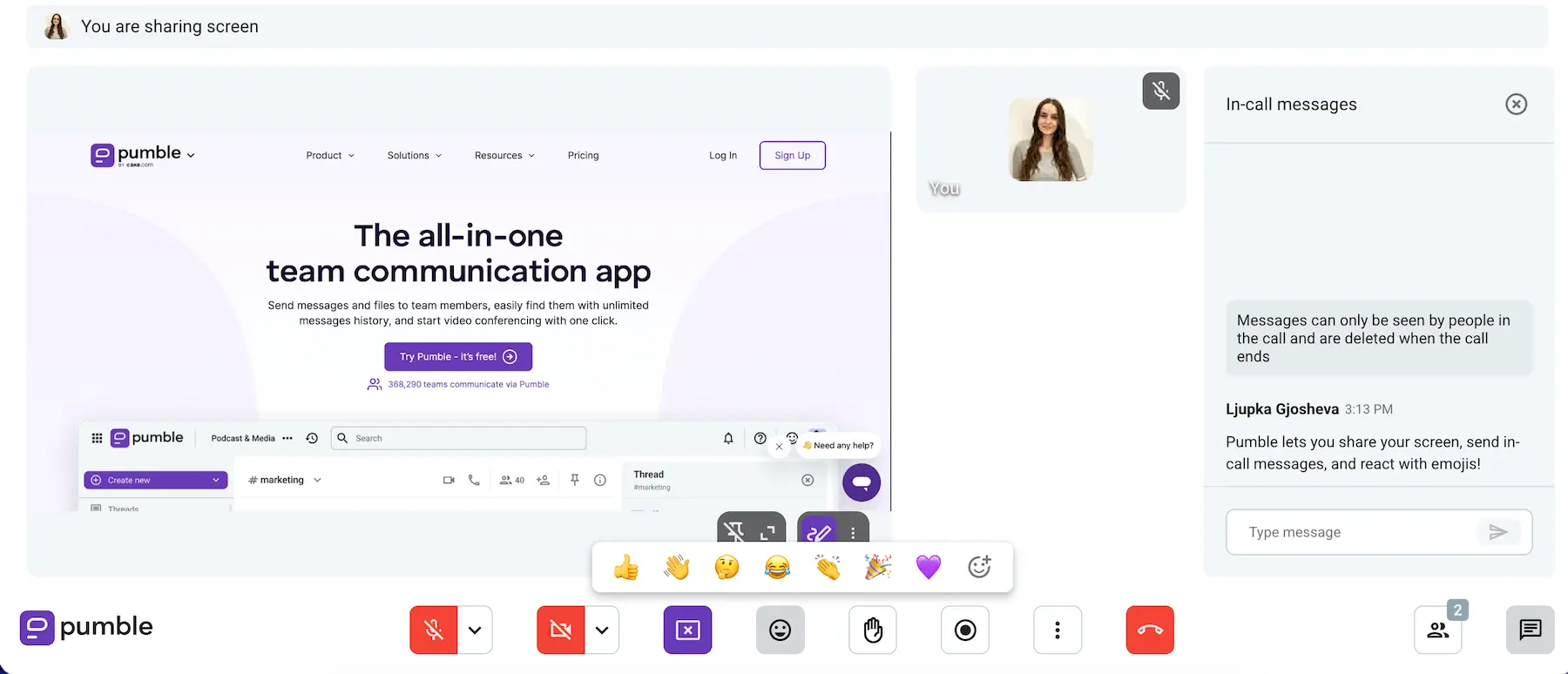
As a video conferencing app, Pumble by CAKE.com has a comprehensive set of features:
- Secure video conferencing and audio calls
- Screen sharing, meeting recording, and in-meeting messages during calls
- Guest access meeting links for external collaborators without Pumble accounts
Beyond video calls, Pumble also lets you stay in touch with your team through:
- Direct messages, group chats, and private and public channels
- File and document sharing
- Guest access accounts for external partners
- Asynchronous video messaging and voice notes
What immediately sets Pumble apart as one of the best Zoom competitors out there is its super intuitive and user-friendly interface. I know I had my fair share of access issues with Zoom — from having to download the app to get started to missing the first half of an important webinar while waiting for (another) update to finish.
In Pumble, all you have to do is share a meeting link with your team, or click the link if you’re an attendee, and you’re all set. Alternatively, you can also use Pumble links to schedule meetings in your calendar through the app’s Google Calendar extension.
Best of all, Pumble’s pricing plans start at $2.49 per user per month for the Pro plan, whereas the Business plan is $3.99 — so it’s much more affordable than Zoom while offering more communication options.
Pumble pros:
- Unlimited users, message history, and channels on the free plan
- Video or voice calls with up to 100 users
- Simple and intuitive interface
Pumble cons:
- No in-app virtual backgrounds yet (but there is a background blurring option)
What’s new in Pumble by CAKE.com?
Pumble recently launched its Analytics dashboard — a reporting tool that gives you insights into how your team is using Pumble. You can use it to monitor channel activity, check individual engagement, and track video call usage.
Available for: Web, Windows, Mac, Linux, Android, and iOS
💡 PUMBLE PRO TIP
Interested in seeing a more detailed breakdown of Pumble vs. Zoom? Check out this review:

#2: Microsoft Teams — Best for Microsoft 365 Business users
Microsoft Teams packs an extensive set of communication and collaboration features, combining team chat, video conferencing, and other productivity tools.
For example, you can schedule, get notifications and invites for your Teams meetings, and join a meeting directly in the app using its Outlook or Google Calendar integration.
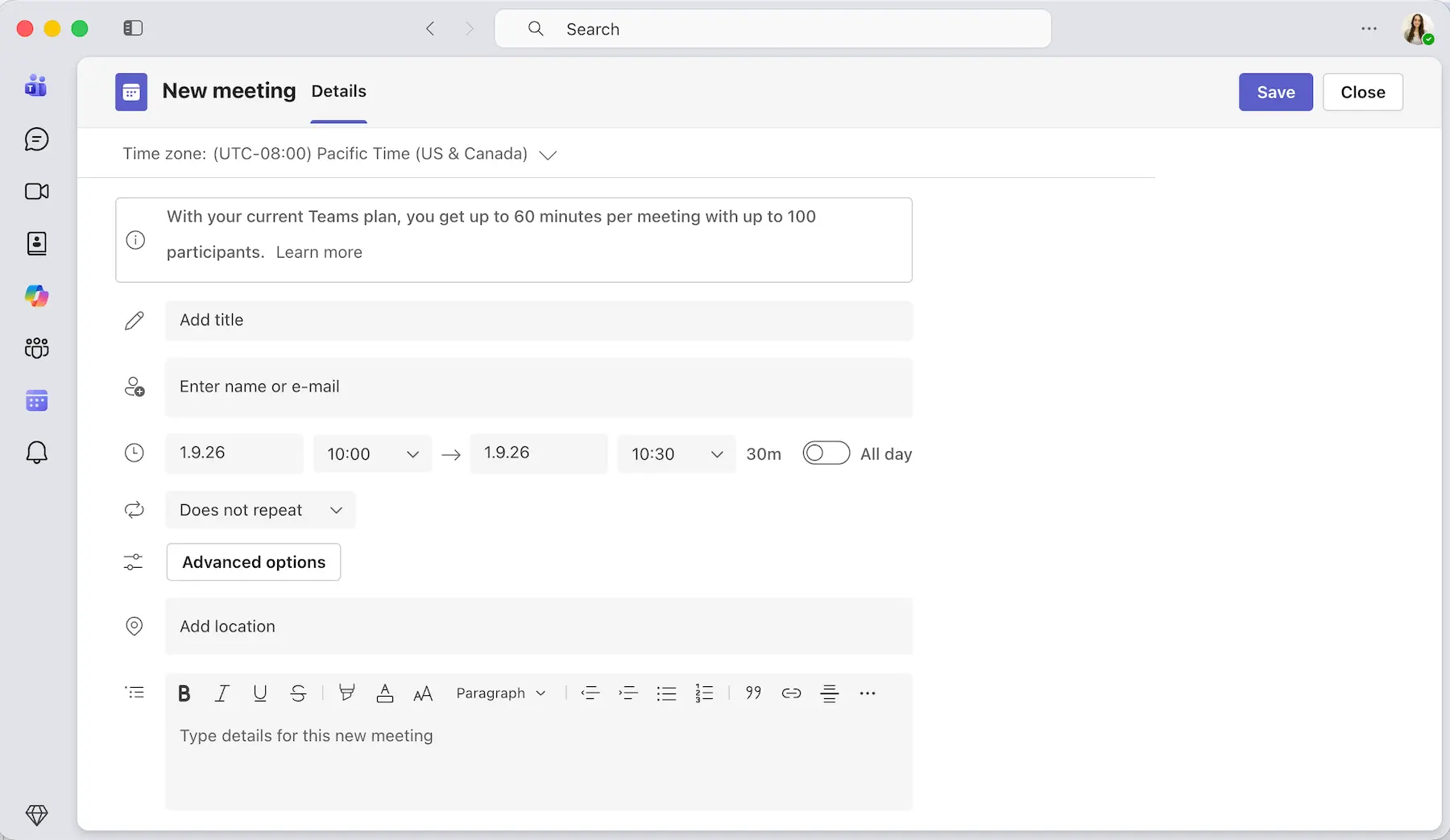
During meetings, you can share your screen and collaborate with your team in breakout rooms or chat privately or in group chats.
On top of that, if you’re a Premium user, you can also take advantage of Microsoft’s AI assistant to generate a meeting transcription and share it with the other participants. However, you should know that that particular privilege will cost you about $22.00 per user per month, as it’s an exclusive feature for Microsoft 365 Business Premium users.
There are cheaper Business plans available:
- Essentials costs $4 per user per month
- Business Basic costs $7 per user per month
- Business Standard costs $14 per user per month
Microsoft Teams also has a free plan, but it’s somewhat limited and primarily intended for personal use. It’s designed for 1 person and comes with 5 GB of storage and 60-minute group calls for up to 100 participants.
Microsoft Teams pros:
- 60-minute free meetings for up to 100 participants
- All-in-one collaboration and communication
- Tight integration with other Microsoft 365 products
Microsoft Teams cons:
- A busy user interface, especially if you are predominantly using video conferencing only and if you’re accustomed to Zoom’s more sleek design
What’s new in Microsoft Teams?
With the new Meeting Recaps app in Microsoft Teams, you can catch up on all your past meeting recaps in one place and choose from different types of recaps, such as intelligence recaps, video recaps, and audio recaps.
Available for: Web, Windows, Linux, Mac, Android, and iOS
💡 PUMBLE PRO TIP
If you need more information to decide whether Microsoft Teams or Zoom is best for you, you can check out our in-depth comparison guide:
Alternatively, you can check out our list of the best Microsoft Teams alternatives here:
#3: Google Meet — Best for Google Workspace users
Google Meet is one of the best online meeting platforms for people who prefer browser-based video calls. And, if your team has already integrated other collaboration tools and productivity apps into your Google Workspace, using Google’s native video conferencing app could make sense.
On top of being intuitive and easy to use, Google Workspace offers a good deal even in the free plan, which includes:
- 15 GB of cloud storage per user
- 60-minute meetings for up to 100 people
- Solid Google security
With paid plans (starting at $7 per user/month, billed annually), you gain access to additional features. For example, I tried the Google Workspace Business Plan free trial, which gave me:
- More storage
- The option to record and save meeting sessions
- The option to better manage my audio quality with noise cancellation
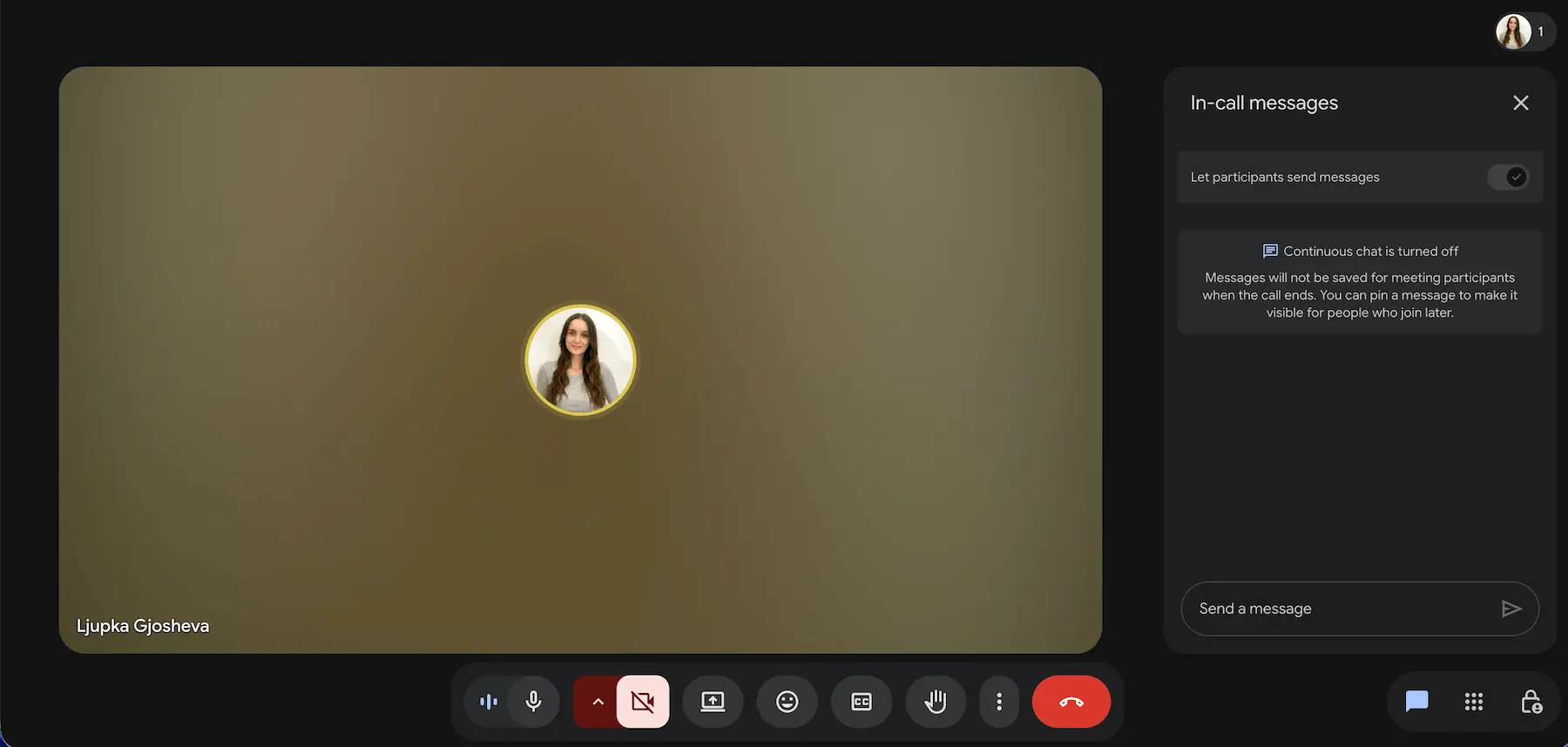
In terms of collaboration and communication options, Google Meet offers everything Zoom does, including:
- In-call chat
- Screen sharing
- Meeting recording
- AI-powered meeting transcription
- Breakout rooms
However, some of these features, like meeting recording and breakout rooms, are only available to paying customers.
Google Meet pros:
- Simple interface
- A generous free plan
- Google Workspace integrations
Google Meet cons:
- Some useful tools are for paying customers only
What’s new in Google Meet?
The AI-powered “Take notes for me” feature now saves screenshots of shared slides alongside the main meeting takeaways.
Available for: Windows, Mac, Linux, Android, and iOS
💡 PUMBLE PRO TIP
Stuck choosing between Google Meet and Zoom? Here’s a helpful guide to help you reach a decision:
#4: Whereby — Best for browser-based video calls
Whereby is an excellent option for browser-based video calls that require zero setup.
The platform has a refreshingly clean-looking interface that makes it easy to navigate right from the jump. I was able to create and join meetings in one click using a single link, and even share my Google Document within the call.
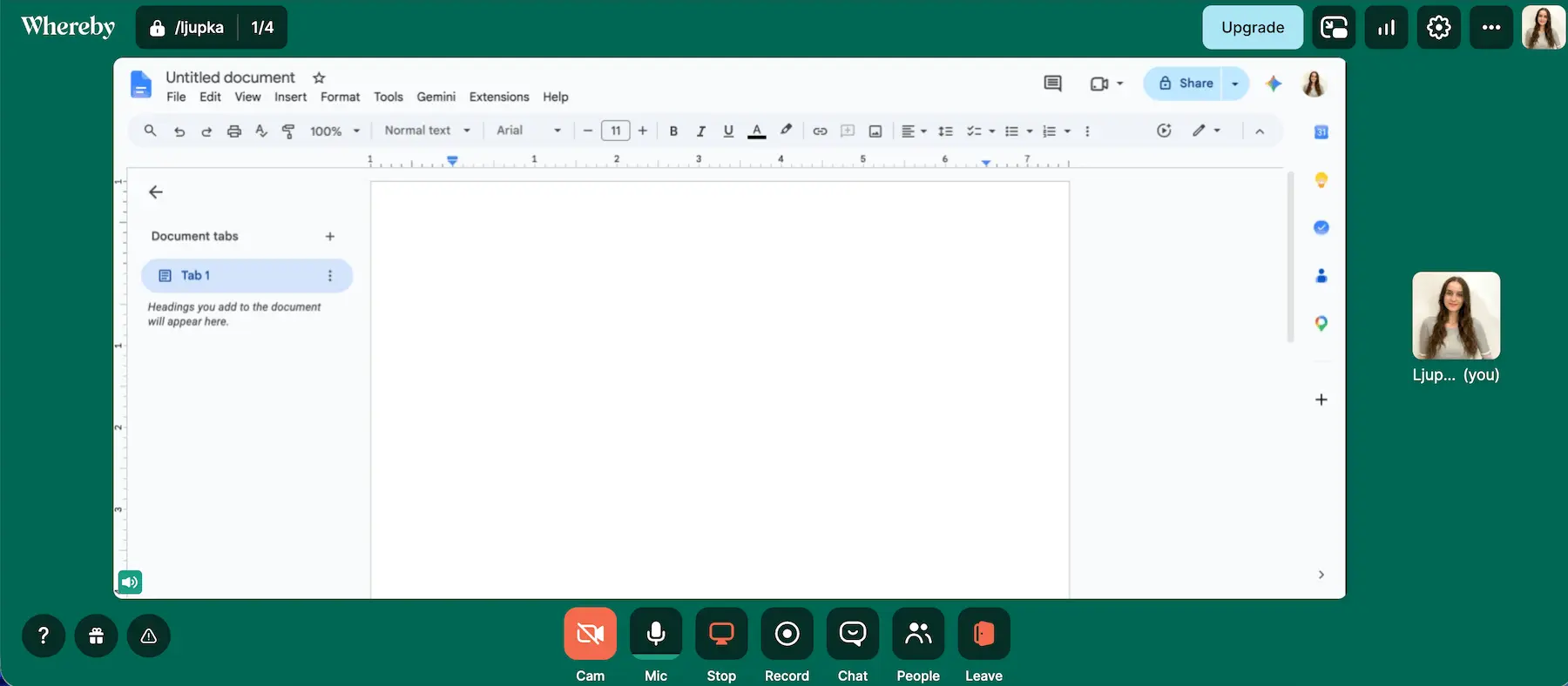
Aside from its Google Drive integration, Whereby also lets you collaborate and brainstorm in real-time via Miro whiteboards and Trello boards.
I didn’t notice any screen sharing latency, so there was no time or focus loss, which is something I value in the conferencing tools I use daily.
Unfortunately, this Zoom competitor’s free plan doesn’t offer unlimited call duration, so you’ll have to get your point across within 30 minutes. On top of that, the free version will only let you talk to up to 4 people at a time — so it’s only suitable for small businesses.
If your team grows beyond that, you can always upgrade to one of the paid versions of the platform. Paid plans offer a solid range of productivity and collaboration options for larger businesses while keeping the core simplicity.
The cheapest paid plan (at $10.99 per month) lets you create up to 3 rooms with custom links and unlimited recording. It accommodates up to 100 attendees per meeting.
The Business plan — at $13.99 per month per host — includes:
- Unlimited rooms
- A custom subdomain
- Shared and flexible rooms
- Priority support
- Up to 200 participants per meeting
Whereby pros:
- Browser-based video calls that require zero setup
- Simple and user-friendly interface
- Great for collaboration
Whereby cons:
- Somewhat unstable video quality typical of a web app
- Limited free plan
What’s new in Whereby?
Users now get Session ratings at the end of calls, where they can rate and give feedback about call quality.
Available for: Web, iOS, and Android (via SDK)
Enjoy superb video quality on Pumble
#5: Jitsi Meet — Best for simple video conferencing without time limitations
Next up, we have Jitsi Meet, an open-source browser-based Zoom alternative that offers secure video conferencing for free.
Though Jitsi Meet’s UI is somewhat simple, it still has all the features you’ll need to keep the conversation going with up to 100 participants at a time, including:
- In-call chat
- Meeting recording
- Screen sharing for multiple participants
- Breakout rooms
- Whiteboards
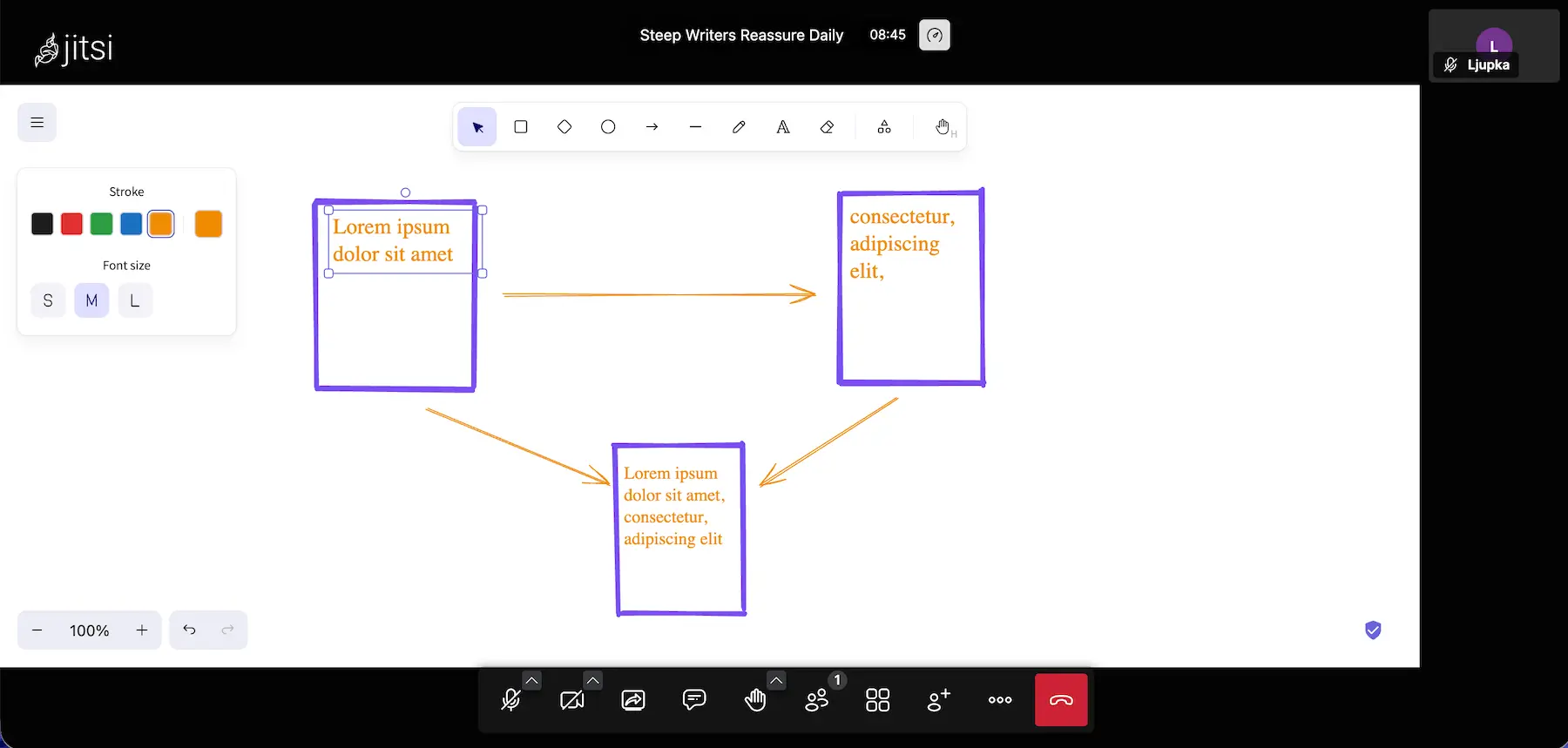
Best of all, you don’t need a dedicated browser to organize meetings. You’ll be able to start and join meetings in one click and from any browser, while having all the collaboration features listed above. And, if you access Jitsi through any browser based on Chromium 83 and above, you’ll also have the option to enable end-to-end encryption (E2EE) for additional security.
Of course, there’s always a catch with free video conferencing for teams. Though I didn’t push its limits during my tests, some users report experiencing lagging and connection issues when using Jitsi with larger teams.
Jitsi Meet pros:
- No login or download required
- Free, secure, and simple
- No time limit to meetings
Jitsi Meet cons:
- Larger teams may experience lagging
- Any participant can control the meeting, e.g., assume the admin position and mute all other participants
What’s new in Jitsi Meet?
Jitsi Meet upgraded its speech-to-text system to provide more accurate transcriptions.
Available for: Web

#6: Brave Talk — Best for privacy-by-default secure video conferencing
Brave Talk is another browser-based video call platform built on the foundation of Jitsi Meet. As such, it has some of the same features you’ll find in Jitsi Meet — namely the fact that it doesn’t require you to download any apps. However, Brave Talk also offers some unique features that are locked behind a paywall.
In Brave Talk’s free plan, you can have up to 4 participants in a call, which is quite limiting for bigger teams. But, at least it still offers an unlimited call duration.
I tried the free version and found that the calls worked fine. I could change backgrounds, chat, and share my screen during calls, but what stood out to me was the sheer simplicity and clean design of the user interface in Brave Talk.
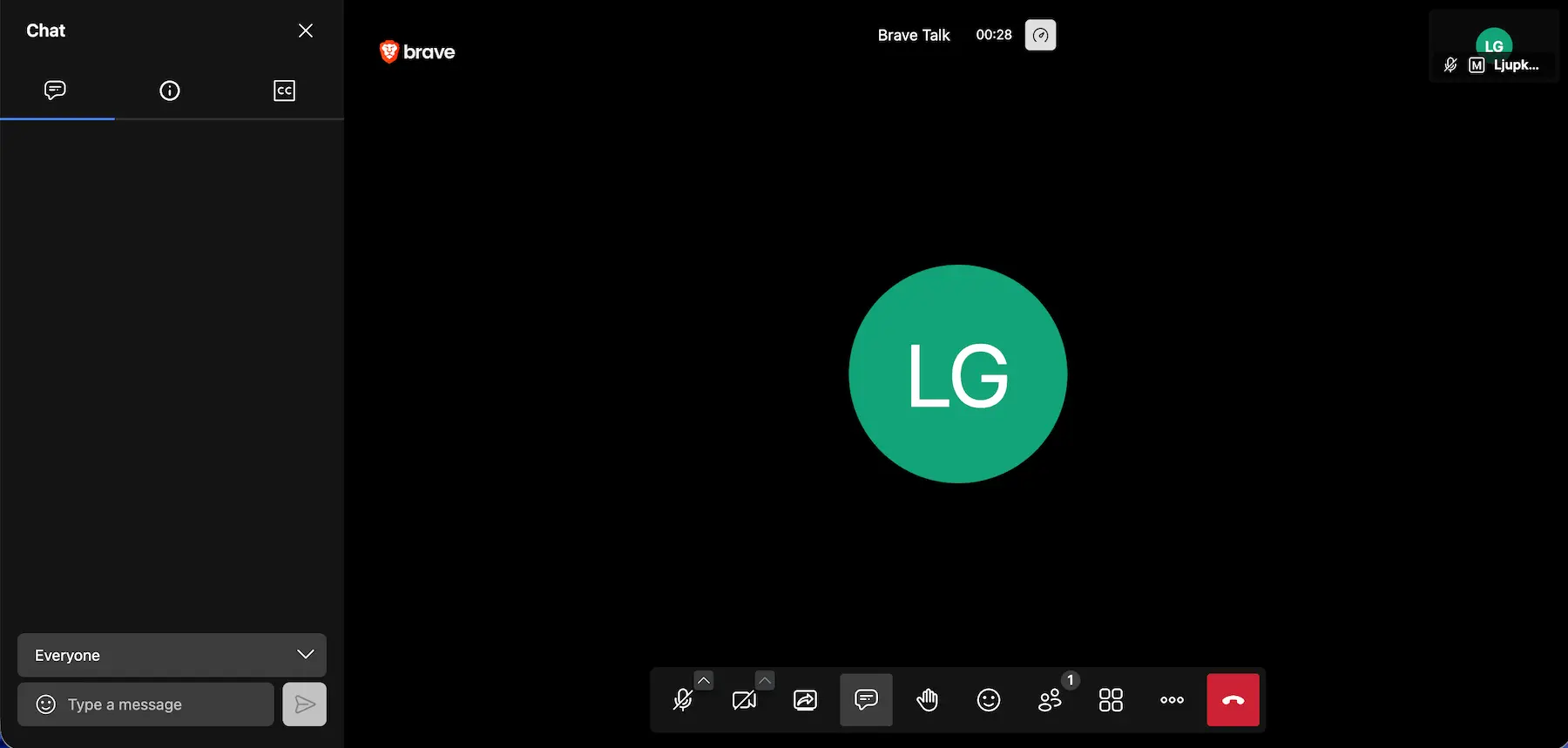
Notably, you’ll have to start your calls from the Brave browser — though other participants can join from any browser via the call link.
Its simplified way of joining meetings plus the ultimate privacy promise — no tracking, no linking you or other participants to a call, and no data collection — makes Brave Talk a solid alternative to Zoom and other popular (but often complex) apps.
Brave Talk’s upgrade is also quite affordable (a monthly subscription of $7), and it brings valuable additional features such as meeting recordings, participant muting and passcodes, and the ability to expand your participant count to 100 people.
Brave Talk pros:
- Unlimited free calls
- Solid security and privacy
Brave Talk cons:
- Limits free calls to 4 people
- Lacks Zoom’s advanced collaboration features
What’s new in Brave Talk?
Brave Talk doesn’t seem to have had any major updates since 2024, when Brave’s Leo AI was added to allow automatic transcriptions and meeting notes.
Available for: Web
Start Pumble calls from any browser
#7: Webex Meetings by Cisco — Best for consistent high-definition video
Like the previous Zoom competitor we’ve discussed, Webex Meetings by Cisco is also known for prioritizing privacy and security. However, that security seems to come at the expense of user experience, as the platform’s UI can be somewhat baffling.
For example, if you’re accustomed to joining meetings in one click, prepare for a multiple-step process with Webex Meetings. To begin with, you’ll need some patience during the registration, and then you’ll have to decipher the confusing password system.
But, if you manage to get through that ordeal, you’ll probably like the app just as much as I did.
Webex Meetings provides lag-free audio, high-definition video, and collaboration features such as:
- Whiteboards
- Breakout rooms
- Recording
- Document markup
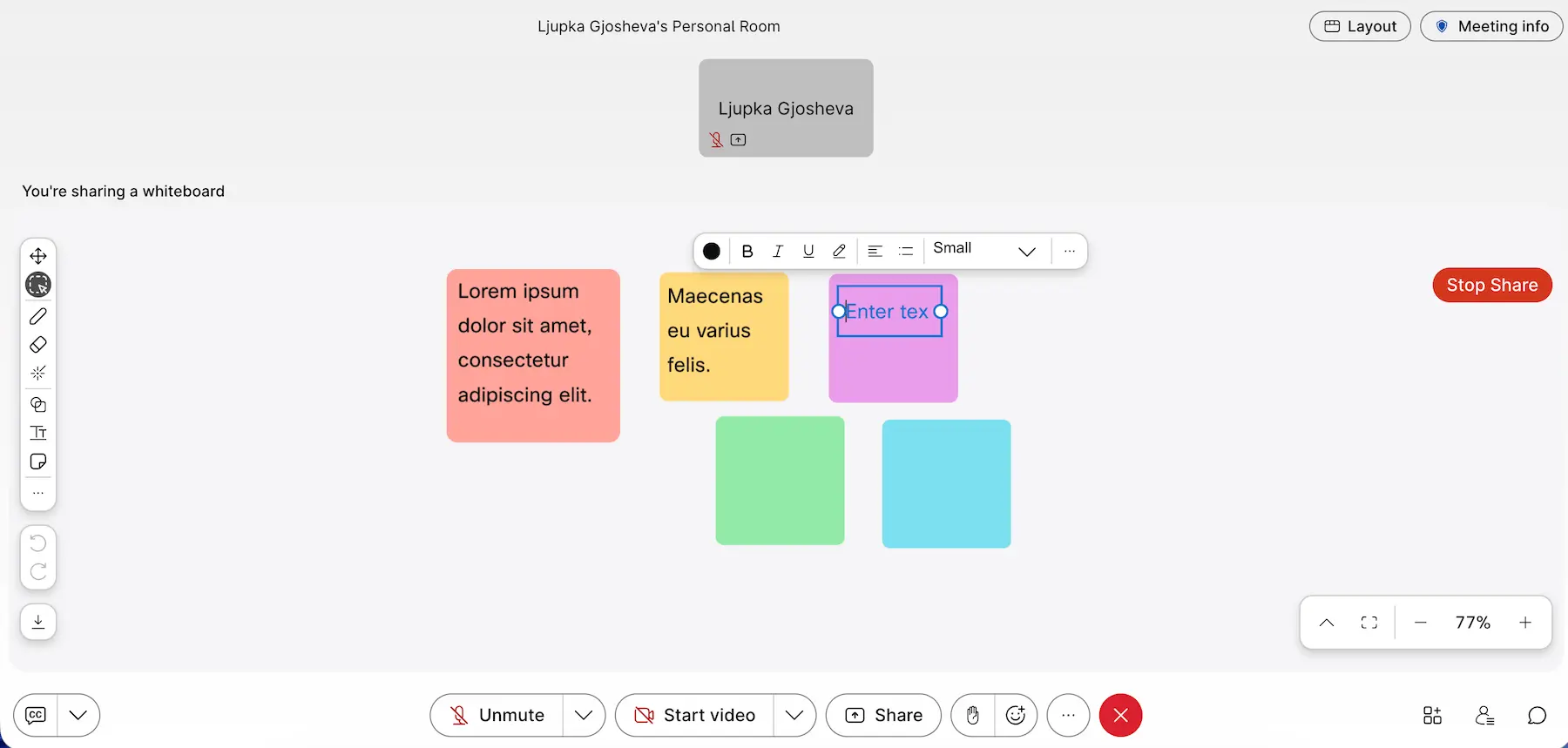
Like Zoom, this platform’s free plan limits users to 40-minute video calls with up to 100 attendees, local meeting recording, and no closed captions or co-hosts. So, if you’re working with a limited budget and can’t afford a subscription, you may want to try the other online meeting platforms I’ve mentioned.
However, if you’re willing to upgrade to a paid plan (which will cost at least $12 per user per month), you’ll be able to enjoy the app’s audio and video quality as well as its generous storage capacity to the fullest.
Webex Meetings pros:
- Superb audio and video conferencing quality
- Generous cloud storage — starting at 10 GB in the free plan
- Elaborate collaboration options perfect for remote teams working together on shared projects
Webex Meetings cons:
- Complex user interface
- Pricey
What’s new in Webex Meetings?
You can now open the in-meeting chat directly from the floating mini-window. If you have unread messages, a blue dot will appear on the chat button, so you can see at a glance when new messages arrive.
Available for: Windows, Mac, Android, and iOS
#8: Discord — Best for informal chit-chat and high-quality audio
Discord’s overall look makes it clear that the platform is geared towards gamers, but the ability to switch between calls and text channels without switching tabs is a pretty big benefit as far as I’m concerned.
Besides, Discord has gone above and beyond to appeal to wider audiences in recent years. The app lets you communicate and work with your team in server channels using:
- Text messaging (neatly organized into channels and threads)
- Voice channels (which can also be used to initiate video calls with up to 25 people, on all plans)
- File and screen sharing

If you’re looking for great audio performance, Discord may be the perfect solution for your team. Its Krisp-powered noise cancellation ensures impeccable audio quality even when multiple people are talking over each other.
Best of all, all these features are available for free — though that doesn’t make Discord the best platform for internal communication in general. There are plenty of other Discord alternatives that outperform it.
Even if you can ignore its lack of business-grade security features, you may object to the 20 MB file sharing limit you’ll have with the free version of Discord. Then again, you could always upgrade to the paid version of the platform for $2.99 or $9.99 per month to increase that limit to 50 or 500 MB.
Discord pros:
- Great audio quality
- No time limit on the calls
- Affordable (starts at $2.99 per month)
Discord cons:
- 25-person limit for video calls on all plans
- Limited file sharing
What’s new in Discord?
You can now set your profile to Private, so it’s only visible to friends and smaller servers.
Available for: Windows, Mac, Linux, Android, and iOS
💡 PUMBLE PRO TIP
For more on how Discord compares to Zoom and why it’s considered one of its best alternatives, visit our detailed comparison guide on the blog:

#9 Zoho Meeting — Best for large meetings and webinars
Zoho Meeting is an efficient video conferencing platform that offers 3 plans:
- Free — meetings for up to 60 minutes and 100 attendees
- Standard (from $1 per user per month, billed annually) — meetings for up to 24 hours with 250 participants
- Professional (from $3.50 per user per month, billed annually) — meetings for up to 24 hours with 250 participants
It’s important to note that the pricing changes depending on the number of team members. For example, with up to 10 members, the Standard plan will be $1 per user per month. However, with up to 25 members, it will cost closer to $4 per user per month when billed annually.
I tried the free version and enjoyed the collaborative features such as screen sharing, meeting notes, and polls.
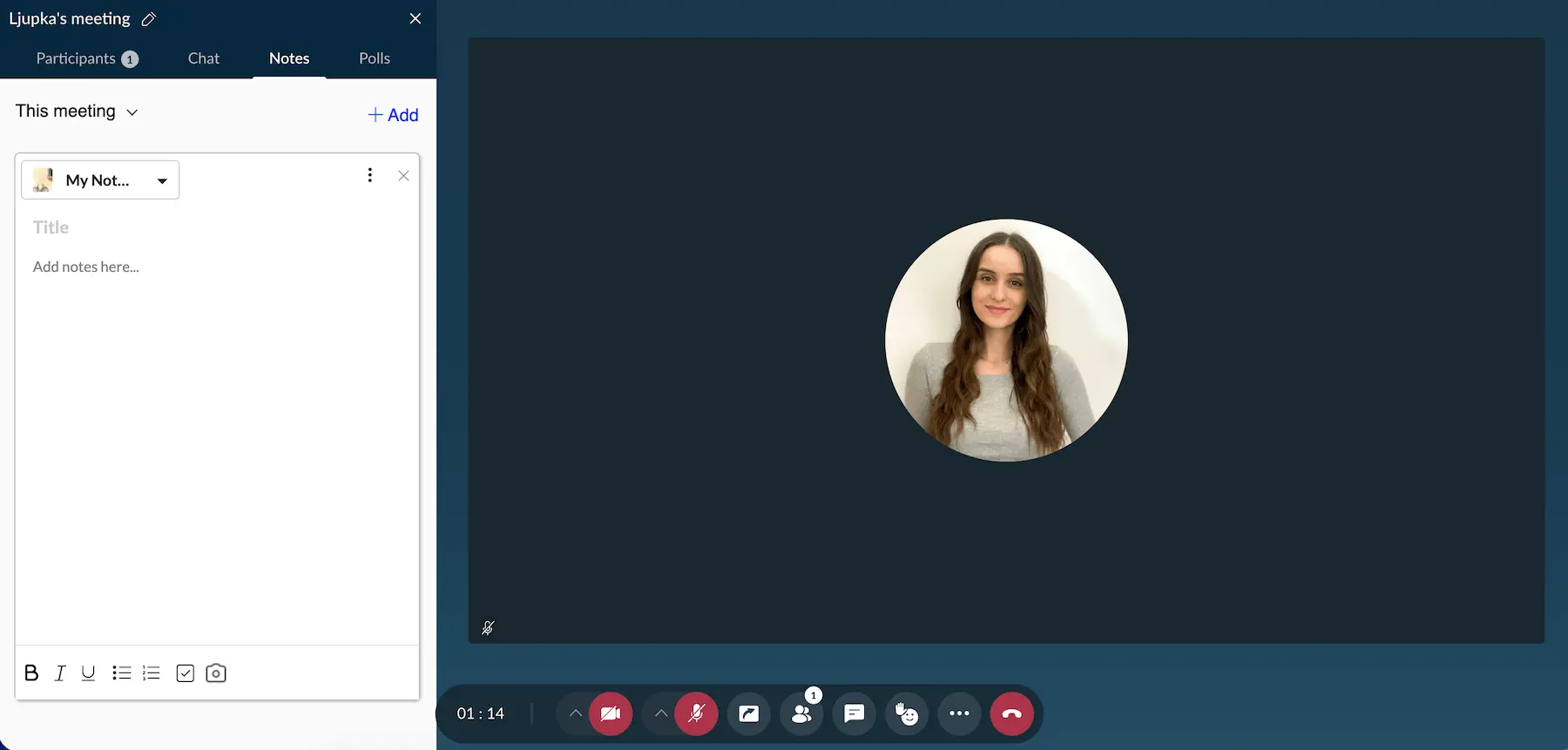
Although the calls work well, there’s not much else to Zoho Meeting. If you opt for it, you’ll likely need to use another tool for daily team communication.
If you’re looking for a video conferencing tool that can accommodate larger teams, Zoho Meeting’s paid plans are a strong option.
For even bigger, presentation-focused events, Zoho also offers a separate webinar service that supports up to 5,000 attendees.
Zoho Meeting pros:
- 14-day free trial
- Easy to sign up and use
- Affordable paid plans
Zoho Meeting cons:
- Limited third-party integrations
What’s new in Zoho Meeting?
Attendees can now revisit key moments instantly with AI-powered meeting transcriptions, summaries, chapters, and quick highlights generated automatically from meeting recordings.
Available for: Web, Windows, Mac, Android, and iOS
#10 RingCentral — Best for teams that also need business calling
RingCentral is a business telephony platform that also offers video conferencing and team communication.
The free plan allows 50-minute meetings for up to 100 participants. The 3 main paid plans are:
- Core — $20 per user/month, billed annually
- Advanced — $30 per user/month, billed annually
- Ultra — $35 per user/month, billed annually
On top of these plans, businesses can add specialized video collaboration features, such as:
- Rooms
- Town Halls
- Webinars & Events
I tried the free version of RingCentral and appreciated its clean UI. The video meetings were easy to set up and included collaborative features, such as in-call chat, screen sharing, and meeting recording.
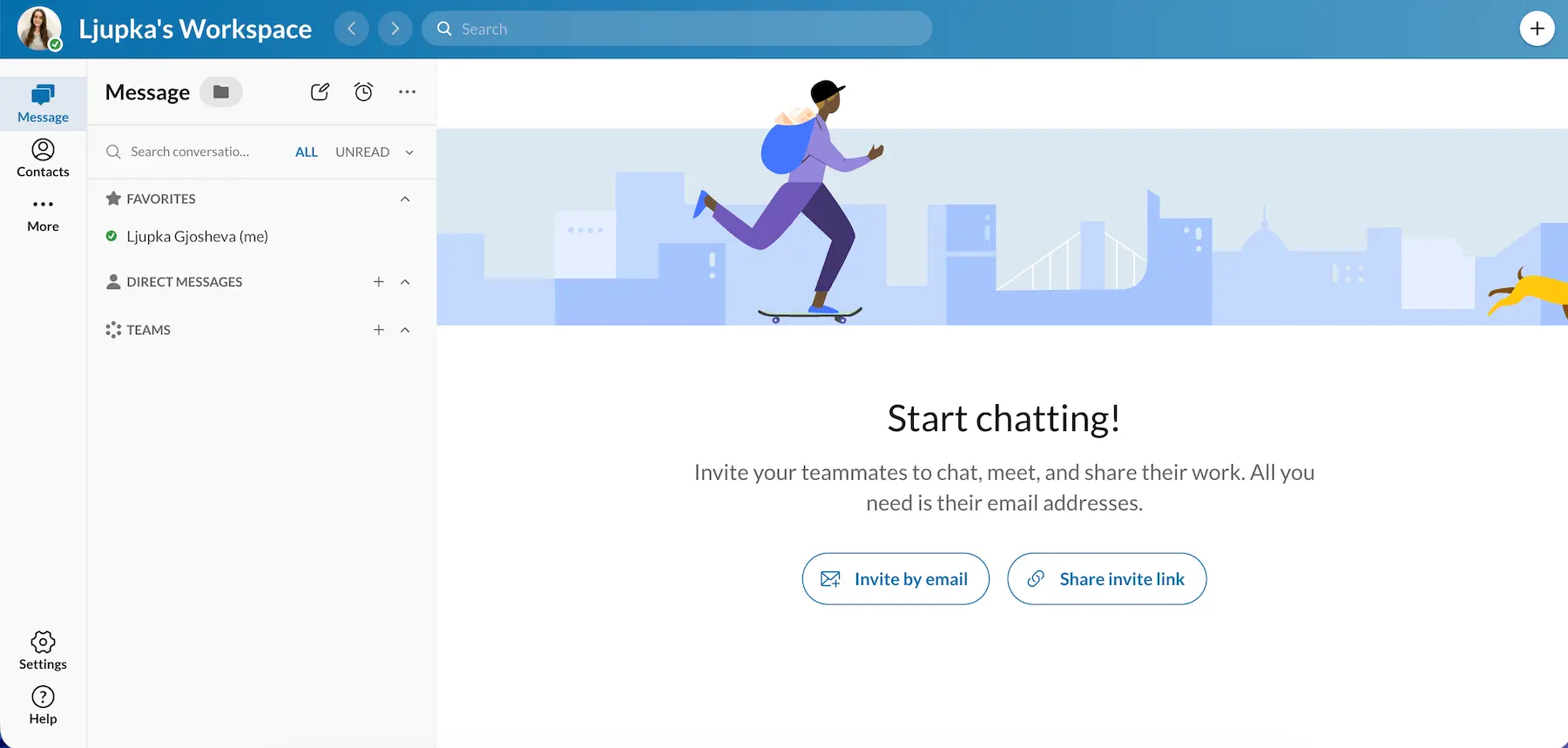
Although it’s a robust communication platform, I found RingCentral to be too versatile for teams looking for basic communication and video conferencing. I think it’s a better fit for businesses with large communication budgets that want to combine video meetings with business calling.
RingCentral pros:
- Combines video meetings, team messaging, and business calling
- Clean, easy-to-use interface
RingCentral cons:
- Expensive paid plans
- Some features require separate paid add-ons
What’s new in RingCentral?
RingCentral’s new AI-powered capabilities include AI notes, smart meeting invites, and translated transcriptions.
Available for: Web, Windows, Mac, Linux, Android, and iOS
FAQ
Here are some of the most common questions about Zoom and its alternatives in 2026.
What is replacing Zoom?
There’s no single Zoom replacement. The best alternative depends on what your team needs. For example, Pumble by CAKE.com is a great choice if you need an all-in-one communication and collaboration tool with great video conferencing. Meanwhile, Microsoft Teams or Google Meet might be a good fit if your team is already largely integrated in their ecosystems, while RingCentral is ideal if you also need business calling.
Do people still use Zoom in 2026?
Yes. Zoom is still widely used, but its free plan limitations, pricing, and security concerns are leading some teams to consider alternatives.
Is there anything like Zoom but free?
Yes. All apps on this list offer free plans with varying meeting limitations.
Is Zoom still free for only 40 minutes?
Yes. Zoom’s free plan limits group meetings to 40 minutes, which means participants need to start a new meeting once the limit is reached.
Looking for Zoom alternatives in 2026? Think bigger
Instead of switching to another video conferencing app, choose a tool that supports better written and asynchronous communication on top of offering stellar video conferencing features. This can help your team rely less on meetings and keep their work in one place.
Pumble by CAKE.com combines video calls and screen sharing with channels, DMs, file sharing, and audio and video messages, giving your team more ways to communicate.
Stop wasting money on multiple apps and time on switching between them. Replace them with an all-in-one communication and collaboration platform like Pumble.
Here’s how to get started as a new user:
Don’t settle for less. Ditch app fatigue by keeping all communication within one app.
How we reviewed this post: Our writers & editors monitor the posts and update them when new information becomes available, to keep them fresh and relevant.