





In 2026, Google Chat remains one of the go-to messaging tools for day-to-day team communication. This is especially true for companies already invested in the Google Workspace ecosystem that want everything connected under one roof.
For many organizations, Google Chat handles the basics just fine.
But what happens when your team grows and conversations start piling up?
The “good enough” communication can quickly turn into a scattered stream of messages and files. Discussions become harder to follow and staying productive starts to feel unnecessarily overwhelming when you’re constantly switching between multiple Workspace apps.
This is why many teams are starting to look beyond all-in-one ecosystems and toward dedicated communication platforms like Pumble by CAKE.com.
But, is Google Chat really enough to serve as a full-fledged team communication tool?
I wanted answers — so I rolled up my sleeves and put Google Chat to the test.


Why trust us?
Human reviewers try out each app and follow strict guidelines while writing the reviews. We follow a transparent, clear, and systematic methodology so that every review is objective and accurate.
Learn more about our review methodology here
Reviewing Google Chat’s ease of use & user interface
At a first glance, Google Chat’s user interface (UI) is clean and simple.
It feels light. And if you’re already inside Gmail, it’s right there — you don’t have to install anything. That’s a plus.
Also, if you’re already in the Google ecosystem universe, you’ll probably find it pretty easy to use and navigate, for the most part.
Messages show up in a sidebar organized as DMs or Spaces.
I like that Spaces allow you to organize similar conversations by topic, team, or project in a single location.
Moreover, you can customize your Chat sections, to some extent. Nothing major like customizing your entire sidebar in Pumble, but you can create new sections and drag and drop conversations into them to bring more order to your communication.
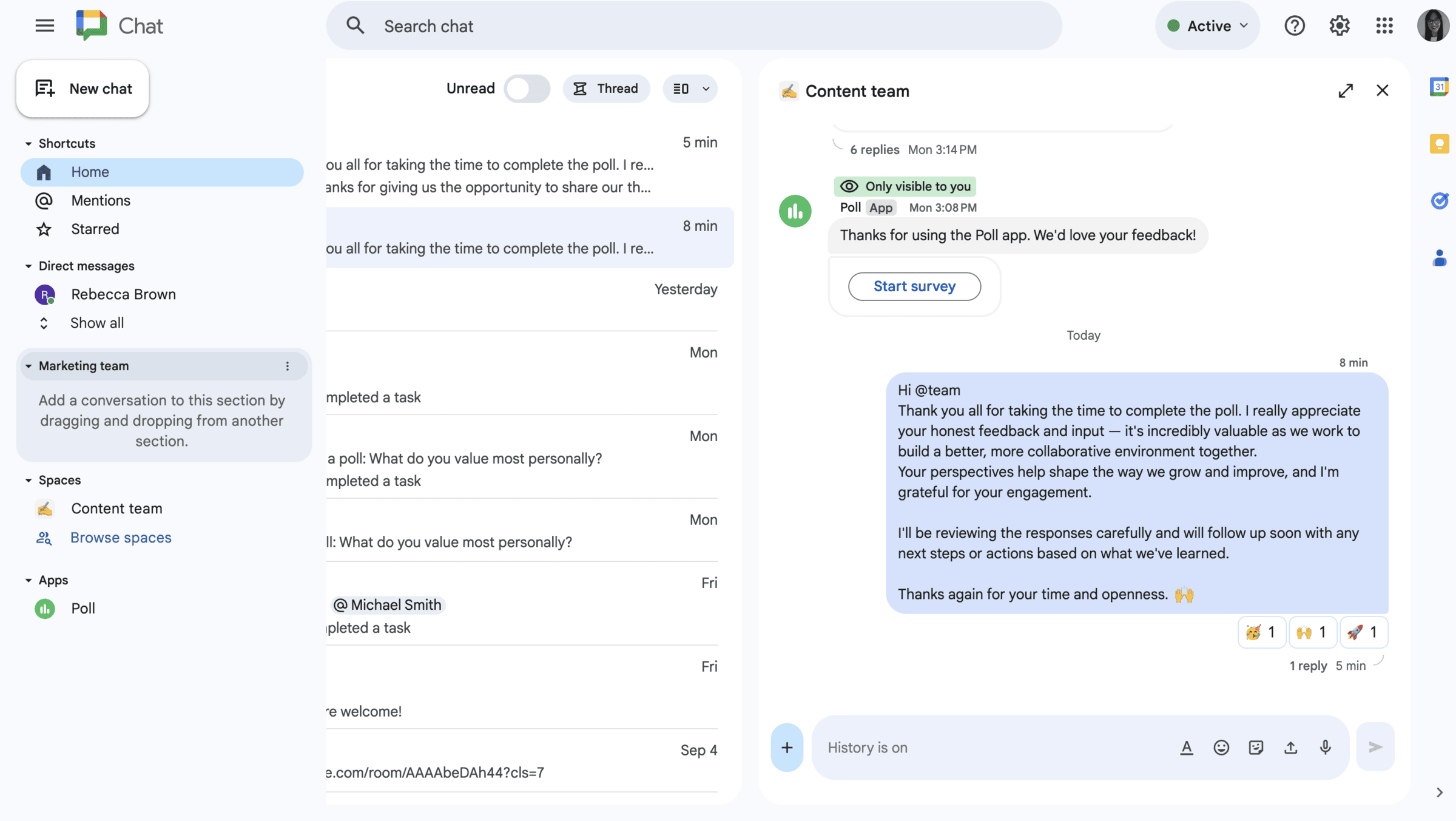
Creating a new section in Google Chat
However, the Chat interface can get confusing at times, especially when you have several spaces with multiple threads running at the same time.
This is further aggravated by another layer being added to your sidebar each time a teammate answers a thread or completes a task. In addition to being distracting and creating unnecessary clutter, this gets even more hectic with larger teams and projects.
I just wish it offered a more cohesive layout to let you follow the main line of conversation without getting lost in dead-end side-conversations. The weird part is that this could be easily solved by adding collapsible subsections to allow for more clarity and easier navigation.
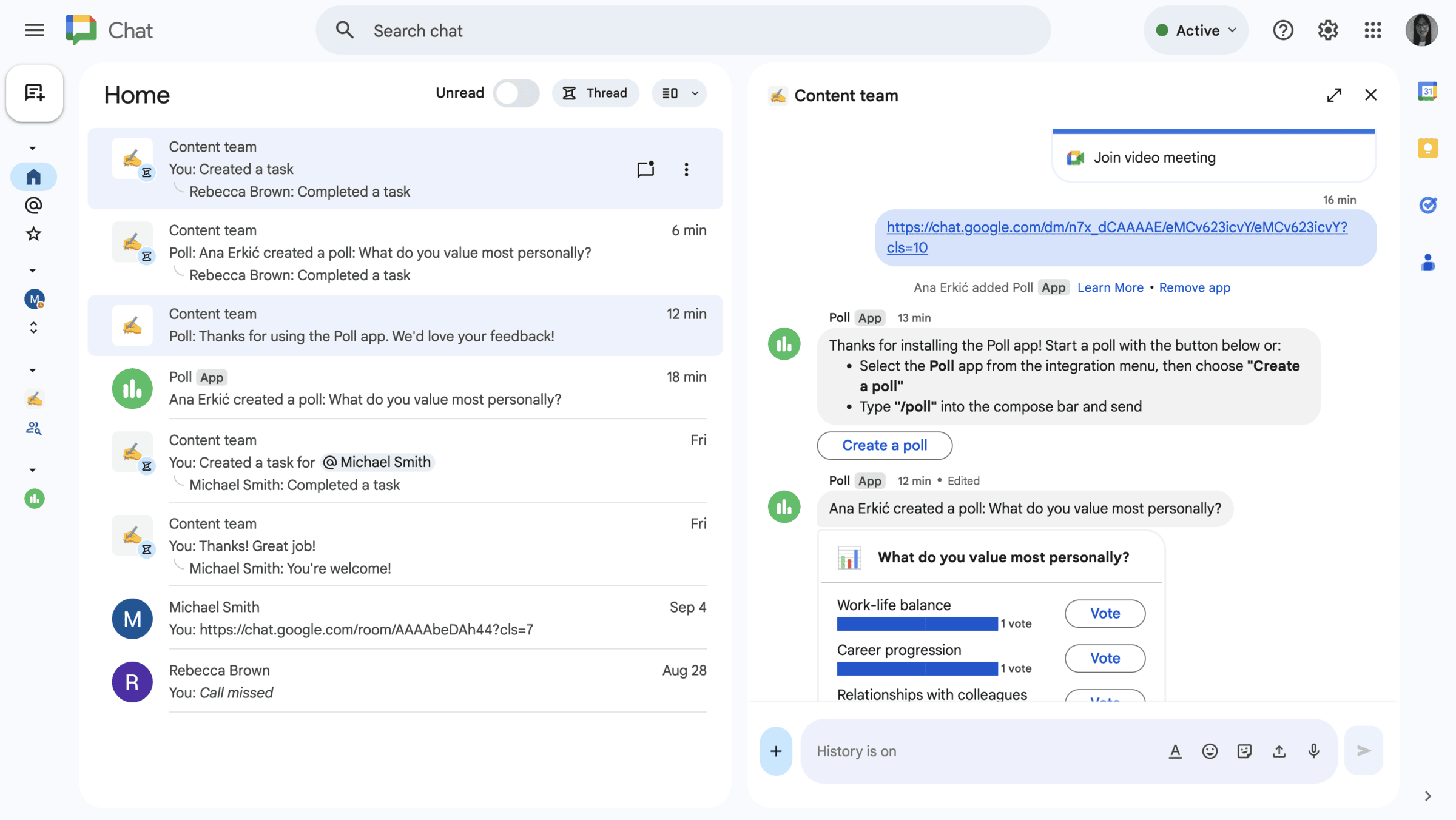
Google Chat interface
As far as the workspace customization goes, you can only adjust lightness and density in the appearance menu. You can’t do anything more complex, e.g., tweak things like sidebar organization and layout settings or pick between multiple themes (like you can in Pumble).
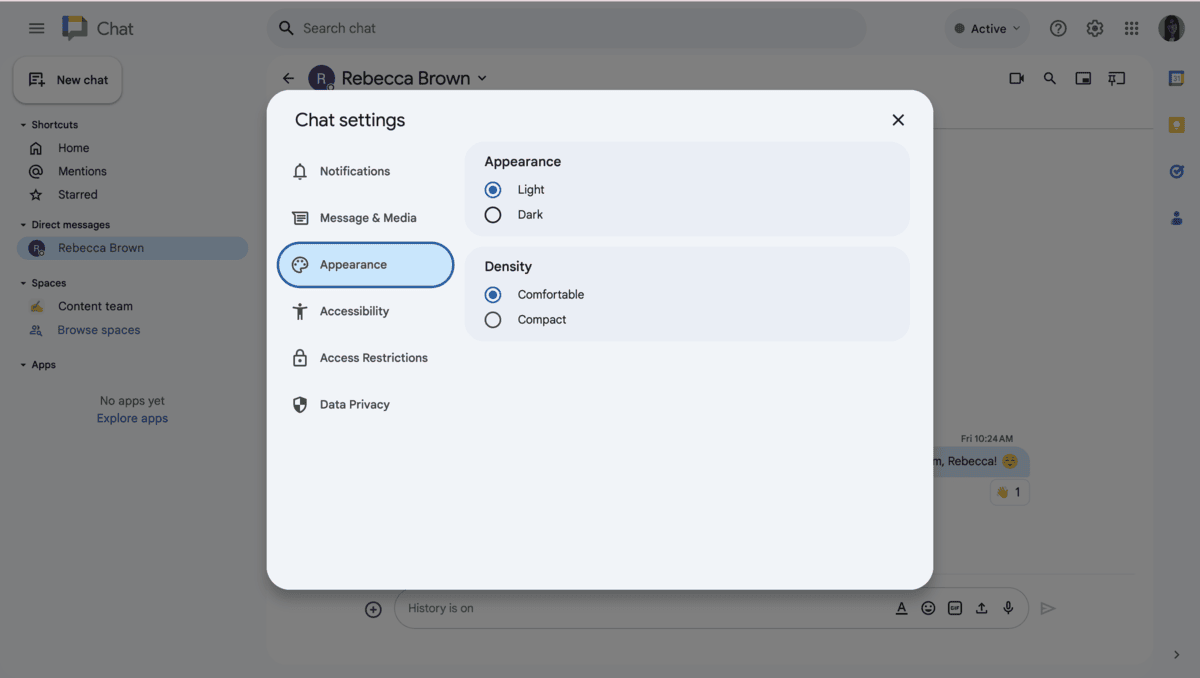
Google Chat interface customization options
All in all, as far as UI goes, Google Chat can look simple and clean for smaller teams and chats, but don’t expect the sleek and customizable look and functionality you get with other popular business messaging apps.
Customize your workspace in PumbleReviewing Google Chat’s features & functionality
Google Chat has some useful features on its own, but its biggest strength is that it’s built into the Google ecosystem.
If your team already uses Gmail, Calendar, or Drive, then Google Chat is literally right there — integrated and ready to go.
In Google Chat, you get:
- Direct messages,
- Spaces,
- Integration with Google Meet,
- Basic bots and integrations, and
- Tasks.
For the most part, Google Chat provides a clean, minimal experience.
And, the way I see it, if you only need lightweight back-and-forth with your team, it gets the job done.
Direct messages
Direct messages are probably the first feature you’ll see upon signing up to Google Chat. They’re the core of Google Chat from the get-go.
From what I could gather, this feature works just fine — much better than I remember from a couple of years ago when I last tried it.
I like how it's more straightforward now, with a wider and clean interface, making your conversations more central and easier to access.
It’s perfect for when you need to discuss something one-on-one or catch up with a teammate. All it takes is selecting a person from your contact list and shooting them a message. No fuss, which I really appreciate.
One small gripe, though — it can take a second to pull up earlier conversations if you’re trying to dig through older messages. But overall, it works fine for one-on-one or small group chats.
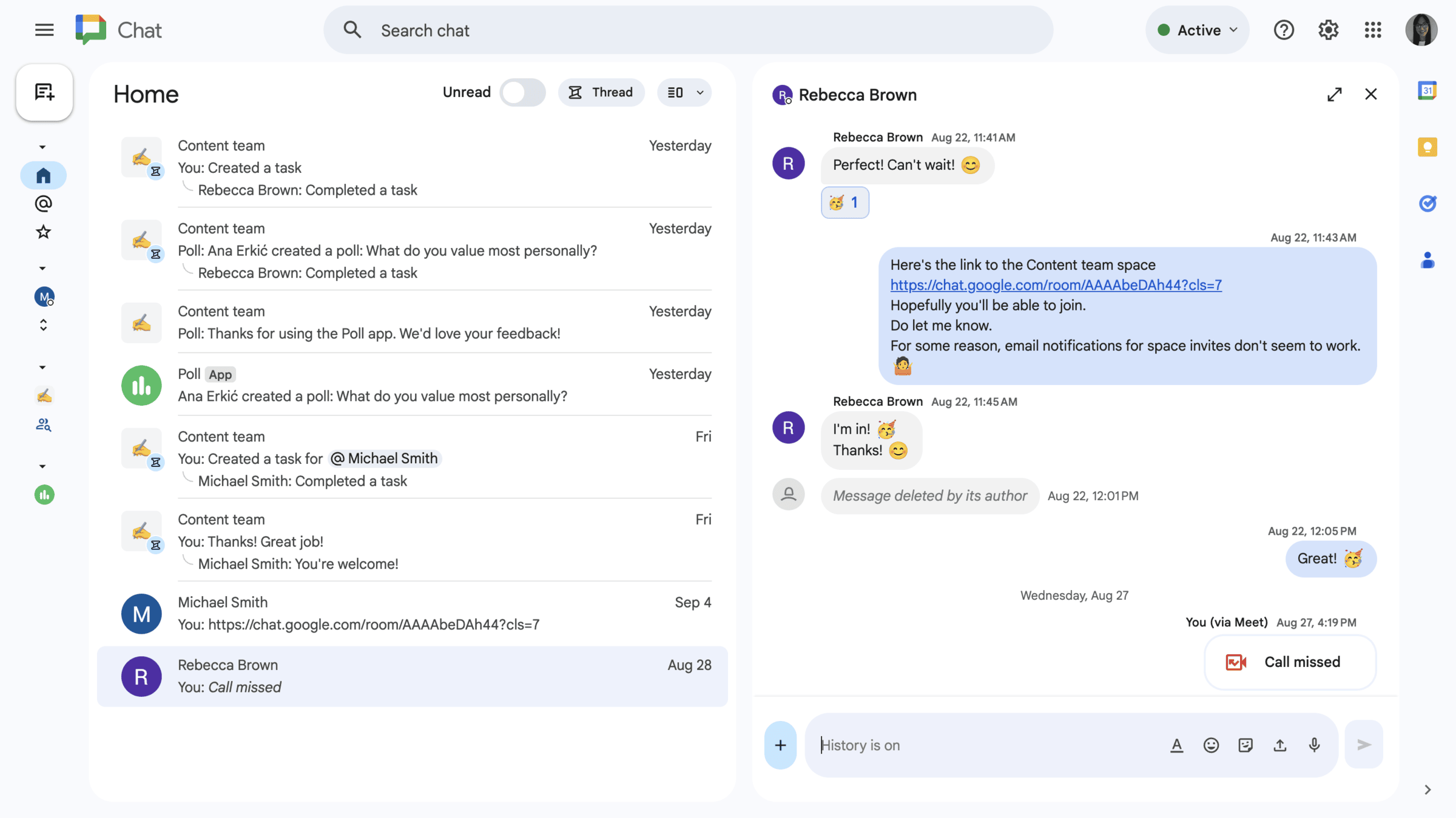
DMs in Google Chat
Spaces
Now, when it comes to Spaces — consider these as channels for specific topics, projects, or teams. They let you organize your conversations even further by breaking them down into threads, like in Slack and Pumble.
Except that Pumble lets you actually reduce clutter and improve communication efficiency by customizing your workspace through channels and focused threads. In Google Chat, Threads and Spaces often make conversations feel fragmented, as they are hidden behind multiple clicks.
Pumble gives you a complete view of your channels and ongoing conversations. Threads serve as side discussions connected to the main conversation without cluttering the channel itself. You can organize your Pumble sidebar by creating custom sections, grouping channels and direct messages by team, project, or priority.
Simplify communication with Pumble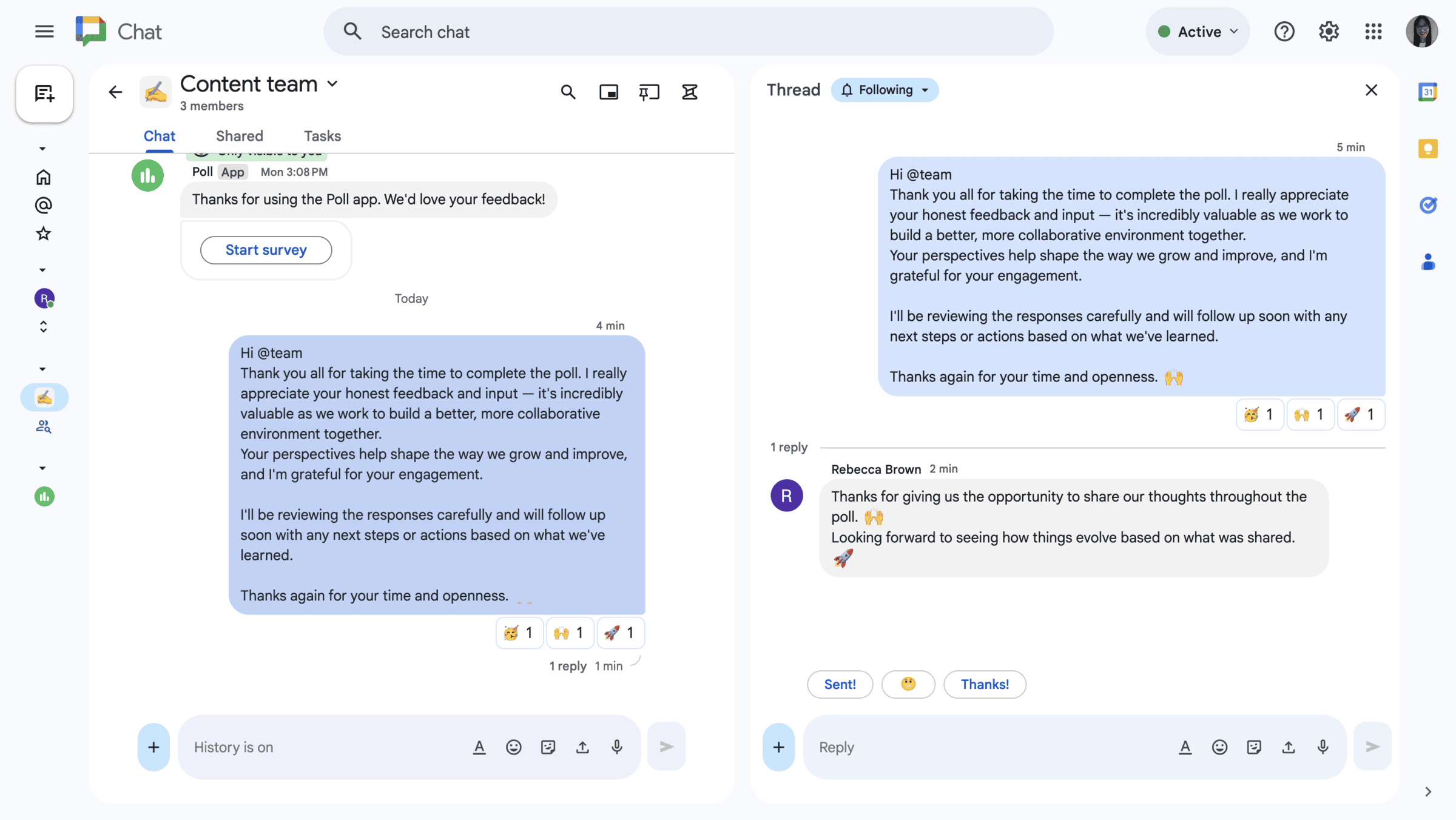
Threads in Google Chat
Spaces are great for collaboration — in addition to segmenting different conversations into threads, you can assign tasks and keep things organized. So, compared to a nonstop group chat, here you can cut down on clutter.
Still, I feel it’s kind of a mixed bag. Sometimes, things can get buried if you’re not keeping up with them regularly. I also noticed notifications can be a bit unreliable, so you can miss important updates when they don’t pop up clearly.
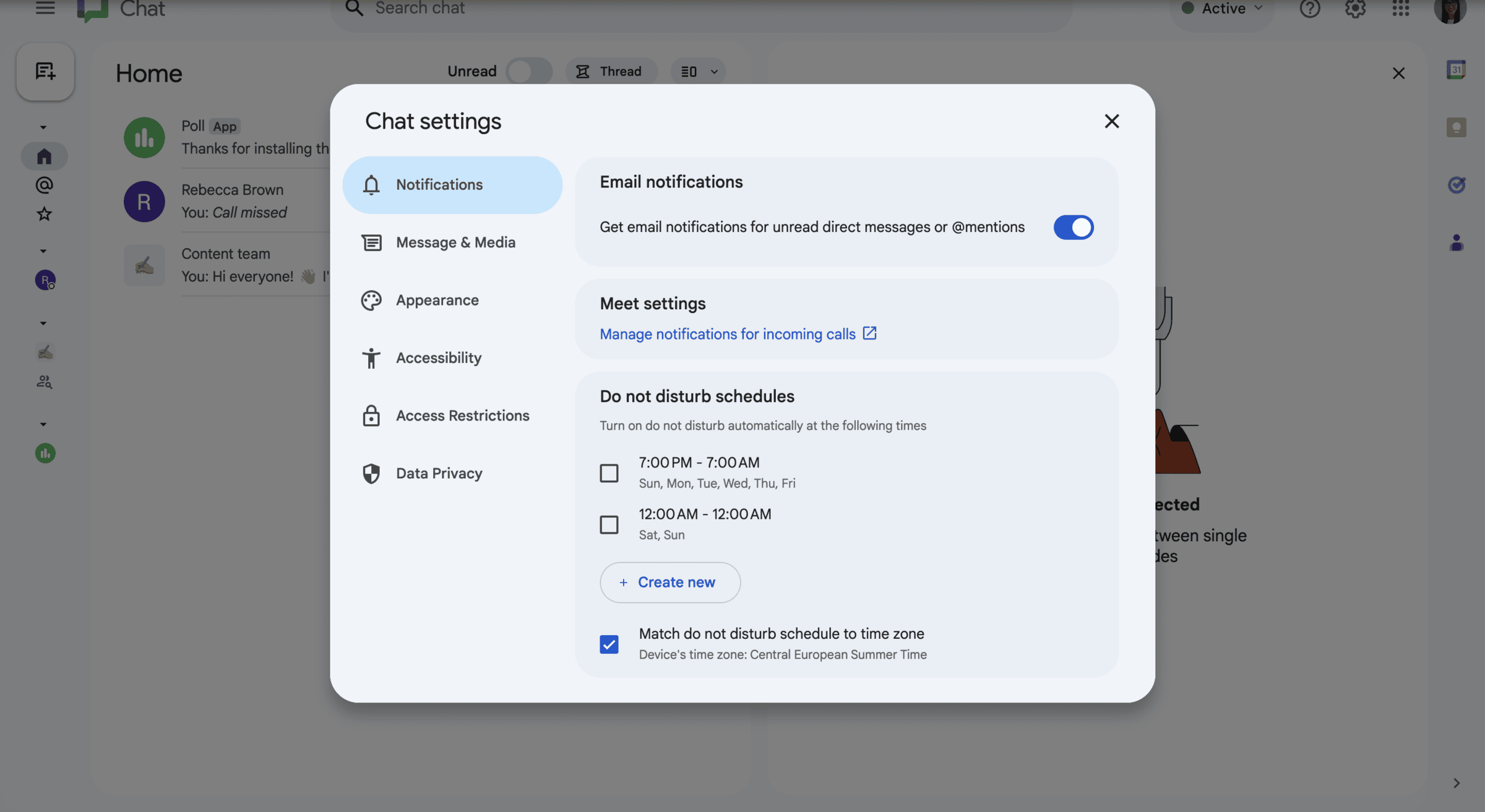
Notification settings in Google Chat
Also, I still can’t figure out exactly how to invite people to Spaces or group chats. It seems to require some form of prior communication with someone before your invitation can go through — even if you’ve already adjusted your access settings to allow anyone to message or invite you.
I would love to see the simplicity and flexibility of a 1-click invite (like Pumble has). But with Google Chat, there’s too much unnecessary frustration and delays, especially when you need to quickly coordinate with teammates on fast-moving projects.
Get started with PumbleStill, once you get the hang of how Threads and Mentions work, Spaces can really help keep the collaboration moving along without everything getting mixed up. It just takes a bit of getting used to, in my experience.
Video calls
If you want to jump on a video call, you have to launch Google Meet from your Google Chat.
When you’re messaging a team member and need to switch to a video call to explain a matter in greater detail, you can just click the camera button and launch a Meet right from the chat window. This ostensibly cuts down on the back-and-forth of setting up meetings and sending links.
For the most part, this transition is smooth. However, the Meet link can take a few seconds to show up in the thread. I’ve also had moments where someone couldn’t get into the call right away because of access permissions.
Moreover, I couldn’t simply tap the camera button and join a group call in spaces the way I did in DMs. Instead, I had to take the longer route — schedule the meeting and send the meeting invite link.
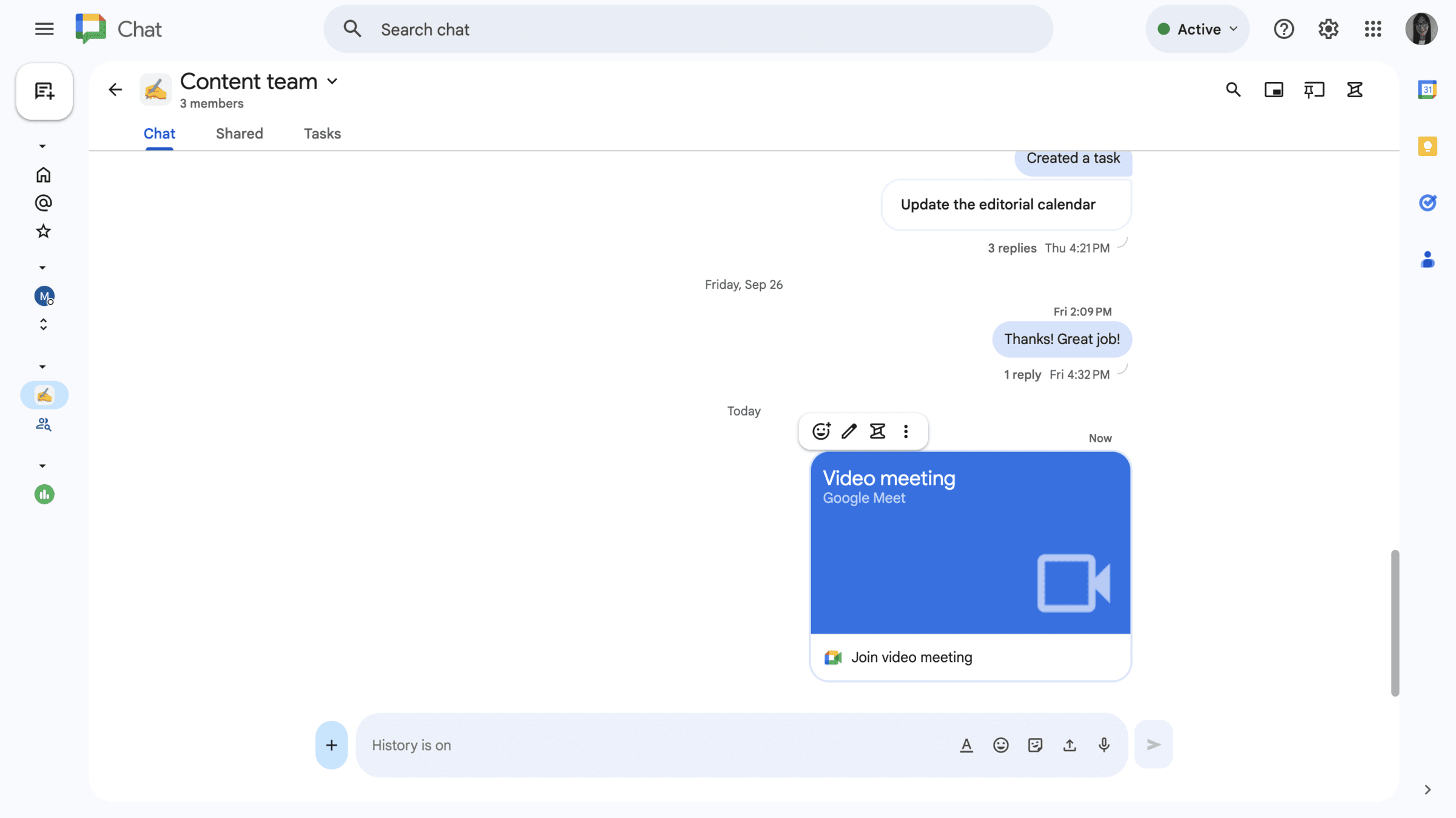
Sharing a Meet link in Google Chat’s space
I’m used to the built-in video functionality in Pumble, where you don’t have to switch between apps to instantly connect with people. Pumble lets me jump on a quick call right there in the channels anytime we need to go deep on a topic as a team, so Google Chat was a bit of a letdown in this respect.
Still, for the most part, Google Meet integration in Chat does what it’s supposed to do — it speeds things up and keeps your team connected without making you jump through hoops.
Once you’re in the call, you can:
- Share your screen,
- Message participants,
- Raise your (virtual) hand, and
- React with emojis.
Video conferencing options in Google Meet
If you’re already using Google Workspace, the Meet integrationfits into the flow and helps you get things done without having to think too much about the tech behind it.

Basic bots and integration
Overall, integrations in Google Chat are a bit of a mixed bag.
On one hand, it’s super convenient how you can link in things like Google Drive, Calendar reminders, or even third-party tools like Asana and Trello (in paid plans) right into your chat spaces.
It reduces the constant switching between tabs and helps you stay on top of things without breaking your flow.
The bots can also be pretty useful when they’re set up right. They pop in with reminders or updates, and it kind of feels like you’ve got a mini-assistant keeping tabs on your projects.
For example, I had no problems installing Polls and creating one for my test space.
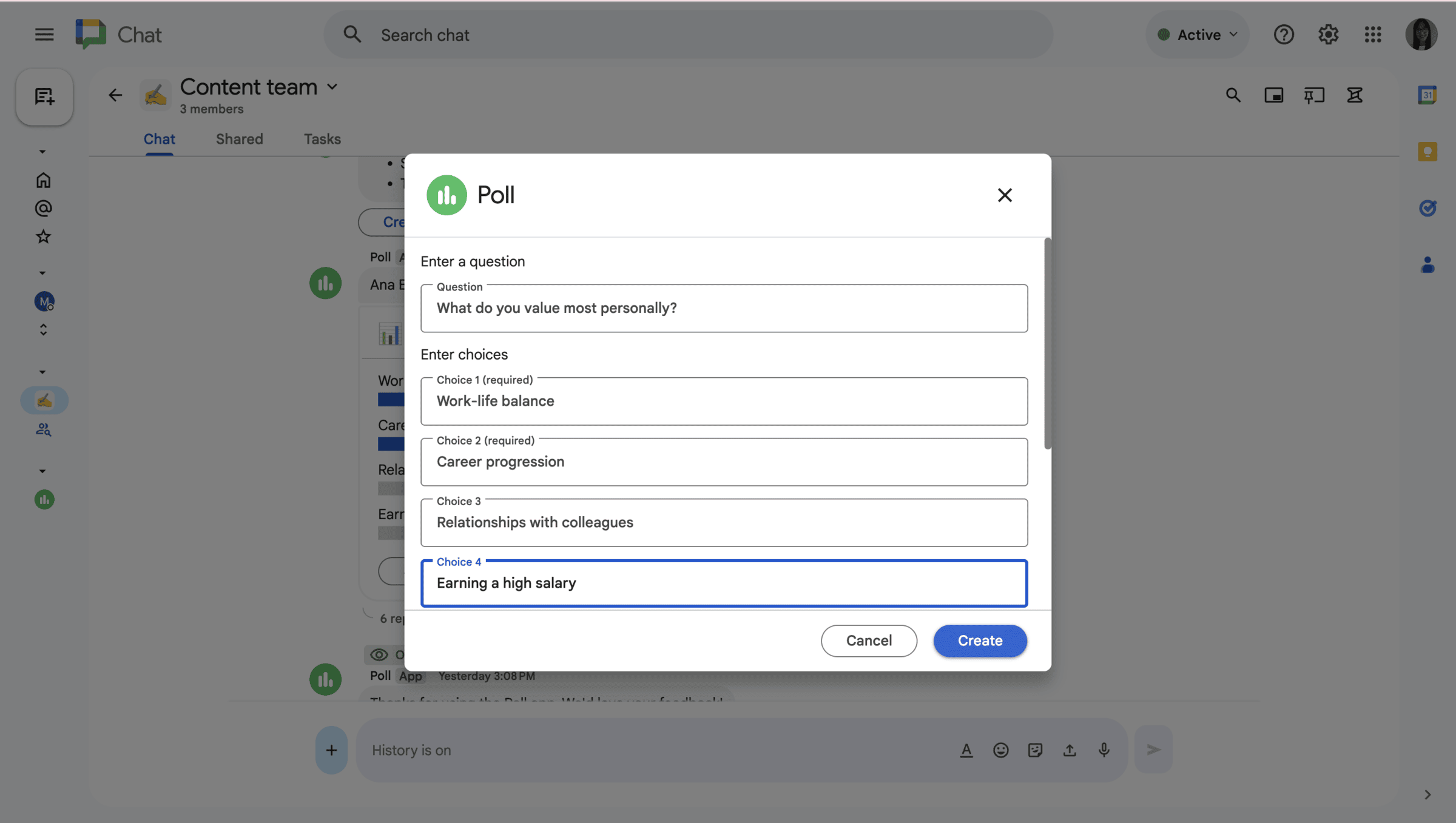
Creating a poll in Google Chat
That said, I’ve run into a few hiccups with other integrations.
Some were pretty clunky to set up, and, if you’re not already deep into the Google ecosystem, it can take a while to figure things out. Plus, not everything works well together, so you might spend time fiddling around with settings just to get things working smoothly.
Moreover, many of the permissions are restricted for free Google Chat users, so be sure to take this into consideration before you take on the challenge.
Overall, it’s a solid system once you get it up and running.

Tasks
Tasks in Google Chat let you create simple to-do lists directly in the app. A bit different from Pumble’s message-based reminders, Google Chat lets you set to-dos that serve as reminders for yourself or other team members.
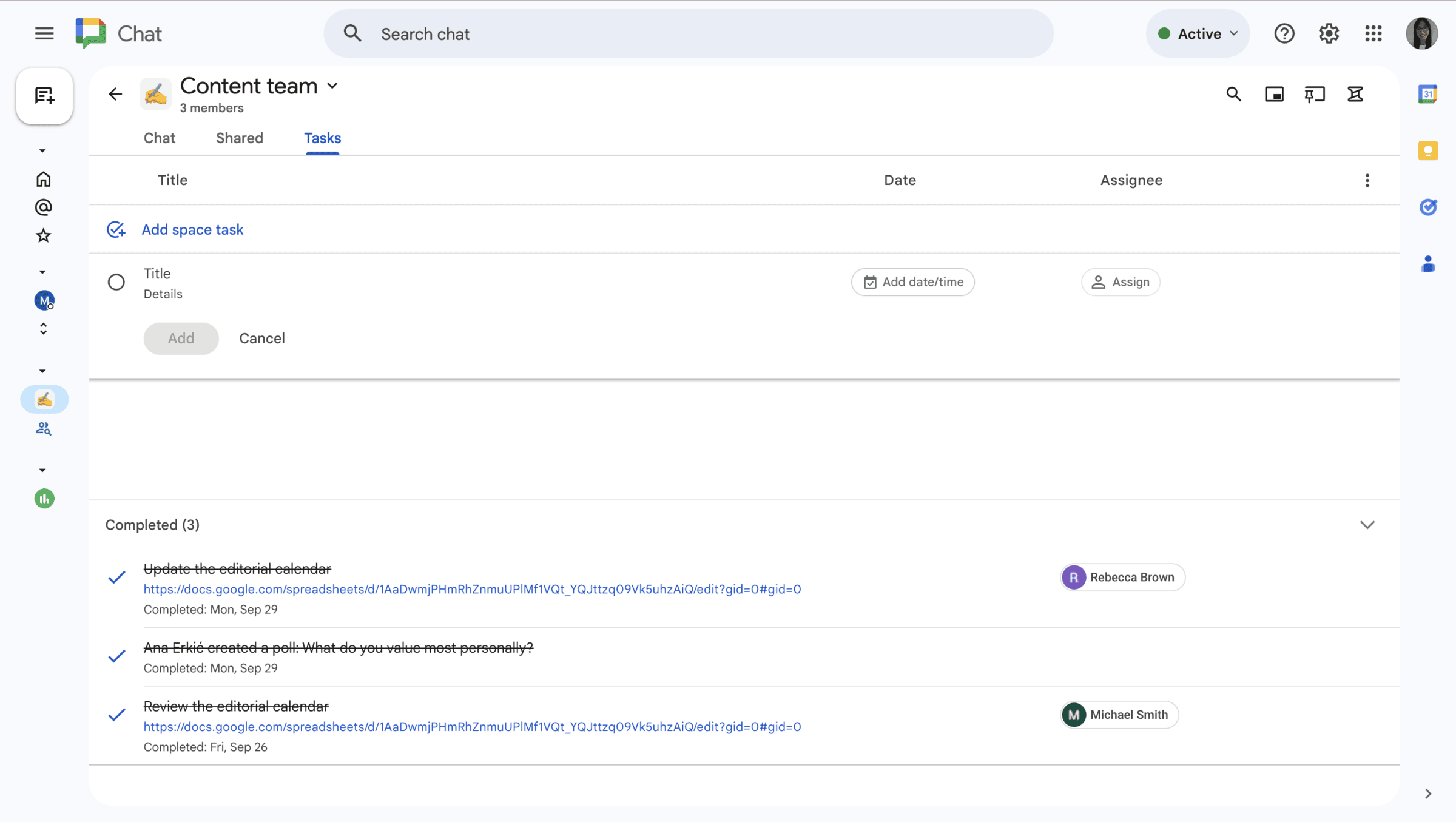
Creating a task in Google Chat
It seems like a nice way to stay organized with your team. You can drop in a task right from a message and assign it to someone without leaving the chat. They will get notified, work to a deadline, and mark the task as completed once they’re done.
My main issue with Tasks is that they are separate from conversations, which can make follow-ups easier to miss. For example, message reminders in Pumble let me return to important messages right inside the chat, so I can follow up on discussions without switching between tools or tabs.
I could also do with more flexibility, such as breaking down tasks into subtasks, or being able to filter out completed ones. I can see it getting chaotic with larger projects if you rely solely on this feature to keep track of everything.
It works better for quick to-dos in smaller teams, but if you’re trying to map out anything more complex, you’ll probably end up switching to something more substantial like the Plaky integration in Pumble, which lets you receive task updates directly in Pumble.
For example, CAKE.com offers a bundle plan for teams wanting to use Pumble, Clockify, and Plaky together to complete their productivity suite, making it cost-effective and easy to manage.

Reviewing Google Chat’s pricing & value
When looking into Google Chat, I first tried out their free plan.
My idea was to assess whether it’s a good fit for smaller teams without a budget for communication tools.
Here’s what I’ve learned.
Technically, you can get Google Chat for free — as long as you have a Google account.
The free Google Chat plan offers:
- Unlimited 1:1 and group messaging,
- Spaces for project or team conversations with file sharing and task assigning,
- Integration with Google apps such as Drive and Docs, and
- Video calls (via Google Meet) with up to 100 participants for 60 minutes.
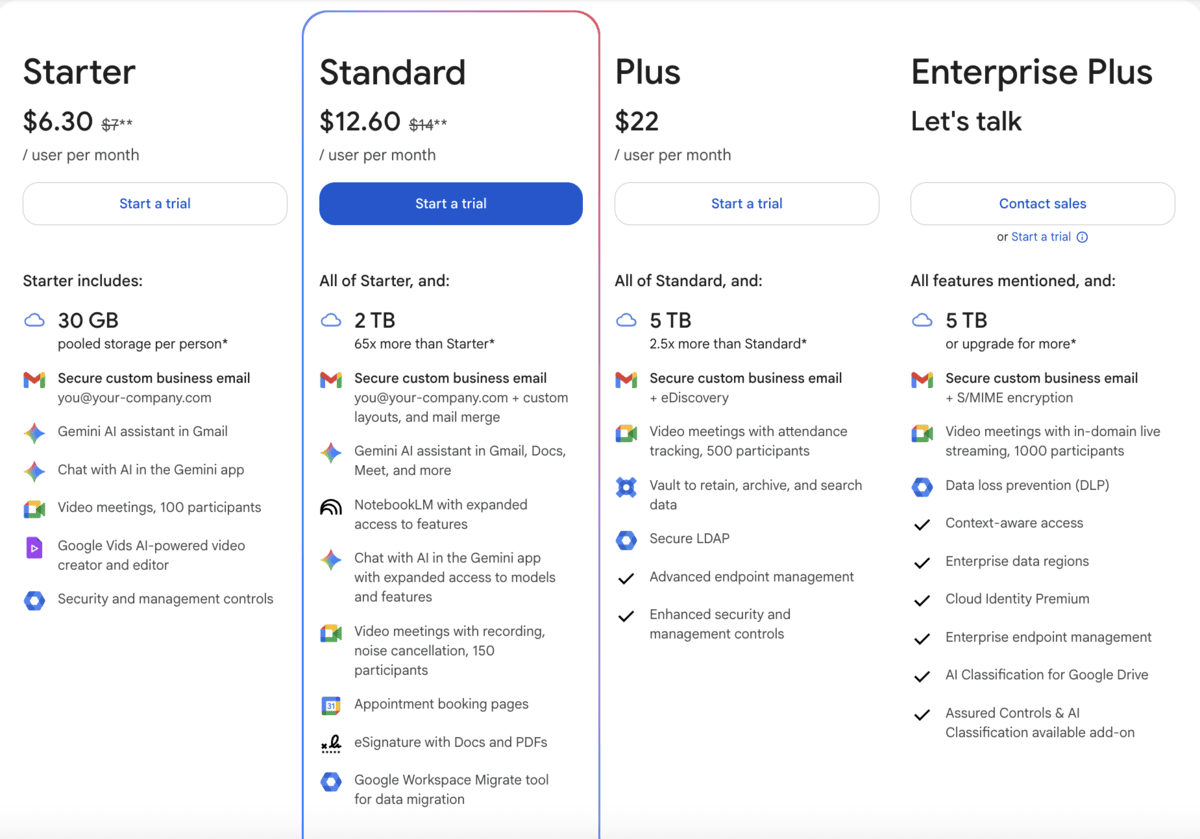
Google Chat pricing
That being said, its real power is locked behind the Google Workspace paid plans.
- Want video messages or meeting recording? You’ll need a Business Standard plan.
- Need advanced admin controls? That’s on Enterprise editions.
- Want to manage your team at scale? You guessed it — it comes with a price tag.
For a small business that’s trying to keep up, this creates a gray area. On the one hand, you’re not paying directly for Google Chat, but once you need more than the basics, you’re pushed into a paid commitment.
Google Chat may seem cost-effective if your team already uses Google Workspace, but its limited organization and message history can reduce long-term value as your team grows.
If you need a tool that provides a more complete communication experience, use Pumble by CAKE.com. It delivers more value (for a lower price) by offering unlimited message history and better channel organization, without forcing you into a higher-priced plan.

Reviewing Google Chat’s limitations & scalability
To be fair, Google Chat can scale with your team, but only if you’re fully committed to the Google ecosystem.
That means you’re on a Google Workspace — ideally on a Business Standard or Enterprise plan.
While we’re at it, let’s not forget that Google Chat lacks the in-built video conferencing. It relies on a separate app — Google Meet — which caps your free calls at 60 minutes.

Switching to Google Meet for a call
For growing teams, some of these limitations can hinder their scaling.
Let’s say your team reaches 200 members. You’ll then have to pay for the second most expensive tier — Business Plus at $22 per user per month — just to get your entire team on a call.
Moreover, bots and API access in Google Chat are not well-documented. This can be annoying and a real productivity stealer whenever you need to automate workflows or integrate with internal tools. Incomplete examples or unclear instructions waste a lot of time and block you from building custom bots or real-time notifications, which are essential as communication scales.
Also, there’s no bulk user management without Workspace Admin tools. This means if you’re not a Google Workspace admin (or not using Workspace APIs), you’ll have to:
- Manually add users to spaces, and
- Manually remove users.
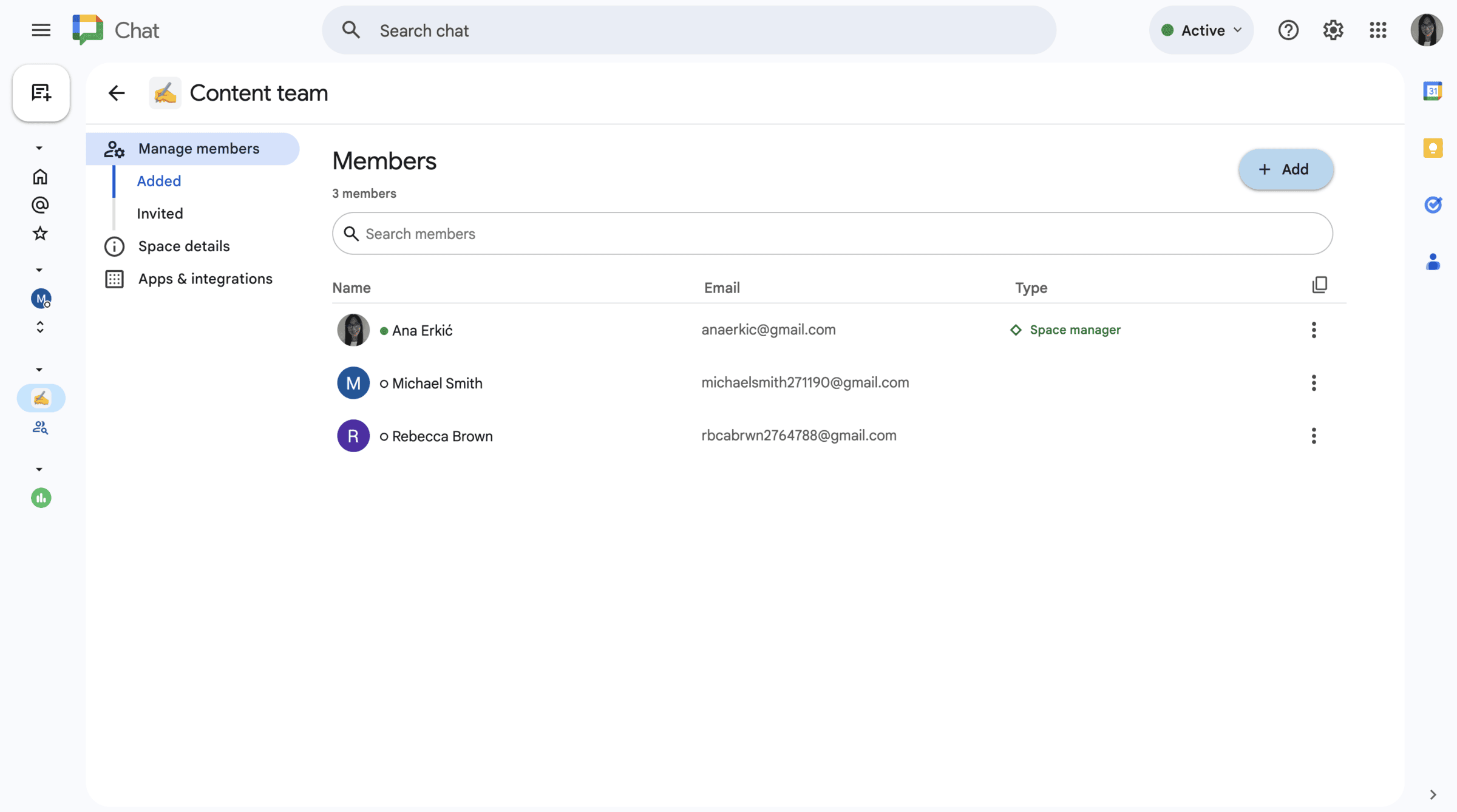
Member management in Google Chat spaces
For tight-knit teams of 3–5 people, these limitations might not matter. But as your organization starts to grow, you might begin to experience some unnecessarily heightened costs.
Basically, the moment you need more structure and control, the weaknesses of Google Chat start to show.
Conversations can get lost in short-lived Spaces. If you’re used to having permanent, searchable archives of all conversations in channels (like Pumble has), you might not like the ephemeral nature of Spaces.
I was constantly checking to make sure I keep my chat history option on at all times so as not to lose all my conversations. But, as I later learned (the hard way), no amount of controlling behavior will keep your entire chat history intact if you’re communicating with a person whose organization has a data retention policy that is set to automatically delete all messages after a certain time period.
And, for those of us used to having organized channels and threads, Google Chat may be a challenge with conversations, files, and tasks scattered across boards, threads, and sections.
All in all, I’m afraid Google Chat just doesn’t hold up well when things get complex.
Get unlimited historyReviewing Google Chat’s storage
If your business relies on daily information sharing, you need to take the storage limit seriously when choosing the communication tool you plan on using. This is where Google Chat’s storage setup comes perfectly into play — though it’s not without its quirks.
The good thing about being part of a Google ecosystem is that your messages and files are backed up through Google Drive and Gmail, which helps keep everything in one place.
But you do have to keep an eye on storage limits, especially if your team shares a lot of files, as things can pile up fast. I’ve found that it’s easy to overlook how chats and attachments use up your free Drive quota (15 GB of shared workspace storage), so it’s worth checking in on that regularly.
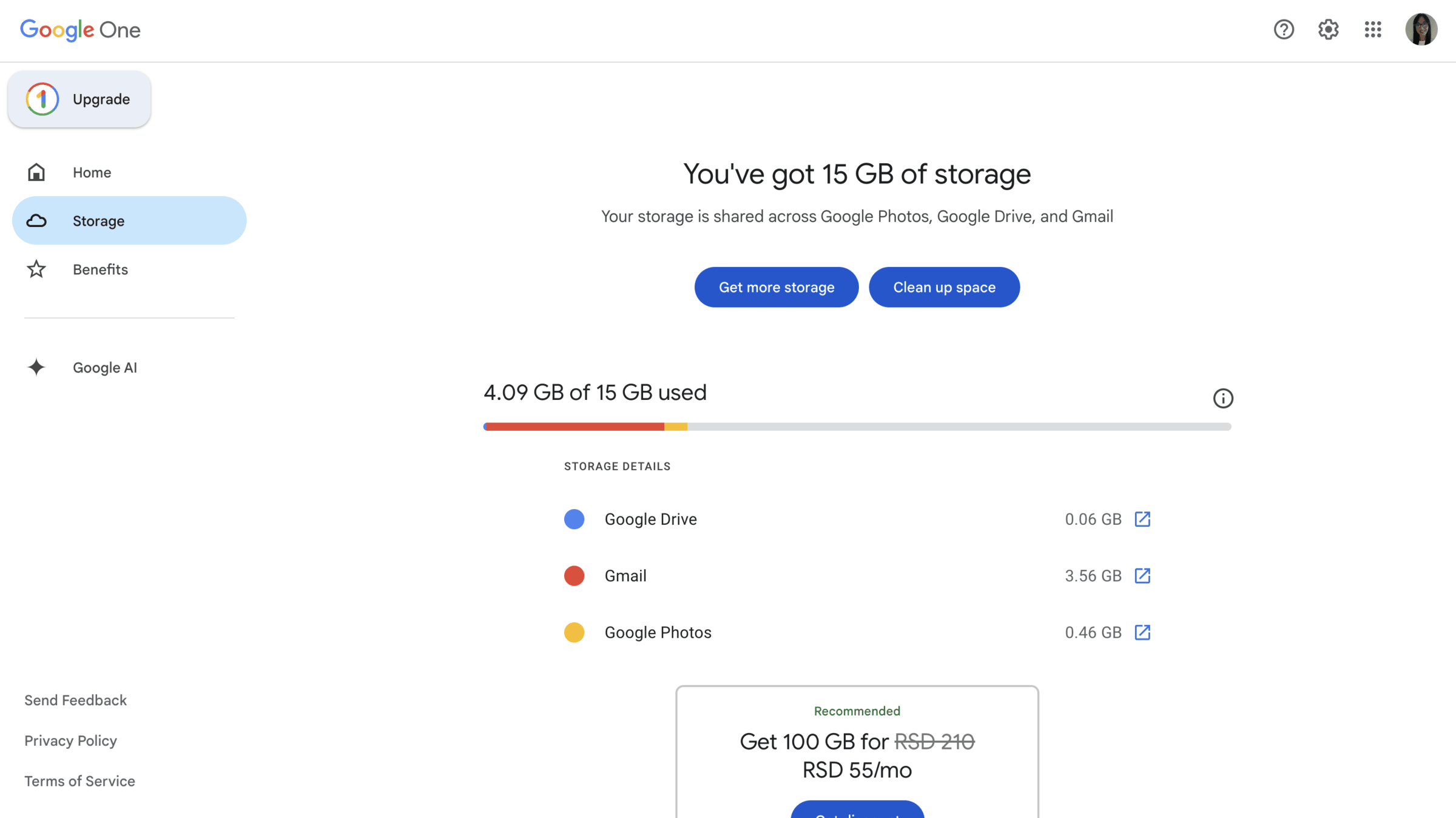
Checking your Google storage limits
Luckily, only files uploaded to Google Drive and shared in Google Chat count against your Google storage. This is great news, as it means you can send messages and attachments through Google Chat and upload files directly to a chat message from your computer or mobile device without worrying you’ll run out of space.
Of course, none of this matters if you’re on one of the higher-tier plans, where you get from 30 GB of storage per user in Business Starter plan to 5 TB per user in Business Plus and Enterprise Plus plans.
Reviewing Google Chat’s security & support
If you’re working with sensitive data, you can trust Google Chat to keep it safe. Generally speaking, they hold up well on the security side.
Messages are encrypted, and they’ve built in a lot of controls to keep out unwanted access. I feel I can count on it to keep my work conversations safe, which is a big plus. Unless, of course, we decide to hold their recent data breach incident against them.
Support, however, can be a bit sloppy. If you run into issues, there’s not always someone to reach out to directly, and you often have to dig through help articles to figure things out yourself if you’re not a paying customer — don’t ask me how I know. I do wish they would step up their live support a bit.
I find this particularly off-putting as someone who’s used to Pumble’s 24/7 human customer support. I like that I can get any issue resolved through direct assistance over email, chat, or web, and this is available to all users, whether they’re on the free or paid plan.
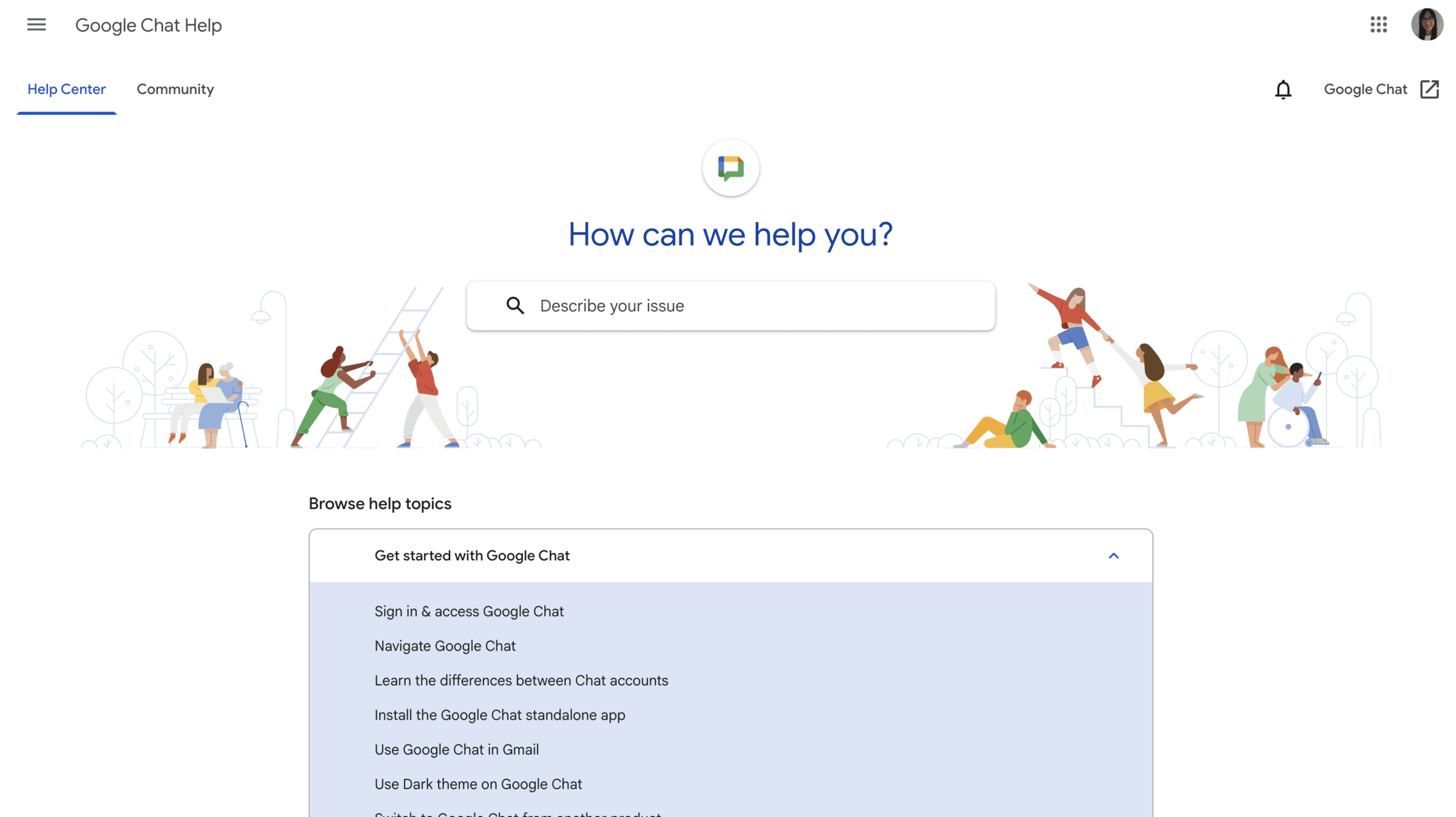
Google Chat help center

Final verdict: Is Google Chat good enough for your business?
Google Chat is good enough if:
- You’re already deep in Google Workspace,
- Your team is very small,
- You have a huge budget for communication tools,
- You mostly engage in quick chats, not structured collaboration, and
- You’re okay with limited history and Meet-only calls.
So, should you stick with Google Chat?
My take is, if you’re serious about building a central communication hub — one your team can rely on and grow with — Google Chat might not be the most ideal solution.
You’ll eventually want a more affordable Google Chat alternative that serves as a team collaboration tool, where you can organize your communication and keep everyone in the loop. And, Pumble by CAKE.com does just that.
How Google Chat compares to Pumble by CAKE.com
Here’s how Pumble compares to Google Chat in terms of keeping team collaboration productive.
|
Feature |
Google Chat |
Pumble |
|---|---|---|
|
User interface |
– A Gmail add-on –Clean (on its own), basic customization, difficult to navigate within a large suite |
– Dedicated UI – Clean, easy to adopt, customizable themes and sidebar |
|
Pricing |
– “Free” with Google Workspace – Business Starter plan: $7 per user per month (billed monthly), or $6.30 (billed annually) – Business Standard plan: $14 per user per month (billed monthly), or $12.60 (billed annually) – Business Plus: $22 per user per month – Enterprise Plus: custom pricing |
— Truly free forever – Pro plan: $2.99 per user per month (billed monthly), or $2.49 (billed annually) – Business plan: $4.99 per user per month (billed monthly), or $3.99 (billed annually) – Enterprise plan: $7.99 per user per month (billed monthly), or $6.99 (billed annually) |
|
Messaging |
1:1 and group messaging |
1:1 and group messaging |
|
Reminders and scheduling |
Tasks |
Message scheduling and reminders |
|
Spaces/Channels |
Basic |
Advanced |
|
Threaded conversations |
Limited |
Advanced |
|
Voice and video calls |
Google Meet |
Built-in |
|
Conversation history |
Unlimited message history (not in all cases) |
Unlimited message history (for free) |
|
Users |
Restricted user limit on the free plan |
Unlimited users on the free plan |
|
File sharing |
File sharing via Google Drive |
Native file sharing |
|
Integrations |
– Google Workspace apps – Asana, Trello, and Zendesk in paid plans |
— Google Drive, Google Calendar, Zapier, Zoom & more — Plaky and Clockify |
|
Support |
– Forums, help articles, and community threads – 24/7 standard and advanced support on paid plans |
– 24/7, 100% human support on all plans – Dedicated success representatives on paid plans |
|
Security |
Industry standard |
Industry standard |
Why teams are switching to Pumble
Many teams are switching to Pumble (and staying) because it’s feature-rich, clutter-free, and built with growing teams in mind.
First of all, Pumble is laser-focused on team communication. That’s all that it does. And it shows.
- The interface is modern, clean, and familiar (think Slack, but better).
- Every part of the UI is designed to help you organize your communication (channels, threads, mentions, pins,and more).
- It offers professional communication features such as message scheduling and reminders.
- It’s built for growth — from small teams to large organizations.
- It’s available as a web app, desktop app, or mobile app — not just an extra tab in Gmail.
- It hosts different color themes for a personalized experience.
This clarity makes all the difference, especially for managing remote teams and onboarding new team members.
No app bloat. No distractions. Just communication.
Pumble also serves as your digital headquarters that lets you:
- Add unlimited users (even on the free plan),
- Never worry about losing your chat history,
- Add unlimited channels,
- Enjoy unlimited file sharing,
- Organize built-in voice and video calls,
- Have your questions solved by real humans 24/7,
- Have advanced roles, permissions, guest access, and admin controls, and
- Use Pumble’s robust API and webhook support for automation.
Whether you’re a 5-person startup or a 500-person enterprise, Pumble won’t hold you back. It’s built to grow with you.
And when you need to upgrade, Pumble’s pricing plans are affordable and transparent, with none of the upselling you get with Workspace.
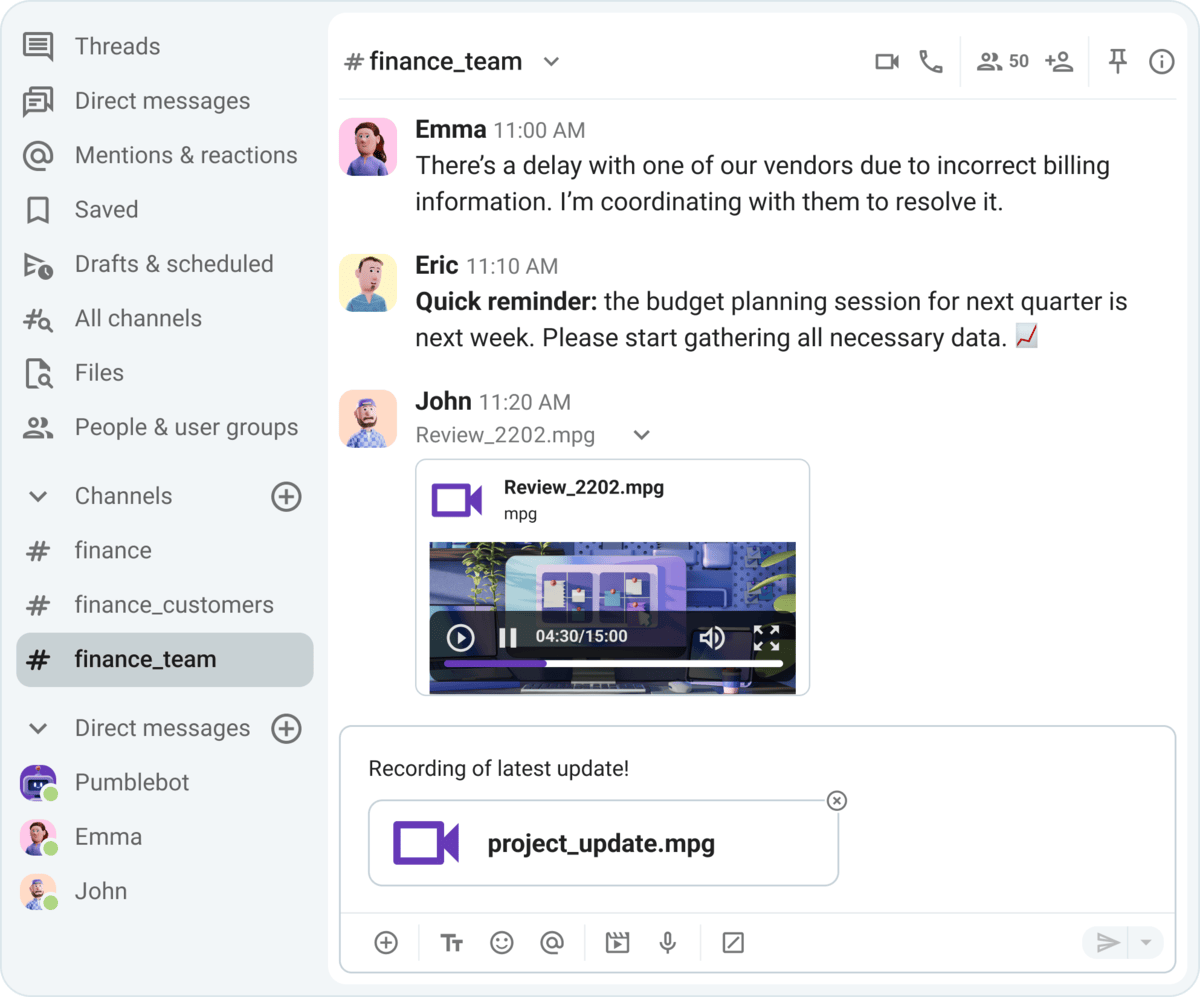
Communication in Pumble
And yes, we integrate with Gmail, Google Drive, Google Calendar, and more — so you’re not losing anything by moving your conversations to Pumble.
Ready to make the switch?
Get started with Pumble