





You’d think the app whose name is a synonym for high-fidelity video conferencing and global connectivity is the perfect solution for everyone, right?
Well, that depends. Are Zoom’s robust video call features worth the fragmented workflow to you?
While Zoom excels in calls and webinars, it often creates “tool sprawl” that slows down internal collaboration. And switching between apps is a notorious productivity killer.
Lately, modern teams have been shifting toward a unified digital headquarters. Apps like Pumble by CAKE.com integrate high-quality video directly into a messaging-first workspace and solve the context gap.
This left Zoom playing catch up, trying to provide an all-encompassing experience to its users.
That’s why I’ve tested Zoom to see how its interface, functionality, and specific features hold up in 2026 — especially compared to its price.
Since it is such a feature-rich app, the main focus of this Zoom review will be narrowed down to how the app facilitates team communication and collaboration with external partners (via Zoom Workplace). I’ll also briefly touch on Zoom’s webinar hosting options (Zoom Webinars and Events).


Why trust us?
Human reviewers try out each app and follow strict guidelines while writing the reviews. We follow a transparent, clear, and systematic methodology so that every review is objective and accurate.
Learn more about our review methodology →
Who is Zoom for?
Zoom is an overall reliable tool, best fit for:
- Combining phone calls and web conferencing,
- Large-scale online meetings,
- Webinars and online events, and
- Scheduled, temporary, or recurring online events with many participants.
So, if you’re looking for a tool dedicated only to video calls, client sessions, or webinars with 500+ participants, Zoom can be a very useful, albeit pricey, tool.
Zoom can also be a solid addition to your existing set of workplace tools, if your needs end at scheduling and holding video conferences.
What’s more, you’ll also find Zoom to be a great fit if you’re looking to pair this capability with local, regional, and international phone calls, since it offers both phone and web communication in its plans.
However, for teams in need of a centralized communication hub that facilitates daily internal discussions and sharing important files and information, Zoom might not be the best tool for the job.
There are many superior Zoom alternatives, like Pumble, that offer more in terms of functionality — especially when it comes to messaging — for a fraction of Zoom’s price.
Still, let’s take a closer look at Zoom’s main features, so you can judge that for yourself.
Zoom’s main features
Zoom’s main features include:
- Video conferencing,
- Screen sharing,
- Domestic and international phone calls,
- Large-scale meetings and webinars,
- Team chat (channels, threads, folders, shared spaces, etc.),
- Chat management,
- Native add-ons and enhancements (each billed separately), and
- App integrations.
The payment options and scope of features are extensively tiered, so you will probably have a fair bit of researching to do to come up with an estimate of what your price will end up being per user.
The final amount will, of course, depend on the number of seats you need and the scale of your required features.
This isn’t a unique Zoom feature, as some other competitors — like MS Teams — have a similarly complicated pricing. Meanwhile, I prefer the apps I use to have a simple and straightforward pricing structure, like Pumble has.
I’ve focused my research mostly on Zoom’s team communication and collaboration capabilities, officially named Zoom Workplace. Here’s what I’ve found.
Zoom’s user experience
Upon opening Zoom, I was greeted with an easy to understand setup tutorial.
As expected, the initial Home screen immediately made one thing clear — Zoom is clearly built for communicating with other users who have their own Zoom accounts, rather than with an internal team that you can manage.
Each of the options in the left-hand side menu gives you a whole array of different features to choose from. This immediately felt overwhelming to me, and navigating my workspace took some time to get used to.
It feels like using 9 different apps at the same time, as the entire window changes completely when you select any feature.
That’s more likely to complicate your workflow instead of simplifying it. For example, receiving a message when organizing a meeting in the home tab requires you to click through multiple tabs before you get to read it.
This can quickly become tiring — especially in a busy workplace with a lot of messages from various team members and channels.
Another thing that caught me off guard was the giant AI companion side menu that couldn’t be turned off, like an unremovable ad right in the app’s main window.
And, speaking of ads, as if the side menu wasn’t enough, Zoom also has a banner at the very top of the app prompting you to upgrade your AI companion.
I guess aggressively pushing an AI assistant to the front row is one way of addressing the issue of a disorienting digital workspace.
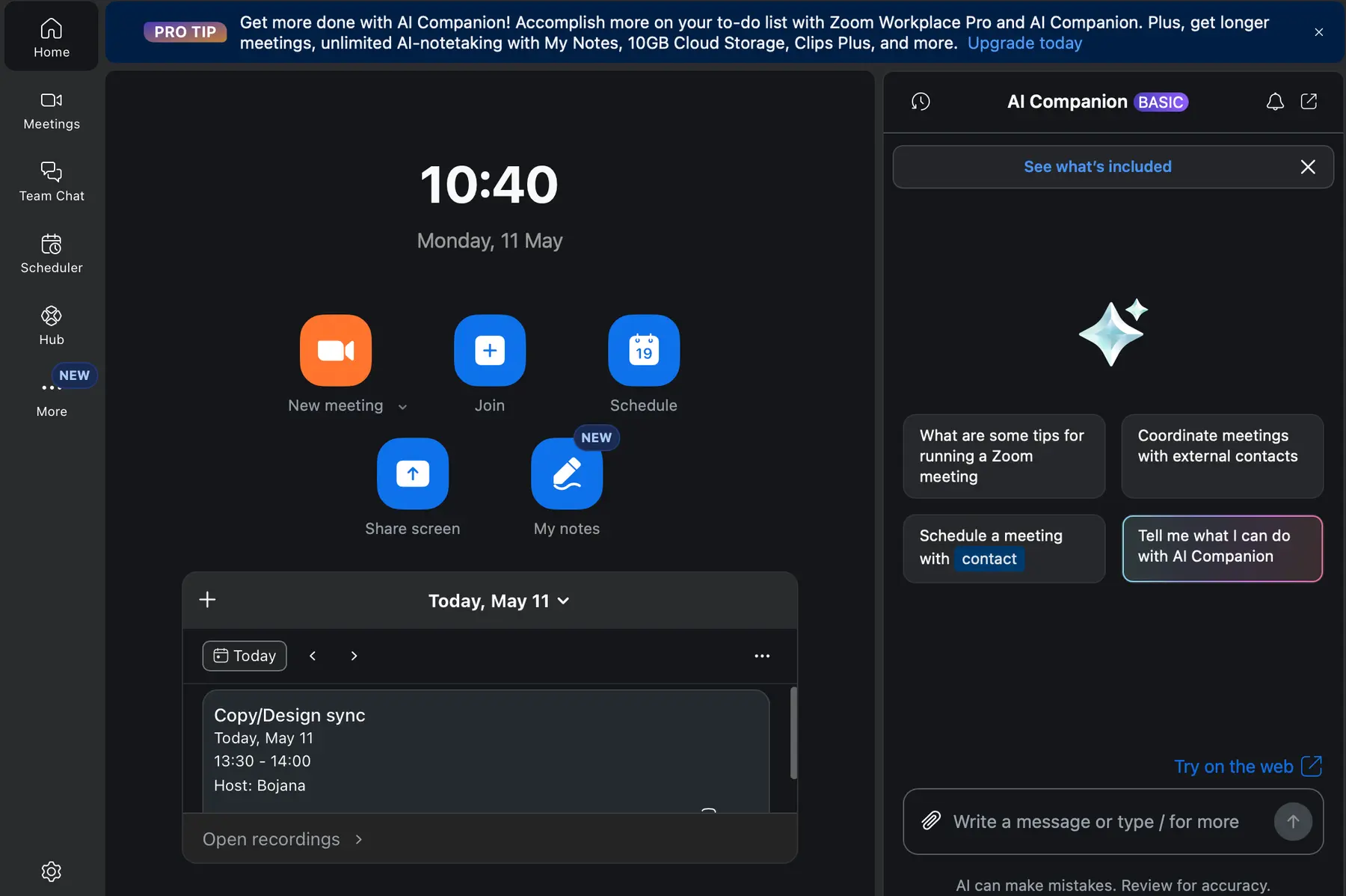
Zoom’s Home window includes both an AI companion you can’t remove and a banner pushing you to upgrade that same AI companion
Now, let’s take a deeper look into the toolbar first, to get a sense of the available features in Zoom.

Zoom’s toolbar
I found Zoom's toolbar a bit complex and busy for my taste. It was challenging to navigate at first, and it can easily feel clunky for anyone seeing this UI for the first time.
The Home tab offers straightforward options to start, schedule, or join a meeting, share your screen, or start a voice note — and it’s the easiest menu to navigate.
The Meetings tab offers a calendar view of your upcoming meetings, while the Scheduler tab is where you can access Zoom’s paid Scheduler feature.
The Hub tab is the newly established centralized space — a feature that rolled out in February 2026. Here, users can browse through:
- Notifications,
- Files and folders,
- Recordings,
- Summaries, and
- Notes.
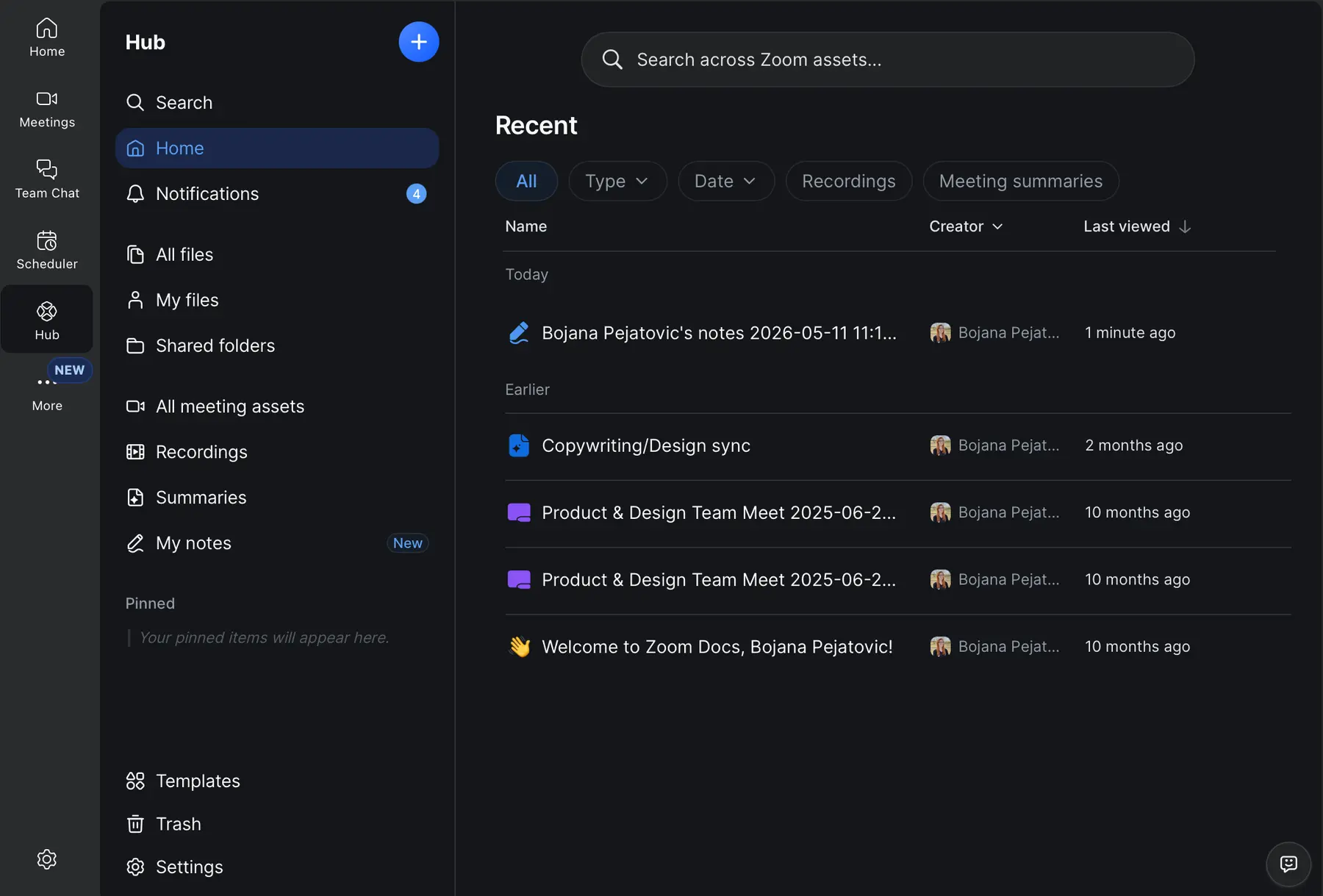
Zoom’s Hub tab
This hub is Zoom’s reply to previous user complaints about the app’s complex and scattered UI.
While I can see that they tried to create a central hub for everything, I wish the layout was even more simplified, like it is in Pumble.
There, one glance is all it takes for you to figure out where everything is. In Zoom, you need to do quite a bit of digging. That’s especially true for first-time users.
Over the past couple of years, Zoom has been trying to become something more than just a video conferencing titan — an all-in-one digital headquarters. But, like some other competitors (Slack, for one), it did so by adding more unnecessary features and making an even bigger mess.
Aside from the Hub section, Zoom also has the catch-all More section that houses your documents as well as gives you access to features like Whiteboard, Clips, Tasks, Notes, Mail, Apps, and Contacts. Keep in mind that each of these includes a vast number of options.
So, browsing through all of Zoom’s features (or looking for a specific one) might involve a lot of clicking and searching.
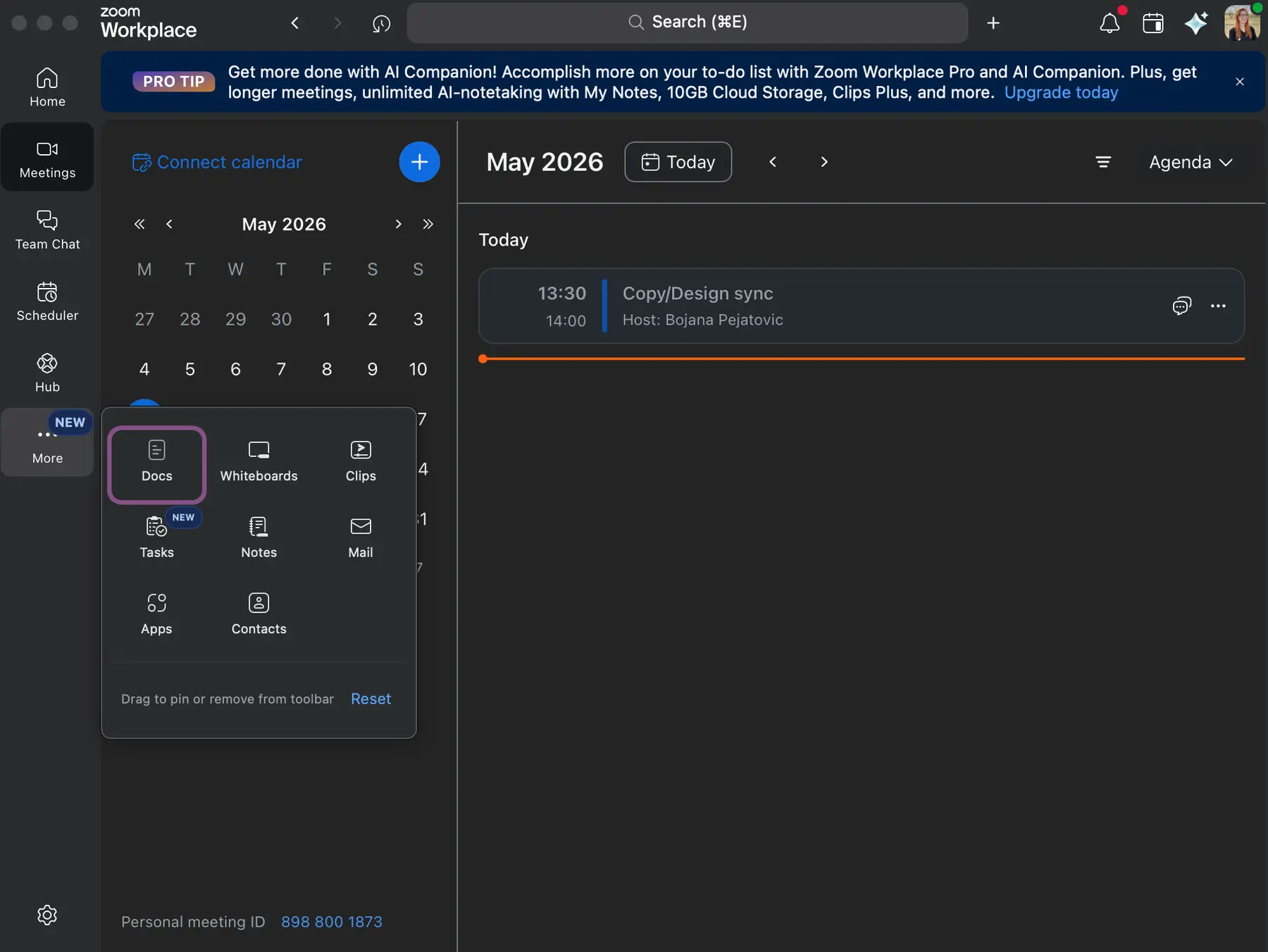
The More tab in Zoom houses a lot of different features
Honestly, simply listing all of them makes my head spin even now. Shuffling through them made me wonder if having such a huge selection of features could make work more complicated in some cases.
I can’t help but think that Zoom would have benefited from taking a less-is-more approach.
Simple and powerful. Try PumbleZoom’s Team chat
Finally, we get to the main hub for Zoom’s workplace team communication — the Team chat.
This tab is where you will find your DMs, mentions, channels, meeting chats, and shared spaces, for day-to-day conversations.
In addition to these, the Team chat tab also includes various other features, such as drafts, starred messages, files, missed calls, external members, and more.
The messages are simple to organize, as you can move DMs and channels to custom folders. The overall experience of messaging is good and reliable for teams.
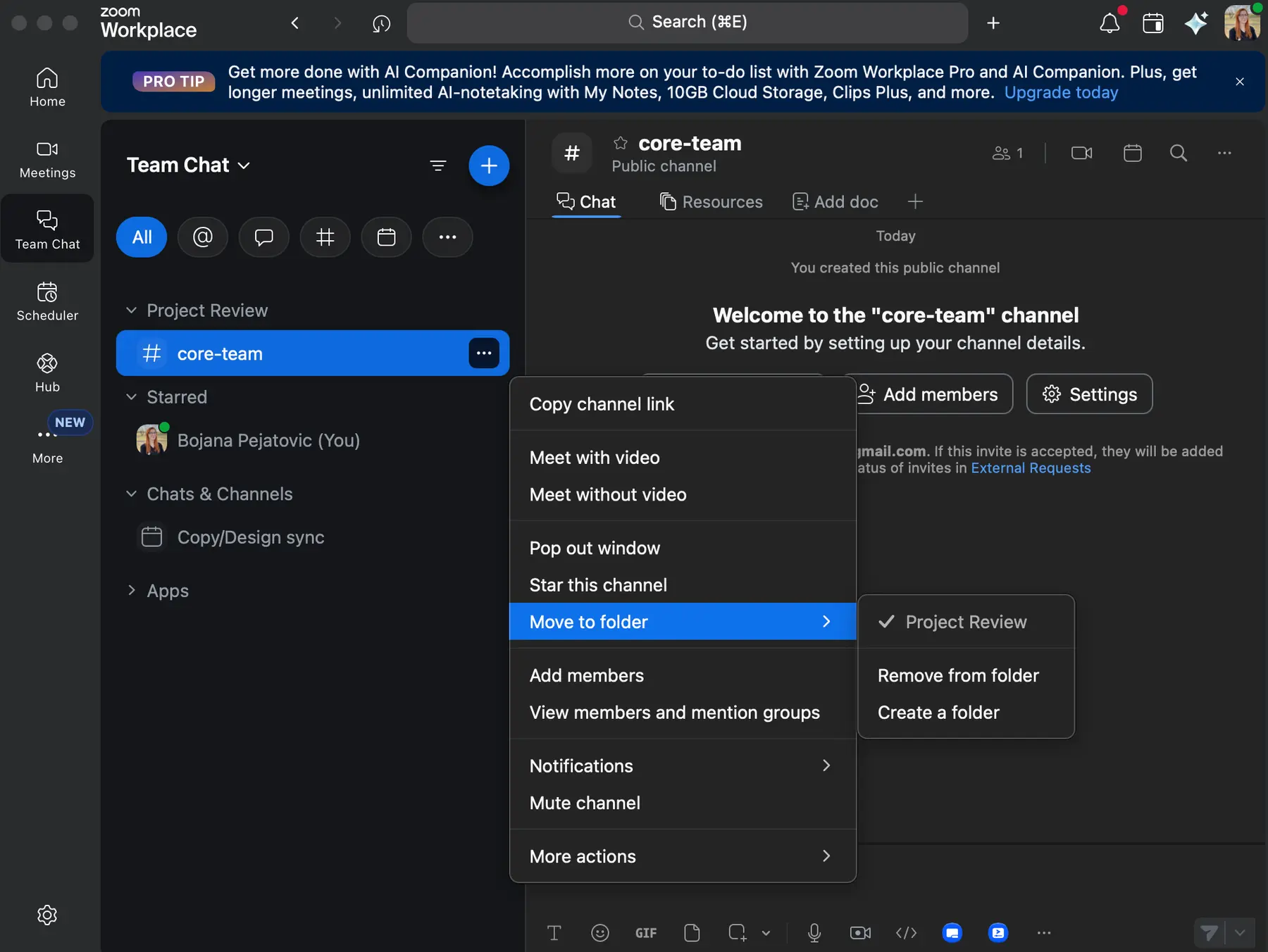
You can organize messages and channels in Zoom by sorting them into folders
I like that topics can easily be followed through the Replies feature, which neatly stacks all responses to a message underneath it, in a single collapsable menu.
However, I wish the replies were more convenient.
If you forget to collapse replies in Zoom, they will clutter your entire messaging window, as you can see below.
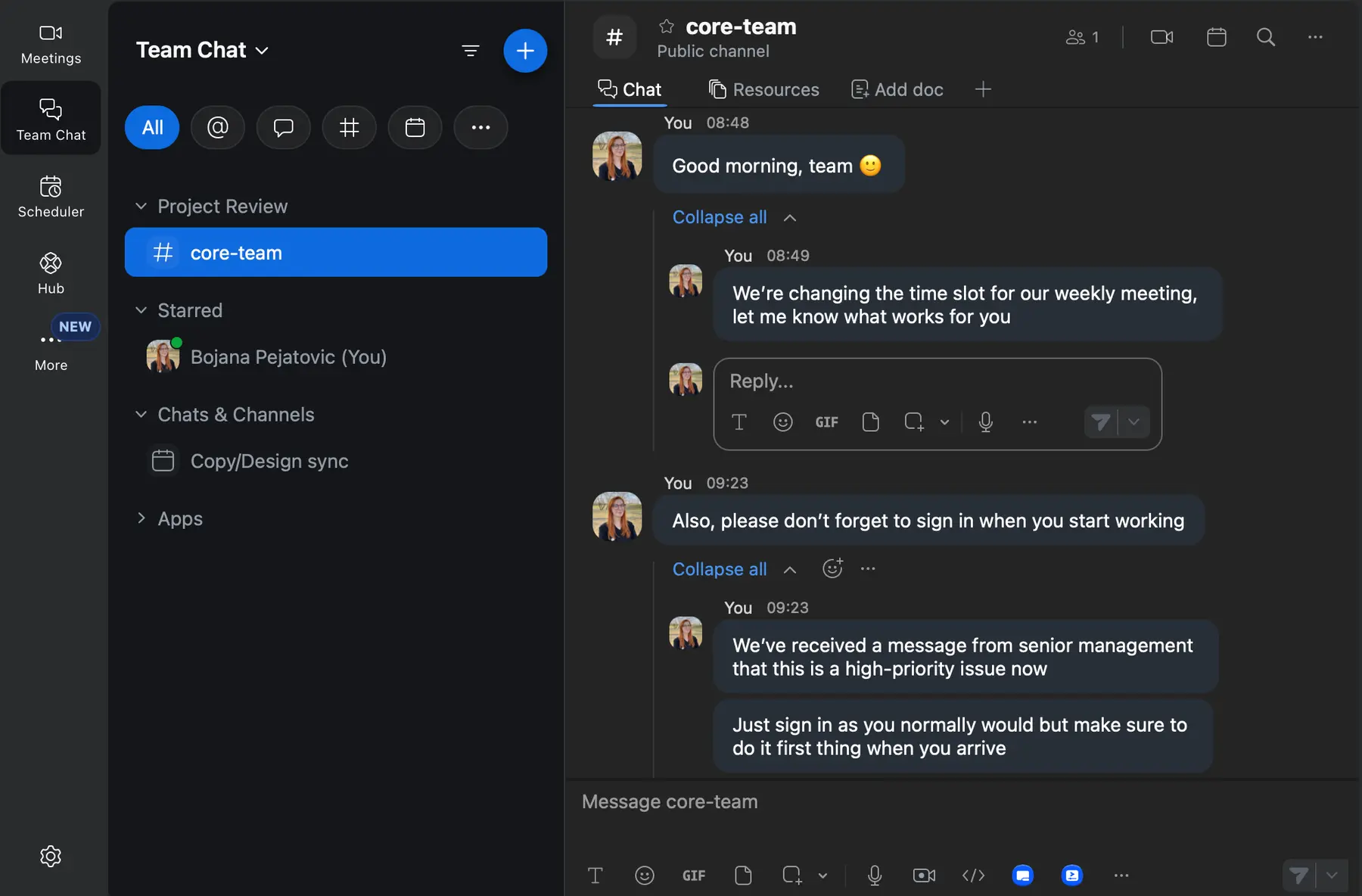
Just a few replies will clutter your entire messaging window in Zoom
The replies will collapse automatically when you click on another channel, chat, or feature. But, while you’re in the channel, they will remain uncollapsed.
I would prefer this was done differently.
For example, threads in Pumble open in a side window and don’t interfere with the main messaging window. You can view both at the same time. What’s more, you can even view a thread from one channel (or chat) while having a completely different channel (or chat) open in your main view. This allows for superior contextual communication and better access to information at all times.
Meanwhile, Zoom’s replies will make you scroll through all the reply chains you forgot to collapse.
Miss threads? Try PumbleOrganizing your workplace in Zoom
Of course, not everything about Zoom feels complicated. Customizing your workplace menus is fairly simple — just drag and drop items from the side menu around. This is a very handy feature for making the space your own.
What’s more, clicking the 3-dot menu gives you access to 10 options that you can use to quickly navigate your space.
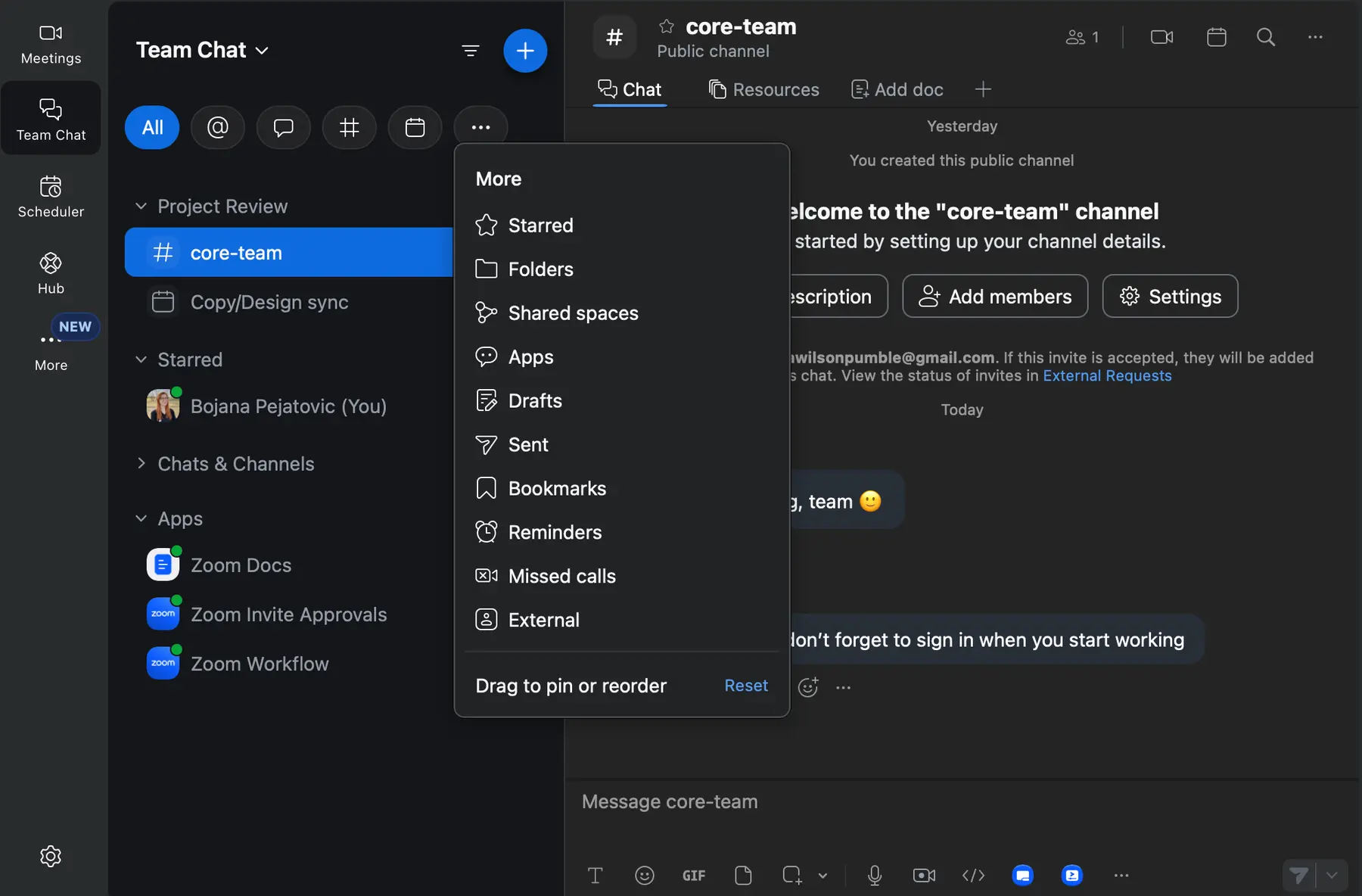
Organizing your workplace is easy in Zoom
And, if things get too jumbled for your taste, you can always revert the order back to its original form in that same 3-dot menu. Just click on the Reset option at the very bottom.
I appreciate this addition, because it makes Zoom slightly less overwhelming.

Creating your team
Inviting a teammate to Zoom Workplace is a matter of simply clicking on the “plus” icon. They will get your request either through email or in their app, and join your workplace with their own Zoom account.
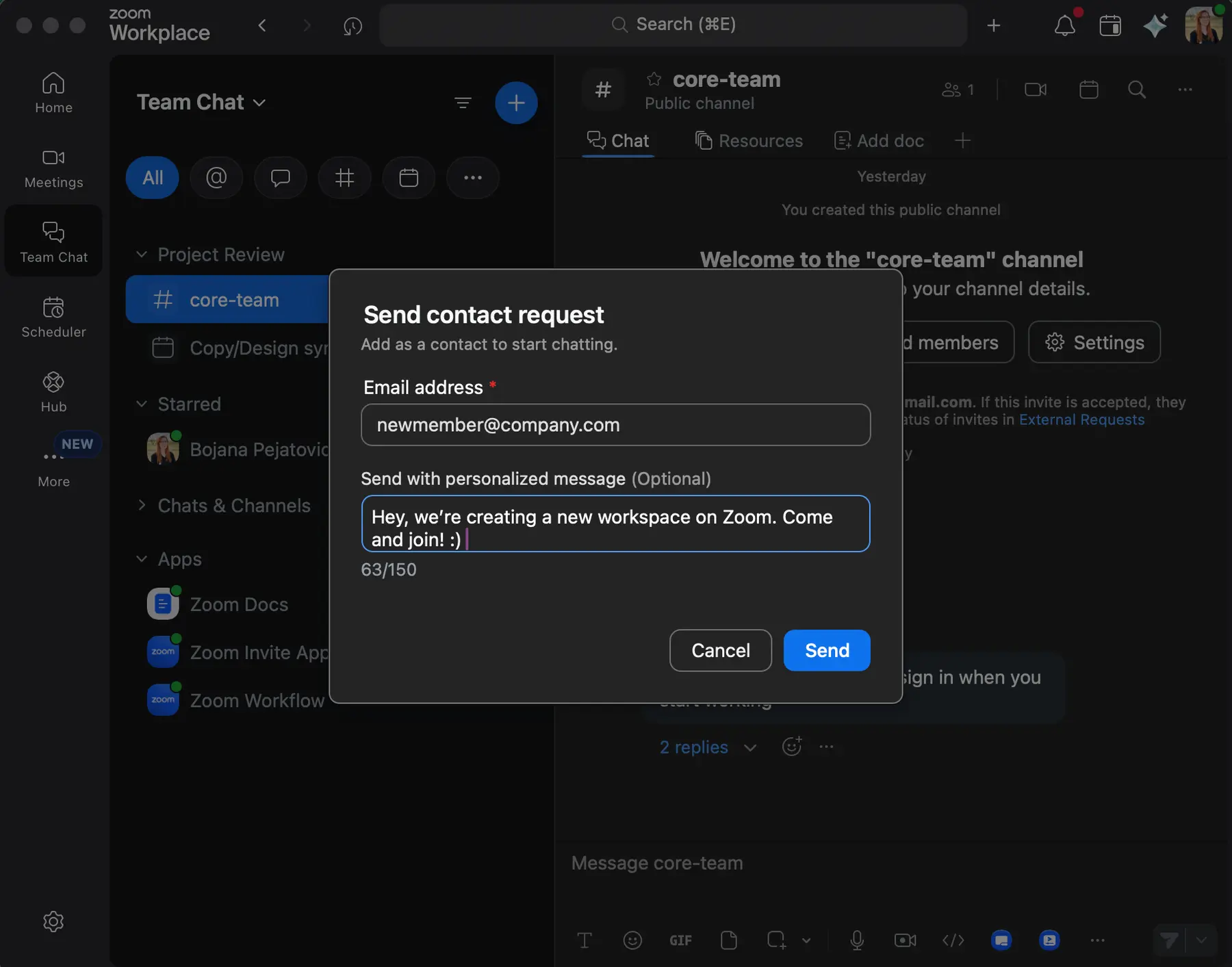
You can invite new members into your Zoom workspace with a few clicks
On paid plans, you can assign different default clearance levels for new users for your Zoom workplace, but it will require quite a bit of effort in the initial phase.
From my experience, other team collaboration apps like Pumble offer a much more streamlined user permission management where every person has a role, each with its own level of permissions and access. You, as the admin, are free to assign those roles and give users more or less access and permissions. And, unlike in Zoom, users don’t immediately have the same permissions as admins do.
By default, a new licensed "member" in Zoom will instantly be allowed to host a 100-person meeting for 30 hours and invite external users into a new chat channel they create themselves.
To prevent this, you’ll need to manually configure a complex set of global permissions for what your users can do on their “member” role.
Many of Zoom's competitors offer more intuitive role-based systems, which allow workspace owners to avoid any security misconfigurations because the options feel far less complicated.
Try Pumble, the best Zoom alternativeInviting external collaborators
By default, external users invited to a Zoom channel have a wide range of options available to them and the same clearance as internal members.
Both workplace members and external members can:
- Share files,
- Start meetings, and
- Send messages to other channel members who are also their contacts.
I didn’t particularly like this, as it makes having a distinction between internal and external members practically unnecessary. I prefer my external members to have limited access to my workspace (like they do on Pumble).
To limit what external members can do in Zoom, you will need to manually adjust the settings in your web portal, as you would for the “member” role. Because of that, this process can drag on, just like it does when inviting internal members.
Zoom’s main pros
Let's take a look at Zoom's unique features, which make it stand out for all the right reasons. Since Zoom is one of the most popular video conferencing apps on the market, I’ll start with that particular feature.
Video conferencing
The video conferencing in Zoom is clean, smooth, and reliable. The vast options during the call allow you to control the meeting in just about every way you may need.
There are distinct differences between the 3 available plans in terms of meeting length and number of participants:
- The Free plan allows you to host 40-minute meetings for up to 100 participants,
- On the Pro plan you can host 30-hour meetings for up to 100 participants, and
- The Business plan lets you host 30-hour meetings for up to 300 participants.
Apart from the usual video meeting features such as screen sharing, a host in Zoom can do the following on the free plan:
- Quickly lock the meeting (prevent any new participants from joining),
- Enable a waiting room,
- Control participant permissions (ability to chat, unmute themselves, or share screens),
- Create breakout rooms, and
- Spotlight a participant's video (make someone full-screen for all other participants).
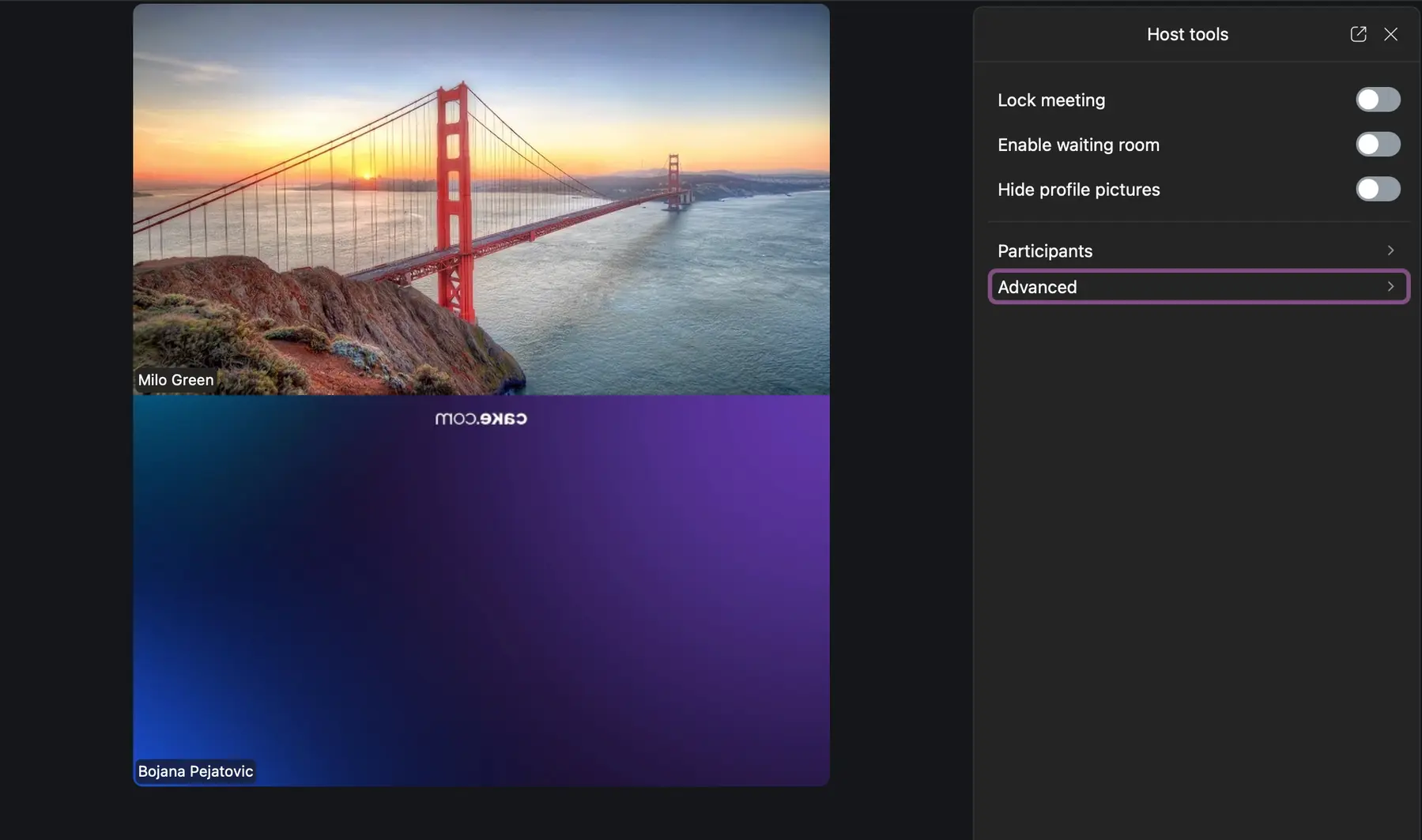
Host options on a free plan in Zoom
Integrations of Zoom docs, whiteboards, and integrated apps are also supported in Zoom meetings.
This is not the whole list of options, but I believe it best showcases Zoom’s primary focus — its versatile video calls.
Although the large amount of user-management options might be justified for a business that relies heavily on video conferencing, it does make the interface a bit cluttered and overwhelming. That’s especially true when you factor in the AI section that was recently shoved in there (as if the UI wasn’t crowded enough).

Zoom’s AI companion, although useful, can make the UI seem even more crowded
That aside, joining a meeting in Zoom is as simple as it gets — and it allows you to test your settings before joining the meeting, so you can test your audio and video.
As far as video quality goes, it’s exceptional, as expected — both me and my meeting participant had no trouble seeing and understanding each other loud and clear.
We both tried moving away from our respective routers, to simulate a poor network environment. Although certain expected hiccups did occur (video quality decreased, stutter), the app handled the poor internet connection very well.
Unfortunately, I haven’t been able to test the app with a large number of participants, but user reports claim overall solid reliability for large-scale meetings.
One thing to also point out is Zoom’s great audio quality as well as advanced audio settings (like stereo audio or the Original sound for musicians). Zoom performs great under various network conditions, and audio quality remains reliable despite video dropouts on poor connectivity.
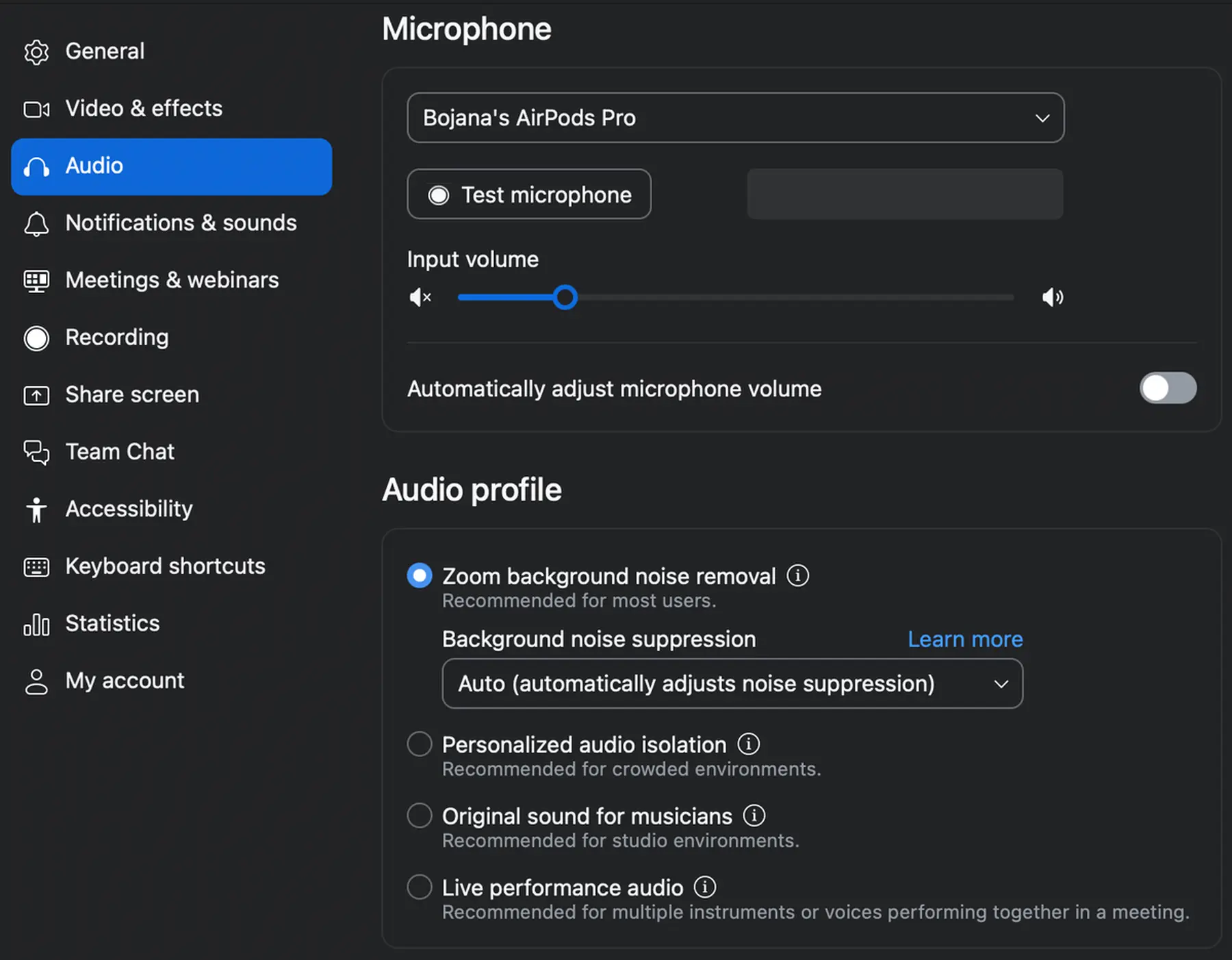
Audio settings in Zoom
In practice, hearing and understanding other participants will always be more important than seeing them, especially on poor network conditions.
As expected, video conferencing and all of its parts remain one of Zoom’s strongest sides.
Whiteboards
Whiteboards are one of the more fringe features of Zoom. Although they feel like casual spaces for drafting ideas and creative expression, they can be used for productive collaboration.
You can invite co-owners, viewers, and commenters, which can be very handy for real-time collaboration.
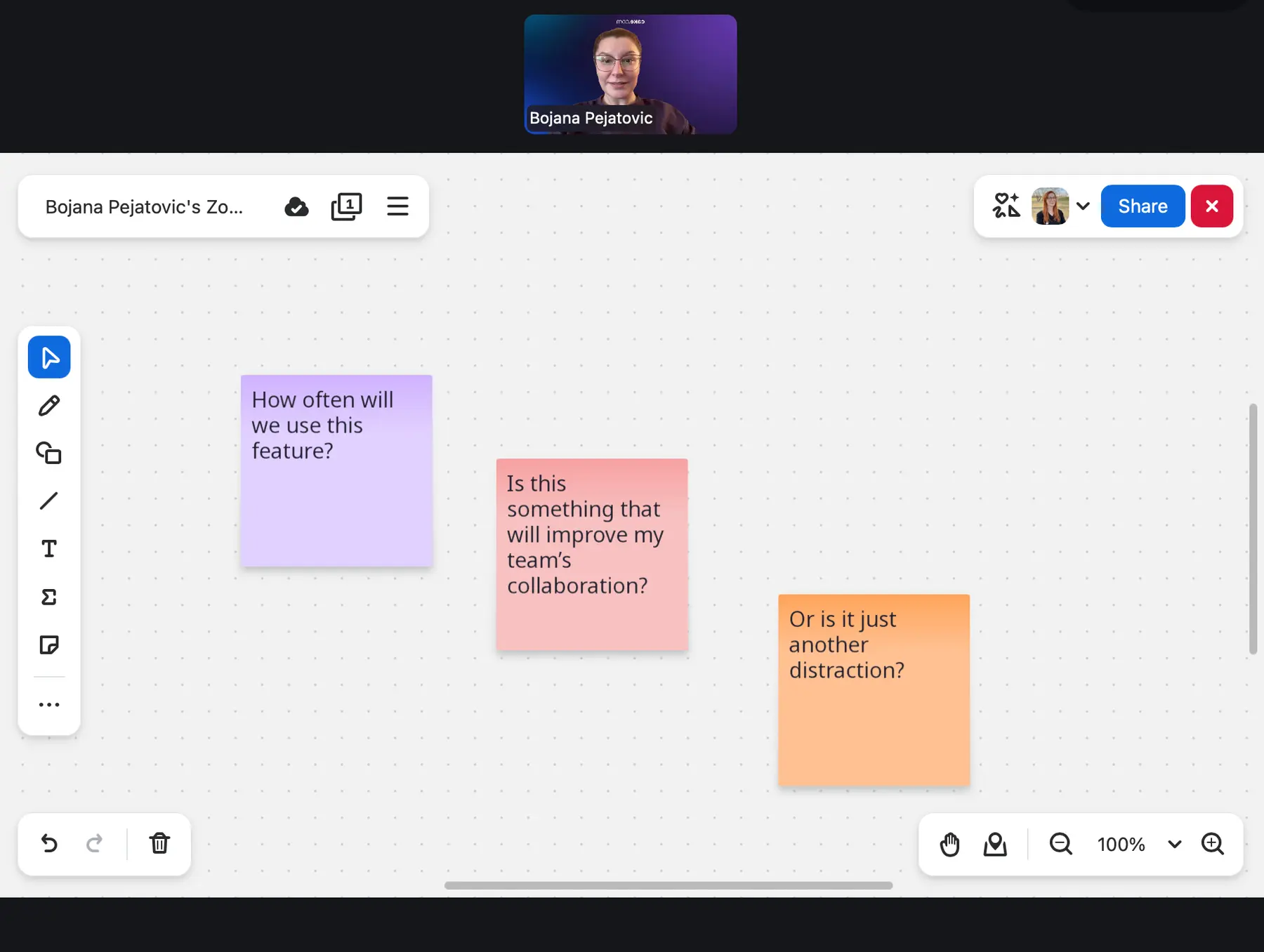
Whiteboards are a fun but potentially unnecessary feature in Zoom
Personally, I haven't found a particularly compelling reason to use Whiteboards in Zoom, and similar features do exist in competitor apps, so its uniqueness isn’t absolute.
However, Whiteboards are still a fun and inspiring feature design-wise. To me, they feel like a completely new space where you can let your creativity flow and come up with some unexpected results, especially if you include other workplace members.
On the free plan, users are limited to up to 3 editable Whiteboards at a time, while unlimited monthly Whiteboards are billed $2.08 per month.
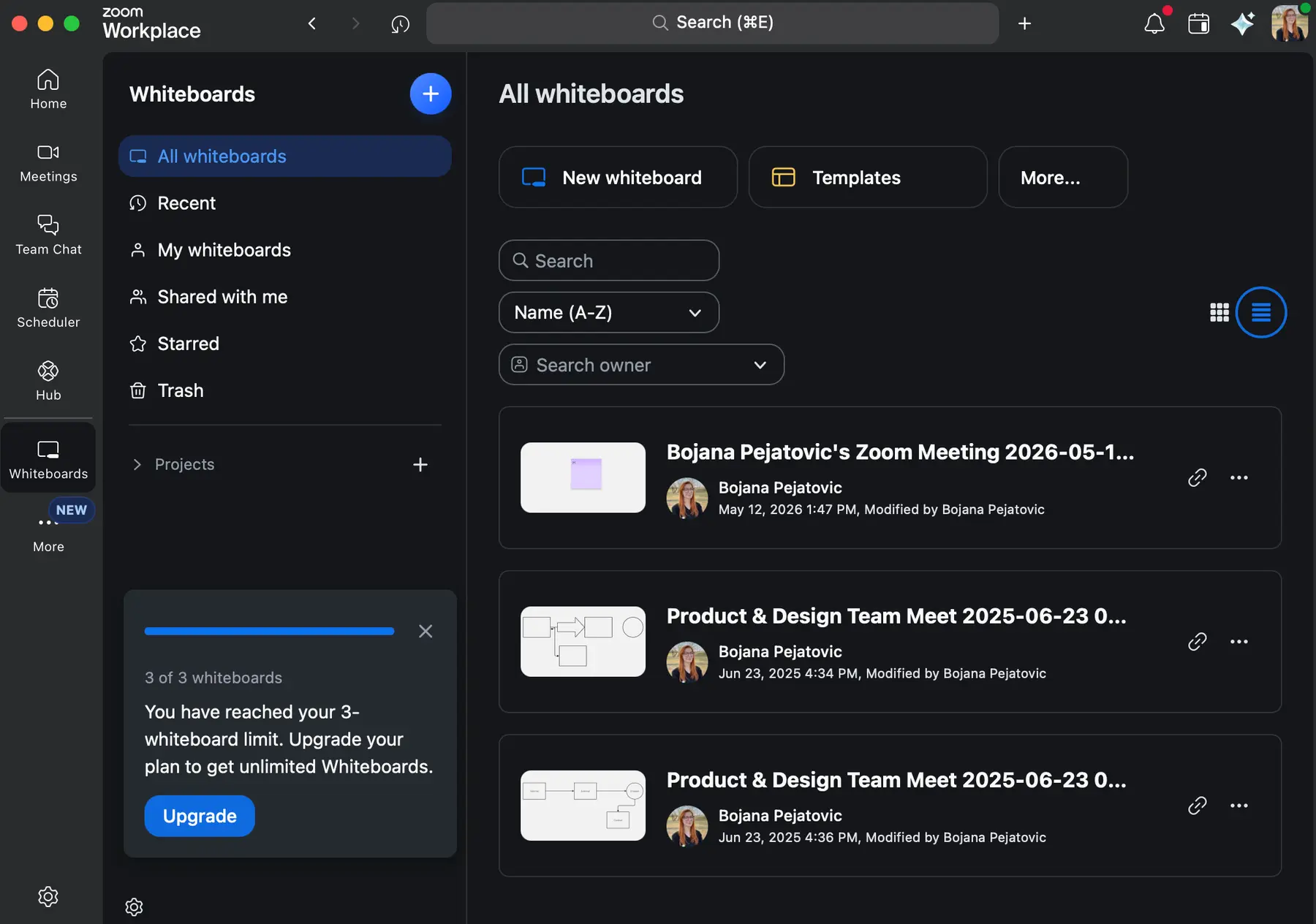
Users on the free plan can only make up to 3 Whiteboards before they receive a notification prompting them to upgrade to a paid plan
Webinars
Webinars are one of the biggest selling points of Zoom, and the reason many users opt for this app.
Zoom allows users to host webinars where they have tight control of the participants’ behavior and how much they can do during the event, which makes it the clear winner compared to all other tools out there.
The main difference between webinars and meetings in Zoom are the user’s roles.
A webinar is a controlled presentation or broadcast with one or a few speakers. Meanwhile, meetings usually take the form of an open conversation.
Webinar attendees primarily see the active speaker or panelists, and, by default, only the host and panelists can speak and share screens. Audiences can participate, but their interaction in webinars is managed through specific tools like a Q&A or polls.
The best use cases for webinars are company all-hands, public lectures, product launches, etc.
Whenever I attended a Zoom webinar as a guest, I didn’t need to download the app — the code from the email took me to a new tab where the meeting was hosted, in my browser.
From my experience, the one-click access through email with the permissions for attendees limited by default truly make Zoom the industry leader for webinars.
Users who regularly host webinars with Zoom generally seem to be satisfied with it, highlighting high video and audio quality and customizability features that made their events a success. However, according to user reports, the mobile application can be a bit confusing compared to the desktop version, and the steep price is cited as a big turn-off.
I can forgive the price — as the webinar feature is something that truly sets Zoom apart from its competitors — but not the shoddy app.
Plenty of mobile communication apps out there are well made and can provide the same (if not better) experience as their desktop counterparts. Pumble’s mobile app is just one example of a great tool that gives you the same ease of use on the go as it does on your computer.
Connect on the go with Pumble mobilePhone calls
Although not the focus of this review, Zoom’s phone call options are also one of its strong features.
Zoom Phone is a business phone system that allows you to:
- Make local, regional, and global calls,
- Create auto-attendants and call queues,
- Record calls,
- Transcribe voicemails to text, and
- Send and receive text messages.
I haven't personally used Zoom phone calls very much, so my experience with this feature is limited. However, from the few Zoom phone calls I attended in a group setting, I can say that they all went down without any issues.
One thing to keep in mind is that the phone call audio quality directly depends on internet speed. So, if you want a smooth experience, you’ll need a stable connection and at least moderate internet speed.
Zoom’s main cons
With the main pros of Zoom covered, let's take a look at the downsides of using it for internal team communication.
Concerning default member permissions
By default, all users that you add to your Zoom workplace (and pay for their seat) have the permission to host an unlimited number of meetings with up to 100 participants (or more, depending on your plan) with no 40-minute limit.
But, on default settings, your users can also:
- Create and manage polls and breakout rooms,
- Create an unlimited number of new public and private channels,
- Invite anyone internally to the channels they create,
- Add external users to channels and start chats with external Zoom contacts,
- Share all types of files, images, and code snippets without restriction,
- Create their own public booking links, allowing anyone to schedule a meeting directly on their calendar (if your workplace includes Zoom Scheduler), and
- Browse the Zoom App Marketplace and install third-party apps into their own Zoom account, connecting other services to their account.
If any of these permissions could present an issue for your company, you will need to identify and manually disable them before you add your team members.
Bear in mind, these settings are on by default even for the lowest-level role with no administrative power, named “members” in Zoom.
Manage users more easily in PumbleOverwhelming pricing options
One of the biggest Zoom pricing drawbacks is that it can get pretty expensive, fast.
After the fairly limited Free plan, the next available option is the Pro plan, whichwill cost you$13.33 per user per month (billed annually). And if that doesn’t do it for you, you can also opt for the Business plan that costs $18.33 per user per month (billed annually).
As an extension to the expensive base-level features, Zoom’s payment structure is unreasonably difficult to navigate, creating another pain point.
For example, exploring the pricing for webinars easily turns into a head scratching experience.
For reference, the cheapest Zoom Webinars plan for 300 participants requires a Zoom Workplace Pro account ($13.33 per user per month when billed annually), and costs an additional $66.67 per month (billed annually).
Got $2.49? Then try PumbleWhile the Zoom Webinars plan has a monthly payment option, the two more expensive plans, Zoom Webinars Plus and Zoom Events, don’t. On these plans, you can only pay per attendee or pay annually for anything more than 100 attendees.
This makes for a pretty low flexibility, and can become frustratingly limiting depending on your specific needs.
And, as you can see, it’s quite confusing to figure out how much everything will cost.
Add-ons get very expensive
Zoom offers a vast amount of add-ons for various purposes that allow you to "enhance your Zoom experience”. They range from hosting larger meetings to additional cloud storage.
However, all of these are billed separately on a monthly basis (with a 27% discount for upfront annual payments), and most of them require a purchase of Zoom Workplace’s Pro or Business plans.
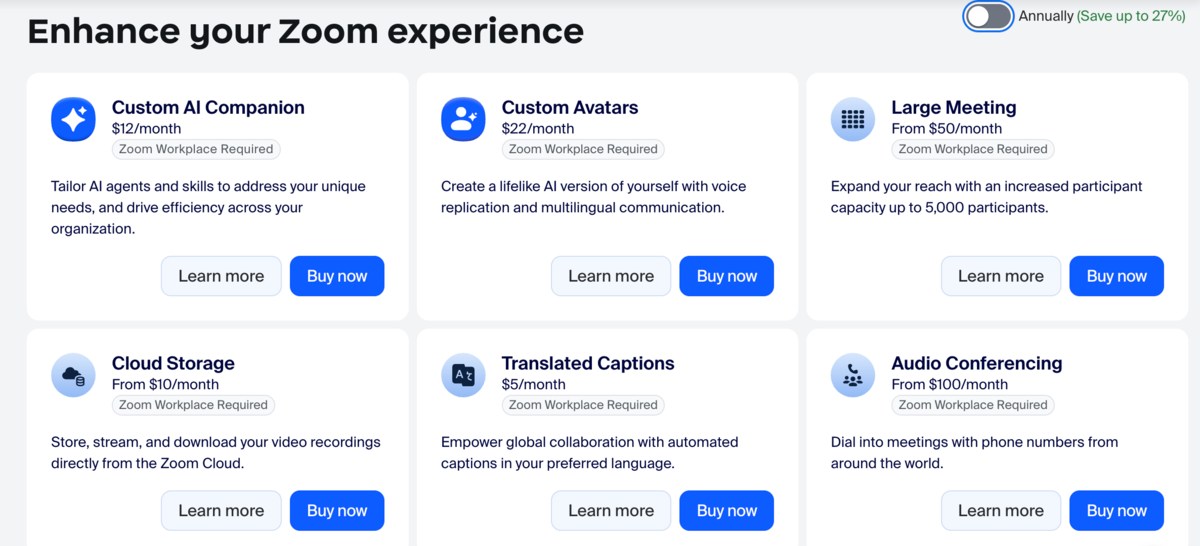
Some of Zoom’s add-ons
If you're looking to onboard your entire team, the app can get expensive really fast, especially compared to other communication apps on the market.
Reported poor customer support
Many users have recently reported poor customer support on multiple Zoom’s products, which I found important to include in my review.
I feel this is especially relevant for teams that require help with initial software set up. Implementing a new system in a company is stressful enough on its own. But, paired with poor customer service, it can turn into a complete nightmare.
Personally, I also experienced issues with technical support. While testing the app for this Zoom review, I experienced issues with occasional notification delays but was unable to report them.
I went to the Submit a support case page and selected the Technical support option but was automatically redirected to the Zoom knowledge base articles, the Zoom Community, and their chatbot. So, instead of support, I got a reading assignment — one that I already completed before trying to contact support in the first place.
Being able to contact real people for support is vital, especially for less tech-savvy users. That’s why I think competitors like Pumble stand head and shoulders above Zoom in terms of support. Pumble offers extensive support to all its users (including those on the free plan). Plus, it doesn’t give users the AI runaround — all issues are reported to and resolved by a human support agent.
You’d think direct and transparent communication like this would be the standard for all communication apps. However, Zoom proves otherwise.
Get 100% human support on PumbleAfter covering the main advantages and disadvantages of Zoom, let’s take a look at how much using this software could cost your team.
Zoom’s pricing and examples
The table below includes examples of annual Zoom Workplace subscriptions for teams of different sizes.
| Team size | 10 people | 25 people | 50 people | 100 people | 200 people |
| Zoom Pro | $133.3 | $333.25 | $666.5 | $1,333 | $2,666 |
| Zoom Business | $183.3 | $458.25 | $916.5 | $1,833 | $3,666 |
As someone who’s been using Pumble for the past couple of years, I was appalled by these prices. Pumble’s most expensive plan costs less than Zoom’s least expensive option — $12.99. And, for that price, you get Enterprise-level access to the entire CAKE.com ecosystem. That includes not only Pumble but also its sister software, Plaky (a project management app) and Clockify (time tracking solution).

If you’re looking to host webinars in Zoom, the price you’ll pay will vary depending on the number of people you’d like to attend, as well as the specific features available on different webinar plans, number of attendees, and payment frequency (monthly or annually).
For example, the Zoom Webinars and Zoom Webinars Plus plans will allow you to create many separate Webinars, while the Zoom Events plan will allow you to create a complete event with many different sessions.
All of the webinar plans require a Zoom Workplace Pro licence, at $13.33 per user per month (billed annually). However, this only includes you and your inner team (if you have one) — not the webinar attendees who join externally.
Here’s what hosting large-scale events will cost you per year, on top of your annual subscription for the Pro or Business plans, for groups of different sizes:
| Number of attendees | 500 people | 1,000 people | 3,000 people |
| Zoom Webinars | $999.96 | $3,399.96 | $9,900 |
| Zoom Webinars Plus | $3,489.96 | $6,789.96 | $19,989.96 |
| Zoom Events | $4,989.96 | $9,489.96 | $26,490 |
Zoom will also allow you to pay on a per-attendee basis (only for Zoom Webinars Plus and Zoom Events), or give you options for monthly billed subscriptions (for all plans) with varying maximum number of users.
Depending on your specific needs, Zoom can be either the best or the most overwhelming choice for a business with many collaborators.
As far as team communication and collaboration goes, a more understandable pricing model, simpler features, and a UI suitable for all levels of experience would make the app perfect for this use case.
Luckily, there is an app that offers just that.
Go beyond meetings: Centralize your team communication with Pumble by CAKE.com
If you’re looking for a way to unite your team in a single online workspace, Pumble is the best choice for your team.
While Zoom leaves out certain features in favor of video conferencing (or makes you pay a lot of money to get access to them), Pumble is a much more rounded digital solution for internal team communication. It offers far superior messaging than Zoom as well as integrated video conferencing capabilities, a Google calendar integration, an opt-in AI assistant, and much more.
Pumble pricing includes 3 Pumble plans as well as one CAKE.com bundle plan:
- Pro plan — $2.49 per user per month (when billed annually),
- Business plan — $3.99 per user per month (when billed annually),
- Enterprise plan — $6.99 per user per month (when billed annually), and
- The CAKE.com Bundle — $12.99 per user per month (when billed annually) for Enterprise access to Pumble, Plaky, and Clockify.
Pumble is the go-to option for small to medium-sized teams looking to create a centralized collaboration workspace for messaging and team video conferencing.
Being much more streamlined and specialized than Team chat in Zoom, Pumble allows you to:
- Make employee onboarding simple,
- Effortlessly navigate channels and messages,
- Add guests and manage their roles in a more intuitive and risk-free way,
- Manage user permissions much more easily than you would in Zoom,
- Have an unlimited message history on all plans, and
- Receive 24/7, 100% human world-class support with 95% satisfaction rate.
Pumble is designed to simplify your workflow and reduce digital friction. It allows for both synchronous and asynchronous communication.
However, if you're looking for a way to utilize Zoom's best features without compromising on having a functional digital HQ, you can do so with Pumble’s Zoom integration. Integrating Zoom into your Pumble workplace eliminates the need for anyone other than the meeting’s host to create or pay for a Zoom account.
Organize your company into teams and sub-teams, and simplify day-to-day operations with Pumble — a centralized, streamlined, and easy-to-use hub.
Try Pumble by CAKE.com