





You already know that team communication matters just as much as your services and products. And without a tool that supports your workflows, the consequences often include fragmented conversations and a barrage of lost emails.
But without a tool that supports your workflows, the consequences can be dire, including fragmented conversations and a barrage of lost emails.
As someone who works for the makers of Pumble by CAKE.com, a business communication app, I’m no stranger to testing and evaluating communication software.
That's why I've taken it upon myself to save you from endless demos and review Microsoft Teams to see how it holds up against my work schedule.
In this step-by-step Microsoft Teams review, we'll go through the platform's:
- Pricing,
- Features,
- User-friendliness, and
- Everything in between.


Let’s start from the top.
Human reviewers try out each app and follow strict guidelines while writing the reviews. We follow a transparent, clear, and systematic methodology so that every review is objective and accurate.
Learn more about our review methodology here
Is Teams a communication hub or an operating system?
If you’ve ever asked questions like, “Is Microsoft Teams good for a small business?” or “Can it be used for chat only?”, you’ve likely also wondered if it’s a simple communication app or a full-fledged operating system.
That’s the thing with Microsoft — to access a single app with its full potential, you’ll need to sign up for one of the paid suites, gaining access to additional software.
Although standalone paid subscriptions aren’t Microsoft’s usual way, you can still try the Teams Free plan, designed for personal use. It includes:
- Group calls with up to 100 participants and 60-minute time cap,
- Unlimited chatting with family and friends,
- Encrypted chats, calls, files, and meetings, and
- 5 GB of storage.
The above features are solid for personal communication — in fact, it’s great to see companies enforcing widespread data encryption across free plans. So, in a sense, Teams can serve as a practical personal communication hub.
As good as that is, for growing startups and small businesses, the no-cost version can quickly become stifling. The inability to set up a professional workspace and low cloud storage are major hurdles.
To make sure you have the features necessary to scale operations, you’ll either need to upgrade your subscription or look into a different communication tool.
Should you sign up for one of the paid plans, the Microsoft suite — with Teams at its center — evolves into a type of operating system, with each application intertwined with its sister software.

Pricing & value
With the free plan limitations out of the way, let’s see where Teams keeps its motherlode of features — the paid tiers.
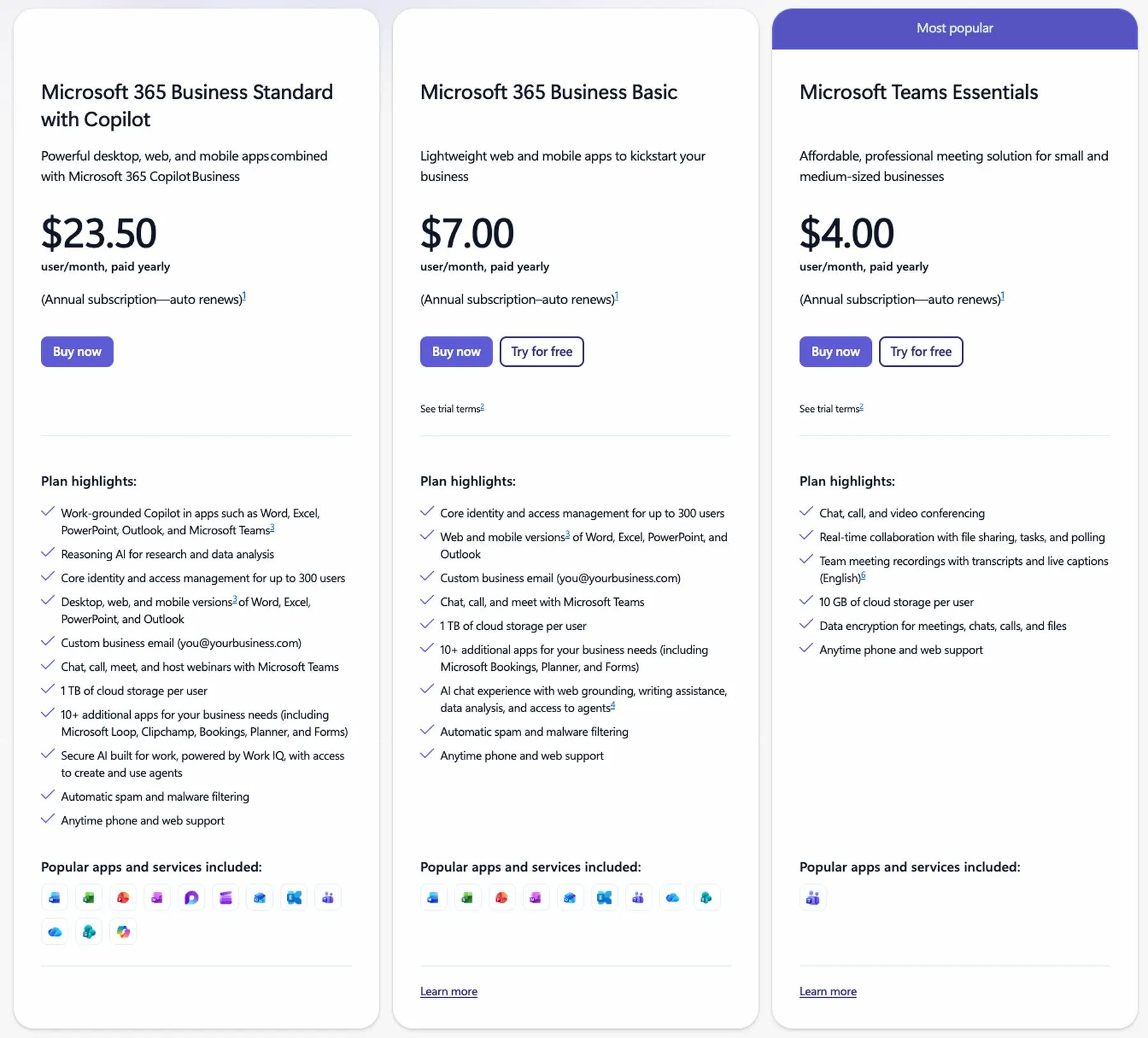
Microsoft Teams pricing (2026)
The Microsoft Teams Essentials is the only plan dedicated solely to Teams. As such, it offers access to the web versions of core Microsoft apps (PowerPoint, Excel, and Word, for example), but not the desktop versions.
However, the Essentials plan does provide:
- Meetings of up to 30 hours with a 300-participant limit,
- 10 GB of file storage per user, and
- An optional Microsoft Copilot upgrade.
So, if you’re looking for simple team communication software that doesn’t rope you into buying more business apps, Pumble by CAKE.com is a more suitable fit.
Pricing is another matter to consider, as the jump from $7 per user in Business Basic to $14 per user in Business Standard (annual commitments) seems quite steep. These prices are the result of the July 2026 price increase for select commercial packages and standalone software that Microsoft announced at the beginning of the year.
Try an affordable alternativeThe Business Basic is a definite step-up from the Essentials plan, unlocking:
- Identity and access management for increased workspace control,
- Web and mobile versions of additional Microsoft apps,
- 1 TB of storage per user, and more.
The Business Standard plan includes all features found in Business Basic, with the extra perk of allowing users to host webinars.
For a firsthand look, I tried the Business Basic plan via the Microsoft Teams Exploratory Trial. The 30-day trial period gave me just enough time to assess the app’s main features. I steered clear of using Teams as an enterprise communication tool — I wanted to see how well it supported agile collaboration on its own, without relying on additional apps from the Microsoft ecosystem.
Microsoft Teams: Main features
Teams’ pricing aside, the communication tool has built a solid feature set, including:
- Audio conferencing,
- Private and shared channels,
- 1:1 and group chatting,
- Teams,
- Video meetings,
- Screen sharing, and
- Guest access.
Even after more user-friendly alternatives have appeared, Teams has retained high user adoption rates, and I understand why. The platform’s most-used features mainly focus on streamlining business communication — from messaging and video calls to channels and screen sharing.
This is in line with Microsoft’s fundamental idea behind Teams — to create a centralized hub by pulling together workplace chats, calls, messages, files, and apps.
User experience
Having used the free plan before, I thought that setting up the Business Basic trial would be fairly similar. That wasn’t exactly the case. The app often lagged behind my input, informing me it was loading my workspace while I waited. Luckily, I was in no rush, and most users probably won’t mind waiting a few extra minutes.
The app often lagged behind my input, informing me it was loading my workspace while I waited. This might surprise you if you’re used to lightweight tools like Pumble, which are highly responsive. However, given how many apps comprise most Microsoft packages, some lagging is expected.
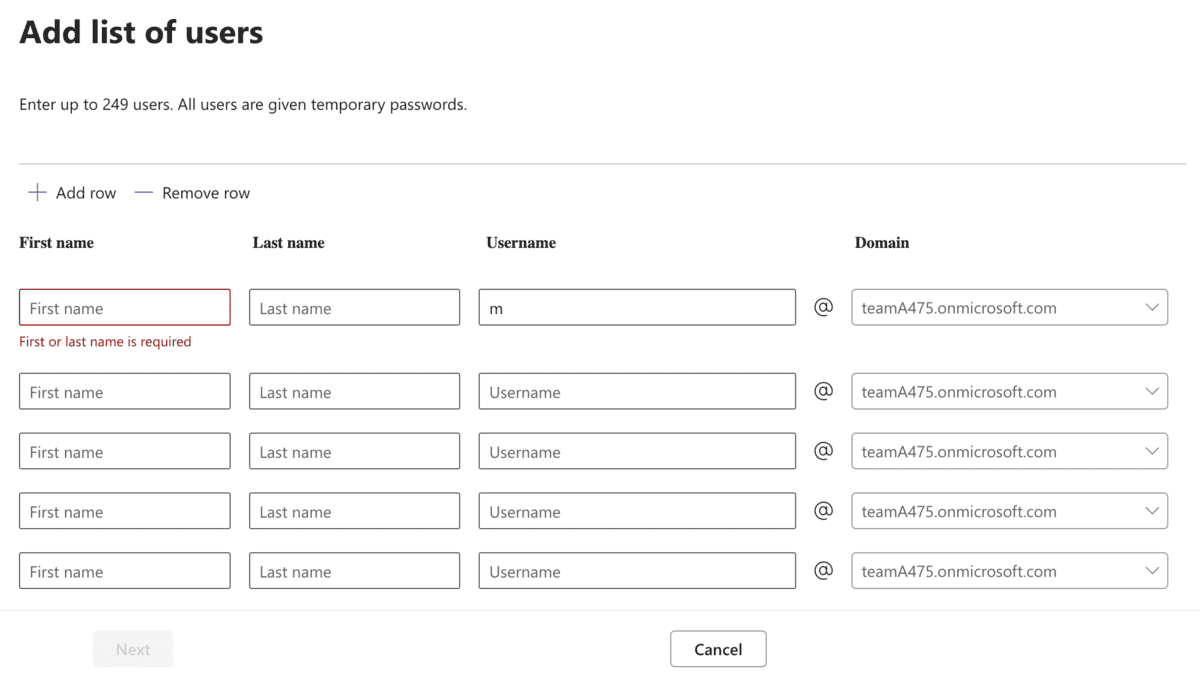
Set up user accounts for your Microsoft 365 package
What did take more time to get used to was the Admin app. Think of it as your organization’s headquarters — a central space for managing:
- Users,
- Products, and
- Licenses.
Thankfully, the Admin panel also includes a Learn section, and the video tutorials helped me understand many of these processes.
After completing the initial setup — getting familiar with admin controls and assigning licenses — I could finally proceed to Microsoft Teams itself. I still had more work to complete, such as creating teams and channels. If you’ve used business messaging apps before, I don’t think you’ll struggle with these steps.
Overall, the setup was more labor-intensive than I had anticipated. Most larger organizations will likely have several admins handling the behind-the-scenes work in Teams. For smaller businesses with limited manpower, this might not be a viable option.
Interface
With the setup out of the way, I could finally take in the interface. It was familiar, with the same corporate, office-gray color scheme found in the free plan.
Similarly, the left-hand navigation bar housed icons that led me to my:
- Activity,
- Chats,
- Calendar,
- Calls,
- OneDrive, and
- Admin console.
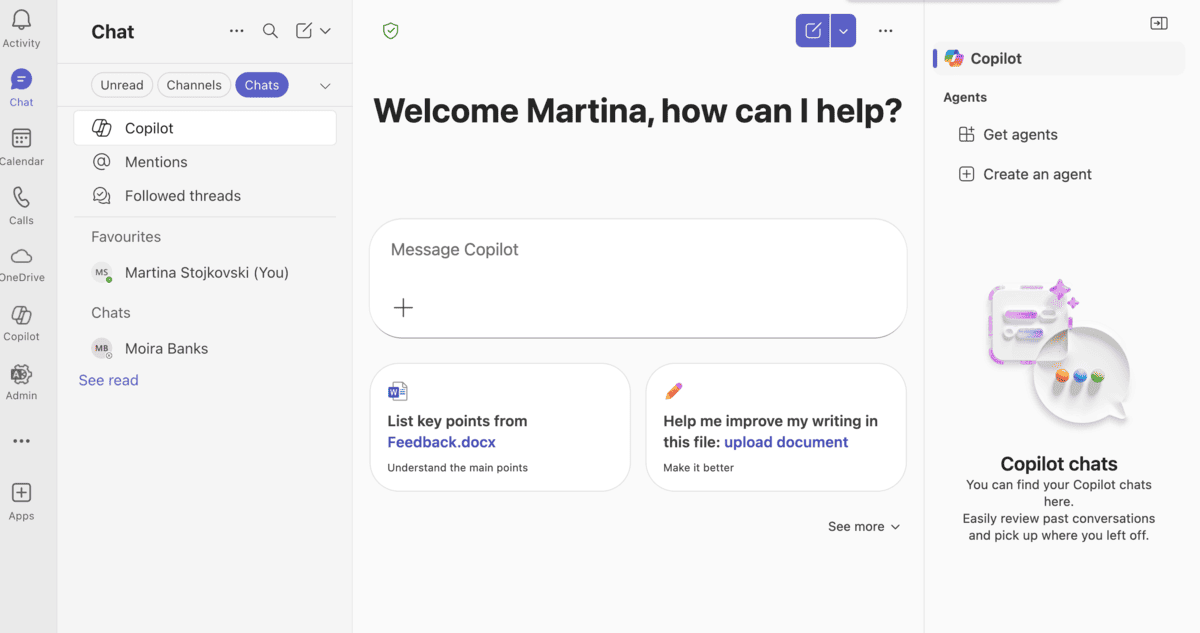
The MS Teams resource-heavy interface
The most notable difference between the free plan and the Business Basic was the addition of Copilot, Microsoft’s AI-powered assistant. Not only was the Copilot icon prominently displayed in the sidebar, but the Copilot conversation window also took up most of the interface.
I personally felt as if Microsoft was nudging me to see Copilot as an inseparable part of Teams. Instead of placing Copilot at the center of the interface, a simple “Get the most out of Teams” section might have been a better approach.
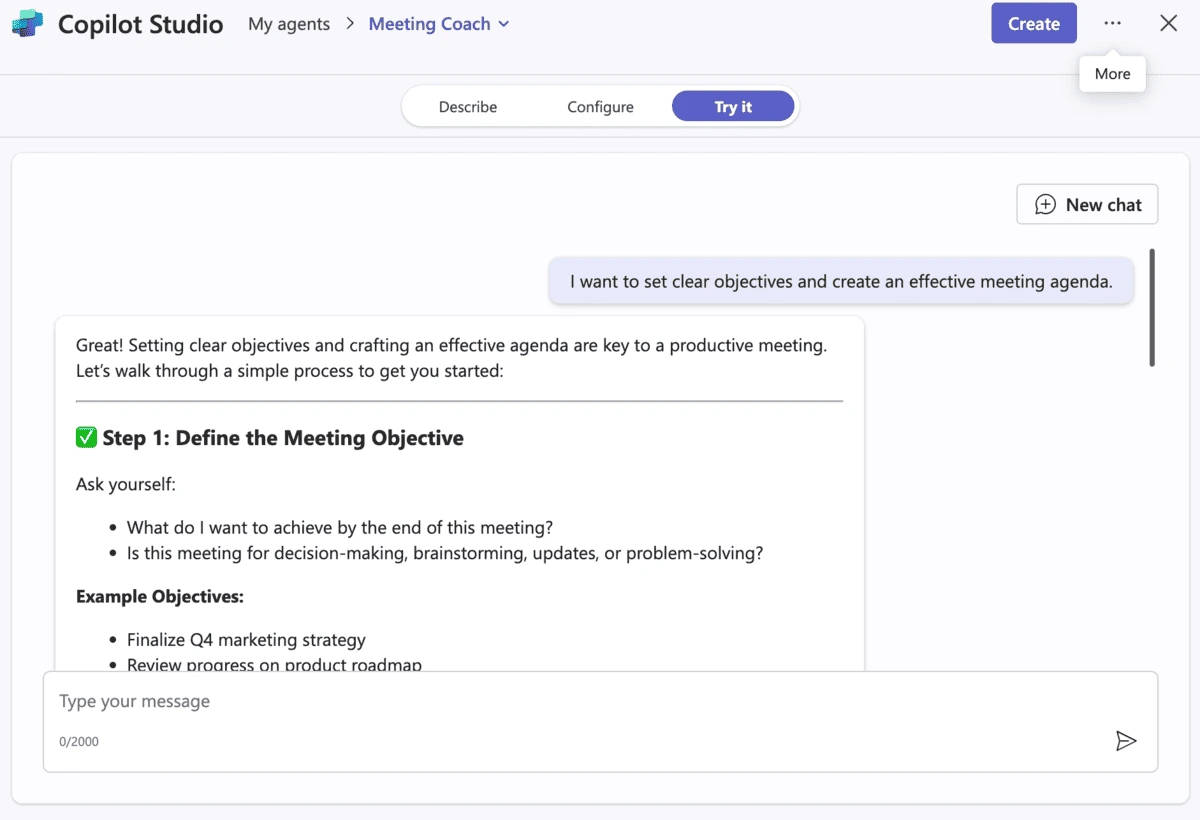
Create a Copilot agent for your MS Teams workspace
Admittedly, the introduction of this feature highlights how cluttered the Teams interface has become, which is exactly what Zoom has done with its own AI implementation. Both apps have enough buttons and menus as it is, so including even more features feels like notification fatigue waiting to happen. Conversely, the AI Assistant in Pumble is an opt-in feature, so users who find it unhelpful don’t have to use a feature they don’t need.
Since I had enlisted two colleagues to help set up my workspace, I wanted to see how far I could customize its appearance. I first had to open my Chat section and tap on “More options” (…) to find the “Customize view” button.
The platform only has a few select themes, which include:
- Light,
- Dark,
- High contrast, and
- Classic.
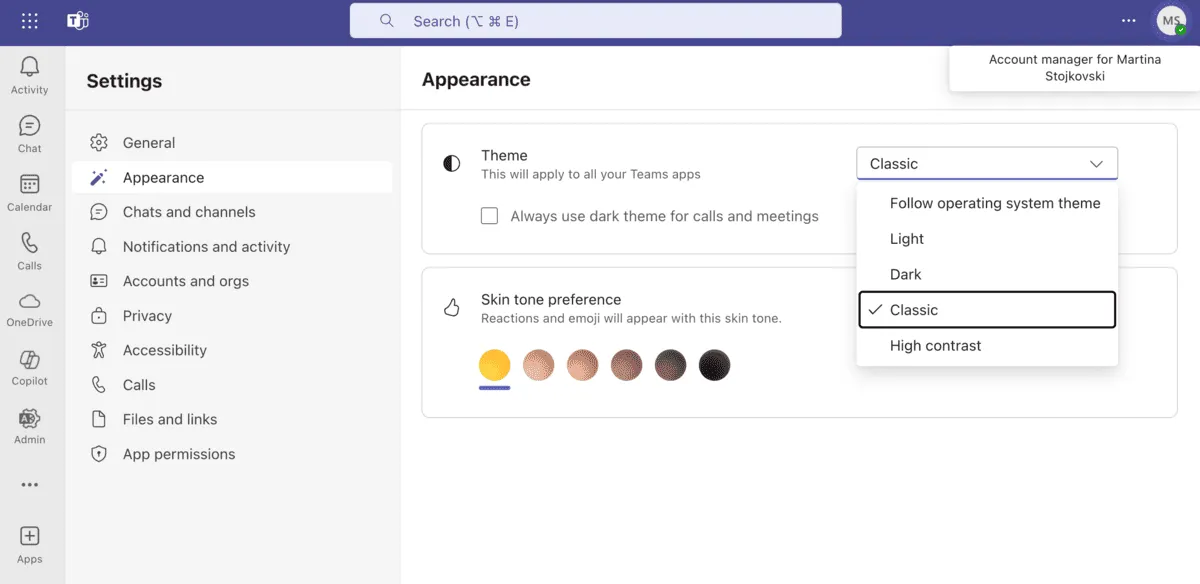
The Classic theme in MS Teams
At first, I thought the Light and Classic themes were the same, but then I noticed a subtle difference — the top bar in the Classic theme is the signature Microsoft 365 blue.
In sum, learning your way around the interface can take some time, especially if you haven’t used such a feature-packed communication tool before. As we’ve already noted, navigating Microsoft’s bloated software is easier with dedicated admins on hand to make the workspace more user-friendly.
Try Pumble — simple & customizableChats
Starting a 1:1 or group chat in Teams is smooth sailing. Simply tap on a coworker’s name or find their account in the search bar to begin a conversation.
Microsoft recently introduced a redesign of its chat and channel layout. Instead of cluttering the chat section with all messages, teams, and channels, the platform now organizes them into different subcategories for increased clarity and better navigation. These subsections are collapsible, allowing you to hide chats or teams with limited activity.
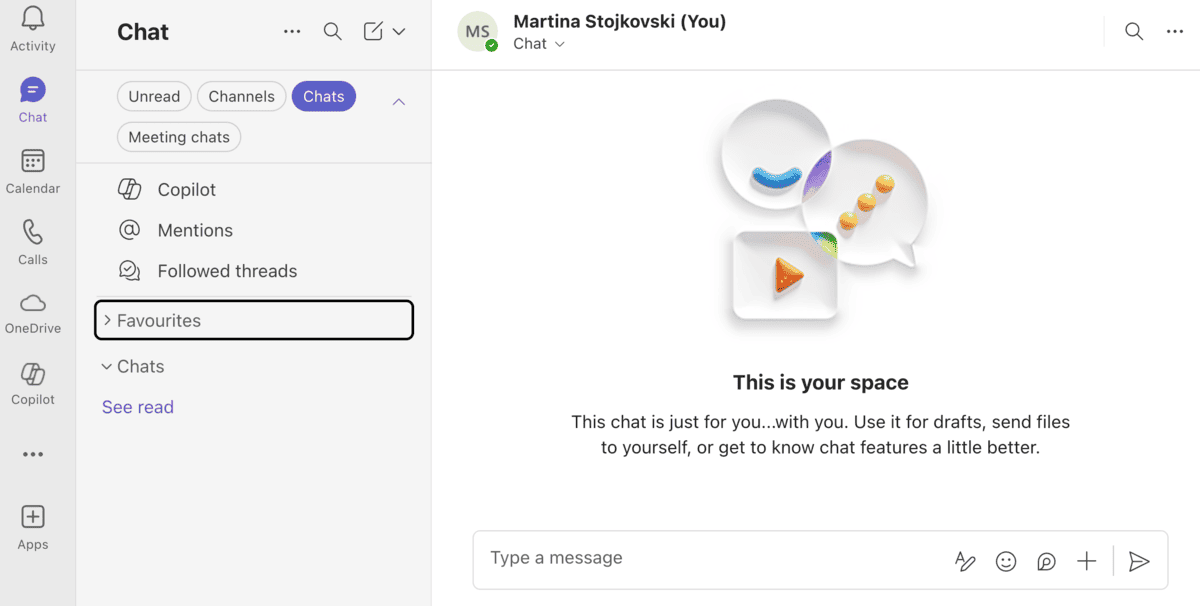
Teams now displays chats and channels together
Most importantly, I could filter out meeting chats from direct messages. These chats often have the same participants, and in the free version, I sometimes felt like I was seeing double. Here, the order was restored, so I didn’t waste my time scrolling through each conversation to ensure I was in the right place.
Here, the order was restored, so I didn’t waste my time scrolling through each conversation to ensure I was in the right place. It’s a bit of a letdown that this level of chat organization isn’t a staple in the no-cost version, as it usually is in team messaging apps like Pumble.
The message formatting is extensive — it almost felt like I was editing a long-form document, not just a direct message. In addition to choosing the standard italics and strikethrough effects, I could also:
- Insert headings and subheadings to separate paragraphs,
- Send code snippets in multiple programming languages, and
- Mark quotes.
Moreover, additional functionalities were easy to find and use, including:
- Attaching files,
- Scheduling messages, and
- Recording video snippets.
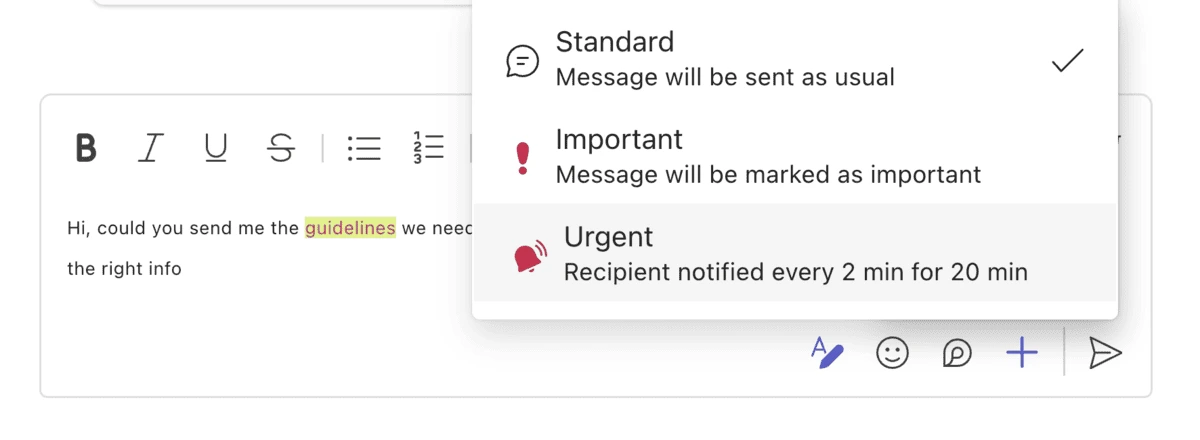
Messaging options in MS Teams
Right under these options are the preinstalled and available apps. Curious to see how they performed directly within the chat, I clicked on Updates, a tool for creating, reviewing, and sending updates.
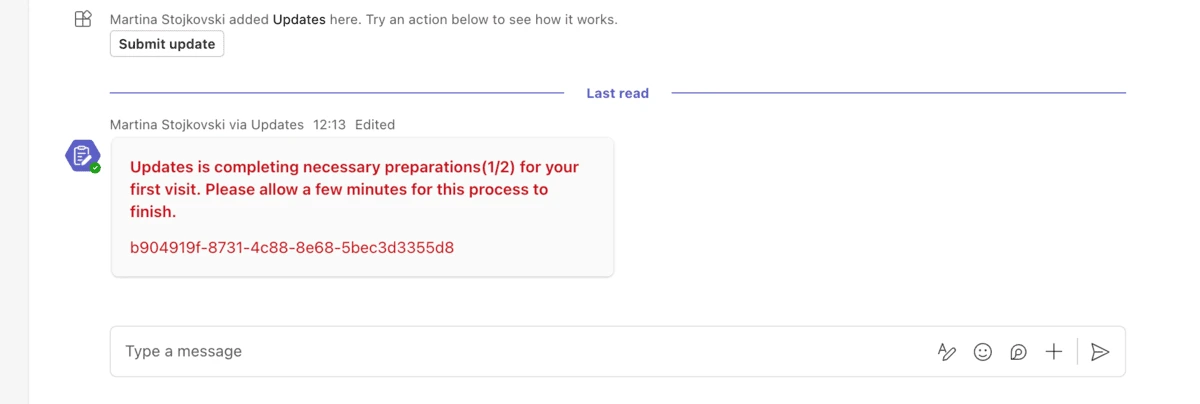
Failed attempt with Updates in MS Teams
There were several pre-made templates and following the steps in the pop-up window was straightforward, but my first attempt was unsuccessful. Teams didn’t finish the process, asking me to wait until Updates completed preparations. There was no progress, so I repeated the same steps, this time with the Daily Wellness Check-in template. This time, the app promptly generated the form, allowing everyone in the chat to fill it in.
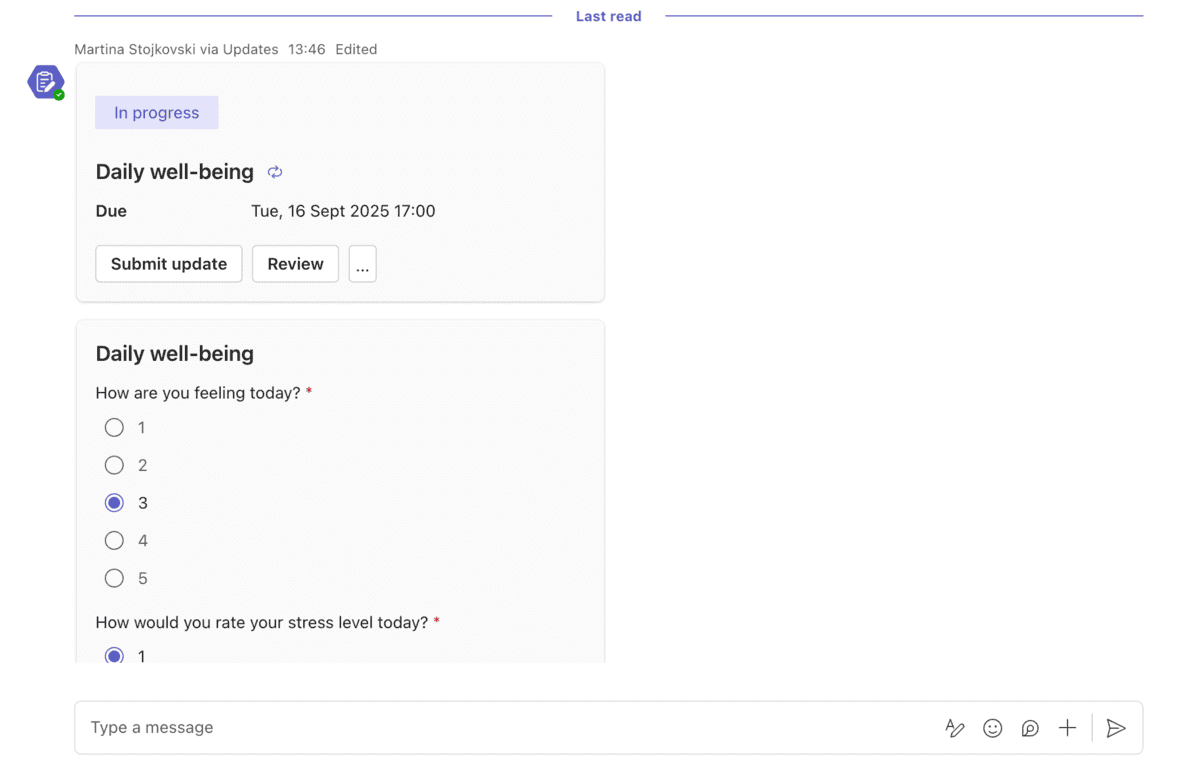
Successful check-in via Updates in MS Teams
Additionally, I wanted to set reminders, and the Workflow app was quite handy. You can access it from any chat and create a reminder, which will appear in a separate Workflow chat. I used it to be more mindful of reviewing notes, and what do you know, the reminder came at the specified time.
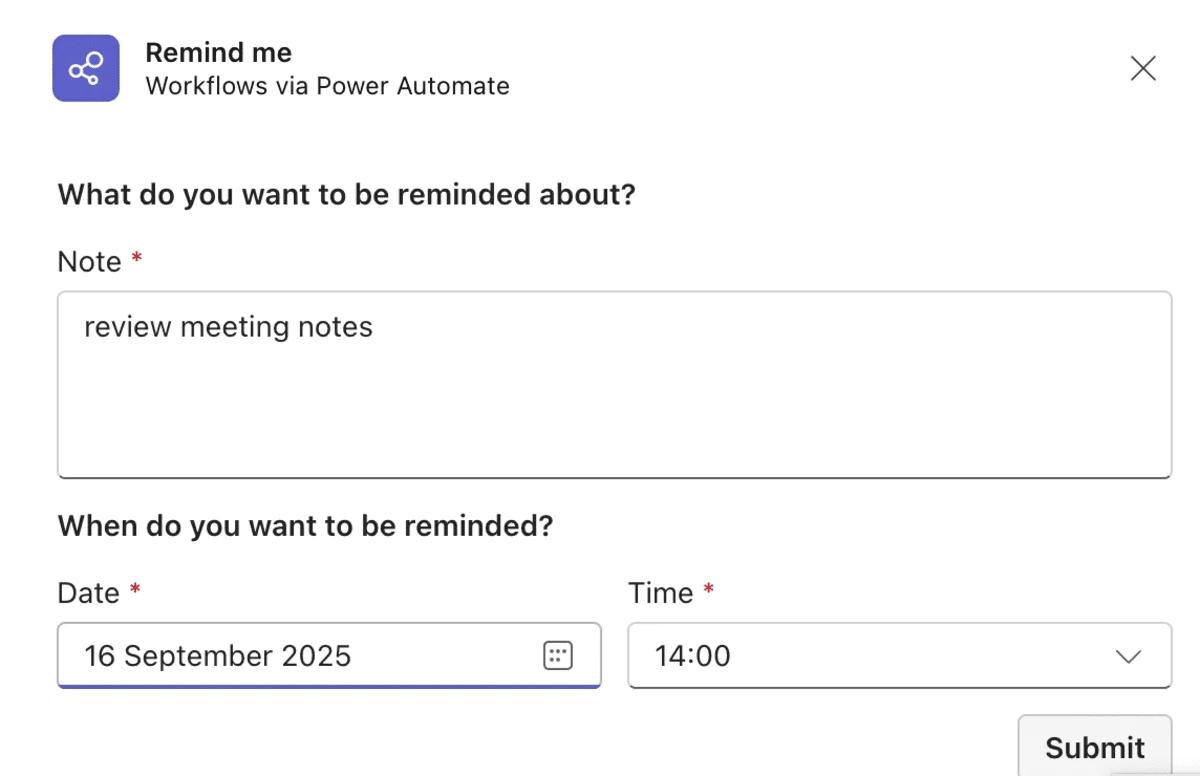
Create reminders with Workflows in MS Teams
Overall, chat functionalities work well in Microsoft Teams. The basics are covered, along with some nice formatting and delivery options. However, the number of available apps can be disorienting, particularly for non-technical teams without the need for many add-ons.

Teams and channels
Creating and managing teams in Microsoft Teams works as expected. Naturally, you can choose between private and public teams. There are also org-wide teams, where members are automatically added to the space.
One of the Microsoft Teams limitations in the free plan is that unchecked conversations and groups can create clutter in no time, but as an admin, I now had a workaround. I could limit users’ ability to manually create new teams and preserve the structure of my workspace.
Teams are no good without channels, which didn’t take long to create. In any workspace, the platform automatically generates a General channel. Even with admin privileges, it’s impossible to delete this channel, but you can hide it if it’s not useful.
Interestingly, Teams offers 2 channel layouts — threads and posts. Here’s what the latter looks like.
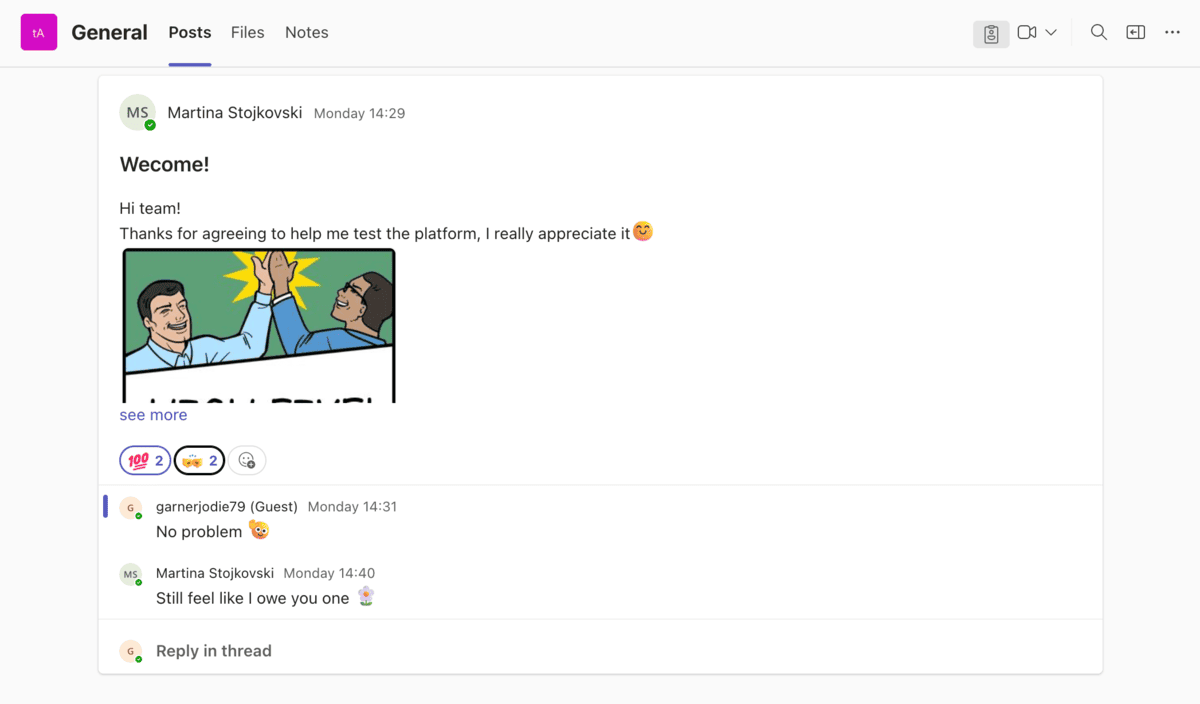
Posts layout in a Teams channel
This structure feels intuitive for announcements, with the most recent posts appearing at the top of the channel. The rich editing options allow users to complete their messages with a subject line or even a headline.
But you’ll notice that the replies under the post are stacked underneath each other, rather than appearing in a neat and organized thread. In high-activity channels, conversations can get out of hand unless you have structured discussions.
For this reason, I used the threads layout in a different channel.
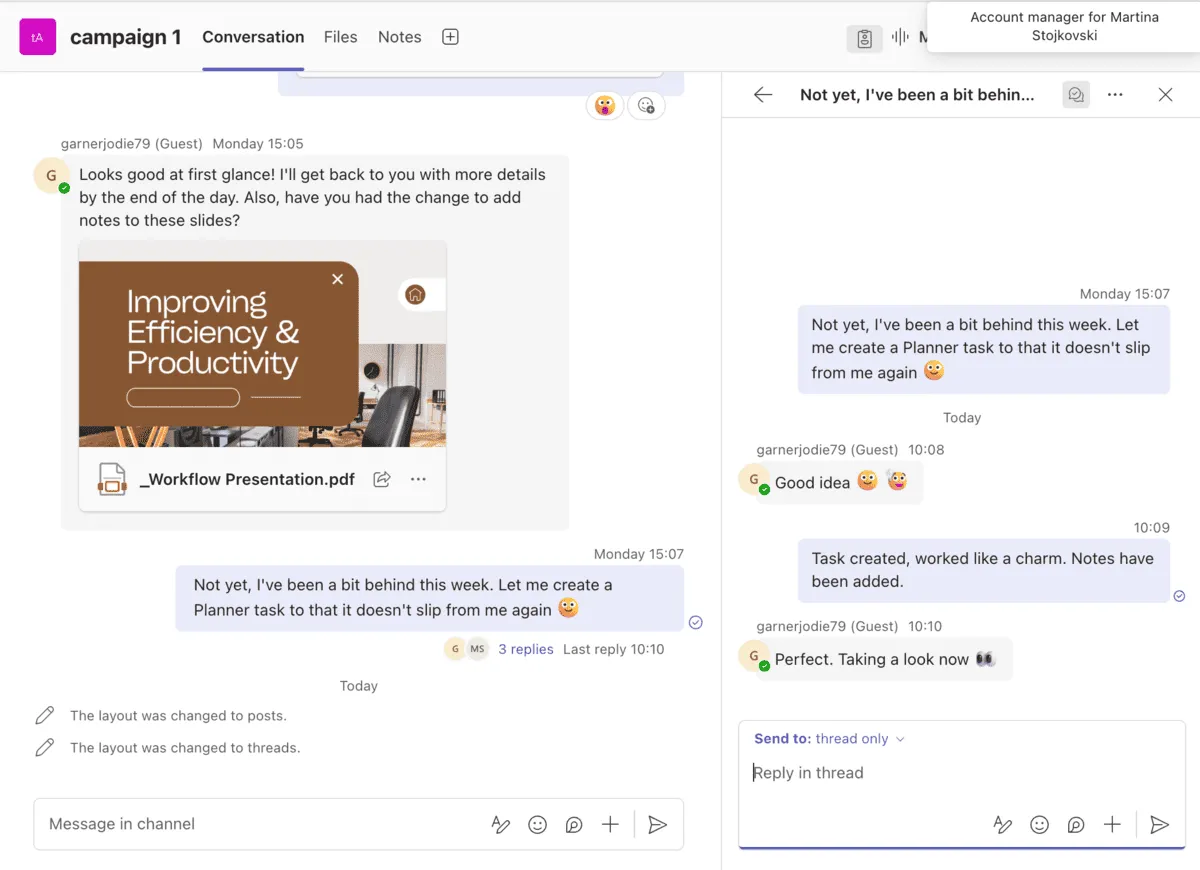
Threads layout in a Teams channel
While the threaded conversations didn’t spill out into the channel, the entire layout looked too similar to direct messaging. Some competitor apps, like Pumble, have opted to introduce threaded discussions as a distinct feature rather than a separate layout, which amplifies the usefulness of both channels and direct messages. Perhaps a similar design choice would allow Microsoft Teams to better combine the speed of instant messaging with the structure of threads.
Organize conversations in PumbleIntegrated Microsoft 365 collaboration tools
You’ll be hard-pressed to find a Microsoft Teams review that doesn’t mention the platform’s tight connection with other Microsoft products and services. Hoping to go beyond the basics like the Office 365 integration, I first turned to SharePoint, a sort of virtual library that powers the Teams’ cloud storage.
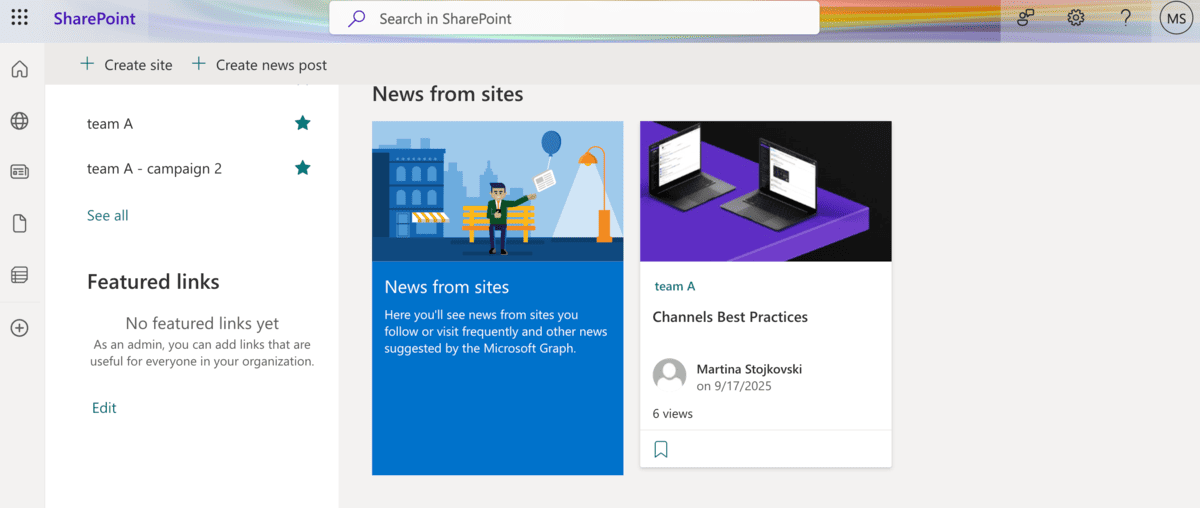
SharePoint workspace
SharePoint acts as the second brain of your Teams workspace. Whenever you create a new channel, SharePoint automatically generates a corresponding site. These sites are a central catalog for shared content, ideas, and files — a handy feature for large-scale operations that need centralized controls and management.
Unfortunately, I couldn’t create a SharePoint site or page directly within Teams. However, I could add existing sites to channels and edit them from there, along with other channel members. Any changes made in Teams will automatically be reflected in your SharePoint content.
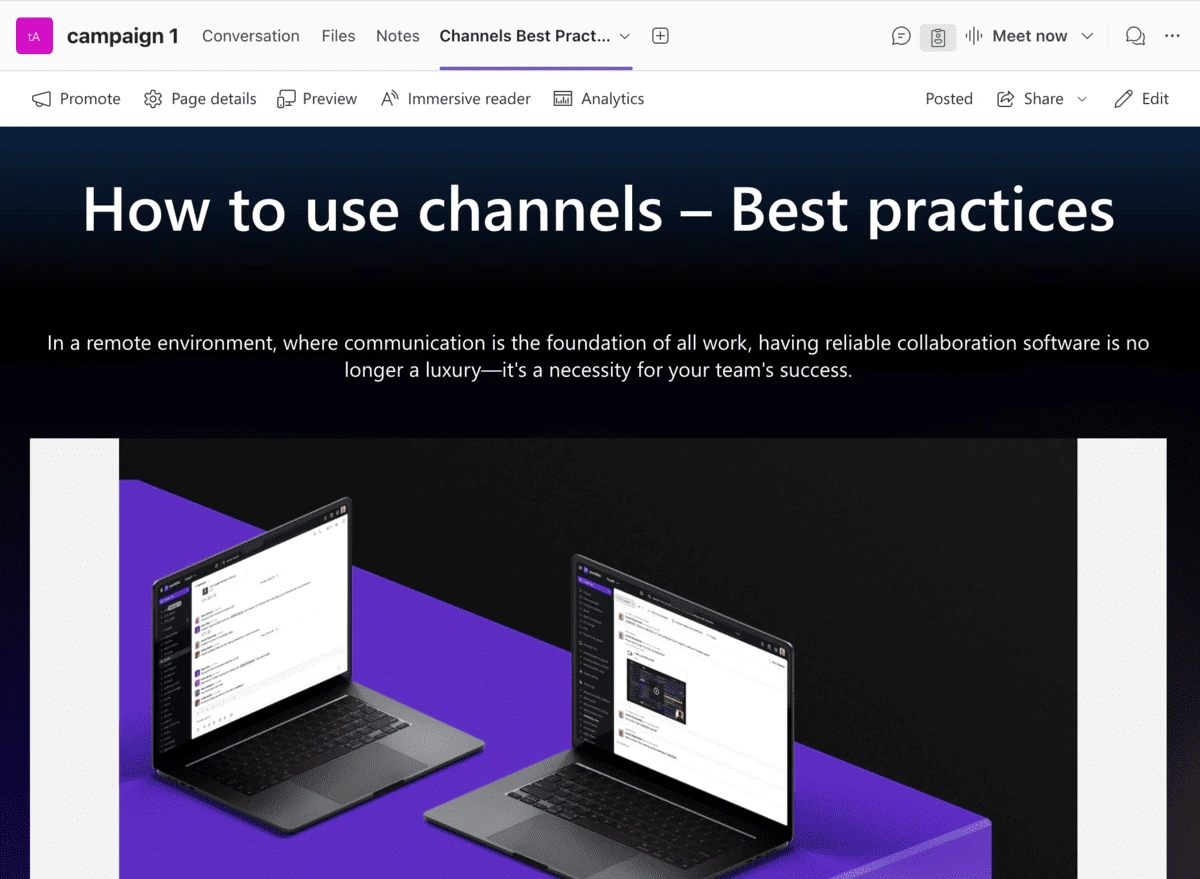
Edit SharePoint sites in Teams
This back-and-forth between SharePoint and Teams is ideal for enterprises with system administrators who are comfortable building and managing intranets. Small and mid-sized organizations, however, may find this integration to be of limited use due to its complexity.
For a more comprehensive view of the Microsoft ecosystem, I next focused on Planner. There was no need to leave Teams — after adding the tab to my channel, I could create a plan from scratch or choose a template. I chose the latter and quickly had a basic plan where I could add:
- Assignees,
- Comments,
- Deadlines, and
- Project updates.
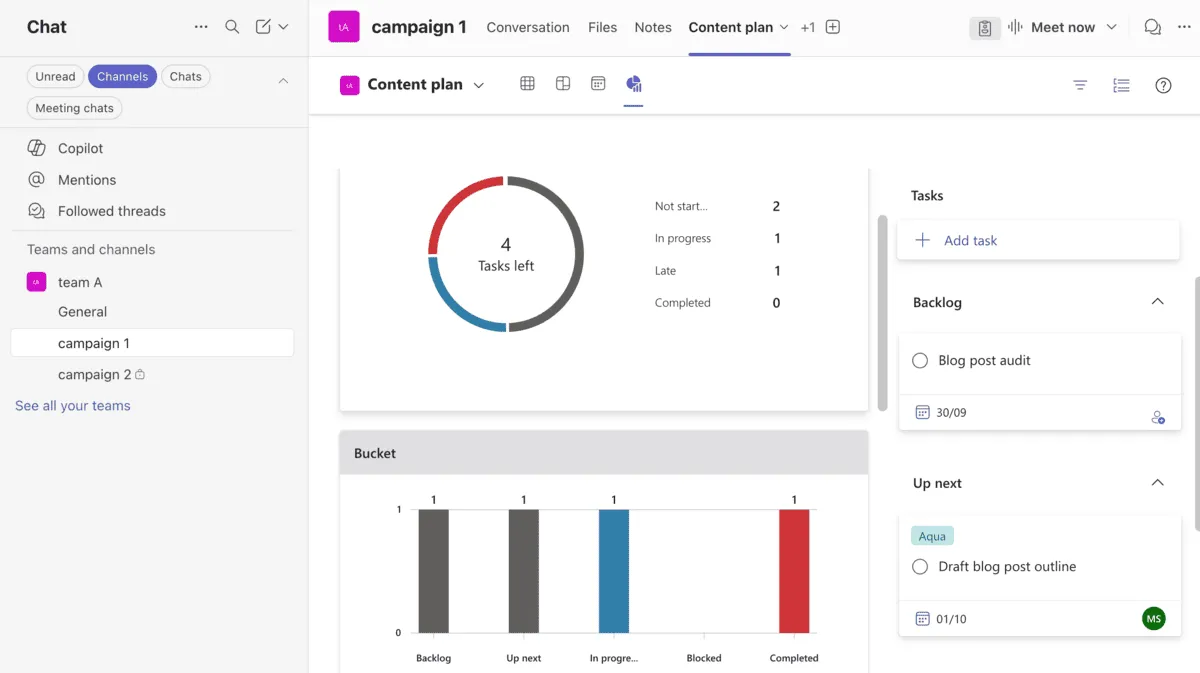
Track tasks and progress via Planner in MS Teams
The analytics section converts the data into charts and graphs, which gives a clear picture of your team’s progress during a project or campaign. Using Planner was fun — it has a low barrier to entry and allows you to complete work within Teams.
On the other hand, services like SharePoint require technical knowledge and often redirect users outside of Teams to complete certain tasks.
Microsoft Teams: Pros
Teams’ widely used features have made it a recognizable collaboration tool, but the platform still has more to offer.
Besides native 365 integrations, users can access the App Marketplace and explore third-party add-ons. Moreover, video meetings have several interesting built-in features, while admins can assign guest accounts to streamline external collaboration.
Here’s what these capabilities look like.
Third-party integrations
With several hundred third-party apps available in its library, Microsoft gives users the opportunity to further customize their workflows in Teams. The offerings are organized by popularity, category, and industry, so the sheer volume of apps isn’t too overwhelming.
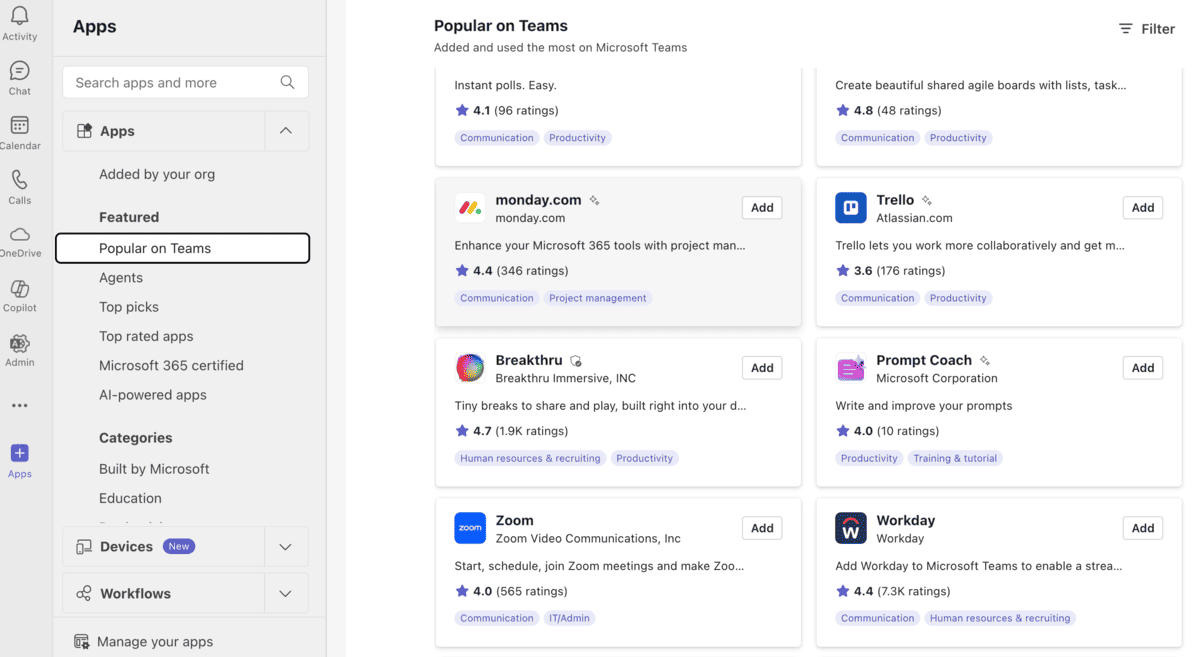
Popular apps in MS Teams
You’ll find all the apps necessary for smooth collaboration, including:
- Asana,
- Trello, and
- Zoom.
Notably, it appears that some key apps from competitor services are missing — namely, Google Drive and Gmail. Many competitor team communication apps like Pumble, Zoom, and Slack integrate with both, although it seems Microsoft has taken a different approach.
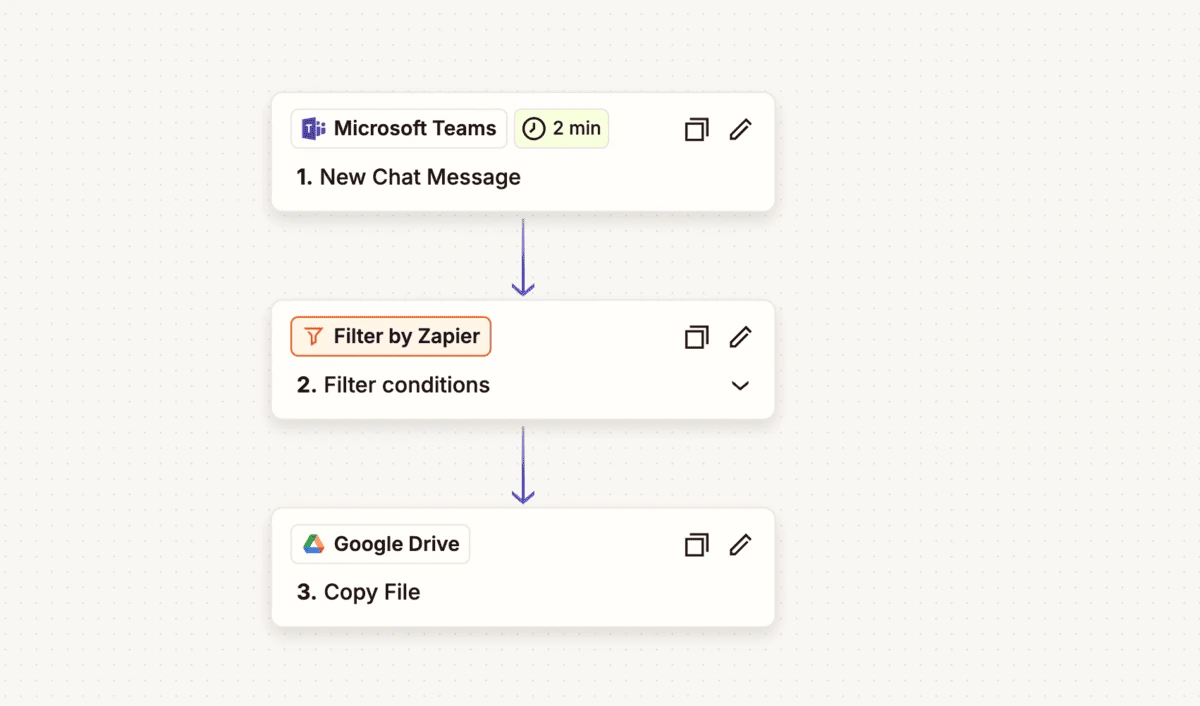
Create a Zap to connect Google Drive and MS Teams
If you find that an important app is missing, you might be able to use a Zapier workflow as a workaround. For example, I created a Zap that sent a copy of any file sent in a group chat to my Google Drive. Setting up a Zap involves a bit of trial and error, but if there’s an integration you need, it might be worth the effort.
While many Teams customers are drawn in by its native integrations, platforms like Pumble by CAKE.com encourage users to take a more active role in their setup. You can:
- Choose from the available Pumble integrations,
- Use Zapier when there’s no direct integration, or
- Build custom add-ons and publish them on the CAKE.com Marketplace.
Video meetings
Besides messaging, video calls are probably one of the easiest features to master in Teams. You can start a call directly from a one-on-one or group chat, or formally schedule it via your calendar.
Once a call starts, Microsoft adds in a few extra in-meeting features, including:
- Recording and transcription,
- Whiteboarding, and
- Together Mode.
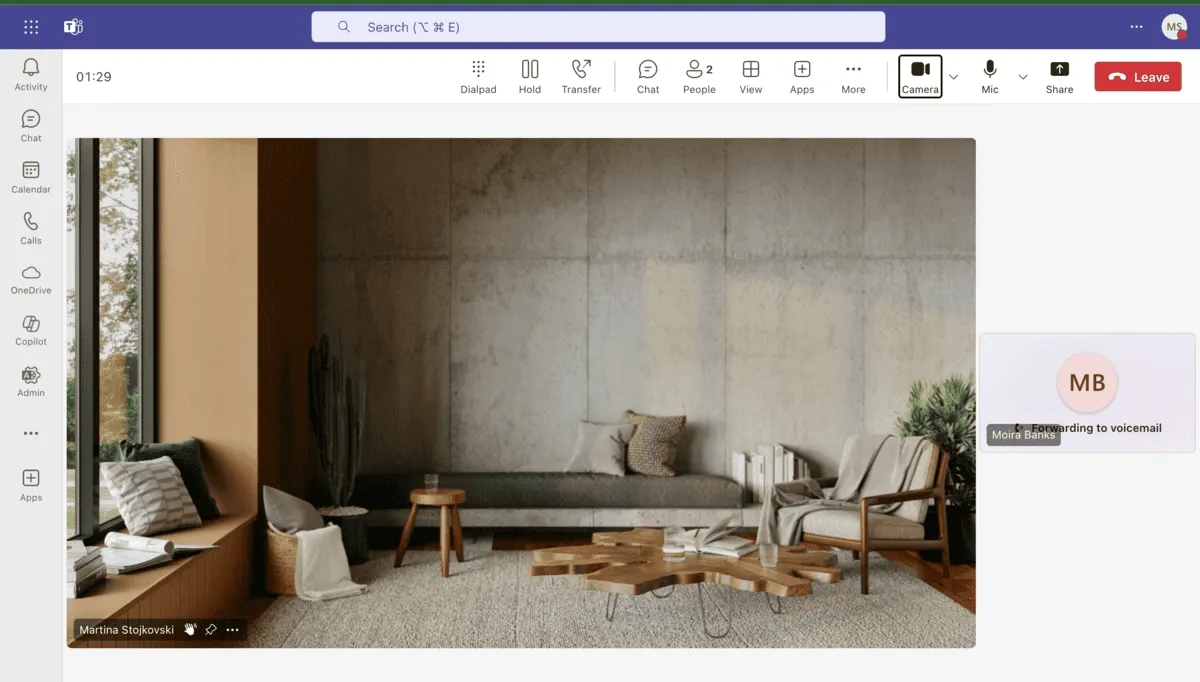
Video calls in MS Teams
I found the transcription tool to be fairly accurate in English, and I was able to access the transcript — along with the video recording and attendance list — after my meeting. By default, Teams sets the expiration date for recorded meetings to 120 days. You can manually set the expiry date to “No Value” to hold onto your recordings indefinitely.
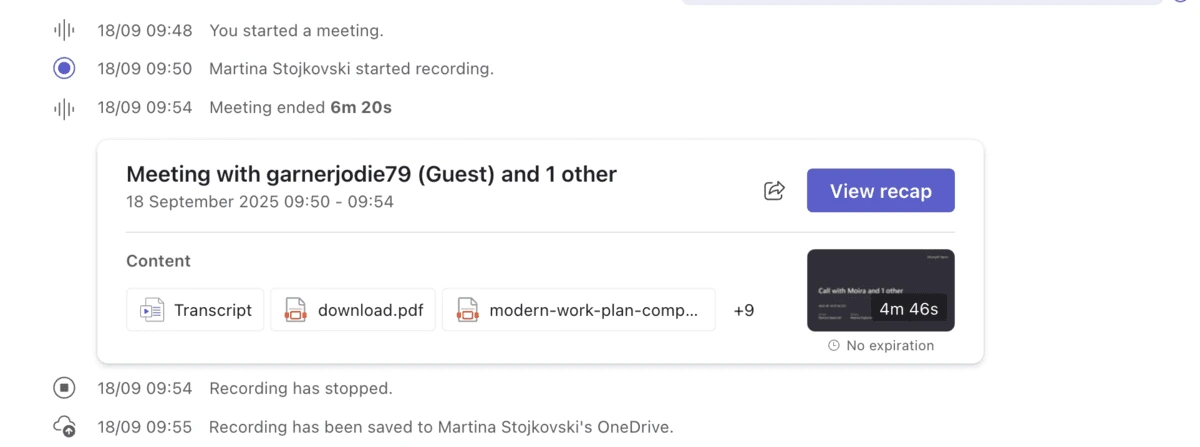
Meeting recap in MS Teams
The Whiteboard is a good collaboration tool, as hosts can guide meeting participants through different on-screen elements. This option probably works best when you want to brief coworkers on a project or are eliciting feedback for your ideas.
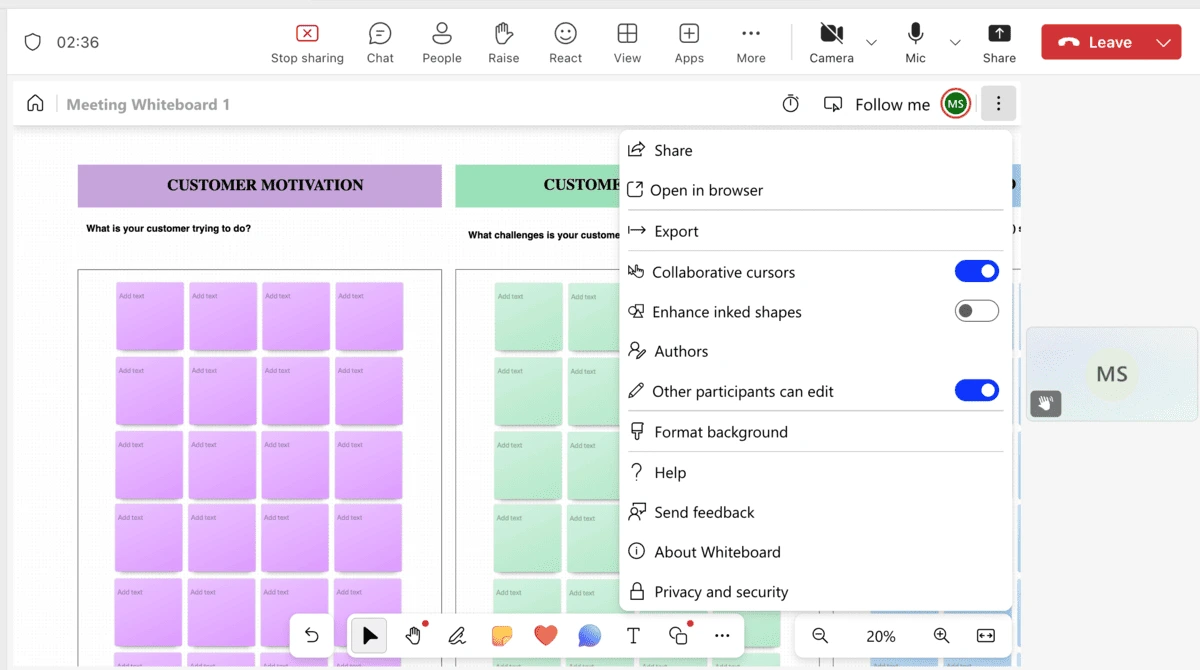
Guide meeting participants through your board during a MS Teams video call
Keep in mind that, although you may have a paid Microsoft subscription, you won’t be able to extend all privileges to guest users. As an admin, you can grant guest accounts some permissions — for example, allowing an external collaborator to join a meeting and work on a whiteboard. However, after the meeting ends, members of your organization can continue working on that same whiteboard, while guest users will lose access.
This is a slight hiccup, although Teams gives remote teams and collaborators other ways to stay connected.
Together Mode uses AI segmentation to place meeting participants (3 or more) in the same virtual background. Visually, everyone is in the same auditorium, even if their time zones and locations don’t match.
Users of the Microsoft 365 free plan may find these features intriguing, as the no-cost tier limits them to basic calls and screen sharing. But to go one step further when collaborating in Teams, what you’ll need is guest access.
External collaboration
Paying subscribers of the Microsoft 365 suite have 2 ways to connect with outside users through Teams — external access and guest access.
External access is active by default and administrators can disable it at any time. This feature allows you to contact users with Microsoft identities who are not part of your organization. As such, it’s useful for:
- Building stronger client relationships,
- Developing business partnerships, and
- Organizing remote internships.
On the other hand, guest access is the more common route for external communication. In Teams, guests — who get a specialized Microsoft guest account — can have nearly the same level of access and clearance as regular users, provided the administrator enables permissions.
For example, unlike external access users, guests can:
- Share files,
- View out-of-office messages of users in other organizations,
- Access Teams resources,
- See the phone numbers for dial-in meeting attendees, and
- Use the “Meet now” option.
I initially thought that adding a guest through the Admin console was all it took. I later figured out that guests can access additional features only after they are part of at least one team, which is something to keep in mind.
It’s also worth noting that Teams can sometimes take more time than anticipated to process guest requests. In fact, Microsoft explicitly advises users to wait a few hours until the guest experience fully updates. Although not a dealbreaker, the delay surprised me, especially since in my years-long use of Pumble, guest user activation has always been quick.
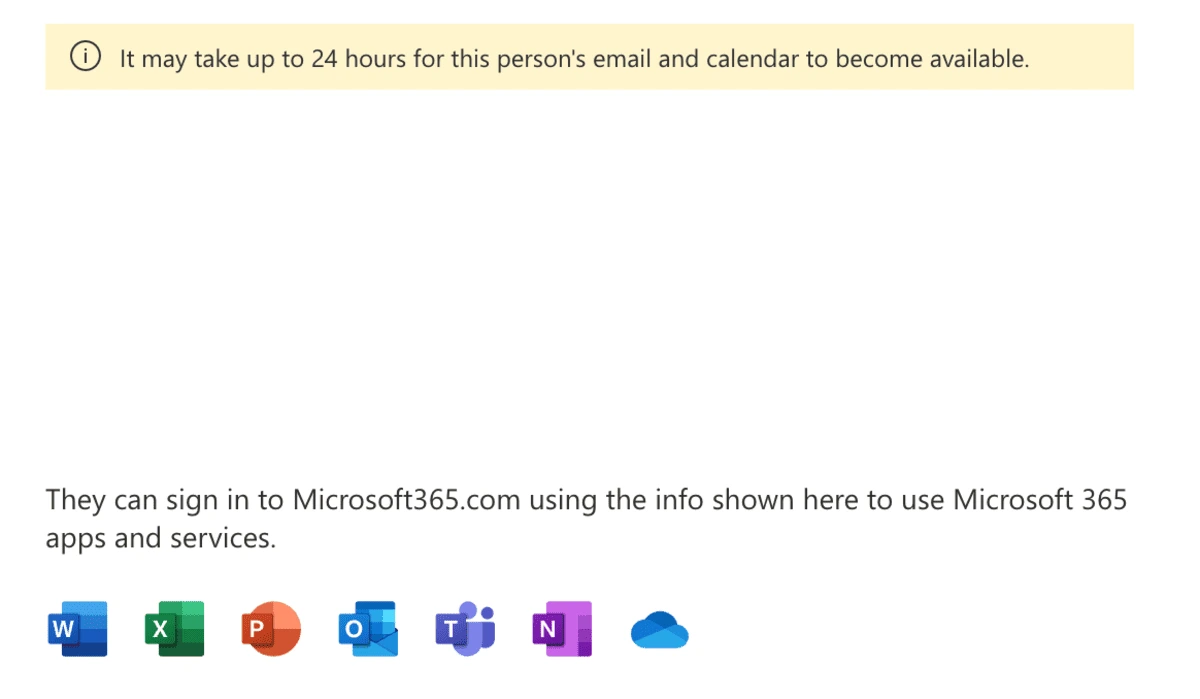
Microsoft processing guest access requests
Teams’ communication features work well for guests, though some functionalities might restrict agile collaboration. As I’ve mentioned, guests can’t access a whiteboard post-meeting, which isn’t conducive to collaborative work. While this could be a protective measure for sensitive projects, it still seems like a strange decision for paid workspaces.

Microsoft Teams: Cons
We’ve already touched on the Microsoft Teams limitations in the free plan, which might not create the most productive environment for growing teams. However, this doesn’t mean the paid plans are without their own drawbacks.
Demanding set up
Before you can get into your Teams workspace, you’ll have to set up the basics, such as assigning licenses and adding users, in the Admin Center. And that’s not where the administrative work ends — all major changes to your organization's settings must go through this app.
This may throw you off if you’re used to intuitive apps where you can make many changes on the spot. For example, you can add new members to a team directly within the app, but only after you’ve first added their account as part of your Microsoft 365 package.
Admin roles clearly come with many responsibilities that might not be a good fit for teams without a dedicated IT desk. Tasks like managing devices, apps, messaging policies, and usage reports are useful perks that not every small business needs. Additionally, accessing and using the full resources of the Admin Center means navigating through many different menus.
The real operational friction occurs when new members join the team. The onboarding process required to get everyone up to speed can be time-consuming, especially for organizations with a large number of users. For small to mid-size companies, this might not be worth the hassle. Plus, many alternatives, including Pumble, offer a fuss-free onboarding experience.
Try Pumble — easy to set up & useResource consumption
Some of the most common complaints in Microsoft Teams reviews are about the platform’s high CPU consumption and RAM usage. Given that high resource consumption is usually seen with desktop apps, I stuck to the web version, thinking it would be a relatively lightweight solution.
Here’s what happened.
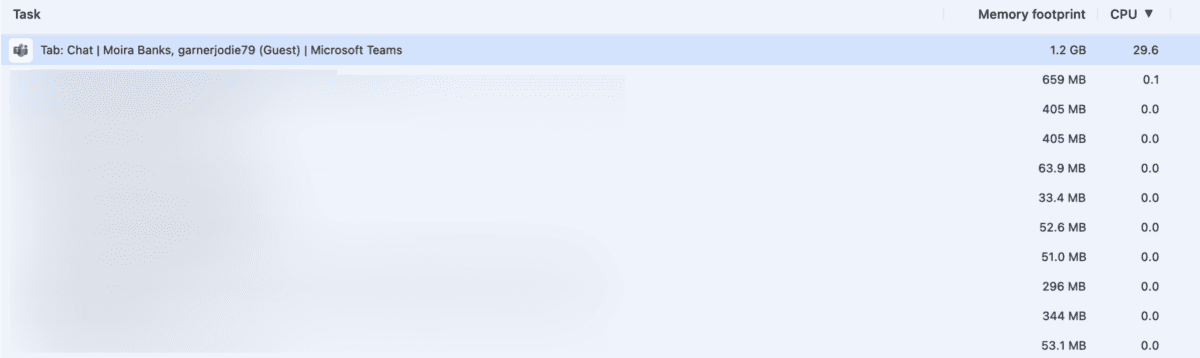
Microsoft Teams’ CPU consumption
The Task Manager in my Chrome browser calculated that while a meeting was in progress — during which I presented a whiteboard — Teams took up nearly a third of my CPU. In comparison, other tabs, which had a sizable memory footprint, didn’t come close.
For a web-based app, this behavior can mean several things. Not only will your device’s battery run out more quickly, but your browser may become more sluggish and less responsive. And regardless of your line of work, you probably expect a smooth experience when switching between tabs and apps.
Pricing
We’ve already touched on Microsoft Teams’ plans and pricing, but what do these numbers mean for teams of different sizes?
|
Team members |
10 |
25 |
50 |
70 |
100 |
200 |
300 |
|---|---|---|---|---|---|---|---|
|
Microsoft Teams Essentials |
$45 |
$112.5 |
$225 |
$315 |
$450 |
$900 |
$1350 |
|
Microsoft Business Basic |
$70 |
$175 |
$350 |
$490 |
$700 |
$1400 |
$2100 |
|
Microsoft Business Standard |
$140 |
$350 |
$700 |
$980 |
$1400 |
$2800 |
$4200 |
Smaller organizations — and even established businesses — likely won’t need every additional app and third-party service included in these plans. Instead of getting a communication tool built for speed and agility, you risk being weighed down by unnecessary features and costs.
Final thoughts
Paying for a premium Microsoft 365 subscription makes sense if you want to build all your workflows using Microsoft products. Depending on the size of your organization, though, it’s questionable how much value you’ll get from the full suite, particularly when business bundles with fewer tools can replace most of Microsoft’s core apps.
Additionally, for non-Microsoft organizations — or Microsoft users looking for simple business communication software — alternatives are worth considering.
You’ll want an app that:
- Is affordable,
- Doesn’t devour your CPU, and
- Won’t pressure you into purchasing a subscription packed with additional software.
Simplify communication & collaboration with Pumble
When too many apps are in the mix, your digital headquarters can get crowded. Alternatives like Pumble, a comprehensive workplace communication app, trim the fluff, leaving only the user-friendly features necessary for smooth communication.
Even the features on the free plan — which include unlimited users and message history, direct messaging, and channels — help get important information to the right people.
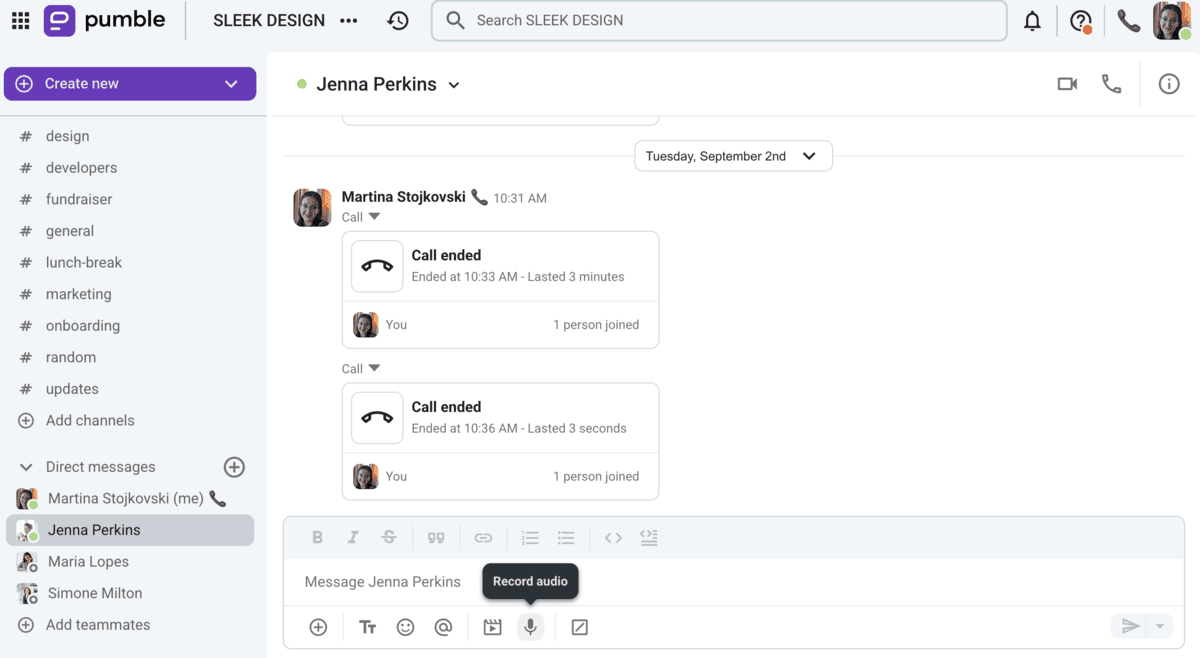
Pumble — your one-stop shop for calls and messages
Here’s how Pumble compares to Microsoft Teams when it comes to fuelling open, two-way communication.
|
Pumble |
Microsoft Teams |
|---|---|
|
— Free plan with an unlimited number of users and channels — PRO $2.49 user/month (billed annually) — BUSINESS $3.99 user/month (billed annually) — ENTERPRISE $6.99 user/month (billed annually) — Simple, intuitive interface with a customizable sidebar and themes — Channels and threads across all plans — Voice and video messages — DND and pause notifications — Customizable notification scheduling — Advanced search options — Integrations with Plaky and Clockify, along with Zoom, Email, Google Calendar, GitLab, etc. (more on CAKE.com Marketplace) — 24/7, 100% human support on all plans — Advanced security |
— Free Home plan (users can’t make threads or channels) — Essentials $4.5 user/month (billed annually) — Business Basic $7 user/month (billed annually) — Business Standard $14 user/month (billed annually) — Complex interface with limited customization — No channels and threads on free plan — Video messages available on Business Basic plan, no voice messaging — DND and pause notifications — Limited notification scheduling — Advanced search options — 2500+ integrations — Mediocre support for free users — Advanced security |
Pumble’s paid tiers are not only budget-friendly but also unlock features like:
- Group calls,
- Guest access, and
- Meeting recordings.
Best of all, our customer support agents are available around the clock to resolve all inquiries.
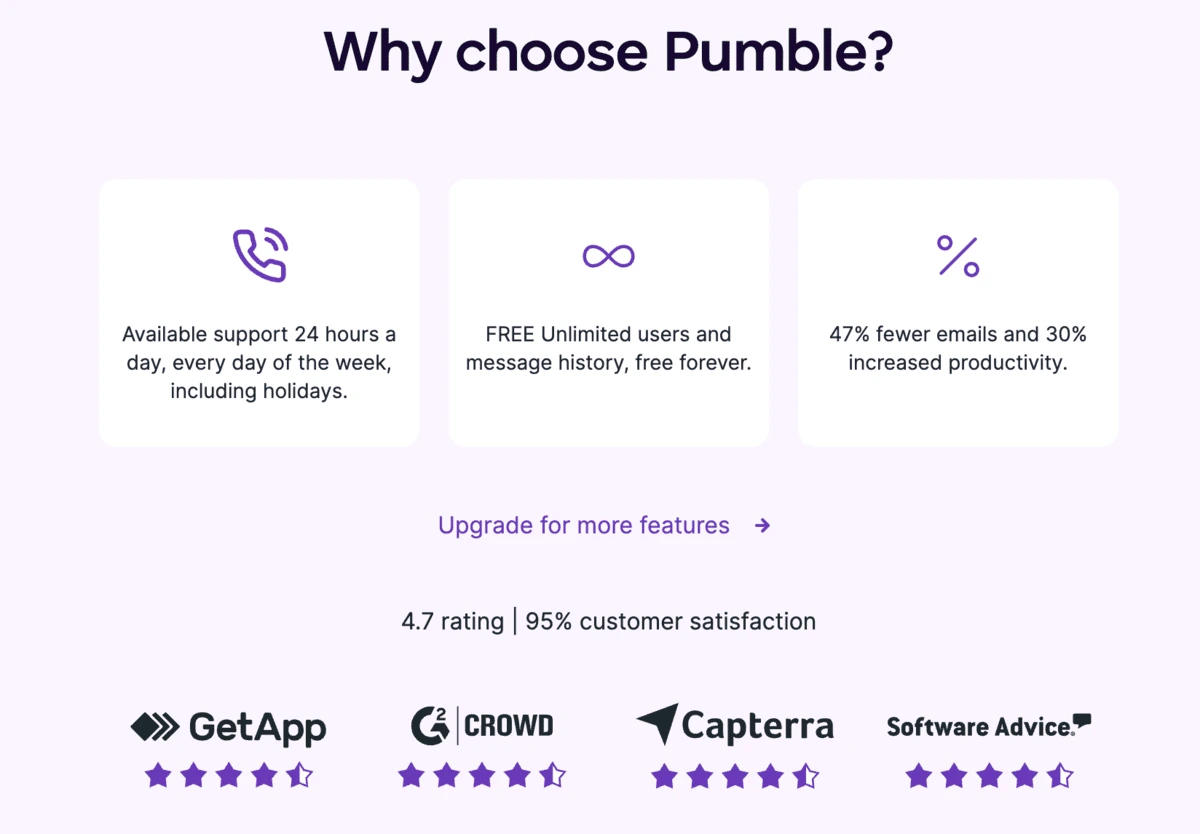
Cost-effectiveness and efficiency — just some of the reasons why teams use Pumble
Finally, Pumble's apps — from mobile to desktop — were built with end users in mind, cutting down on the time businesses would need to onboard new members. New users don’t have to rebuild their workspace from scratch — just import your CSV files to continue your work right where you left off.
Upgrade & reimagine business communication — try Pumble by CAKE.com today!
Get started todayPumble also comes as part of CAKE.com’s Productivity Bundle, which includes 3 apps: Pumble (team communication), Plaky (project management), and Clockify (time tracking) for $12.99 per user per month.

