





If you’re on the hunt for a business messaging app, Discord probably wouldn’t be your first, second, or even third choice.
As someone who works for the makers of Pumble, an internal communication app, and has written their fair share of team communication app reviews, there are many other solutions I would recommend before Discord.
Of course, that doesn’t mean that the platform is completely without merit.
In a sea of apps that limit everything from your user count to your message history, Discord offers most of the features you’ll need to effectively collaborate with your team — for free.
So, what’s the issue?
Let’s start from the beginning.


Why trust us?
Human reviewers try out each app and follow strict guidelines while writing the reviews. We follow a transparent, clear, and systematic methodology so that every review is objective and accurate.
Learn more about our review methodology here
Can you use Discord for business communication?
At this point, many businesses have official Discord servers for community-building purposes — though that has backfired before. But, can the platform be used in place of a professional chat software?
Well, its free plan makes that a tempting notion, giving users:
- An unlimited message history,
- The ability to create up to 500 text and voice channels,
- Plenty of moderation and customization options, as well as
- Video calls with up to 25 people, which can be further enhanced through screen sharing.
On the other hand, there are several Discord limitations you should be aware of, such as its:
- Confusing and gamer-focused user interface (UI),
- 10 MB file sharing limit (though paid plans can increase that to 50 or 500 MB), and
- Concerning lack of business-grade security features.
So, is Discord good for work communication? Yes and no.
Obviously, Discord is never going to be a professional communication platform. But, if you take the time to set your server up properly — and you don’t really care about keeping your data private — you could still find it pretty useful.
In my Discord review, I’ll explain how I set up my test server to approximate a professional virtual environment and point out some of the features that made that especially challenging.

Reviewing Discord’s features & functionality
Without further ado, let’s start our Discord review by discussing the platform’s basic features:
- Servers and channels,
- Text messaging features and threads,
- Always-on voice channels,
- Video calls and screen sharing,
- Status and notifications,
- Roles and permissions, and
- Integrations and connections.
Servers and channels
The first thing you’ll see upon making your Discord account is the platform’s prompt to start a server or join an existing one.
If you’ve ever used a business messaging app like Slack or Pumble, it might help to think of your server as your workspace.
Just make sure the server is set to private to prevent random Discord users from joining it, and you’ll be good to go.
Looking for a business-oriented app?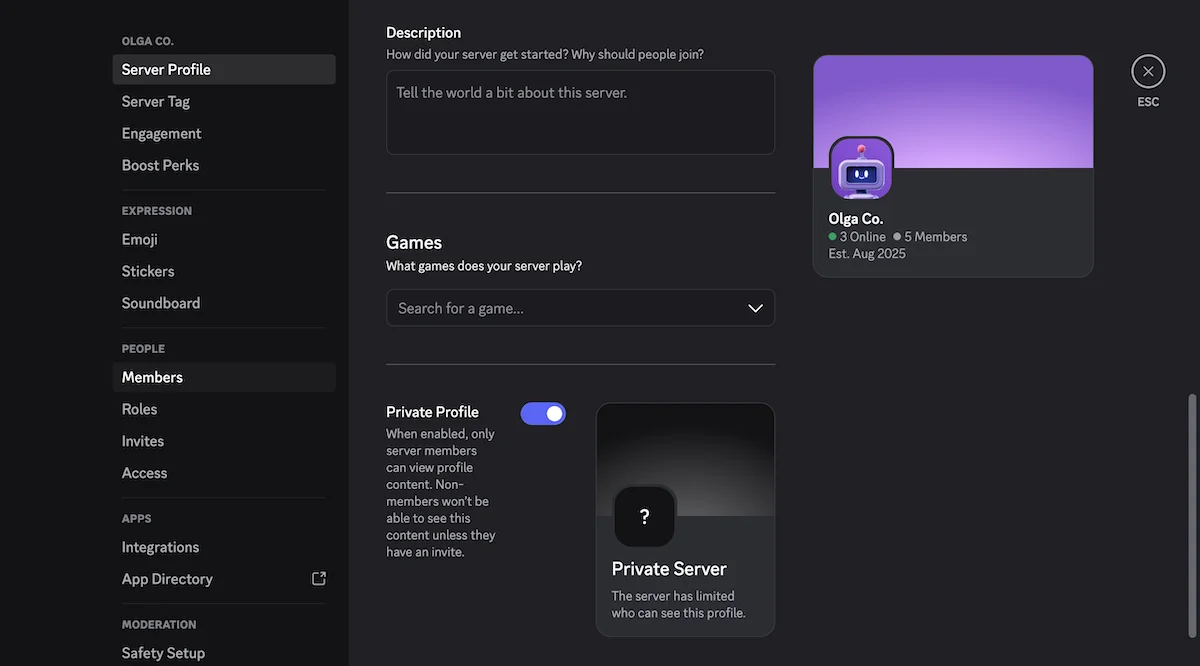
Make sure your server is invite-only in the server settings in Discord
As you can see in the image above, Discord is very much gamer-centric, so if you were hoping to set up a distraction-free workspace, you’d have better luck with business-oriented apps like Pumble by CAKE.com. Even if you think about Discord as a temporary solution you’ll use while you grow your business, those whimsical aspects of the platform will be pretty difficult to ignore the longer you use it.
In any case, once you’ve made your company’s server, you can make the text and voice channels you’ll need and sort them into categories, which will appear in the left sidebar.
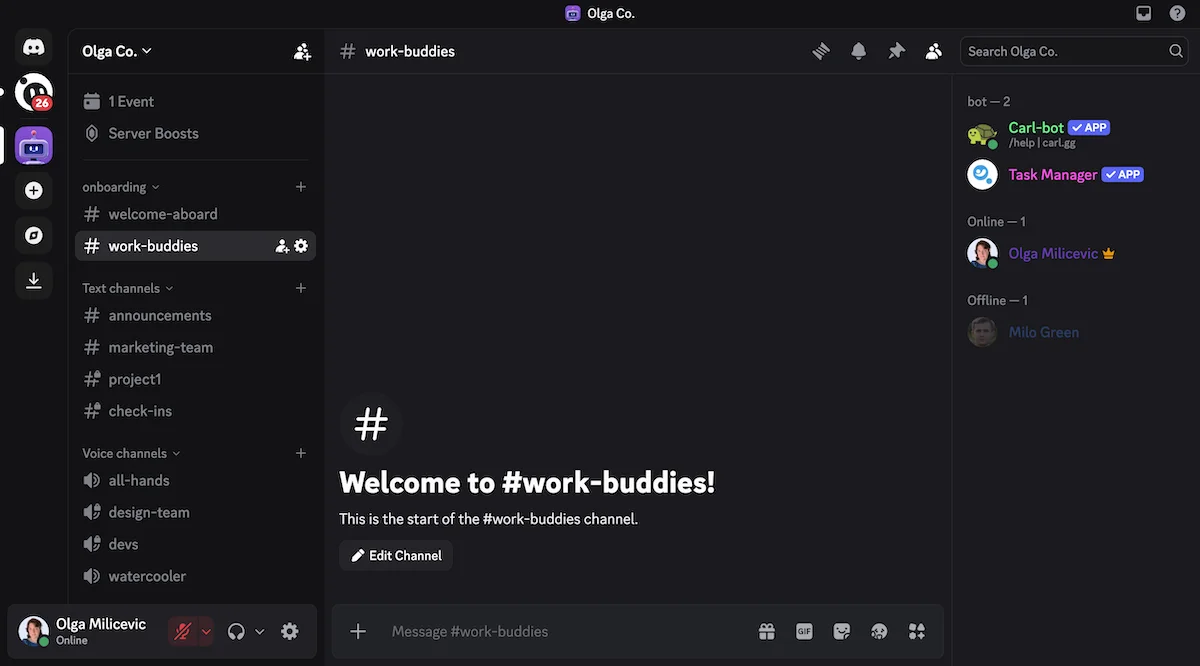
An overview of my Discord server
Even on the free plan, you’ll be able to create up to:
- 50 categories per server (in the image above, “onboarding” is considered a category),
- 50 private or public channels per category, and
- 500 text or voice channels in total.
For what it’s worth, my company uses less than 200 channels on Pumble even though the app doesn’t limit the amount of channels you can make. So, these Discord limitations shouldn’t be too difficult to work around.
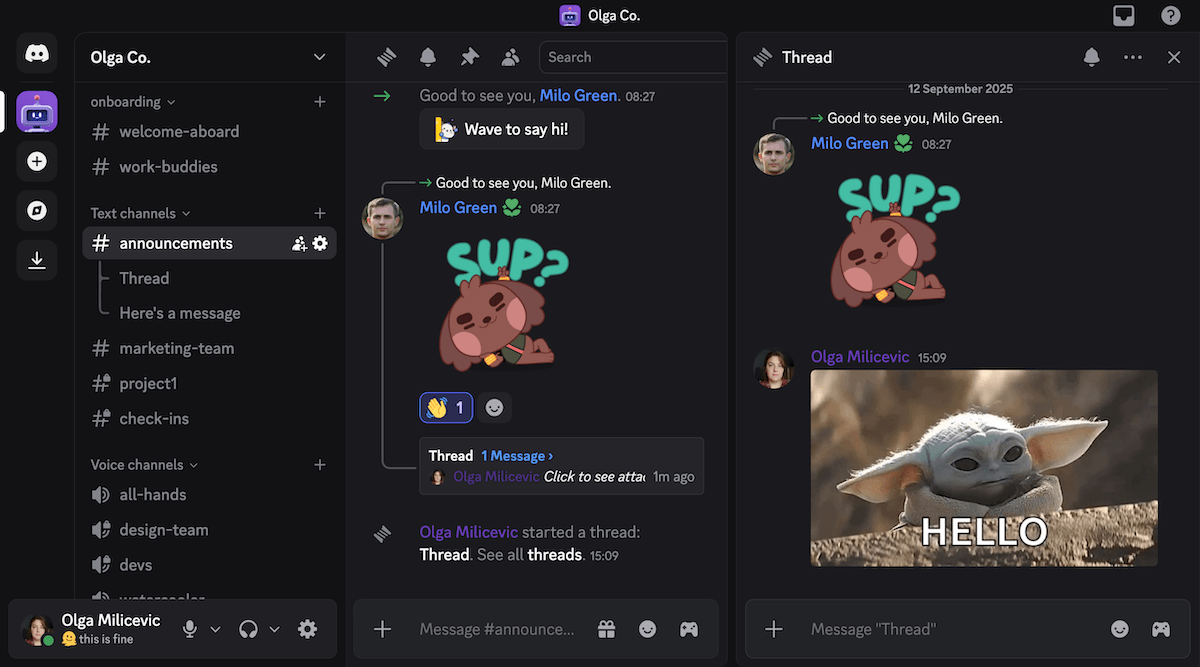
Threads in channels on Discord
While researching how someone might use various Discord features for work, I discovered that many users are drawn to the platform’s VoIP functionality. Specifically, they use Discord voice channels as virtual offices, allowing them to visit other teams’ voice channels if they have something to discuss.
However, that’s not the only way to go about organizing your server. You could also follow my lead and make the team channels private while leaving a public all-hands voice channel for official announcements and company-wide meetings, as well as a watercooler channel where people can just hang out while on a break.

Text messaging features and threads
Of course, not every type of work will benefit from Discord’s always-on voice channels.
If you tend to favor asynchronous communication over real-time exchanges, you can:
- Enjoy Discord’s unlimited history,
- Share files (as long as they’re under that 10 MB file sharing limit),
- Send direct messages, start group chats (with up to 10 people), or share information in text channels, and
- Organize your team communication with threaded discussions.
Granted, threads are only available in channels, but you can still use regular replies in individual chats, as shown here.
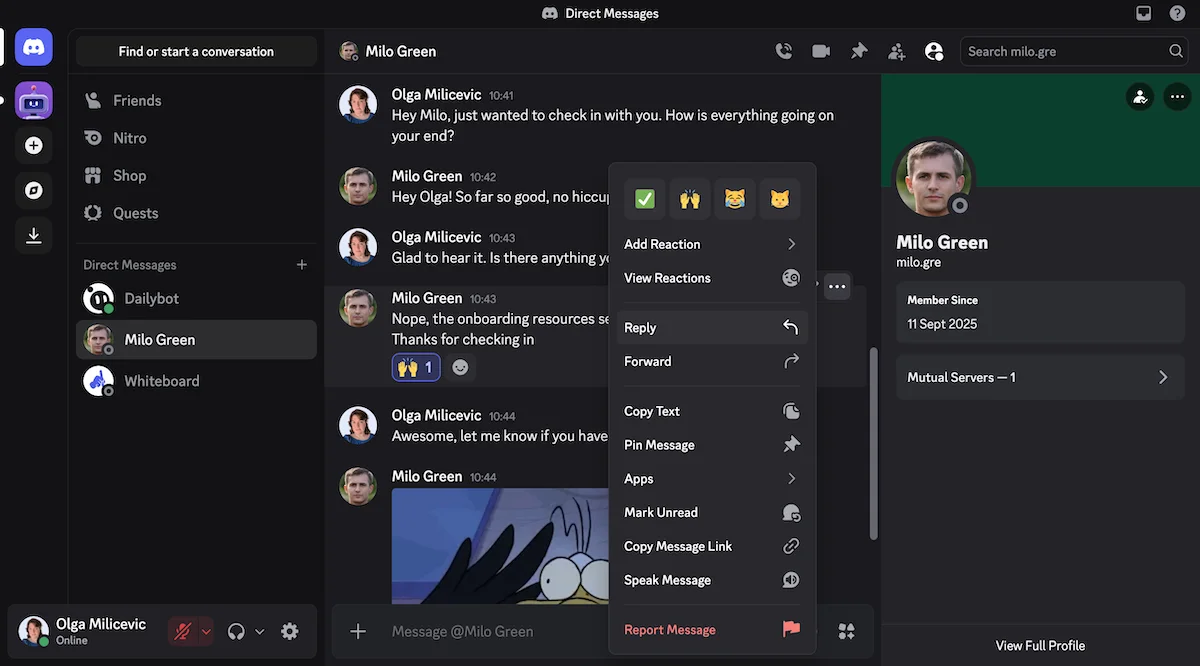
Direct messages and replies on Discord
Notably, sending and receiving DMs takes you into a separate section of Discord where you can no longer see your servers and channels. Being a daily Pumble user, I found this forced context-switching and the lack of threads in DMs pretty inconvenient. Then again, it could help you manage siloing by encouraging your team to communicate through official channels rather than through DMs.
On the other hand, since Discord’s DMs are separate from your server-based communication, any employees you fire (and delete from your server) will still be able to see their DMs with their coworkers and all the potentially sensitive information they contain. That’s something you won’t have to worry about with professional messaging apps like Pumble, which let workspace admins delete user accounts remotely.
Secure your team communicationGoing back to Discord’s messaging features, users can also:
- React to messages with emojis,
- Forward them to specific users or channels, and
- Pin them for “posterity and greatness.”

Pinning messages on Discord
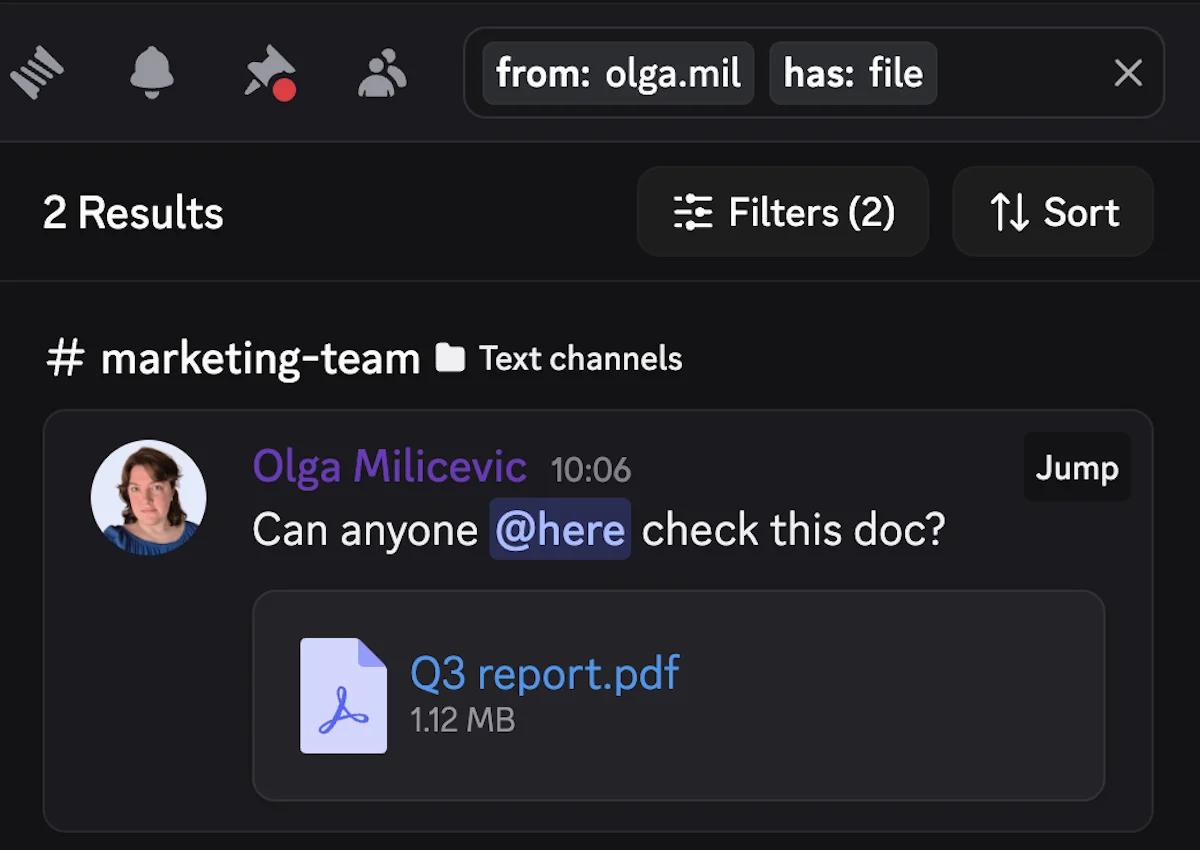
And, if you ever forget to pin an important message, you’ll still be able to find it. You’ll just have to get used to Discord’s search interface first.
Clicking on the search bar will reveal a menu of familiar filters to choose from — though their appearance may confuse the less tech-savvy members of your team.
Search results in Discord
Even though Discord has all your basic messaging options, I found myself missing some of the more professional communication features I use on Pumble — such as message scheduling and message reminders. Though I’m sure some people will have figured out a way to add that functionality to their server through a third-party integration, I prefer having those features built into the software I’m using.
Upgrade your team communicationAlways-on voice channels
Discord’s always-on voice channels are probably the main reason some might be looking to use this platform as their main internal communication app.
Being able to stay on a call all day long could be a gamechanger for teams that have to make split-second decisions and therefore require everyone to be on-call during their shift.
I even know some creative teams that rely on Discord’s VoIP functionality while they work. However, I’m not sure if that style of work would agree with me.
Despite having noise suppression powered by Krisp, voice channels can get a bit wild when everyone is talking at the same time. Then again, Discord does let you make certain user roles priority speakers — so that might be a feature worth looking into. On top of that, you could also encourage your team members to stay muted unless they want to contribute to the conversation.
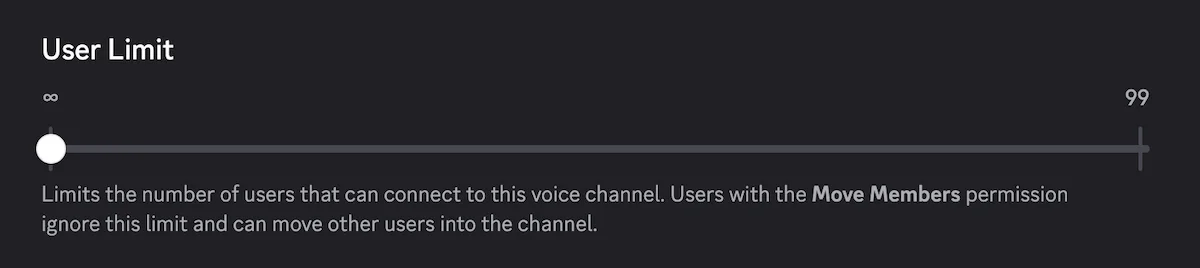
Another way to keep the noise at bay would be to limit the number of active participants in your voice channels. Though voice channels can technically be used by any number of people, every channel has a user limit slider you can adjust according to your preferences.
User limit settings in voice channels on Discord
Like text channels, voice channels can be public or private, and any new employees you onboard will automatically be added to the public ones.
However, you can use roles and permissions to make sure new server members are automatically granted access to all channels they should be a part of. Alternatively, you could just invite people to voice channels individually.

Video calls and screen sharing
Discord’s voice channels can also be used to start video calls. All you have to do is turn on your camera in the lower left corner of the screen.
But, Discord is by no means one of the best video conferencing apps on the market.
After all, as soon as anyone turns their camera on (or starts sharing their screen) in a voice channel, the participant limit in the channel automatically drops to 25 users.
So, that’s one of the Discord limitations you might encounter if you’re looking to use the platform to meet with internal collaborators or third parties.
Other disadvantages of using Discord for business calls include the fact that the platform has:
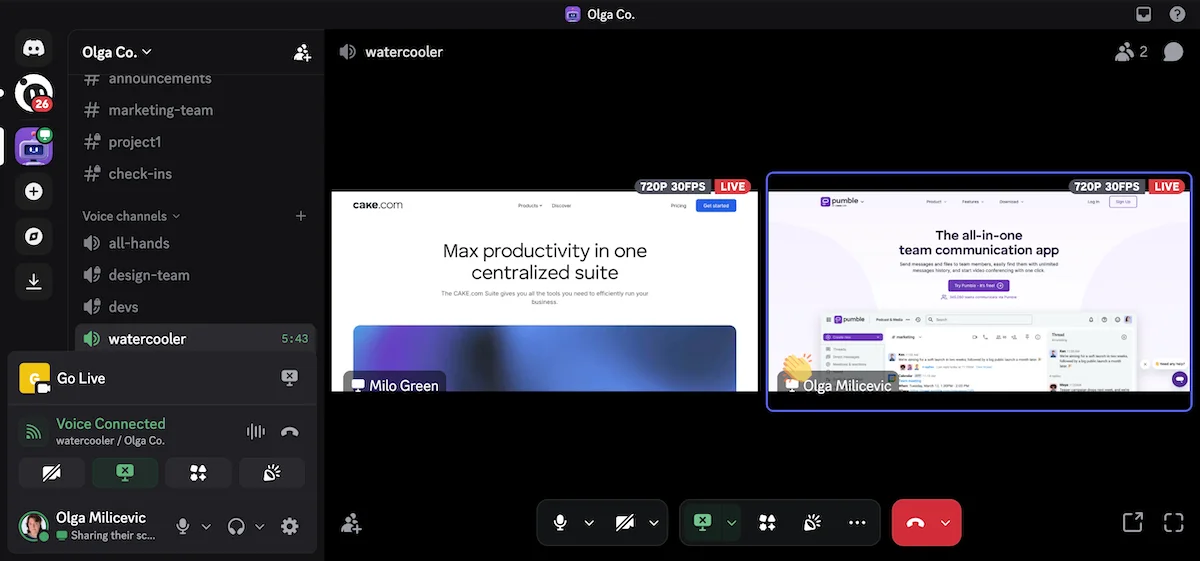
- Audible soundboard reactions (rather than silent emoji reactions) that can disrupt professional meetings,
- Distracting gaming options calling users to “Start an activity” within a meeting (though you may be able to use those for team-building purposes), and
- No built-in meeting recording feature.
Clapping soundboard reaction on Discord
Though not all professional communication apps have built-in meeting recording features (for example, Slack doesn’t), Pumble certainly does. On top of that, it also has silent in-meeting emoji reactions — what more could you ask for?
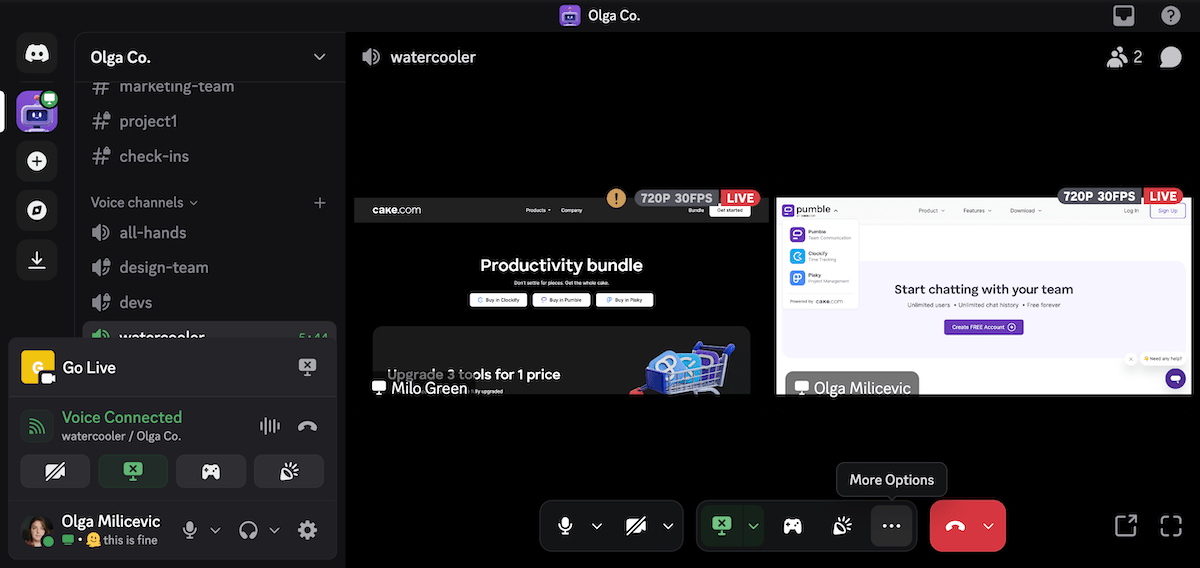
Still, Discord also has some unique and potentially useful video conferencing features you might want to explore, like simultaneous screen sharing.
Though the feature was obviously created with gaming in mind, it could also be used to explain certain procedures to your team members or just stay accountable during work hours.
Simultaneous screen sharing on Discord
Share your screen on PumbleInterestingly, Discord also has a built-in event scheduler, which should let you invite server members to meetings within the app.
You can choose:
- Whether you want to have the event in a voice channel or elsewhere (text channel, external link, or an in-person location),
- The event topic (which you can elaborate in the event description), and
- The date and time, as well as the frequency of the event (weekly, bi-weekly, monthly, annually, or every work day).
However, I never received any notifications before my scheduled events. So, if you want to be notified about them, you might have to add them to an external calendar service.
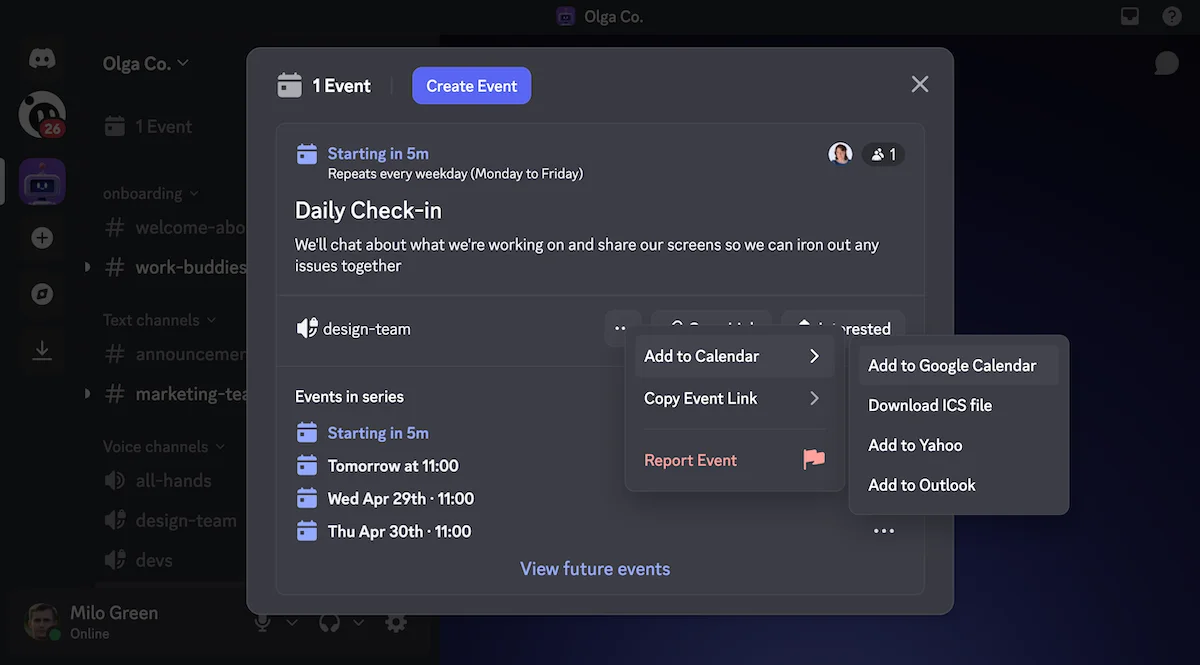
Events on Discord
Status and notifications
While we’re on the subject of notifications, let’s have a look at Discord’s notification customization options.
If you want to use Discord for business communication, you’ll probably want your team to be able to:
- Mute overly active channels or people,
- Indicate when they’re taking a break by changing their status,
- Silence their notifications when they’re in a meeting, and
- Disable notifications outside of work hours.
Well, you’ll be pleased to know that Discord does let you do all these things — just not as well as most professional team chat apps would.
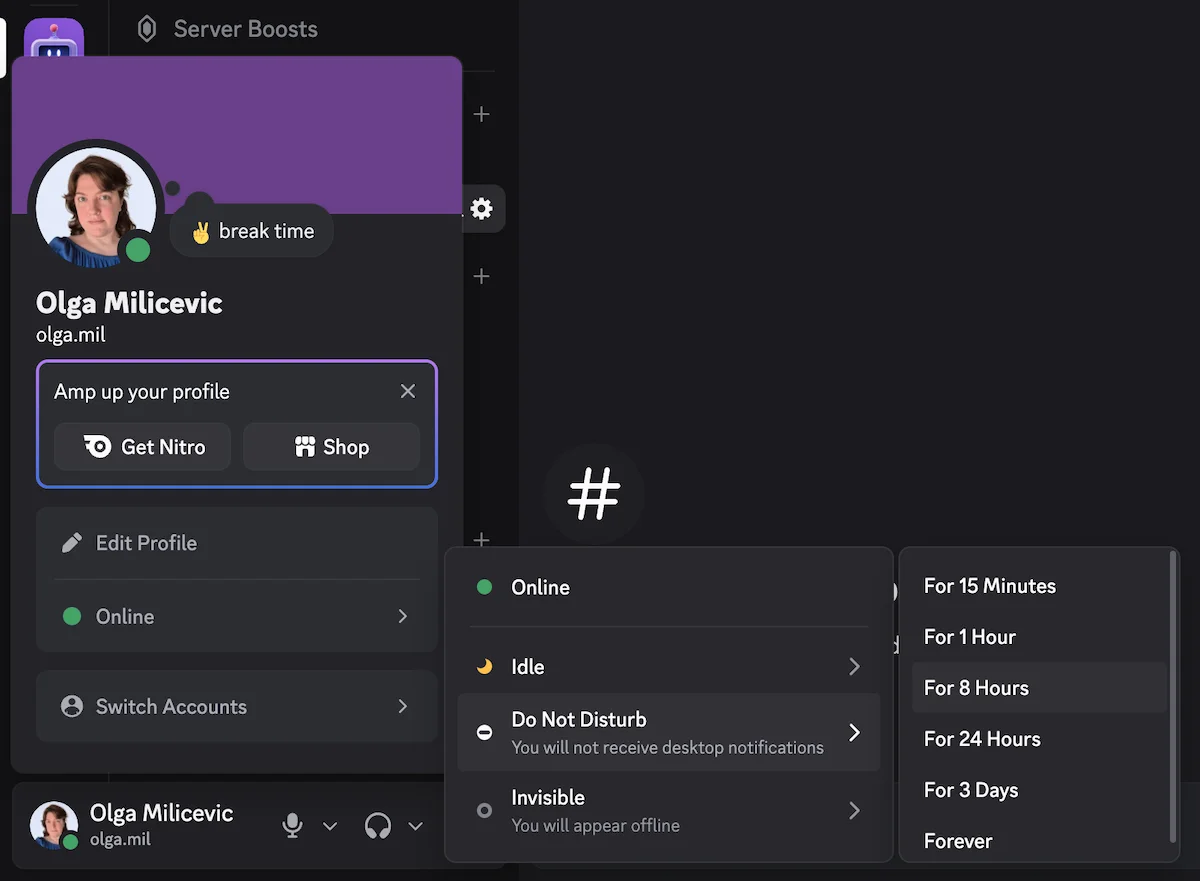
Custom statuses, DND, and notification pausing on Discord
Unlike Pumble, though, Discord doesn’t let users set a notification schedule to automatically mute their notifications outside of work hours. So, you’ll have to manually mute your notifications ahead of meetings and at the end of your work day (at least, if you have Discord on your phone).
And, as far as I’ve seen, the only automatic changes to a Discord user’s status came from connections with apps like Twitch, Spotify, and Youtube, which can change your status to indicate when you’re streaming or what you’re watching/listening.

Roles and permissions
Discord is renowned for its robust community management tools, which are typically used to give the server’s management (i.e. the server’s owner, admins, or moderators) control over the server’s members, channels, and content.
It’s easy to see how these roles can be brought into a professional setting. In fact, business messaging apps like Pumble often have similar features you can use to limit posting permissions in certain channels or control who is allowed to send DMs.
In my Discord server, I kept it simple with separate roles for managers, employees, and bots. However, you would probably want to make separate roles for all individual teams in your company.
In fact, you could technically create up to 250 different roles and give each a place in your organizational hierarchy by dragging and dropping them on a list. The higher up a role is, the more power it’ll have on the server.
Note: users can have more than one role, but their permission settings default to the highest ranked role they’ve been assigned.
From there, you’ll be able to:
- Display some roles separately from online members in the right sidebar (I created a role for all bots and made them separate from regular users),
- Mention roles in messages to notify all members of that group,
- Grant or remove server and membership permissions, as well as text and voice channel permissions, for specific roles, and
- Assign colors to different roles (which is why my name is purple on my server while Milo’s is blue, denoting our manager and employee roles).
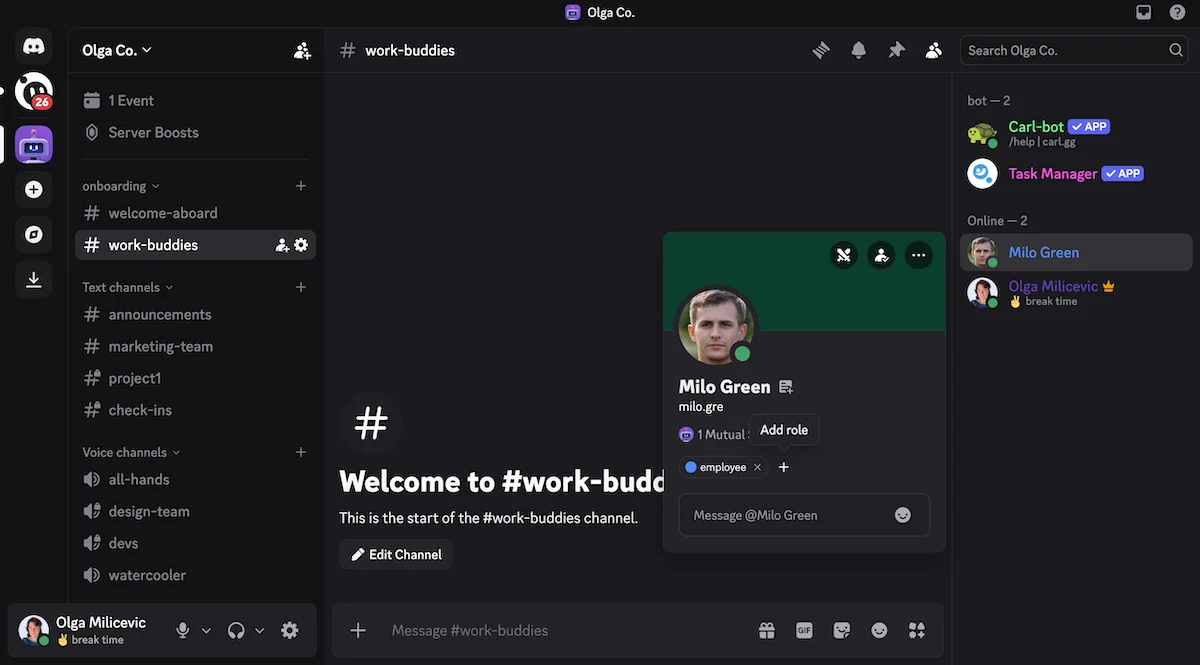
Online users’ name colors reflect their roles on the Discord server
Since you’ll be using Discord for business purposes, you might want to remove the option to ban, kick, or time out members from all roles. Those are the kinds of community management permissions you wouldn’t even have to worry about if you were using a professional instant messaging app like Pumble.
Then again, Discord does have some unique permissions you might find useful, such as the option to make certain roles priority speakers in voice channels.
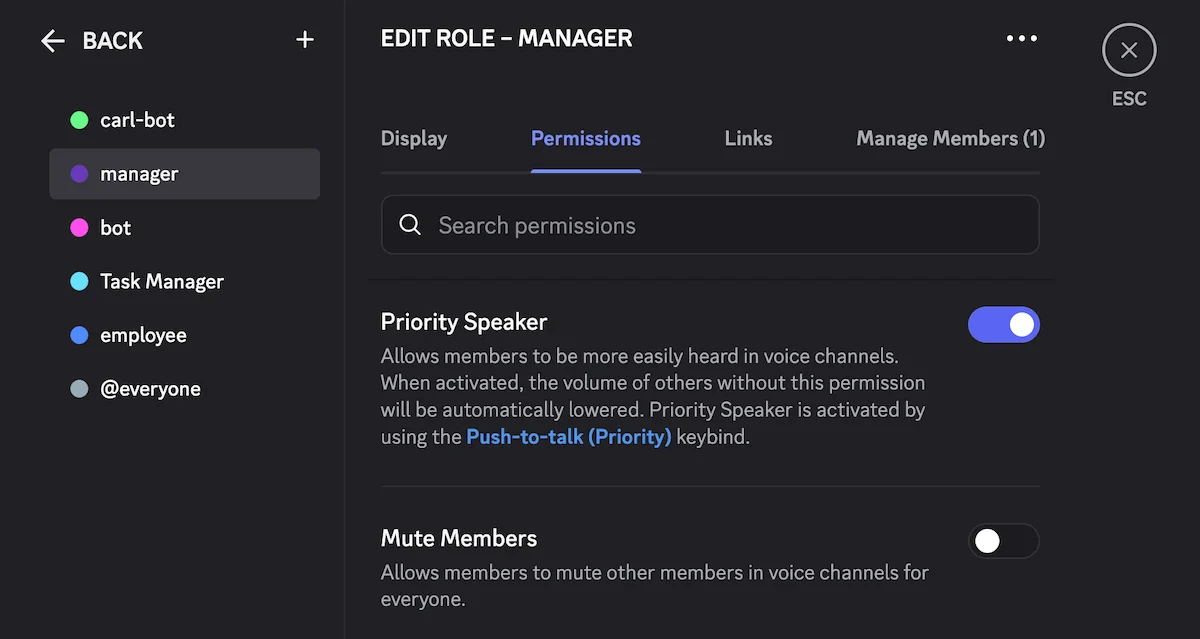
Create a role hierarchy and make some roles priority speakers on Discord

Integrations and connections
As you can imagine, Discord’s integrations are about as gamer-centric as the rest of the platform.
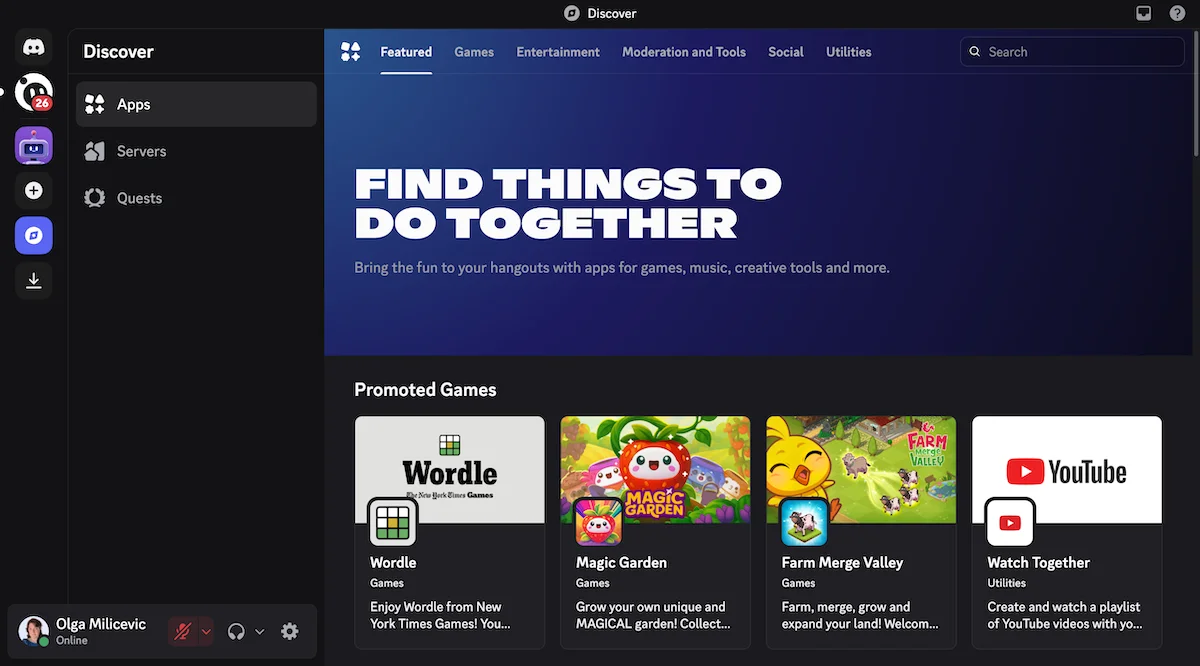
Discover apps in Discord
Still, there are some integrations you could use to set up a functional virtual workspace. You may have even noticed the ones I have in my test server, namely:
- Carl-bot for welcome messages (though I’ve heard the MEE6 bot is similar),
- DailyBot for daily check-ins and boosting team morale, and
- Task Manager (I didn’t get much use out of that one — you’d be better off making a free account on a project management app like Plaky by CAKE.com).
Keep in mind that I had to sift through hundreds of apps to find 3 I could use to test Discord’s potential as a professional chat software. Conversely, if you rely on business messaging apps like Pumble, Slack, or even Twist, you’d be able to choose from a list of integrations that were created with professionals in mind.
Having said that, let’s talk about how I got these bots to work on my Discord server.
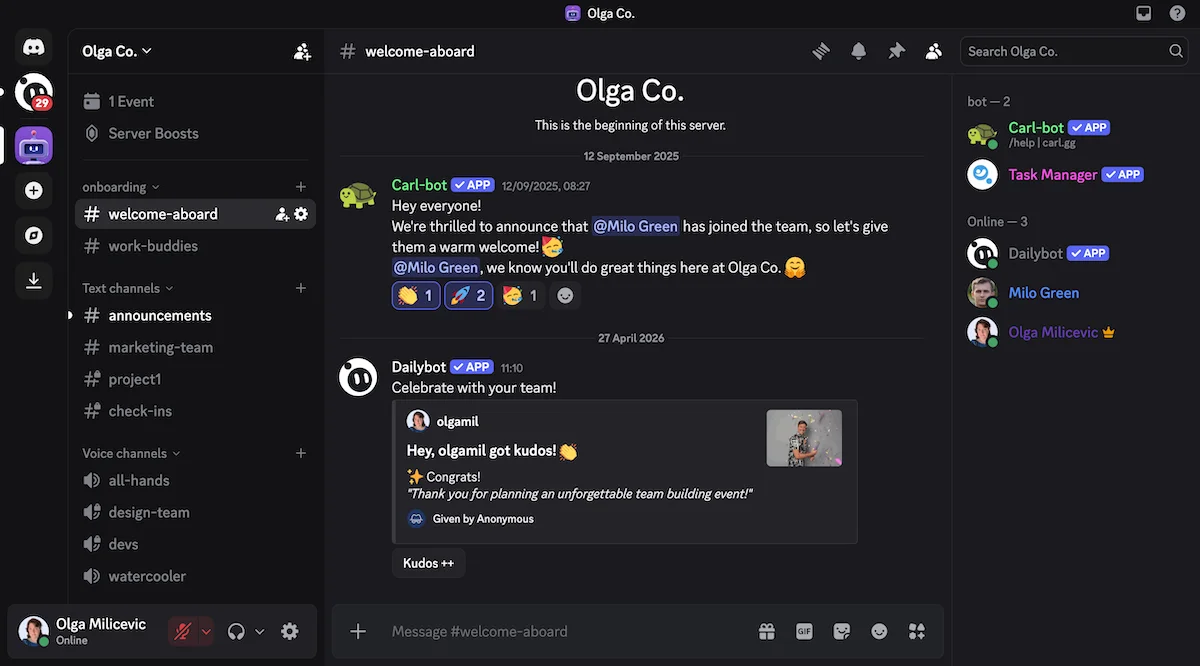
Carl-bot welcomes Milo and Olga receives an anonymous kudos through DailyBot on Discord
As you can see, I used Carl-bot to create custom messages that will be sent to the #welcome-aboard channel as well as new members’ inboxes when they first enter the server.
As for DailyBot, I mostly have it running simple daily check-ins and delivering those reports to the private channel I had set up. However, the app can also be used to send anonymous or public kudos to acknowledge your coworkers or celebrate successes as a team.
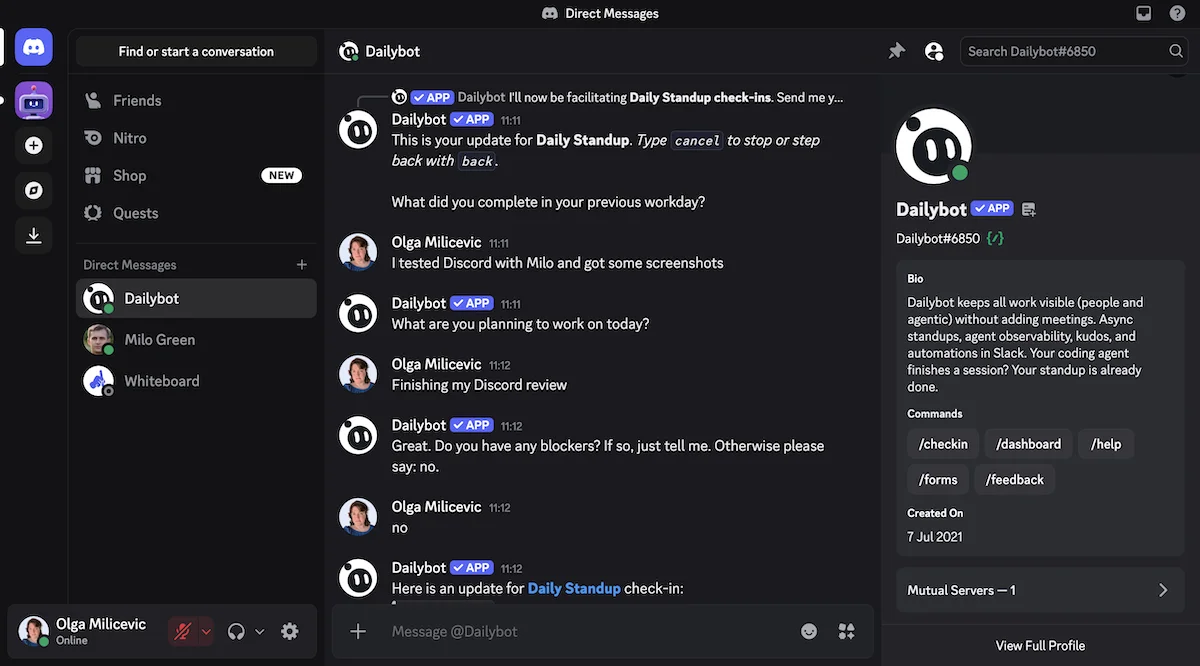
Checking in with DailyBot through direct messages on Discord
Note: your employees will need to separately authorize DailyBot to set their time zone and work start time so the app will know when to check in with them.
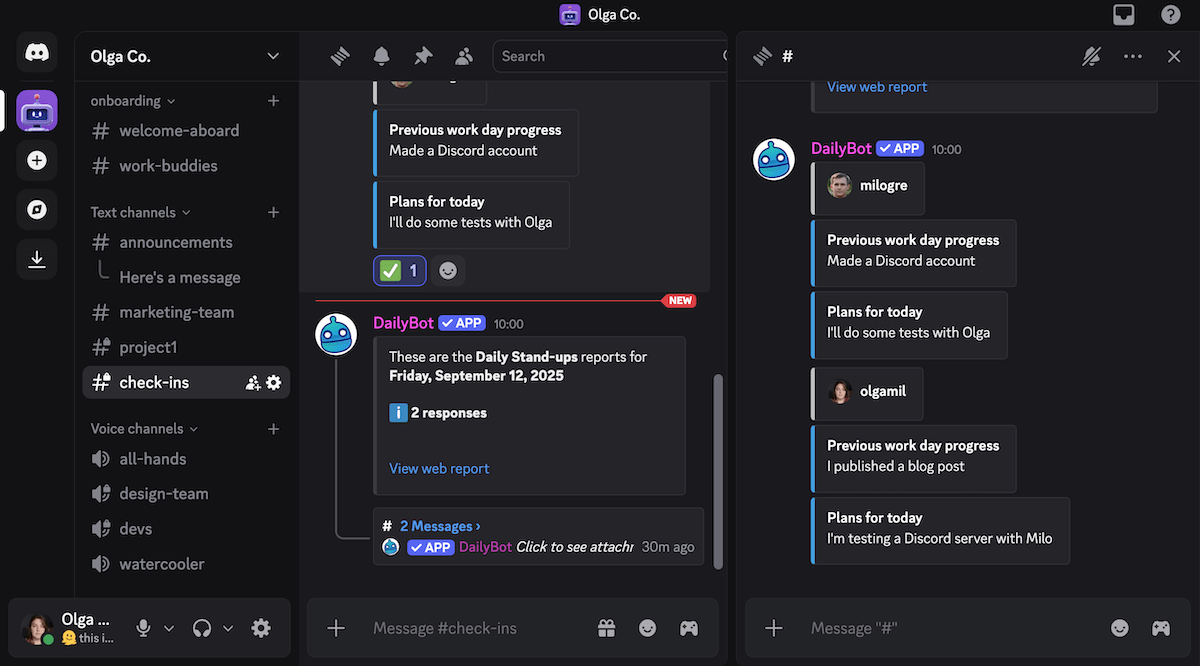
DailyBot’s stand-up report on the check-in channel
Aside from using server integrations, Discord users can also add their personal app connections through their user settings.
Though most of these apps are gaming integrations, some — like Spotify and YouTube — might be useful in professional settings too.
Just hold off on connecting your PayPal to your Discord until we go over the platform’s approach to security and privacy.
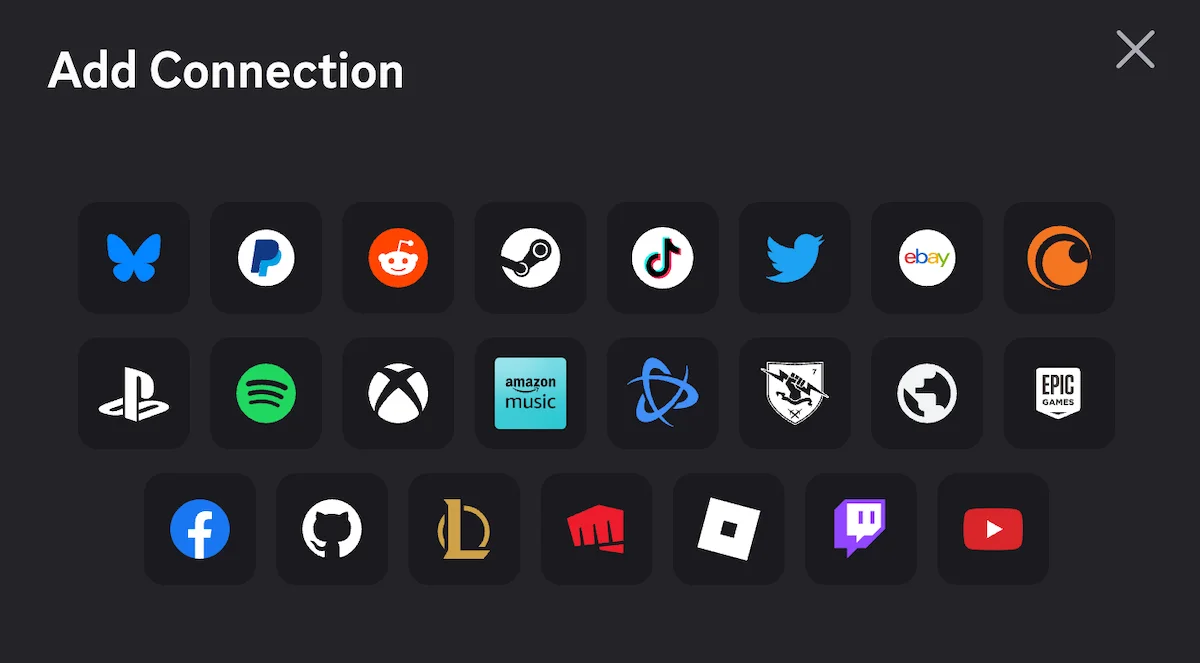
External account connections on Discord

Ease of use & user interface: Discord’s user interface is somewhat intimidating for the average user
I’ll be honest: setting up my virtual workspace on Discord was no easy feat.
The whole process took several days of:
- Making text and voice channels,
- Adjusting the roles and permissions settings, and
- Finding, testing, and tweaking integrations.
As someone who regularly tests different team communication apps, I can’t say that I ever truly wrapped my head around Discord. I often found myself pausing to think before going into my DMs and various other sections of the platform.
That’s not a problem I have with business messaging apps like Pumble and Slack, which tend to follow a similar, simpler template.
Still, if you’re more familiar with this kind of communication platform than you are with professional instant messaging apps, you’ll probably find the process of setting up your server easier than I did.
Having said that, let’s talk about how you can personalize your experience with Discord.
If you want to remain a free user, you’ll have the option to choose between:
- 4 grayscale (white to black) themes,
- 3 user interface density levels, and
- Various text scaling and spacing options.
Free users can also move categories in the sidebar or widen that space to make sure the channel names are legible.
However, if you really want to personalize your UI or your account, you’ll have to pay for Discord Nitro.
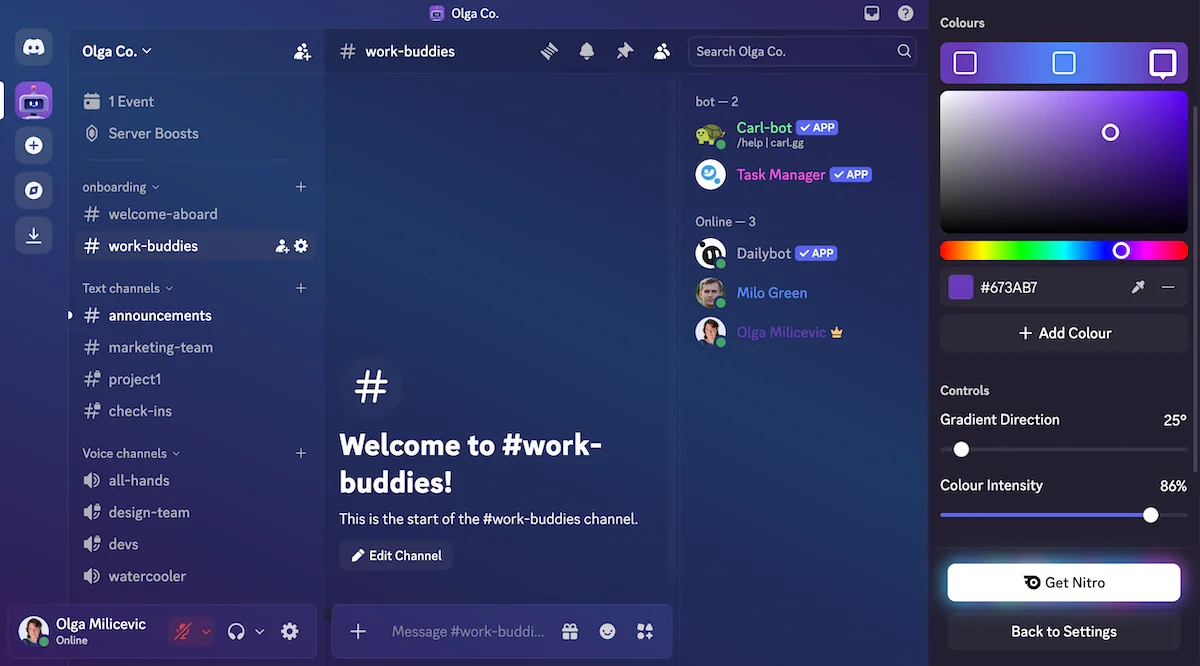
Discord Nitro themes
Though many professional communication apps don’t have quite as many customization options as Discord does, it should be said that not many of them put basic customization like color themes behind a paywall.
Some, like Microsoft Teams, have a pretty limited number of UI customization options to begin with, whether you decide to pay for the app or not. However, many other apps on the market, Pumble included, let you adjust your workspace to your liking for free.
Customize your Pumble workspacePricing & value: Discord’s paid plans don’t add any professional features
Since I already mentioned Nitro in the previous section, let’s briefly go over Discord’s pricing plans.
The platform actually has localized pricing, so these numbers largely depend on your payment method and location.
But, in general, if you want to unlock some new features, you can get:
- Discord Nitro Basic for $2.99 per user per month or $29.99 for a yearly subscription, or
- Discord Nitro for $9.99 per user per month or $99.99 for a yearly subscription.
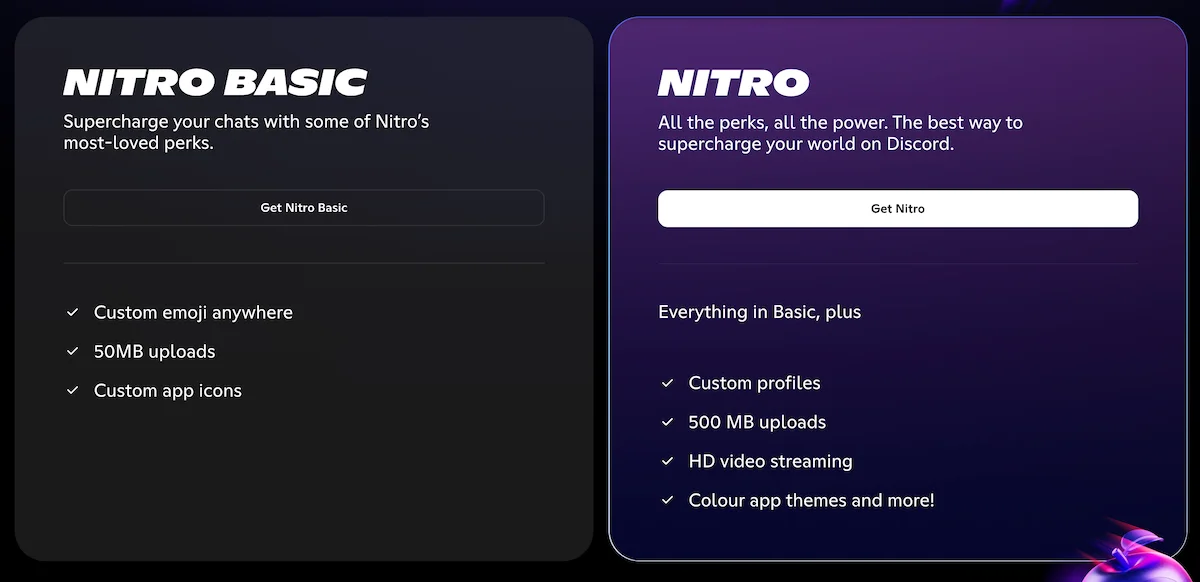
Discord Nitro perks
The additional features you can unlock with Nitro are mostly focused on providing community-building and gaming benefits. So, if you were hoping that upgrading will unlock additional Discord features for work, you’re out of luck.
Still, the expanded file-sharing limit you get in the Nitro plans could make them difficult to pass up even if you’re only using Discord for business communication. But, if that’s your only reason for updating, you could just stick to sharing links to avoid the file sharing limit altogether.
In fact, I should note that these plans only affect your account, not your team member’s accounts. Unlike most professional messaging apps, Discord doesn’t let you have ownership of other user accounts, so if they want these perks, they’ll have to pay for them.
Alternatively, you could use between 2–7 server boosts (at a cost of $4.99 per month per boost) to:
- Expand file-sharing limits,
- Increase the number of emojis and soundboard reactions you can use, and
- Improve image quality for streams.
Aside from these two price tiers, Discord also has in-app purchases like avatar and profile effects. But, these superficial add-ons are hardly necessary if you’re on Discord for work.
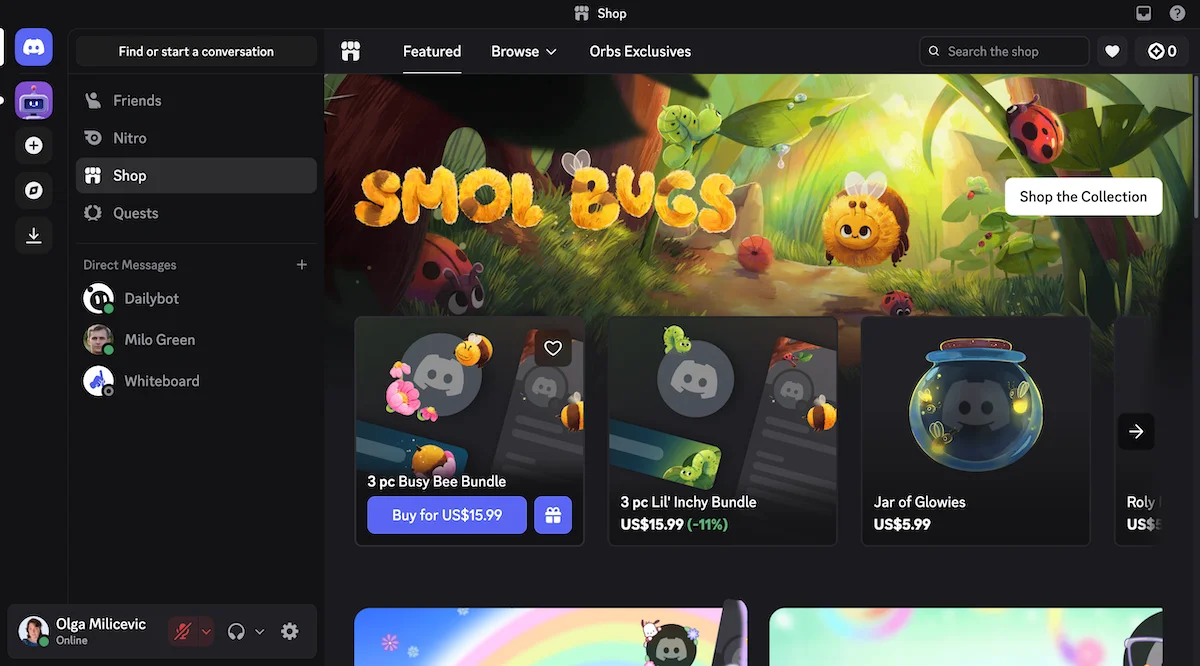
Discord shop
At the end of the day, I don’t think buying any of these perks will add any real benefits to your Discord server.
At least, when you’re paying for a professional communication app like Pumble, you know exactly what’s included in the price.
For example, Pumble’s paid plans offer greater storage capacity and specialized features like guest access accounts. On top of that, premium plans, at least in Pumble’s case, also expand security and support options.
Upgrade your Pumble workspaceSecurity & privacy: Discord’s security certifications and settings
If you’re looking to communicate with your team on a budget, Discord must be looking pretty good right now.
But, here’s the kicker: the platform’s security and privacy options are basically non-existent.
To begin with, Discord doesn’t have any kind of data encryption for text-based communication. Even though the platform recently introduced end-to-end encryption for audio and video calls, it’s still actively monitoring and collecting everything you share on your server.
Yet, despite all that data collection, Discord doesn’t have an easy way to export user channels and messages — leaving you stranded if you ever decide to seek out Discord alternatives.
Even worse, due to the platform’s popularity, Discord is a tempting target for hackers intent on stealing all that collected user data. There have been several data breaches in 2025 alone, with 70,000 user ID photos getting leaked inthe most recent one. Shortly after that leak, Discord landed in hot water again after announcing that it would start requiring users to upload ID documents or submit a face scan for age verification purposes.
Another safety concern is Discord’s new age assurance checks. Starting in the second half of 2026, users won’t be able to access sensitive content or age-restricted servers and channels unless they verify they’re an adult, either by a facial scan or by providing an ID.
Discord says not everyone will need to do this, since it tries to identify adults based on existing account info and activity.
Still, many users are canceling subscriptions, worried their personal data could be exposed — especially after last October, when ID photos of around 70,000 users may have leaked in a breach at a third-party verification firm.
So, what can you do to secure your company’s server and your personal account? Admittedly, not much.
In addition to making sure your server is private, you can also have your team members adjust their personal security settings to:
- Enable password authentication through an authenticator app or a security key,
- Adjust the social permissions for your server to allow DMs from server members,
- Make sure friend requests are limited to server members, and
- Disable the data and privacy toggles (and hope Discord takes the hint).
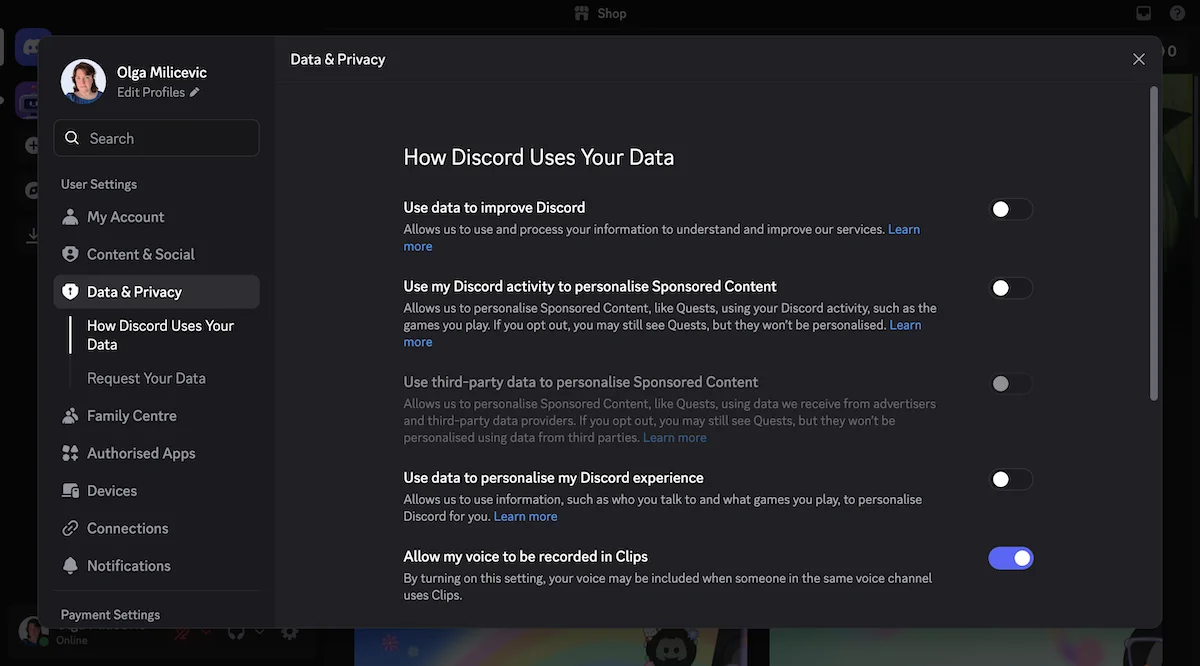
Personal security settings on Discord
However, nothing you do will ever make the messages you share through Discord truly private. So, if you really care about privacy, you’d be much better off using a more secure messaging app like Pumble.

Final verdict: Should you use Discord for business communication?
Now, before we answer the big question of whether Discord is a viable option for team communication, let’s take another look at the platform’s pros and cons.
|
Discord pros |
Discord cons |
|---|---|
|
— Unlimited message history — Always-on voice channels — Free video calls (for up to 25 people) with screen sharing — Decent roles and permissions — Helpful integrations (you just have to find them and set them up) |
— The whimsical nature of the platform makes it difficult to keep things professional — Terminated employees keep access to their DMs after leaving the server — No message scheduling, reminders, or meeting recording features — Lacks professional integrations like Google Workspace add-ons — 10 MB file sharing limit (or 50/500 MB if you pay for Nitro) — Paying for Discord Nitro doesn’t give you more professional features — Concerning lack of security and privacy (and yet, no way to export your data) |
Ultimately, even though Discord has a truly impressive free plan, there are a few things that would keep me from using it as a long-term professional communication solution.
On its own, the platform’s confusing interface isn’t really a dealbreaker. Still, if I needed some color in my work communication, I suppose I would consider buying Nitro, which would also solve that pesky file-sharing limit. Yet, other than unlocking those 2 features, Nitro doesn’t really deliver any additional functionality.
Then again, other than unlocking those 2 features, Nitro doesn’t really deliver any additional functionality.
But, as far as I’m concerned, the final nail in the coffin comes in the form of Discord’s lackluster approach to security and privacy.
So, is Discord good for work communication?
If you’re asking me, I’d advise you to keep business and pleasure separate, and place Discord firmly in the latter category.
For professional communication, you should look for a free Discord alternative that has everything you like about Discord without skimping on business-grade communication and security features.
Having said that, let’s take a look at how a communication app that was created for professional use compares to Discord.
Discord vs Pumble: Can Pumble replace Discord for a small business?
Now that you know how to set up a professional environment on Discord (and why you probably shouldn’t do that), let’s see what makes an app like Pumble a better business communication solution for your team.
If you already had your heart set on using Discord, you should know that Pumble has many of the same features, including:
- Unlimited users and unlimited message history even in the free plan,
- Organized communication with channels, threads, and DMs,
- The ability to pin, save, or search for messages and files, and
- High-quality voice and video conferencing with up to 100 people for BUSINESS and ENTERPRISE users.
Besides, if you’re hoping to achieve a semblance of professionalism on your communication platform, you might want to consider using one that doesn’t have game suggestions built into every feature.
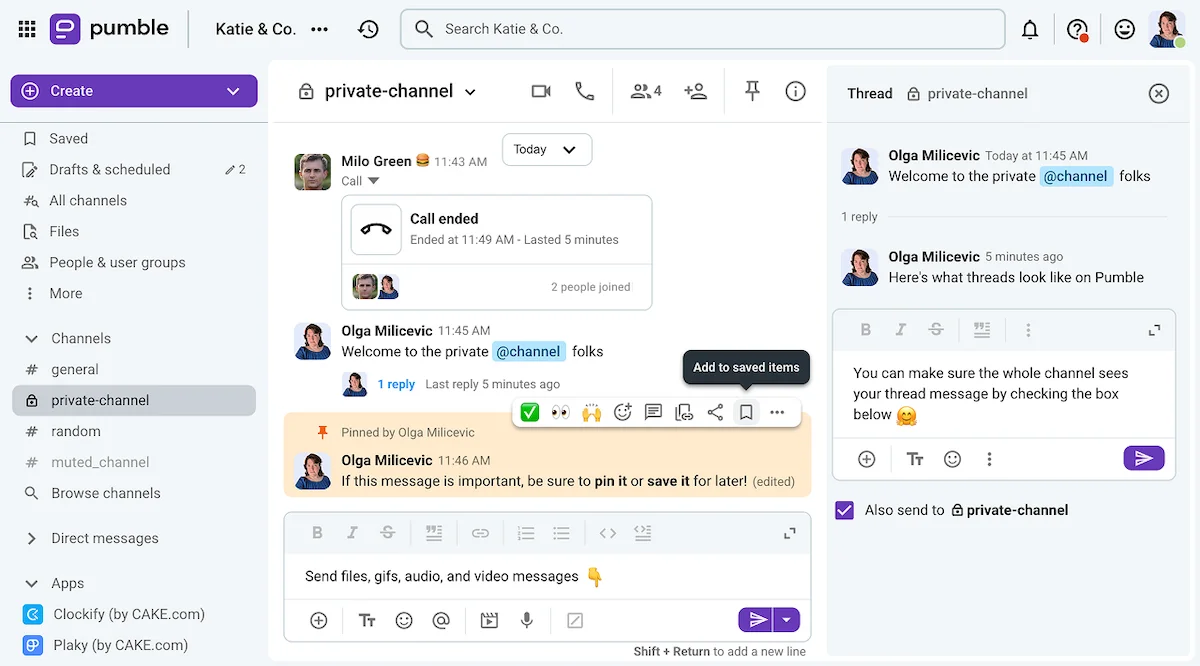
The team communication app, Pumble, has all the features you’ll need
And, that’s not the only thing that makes Pumble the ultimate communication solution for teams.
With that in mind, let’s see some features that set it apart from Discord.
|
Discord |
Pumble |
|---|---|
|
— Confusing, gamer-centric UI — Up to 500 channels — 10 MB file sharing limit — Confusing search interface — Up to 25 users in video calls — Manual status and notification customization — Community based roles and permissions — Gamer-first integrations — Color themes for paying users only — Abysmal security features, no end-to-end encryption |
— Professional UI requiring minimal training — Unlimited channels — 512 MB file sharing limit (on web and desktop apps) — User-friendly search interface — Up to 100 people in video calls (with screen sharing and meeting recording) — Advanced notification schedule customization — Professional roles, permissions, and user groups — Integrations for collaboration and organization — Color themes for free users — Data encryption at rest and in transit, SOC 2 certified |
So, if you’re looking for Discord alternatives — platforms that offer most, if not all, of the features Discord has — Pumble should certainly be at the top of your list.
It may not have every feature Discord offers (namely, the voice channels), but its free plan can certainly support your team until you’re ready to upgrade to a paid plan for more administrative features.
Boost your team communication with a professional collaboration tool.
Try Pumble nowPumble also comes as part of CAKE.com’s Productivity Bundle, which includes 3 apps: Pumble (team communication), Plaky (project management), and Clockify (time tracking) for $12.99 per user per month.

